Search Results: "Vasudev Kamath"

16 August 2026

Vasudev Kamath: Releasing debvulns-exporter and debvulns CLI 0.2.2

I made another minor release with several enhancements: handling non-Debian origin vulnerabilities, improving data caching, and sharing the cache between the debvulns CLI and the exporter. Additionally, there are a few improvements on the dashboard front. Here is a breakdown of what changed.
Handling Vulnerabilities in Non-Debian Origin Packages During the previous release, I noticed that the grafana package which is not in Debian and was installed via an upstream repository was reported as vulnerable with multiple issues. Looking into why this happened, I found that all the CVEs reported in the dashboard were indeed listed on security-tracker.debian.org, but without a fixed version or status description. The logic assumed no fix was available and marked the package as vulnerable on the dashboard.
How Did I Solve This? Google maintains a distributed vulnerability database for open-source projects called osv.dev. I checked the generic vulnerability data for those CVEs on OSV (unbound to any specific distribution) and found that the issues were already fixed in the upstream version I was running. What I needed was a way to differentiate native Debian packages from non-Debian packages, which corresponds to the Origin field in APT metadata.
Pitfall The AI-generated code initially attempted to differentiate package origin using apt_pkg.PackageRecords and its origin field. However, many native Debian packages were incorrectly flagged as non-Debian. On closer inspection, when an upgrade is available for a package, the installed version's origin field can be unset. I had to resolve this by detecting available upgrades and inspecting the candidate version's origin instead, which was implemented in this patch. This solution was proudly crafted by me ;-) (partly because I ran out of API limits and had to wait 6 hours for the next reset).
Caching OSV Data Initially, the AI implemented the exporter to re-download the entire OSV dataset on every run, which was unnecessary. Since vulnerability data does not change rapidly once published, caching it on disk for longer than the standard 24-hour Debian/EPSS cache makes sense. OSV vulnerability data is now cached for 7 days before a refresh is triggered. All cache expiration thresholds remain configurable via CLI flags.
Catch One caveat with this approach: I have not yet verified whether every upstream CVE is tracked on security-tracker.debian.org. In the case of grafana, the entries existed. This feature operates on the assumption that security-tracker.debian.org indexes CVE metadata regardless of whether the package is native to Debian. I plan to re-evaluate this and add fallback handling if that assumption fails.
Unified Cache Directory for CLI and Exporter Another issue was cache segregation: the debvulns CLI utility defaulted to /var/cache/debvulns, while the Prometheus exporter used /var/cache/debvulns-exporter. While harmless when running only one tool, installing both led to duplicated cache storage and redundant network requests. Since the core evaluation logic is identical across both tools, they now share a unified cache directory to eliminate duplicate downloads.
Dashboard Changes During the initial dashboard rollout, my test environment (my laptop alongside Debian 11 and Debian 12 VMs) reported a high aggregated vulnerability count. It was not immediately obvious whether these were distinct vulnerabilities or the same CVEs replicated across all three machines. This mirrors common questions raised during vulnerability reviews:
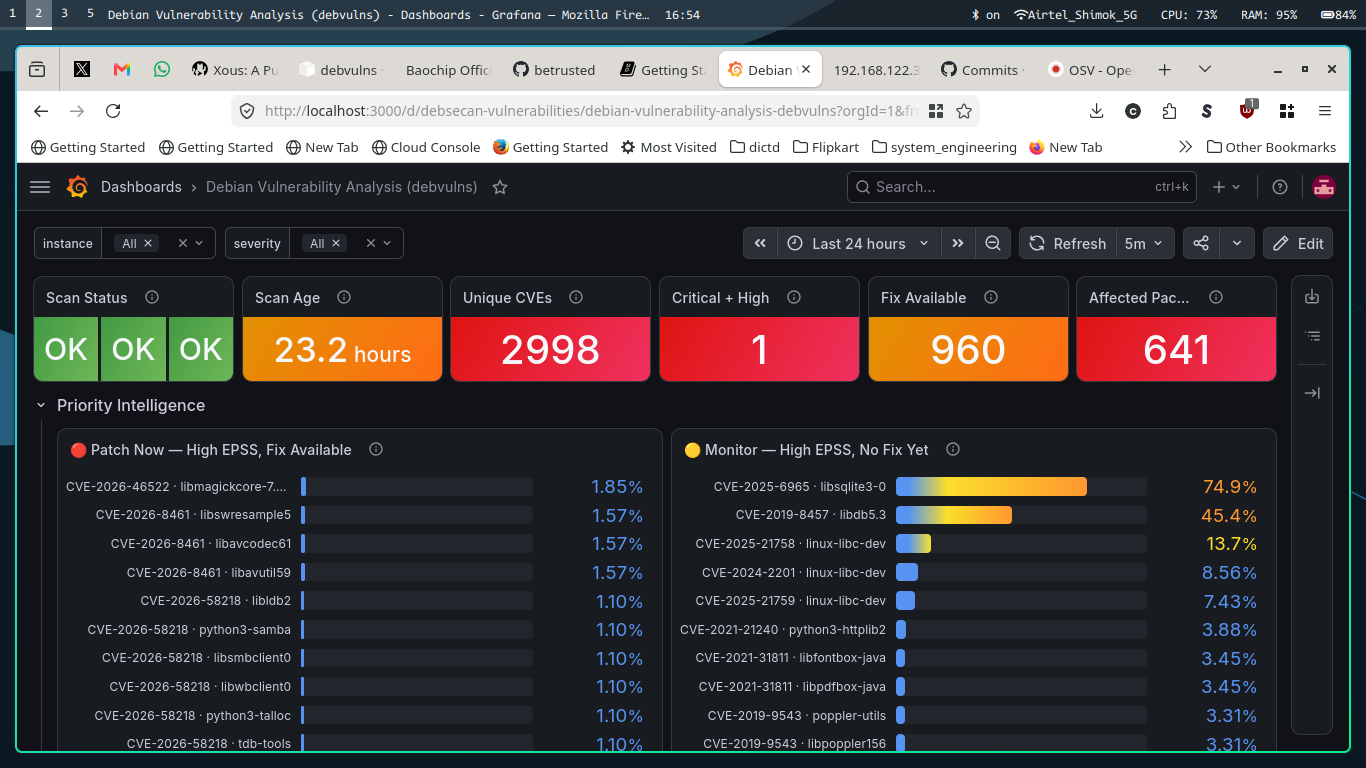
  • How many unique vulnerabilities are present across the fleet?
  • Which unique packages are affected?
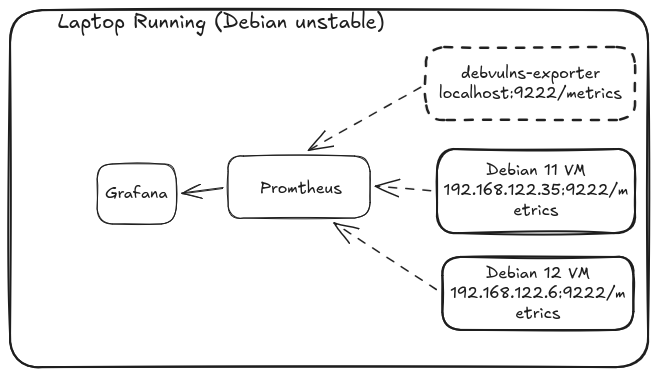
The dashboard has been redesigned to surface unique vulnerability counts alongside affected package lists. The updated dashboard is shown below:
What's Next? A few planned items remain to make debvulns a comprehensive vulnerability reporting toolkit for Debian systems:
  1. Kernel Vulnerability Handling: Currently, installing a patched kernel marks the vulnerability as resolved, even if the system has not rebooted into it. The system remains exposed while the vulnerable kernel is executing in memory. Factoring in running kernel versions is crucial.
  2. Reboot and Service Restart Tracking: Similar to kernel upgrades requiring a reboot, userland library and binary fixes require running services to be restarted. This is typically detected via needrestart. Integrating this behavior directly into debvulns will provide complete visibility in a single dashboard metric.
  3. Debian Packaging: Once the above features are stable, the final step is packaging debvulns for Debian so it can be installed directly from the archive.
Until then, happy hacking.

21 July 2026

Vasudev Kamath: Releasing debvulns-exporter: Prometheus exporter for Debian System Vulnerabilities

Following up on my previous post, I am releasing debvulns-exporter, a Prometheus exporter for tracking Debian system vulnerabilities. The underlying vulnerability analysis logic remains identical to the previously released MCP server and CLI utility.
Why an Exporter? In my engineering workflows, I frequently deal with Debian and vulnerability management. Most enterprise environments rely on commercial, paid vulnerability platforms like Tenable or Rapid7. While these platforms provide extensive feature sets, I noticed a distinct lack of open-source tools tailored for this specific pipeline. While debsecan exists, it lacks a structured, parseable format suitable for building dashboards aimed at management consumption. What started as an experimental MCP server for learning purposes evolved into a practical question: why not convert it into a Prometheus exporter? Given that Prometheus is the de facto standard metrics platform across the industry, this architecture was the logical next step.
Design and Exported Metrics The exporter is implemented as a native Prometheus exporter utilizing the prometheus-client library. It operates using two threads: one handles fetching the vulnerability data, parsing EPSS feeds, and cross-referencing installed packages to identify local vulnerabilities; the second handles serving the metrics endpoint. The full architecture details and metrics specifications can be found in the design doc. The specification was drafted during a technical brainstorming session with Claude 4.6 Sonnet on Antigravity prior to writing the implementation.
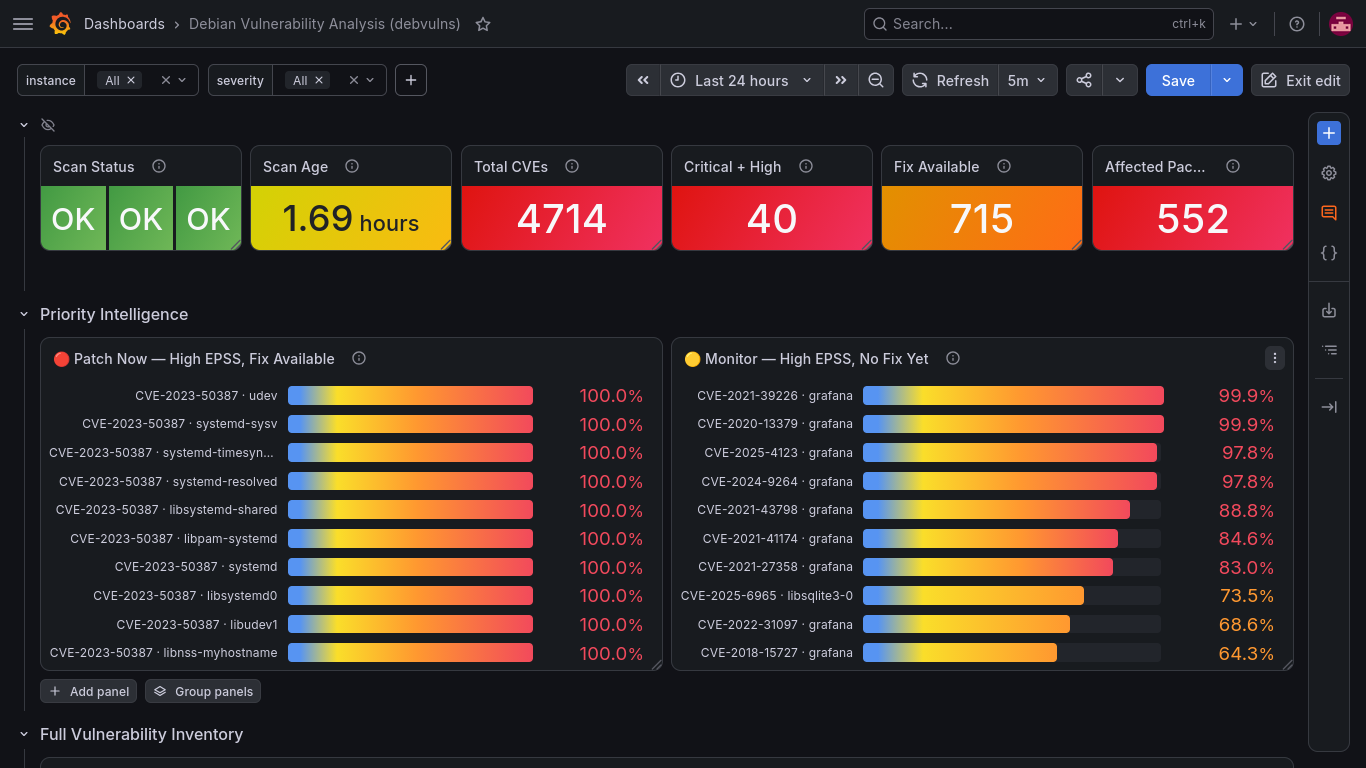
Testing and Dashboarding To validate the exporter, I spun up older Debian 11 and Debian 12 cloud images sourced from the Debian Cloud team. The older image was intentionally selected to guarantee a standard baseline of unpatched vulnerabilities for testing. The local evaluation topology is structured as shown below: Rather than constructing the Grafana dashboard from scratch, I used Claude 4.6 Sonnet via Antigravity to generate the layout configuration. The generated dashboard for the local testbed functions effectively: The complete, ready-to-import Grafana dashboard configuration is included directly in the debvulns source code.

Renaming the project To prevent namespace conflicts and confusion with the native debsecan utility in Debian, I have unified the ecosystem under the debvulns moniker. The core CLI is named debvulns, the exporter is debvulns-exporter, and the MCP component is debvulns-mcp. The migration release has been published to PyPI, and the new consolidated repository is active at debvulns.
Conclusion While this began as a personal utility to fill a niche tool gap, I expect it will be useful for others managing Debian infrastructure at scale. My next objective is to formalize Debian packaging for both the CLI and the exporter. The MCP component will likely remain available as an independent artifact. Until then, happy hacking. Note: As a core design choice, debvulns still uses native debsecan as its ground-truth standard. The tool continuously cross-verifies its output against debsecan to ensure perfect functional parity and data consistency.

21 June 2026

Vasudev Kamath: Releasing debvulns: CLI for listing Debian vulnerabilities

Following up on my previous post, I have released the debvulns CLI. This utility uses the same parsing logic as the debsecan-mcp server but exposes the functionality directly via the command line.
Why a new CLI? While Debian's native debsecan utility exists, it lacks modern output formats like JSON and CSV, and fails to expose a significant amount of metadata available in the Debian Security Team's daily snapshot. Additionally, running a persistent Model Context Protocol (MCP) server introduces context window overhead. The manifests and tool descriptions required by the protocol consume tokens even when idle. For debsecan-mcp, the MCP Inspector utility shows an overhead of roughly 150 tokens. By contrast, an LLM can parse a standard CLI help menu on-demand without permanently draining the context window. Integrating the CLI into a persistent agent workflow can be achieved via a skill file, allowing the LLM to leverage the tool without repeated discovery overhead.
What else is NEW? During testing, I observed discrepancies between the output of debsecan-mcp/debvulns and native debsecan. Debugging with an LLM revealed a bug in the version comparison logic that caused debvulns to underreport vulnerabilities. This has been resolved. The current interface supports structured formatting and customizable data backends:
usage: debvulns [-h] [-s  critical,high,medium,low,negligible ] [-f  json,csv ] [--sort-by  package,cve ] [--vuln-url VULN_URL] [--epss-url EPSS_URL] [--suite SUITE]
                [--cache-dir CACHE_DIR] [--no-cache] [-v]
debvulns - CLI Debian Vulnerabilities Tracker
options:
    -h, --help            show this help message and exit
    -s, --severity  critical,high,medium,low,negligible 
                          Filter vulnerabilities by severity
    -f, --format  json,csv 
                          Output format (default: json)
    -sort-by  package,cve 
                          Sort vulnerabilities by 'package' or 'cve'
    --vuln-url VULN_URL   Custom URL or local path for Debian Security Tracker data
    --epss-url EPSS_URL   Custom URL or local path for EPSS scores data
    --suite SUITE         Debian suite name (e.g. bookworm, sid). Auto-detected by default.
    --cache-dir CACHE_DIR
                          Directory to cache fetched and parsed data (default: /var/cache/debvulns)
    --no-cache            Do not use cached data, force downloading and parsing
    -v, --verbose         Enable verbose debug logging (sent to stderr)
By allowing users to override data sources with local snapshots of the Debian Security Tracker and EPSS feeds, debvulns can run natively in airgapped environments.
What Next? The next step is building a Prometheus exporter for this vulnerability data to streamline scanning and monitoring across data center infrastructure. Stay tuned.

7 June 2026

Vasudev Kamath: debsecan-mcp v0.1.2 released to PyPI

I finally carved out some time today to prepare and release debsecan-mcp v0.1.2 to PyPI. During this release, I integrated PyPI's trusted publisher mechanism, which authenticates directly via GitHub Actions and eliminates the need for manual uploads or static API tokens.
What is New? There are no feature updates in this release; the changes are strictly focused on PyPI publishing requirements. This was handled entirely within the Antigravity IDE. The primary change replaces the python-apt dependency with python-debian for version comparison. PyPI rejects packages that reference external Git repositories, and python-apt lacks an official PyPI release. The original python-apt logic remains intact: if the system has python-apt installed, the server defaults to it. Otherwise, it falls back to the comparison logic implemented via the python-debian NativeVersion class.
What Next? The next release will introduce a standalone CLI utility called debvulns. It mirrors debsecan functionality but surfaces the cleaner, richer vulnerability data already implemented in debsecan-mcp. The code is written, and I will release it once testing is complete. I also owe a post explaining my rationale for designing a CLI utility alongside the MCP server, and my broader thoughts on CLI vs. MCP workflows. I aim to publish that next week.

12 April 2026

Vasudev Kamath: Hardening the Unpacakgeable: A systemd-run Sandbox for Third-Party Binaries

The Shift in Software Consumption Historically, I have been a "distribution-first" user. Sticking to tools packaged within the Debian archives provides a layer of trust; maintainers validate licenses, audit code, and ensure the entire dependency chain is verified. However, the rapid pace of development in the Generative AI space specifically with new tools like Gemini-CLI has made this traditional approach difficult to sustain. Many modern CLI tools are built within the npm or Python ecosystems. For a distribution packager, these are a nightmare; packaging a single tool often requires packaging a massive, shifting dependency chain. Consequently, I found myself forced to use third-party binaries, bypassing the safety of the Debian archive.
The Supply Chain Risk Recent supply chain attacks affecting widely used packages like axios and LiteLLM have made it clear: running unvetted binaries on a personal system is a significant risk. These scripts often have full access to your $HOME directory, SSH keys, and the system D-Bus. After discussing these concerns with a colleague, I was inspired by his approach using a Flatpak-style sandbox for even basic applications like Google Chrome. I decided to build a generalized version of this using OpenCode and Qwen 3.6 Fast (which was available for free use at the time) to create a robust, transient sandbox utility.
The Solution: safe-run-binary My script, safe-run-binary, leverages systemd-run to execute binaries within an isolated scope. It implements strict filesystem masking and resource control to ensure that even if a dependency is compromised, the "blast radius" is contained.
Key Technical Features
1. Virtualized Home Directory (tmpfs)
Instead of exposing my real home directory, the script mounts a tmpfs over $HOME. It then selectively creates and bind-mounts only the necessary subdirectories (like .cache or .config) into a virtual structure. This prevents the application from ever "seeing" sensitive files like ~/.ssh or ~/.gnupg.
2. D-Bus Isolation via xdg-dbus-proxy
For GUI applications, providing raw access to the D-Bus is a security hole. The script uses xdg-dbus-proxy to sit between the application and the system bus. By using the --filter and --talk=org.freedesktop.portal.* flags, the app can only communicate with necessary portals (like the file picker) rather than sniffing the entire bus.
3. Linux Namespace Restrictions

The sandbox utilizes several systemd execution properties to harden the process:

  • RestrictNamespaces=yes: For CLI tools, this prevents the app from creating its own nested namespaces.
  • PrivateTmp=yes: Ensures a private /tmp space that isn't shared with the host.
  • NoNewPrivileges=yes: Prevents the binary from gaining elevated permissions through SUID/SGID bits.
4. GPU and Audio Passthrough
The script intelligently detects and binds Wayland, PipeWire, and NVIDIA/DRI device nodes. This allows browsers like Firefox to run with full hardware acceleration and audio support while remaining locked out of the rest of the filesystem.
Usage To run a CLI tool like Gemini-CLI with access only to a specific directory:
safe-run-binary -b ~/.gemini-config -- npx @google/gemini-cli
For a GUI application like Firefox:
safe-run-binary --gui -b ~/.mozilla -b ~/.cache/mozilla -b ~/Downloads -- firefox
Conclusion While it is not always possible to escape the need for third-party software, it is possible to control the environment in which it operates. By leveraging native Linux primitives like systemd and namespaces, high-grade isolation is achievable. PS: If you spot any issues or have suggestions for improving the script, feel free to raise a PR on the repo.

15 March 2026

Vasudev Kamath: Using Gemini CLI to Configure the Hyprland Window Manager

What led to this experiment? Well, for one, Well, for one, there was a thought shared by Andrej Karpathy regarding the shift towards "Agentic" workflows.
"The future of software is not just 'tools', but 'agents' that can navigate complex tasks on your behalf."

Andrej Karpathy

Recently, I spoke with Ritesh, who mentioned his success using the Gemini CLI to debug an idle power drain issue on his laptop. I wanted to experiment with this myself, and I had the perfect use case: configuring the Hyprland Window Manager on my aging laptop. The machine is nearly eight years old with 12GB of RAM (upgraded from the original 4GB). I found that GNOME and KDE were becoming overkill, often leading to system freezes when running multiple AI-powered IDEs like Antigravity and VS Code with Co-pilot. Coincidentally, I noticed my Jio number had a "Google One 2TB" and "Google AI Premium" plan available to claim. I claimed it, and now here I am, experimenting with the Gemini CLI.
Getting Started First, you need to install geminicli. It is an open-source project, and currently, the easiest way to install it is via the Node Package Manager (npm):
npm install -g @google/gemini-cli
Next, we need to create a context for Gemini a set of instructions for it to follow throughout the project. This is managed via a GEMINI.md file. I went to Google Gemini, explained my requirements, and asked it to generate one for me. My requirements were:
  1. A minimalist but fully functional session, comparable to my existing GNOME setup.
  2. Basic functionalities including wallpaper, screen locks, and a status bar with system icons.
  3. Swapping Control and Caps Lock (a must for Emacs users).
  4. Mandatory permission prompts for privileged operations; otherwise, it can work freely within a specified directory.
  5. Persistent memory/artifacts for the session.
  6. Permission to inspect my current session to understand the existing hardware and software configuration.
The goal was to reduce bloat and reclaim memory for heavy applications like Antigravity and VS Code. Gemini provided the following GEMINI.md file:
# Role: Hyprland Configuration Specialist (Minimalist & High-Performance)
You are a Linux Systems Engineer specializing in migrating users from heavy
Desktop Environments to minimalist, tiling-based Wayland sessions on Debian.
Your goal is to maximize available RAM for heavy applications while maintaining
essential desktop features.
## 1. Environment & Persona
- **Target OS:** Debian (Linux)
- **Target WM:** Hyprland
- **Hardware:** ThinkPad E470 (i5-7th Gen, 12GB RAM)
- **User Profile:** Emacs user, prioritizes "anti-gravity" (zero bloat).
- **Tone:** Technical, concise, and security-conscious.
## 2. Core Functional Requirements
- **Status Bar:**  waybar  (with CPU, RAM, Network, and Battery icons).
- **Wallpaper:**  swww  or  hyprpaper .
- **Screen Lock:**  hyprlock  +  hypridle .
- **Input Mapping:** Swap Control and Caps Lock ( kb_options = ctrl:nocaps ).
## 3. Operational Constraints
- **Permission First:** Ask before using  sudo  or writing outside the work directory.
- **Inspection:** Use  hyprctl ,  lsmod , or  gsettings  for compatibility checks.
- **Artifact Management:** Update  MEMORY.md  after every major step.
Gemini also recommended creating a MEMORY.md file to track progress. Interestingly, Gemini remembered that I had previously shared dmidecode output, so it already knew my exact laptop specs. (Though it did include a note about me being a "daily rice eater" I assume it meant Linux 'ricing,' though I actually use Debian Unstable, not Stable!). The AI suggested starting with this prompt:
Read MEMORY.md and GEMINI.md. Based on my hardware, give me a shell script to inspect my current GNOME environment so we can start replicating the session basics.
How Did It Go? I initialized a git repository for these files and instructed the Gemini CLI to update GEMINI.md and commit changes after every major step so I could track the progress. The workflow looked like this:
  1. Inspection: It created a script to extract my GNOME settings.
  2. Configuration: Once I provided the output, it began configuring Hyprland.
  3. Utilities: It generated an installation script for all required Wayland utilities.
  4. Validation: All changes were staged in a hypr-config-draft folder. I had Gemini verify them using hyprland --verify-config before moving them to ~/.config/hypr.
Most things worked immediately, but I hit a snag with the wallpaper. Even after generating the config, hyprpaper failed to display anything. The AI got stuck in a loop trying to debug it. I eventually spawned a second Gemini CLI instance to review the code and logs. The debug log showed: 'DEBUG ]: Monitor eDP-1 has no target: no wp will be created'. It turns out the configuration format was outdated. By feeding the Hyprpaper Wiki into the AI, it finally corrected the config, and the wallpaper appeared. After that, it successfully fixed an ssh-agent issue and configured a clipboard manager with custom keybindings.
Learnings I have used window managers for a long time because my hardware was rarely top-of-the-line. However, I had moved back to KDE/GNOME with the arrival of Wayland because most of my preferred WMs were X11-based. Manually configuring a window manager is a painful, time-consuming process involving endless wiki-trawling and trial-and-error. What usually takes weeks took only a few hours with the Gemini CLI. AI isn't perfect I still had to step in and guide it when it hit a wall but the efficiency gain is undeniable. If you're interested in the configuration or the history of the session, you can find the repository here. I still have a few pending items in MEMORY.md, but I'll tackle those next time!

21 February 2026

Vasudev Kamath: Learning Notes: Debsecan MCP Server

Since Generative AI is currently the most popular topic, I wanted to get my hands dirty and learn something new. I was learning about the Model Context Protocol at the time and wanted to apply it to build something simple.
Idea On Debian systems, we use debsecan to find vulnerabilities. However, the tool currently provides a simple list of vulnerabilities and packages with no indication of the system's security posture meaning no criticality information is exposed and no executive summary is provided regarding what needs to be fixed. Of course, one can simply run the following to install existing fixes and be done with it:
apt-get install $(debsecan --suite sid --format packages --only-fixed)
But this is not how things work in corporate environments; you need to provide a report showing the system's previous state and the actions taken to bring it to a safe state. It is all about metrics and reports. My goal was to use debsecan to generate a list of vulnerabilities, find more detailed information on them, and prioritize them as critical, high, medium, or low. By providing this information to an AI, I could ask it to generate an executive summary report detailing what needs to be addressed immediately and the overall security posture of the system.
Initial Take My initial thought was to use an existing LLM, either self-hosted or a cloud-based LLM like Gemini (which provides an API with generous limits via AI Studio). I designed functions to output the list of vulnerabilities on the system and provide detailed information on each. The idea was to use these as "tools" for the LLM.
Learnings
  1. I learned about open-source LLMs using Ollama, which allows you to download and use models on your laptop.
  2. I used Llama 3.1, Llama 3.2, and Granite 4 on my laptop without a GPU. I managed to run my experiments, even though they were time-consuming and occasionally caused my laptop to crash.
  3. I learned about Pydantic and how to use it to parse custom JSON schemas with minimal effort.
  4. I learned about osv.dev, an open-source initiative by Google that aggregates vulnerability information from various sources and provides data in a well-documented JSON schema format.
  5. I learned about the EPSS (Exploit Prediction Scoring System) and how it is used alongside static CVSS scoring to detect truly critical vulnerabilities. The EPSS score provides an idea of the probability of a vulnerability being exploited in the wild based on actual real-world attacks.
These experiments led to a collection of notebooks. One key takeaway was that when defining tools, I cannot simply output massive amounts of text because it consumes tokens and increases costs for paid models (though it is fine for local models using your own hardware and energy). Self-hosted models require significant prompting to produce proper output, which helped me understand the real-world application of prompt engineering.
Change of Plans Despite extensive experimentation, I felt I was nowhere close to a full implementation. While using a Gemini learning tool to study MCP, it suddenly occurred to me: why not write the entire thing as an MCP server? This would save me from implementing the agent side and allow me to hook it into any IDE-based LLM.
Design This MCP server is primarily a mix of a "tool" (which executes on the server machine to identify installed packages and their vulnerabilities) and a "resource" (which exposes read-only information for a specific CVE ID). The MCP exposes two tools:
  1. List Vulnerabilities: This tool identifies vulnerabilities in the packages installed on the system, categorizes them using CVE and EPSS scores, and provides a dictionary of critical, high, medium, and low vulnerabilities.
  2. Research Vulnerabilities: Based on the user prompt, the LLM can identify relevant vulnerabilities and pass them to this function to retrieve details such as whether a fix is available, the fixed version, and criticality.
Vibe Coding "Vibe coding" is the latest trend, with many claiming that software engineering jobs are a thing of the past. Without going into too much detail, I decided to give it a try. While this is not my first "vibe coded" project (I have done this previously at work using corporate tools), it is my first attempt to vibe code a hobby/learning project. I chose Antigravity because it seemed to be the only editor providing a sufficient amount of free tokens. For every vibe coding project, I spend time thinking about the barebones skeleton: the modules, function return values, and data structures. This allows me to maintain control over the LLM-generated code so it doesn't become overly complicated or incomprehensible. As a first step, I wrote down my initial design in a requirements document. In that document, I explicitly called for using debsecan as the model for various components. Additionally, I asked the AI to reference my specific code for the EPSS logic. The reasons were:
  1. debsecan already solves the core problem; I am simply rebuilding it. debsecan uses a single file generated by the Debian Security team containing all necessary information, which prevents us from needing multiple external sources.
  2. This provides the flexibility to categorize vulnerabilities within the listing tool itself since all required information is readily available, unlike my original notebook-based design.
I initially used Gemini 3 Flash as the model because I was concerned about exceeding my free limits.
Hiccups Although it initially seemed successful, I soon noticed discrepancies between the local debsecan outputs and the outputs generated by the tools. I asked the AI to fix this, but after two attempts, it still could not match the outputs. I realized it was writing its own version-comparison logic and failing significantly. Finally, I instructed it to depend entirely on the python-apt module for version comparison; since it is not on PyPI, I asked it to pull directly from the Git source. This solved some issues, but the problem persisted. By then, my weekly quota was exhausted, and I stopped debugging. A week later, I resumed debugging with the Claude 3.5 Sonnet model. Within 20-25 minutes, it found the fix, which involved four lines of changes in the parsing logic. However, I ran out of limits again before I could proceed further. In the requirements, I specified that the list vulnerabilities tool should only provide a dictionary of CVE IDs divided by severity. However, the AI instead provided full text for all vulnerability details, resulting in excessive data including negligible vulnerabilities being sent to the LLM. Consequently, it never called the research vulnerabilities tool. Since I had run out of limits, I manually fixed this in a follow-up commit.
How to Use I have published the current work in the debsecan-mcp repository. I have used the same license as the original debsecan. I am not entirely sure how to interpret licenses for vibe-coded projects, but here we are. To use this, you need to install the tool in a virtual environment and configure your IDE to use the MCP. Here is how I set it up for Visual Studio Code:
  1. Follow the guide from the VS Code documentation regarding adding an MCP server.
  2. My global mcp.json looks like this:
 
  "servers":  
      "debsecan-mcp":  
          "command": "uv",
              "args": [
                  "--directory",
                  "/home/vasudev/Documents/personal/FOSS/debsecan-mcp/debsecan-mcp",
                  "run",
                  "debsecan-mcp"
              ]
           
   ,
  "inputs": []
 
  1. I am running it directly from my local codebase using a virtualenv created with uv. You may need to tweak the path based on your installation.
  2. To use the MCP server in the Copilot chat window, reference it using #debsecan-mcp. The LLM will then use the server for the query.
  3. Use a prompt like: "Give an executive summary of the system security status and immediate actions to be taken."
  4. You can observe the LLM using list_vulnerabilities followed by research_cves. Because the first tool only provides CVE IDs based on severity, the LLM is smart enough to research only high and critical vulnerabilities, thereby saving tokens.
What's Next? This MCP is not yet perfect and has the following issues:
  1. The list_vulnerabilities dictionary contains duplicate CVE IDs because the code used a list instead of a set. While the LLM is smart enough to deduplicate these, it still costs extra tokens.
  2. Because I initially modeled this on debsecan, it uses a raw method for parsing /var/lib/dpkg/status instead of python-apt. I am considering switching to python-apt to reduce maintenance overhead.
  3. Interestingly, the AI did not add a single unit test, which is disappointing. I will add these once my limits are restored.
  4. I need to create a cleaner README with usage instructions.
  5. I need to determine if the MCP can be used via HTTP as well as stdio.
Conclusion Vibe coding is interesting, but things can get out of hand if not managed properly. Even with a good process, code must be reviewed and tested; you cannot blindly trust an AI to handle everything. Even if it adds tests, you must validate them, or you are doomed!

16 November 2025

Vasudev Kamath: Moving blog from self hosting to Github Pages

I haven't been blogging as much as I used to. For a while, I've been hosting my blog on a single-core DigitalOcean droplet, which cost me around $7 per month. It also hosted my mail server. Most of the time, the droplet was idle, and I wasn't actively using my personal email much. Since it was self-hosted, I didn't have confidence that it would always be up, so I relied on Gmail as my personal email for everything from banking to social media. Now, I feel this cost is just a waste of money, even though it's not huge. So, I decided to move my blog back to GitHub Pages, now published using GitHub Workflows. I've stopped my mail server for the time being, and it won't be reachable for a while. For any personal queries or comments, please reach me on my Personal Gmail. I'm not sure how active I'll be with blogging again, but I'll try my best to return to my old habit of writing at least a post every week or two. Not because people will read it, but because it gives me the option to explore new things, experiment, and take notes along the way.

29 September 2024

Vasudev Kamath: Signing the systemd-boot on Upgrade Using Dpkg Triggers

In my previous post on enabling SecureBoot, I mentioned that one pending improvement was signing the systemd-boot EFI binary with my keys on every upgrade. In this post, we'll explore the implementation of this process using dpkg triggers. For an excellent introduction to dpkg triggers, refer to this archived blog post. The source code mentioned in that post can be downloaded from alioth archive. From /usr/share/doc/dpkg/spec/triggers.txt, triggers are described as follows:
A dpkg trigger is a facility that allows events caused by one package but of interest to another package to be recorded and aggregated, and processed later by the interested package. This feature simplifies various registration and system-update tasks and reduces duplication of processing.
To implement this, we create a custom package with a single script that signs the systemd-boot EFI binary using our key. The script is as simple as:
#!/bin/bash
set -e
echo "Signing the new systemd-bootx64.efi"
sbsign --key /etc/secureboot/db.key --cert /etc/secureboot/db.crt \
       /usr/lib/systemd/boot/efi/systemd-bootx64.efi
echo "Invoking bootctl install to copy stuff"
bootctl install
Invoking bootctl install is optional if we have enabled systemd-boot-update.service, which will update the signed bootloader on the next boot. We need to have a triggers file under the debian/ folder of the package, which declares its interest in modifications to the path /usr/lib/systemd/boot/efi/systemd-bootx64.efi. The trigger file looks like this:
# trigger 1 interest on systemd-bootx64.efi
interest-noawait /usr/lib/systemd/boot/efi/systemd-bootx64.efi
You can read about various directives and their meanings that can be used in the triggers file in the deb-triggers man page. Once we build and install the package, this request is added to /var/lib/dpkg/triggers/File. See the screenshot below after installation of our package: installed trigger To test the functionality, I performed a re-installation of the systemd-boot-efi package, which provides the EFI binary for systemd-boot, using the following command:
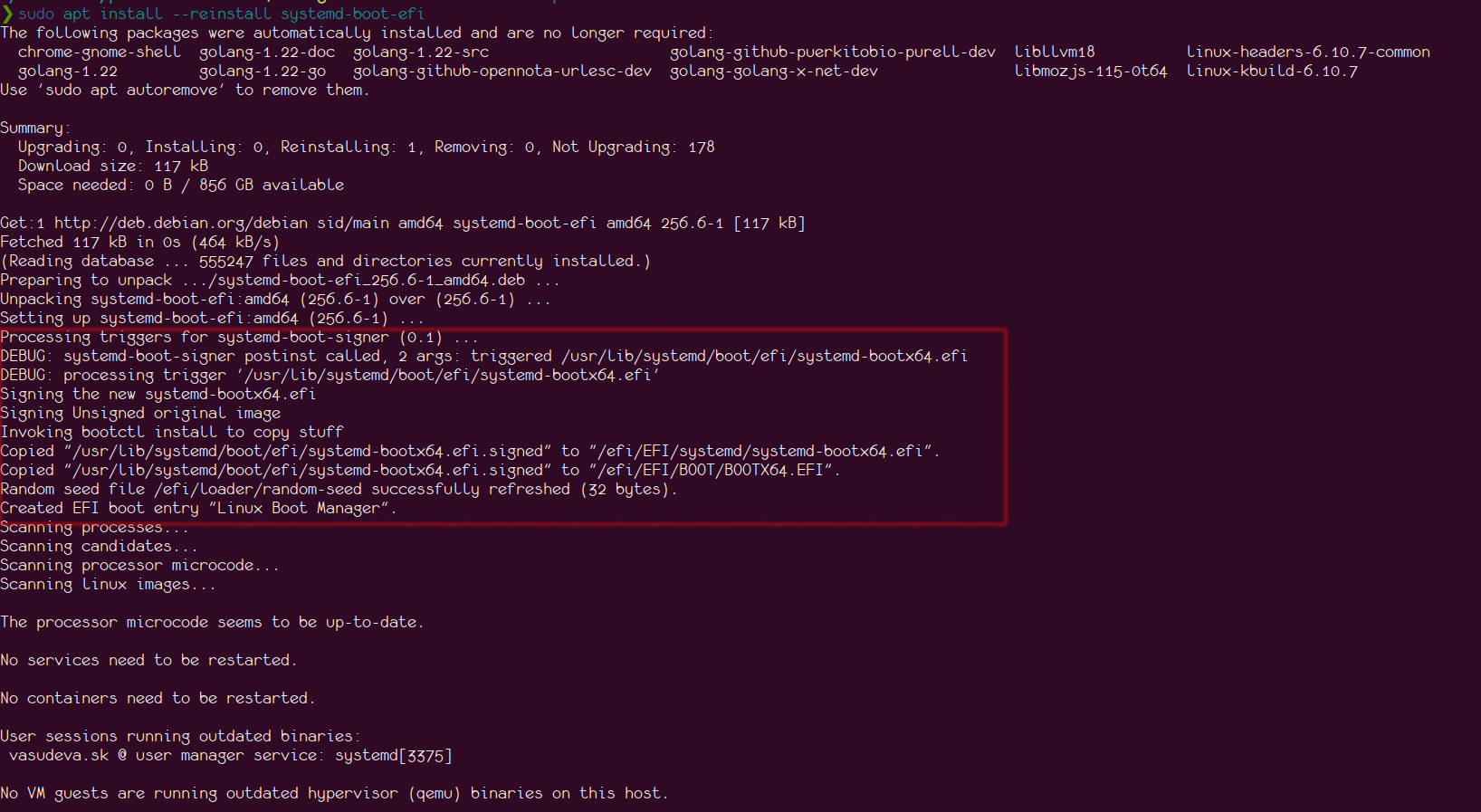
sudo apt install --reinstall systemd-boot-efi
During installation, you can see the debug message being printed in the screenshot below: systemd-boot-signer triggered To test the systemd-boot-update.service, I commented out the bootctl install line from the above script, performed a reinstallation, and restarted the systemd-boot-update.service. Checking the log, I saw the following:
Sep 29 13:42:51 chamunda systemd[1]: Stopping systemd-boot-update.service - Automatic Boot Loader Update...
Sep 29 13:42:51 chamunda systemd[1]: Starting systemd-boot-update.service - Automatic Boot Loader Update...
Sep 29 13:42:51 chamunda bootctl[1801516]: Skipping "/efi/EFI/systemd/systemd-bootx64.efi", same boot loader version in place already.
Sep 29 13:42:51 chamunda bootctl[1801516]: Skipping "/efi/EFI/BOOT/BOOTX64.EFI", same boot loader version in place already.
Sep 29 13:42:51 chamunda systemd[1]: Finished systemd-boot-update.service - Automatic Boot Loader Update.
Sep 29 13:43:37 chamunda systemd[1]: systemd-boot-update.service: Deactivated successfully.
Sep 29 13:43:37 chamunda systemd[1]: Stopped systemd-boot-update.service - Automatic Boot Loader Update.
Sep 29 13:43:37 chamunda systemd[1]: Stopping systemd-boot-update.service - Automatic Boot Loader Update...
Indeed, the service attempted to copy the bootloader but did not do so because there was no actual update to the binary; it was just a reinstallation trigger. The complete code for this package can be found here. With this post the entire series on using UKI to Secureboot with Debian comes to an end. Happy hacking!.

26 September 2024

Vasudev Kamath: Disabling Lockdown Mode with Secure Boot on Distro Kernel

In my previous post, I mentioned that Lockdown mode is activated when Secure Boot is enabled. One way to override this was to use a self-compiled upstream kernel. However, sometimes we might want to use the distribution kernel itself. This post explains how to disable lockdown mode while keeping Secure Boot enabled with a distribution kernel.
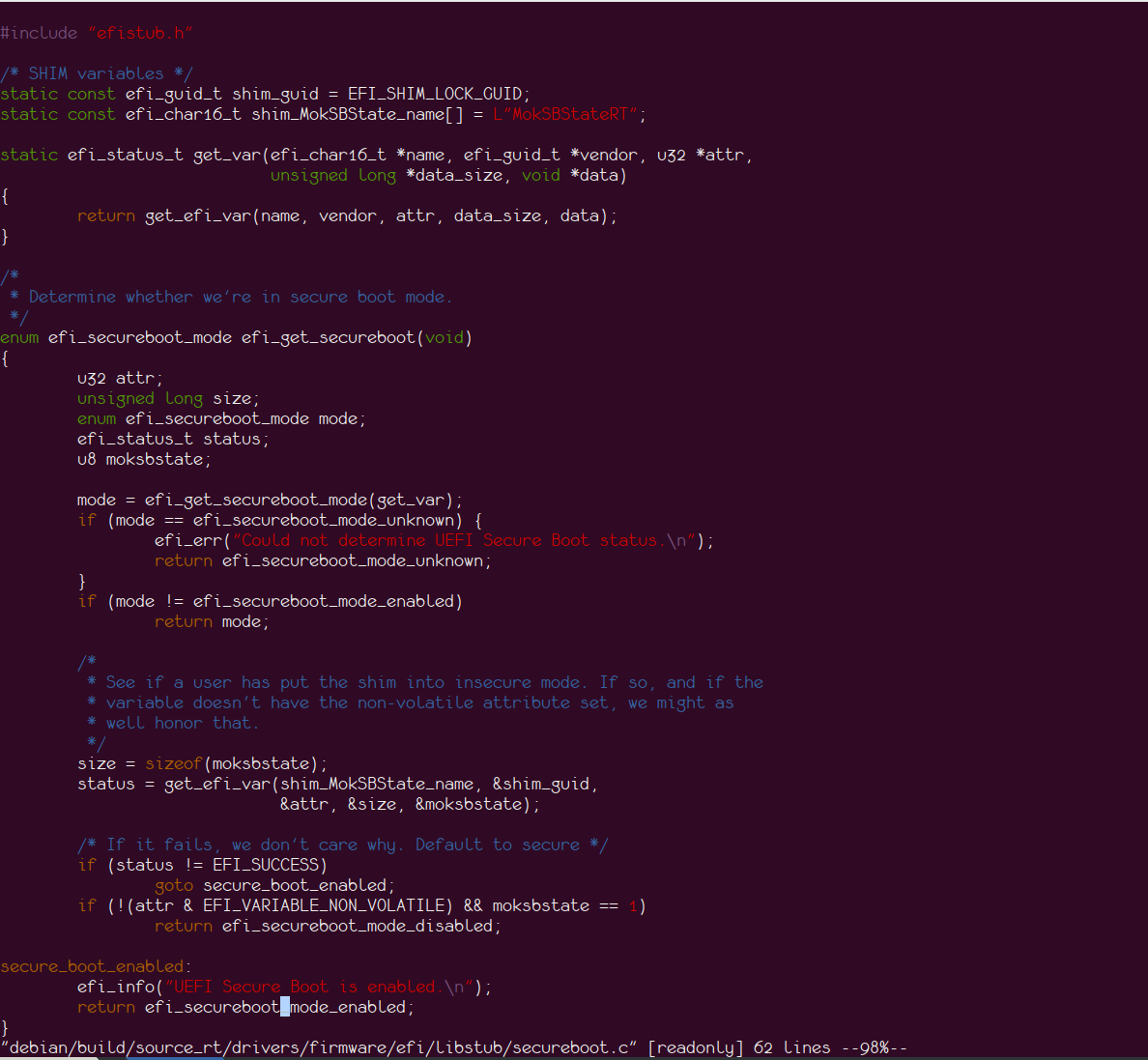
Understanding Secure Boot Detection To begin, we need to understand how the kernel detects if Secure Boot is enabled. This is done by the efi_get_secureboot function, as shown in the image below: Secure Boot status check
Disabling Kernel Lockdown The kernel code uses the value of MokSBStateRT to identify the Secure Boot state, assuming that Secure Boot can only be enabled via shim. This assumption holds true when using the Microsoft certificate for signature validation (as Microsoft currently only signs shim). However, if we're using our own keys, we don't need shim and can sign the bootloader ourselves. In this case, the Secure Boot state of the system doesn't need to be tied to the MokSBStateRT variable. To disable kernel lockdown, we need to set the UEFI runtime variable MokSBStateRT. This essentially tricks the kernel into thinking Secure Boot is disabled when it's actually enabled. This is achieved using a UEFI initializing driver. The code for this was written by an anonymous colleague who also assisted me with various configuration guidance for setting up UKI and Secure Boot on my system. The code is available here.
Implementation Detailed instructions for compiling and deploying the code are provided in the repository, so I won't repeat them here.
Results I've tested this method with the default distribution kernel on my Debian unstable system, and it successfully disables lockdown while maintaining Secure Boot integrity. See the screenshot below for confirmation: Distribution kernel lockdown disabled

24 September 2024

Vasudev Kamath: Note to Self: Enabling Secure Boot with UKI on Debian

Note

This post is a continuation of my previous article on enabling the Unified Kernel Image (UKI) on Debian.

In this guide, we'll implement Secure Boot by taking full control of the device, removing preinstalled keys, and installing our own. For a comprehensive overview of the benefits and process, refer to this excellent post from rodsbooks.
Key Components To implement Secure Boot, we need three essential keys:
  1. Platform Key (PK): The top-level key in Secure Boot, typically provided by the motherboard manufacturer. We'll replace the vendor-supplied PK with our own for complete control.
  2. Key Exchange Key (KEK): Used to sign updates for the Signatures Database and Forbidden Signatures Database.
  3. Database Key (DB): Used to sign or verify binaries (bootloaders, boot managers, shells, drivers, etc.).
There's also a Forbidden Signature Key (dbx), which is the opposite of the DB key. We won't be generating this key in this guide.
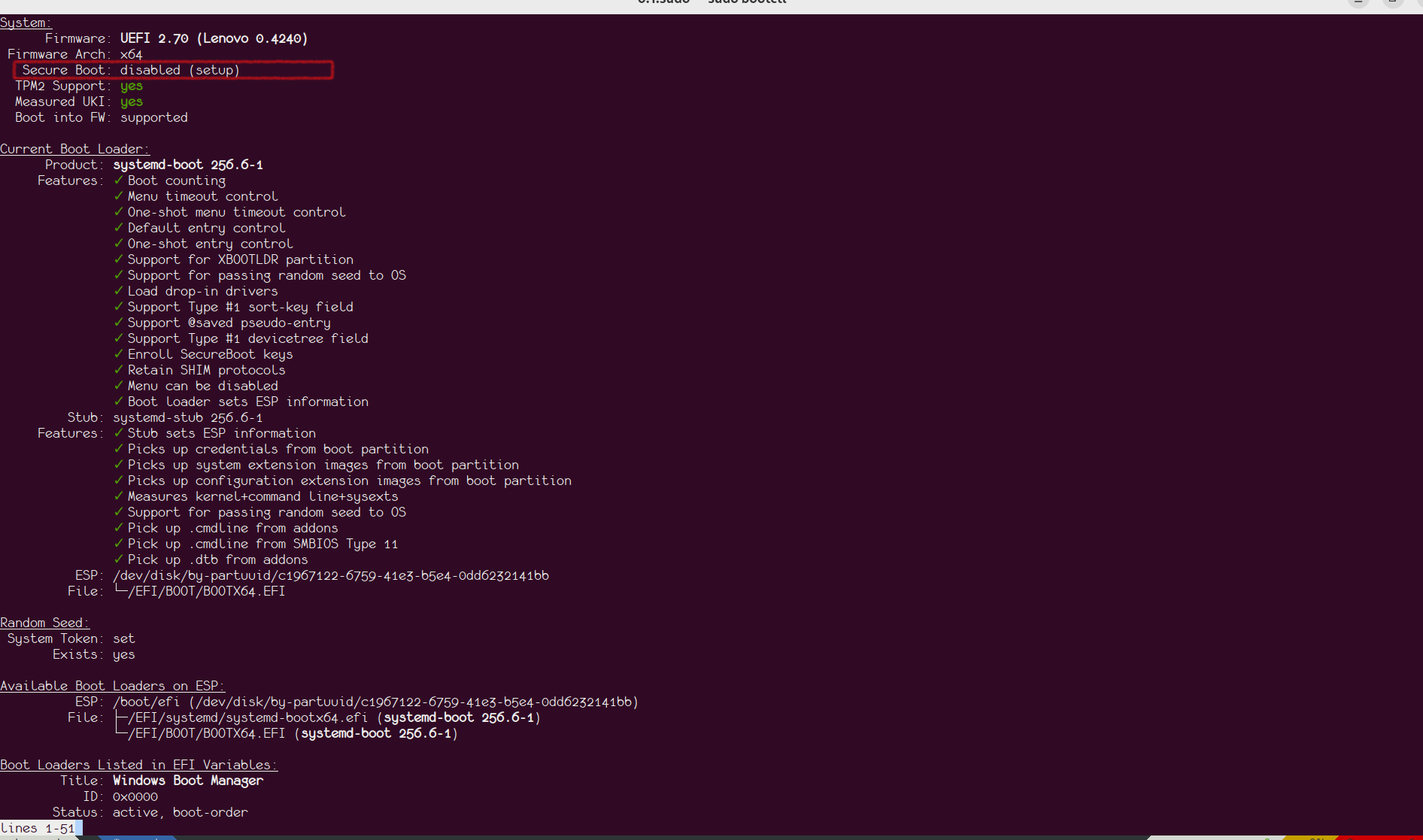
Preparing for Key Enrollment Before enrolling our keys, we need to put the device in Secure Boot Setup Mode. Verify the status using the bootctl status command. You should see output similar to the following image: UEFI Setup mode
Generating Keys Follow these instructions from the Arch Wiki to generate the keys manually. You'll need the efitools and openssl packages. I recommend using rsa:2048 as the key size for better compatibility with older firmware. After generating the keys, copy all .auth files to the /efi/loader/keys/<hostname>/ folder. For example:
  sudo ls /efi/loader/keys/chamunda
db.auth  KEK.auth  PK.auth
Signing the Bootloader Sign the systemd-boot bootloader with your new keys:
sbsign --key <path-to db.key> --cert <path-to db.crt> \
   /usr/lib/systemd/boot/efi/systemd-bootx64.efi
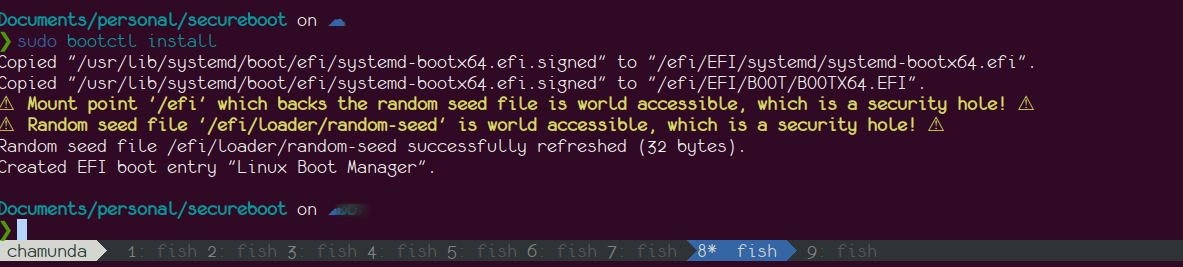
Install the signed bootloader using bootctl install. The output should resemble this: bootctl install

Note

If you encounter warnings about mount options, update your fstab with the umask=0077 option for the EFI partition.

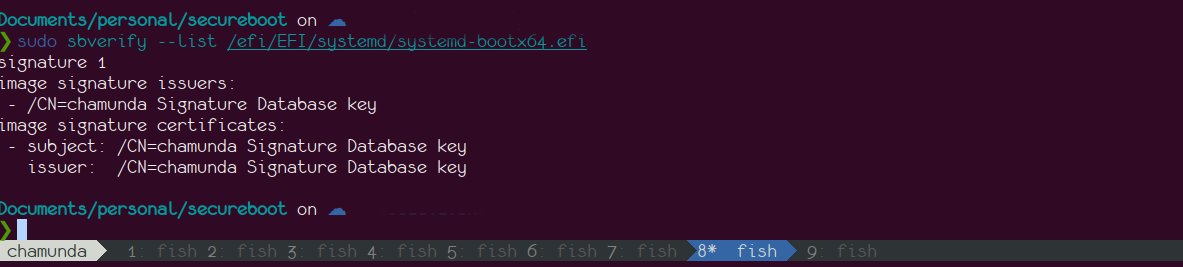
Verify the signature using sbsign --verify: sbsign verify
Configuring UKI for Secure Boot Update the /etc/kernel/uki.conf file with your key paths:
SecureBootPrivateKey=/path/to/db.key
SecureBootCertificate=/path/to/db.crt
Signing the UKI Image On Debian, use dpkg-reconfigure to sign the UKI image for each kernel:
sudo dpkg-reconfigure linux-image-$(uname -r)
# Repeat for other kernel versions if necessary
You should see output similar to this:
sudo dpkg-reconfigure linux-image-$(uname -r)
/etc/kernel/postinst.d/dracut:
dracut: Generating /boot/initrd.img-6.10.9-amd64
Updating kernel version 6.10.9-amd64 in systemd-boot...
Signing unsigned original image
Using config file: /etc/kernel/uki.conf
+ sbverify --list /boot/vmlinuz-6.10.9-amd64
+ sbsign --key /home/vasudeva.sk/Documents/personal/secureboot/db.key --cert /home/vasudeva.sk/Documents/personal/secureboot/db.crt /tmp/ukicc7vcxhy --output /tmp/kernel-install.staging.QLeGLn/uki.efi
Wrote signed /tmp/kernel-install.staging.QLeGLn/uki.efi
/etc/kernel/postinst.d/zz-systemd-boot:
Installing kernel version 6.10.9-amd64 in systemd-boot...
Signing unsigned original image
Using config file: /etc/kernel/uki.conf
+ sbverify --list /boot/vmlinuz-6.10.9-amd64
+ sbsign --key /home/vasudeva.sk/Documents/personal/secureboot/db.key --cert /home/vasudeva.sk/Documents/personal/secureboot/db.crt /tmp/ukit7r1hzep --output /tmp/kernel-install.staging.dWVt5s/uki.efi
Wrote signed /tmp/kernel-install.staging.dWVt5s/uki.efi
Enrolling Keys in Firmware Use systemd-boot to enroll your keys:
systemctl reboot --boot-loader-menu=0
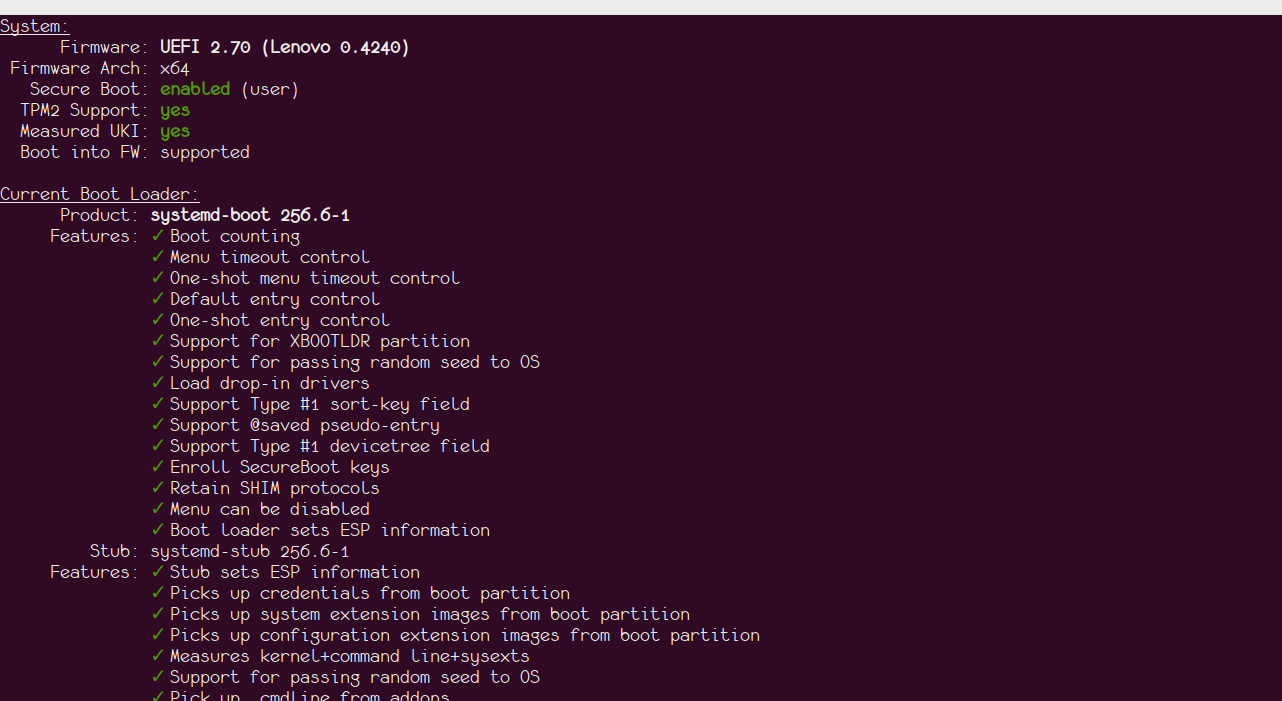
Select the enroll option with your hostname in the systemd-boot menu. After key enrollment, the system will reboot into the newly signed kernel. Verify with bootctl: uefi enabled
Dealing with Lockdown Mode Secure Boot enables lockdown mode on distro-shipped kernels, which restricts certain features like kprobes/BPF and DKMS drivers. To avoid this, consider compiling the upstream kernel directly, which doesn't enable lockdown mode by default. As Linus Torvalds has stated, "there is no reason to tie Secure Boot to lockdown LSM." You can read more about Torvalds' opinion on UEFI tied with lockdown.
Next Steps One thing that remains is automating the signing of systemd-boot on upgrade, which is currently a manual process. I'm exploring dpkg triggers for achieving this, and if I succeed, I will write a new post with details.
Acknowledgments Special thanks to my anonymous colleague who provided invaluable assistance throughout this process.

19 September 2024

Vasudev Kamath: Note to Self: Enabling Unified Kernel Image on Debian

Note

These steps may not work on your system if you are using the default Debian installation. This guide assumes that your system is using systemd-boot as the bootloader, which is explained in the post linked below.

A unified kernel image (UKI) is a single executable that can be booted directly from UEFI firmware or automatically sourced by bootloaders with little or no configuration. It combines a UEFI boot stub program like systemd-stub(7), a Linux kernel image, an initrd, and additional resources into a single UEFI PE file. systemd-boot already provides a hook for kernel installation via /etc/kernel/postinst.d/zz-systemd-boot. We just need a couple of additional configurations to generate the UKI image.
Installation and Configuration
  1. Install the systemd-ukify package:

    sudo apt-get install systemd-ukify
    
  2. Create the following configuration in /etc/kernel/install.conf:

    layout=uki
    initrd_generator=dracut
    uki_generator=ukify
    
    This configuration specifies how to generate the UKI image for the installed kernel and which generator to use.
  3. Define the kernel command line for the UKI image. Create /etc/kernel/uki.conf with the following content:

    [UKI]
    Cmdline=@/etc/kernel/cmdline
    
Generating the UKI Image To apply these changes, regenerate the UKI image for the currently running kernel:
sudo dpkg-reconfigure linux-image-$(uname -r)
Verification Use the bootctl list command to verify the presence of a "Type #2" entry for the current kernel. The output should look similar to this:
bootctl list
      type: Boot Loader Specification Type #2 (.efi)
     title: Debian GNU/Linux trixie/sid (2d0080583f1a4127ac0b073b1a9d3e61-6.10.9-amd64.efi) (default) (selected)
        id: 2d0080583f1a4127ac0b073b1a9d3e61-6.10.9-amd64.efi
    source: /boot/efi/EFI/Linux/2d0080583f1a4127ac0b073b1a9d3e61-6.10.9-amd64.efi
  sort-key: debian
     linux: /boot/efi/EFI/Linux/2d0080583f1a4127ac0b073b1a9d3e61-6.10.9-amd64.efi
   options: systemd.gpt_auto=no quiet root=LABEL=root_disk ro systemd.machine_id=2d0080583f1a4127ac0b073b1a9d3e61
      type: Boot Loader Specification Type #2 (.efi)
     title: Debian GNU/Linux trixie/sid (2d0080583f1a4127ac0b073b1a9d3e61-6.10.7-amd64.efi)
        id: 2d0080583f1a4127ac0b073b1a9d3e61-6.10.7-amd64.efi
    source: /boot/efi/EFI/Linux/2d0080583f1a4127ac0b073b1a9d3e61-6.10.7-amd64.efi
  sort-key: debian
     linux: /boot/efi/EFI/Linux/2d0080583f1a4127ac0b073b1a9d3e61-6.10.7-amd64.efi
   options: systemd.gpt_auto=no quiet root=LABEL=root_disk ro systemd.machine_id=2d0080583f1a4127ac0b073b1a9d3e61
      type: Automatic
     title: Reboot Into Firmware Interface
        id: auto-reboot-to-firmware-setup
    source: /sys/firmware/efi/efivars/LoaderEntries-4a67b082-0a4c-41cf-b6c7-440b29bb8c4f
Cleanup and Reboot Once the "Type #2" entries are generated, remove any "Type #1" entries using the bootctl unlink command. After this, reboot your system to boot from the UKI-based image.
Future Considerations The primary use case for a UKI image is secure boot. Signing the UKI image can also be configured in the settings above, but this guide does not cover that process as it requires setting up secure boot on your system.

10 March 2024

Vasudev Kamath: Cloning a laptop over NVME TCP

Recently, I got a new laptop and had to set it up so I could start using it. But I wasn't really in the mood to go through the same old steps which I had explained in this post earlier. I was complaining about this to my colleague, and there came the suggestion of why not copy the entire disk to the new laptop. Though it sounded like an interesting idea to me, I had my doubts, so here is what I told him in return.
  1. I don't have the tools to open my old laptop and connect the new disk over USB to my new laptop.
  2. I use full disk encryption, and my old laptop has a 512GB disk, whereas the new laptop has a 1TB NVME, and I'm not so familiar with resizing LUKS.
He promptly suggested both could be done. For step 1, just expose the disk using NVME over TCP and connect it over the network and do a full disk copy, and the rest is pretty simple to achieve. In short, he suggested the following:
  1. Export the disk using nvmet-tcp from the old laptop.
  2. Do a disk copy to the new laptop.
  3. Resize the partition to use the full 1TB.
  4. Resize LUKS.
  5. Finally, resize the BTRFS root disk.
Exporting Disk over NVME TCP The easiest way suggested by my colleague to do this is using systemd-storagetm.service. This service can be invoked by simply booting into storage-target-mode.target by specifying rd.systemd.unit=storage-target-mode.target. But he suggested not to use this as I need to tweak the dracut initrd image to involve network services as well as configuring WiFi from this mode is a painful thing to do. So alternatively, I simply booted both my laptops with GRML rescue CD. And the following step was done to export the NVME disk on my current laptop using the nvmet-tcp module of Linux:
modprobe nvmet-tcp
cd /sys/kernel/config/nvmet
mkdir ports/0
cd ports/0
echo "ipv4" > addr_adrfam
echo 0.0.0.0 > addr_traaddr
echo 4420 > addr_trsvcid
echo tcp > addr_trtype
cd /sys/kernel/config/nvmet/subsystems
mkdir testnqn
echo 1 >testnqn/allow_any_host
mkdir testnqn/namespaces/1
cd testnqn
# replace the device name with the disk you want to export
echo "/dev/nvme0n1" > namespaces/1/device_path
echo 1 > namespaces/1/enable
ln -s "../../subsystems/testnqn" /sys/kernel/config/nvmet/ports/0/subsystems/testnqn
These steps ensure that the device is now exported using NVME over TCP. The next step is to detect this on the new laptop and connect the device:
nvme discover -t tcp -a <ip> -s 4420
nvme connectl-all -t tcp -a <> -s 4420
Finally, nvme list shows the device which is connected to the new laptop, and we can proceed with the next step, which is to do the disk copy.
Copying the Disk I simply used the dd command to copy the root disk to my new laptop. Since the new laptop didn't have an Ethernet port, I had to rely only on WiFi, and it took about 7 and a half hours to copy the entire 512GB to the new laptop. The speed at which I was copying was about 18-20MB/s. The other option would have been to create an initial partition and file system and do an rsync of the root disk or use BTRFS itself for file system transfer.
dd if=/dev/nvme2n1 of=/dev/nvme0n1 status=progress bs=40M
Resizing Partition and LUKS Container The final part was very easy. When I launched parted, it detected that the partition table does not match the disk size and asked if it can fix it, and I said yes. Next, I had to install cloud-guest-utils to get growpart to fix the second partition, and the following command extended the partition to the full 1TB:
growpart /dev/nvem0n1 p2
Next, I used cryptsetup-resize to increase the LUKS container size.
cryptsetup luksOpen /dev/nvme0n1p2 ENC
cryptsetup resize ENC
Finally, I rebooted into the disk, and everything worked fine. After logging into the system, I resized the BTRFS file system. BTRFS requires the system to be mounted for resize, so I could not attempt it in live boot.
btfs fielsystem resize max /
Conclussion The only benefit of this entire process is that I have a new laptop, but I still feel like I'm using my existing laptop. Typically, setting up a new laptop takes about a week or two to completely get adjusted, but in this case, that entire time is saved. An added benefit is that I learned how to export disks using NVME over TCP, thanks to my colleague. This new knowledge adds to the value of the experience.

9 July 2023

Vasudev Kamath: Using LUKS-Encrypted USB Stick with TPM2 Integration

I use a LUKS-encrypted USB stick to store my GPG and SSH keys, which acts as a backup and portable key setup when working on different laptops. One inconvenience with LUKS-encrypted USB sticks is that you need to enter the password every time you want to mount the device, either through a Window Manager like KDE or using the cryptsetup luksOpen command. Fortunately, many laptops nowadays come equipped with TPM2 modules, which can be utilized to automatically decrypt the device and subsequently mount it. In this post, we'll explore the usage of systemd-cryptenroll for this purpose, along with udev rules and a set of scripts to automate the mounting of the encrypted USB. First, ensure that your device has a TPM2 module. You can run the following command to check:
sudo journalctl -k --grep=tpm2
The output should resemble the following:
Jul 08 18:57:32 bhairava kernel: ACPI: SSDT 0x00000000BBEFC000 0003C6 (v02
LENOVO Tpm2Tabl 00001000 INTL 20160422) Jul 08 18:57:32 bhairava kernel:
ACPI: TPM2 0x00000000BBEFB000 000034 (v03 LENOVO TP-R0D 00000830
PTEC 00000002) Jul 08 18:57:32 bhairava kernel: ACPI: Reserving TPM2 table
memory at [mem 0xbbefb000-0xbbefb033]
You can also use the systemd-cryptenroll command to check for the availability of a TPM2 device on your laptop:
systemd-cryptenroll --tpm2-device=list
The output will be something like following:
blog git:(master) systemd-cryptenroll --tpm2-device=list
PATH        DEVICE      DRIVER
/dev/tpmrm0 MSFT0101:00 tpm_tis
   blog git:(master)
Next, ensure that you have connected your encrypted USB device. Note that systemd-cryptenroll only works with LUKS2 and not LUKS1. If your device is LUKS1-encrypted, you may encounter an error while enrolling the device, complaining about the LUKS2 superblock not found. To determine if your device uses a LUKS1 header or LUKS2, use the cryptsetup luksDump <device> command. If it is LUKS1, the header will begin with:
LUKS header information for /dev/sdb1
Version:        1
Cipher name:    aes
Cipher mode:    xts-plain64
Hash spec:      sha256
Payload offset: 4096
Converting from LUKS1 to LUKS2 is a simple process, but for safety, ensure that you backup the header using the cryptsetup luksHeaderBackup command. Once backed up, use the following command to convert the header to LUKS2:
sudo cryptsetup convert --type luks2 /dev/sdb1
After conversion, the header will look like this:
Version:        2
Epoch:          4
Metadata area:  16384 [bytes]
Keyslots area:  2064384 [bytes]
UUID:           000b2670-be4a-41b4-98eb-9adbd12a7616
Label:          (no label)
Subsystem:      (no subsystem)
Flags:          (no flags)
The next step is to enroll the new LUKS key for the encrypted device using systemd-cryptenroll. Run the following command:
sudo systemd-cryptenroll --tpm2-device=/dev/tpmrm0 --tpm2-pcrs="0+7" /dev/sdb1
This command will prompt you to provide the existing key to unseal the device. It will then add a new random key to the volume, allowing it to be unlocked in addition to the existing keys. Additionally, it will bind this new key to PCRs 0 and 7, representing the system firmware and Secure Boot state. If there is only one TPM device on the system, you can use --tpm2-device=auto to automatically select the device. To confirm that the new key has been enrolled, you can dump the LUKS configuration and look for a systemd-tpm2 token entry, as well as an additional entry in the Keyslots section. To test the setup, you can use the /usr/lib/systemd/systemd-cryptsetup command. Additionally, you can check if the device is unsealed by using lsblk:
sudo /usr/lib/systemd/systemd-cryptsetup attach GPG_USB "/dev/sdb1" - tpm2-device=auto
lsblk
The lsblk command should display the unsealed and mounted device, like this:
NAME        MAJ:MIN RM   SIZE RO TYPE  MOUNTPOINTS
sda           8:0    0 223.6G  0 disk
 sda1        8:1    0   976M  0 part  /boot/efi
 sda2        8:2    0 222.6G  0 part
   root    254:0    0 222.6G  0 crypt /
sdb           8:16   1   7.5G  0 disk
 sdb1        8:17   1   7.5G  0 part
   GPG_USB 254:1    0   7.5G  0 crypt /media/vasudev/GPG_USB
Auto Mounting the device Now that we have solved the initial problem of unsealing the USB device using TPM2 instead of manually entering the key, the next step is to automatically mount the device upon insertion and remove the mapping when the device is removed. This can be achieved using the following udev rules:
ACTION=="add", KERNEL=="sd*", ENV DEVTYPE =="partition", ENV ID_BUS =="usb", ENV SYSTEMD_WANTS ="mount-gpg-usb@$env DEVNAME .service"
ACTION=="remove", KERNEL=="sd*", ENV DEVTYPE =="partition", ENV ID_BUS =="usb", RUN+="/usr/local/bin/umount_enc_usb.sh '%E ID_FS_UUID '"
When a device is added, a systemd service is triggered to mount the device at a specific location. Initially, I used a script with the RUN directive, but it resulted in an exit code of 32. This might be due to systemd-cryptsetup taking some time to return, causing udev to time out. To address this, I opted to use a systemd service instead. For device removal, even though the physical device is no longer present, the mapping may still remain, causing issues upon reinsertion. To resolve this, I created a script to close the luks mapping upon device removal. Below are the systemd service and script files: mount_enc_usb.sh:
#!/bin/bash
set -x
if [[ "$#" -ne 1 ]]; then
    echo "$(basename $0) <device>"
    exit 1
fi
device_uuid="$(blkid --output udev $1   grep ID_FS_UUID=   cut -d= -f2)"
if [[ "$device_uuid" == 000b2670-be4a-41b4-98eb-9adbd12a7616 ]]; then
    # Found our device, let's trigger systemd-cryptsetup
    /usr/lib/systemd/systemd-cryptsetup attach GPG_USB "$1" - tpm2-device=auto
    [[ -d /media/vasudev/GPG_USB ]]   (mkdir -p /media/vasudev/GPG_USB/ && chown vasudev:vasudev /media/vasudev/GPG_USB)
    mount /dev/mapper/GPG_USB /media/vasudev/GPG_USB
else
    echo "Not the interested device. Ignoring."
    exit 0
fi
umount_enc_usb.sh:
#!/bin/bash
if [[ "$#" -ne 1 ]]; then
  echo "$(basename $0) <fsuuid>"
  exit 1
fi
if [[ "$1" == "000b2670-be4a-41b4-98eb-9adbd12a7616" ]]; then
  # Our device is removed, let's close the luks mapping
  [[ -e /dev/mapper/GPG_USB ]] && cryptsetup luksClose /dev/mapper/GPG_USB
else
  echo "Not our device."
  exit 0
fi
mount-gpg-usb@.service:
[Unit]
Description=Mount the encrypted USB device service
[Service]
Type=simple
ExecStart=/usr/local/bin/mount_enc_usb.sh
With this setup, plugging in the USB device will automatically unseal and mount it, and upon removal, the luks mapping will be closed.

Note

This can be even done for LUKS2 encrypted root disk but will need some tweaking in initramfs.

25 June 2023

Vasudev Kamath: Migrating my domain from copyninja.info to copyninja.in

After holding the domain copyninja.info for almost 15 years, I finally let it expire and bought a new domain, copyninja.in. With this move, I also bid goodbye to my VPS, which I had been using for over 12 years on DigitalOcean. This particular VPS was initially set up with Debian Wheezy (7) and had been upgraded over the years to successive Debian versions and finally was running Debian Bullseye (11). The main reason for the move was that the .info domain was becoming more expensive every year, and the VPS, which I had upgraded to the $10 USD range, cost around $12 USD per month with GST included. Since I wasn't really using the VPS anymore and had recently even broken my DNS and mail server settings, I decided it was the right time to reduce this additional cost. Now I have a cheaper .in domain, and the VPS is on a minimal configuration at DigitalOcean, costing $5 USD per month (which becomes almost $7 USD with GST). Currently, I only run a blog and mail server on this VPS. I will assess if I really need to keep running the mail server for some more time. If not, I will move the blog to a hosting service like GitHub Pages and completely get rid of the VPS. My email address has now changed, and the new mail can be obtained from this link <http://scr.im/newcopyninj>. I have updated my GPG key and added the new email as the new UID. I still need to revoke the old domain UID. The key has already been updated in the Debian Keyring.

20 June 2023

Vasudev Kamath: Notes: Experimenting with ZRAM and Memory Over commit

Introduction The ZRAM module in the Linux kernel creates a memory-backed block device that stores its content in a compressed format. It offers users the choice of compression algorithms such as lz4, zstd, or lzo. These algorithms differ in compression ratio and speed, with zstd providing the best compression but being slower, while lz4 offers higher speed but lower compression.
Using ZRAM as Swap One interesting use case for ZRAM is utilizing it as swap space in the system. There are two utilities available for configuring ZRAM as swap: zram-tools and systemd-zram-generator. However, Debian Bullseye lacks systemd-zram-generator, making zram-tools the only option for Bullseye users. While it's possible to use systemd-zram-generator by self-compiling or via cargo, I preferred using tools available in the distribution repository due to my restricted environment.
Installation The installation process is straightforward. Simply execute the following command:
apt-get install zram-tools
Configuration The configuration involves modifying a simple shell script file /etc/default/zramswap sourced by the /usr/bin/zramswap script. Here's an example of the configuration I used:
# Compression algorithm selection
# Speed: lz4 > zstd > lzo
# Compression: zstd > lzo > lz4
# This is not inclusive of all the algorithms available in the latest kernels
# See /sys/block/zram0/comp_algorithm (when the zram module is loaded) to check
# the currently set and available algorithms for your kernel [1]
# [1]  https://github.com/torvalds/linux/blob/master/Documentation/blockdev/zram.txt#L86
ALGO=zstd
# Specifies the amount of RAM that should be used for zram
# based on a percentage of the total available memory
# This takes precedence and overrides SIZE below
PERCENT=30
# Specifies a static amount of RAM that should be used for
# the ZRAM devices, measured in MiB
# SIZE=256000
# Specifies the priority for the swap devices, see swapon(2)
# for more details. A higher number indicates higher priority
# This should probably be higher than hdd/ssd swaps.
# PRIORITY=100
I chose zstd as the compression algorithm for its superior compression capabilities. Additionally, I reserved 30% of memory as the size of the zram device. After modifying the configuration, restart the zramswap.service to activate the swap:
systemctl restart zramswap.service
Using systemd-zram-generator For Debian Bookworm users, an alternative option is systemd-zram-generator. Although zram-tools is still available in Debian Bookworm, systemd-zram-generator offers a more integrated solution within the systemd ecosystem. Below is an example of the translated configuration for systemd-zram-generator, located at /etc/systemd/zram-generator.conf:
# This config file enables a /dev/zram0 swap device with the following
# properties:
# * size: 50% of available RAM or 4GiB, whichever is less
# * compression-algorithm: kernel default
#
# This device's properties can be modified by adding options under the
# [zram0] section below. For example, to set a fixed size of 2GiB, set
#  zram-size = 2GiB .
[zram0]
zram-size = ceil(ram * 30/100)
compression-algorithm = zstd
swap-priority = 100
fs-type = swap
After making the necessary changes, reload systemd and start the systemd-zram-setup@zram0.service:
systemctl daemon-reload
systemctl start systemd-zram-setup@zram0.service
The systemd-zram-generator creates the zram device by loading the kernel module and then creates a systemd.swap unit to mount the zram device as swap. In this case, the swap file is called zram0.swap.
Checking Compression and Details To verify the effectiveness of the swap configuration, you can use the zramctl command, which is part of the util-linux package. Alternatively, the zramswap utility provided by zram-tools can be used to obtain the same output. During my testing with synthetic memory load created using stress-ng vm class I found that I can reach upto 40% compression ratio.
Memory Overcommit Another use case I was looking for is allowing the launching of applications that require more memory than what is available in the system. By default, the Linux kernel attempts to estimate the amount of free memory left on the system when user space requests more memory (vm.overcommit_memory=0). However, you can change this behavior by modifying the sysctl value for vm.overcommit_memory to 1. To demonstrate this, I ran a test using stress-ng to request more memory than the system had available. As expected, the Linux kernel refused to allocate memory, and the stress-ng process could not proceed.
free -tg                                                                                                                                                                                          (Mon,Jun19) 
                total        used        free      shared  buff/cache   available
 Mem:              31          12          11           3          11          18
 Swap:             10           2           8
 Total:            41          14          19
sudo stress-ng --vm=1 --vm-bytes=50G -t 120                                                                                                                                                       (Mon,Jun19) 
 stress-ng: info:  [1496310] setting to a 120 second (2 mins, 0.00 secs) run per stressor
 stress-ng: info:  [1496310] dispatching hogs: 1 vm
 stress-ng: info:  [1496312] vm: gave up trying to mmap, no available memory, skipping stressor
 stress-ng: warn:  [1496310] vm: [1496311] aborted early, out of system resources
 stress-ng: info:  [1496310] vm:
 stress-ng: warn:  [1496310]         14 System Management Interrupts
 stress-ng: info:  [1496310] passed: 0
 stress-ng: info:  [1496310] failed: 0
 stress-ng: info:  [1496310] skipped: 1: vm (1)
 stress-ng: info:  [1496310] successful run completed in 10.04s
By setting vm.overcommit_memory=1, Linux will allocate memory in a more relaxed manner, assuming an infinite amount of memory is available.
Conclusion ZRAM provides disks that allow for very fast I/O, and compression allows for a significant amount of memory savings. ZRAM is not restricted to just swap usage; it can be used as a normal block device with different file systems. Using ZRAM as swap is beneficial because, unlike disk-based swap, it is faster, and compression ensures that we use a smaller amount of RAM itself as swap space. Additionally, adjusting the memory overcommit settings can be beneficial for scenarios that require launching memory-intensive applications. Note: When running stress tests or allocating excessive memory, be cautious about the actual memory capacity of your system to prevent out-of-memory (OOM) situations. Feel free to explore the capabilities of ZRAM and optimize your system's memory management. Happy computing!

12 December 2022

Vasudev Kamath: Installing Debian from GRML Live CD

I had bought a Thinkpad E470 laptop back in 2018 which was lying unused for quite some time. Recently when I wanted to use it, I found that the keyboard is not working, especially some keys and after some time the laptop will hang in Lenovo boot screen. I came back to Bangalore almost after 2 years from my hometown (WFH due to Covid) and thought it was the right time to get my laptop back to normal working state. After getting the keyboard replaced I noticed that 1TB HDD is no longer fast enough for my taste!. I've to admit I never thought I would start disliking HDD so quickly thanks to modern SSD based work laptops. So as a second upgrade I got the HDD removed from my laptop and got a 240G SSD. Yeah I know its reduction from my original size but I intend to continue using my old HDD via USB SATA enclosure as an external HDD which can house the extra data which I need to save. So now that I've a SSD I need to install Debian Unstable again on it and this is where I tried something new. My colleague (name redacted on request) suggested to me use GRML live CD and install Debian via debootstrap. And after giving a thought I decided to try this out. Some reason for going ahead with this are listed below
  1. Debian Installer does not support a proper BTRFS based root file system. It just allows btrfs as root but no subvolume support. Also I'm not sure about the luks support with btrfs as root.
  2. I also wanted to give a try to systemd-boot as my laptop is UEFI capable and I've slowly started disliking Grub.
  3. I really hate installing task-kde-desktop (Yeah you read it right, I've switched to be a KDE user for quite some time) which will pull tons of unwanted stuff and bloat. Well it's not just task-kde-desktop but any other task-desktop package does similar and I don't want to have too much of unused stuff and services running.
Disk Preparation As a first step I went to GRML website and downloaded current pre-release. Frankly, I'm using GRML for first time and I was not sure what to expect. When I booted it up I was bit taken a back to see its console based and I did not have a wired lan just a plain wireless dongle (Jiofi device) and was wondering what it will take to connect. But surprisingly curses based UI was pretty much straight forward to allow me to connect to Wifi AP. Another thing was the rescue CD had non-free firmware as the laptop was using ath10k device and needed non-free blobs to operate. Once I got shell prompt in rescue CD first thing I did was to reconfigure console-setup to increase font size which was very very small on default boot. Once that is done I did the following to create a 1G (FAT32) partition for EFI.
parted -a optimal -s /dev/sda mklabel gpt
parted -a optimal -s /dev/sda mkpart primary vfat 0% 1G
parted -a optimal -s /dev/sda set 1 esp on
mkfs.vfat -n boot_disk -F 32 /dev/sda1
So here is what I did: created a 1G vfat type partition and set the esp flag on it. This will be mounted to /boot/efi for systemd-boot. Next I created a single partition on the rest of the available free disk which will be used as the root file system. Next I encrypted the root parition using LUKS and then created the BTRFS file system on top of it.
cryptsetup luksFormat /dev/sda2
cryptsetup luksOpen /dev/sda2 ENC
mkfs.btrfs -L root_disk /dev/mapper/ENC
Next is to create subvolumes in BTRFS. I followed suggestion by colleague and created a top-level @ as subvolume below which created @/home @/var/log @/opt . Also enabled compression with zstd and level of 1 to avoid battery drain. Finally marked the @ as default subvolume to avoid adding it to fstab entry.
mount -o compress=zstd:1 /dev/mapper/ENC /mnt
btrfs subvol create /mnt/@
cd /mnt/@
btrfs subvol create ./home
btrfs subvol create ./opt
mkdir -p var
btrfs subvol create ./var/log
btrfs suvol set-default /mnt/@
Bootstrapping Debian Now that root disk is prepared next step was to bootstrap the root file system. I used debootstrap for this job. One thing I missed here from installer was ability to preseed. I tried looking around to figure out if we can preseed debootstrap but did not find much. If you know the procedure do point it to me.
cd /mnt/
debootstrap --include=dbus,locales,tzdata unstable @/ http://deb.debian.org/debian
Well this just gets a bare minimal installation of Debian I need to install rest of the things post this step manually by chroot into target folder @/. I like the grml-chroot command for chroot purpose, it does most of the job of mounting all required directory like /dev/ /proc /sys etc. But before entering chroot I need to mount the ESP partition we created to /boot/efi so that I can finalize the installation of kernel and systemd-boot.
umount /mnt
mount -o compress=zstd:1 /dev/mapper/ENC /mnt
mkdir -p /mnt/boot/efi
mount /dev/sda1 /mnt/boot/efi
grml-chroot /mnt /bin/bash
I remounted the root subvolume @ directly to /mnt now, remember I made @ as default subvolume before. I also mounted ESP partition with FAT32 file system to /boot/efi. Finally I used grml-chroot to get into chroot of newly bootstrapped file system. Now I will install the kernel and minimal KDE desktop installation and configure locales and time zone data for the new system. I wanted to use dracut instead of default initramfs-tools for initrd. I also need to install cryptsetup and btrfs-progs so I can decrypt and really boot into my new system.
apt-get update
apt-get install linux-image-amd64 dracut openssh-client \
                        kde-plasma-desktop plasma-workspace-wayland \
                        plasma-nm cryptsetup btrfs-progs sudo
Next is setting up crypttab and fstab entries for new system. Following entry is added to fstab
LABEL="root_disk" / btrfs defaults,compress=zstd:1 0 0
And the crypttab entry
ENCRYPTED_ROOT UUID=xxxx none discard,x-initrd.attach
I've not written actual UUID above this is just for the purpose of showing the content of /etc/crypttab. Once these entries are added we need to recreate initrd. I just reconfigured the installed kernel package for retriggerring the recreation of initrd using dracut. .. Reconfiguration was locales is done by editing /etc/locales.gen to uncomment en_US.UTF-8 and writing /etc/timezone with Asia/Kolkata. I used DEBIAN_FRONTEND=noninteractive to avoid another prompt asking for locale and timezone information.
export DEBIAN_FRONTEND=noninteractive
dpkg-reconfigure locales
dpkg-reconfigure tzdata
Added my user using adduser command and also set the root password as well. Added my user to sudo group so I can use sudo to elevate privileges.
Setting up systemd-boot So now basic usable system is ready last part is enabling the systemd-boot configuration as I'm not gonna use grub. I did following to install systemd-boot. Frankly I'm not expert of this it was colleague's suggestion. Before installing the systemd-boot I had to setup kernel command line. This can be done by writing command line to /etc/kernel/cmdline with following contents.
systemd.gpt_auto=no quiet root=LABEL=root_disk
I'm disabling systemd-gpt-generator to avoid race condition between crypttab entry and auto generated entry by systemd. I faced this mainly because of my stupidity of not adding entry root=LABEL=root_disk
apt-get install -y systemd-boot
bootctl install --make-entry-directory=yes --entry-token=machine-id
dpkg-reconfigure linux-image-6.0.0-5-amd64
Finally exit from the chroot and reboot into the freshly installed system. systemd-boot already ships a hook file zz-systemd-boot under /etc/kernel so its pretty much usable without any manual intervention. Previously after kernel installation we had to manually update kernel image in efi partitions using bootctl
Conclussion Though installing from live image is not new and debian-installer also does the same only difference is more control over installation and doing things which is installer is not letting you do (or should I say is not part of default installation?). If properly automated using scripts we can leverage this to do custom installation in large scale environments. I know there is FAI but I've not explored it and felt there is too much to setup for a simple installations with specific requirements. So finally I've a system with Debian which differs from default Debian installation :-). I should thank my colleague for rekindling nerd inside me who had stopped experimenting quite a long time back.

19 August 2017

Vasudev Kamath: Writing a UDP Broadcast Receiver as Python Iterator

I had to write a small Python application to listen for some broadcast message and process the message. This broadcast messages are actually sort of discovery messages to find some peers in a network. Writing a simple UDP Server to listen on a particular port was easy; but while designing an application I was wondering how can I plugin this server into my main code. There are 2 possibility
  1. Use threading module of python to send the server code in back ground and give it a callback to communicate the data to main thread.
  2. Periodically read some messages from server code and then dispose of server.
I didn't like first approach because I need to pass a callback function and I some how will end up complicating code. Second approach sounded sane but I did want to make server more like iterator. I searched around to see if some one has attempted to write something similar, but did not find anything useful (may be my Googling skills aren't good enough). Anyway so I thought what is wrong in trying?. If it works then I'll be happy that I did something different :-). The first thing for making iterator in Python is having function __iter__ and __next__ defined in your class. For Python 2 iterator protocol wanted next to be defined instead of __next__. So for portable code you can define a next function which in return calls __next__. So here is my first shot at writing BroadCastReceiver class.
from socket import socket, AF_INET, SOCK_DGRAM
class BroadCastReceiver:
    def __init__(self, port, msg_len=8192):
        self.sock = socket(AF_INET, SOCK_DGRAM)
        self.sock.setsockopt(SOL_SOCKET, SO_REUSEADDR, 1)
        self.sock.bind(('', port))
        self.msg_len = msg_len
    def __iter__(self):
             return self
    def __next__(self):
             try:
                 addr, data = self.sock.recvfrom(self.msg_len)
                 return addr, data
             except Exception as e:
                 print("Got exception trying to recv %s" % e)
                 raise StopIteration
This version of code can be used in a for loop to read from socket UDP broadcasts. One problem will be that if no packet is received which might be due to disconnected network the loop will just block forever. So I had to modify the code slightly to add timeout parameter. So changed portion of code is below.
...
    def __init__(self, port, msg_len=8192, timeout=15):
        self.sock = socket(AF_INET, SOCK_DGRAM)
        self.sock.setsockopt(SOL_SOCKET, SO_REUSEADDR, 1)
        self.sock.settimeout(timeout)
        self.sock.msg_len = msg_len
        self.sock.bind(('', port))
 ...
So now if network is disconnected or no packet was received for timeout period we get a socket.timeout exception due to which StopIteration will be raised causing the for loop using server as iterator to exit. This avoids us just blocking our periodic code run forever when network is disconnected or no messages are received for long time. (may be due to connected to wrong network). Now every thing looks fine but only part is if we create the server object each time our periodic code is called we will have binding issue as we did not properly close the socket once iterator has stopped. So I added socket closing code in __del__ function for the class. __del__ will be called when garbage collector try to recollect object when it goes out of scope.
...
    def __del__(self):
        self.sock.close()
So the server can be used in for loop or by passing the object of server to next built-in function. Here are 2 examples.
r = BroadCastReceiver(5000, timeout=10)
count = 0
for (address, data) in r:
    print('Got packet from %s: %s' % address, data)
    count += 1
    # do whatever you want with data
    if count > 10:
        break
Here we use an counter variable to track iteration and after some iteration we exit for loop. Another way is use for loop with range of iteration like below.
r = BroadCastReceiver(5000,  timeout=10)
for i in range(20):
    try:
        address, data = next(r)
        # do whatever you want with data
    except:
        break
Here an additional try block was needed inside the for loop to card call to next, this is to handle the timeout or other exception and exit the loop. In first case this is not needed as StopIteration is understood by for. Both use cases I described above are mostly useful when it is not critical to handle each and every packet (mostly peer discovery) and packets will always be sent. So if we miss some peers in one iteration we will still catch them in next iteration. We just need to make sure we provide big enough counter to catch most peers in each iteration. If its critical to receive each packet we can safely send this iterating logic to a separate thread which keeps receiving packets and process data as needed. For now I tried this pattern mostly with UDP protocol but I'm sure with some modification this can be used with TCP as well. I'll be happy to get feed back from Pythonistas out there on what you think of this approach. :-)
Update I got a suggestion from Ryan Nowakowski to make the server object as context manager and close the socket in __exit__ as it can't be guaranteed that __del__ will be called for objects which exists during interpreter exits. So I slightly modified the class to add __enter__ and __exit__ method like below and removed __del__
...
    def __enter__(self):
        return self
    def __exit__(self, exc_type, exc_value, traceback):
        self.sock.close()
Usage pattern is slightly modified because of this and we need to use with statement while creating object.
with BroadCastReceiver(2000) as r:
    # use server object as you wish
    ...
It is also possible to cleanly close socket without adding context manager that is adding finally statement to our try and except block in __next__. The modified code without adding context manager looks like below.
def __next__(self):
    try:
        addr, data = self.sock.recvfrom(self.msg_len)
        return addr, data
    except Exception as e:
        print("Got exception trying to recv %s" % e)
        raise StopIteration
    finally:
        self.sock.close()
When we raise StopIteration again from except block, it will be temporarily saved and finally block is executed which will now close the socket.

16 July 2017

Vasudev Kamath: Overriding version information from setup.py with pbr

I recently raised a pull request on zfec for converting its python packaging from pure setup.py to pbr based. Today I got review from Brian Warner and one of the issue mentioned was python setup.py --version is not giving same output as previous version of setup.py. Previous version used versioneer which extracts version information needed from VCS tags. Versioneer also provides flexibility of specifying type of VCS used, style of version, tag prefix (for VCS) etc. pbr also does extract version information from git tag but it expects git tag to be of format tags/refs/x.y.z format but zfec used a zfec- prefix to tag (example zfec-1.4.24) and pbr does not process this. End result, I get a version in format 0.0.devNN where NN is number of commits in the repository from its inception. Me and Brian spent few hours trying to figure out a way to tell pbr that we would like to override version information it auto deduces, but there was none other than putting version string in PBR_VERSION environment variable. That documentation was contributed by me 3 years back to pbr project. So finally I used versioneer to create a version string and put it in the environment variable PBR_VERSION.
import os
import versioneer
os.environ['PBR_VERSION'] = versioneer.get_version()
...
setup(
    setup_requires=['pbr'],
    pbr=True,
    ext_modules=extensions
)
And added below snippet to setup.cfg which is how versioneer can be configured with various information including tag prefixes.
[versioneer]
VCS = git
style = pep440
versionfile_source = zfec/_version.py
versionfile_build = zfec/_version.py
tag_prefix = zfec-
parentdir_prefix = zfec-
Though this work around gets the work done, it does not feel correct to set environment variable to change the logic of other part of same program. If you guys know the better way do let me know!. Also probably I should consider filing an feature request against pbr to provide a way to pass tag prefix for version calculation logic.

15 July 2017

Vasudev Kamath: debcargo: Replacing subprocess crate with git2 crate

In my previous post I talked about using subprocess crate to extract beginning and ending year from git repository for generating debian/copyright file. In this post I'm going to talk on how I replaced subprocess with native git2 crate and achieved the same result in much cleaner and safer way. git2 is a native Rust crate which provides access to Git repository internals. git2 does not involve any unsafe invocation as it is built against libgit2-sys which is actually using Rust FFI to directly bind to underlying libgit library. Below is the new copyright_fromgit function with git2 crate.
fn copyright_fromgit(repo_url: &str) -> Result<String>  
   let tempdir = TempDir::new_in(".", "debcargo")?;
   let repo = Repository::clone(repo_url, tempdir.path())?;
   let mut revwalker = repo.revwalk()?;
   revwalker.push_head()?;
   // Get the latest and first commit id. This is bit ugly
   let latest_id = revwalker.next().unwrap()?;
   let first_id = revwalker.last().unwrap()?; // revwalker ends here is consumed by last
   let first_commit = repo.find_commit(first_id)?;
   let latest_commit = repo.find_commit(latest_id)?;
   let first_year =
       DateTime::<Utc>::from_utc(
               NaiveDateTime::from_timestamp(first_commit.time().seconds(), 0),
               Utc).year();
   let latest_year =
       DateTime::<Utc>::from_utc(
             NaiveDateTime::from_timestamp(latest_commit.time().seconds(), 0),
             Utc).year();
   let notice = match first_year.cmp(&latest_year)  
       Ordering::Equal => format!(" ", first_year),
       _ => format!(" - ,", first_year, latest_year),
    ;
   Ok(notice)
 
So here is what I'm doing
  1. Use git2::Repository::clone to clone the given URL. We are thus avoiding exec of git clone command.
  2. Get a revision walker object. git2::RevWalk implements Iterator trait and allows walking through the git history. This is what we are using to avoid exec of git log command.
  3. revwalker.push_head() is important because we want to tell revwalker from where we want to walk the history. In this case we are asking it to walk history from repository HEAD. Without this line next line will not work. (Learned it in hard way :-) ).
  4. Then we extract git2::Oid which is we can say similar to commit hash and can be used to lookup a particular commit. We take latest commit hash using RevWalk::next call and the first commit using Revwalk::last, note the order this is because Revwalk::last consumes the revwalker so doing it in reverse order will make borrow checker unhappy :-). This replaces exec of head -n1 command.
  5. Look up the git2::Commit objects using git2::Repository::find_commit
  6. Then convert the git2::Time to chrono::DateTime and take out the years.
After this change I found an obvious error which went unnoticed in previous version, that is if there was no repository key in Cargo.toml. When there was no repo URL git clone exec did not error out and our shell commands happily extracted year from the debcargo repository!. Well since I was testing code from debcargo repository It never failed, but when I executed from non-git repository folder git threw an error but that was git log and not git clone. This error was spotted right away because git2 threw me an error that I gave it empty URL. When it comes to performance I see that debcargo is faster compared to previous version. This makes sense because previously it was doing 5 fork and exec system calls and now that is avoided.

Next.