Daniel Kahn Gillmor: Transferring Signal on Android

Transferring a Signal account between two Android devices
I spent far too much time recently trying to get a Signal Private Messenger account to transfer from one device to another.
What I eventually found worked was a very finicky path to enable functioning "Wi-Fi Direct", which I go into below.
I also offer some troubleshooting and recovery-from-failure guidance.
All of this blogpost uses "original device" to refer to the Android pocket supercomputer that already has Signal installed and set up, and "new device" to mean the Android device that doesn't yet have Signal on it.
Why Transfer?
Signal Private Messenger is designed
with the expectation that the user has a "primary device",
which is either an iPhone or an Android pocket supercomputer.
If you have an existing Signal account,
and try to change your primary device
by backing up and restoring from backup,
it looks to me like Signal will cause your
long-term identity keys to be changed.
This in turn causes your peers to see
a message like "Your safety number with Alice has changed."
These warning messages are the same messages that they would get if an adversary were to take over your account.
So it's a good idea to minimize them when there isn't an account takeover false alarms train people to ignore real alarms.
You can avoid "safety number changed" warnings by using signal's "account transfer" process during setup,
at least if you're transferring between two Android devices.
However, my experience was that the transfer between two Android devices was very difficult to get to happen at all.
I ran into many errors trying to do this, until I finally found a path that worked.
Dealing with Failure
After each failed attempt at a transfer, my original device's Signal installation would need to be re-registered.
Having set a PIN meant that i could re-register the device without needing to receive a text message or phone call.
Set a PIN before you transfer!
Also, after a failure, you need to re-link any "linked device" (i.e. any Signal Desktop or iPad installation).
If any message came in during the aborted transfer, the linked device won't get a copy of that message.
Finally, after a failed transfer, i recommend completely uninstalling Signal from the new device, and starting over with a fresh install on the new device.
Permissions
My understanding is that Signal on Android uses Wi-Fi Direct to accomplish the transfer.
But to use Wi-Fi Direct, Signal needs to have the right permissions.
On each device:
- Entirely stop the Signal app
- Go to
Settings Apps Signal Permissions
- Ensure that the following permissions are all enabled whenever the app is running:
- Location
- Nearby Devices
- Network
Preparing for Wi-Fi Direct
The transfer process depends on "Wi-Fi Direct", which is a bit of a disaster on its own.
I found that if i couldn't get Wi-Fi Direct to work between the two devices, then the Signal transfer was guaranteed to fail.
So, for clearer debugging, i first tried to establish a Wi-Fi Direct link on Android, without Signal being involved at all.
Setting up a Wi-Fi Direct connection directly failed, multiple times, until i found the following combination of steps, to be done on each device:
- Turn off Bluetooth
- Ensure Wi-Fi is enabled
- Disconnect from any Wi-Fi network you are connected to (go to the "Internet" or "Wi-Fi" settings page, long-press on the currently connected network, and choose "Disconnect"). If your device knows how to connect to multiple local Wi-Fi networks, disconnct from each of them in turn until you are in a stable state where Wi-Fi is enabled, but no network is connected.
- Close to the bottom of the "Inteernet" or "Wi-Fi" settings page, choose "Network Preferences" and then "Wi-Fi Direct"
- if there are any entries listed under "Remembered groups", tap them and choose to "Forget this group"
- If there are Peer devices that say "Invited", tap them and choose to "Cancel invitation"
I found that this configuration is the most likely to enable a successful Wi-Fi Direct connection, where clicking "invite" on one device would pop up an alert on the other asking to accept the connection, and result in a "Connected" state between the two devices.
Actually Transferring
Start with both devices fully powered up and physically close to one another (on the same desk should be fine).
On the new device:
- Reboot the device, and log into the profile you want to use
- Enable Internet access via Wi-Fi.
- Remove any old version of Signal.
- Install Signal, but DO NOT OPEN IT!
- Set up the permissions for the Signal app as described above
- Open Signal, and choose "restore or transfer" -- you still need to be connected to the network at this point.
- The new device should display a QR code.
On the original device:
- Reboot the device, and log into the profile that has the Signal account you're looking to transfer
- Enable Internet access via Wi-Fi, using the same network that the old device is using.
- Make sure the permissions for Signal are set up as described above
- Open Signal, and tap the camera button
- Point the camera at the new device's QR code
Now tap the "continue" choices on both devices until they both display a message that they are searching for each other.
You might see the location indicator (a green dot) turn on during this process.
If you see an immediate warning of failure on either device, you probably don't have the permissions set up right.
You might see an alert (a "toast") on one of the devices that the other one is trying to connect.
You should click OK on that alert.
In my experience, both devices are likely to get stuck "searching" for each other.
Wait for both devices to show Signal's warning that the search has timed out.
At this point, leave Signal open on both devices, and go through all the steps described above to prepare for Wi-Fi Direct.
Your Internet access will be disabled.
Now, tap "Try again" in Signal on both devices, pressing the buttons within a few seconds of each other.
You should see another alert that one device is trying to connect to the other.
Press OK there.
At this point, the transfer should start happening!
The old device will indicate what percentag has been transferred, and the new device will indicate how many messages hav been transferred.
When this is all done, re-connect to Wi-Fi on the new device.
Temporal gap for Linked Devices
Note that during this process, if new messages are arriving, they will be queuing up for you.
When you reconnect to wi-fi, the queued messages will flow to your new device.
But the process of transferring automatically unlinks any linked devices.
So if you want to keep your instance of Signal Desktop with as short a gap as possible, you should re-link that installation promptly after the transfer completes.
Clean-up
After all this is done successfully, you probably want to go into the Permissions settings and turn off the Location and Nearby Devices permissions for Signal on both devices.
I recommend also going into Wi-Fi Direct and removing any connected devices and forgetting any existing connections.
Conclusion
This is an abysmally clunky user experience, and I'm glad I don't have to do it often.
It would have been much simpler to make a backup and restore from it, but I didn't want to freak out my contacts with a safety number change.
By contrast, when i wanted extend a DeltaChat account across two devices, the transfer was prompt and entirely painless -- i just had to make sure the devices were on the same network, and then scanned a QR code from one to the other.
And there was no temporal gap for any other deviees.
And i could use Delta on both devices simultaneously until i was convinced that it would work on the new device -- Delta doesn't have the concept of a primary account.
I wish Signal made it that easy!
Until it's that easy, i hope the processes described here are useful to someone.
- Entirely stop the Signal app
- Go to
Settings Apps Signal Permissions - Ensure that the following permissions are all enabled whenever the app is running:
- Location
- Nearby Devices
- Network
Preparing for Wi-Fi Direct
The transfer process depends on "Wi-Fi Direct", which is a bit of a disaster on its own.
I found that if i couldn't get Wi-Fi Direct to work between the two devices, then the Signal transfer was guaranteed to fail.
So, for clearer debugging, i first tried to establish a Wi-Fi Direct link on Android, without Signal being involved at all.
Setting up a Wi-Fi Direct connection directly failed, multiple times, until i found the following combination of steps, to be done on each device:
- Turn off Bluetooth
- Ensure Wi-Fi is enabled
- Disconnect from any Wi-Fi network you are connected to (go to the "Internet" or "Wi-Fi" settings page, long-press on the currently connected network, and choose "Disconnect"). If your device knows how to connect to multiple local Wi-Fi networks, disconnct from each of them in turn until you are in a stable state where Wi-Fi is enabled, but no network is connected.
- Close to the bottom of the "Inteernet" or "Wi-Fi" settings page, choose "Network Preferences" and then "Wi-Fi Direct"
- if there are any entries listed under "Remembered groups", tap them and choose to "Forget this group"
- If there are Peer devices that say "Invited", tap them and choose to "Cancel invitation"
I found that this configuration is the most likely to enable a successful Wi-Fi Direct connection, where clicking "invite" on one device would pop up an alert on the other asking to accept the connection, and result in a "Connected" state between the two devices.
Actually Transferring
Start with both devices fully powered up and physically close to one another (on the same desk should be fine).
On the new device:
- Reboot the device, and log into the profile you want to use
- Enable Internet access via Wi-Fi.
- Remove any old version of Signal.
- Install Signal, but DO NOT OPEN IT!
- Set up the permissions for the Signal app as described above
- Open Signal, and choose "restore or transfer" -- you still need to be connected to the network at this point.
- The new device should display a QR code.
On the original device:
- Reboot the device, and log into the profile that has the Signal account you're looking to transfer
- Enable Internet access via Wi-Fi, using the same network that the old device is using.
- Make sure the permissions for Signal are set up as described above
- Open Signal, and tap the camera button
- Point the camera at the new device's QR code
Now tap the "continue" choices on both devices until they both display a message that they are searching for each other.
You might see the location indicator (a green dot) turn on during this process.
If you see an immediate warning of failure on either device, you probably don't have the permissions set up right.
You might see an alert (a "toast") on one of the devices that the other one is trying to connect.
You should click OK on that alert.
In my experience, both devices are likely to get stuck "searching" for each other.
Wait for both devices to show Signal's warning that the search has timed out.
At this point, leave Signal open on both devices, and go through all the steps described above to prepare for Wi-Fi Direct.
Your Internet access will be disabled.
Now, tap "Try again" in Signal on both devices, pressing the buttons within a few seconds of each other.
You should see another alert that one device is trying to connect to the other.
Press OK there.
At this point, the transfer should start happening!
The old device will indicate what percentag has been transferred, and the new device will indicate how many messages hav been transferred.
When this is all done, re-connect to Wi-Fi on the new device.
Temporal gap for Linked Devices
Note that during this process, if new messages are arriving, they will be queuing up for you.
When you reconnect to wi-fi, the queued messages will flow to your new device.
But the process of transferring automatically unlinks any linked devices.
So if you want to keep your instance of Signal Desktop with as short a gap as possible, you should re-link that installation promptly after the transfer completes.
Clean-up
After all this is done successfully, you probably want to go into the Permissions settings and turn off the Location and Nearby Devices permissions for Signal on both devices.
I recommend also going into Wi-Fi Direct and removing any connected devices and forgetting any existing connections.
Conclusion
This is an abysmally clunky user experience, and I'm glad I don't have to do it often.
It would have been much simpler to make a backup and restore from it, but I didn't want to freak out my contacts with a safety number change.
By contrast, when i wanted extend a DeltaChat account across two devices, the transfer was prompt and entirely painless -- i just had to make sure the devices were on the same network, and then scanned a QR code from one to the other.
And there was no temporal gap for any other deviees.
And i could use Delta on both devices simultaneously until i was convinced that it would work on the new device -- Delta doesn't have the concept of a primary account.
I wish Signal made it that easy!
Until it's that easy, i hope the processes described here are useful to someone.
- Reboot the device, and log into the profile you want to use
- Enable Internet access via Wi-Fi.
- Remove any old version of Signal.
- Install Signal, but DO NOT OPEN IT!
- Set up the permissions for the Signal app as described above
- Open Signal, and choose "restore or transfer" -- you still need to be connected to the network at this point.
- The new device should display a QR code.
- Reboot the device, and log into the profile that has the Signal account you're looking to transfer
- Enable Internet access via Wi-Fi, using the same network that the old device is using.
- Make sure the permissions for Signal are set up as described above
- Open Signal, and tap the camera button
- Point the camera at the new device's QR code


 Release 0.6.39 of the
 Last week, our university held a Mega Vaccination Center . Things cannot
be small or regular with my university, ever! According to the official
information, during last week 31,000 people were given a total of 74,000
vaccine dosis against influenza, COVID-19, pneumococcal disease and measles
(specific vaccines for each person selected according to an age profile).
I was a tiny blip in said numbers. One person, three shots. Took me three
hours, but am quite happy to have been among the huge crowd.


 After cartridge pleating and honeycombing, I was still somewhat in the
mood for that kind of fabric manipulation, and directing my internet
searches in that vague direction, and I stumbled on this:
 With the pieces being rectangles the width of the fabric, I was able to
have at least one side of selvedge on all seams, and took advantage of it
by finishing the seams by simply folding the allowances to one sides so
that the selvedge was on top, and hemstitching them down as I would have
done with a folded edge when felling.
Also, at first I wanted to make the smocking in white on white, but then
I thought about a few hanks of electric blue floss I had in my stash,
and decided to just go with it.
The initial seams were quickly made, then I started the smocking at the
neck, and at that time the project went on hold while I got ready to go
to DebConf. Then I came back and took some time to get back into a
sewing mood, but finally the smocking on the next was finished, and I
could go on with the main sewing, which, as I expected, went decently
fast for a handsewing project.
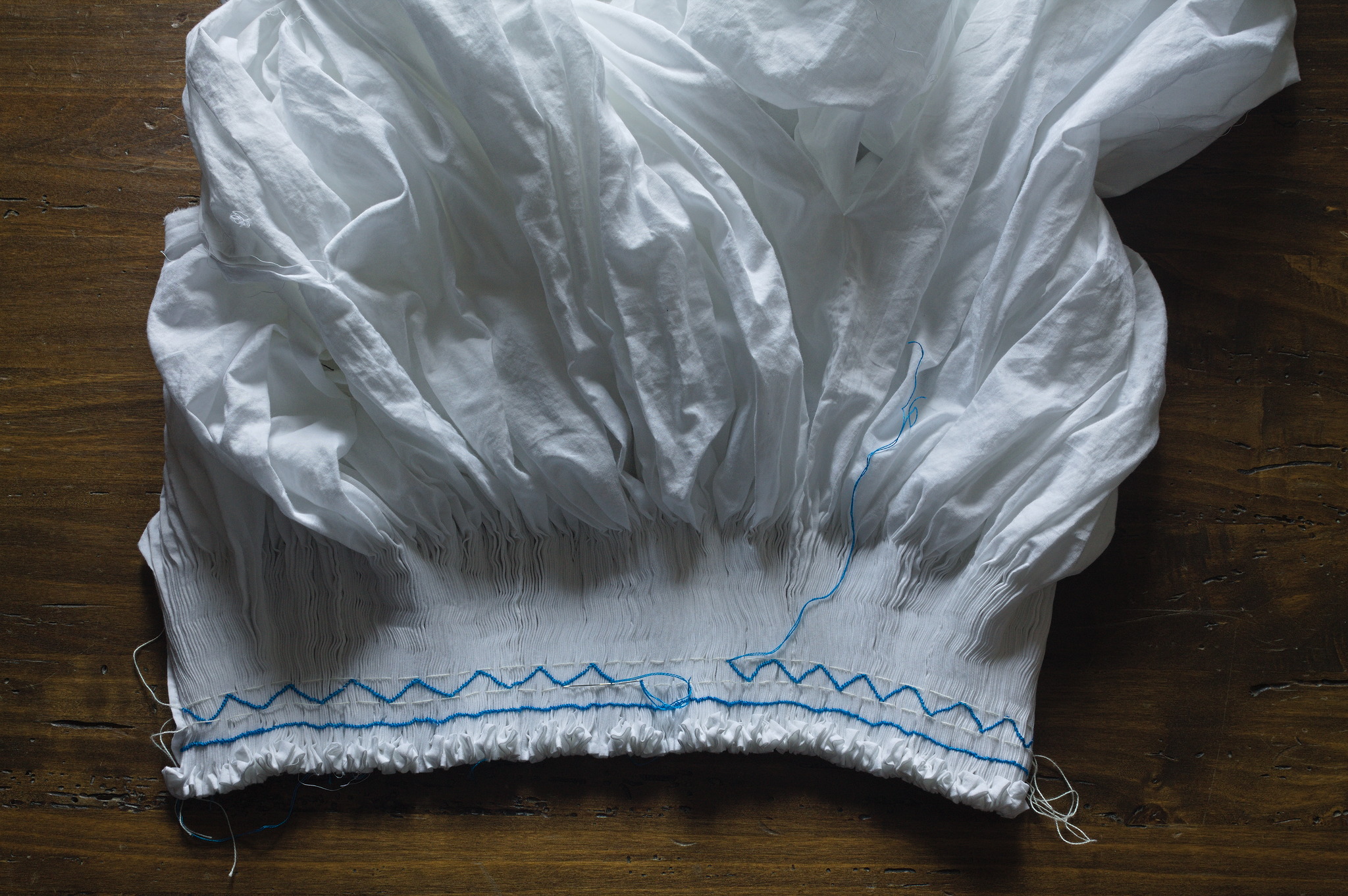 While doing the diagonal smocking on the collar I counted the stitches
to make each side the same length, which didn t completely work because
the gathers weren t that regular to start with, and started each line
from the two front opening going towards the center back, leaving a
triangle with a different size right in the middle. I think overall it
worked well enough.
Then there were a few more interruptions, but at last it was ready! just
as the weather turned cold-ish and puffy shirts were no longer in
season, but it will be there for me next spring.
I did manage to wear it a few times and I have to say that the neck
shaping is quite comfortable indeed: it doesn t pull in odd ways like
the classical historically accurate pirate shirt sometimes does, and the
heavy gathering at the neck makes it feel padded and soft.
 I m not as happy with the cuffs: the way I did them with just
honeycombing means that they don t need a closure, and after washing and
a bit of steaming they lie nicely, but then they tend to relax in a
wider shape. The next time I think I ll leave a slit in the sleeves,
possibly make a different type of smocking (depending on whether I have
enough fabric) and then line them like the neck so that they are stable.
Because, yes, I think that there will be another time: I have a few more
project before that, and I want to spend maybe another year working from
my stash, but then I think I ll buy some soft linen and make at least
another one, maybe with white-on-white smocking so that it will be
easier to match with different garments.
 I haven't been blogging as much as I used to. For a while, I've been hosting my
blog on a single-core DigitalOcean droplet, which cost me around $7 per month.
It also hosted my mail server. Most of the time, the droplet was idle, and I
wasn't actively using my personal email much. Since it was self-hosted, I didn't
have confidence that it would always be up, so I relied on Gmail as my personal
email for everything from banking to social media.
Now, I feel this cost is just a waste of money, even though it's not huge. So, I
decided to move my blog back to GitHub Pages, now published using GitHub
Workflows. I've stopped my mail server for the time being, and it won't be
reachable for a while. For any personal queries or comments, please reach me on
my

 When I started looking at