Francois Marier: Creating a modern tiling desktop environment using i3
 Modern desktop environments like GNOME and KDE involving a lot of mousing around and I much prefer using the keyboard where I can. This is why I switched to the Ion tiling window manager back when I interned at Net Integration Technologies and kept using it until I noticed it had been removed from Debian.
After experimenting with awesome for 2 years and briefly considering xmonad , I finally found a replacement I like in i3. Here is how I customized it and made it play nice with the GNOME and KDE applications I use every day.
Startup script
As soon as I log into my desktop, my startup script starts a few programs, including:
- gnome-settings-daemon: makes GTK applications look nice by applying my preferred theme amongst other things
- gnome-keyring-daemon: remembers ssh public keys for the duration of my session
- gnome-screensaver: locks the screen when I'm not around
- nm-applet: handles wifi and VPN connections
- git-annex: keeps my folders synchronized between machines
Because of a bug in gnome-settings-daemon which makes the mouse cursor disappear as soon as gnome-settings-daemon is started, I had to run the following to disable the offending gnome-settings-daemon plugin:
dconf write /org/gnome/settings-daemon/plugins/cursor/active false
Screensaver
In addition, gnome-screensaver didn't automatically lock my screen, so I installed xautolock and added it to my startup script:
xautolock -time 30 -locker "gnome-screensaver-command --lock" &
to lock the screen using gnome-screensaver after 30 minutes of inactivity.
I can also trigger it manually using the following shortcut defined in my ~/.i3/config:
bindsym Ctrl+Mod1+l exec xautolock -locknow
Keyboard shortcuts
While keyboard shortcuts can be configured in GNOME, they don't work within i3, so I added a few more bindings to my ~/.i3/config:
# volume control
bindsym XF86AudioLowerVolume exec /usr/bin/pactl set-sink-volume @DEFAULT_SINK@ -- '-5%'
bindsym XF86AudioRaiseVolume exec /usr/bin/pactl set-sink-volume @DEFAULT_SINK@ -- '+5%'
# brightness control
bindsym XF86MonBrightnessDown exec xbacklight -steps 1 -time 0 -dec 5
bindsym XF86MonBrightnessUp exec xbacklight -steps 1 -time 0 -inc 5
bindsym XF86AudioMute exec /usr/bin/pactl set-sink-mute @DEFAULT_SINK@ toggle
# show battery stats
bindsym XF86Battery exec gnome-power-statistics
to make volume control, screen brightness and battery status buttons work as expected on my laptop.
These bindings require the following packages:
Keyboard layout switcher
Another thing that used to work with GNOME and had to re-create in i3 is the ability to quickly toggle between two keyboard layouts using the keyboard.
To make it work, I wrote a simple shell script and assigned a keyboard shortcut to it in ~/.i3/config:
bindsym $mod+u exec /home/francois/bin/toggle-xkbmap
Suspend script
Since I run lots of things in the background, I have set my laptop to avoid suspending when the lid is closed by putting the following in /etc/systemd/login.conf:
HandleLidSwitch=lock
Instead, when I want to suspend to ram, I use the following keyboard shortcut:
bindsym Ctrl+Mod1+s exec /home/francois/bin/s2ram
which executes a custom suspend script to clear the clipboards (using xsel), flush writes to disk and lock the screen before going to sleep.
To avoid having to type my sudo password every time pm-suspend is invoked, I added the following line to /etc/sudoers:
francois ALL=(ALL) NOPASSWD: /usr/sbin/pm-suspend
Window and workspace placement hacks
While tiling window managers promise to manage windows for you so that you can focus on more important things, you will most likely want to customize window placement to fit your needs better.
Working around misbehaving applications
A few applications make too many assumptions about window placement and are just plain broken in tiling mode. Here's how to automatically switch them to floating mode:
for_window [class="VidyoDesktop"] floating enable
You can get the Xorg class of the offending application by running this command:
xprop grep WM_CLASS
before clicking on the window.
Keeping IM windows on the first workspace
I run Pidgin on my first workspace and I have the following rule to keep any new window that pops up (e.g. in response to a new incoming message) on the same workspace:
assign [class="Pidgin"] 1
Automatically moving workspaces when docking
Here's a neat configuration blurb which automatically moves my workspaces (and their contents) from the laptop screen (eDP1) to the external monitor (DP2) when I dock my laptop:
# bind workspaces to the right monitors
workspace 1 output DP2
workspace 2 output DP2
workspace 3 output DP2
workspace 4 output DP2
workspace 5 output DP2
workspace 6 output eDP1
You can get these output names by running:
xrandr --display :0 grep " connected"
Finally, because X sometimes fail to detect my external monitor when docking/undocking, I also wrote a script to set the displays properly and bound it to the appropriate key on my laptop:
bindsym XF86Display exec /home/francois/bin/external-monitor
dconf write /org/gnome/settings-daemon/plugins/cursor/active false
xautolock -time 30 -locker "gnome-screensaver-command --lock" &
~/.i3/config:
bindsym Ctrl+Mod1+l exec xautolock -locknow
Keyboard shortcuts
While keyboard shortcuts can be configured in GNOME, they don't work within i3, so I added a few more bindings to my ~/.i3/config:
# volume control
bindsym XF86AudioLowerVolume exec /usr/bin/pactl set-sink-volume @DEFAULT_SINK@ -- '-5%'
bindsym XF86AudioRaiseVolume exec /usr/bin/pactl set-sink-volume @DEFAULT_SINK@ -- '+5%'
# brightness control
bindsym XF86MonBrightnessDown exec xbacklight -steps 1 -time 0 -dec 5
bindsym XF86MonBrightnessUp exec xbacklight -steps 1 -time 0 -inc 5
bindsym XF86AudioMute exec /usr/bin/pactl set-sink-mute @DEFAULT_SINK@ toggle
# show battery stats
bindsym XF86Battery exec gnome-power-statistics
to make volume control, screen brightness and battery status buttons work as expected on my laptop.
These bindings require the following packages:
Keyboard layout switcher
Another thing that used to work with GNOME and had to re-create in i3 is the ability to quickly toggle between two keyboard layouts using the keyboard.
To make it work, I wrote a simple shell script and assigned a keyboard shortcut to it in ~/.i3/config:
bindsym $mod+u exec /home/francois/bin/toggle-xkbmap
Suspend script
Since I run lots of things in the background, I have set my laptop to avoid suspending when the lid is closed by putting the following in /etc/systemd/login.conf:
HandleLidSwitch=lock
Instead, when I want to suspend to ram, I use the following keyboard shortcut:
bindsym Ctrl+Mod1+s exec /home/francois/bin/s2ram
which executes a custom suspend script to clear the clipboards (using xsel), flush writes to disk and lock the screen before going to sleep.
To avoid having to type my sudo password every time pm-suspend is invoked, I added the following line to /etc/sudoers:
francois ALL=(ALL) NOPASSWD: /usr/sbin/pm-suspend
Window and workspace placement hacks
While tiling window managers promise to manage windows for you so that you can focus on more important things, you will most likely want to customize window placement to fit your needs better.
Working around misbehaving applications
A few applications make too many assumptions about window placement and are just plain broken in tiling mode. Here's how to automatically switch them to floating mode:
for_window [class="VidyoDesktop"] floating enable
You can get the Xorg class of the offending application by running this command:
xprop grep WM_CLASS
before clicking on the window.
Keeping IM windows on the first workspace
I run Pidgin on my first workspace and I have the following rule to keep any new window that pops up (e.g. in response to a new incoming message) on the same workspace:
assign [class="Pidgin"] 1
Automatically moving workspaces when docking
Here's a neat configuration blurb which automatically moves my workspaces (and their contents) from the laptop screen (eDP1) to the external monitor (DP2) when I dock my laptop:
# bind workspaces to the right monitors
workspace 1 output DP2
workspace 2 output DP2
workspace 3 output DP2
workspace 4 output DP2
workspace 5 output DP2
workspace 6 output eDP1
You can get these output names by running:
xrandr --display :0 grep " connected"
Finally, because X sometimes fail to detect my external monitor when docking/undocking, I also wrote a script to set the displays properly and bound it to the appropriate key on my laptop:
bindsym XF86Display exec /home/francois/bin/external-monitor
# volume control
bindsym XF86AudioLowerVolume exec /usr/bin/pactl set-sink-volume @DEFAULT_SINK@ -- '-5%'
bindsym XF86AudioRaiseVolume exec /usr/bin/pactl set-sink-volume @DEFAULT_SINK@ -- '+5%'
# brightness control
bindsym XF86MonBrightnessDown exec xbacklight -steps 1 -time 0 -dec 5
bindsym XF86MonBrightnessUp exec xbacklight -steps 1 -time 0 -inc 5
bindsym XF86AudioMute exec /usr/bin/pactl set-sink-mute @DEFAULT_SINK@ toggle
# show battery stats
bindsym XF86Battery exec gnome-power-statistics
~/.i3/config:
bindsym $mod+u exec /home/francois/bin/toggle-xkbmap
Suspend script
Since I run lots of things in the background, I have set my laptop to avoid suspending when the lid is closed by putting the following in /etc/systemd/login.conf:
HandleLidSwitch=lock
Instead, when I want to suspend to ram, I use the following keyboard shortcut:
bindsym Ctrl+Mod1+s exec /home/francois/bin/s2ram
which executes a custom suspend script to clear the clipboards (using xsel), flush writes to disk and lock the screen before going to sleep.
To avoid having to type my sudo password every time pm-suspend is invoked, I added the following line to /etc/sudoers:
francois ALL=(ALL) NOPASSWD: /usr/sbin/pm-suspend
Window and workspace placement hacks
While tiling window managers promise to manage windows for you so that you can focus on more important things, you will most likely want to customize window placement to fit your needs better.
Working around misbehaving applications
A few applications make too many assumptions about window placement and are just plain broken in tiling mode. Here's how to automatically switch them to floating mode:
for_window [class="VidyoDesktop"] floating enable
You can get the Xorg class of the offending application by running this command:
xprop grep WM_CLASS
before clicking on the window.
Keeping IM windows on the first workspace
I run Pidgin on my first workspace and I have the following rule to keep any new window that pops up (e.g. in response to a new incoming message) on the same workspace:
assign [class="Pidgin"] 1
Automatically moving workspaces when docking
Here's a neat configuration blurb which automatically moves my workspaces (and their contents) from the laptop screen (eDP1) to the external monitor (DP2) when I dock my laptop:
# bind workspaces to the right monitors
workspace 1 output DP2
workspace 2 output DP2
workspace 3 output DP2
workspace 4 output DP2
workspace 5 output DP2
workspace 6 output eDP1
You can get these output names by running:
xrandr --display :0 grep " connected"
Finally, because X sometimes fail to detect my external monitor when docking/undocking, I also wrote a script to set the displays properly and bound it to the appropriate key on my laptop:
bindsym XF86Display exec /home/francois/bin/external-monitor
HandleLidSwitch=lock
bindsym Ctrl+Mod1+s exec /home/francois/bin/s2ram
francois ALL=(ALL) NOPASSWD: /usr/sbin/pm-suspend
Working around misbehaving applications
A few applications make too many assumptions about window placement and are just plain broken in tiling mode. Here's how to automatically switch them to floating mode:
for_window [class="VidyoDesktop"] floating enable
You can get the Xorg class of the offending application by running this command:
xprop grep WM_CLASS
before clicking on the window.
Keeping IM windows on the first workspace
I run Pidgin on my first workspace and I have the following rule to keep any new window that pops up (e.g. in response to a new incoming message) on the same workspace:
assign [class="Pidgin"] 1
Automatically moving workspaces when docking
Here's a neat configuration blurb which automatically moves my workspaces (and their contents) from the laptop screen (eDP1) to the external monitor (DP2) when I dock my laptop:
# bind workspaces to the right monitors
workspace 1 output DP2
workspace 2 output DP2
workspace 3 output DP2
workspace 4 output DP2
workspace 5 output DP2
workspace 6 output eDP1
You can get these output names by running:
xrandr --display :0 grep " connected"
Finally, because X sometimes fail to detect my external monitor when docking/undocking, I also wrote a script to set the displays properly and bound it to the appropriate key on my laptop:
bindsym XF86Display exec /home/francois/bin/external-monitor
for_window [class="VidyoDesktop"] floating enable
xprop grep WM_CLASS
assign [class="Pidgin"] 1
Automatically moving workspaces when docking
Here's a neat configuration blurb which automatically moves my workspaces (and their contents) from the laptop screen (eDP1) to the external monitor (DP2) when I dock my laptop:
# bind workspaces to the right monitors
workspace 1 output DP2
workspace 2 output DP2
workspace 3 output DP2
workspace 4 output DP2
workspace 5 output DP2
workspace 6 output eDP1
You can get these output names by running:
xrandr --display :0 grep " connected"
Finally, because X sometimes fail to detect my external monitor when docking/undocking, I also wrote a script to set the displays properly and bound it to the appropriate key on my laptop:
bindsym XF86Display exec /home/francois/bin/external-monitor
# bind workspaces to the right monitors
workspace 1 output DP2
workspace 2 output DP2
workspace 3 output DP2
workspace 4 output DP2
workspace 5 output DP2
workspace 6 output eDP1
xrandr --display :0 grep " connected"
bindsym XF86Display exec /home/francois/bin/external-monitor
 Today we finished the talk selection process. We are very grateful to everyone who decided to submit
talks and events for DebConf14.
If you have submitted an event, please check your email :). If you have not received any confirmation
regarding your talk status, please contact us on talks@debconf.org
During the selection process, we bore in mind the number of talk slots during the conference, as well
as maintaining a balance among the different submitted topics. We are pleased to announce that we have
received a total of 115 events, of which 80 have been approved (69%).
Approval means your event will be scheduled during the conference and you will have video coverage.
The list of approved talks can be found on the following link:
 Reworking Intel Glamor
The original Intel driver Glamor support was based on the notion that
it would be better to have the Intel driver capture any fall backs and
try to make them faster than Glamor could do internally. Now that
Glamor has reasonably complete acceleration, and its fall backs aren t
terrible, this isn t as useful as it once was, and because this uses
Glamor in a weird way, we re making the Glamor code harder to maintain.
Fixing the Intel driver to not use Glamor in this way took a bit of
effort; the UXA support is all tied into the overall operation of the
driver.
Separating out UXA functions
The first task was to just identify which functions were UXA-specific
by adding _uxa to their names. A couple dozen sed runs and now a
bunch of the driver is looking better.
Next, a pile of UXA-specific functions were actually inside the
non-UXA parts of the code. Those got moved out, and a new
intel_uxa.h file was created to hold all of the definitions.
Finally, a few non UXA-specific functions were actually in the uxa
files; those got moved over to the generic code.
Removing the Glamor paths in UXA
Each one of the UXA functions had a little piece of code at the top
like:
 because a few
parameters that depend on the GTT size were not initialized until
after that frame buffer was allocated. I haven t analyzed what effect
this has on performance.
Page Flipping and Resize
Page flipping (or just flipping) means switching the entire display
from one frame buffer to another. It s generally the fastest way of
updating the screen as you don t have to copy any bits.
The trick with flipping is that a client hands you a random
pixmap and you need to stuff that into the KMS API. With UXA, that s
pretty easy as all pixmaps are managed through the UXA API which knows
which underlying kernel BO is tied with each pixmap. Using Glamor,
only the underlying GL driver knows the mapping. Fortunately (?), we
have the EGL Image extension, which lets us take a random GL texture
and turn it into a file descriptor for a DMA-BUF kernel object. So, we
have this cute little dance:
 I have a couple of


 I spent many, many hours trying to understand why I couldn t have both nova console-log showing me the output of the log, AND have the OpenStack dashboard (eg: horizon) console to work at the same time. Normally, this is done very easily, by passing multiple times the console= parameter to the Linux kernel as follow:
 Today I was poking around the source of Xine, the well-known media player. During the course of this poking I spotted that Xine has skin support - something I've been blissfully ignorant of for many years.
How do these skins work? You bring up the skin-browser, by default this is achieved by pressing "Ctrl-d". The browser will show you previews of the skins available, and allow you to install them.
How does Xine know what skins are available? It downloads the contents of:
 Friday was my last day at

 I use a laptop with Atheros wifi card with ath9k driver. I use
hostapd to convert my laptop wifi into AP (Access point) so I can
share network with my Nexus 7 and Kindle. This has been working
fine for quite some time till my recent update.
After recent system update (I use Debian Sid), I couldn't for some
reason convert my wifi into AP so my device can connect. I can't find
anything in log nor in hostapd debug messages which is useful to
trouble shoot the issue. Every time I start the laptop my wifi card
will be blocked by RF-KILL and I have manually unblock (both hard and
soft). The script which I use to convert my Wifi into AP is below

 Something straight out from the real world: Menu cards in restaurants are
not nice to deal with if you are blind. It is an old problem we grow used
to ignoring over time, but still something that can be quite nagging.
There are a lot of psychological issues involved in this one.
Of course, you can ask for the menu to be read out to you by the staff.
While they usually do their best, you end up missing out on
some things most of the time.
First of all, depending on the current workload in the restaurant,
the staff will usually try to cut some time and not read everything to you.
What they usually do is to try to understand what type of meal you are
interested in, and just read the choices from that category to you.
While this can be considered a service in some situations (human preprocessing),
there are situations were you will definitely miss a highlight on the menu that
you would have liked to choose if you knew that it was there.
And even if the staff decides to read the complete menu to you (which is rare),
you are confronted with the 7-things-in-my-head-at-once problem.
It is usually rather hard to decide amongst a list of more then 7 items,
because our short-term memory is sort of limited. What the sighted
restaurant goers do, is to skip back and forth between the available options,
until they hit a decisive moment. True, that can take a while,
but it is definitely a lot easier if you can perform "random access reads" to
the list of choices yourself. However, if someone presents a substantial number
of choices to you in a row, as sequential speech, you loose the random
access ability. You either remember every choice from the beginning and do your
choosing mentaully (if you do have extraordinary mental abilities), or you end
up asking the staff to read previous items aloud again. This can work, but
usually it doesn't. At some point, you do not want to bother the staff anymore,
and you even start to feel stupid for asking again and again, while this is
something totally normal to every sighted person, just that
"they" do their "random access browsing" on their own, so "they"
have no need to feel bad about how long it takes them to decide, minus the typical
social pressure that arises after a a certain time for everyone, at least
if you are dining in a group.
In very rare cases, you happen to meet staff that is truly "awake", doing
their best to not let you feel that they might be pressed on time, and
really taking as much time as necessary to help you make the perfect decision.
This is rare, but if it happens, it is almost a magical moment.
One of these moments, where there are no "artificial" barriers between
humans doing communcation. Anyway, I am drifting away.
The perfect solution to this problem is to provide random access browsing
of a restaurant menu with the help of digital devices. Trying to make
braille menus available in all restaurants is a goal which is not realistically
reachable. Menus go out of date, and need changing. And getting a physical
braille copy updated and reprinted is considerably more involved as with digital media.
Restaurant owners will also likely not see the benefit to rpvide a braille
card for a very small circle of customers. With a digital online menu,
that is a completely different story.
These days, almost every blind person in at least my social circles
owns an iOS (or similar) device. These devices have speech synthesis and web
browsers.
Of course, some restaurants especially in urban areas do already
have a menu online. I have found them manually with google and
friends sometimes in the past, which has already given me the
ability to actually sit back, and really comfortably choose
amongst the available offerings myself, without having to bother
a human, and without having to feel bad about (ab)using their time.
However, the case where a restaurant really has their menu online is rather rare
still in the area where I am. And, it can be tedious to google
for a restaurant website. Sometimes, the website itself is just
marginally accessible, which makes it even more frustrating to
get a relaxed dinner-experience.
I have discovered a location-based solution for the restaurant-menu problem recently.
Foursquare offers the ability to provide a direct link to the menu in
a restaurant-entry. I figured, since all you need to do is
write a single webpage where the (common) menu items are listed per restaurant,
that I could begin to create restaurant menus for my favourite locations,
on my own. Well, not quite, but almost. I will sometimes need
help from others to get the menu digitized, but that's just a one-time
piece of work I hopefully can outsource :-). Once the actual content
is in my INBUX, I create a nice HTML page listing the menu in a rather
speech-based browser friendly way.
I have begun to do this today, with the menu of a restaurant just about
500 meters away from my apartment.
 Every now and then I decide I'll try and sort out my VoIP setup. And then I give up. Today I tried again. I really didn't think I was aiming that high. I thought I'd start by making my email address work as a SIP address. Seems reasonable, right? I threw in the extra constraints of wanting some security (so TLS, not UDP) and a soft client that would work on my laptop (I have a Grandstream hardphone and would like an Android client as well, but I figure those are the easy cases while the "I have my laptop and I want to remain connected" case is a bit trickier). I had a suitable Internet connected VM, access to control my DNS fully (so I can do SRV records) and time to read whatever HOWTOs required. And oh my ghod the state of the art is appalling.
Let's start with getting a SIP server up and running. I went with

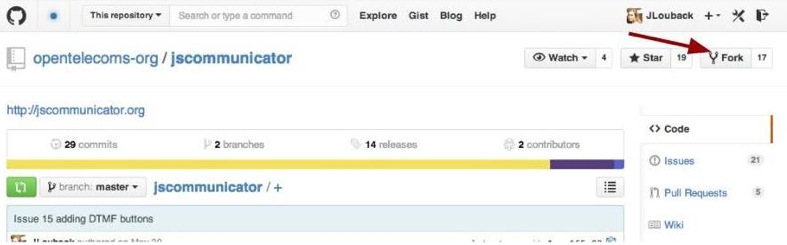 You should now have your own JSCommunicator repository on your Github account. On your main page select the tab Repositories . It should be the first on the list. The url will be https://github.com/YOUR-USERNAME/jscommunicator. My Github username is JLouback, so my jscommunicator repo can be found at https://github.com/JLouback/jscommunicator.
Clone
Now you should download all that code to your local machine so you can edit it. On your JSCommunicator page somewhere around the lower right corner you ll see a field entitled HTTPS clone URL:
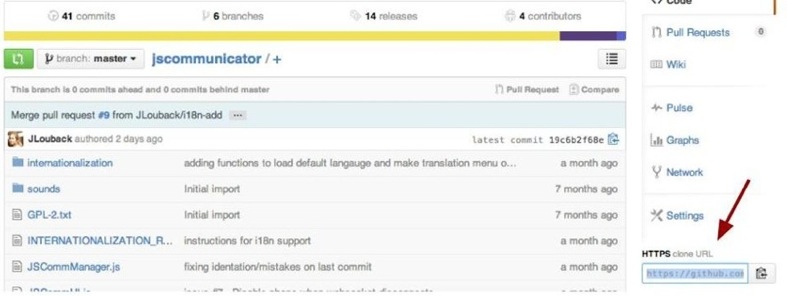 I don t know if this is correct, but you can just copy the URL on your browser too. I do that.
Now on your terminal, navigate to the directory you d like to place your repository and enter
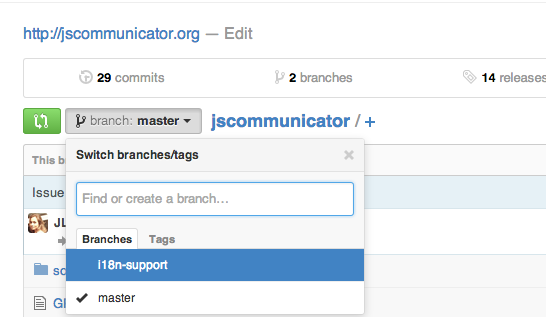 Click the green button directly to the left of the branch drop down menu shown above. This will create a pull request to add your new code to the official jscommunicator code. Once you click that button, you should see this:
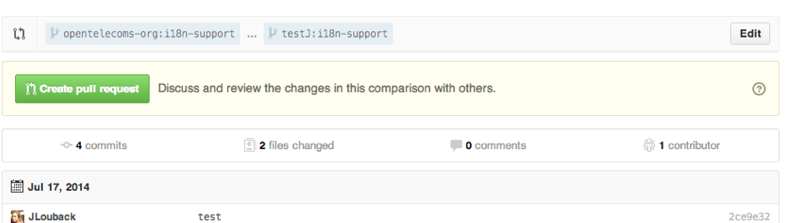 Make sure that the base repo (the first on the line above the green Create pull request button) is opentelecoms-org:i18n-support and not opentelecoms-org:master or another branch name. If it is, just click Edit on the right and you ll be able to select the branch from a dropdown like so:
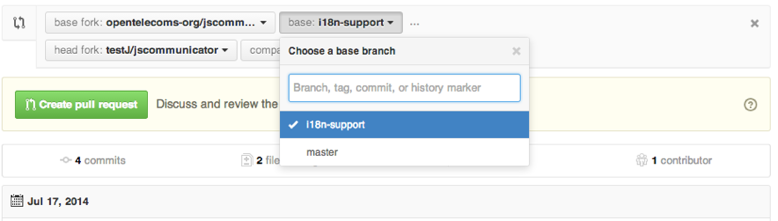 If first repo is opentelecoms-org:i18n-support and the second is YOUR_USER:i18n-support and you ve verified (scroll down) that there are 2 files changed which are your new .properties file and the added element to the available_languages.xml, go ahead and press create pull request. It ll open a window with a text box you can add an explanation to with one final Create pull request button. Click that and you re done! You ve kindly contributed with a translation for JSCommunicator!