James Bromberger: Logical Volume Management with Debian on Amazon EC2
 The recent AWS introduction of the Elastic File System gives you an automatic grow-and-shrink capability as an NFS mount, an exciting option that takes away the previous overhead in creating shared block file systems for EC2 instances.
However it should be noted that the same auto-management of capacity is not true in the EC2 instance s Elastic Block Store (EBS) block storage disks; sizing (and resizing) is left to the customer. With current 2015 EBS, one cannot simply increase the size of an EBS Volume as the storage becomes full; (as at June 2015) an EBS volume, once created, has fixed size. For many applications, that lack of resize function on its local EBS disks is not a problem; many server instances come into existence for a brief period, process some data and then get Terminated, so long term managment is not needed.
However for a long term data store on an instance (instead of S3, which I would recommend looking closely at from a durability and pricing fit), and where I want to harness the capacity to grow (or shrink) disk for my data, then I will need to leverage some slightly more advanced disk management. And just to make life interesting, I wish to do all this while the data is live and in-use, if possible.
Enter: Logical Volume Management, or LVM. It s been around for a long, long time: LVM 2 made a debut around 2002-2003 (2.00.09 was Mar 2004) and LVM 1 was many years before that so it s pretty mature now. It s a powerful layer that sits between your raw storage block devices (as seen by the operating system), and the partitions and file systems you would normally put on them.
In this post, I ll walk through the process of getting set up with LVM on Debian in the AWS EC2 environment, and how you d do some basic maintenance to add and remove (where possible) storage with minimal interruption.
Getting Started
First a little prep work for a new Debian instance with LVM.
As I d like to give the instance its own ability to manage its storage, I ll want to provision an IAM Role for EC2 Instances for this host. In the AWS console, visit IAM, Roles, and I ll create a new Role I ll name EC2-MyServer (or similar), and at this point I ll skip giving it any actual privileges (later we ll update this). As at this date, we can only associate an instance role/profile at instance launch time.
Now I launch a base image Debian EC2 instance launched with this IAM Role/Profile; the root file system is an EBS Volume. I am going to put data that I ll be managing on a separate disk from the root file system.
First, I need to get the LVM utilities installed. It s a simple package to install: the lvm2 package. From my EC2 instance I need to get root privileges (sudo -i) and run:
The recent AWS introduction of the Elastic File System gives you an automatic grow-and-shrink capability as an NFS mount, an exciting option that takes away the previous overhead in creating shared block file systems for EC2 instances.
However it should be noted that the same auto-management of capacity is not true in the EC2 instance s Elastic Block Store (EBS) block storage disks; sizing (and resizing) is left to the customer. With current 2015 EBS, one cannot simply increase the size of an EBS Volume as the storage becomes full; (as at June 2015) an EBS volume, once created, has fixed size. For many applications, that lack of resize function on its local EBS disks is not a problem; many server instances come into existence for a brief period, process some data and then get Terminated, so long term managment is not needed.
However for a long term data store on an instance (instead of S3, which I would recommend looking closely at from a durability and pricing fit), and where I want to harness the capacity to grow (or shrink) disk for my data, then I will need to leverage some slightly more advanced disk management. And just to make life interesting, I wish to do all this while the data is live and in-use, if possible.
Enter: Logical Volume Management, or LVM. It s been around for a long, long time: LVM 2 made a debut around 2002-2003 (2.00.09 was Mar 2004) and LVM 1 was many years before that so it s pretty mature now. It s a powerful layer that sits between your raw storage block devices (as seen by the operating system), and the partitions and file systems you would normally put on them.
In this post, I ll walk through the process of getting set up with LVM on Debian in the AWS EC2 environment, and how you d do some basic maintenance to add and remove (where possible) storage with minimal interruption.
Getting Started
First a little prep work for a new Debian instance with LVM.
As I d like to give the instance its own ability to manage its storage, I ll want to provision an IAM Role for EC2 Instances for this host. In the AWS console, visit IAM, Roles, and I ll create a new Role I ll name EC2-MyServer (or similar), and at this point I ll skip giving it any actual privileges (later we ll update this). As at this date, we can only associate an instance role/profile at instance launch time.
Now I launch a base image Debian EC2 instance launched with this IAM Role/Profile; the root file system is an EBS Volume. I am going to put data that I ll be managing on a separate disk from the root file system.
First, I need to get the LVM utilities installed. It s a simple package to install: the lvm2 package. From my EC2 instance I need to get root privileges (sudo -i) and run:
After a few moments, the package is installed. I ll choose a location that I want my data to live in, such as /opt/. I want a separate disk for this task for a number of reasons:apt update && apt install lvm2
- Root EBS volumes cannot currently be encrypted using Amazon s Encrypted EBS Volumes at this point in time. If I want to also use AWS encryption option, it ll have to be on a non-root disk. Note that instance-size restrictions also exist for EBS Encrypted Volumes.
- It s possibly not worth make a snapshot of the Operating System at the same time as the user content data I am saving. The OS install (except the /etc/ folder) can almost entirely be recreated from a fresh install. so why snapshot that as well (unless that s your strategy for preserving /etc, /home, etc).
- The type of EBS volume that you require may be different for different data: today (Apr 2015) there is a choice of Magnetic, General Purpose 2 (GP2) SSD, and Provisioned IO/s (PIOPS) SSD, each with different costs; and depending on our volume, we may want to select one for our root volume (operating system), and something else for our data storage.
- I may want to use EBS snapshots to clone the disk to another host, without the base OS bundled in with the data I am cloning.
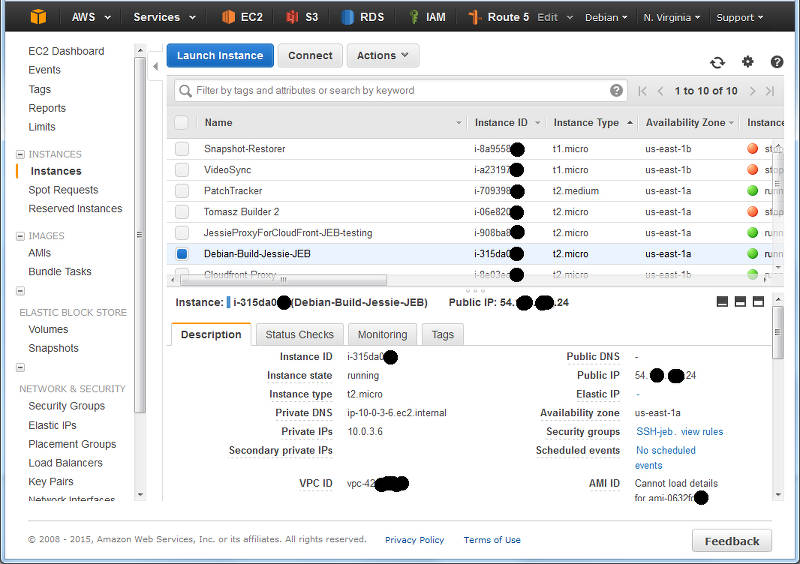 A (redacted) list of instance from the EC2 console.
The returned text is simply: us-east-1a . Time to navigate to Elastic Block Store , choose Volumes and click Create :wget -q -O - http://169.254.169.254/latest/meta-data/placement/availability-zone
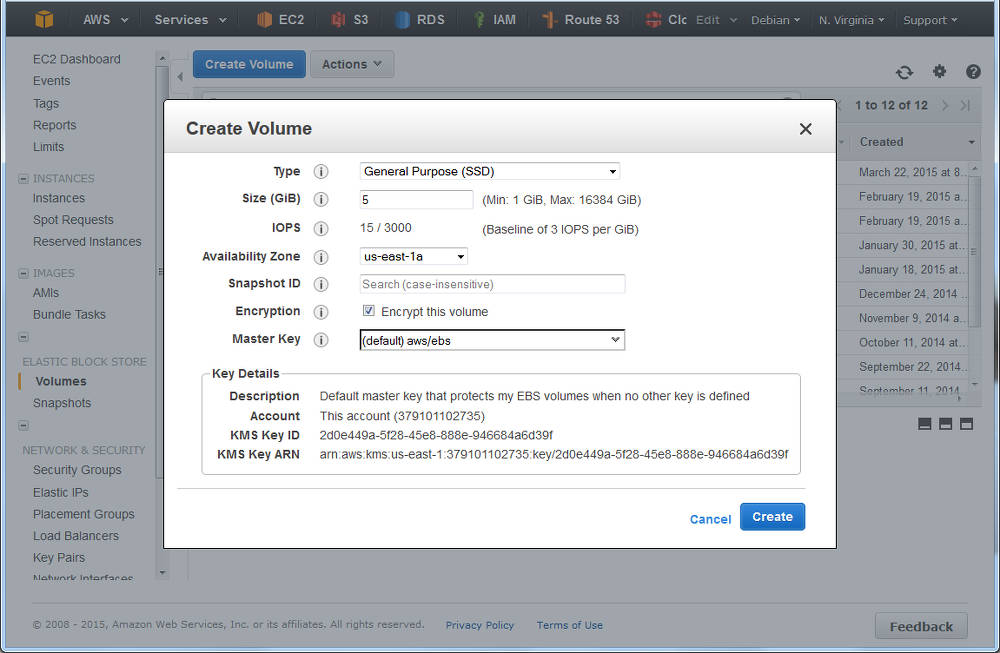 Creating a volume in AWS EC2: ensure the AZ is the same as your instance
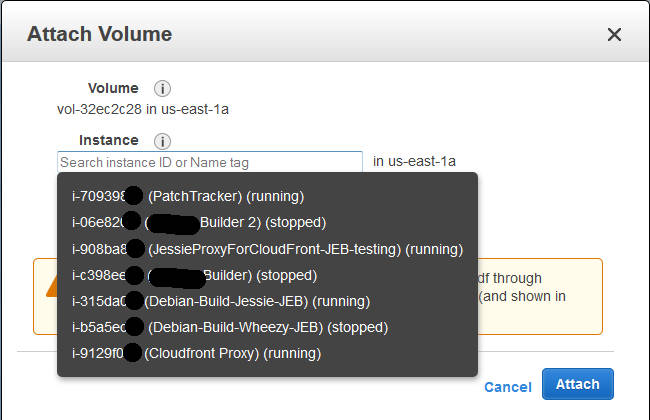 Attaching a volume to an instance: you ll be prompted for the compatible instances in the same AZ.
(Note the time-stamp in square brackets will be different). Previously at this juncture you would format the entire disk with your favourite file system, mount it in the desired location, and be done. But we re adding in LVM here between this raw device, and the filesystem we are yet to make . Marking the block device for LVM Our first operation with LVM is to put a marker on the volume to indicate it s being use for LVM so that when we scan the block device, we know what it s for. It s a really simple command:[1994151.231815] xvdg: unknown partition table
The device name above (/dev/xvdg) should correspond to the one we saw from the dmesg output above. The output of the above is rather straight forward:pvcreate /dev/xvdg
Checking our EBS Volume We can check on the EBS volume which LVM sees as a Physical Volume using the pvs command.Physical volume "/dev/xvdg" successfully created
Here we see the entire disk is currently unused. Creating our First Volume Group Next step, we need to make an initial LVM Volume Group which will use our Physical volume (xvdg). The Volume Group will then contain one (or more) Logical Volumes that we ll format and use. Again, a simple command to create a volume group by giving it its first physical device that it will use:# pvs PV VG Fmt Attr PSize PFree /dev/xvdg lvm2 --- 5.00g 5.00g
And likewise we can check our set of Volume Groups with vgs :# vgcreate OptVG /dev/xvdg Volume group "OptVG" successfully created
The Attribute flags here indicate this is writable, resizable, and allocating extents in normal mode. Lets proceed to make our (first) Logical Volume in this Volume Group:# vgs VG #PV #LV #SN Attr VSize VFree OptVG 1 0 0 wz--n- 5.00g 5.00g
You ll note that I have created our Logical Volume as almost the same size as the entire Volume Group (which is currently one disk) but I left some space unused: the reason for this comes down to keeping some space available for any jobs that LVM may want to use on the disk and this will be used later when we want to move data between raw disk devices. If I wanted to use LVM for Snapshots, then I d want to leave more space free (unallocated) again. We can check on our Logical Volume:# lvcreate -n OptLV -L 4.9G OptVG Rounding up size to full physical extent 4.90 GiB Logical volume "OptLV" created
The attribytes indicating that the Logical Volume is writeable, is allocating its data to the disk in inherit mode (ie, as the Volume Group is doing), and that it is active. At this stage you may also discover we have a device /dev/OptVG/OptLV, and this is what we re going to format and mount. But before we do, we should review what file system we ll use.# lvs LV VG Attr LSize Pool Origin Data% Meta% Move Log Cpy%Sync Convert OptLV OptVG -wi-a----- 4.90g
Filesystems
| Name | Shrink | Grow | Journal | Max File Sz | Max Vol Sz |
|---|---|---|---|---|---|
| btrfs | Y | Y | N | 16 EB | 16 EB |
| ext3 | Y off-line | Y | Y | 2 TB | 32 TB |
| ext4 | Y off-line | Y | Y | 16 TB | 1 EB |
| xfs | N | Y | Y | 8 EB | 8 EB |
| zfs* | N | Y | Y | 16 EB | 256 ZB |
And now mount this volume and check it out:# mkfs.ext4 /dev/OptVG/OptLV mke2fs 1.42.12 (29-Aug-2014) Creating filesystem with 1285120 4k blocks and 321280 inodes Filesystem UUID: 4f831d17-2b80-495f-8113-580bd74389dd Superblock backups stored on blocks: 32768, 98304, 163840, 229376, 294912, 819200, 884736 Allocating group tables: done Writing inode tables: done Creating journal (32768 blocks): done Writing superblocks and filesystem accounting information: done
Lastly, we want this to be mounted next time we reboot, so edit /etc/fstab and add the line:# mount /dev/OptVG/OptLV /opt/ # df -HT /opt Filesystem Type Size Used Avail Use% Mounted on /dev/mapper/OptVG-OptLV ext4 5.1G 11M 4.8G 1% /opt
With this in place, we can now start using this disk. I selected here not to update the filesystem every time I access a file or folder updates get logged as normal but access time is just ignored. Time to expand After some time, our 5 GB /opt/ disk is rather full, and we need to make it bigger, but we wish to do so without any downtime. Amazon EBS doesn t support resizing volumes, so our strategy is to add a new larger volume, and remove the older one that no longer suits us; LVM and ext4 s online resize ability will allow us to do this transparently. For this example, we ll decide that we want a 10 GB volume. It can be a different type of EBS volume to our original we re going to online-migrate all our data from one to the other. As when we created the original 5 GB EBS volume above, create a new one in the same AZ and attach it to the host (perhaps a /dev/xvdh this time). We can check the new volume is visible with dmesg again:/dev/OptVG/OptLV /opt ext4 noatime,nodiratime 0 0
And now we initalise this as a Physical volume for LVM:[1999786.341602] xvdh: unknown partition table
And then add this disk to our existing OptVG Volume Group:# pvcreate /dev/xvdh Physical volume "/dev/xvdh" successfully created
We can now review our Volume group with vgs, and see our physical volumes with pvs:# vgextend OptVG /dev/xvdh Volume group "OptVG" successfully extended
There are now 2 Physical Volumes we have a 4.9 GB filesystem taking up space, so 10.09 GB of unallocated space in the VG. Now its time to stop using the /dev/xvgd volume for any new requests:# vgs VG #PV #LV #SN Attr VSize VFree OptVG 2 1 0 wz--n- 14.99g 10.09g # pvs PV VG Fmt Attr PSize PFree /dev/xvdg OptVG lvm2 a-- 5.00g 96.00m /dev/xvdh OptVG lvm2 a-- 10.00g 10.00g
At this time, our existing data is on the old disk, and our new data is on the new one. Its now that I d recommend running GNU screen (or similar) so you can detach from this shell session and reconnect, as the process of migrating the existing data can take some time (hours for large volumes):# pvchange -x n /dev/xvdg Physical volume "/dev/xvdg" changed 1 physical volume changed / 0 physical volumes not changed
During the move, checking the Monitoring tab in the AWS EC2 Console for the two volumes should show one with a large data Read metric, and one with a large data Write metric clearly data should be flowing off the old disk, and on to the new. A note on disk throughput The above move was a pretty small, and empty volume. Larger disks will take longer, naturally, so getting some speed out of the process maybe key. There s a few things we can do to tweak this:# pvmove /dev/sdb1 /dev/sdd1 /dev/xvdg: Moved: 0.1% /dev/xvdg: Moved: 8.6% /dev/xvdg: Moved: 17.1% /dev/xvdg: Moved: 25.7% /dev/xvdg: Moved: 34.2% /dev/xvdg: Moved: 42.5% /dev/xvdg: Moved: 51.2% /dev/xvdg: Moved: 59.7% /dev/xvdg: Moved: 68.0% /dev/xvdg: Moved: 76.4% /dev/xvdg: Moved: 84.7% /dev/xvdg: Moved: 93.3% /dev/xvdg: Moved: 100.0%
- EBS Optimised: a launch-time option that reserves network throughput from certain instance types back to the EBS service within the AZ. Depending on the size of the instance this is 500 MB/sec up to 4GB/sec. Note that for the c4 family of instances, EBS Optimised is on by default.
- Size of GP2 disk: the larger the disk, the longer it can sustain high IO throughput but read this for details.
- Size and speed of PIOPs disk: if consistent high IO is required, then moving to Provisioned IO disk may be useful. Looking at the (2 weeks) history of Cloudwatch logs for the old volume will give me some idea of the duty cycle of the disk IO.
So all 5 GB is now unused (compare to above, where only 96 MB was PFree). With that disk not containing data, I can tell LVM to remove the disk from the Volume Group:# pvs PV VG Fmt Attr PSize PFree /dev/xvdg OptVG lvm2 --- 5.00g 5.00g /dev/xvdh OptVG lvm2 a-- 10.00g 5.09g
Then I cleanly wipe the labels from the volume:# vgreduce OptVG /dev/xvdg Removed "/dev/xvdg" from volume group "OptVG"
If I really want to clean the disk, I could choose to use shred(1) on the disk to overwrite with random data. This can take a lng time Now the disk is completely unused and disassociated from the VG, I can return to the AWS EC2 Console, and detach the disk:# pvremove /dev/xvdg Labels on physical volume "/dev/xvdg" successfully wiped
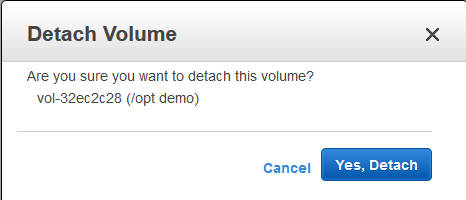 Detach an EBS volume from an EC2 instance
We now have 0.6GB free space on the physical volume (pvs confirms this). Finally, its time to expand out ext4 file system:# lvresize -L +4.5G /dev/OptVG/OptLV Size of logical volume OptVG/OptLV changed from 4.90 GiB (1255 extents) to 9.40 GiB (2407 extents). Logical volume OptLV successfully resized
And with df we can now see:# resize2fs /dev/OptVG/OptLV resize2fs 1.42.12 (29-Aug-2014) Filesystem at /dev/OptVG/OptLV is mounted on /opt; on-line resizing required old_desc_blocks = 1, new_desc_blocks = 1 The filesystem on /dev/OptVG/OptLV is now 2464768 (4k) blocks long.
Automating this The IAM Role I made at the beginning of this post is now going to be useful. I ll start by adding an IAM Policy to the Role to permit me to List Volumes, Create Volumes, Attach Volumes and Detach Volumes to my instance-id. Lets start with creating a volume, with a policy like this:# df -HT /opt/ Filesystem Type Size Used Avail Use% Mounted on /dev/mapper/OptVG-OptLV ext4 9.9G 12M 9.4G 1% /opt
This policy puts some restrictions on the volumes that this instance can create: only within the given Availability Zone (matching our instance), only GP2 SSD (no PIOPs volumes), and size no more than 250 GB. I ll add another policy to permit this instance role to tag volumes in this AZ that don t yet have a tag called InstanceId:"Version": "2012-10-17", "Statement": [ "Sid": "CreateNewVolumes", "Action": "ec2:CreateVolume", "Effect": "Allow", "Resource": "*", "Condition": "StringEquals": "ec2:AvailabilityZone": "us-east-1a", "ec2:VolumeType": "gp2" , "NumericLessThanEquals": "ec2:VolumeSize": "250" ]
Now that I can create (and then tag) volumes, this becomes a simple procedure as to what else I can do to this volume. Deleting and creating snapshots of this volume are two obvious options, and the corresponding policy:"Version": "2012-10-17", "Statement": [ "Sid": "TagUntaggedVolumeWithInstanceId", "Action": [ "ec2:CreateTags" ], "Effect": "Allow", "Resource": "arn:aws:ec2:us-east-1:1234567890:volume/*", "Condition": "Null": "ec2:ResourceTag/InstanceId": "true" ]
Of course it would be lovely if I could use a variable inside the policy condition instead of the literal string of the instance ID, but that s not currently possible. Clearly some of the more important actions I want to take are to attach and detach a volume to my instance:"Version": "2012-10-17", "Statement": [ "Sid": "CreateDeleteSnapshots-DeleteVolume-DescribeModifyVolume", "Action": [ "ec2:CreateSnapshot", "ec2:DeleteSnapshot", "ec2:DeleteVolume", "ec2:DescribeSnapshotAttribute", "ec2:DescribeVolumeAttribute", "ec2:DescribeVolumeStatus", "ec2:ModifyVolumeAttribute" ], "Effect": "Allow", "Resource": "*", "Condition": "StringEquals": "ec2:ResourceTag/InstanceId": "i-123456" ]
  "Version": "2012-10-17",
  "Statement": [

      "Sid": "Stmt1434114682836",
      "Action": [
        "ec2:AttachVolume"
      ],
      "Effect": "Allow",
      "Resource": "arn:aws:ec2:us-east-1:123456789:volume/*",
      "Condition":
        "StringEquals":
          "ec2:ResourceTag/InstanceID": "i-123456"


     ,

      "Sid": "Stmt1434114745717",
      "Action": [
        "ec2:AttachVolume"
      ],
      "Effect": "Allow",
      "Resource": "arn:aws:ec2:us-east-1:123456789:instance/i-123456"

  ]
Now with this in place, we can start to fire up the AWS CLI we spoke of. We ll let the CLI inherit its credentials form the IAM Instance Role and the polices we just defined.
and at this stage, the above manipulation of the raw block device with LVM can begin. Likewise you can then use the CLI to detach and destroy any unwanted volumes if you are migrating off old block devices.AZ= wget -q -O - http://169.254.169.254/latest/meta-data/placement/availability-zone Region= wget -q -O - http://169.254.169.254/latest/meta-data/placement/availability-zone rev cut -c 2- rev InstanceId= wget -q -O - http://169.254.169.254/latest/meta-data/instance-id VolumeId= aws ec2 --region $ Region create-volume --availability-zone $ AZ --volume-type gp2 --size 1 --query "VolumeId" --output text aws ec2 --region $ Region create-tags --resource $ VolumeID --tags Key=InstanceId,Value=$ InstanceId aws ec2 --region $ Region attach-volume --volume-id $ VolumeId --instance-id $ InstanceId
 What happened about the
  There s a lot of things I d like to blog about. The last version of OpenStack, the OpenStack Liberty design summit, Kilo in the official jessie-backports repositories, etc. Maybe the most interesting part of this blog post is the last bit at the end, about a major change in the packaging workflow for OpenStack in Debian. Please read on
OpenStack release names reminder
There s a lot of things I d like to blog about. The last version of OpenStack, the OpenStack Liberty design summit, Kilo in the official jessie-backports repositories, etc. Maybe the most interesting part of this blog post is the last bit at the end, about a major change in the packaging workflow for OpenStack in Debian. Please read on
OpenStack release names reminder Earlier this week I allowed some of my colleagues at work to try the Kimchi and
one of them (James) liked it enough to ask for a tub of it just for himself.
Being a lovely person I obliged.
My darling Rob decided that what he really wanted was Kimchiguk or Kimchijijae.
Being both wonderful and lacking in ingredients, I set to do achieving
something.
I read a few recipes, worked out that I lacked critical ingredients and so set
about simulating Kimchiguk. I grabbed two and a bit cupfuls of kimchi from the
box in the fridge, chopped it up more finely, popped it into a pot along with
about a pound of cubed pork belly, two teaspoons of hot pepper flakes, two
teaspoons of sugar, and two teaspoons of cornflour. I then topped that off
with five cups of water, mixed it up, brought it to the boil and simmered it
for 30 minutes. Then I cubed some tofu, popped that in and simmered it for
another 10 minutes while some rice cooked. Served in a bowl over rice, my
approximation of Kimchiguk turned out pretty well. (Note it fed both of us
and there was a serving left over.)
Earlier this week I allowed some of my colleagues at work to try the Kimchi and
one of them (James) liked it enough to ask for a tub of it just for himself.
Being a lovely person I obliged.
My darling Rob decided that what he really wanted was Kimchiguk or Kimchijijae.
Being both wonderful and lacking in ingredients, I set to do achieving
something.
I read a few recipes, worked out that I lacked critical ingredients and so set
about simulating Kimchiguk. I grabbed two and a bit cupfuls of kimchi from the
box in the fridge, chopped it up more finely, popped it into a pot along with
about a pound of cubed pork belly, two teaspoons of hot pepper flakes, two
teaspoons of sugar, and two teaspoons of cornflour. I then topped that off
with five cups of water, mixed it up, brought it to the boil and simmered it
for 30 minutes. Then I cubed some tofu, popped that in and simmered it for
another 10 minutes while some rice cooked. Served in a bowl over rice, my
approximation of Kimchiguk turned out pretty well. (Note it fed both of us
and there was a serving left over.)




 My monthly report covers a large part of what I have been doing in the free software world. I write it for



 I have just released version 1.9 of Obnam, my backup program. See the
website at
I have just released version 1.9 of Obnam, my backup program. See the
website at