Many of the people who have bought Windows phones seek relief sooner or later. Sometimes this comes about due to peer pressure or the feeling of isolation, in other cases it is the frustration of the user interface or the realization that they can't run cool apps like
Lumicall.
Frequently, the user has been given the phone as a complimentary upgrade when extending a contract without perceiving the time, effort and potential cost involved in getting their data out of the phone, especially if they never owned a smartphone before.
When a Windows phone user does decide to cut their losses, they are usually looking to a friend or colleague with technical expertise to help them out. Personally, I'm not sure that anybody I would regard as an IT expert has ever had a Windows phone though, meaning that many experts are probably also going to be scratching their heads when somebody asks them for help. Therefore, I've put together this brief guide to help deal with these phones more expediently when they are encountered.
The Windows phones have really bad support for things like
CalDAV and
WebDAV so don't get your hopes up about using such methods to backup the data to any arbitrary server. Searching online you can find some hacks that involve creating a Google or iCloud account in the phone and then modifying the advanced settings to send the data to an arbitrary server. These techniques vary a lot between specific versions of the Windows Phone OS and so the techniques I've described below are probably easier.
Identify the Windows Live / Hotmail account
The user may not remember or realize that a Microsoft account was created when they first obtained the phone. It may have been created for them by the phone, a friend or the salesperson in the phone shop.
Look in the settings (
Accounts) to find the account ID / email address. If the user hasn't been using this account, they may not recognize it and probably won't know the password for it. It is essential to try and obtain (or reset) the password before going any further, so start with the
password recovery process. Microsoft may insist on sending a password reset email to some other email address that the user has previously provided or linked to their phone.
Extracting data from the phone
In many cases, the easiest way to extract the data is to download it from Microsoft
live.com rather than extracting it from the phone. Even if the user doesn't realize it, the data is probably all replicated in
live.com and so there is no further loss of privacy by logging in there to extract it.
Set up an IMAP mail client
An IMAP client will be used to download the user's emails (from the
live.com account they may never have used) and SMS.
Install
Mozilla Thunderbird (
IceDove on
Debian),
GNOME Evolution or a similar program on the user's PC.
Configure the IMAP mail client to connect to the
live.com account. Some clients, like Thunderbird, will automatically set up all the server details when you enter the
live.com account ID. For manual account setup,
the details here may help.
Email backup
If the user was not using the
live.com account ID for email correspondence, there may not be a lot of mail in it. There may be some billing receipts or other things that are worth keeping though.
Create a new folder (or set of folders) in the user's preferred email account and drag and drop the messages from the
live.com Inbox to the new folder(s).
SMS backup
SMS backup can also be done through
live.com. It is slightly more complicated than email backup, but similar.
- In the live.com Outlook email index page, look for the settings button and click Manage Categories.
- Enable the Contacts and Photos categories with a tick in each of them.
- Go back to the main Inbox page and look for the categories section on the bottom left-hand side of the screen, under the folder list. Click the Contacts category.
- The page may now appear blank. That is normal.
- On the top right-hand corner of the page, click the Arrange menu and choose Conversation.
- All the SMS messages should now appear on the screen.
- Under the mail folders list on the left-hand side of the page, click to create a new folder with a name like SMS.
- Select all the SMS messages and look for the option to move them to a folder. Send them to the SMS folder you created.
- Now use the IMAP mail client to locate the SMS folder and copy everything from there to a new folder in the user's preferred mail server or local disk.
Contacts backup
On the top left-hand corner of the
live.com email page, there is a chooser to select other
live.com applications. Select
People.
You should now see a list of all the user's contacts. Look for the option to export them to
Outlook and other programs. This will export them as a CSV file.
You can now import the CSV file into another application.
GNOME Evolution has an import wizard with an option for Outlook file format. To load the contacts into a WebDAV address book, such as
DAViCal, configure the address book in Evolution and then select it as the destination when running the CSV import wizard.
WARNING: beware of using the Mozilla Thunderbird address book with contact data from mobile devices and other sources. It
can't handle more than two email addresses per contact and this can lead to silent data loss if contacts are not fully saved.
Calendar backup
Now go to the
live.com application chooser again and select the calendar application. Microsoft provides
instructions to extract the calendar, summarised here:
- Look for the Share button at the top somewhere and click it.
- On the left-hand side of the page, click Get a link
- On the right-hand side, choose Show event details to ensure you get a full calendar and then click Create underneath it.
- Look for the link with a webcals prefix. If you are downloading with a tool like wget, change the scheme prefix to https. Fetch the file from this link and save it with an ics extension.
- Inspect the ics calendar file to make sure it looks like real iCalendar data.
You can now import the
ics file into another application.
GNOME Evolution has an import wizard with an option for iCalendar file format. To load the calendar entries into a CalDAV server, such as
DAViCal, configure the calendar server in Evolution and then select it as the destination when running the import wizard.
Backup the user's photos, videos and other data files
Hopefully you will be able to do this step without going through
live.com. Try enabling the MTP or PTP mode in the phone and attach it to the computer using the USB cable. Hopefully the computer will recognize it in at least one of those modes.
Use the computer's file manager or another tool to simply backup the entire directory structure.
Reset the phone to factory defaults
Once the user has their hands on a real phone, it is likely they will never want to look at that Windows phone again. It is time to erase the Windows phone, there is no going back.
Go to the
Settings and
About and tap the factory reset option. It is important to do this before obliterating the
live.com account, otherwise there are scenarios where you could be locked out of the phone and unable to erase it.
Erasing may take some time. The phone will reboot and then display an animation of some gears spinning around for a few minutes and then reboot again. Wait for it to completely erase.
Permanently close the Microsoft live.com account
Keeping track of multiple accounts and other services is tedious and frustrating for most people, especially with services that try to force the user to receive email in different places.
You can help eliminate user fatigue by helping them permanently close the
live.com account so they never have to worry about it again.
Follow the
instructions on the Microsoft site.
At some point it will suggest certain actions you should take before closing the account, most can be ignored. One thing you should do is
remove the link between the live.com account ID and the phone. It is a good idea to do this as otherwise you may have problems erasing the device, if you haven't already done so. Before completely closing the account, also verify that the factory reset of the phone completed successfully.
Dispose of the Windows phone safely
If you can identify any faults with the phone, the user may be able to return it under the terms of the warranty. Some phone companies may allow the user to exchange it for something more desirable when it fails under warranty.
It may be tempting to sell the phone to a complete stranger on eBay or install a custom ROM on it. In practice, neither option may be worth the time and effort involved. You may be tempted to put it beyond use so nobody else will suffer with it, but please try to do so in a way that is respectful of the environment.
Putting the data into a new phone
Prepare the new phone with a suitable ROM such as
Replicant or
Cyanogenmod.
Install the
F-Droid app on the new phone.
From
F-droid, install the
DAVdroid app.
DAVdroid will allow you to quickly sync the new phone against any arbitrary CalDAV and WebDAV server to populate it with the user's calendar and contact / address book data.
Now is a good time to install other interesting apps like
Lumicall,
Conversations and
K-9 Mail.
 What happened in the reproducible
builds effort this week:
Toolchain fixes
Reiner Herrmann submitted a patch against debhelper to make

 Over a hundred years ago, Russian leaders proposed a treaty
 Get involved
After


 The Debian Project includes many people, groups and teams with different goals, priorities and ways of doing things.

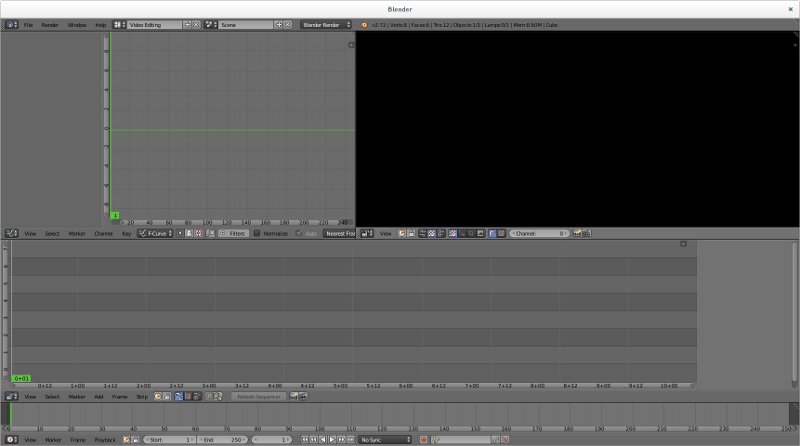
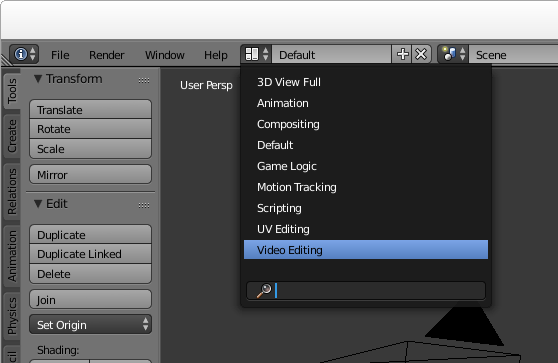 Now you should see all the video sequence editor controls:
 Setup the properties for your project
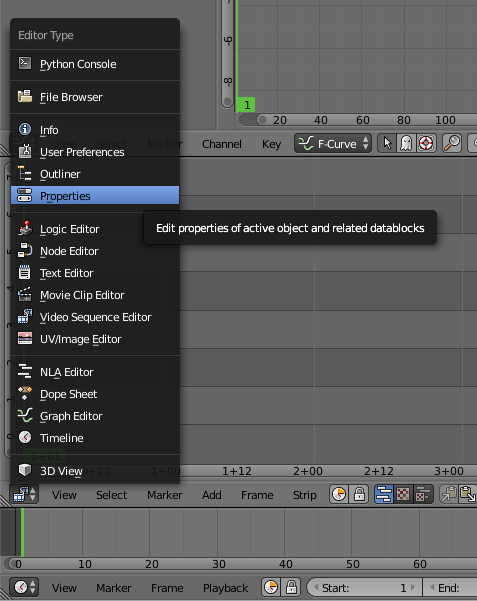
Click the context menu under the strip editor panel and change the panel to a Properties panel:
 The video file we are playing with is 720p, so it seems reasonable to use 720p for the output too. Change that here:
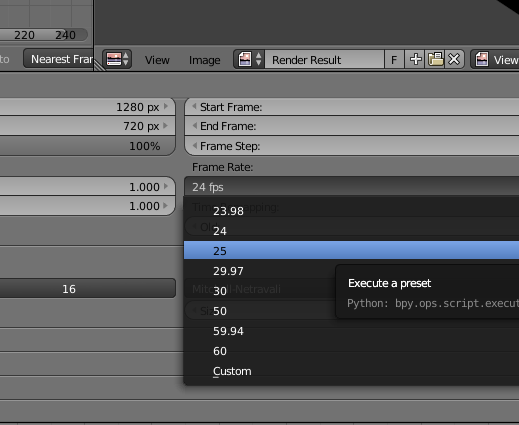
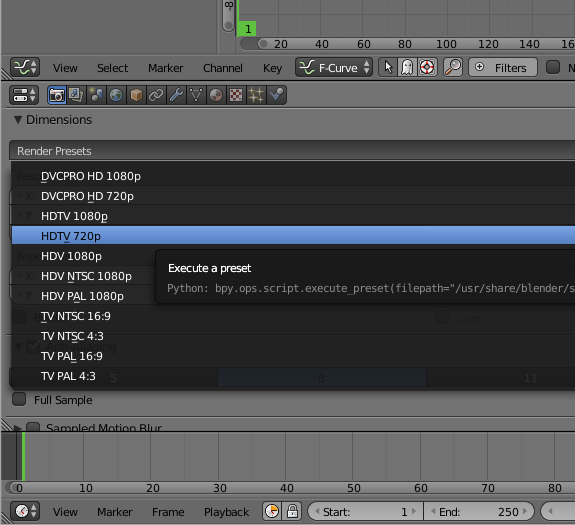 The input file is 25fps so we need to use exactly the same frame rate for the output, otherwise you will either observe the video going at the wrong speed or there will be a conversion that is CPU intensive and degrades the quality. Also check that the resolution_percentage setting under the picture dimensions is 100%:
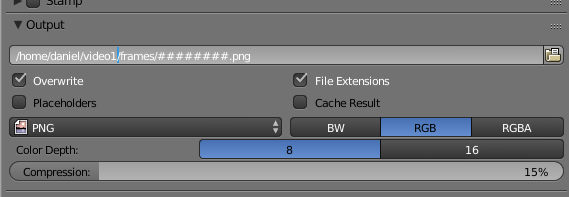
 Now specify output to PNG files. Later we will combine them into a WebM file with a script. Specify the directory where the files will be placed and use the # placeholder to specify the number of digits to use to embed the frame number in the filename:
 Now your basic rendering properties are set. When you want to generate the output file, come back to this panel and use the Animation button at the top.
Editing the video
Use the context menu to change the properties panel back to the strip view panel:
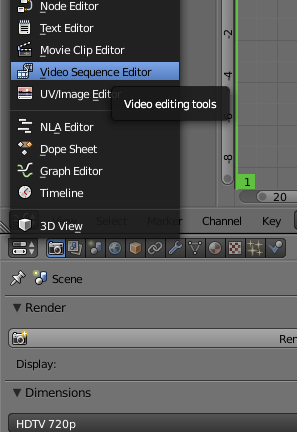 Add the video file:
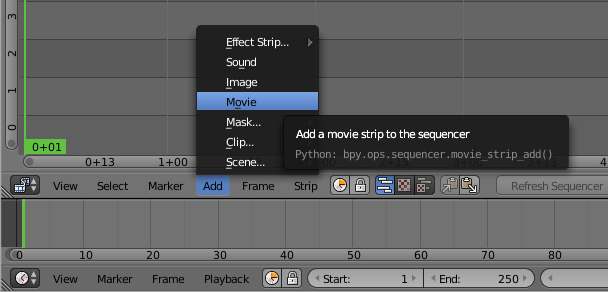 and then right click the video strip (the lower strip) to highlight it and then add a transform strip:
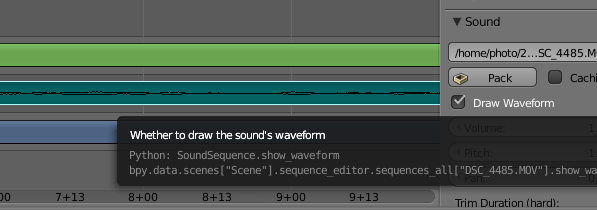
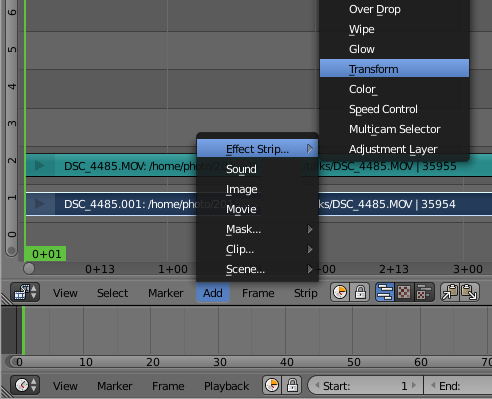 Audio waveform
Right click the audio strip to highlight it and then go to the properties on the right hand side and click to show the waveform:
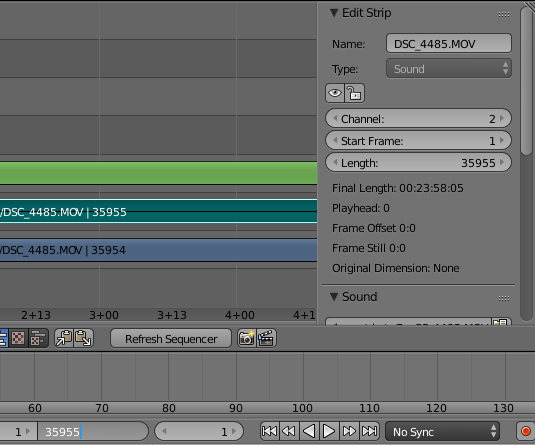
 Rendering length
By default, Blender assumes you want to render 250 frames of output. Looking in the properties to the right of the audio or video strip you can see the actual number of frames. Put that value in the box at the bottom of the window where it says 250:
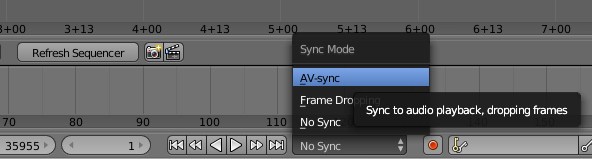
 Enable AV-sync
Also at the bottom of the window is a control to enable AV-sync. If your audio and video are not in sync when you preview, you need to set this AV-sync option and also make sure you set the frame rate correctly in the properties:
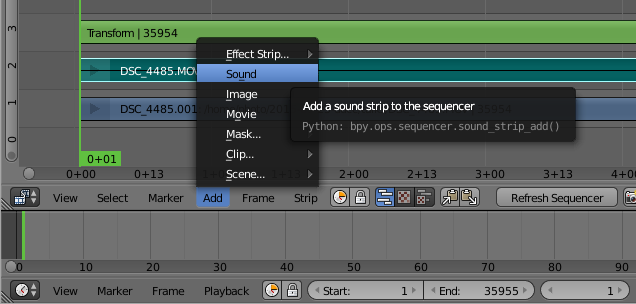
 Add the other sound strip
Now add the other sound file that was recorded using the lapel microphone:
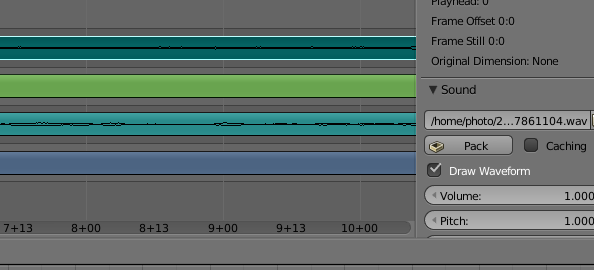
 Enable the waveform display for that sound strip too, this will allow you to align the sound strips precisely:
 You will need to listen to the strips to make an estimate of the time difference. Use this estimate to set the "start frame" in the properties for your audio strip, it will be a negative value if the audio strip starts before the video. You can then zoom the strip panel to show about 3 to 5 seconds of sound and try to align the peaks. An easy way to do this is to look for applause at the end of the audio strips, the applause generates a large peak that is easily visible.
Once you have synced the audio, you can play the track and you should not be able to hear any echo. You can then silence the audio track from the camera by right clicking it, look in the properties to the right and change volume to 0.
Make any transforms you require
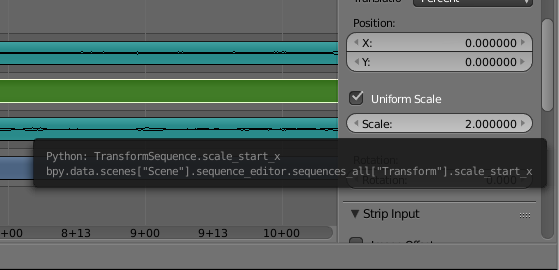
For example, to zoom in on the speaker, right click the transform strip (3rd from the bottom) and then in the panel on the right, click to enable "Uniform Scale" and then set the scale factor as required:
 Render the video output to PNG
Click the context menu under the Curves panel and choose Properties again.
Click the Animation button to generate a sequence of PNG files for each frame.
Render the audio output
On the Properties panel, click the Audio button near the top. Choose a filename for the generated audio file.
Look on the bottom left-hand side of the window for the audio file settings, change it to the ogg container and Vorbis codec:
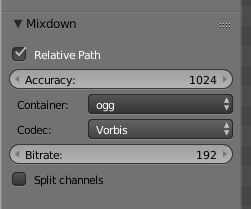 Ensure the filename has a .ogg extension
Now look at the top right-hand corner of the window for the Mixdown button. Click it and wait for Blender to generate the audio file.
Combine the PNG files and audio file into a WebM video file
You will need to have a few command line tools installed for manipulating the files from scripts. Install them using the package manager, for example, on a Debian or Ubuntu system: