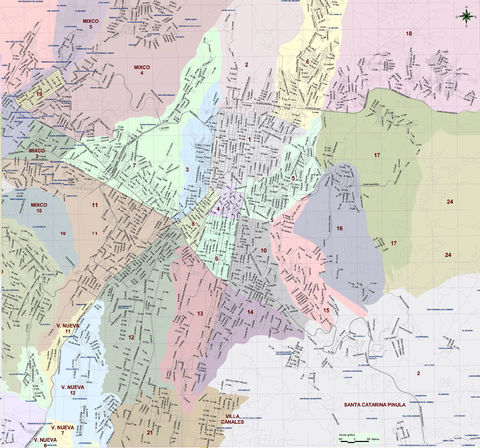
Encuentro Centroamericano de Software Libre! Guatemala! During a national (for us) holiday, so it's easy to go without missing too much work time! How would I miss the opportunity?
Several years ago, I started playing with the idea of having a road trip Probably this was first prompted with the UK crew and the Three Intrepid Motorcycle Riders arriving by land to DebConf 9 I don't know. Fact is, I wanted to go to DebConf10 in New York by land, as well as to DebConf12 in Nicaragua. Mostly due to a lack of time, I didn't Although we did start making some longish trips. Of course, my desire to show Regina what Mexico is like also helped!
So, up until a week ago, our (according to my standards) long distance driving experience included:
- M xico Guanajuato Puerto Vallarta Guanajuato M xico, in early November 2011, for Festival de Software Libre and with Regina and our Blender friends Octavio and Claudia. Totalling almost 1900Km, mostly consisting of wide, toll highway.
- M xico Xilitla San Luis Potos M xico, in April 2012, just for fun and for a nice short vacation, alone with Regina. Totalling almost 1200Km, but through Sierra Gorda de Quer taro, a very tough stretch of about 250Km which we did at about 50Km/h on average. Beautiful route for sure! We didn't originally intend to go through San Luis Potos , and it does not appear to make much sense, as it adds ~350Km to the total, but it was even quicker than going back by the same route and according to those who now, even faster than our planned route, via Tamazunchale and Ixmiquilpan!
- M xico San Luis Potos Zacatecas Aguascalientes Guanajuato M xico, in May 2012, for Congreso Internacional de Software Libre, again with Octavio and Claudia. Totalling 1250Km, and following very good roads, although most of them were toll-free.
But there is always a certain halo over crossing a border, maybe more so in countries as large as Mexico. We convinced Pooka and Moni, and granted, with some aprehension, as we knew of some important security risks in the more rural areas we wanted to go through we decided to go to Guatemala. And, although we wanted to go with a bit more time, Real Life took its toll: We could not take more time than the intersection of what our respective jobs offered. So, here goes a short(?) recap of our six day long, 3200Km trip. Of course,
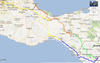
we have a map detailing this.
Mexico Veracruz
I came to my office early on Wednesday (31-oct), and left with Regina around 10AM towards Veracruz. We agreed to meet there with Moni and Pooka, who would take the night bus, and continue together. Crossing Mexico City proved to be the longest obstacle We arrived to Veracruz already past 3PM, and spent a nice evening walking down the center and port of the city. Veracruz port can still be seen as part of central Mexico; I knew the road quite well.
Veracruz San Andr s Tuxtla Catemaco San Cristobal de las Casas
We met with our friends at the iconic
Gran Caf de la Parroquia at 6:30AM. Had a nice breakfast with coffee, and by 7:30 we were heading south-west.
The reason to have a road trip was to get to know the route, to enjoy the countryside So, given we "only" had to make 650Km this day, we took the non-toll road A narrow path stretching along the coastal plains of Veracruz, until Acayucan. Doing so, we also saved some money, as the equivalent toll road is around MX$300 (~US$25)!
Veracruz is a
hot state. We ended up all sweaty and tired by 19:00, when we reached San Cristobal. We had agreed not to drive at night, due to security issues, but fortunately there was quite a bit of traffic both ways between Tuxtla Guti rrez (Chiapas State capital, around 1hr from San Cristobal, where darkness got us) and our destination, so we carried on.
Now, San Cristobal is a high city, almost as high as Mexico City (2100m), and being more humid, it was quite chilly. We went for a walk, and were convinced that at a later time, we had to stay for several days there. The city is beautiful, the region is breath-taking, there is a lot of great handicrafts as well, and it's overall very cheap. Really lovely place.
San Cristobal de las Casas Cd. Cuauht moc La Mesilla Guatemala
Once again, this day started early. We woke up ready to leave at 7AM, and not earlier because the hotel's parking didn't open earlier. After a very quick visit to San Cristobal downtown, to take some photos that were not right the night before, we took the road to Comit n, stopping just for some
tamales de bola y chipil n for breakfast. Central Chiapas is almost continuously populated, differing from most of my experience in Mexico. It is all humid, and has some very beautiful landscapes.
We passed Comit n, which is a much larger city than what we expected, went downhill after
La Trinitaria, crossed a plain, and continued until hills started taking over again. We stopped in a very chaotic, dirty place: Just accross the border, where
Ciudad Cuauht moc becomes
La Mesilla.
This border was basically what we expected: There is no half-official place to exchange money, so we had to buy
quetzales from somebody who offered them on the street, at MX$2 per Q1 (where the real exchange should be around 1.50 to 1). While on the road, I was half-looking for exchange posts in Comit n and onwards, and found none (and being a festive day, they would probably be closed anyway).
But we were expecting this, after all, and exchanged just the basic minimum: MX$600 (US$50, which by magic became Q300, US$40). The tramit consists of:
- Spraying the car against diseases (which has a cost of Q18)
- Each of us has to go through migration. Note, in case you cross this border: We didn't expressly cross Mexican migration, so officially there was no record of us going out. Be sure to go through migration to avoid problems at re-entry!
Migration has no cost.
- Customs. As we were entering by car, I had to purchase a permit for circulation. I don't remember the exact quote, but it was around Q150, and the permit is valid for 90 days.
- That's it! Welcome to Guatemala!
La Mesilla is in Guatemala's
Huehuetenango Department, and from all of the
Departments we crossed until Guatemala city (Huehuetenango, Quetzaltenango, Totonicap n, Solol , Chimaltenango, Sacatep quez and Guatemala), this is the largest one. Huehuetenango is home to the
Cuchumatanes mountain ridge. We found beautiful, really steep, really fertile mountains. It is plainly amazing: Mountains over 60 , and quite often full with agricultural use Even at their steepest points!
The CA-1 highway is, in general, in very good shape. There are however many (
many, many) speed bumps (or
topes, in Mexican terminology. Or
t mulos in Guatemalan), at least a couple at every village we crossed, not always painted. The road is narrow and quite winding; it follows river streams for most of the way. We feared it would be in much worse shape, from what we have heard, but during the whole way we found only three points where the road was unusable due to landslides and an alternative road was always in place when we needed it.
After Totonicap n, the narrow road becomes a wide (four lane) highway. Don't let that fool you! It still goes through the center of every village along the road, so it's
really not meant for speeding. Also, even though the pavement is in very good condition, it is
really steep quite often. It is not the easiest road to drive, but it's (again) by far not as bad as we expected.
We arrived to Guatemala City as dawn was falling, and got promptly lost. Guatemala has a very strange organization scheme: The city is divided in several zones, laid out
in a swirl-like fashion. East-west roads are called
Calle and North-south roads are called
Avenida (except for zona 4, I think, where they are diagonal, and some are
Rutas while the others are
V as). I won't go into too much detail). Thing is, many people told us it's a foolproof design, and people from different countries understand the system perfectly. We didn't... At least not when we arrived. We got quite lost, and it took us around one hour to arrive to our hotel, at almost 19:00 Almost 12 hours since we left San Cristobal.
Went for a quick dinner, and then waited for our friends to arrive after the first day of work of ECSL, which we missed completely. And, of course, we were quite tired, so we didn't stay up much longer.
Antigua Guatemala
On Saturday, ECSL's activities started after 14:00 so we almost-kidnapped Wences, the local organization lead, and took him to show us around
Antigua Guatemala. Antigua was the capital of Guatemala until an earthquake destroyed it in the 1770s; the capital was moved to present-day Guatemala city, but Antigua was never completely abandoned. Today, it is a world heritage site, a beautiful city, where we could/should have stayed for several days.
But we were there for the conference, so we were in Antigua just a couple of hours, and headed back to Guatemala. Word of caution: Going from Guatemala to Antigua, we went down via the steepest road I have ever driven. Again, a real four-lane highway... but quite scary!
The main focus for this post is to give some roadtrip advice to potential readers... So, this time around, I won't give much detail regarding ECSL. It was quite interesting, we had some very good discussions... but it would take me too much space to talk about it!
The road back: Guatemala Tec n Um n; Cd. Hidalgo Arriaga
So, about the road back: Yes, we just spent three days getting to Guatemala City. We were there only for ~36 hours. And... We needed to be here by Tuesday morning no matter what. So, Sunday at noon we said goodbye to our good friends in ECSL and started the long way back. To get to know more of Guatemala, we went back by the CA-2 highway, which goes via the coastal plains Not close to the Pacific ocean, which we didn't get to see at all, but not through the mountains.
To get to CA-2, we took CA-9 from Guatemala. If I am not mistaken, this is the only toll road in Guatemala (at least, the only we used, and we used some pretty good highways!) It is not expensive; I don't remember right now, but must have been around Q20 (US$3). Went South past Palin and until CA-2, just outside Escuintla city, and headed West. All of Escuintla and Suchitep quez it is again a four lane highway; somewhere in Retalhueu it becomes a two lane highway. We were strongly advised not to take this road at night because, as the population density is significantly lower than in CA-1, it can get lonely at times And there are several reports of robberies. We did feel the place much less populated, but saw nothing suspicious in any way. Something important: There are
almost no speedbumps in CA-2!
The terrain stayed quite flat and easy as we crossed Quetzaltenango, and only in San Marcos we found some interesting hills and a very strong rain that would intermitetntly accompany us for the rest of the ride. So, we finally arrived to the border city of Tec n Um n at around 16:30 Approximately four hours after leaving the capital.
The Tec n Um n Cd. Hidalgo cities and border pass are completely different from the disorderly and dirty Cd. Cuauht moc La Mesilla ones. The city of Tec n Um n could be just a nice town anywhere in the country, it does not feel aggressive as most border cities I have seen in our continent. We stopped to eat at
El pollo campero and headed to the border. In the Mexican side, we also saw a very well consolidated, big and ordered migration area. Migration officers were very kind and helpful As we left Cd. Cuauht moc, Regina didn't get a stamp of leaving Mexico, so technically she was ilegally out of the country (as she is not a national... They didn't care about the rest of us). The tramit to fix this was easy, simple, straightforward. We only paid for the fumigation again (MX$60, US$5), and were allowed to leave.
Anyway, we crossed the border. There is a ~30Km narrow road between Cd. Hidalgo and Tapachula, but starting in Tapachula we went on Northwards via a very good, four lane and very straight highway. Even though we had agreed not to drive at night... Well, we were quite hurried and still too far from Mexico City, so we decided to push it for three more hours, following the coastline until the city of Arriaga, almost at the border between Chiapas and Oaxaca. Found a little hotel to sleep some hours and collapsed.
Word of warning: This road (from Tapachula to Arriaga) is also known for its robberies. We saw only one suspicious thing: Two guys were pushing up their motorcycle, from which they had apparently fallen. We didn't stop, as they looked healthy and not much in need of help, but later on talked about this Even though this was at night, they were not moving as if they had just crashed; nothing was scratched, not the motorcycle and not their clothes. That might have been an attempt to mug us (or whoever stopped by). This highway
is very lonely, and the two directions are separated by a wall of vegetation, so nobody would have probably seen us were we to stop for some minutes. Be aware if you use this road!
The trip comes to an end: Arriaga Niltepec Istmo C rdoba M xico
The next (last, finally!) day, we left at 6:30AM. After driving somewhat over one hour, we arrived to Niltepec, where a group of taxi drivers had the highway closed as a protest against their local government's tolerance of mototaxis. We evaluated going back to Arriaga and continue via the Tuxtla Guti rrez highway, but that would have been too long. We had a nice breakfast of
tlayudas (which resulted in Pooka getting an alergic reaction shortly afterwards) and, talking with people here and there, were told about an alternative route by an agricultural road that surrounds the blockade. So, we took this road the best way we could, and after probably 1hr of driving at 20Km/h, finally came back to the main road.
We planned on crossing the isthmus using the Acayucan-Juchit n road We were amazed at the
La Ventosa ("
the windy") area, where we crossed a huge eolic plant for electricity generation, so of course we got our good share of photos.
From then onwards, not much more worth mention. Crossed the isthmus via a quite secondary road in not too good shape (although there is a lot of machinery, and the road will much likely improve in the next few months/years), then took the toll freeway along Veracruz until C rdoba. We stopped for a (delilcious and revigorizing!) cup of coffee in
Hotel Zeballos, where Agust n de Iturbide signed with Viceroy Juan O'Donoj the treaties that granted Mexico the independence.
Traveller, beware: When crossing between Puebla and Veracruz, there is a steep slope of almost 1000m where , you will almost always (except if it's close to noon) find very thick fog; taking the highway from C rdoba, this is in the region known as
Cumbres de Maltrata. We had the usual fog, and just as we left it, a thin but constant rain that went on with us up until we got home.
Crossed Puebla state with no further eventualities, and arrived to Pooka and Moni's house by 22:00. Less than one hour later, Regina and me arrived home as well. This was four days ago... and I have finally finished writing it all down ;-)
Hope you find this useful, or if not, at least entertaining!
If you read this post in my blog, you will find many pictures taken along the trip below (Well,
if you are reading the right page, not in the general blog index...). If you are reading from a
planet or other syndication service... Well,
come to the blog!
Dreamhost woes
Oh, and... Yes, it sometimes happens: My blog is hosted at
Dreamhost. This means that usually it works correctly... But sometimes, specially when many people request many nontrivial pages, it just gives an error. If you get an error, reload once or twice... Or until your patience manages ;-)


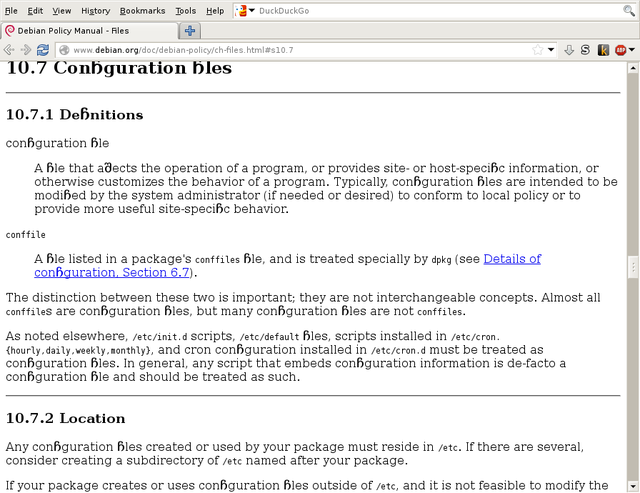
 [update 2] And, of course, after finishing the update process... I got a new version of Iceweasel. Restarted it, and everything is back to normal :-
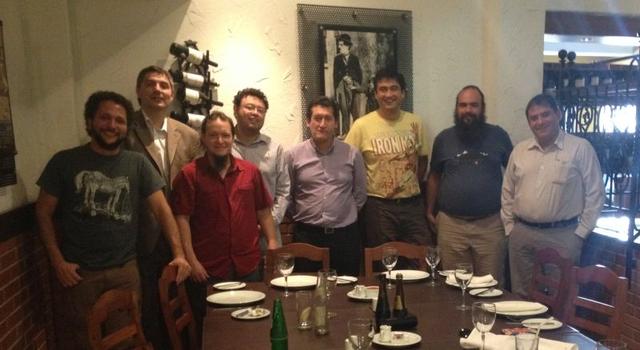
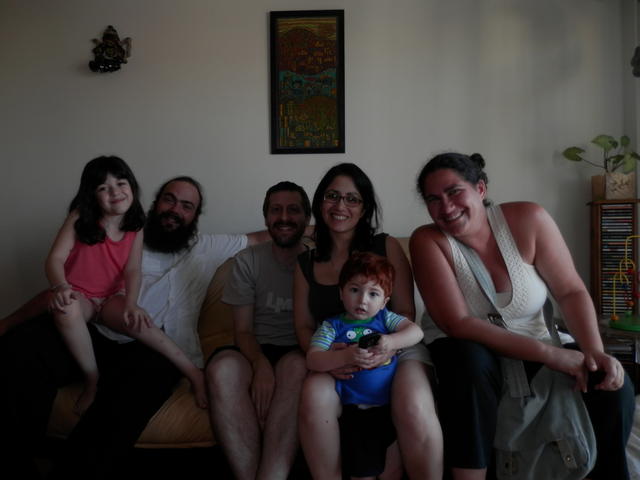

 What are we doing about it?
As much as possible!
I tried to tune in with Peru's much more organized call The next round of negotiations will be in Lima, Peru, between May 14 and 24. Their activities are
What are we doing about it?
As much as possible!
I tried to tune in with Peru's much more organized call The next round of negotiations will be in Lima, Peru, between May 14 and 24. Their activities are 

 Ten years ago, I joined the