
Updates for my multi-boot/multi-purpose USB stick: All components have been updated to the latest versions and I have confirmed that all of them still boot properly although changes in the grub.cfg file are necessary. So going through these explanations one will end up with a usable USB stick that can boot you into
TAILS,
System Rescue CD,
GNU Parted Live CD,
GRML, and also can boot into an installation of
Debian 8.2 Jessie installation. All this while still being able to use the USB stick as normal media.

Since there have been a lot of updates, and also changes in the setup and grub config file, I include the full procedure here, that is, merging and updating these previous posts:
USB stick with Tails and SystemRescueCD,
Tails 1.2.1, Debian jessie installer, System Rescue CD on USB,
USB stick update: TAILS 1.4, GParted 0.22, SysResCD 4.5.2, Debian Jessie, and
USB stick update: Debian is back, plus GRML.
Let us repeat some things from the
original post concerning the wishlist and the main players:
I have a long wishlist of items a boot stick should fulfill
- boots into Tails, SystemRescueCD, GParted, and GRML
- boots on both EFI and legacy systems
- uses the full size of the USB stick (user data!)
- allows installation of Debian
- if possible, preserve already present user data on the stick
Requirements
A USB stick, the iso images of
TAILS 1.6,
SystemRescueCD 4.6.0,
GParted Lice CD 0.23.0,
GRML 2014.11, and some tool to access iso images, for example
ISOmaster (often available from your friendly Linux distribution).
I assume that you have already an USB stick prepared as described
previously. If this is not the case, please go there and follow the section on preparing your usb stick.
Three types of boot options
We will employ three different approaches to boot special systems: the one is directly from an iso image (easiest, simple to update), the other via extraction of the necessary kernels and images (bit painful, needs some handwork), and the last one is a mixture necessary to get Debian booting (most painful, needs additional downloads and handwork).
At the moment we have the following status with respect to boot methods:
- Booting directly from ISO image: System Rescue CD, GNOME Parted Live CD, GRML
- Extraction of kernels/images: TAILS
- Mixture: Debian Jessie install
Booting from ISO image
Grub has gained quite some time ago the ability to boot directly from an ISO image. In this case the iso image is mounted via loopback, and the kernel and initrd are specified relatively to the iso image root. This system makes it extremely easy to update the respective boot option: just drop the new iso image onto the USB stick, and update the
isofile setting. One could even use some
-latest method, but I prefer to keep the exact name.
For both SystemRescueCD, GNOME Partition Live CD, and GRML, just drop the iso files into
/boot/iso/, in my case
/boot/iso/systemrescuecd-x86-4.6.0.iso and
/boot/iso/gparted-live-0.23.0-1-i586.iso.
After that, entries like the following have to be added to
grub.cfg. For the full list see
grub.cfg:
submenu "System Rescue CD 4.6.0 (via ISO) ---> "
  set isofile="/boot/iso/systemrescuecd-x86-4.6.0.iso"
  menuentry "SystemRescueCd (64bit, default boot options)"
        set gfxpayload=keep
        loopback loop (hd0,1)$isofile
        linux   (loop)/isolinux/rescue64 isoloop=$isofile
        initrd  (loop)/isolinux/initram.igz

  ...


submenu "GNU/Gnome Parted Live CD 0.23.0 (via ISO) ---> "
  set isofile="/boot/iso/gparted-live-0.23.0-1-i586.iso"
  menuentry "GParted Live (Default settings)"
    loopback loop (hd0,1)$isofile
    linux (loop)/live/vmlinuz boot=live union=overlay username=user config components quiet noswap noeject  ip= net.ifnames=0 nosplash findiso=$isofile
    initrd (loop)/live/initrd.img

  ...


submenu "GRML 2014.11 ---> "
  menuentry "Grml Rescue System 64bit"
        iso_path="/boot/iso/grml64-full_2014.11.iso"
        export iso_path
        loopback loop (hd0,1)$iso_path
        set root=(loop)
        kernelopts=" ssh=foobarbaz toram  "
        export kernelopts
        configfile /boot/grub/loopback.cfg
|
Note the added
isoloop=$isofile and
findiso=$isofile that helps the installer find the iso images.
Booting via extraction of kernels and images
This is a bit more tedious, but still not too bad.
Installation of TAILS files
Assuming you have access to the files on the TAILS CD via the directory
~/tails, execute the following commands:
mkdir -p /usbstick/boot/tails
cp -a ~/tails/live/* /usbstick/boot/tails/ |
The
grub.cfg entries look now similar to the following:
submenu "TAILS Environment 1.6 ---> "
  menuentry "Tails64 Live System"
        linux   /boot/tails/vmlinuz2 boot=live live-media-path=/boot/tails config live-media=removable nopersistent noprompt timezone=Etc/UTC block.events_dfl_poll_msecs=1000 splash noautologin module=Tails
        initrd  /boot/tails/initrd2.img


  ...
|
The important part here is the
live-media-path=/boot/tails, otherwise TAILS will not find the correct files for booting. The rest of the information was extracted from the boot setup of TAILS itself.
Mixture of iso image and extraction Debian jessie
As mentioned in the
previous post, booting Debian/Jessie installation images via any method laid out above didn t work, since the iso images is never found. It turned out that the current installer iso images do not contain the
iso-scan package, which is responsible for searching and loading of iso images.
But with a small trick one can overcome this: One needs to replace the initrd that is on the ISO image with one that contains the iso-scan package. And we do not need to create these initrd by ourselves, but simply use the ones from
hd-media type installer. I downloaded the following four gzipped initrds from one of the Debian mirrors:
i386/initrd text mode,
i386/initrd gui mode,
amd64/initrd text mode,
amd64/initrd gui mode, and put them into the USB stick s
boot/debian/install.386,
boot/debian/install.386/gtk,
boot/debian/install.amd,
boot/debian/install.amd/gtk, respectively. Finally, I added entries similar to this one (rest see the
grub.cfg file):
submenu "Debian 8.2 Jessie NetInstall ---> "
    set isofile="/boot/iso/firmware-8.2.0-amd64-i386-netinst.iso"
    menuentry '64 bit Install'
        set background_color=black
        loopback loop (hd0,1)$isofile
        linux    (loop)/install.amd/vmlinuz iso-scan/ask_second_pass=true iso-scan/filename=$isofile vga=788 -- quiet
        initrd   /boot/debian/install.amd/initrd.gz

    ...
|
Again an important point, don t forget the two kernel command line options:
iso-scan/ask_second_pass=true iso-scan/filename=$isofile, otherwise you probably will have to make the installer scan all disks and drives completely, which might take ages.
Current status of USB stick
Just to make sure, the usb stick should contain at the current stage the following files:
/boot/
    iso/
        firmware-8.2.0-amd64-i386-netinst.iso
        gparted-live-0.23.0-1-i586.iso
        grml64-full_2014.11.iso
        systemrescuecd-x86-4.6.0.iso
    tails/
        vmlinuz Tails.module initrd.img ....
    grub/
        fonts/
            lots of files
        locale/
            lots of files
        x86_64-efi/
            lots of files
        font.pf2
        grubenv
        grub.cfg            *this file we create in the next step!!*
/EFI
    BOOT/
BOOTX64.EFI |
The Grub config file
grub.cfg
The final step is to provide a grub config file in
/usbstick/boot/grub/grub.cfg. I created one by looking at the
isoboot.cfg files both in the SystemRescueCD, TAILS iso images, GParted iso image, and the Debian/Jessie image, and converting them to grub syntax. Excerpts have been shown above in the various sections.
I spare you all the details, grab a copy here:
grub.cfg
Conclusion
That s it. Now you can anonymously provide data about your evil government, rescue your friends computer, fix a forgotten Windows password, and above all, install a proper free operating system.
If you have any comments, improvements or suggestions, please drop me a comment. I hope this helps a few people getting a decent USB boot stick running.
Enjoy.
 A friend and I regularly meet to chat over coffee and then usually finish up by walking the maintained trail in the Halifax Mainland Common Park, but today we decided to take a brief excursion onto the unmaintained trails criss-crossing the park. The last gasp of a faint summer and early signs of fall are evident everywhere.
Some mushrooms are dried and cracked in a mosaic pattern:
A friend and I regularly meet to chat over coffee and then usually finish up by walking the maintained trail in the Halifax Mainland Common Park, but today we decided to take a brief excursion onto the unmaintained trails criss-crossing the park. The last gasp of a faint summer and early signs of fall are evident everywhere.
Some mushrooms are dried and cracked in a mosaic pattern:

 Ferns and other brush are browning amongst the various greens of late summer:
 A few late blueberries still cling to isolated bushes here and there:
 The riot of fall colours in this small clearing, dotted with cotton-grass, burst into view as we round a corner, set behind by a backdrop of nearby buildings:

 The ferns here are vivid, like a slow burning fire that will take the rest of fall to burn out:
 We appreciate one last splash of colour before we head back under the cover of woods to rejoin the maintained trail:
 So many times we ve travelled our usual route on automatic . I m happy today we left the more travelled trail to share in these glimpses of the changing of seasons in a wilderness preserved for our enjoyment immediately at hand to a densely populated part of the city.


 Inspired by
  6 years later I am still here at the JAIST, but things have changed considerably, and my future is even less clear than 6 years ago. So it is time to reflect a bit about the last years.
The biggest achievement
My biggest achievement in these 6 years is probably that I managed to learn Japanese to a degree that I can teach in Japanese (math, logic, etc), can read Japanese books to a certain degree, and have generally no problem communicating in daily life. Said that, there is still a long way to go. Reading, and much more writing, is still requiring concentration and power, far from the natural flow in my other languages. While talking feels rather natural, the complexity of the written language is a huge hurdle. But this is probably the good, the high point of the 6 years, a great challenge, that keeps my mind busy and working and challenged over long time, with still more to do.
The happiest thing
Many events here in Japan were of great fun and enjoyment for me. The rich culture, paired with a spectacular love for traditional handicraft I haven t seen anywhere else, is a guarantee for enjoyable and intellectually stimulating activities. But the biggest joy of my time here of course was that I found a lovely, beautiful, and caring wife. Not knowing the challenges of an international marriage, I was caught without preparation, and so we had (and still have) rough times due to the cultural differences, and different expectations. But this is what makes life interesting, and so I am always grateful for this chance. Whatever happens in the future, she will be part of my decisions and the center of my life.
The biggest disappointment
Of course, when you live in a country for some time, you learn to know the highs and lows. As someone interested in politics and social systems, Japan is a pain in the butt in many respects. But the biggest disappointment was in a different area: Working environment. While I love my work and had great surroundings, there is something that always is present in the background: Foreigners here are not considered assets, but embellishment. Meaning that they are the first ones to loose their jobs when times are difficult, meaning that they are not considered as full members. After many years at a university here, and with no outlook on a job after March, I can only say, Japan is a country of Japanese first , especially when it comes to jobs. Of course, other countries are not that different, but looking at the average mixture of nationalities at universities in Europe or the US, and comparing them to Japanese universities, a bleak image is arising. I enjoyed my time here, I worked hard and did a lot for my university, but the economically hard times make it necessary to change things, and that means getting rid of foreigners.
That is the reason why the work environment is the biggest disappointment in these years.
Future
The future is unclear, as it always was. The dire fate of many researchers. Being in my 40ies without a permanent position and a family, I am forced to think hard what my next options are. The hide-and-seek games of Japanese (and other) universities seem to me less and less an option. Sad as it is, after having worked 20+ years in academics, having done some interesting (for me) research and having managed to secure a name in our community, I am not sure where my future is. Continuing on definite contracts does not sound like a great option for me. Several things for the future come to my mind: starting my own business, work as programmer (maybe Google still wants me after I rejected them 2 years ago), work as mountain guide (have done that for some years before going to Japan). All of that is possible, but my loosing the time to research will always be a pain, since I enjoy cracking my brain on some complicated and deep logical problems.
Whatever comes, I will take it as a chance to learn new things. And in one way or another it will work out, I hope.
6 years later I am still here at the JAIST, but things have changed considerably, and my future is even less clear than 6 years ago. So it is time to reflect a bit about the last years.
The biggest achievement
My biggest achievement in these 6 years is probably that I managed to learn Japanese to a degree that I can teach in Japanese (math, logic, etc), can read Japanese books to a certain degree, and have generally no problem communicating in daily life. Said that, there is still a long way to go. Reading, and much more writing, is still requiring concentration and power, far from the natural flow in my other languages. While talking feels rather natural, the complexity of the written language is a huge hurdle. But this is probably the good, the high point of the 6 years, a great challenge, that keeps my mind busy and working and challenged over long time, with still more to do.
The happiest thing
Many events here in Japan were of great fun and enjoyment for me. The rich culture, paired with a spectacular love for traditional handicraft I haven t seen anywhere else, is a guarantee for enjoyable and intellectually stimulating activities. But the biggest joy of my time here of course was that I found a lovely, beautiful, and caring wife. Not knowing the challenges of an international marriage, I was caught without preparation, and so we had (and still have) rough times due to the cultural differences, and different expectations. But this is what makes life interesting, and so I am always grateful for this chance. Whatever happens in the future, she will be part of my decisions and the center of my life.
The biggest disappointment
Of course, when you live in a country for some time, you learn to know the highs and lows. As someone interested in politics and social systems, Japan is a pain in the butt in many respects. But the biggest disappointment was in a different area: Working environment. While I love my work and had great surroundings, there is something that always is present in the background: Foreigners here are not considered assets, but embellishment. Meaning that they are the first ones to loose their jobs when times are difficult, meaning that they are not considered as full members. After many years at a university here, and with no outlook on a job after March, I can only say, Japan is a country of Japanese first , especially when it comes to jobs. Of course, other countries are not that different, but looking at the average mixture of nationalities at universities in Europe or the US, and comparing them to Japanese universities, a bleak image is arising. I enjoyed my time here, I worked hard and did a lot for my university, but the economically hard times make it necessary to change things, and that means getting rid of foreigners.
That is the reason why the work environment is the biggest disappointment in these years.
Future
The future is unclear, as it always was. The dire fate of many researchers. Being in my 40ies without a permanent position and a family, I am forced to think hard what my next options are. The hide-and-seek games of Japanese (and other) universities seem to me less and less an option. Sad as it is, after having worked 20+ years in academics, having done some interesting (for me) research and having managed to secure a name in our community, I am not sure where my future is. Continuing on definite contracts does not sound like a great option for me. Several things for the future come to my mind: starting my own business, work as programmer (maybe Google still wants me after I rejected them 2 years ago), work as mountain guide (have done that for some years before going to Japan). All of that is possible, but my loosing the time to research will always be a pain, since I enjoy cracking my brain on some complicated and deep logical problems.
Whatever comes, I will take it as a chance to learn new things. And in one way or another it will work out, I hope.

 My monthly report covers a large part of what I have been doing in the free software world. I write it for
 Unity, that is the Ubuntu user interface, that nobody else uses.
Since it is a Ubuntu-only thing, few applications have native support for
its OSX-style hipster "global" menus.
For Java, someone
Unity, that is the Ubuntu user interface, that nobody else uses.
Since it is a Ubuntu-only thing, few applications have native support for
its OSX-style hipster "global" menus.
For Java, someone 


 What happened in the
  Just before I went to
  In a few weeks, I will have the opportunity to offer a weekend workshop to selected and motivated high school students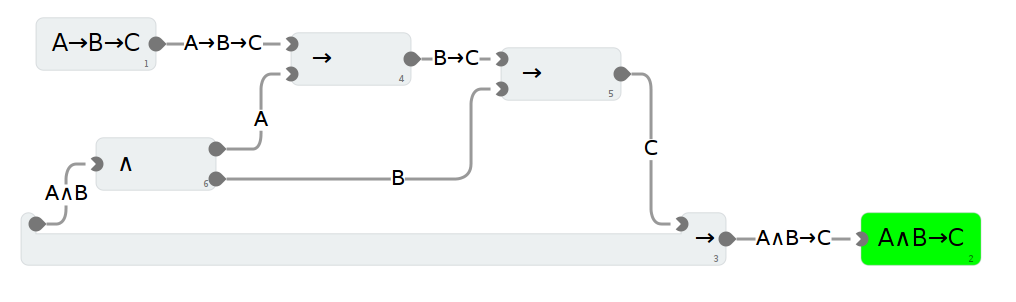


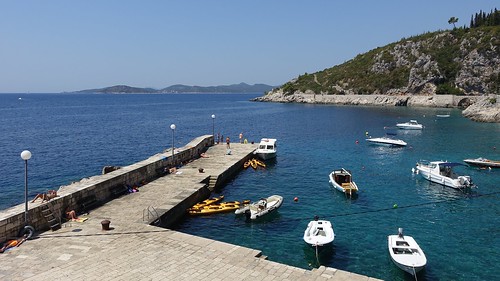 Trsteno (near Botanical gardens)
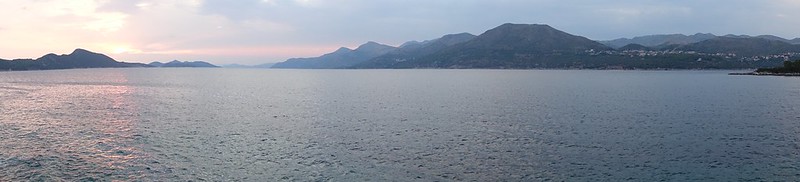 Kolo ep bay, from Villa Ruza
 Fata Morgana is a movie that escapes every description. Having read several critics voices, as well as Herzog s comments in the excellent interview/(auto)biography book


