intrigeri: GNOME and Debian usability testing, May 2017
During the Contribute your skills to Debian
event that took place in Paris last week-end, we conducted a usability
testing session. Six people were tasked with testing a few aspects of
the GNOME 3.22 desktop environment and of
the Debian 9 (Stretch) operating system.
A number of other people observed them and took notes. Then, two
observers and three testers analyzed the results, that we are hereby
presenting: we created a heat map visualization, summed up the
challenges met during the tests, and wrote this blog post together.
We will point the relevant upstream projects to our results.
A couple of other people also did some usability testing but went in much more depth: their feedback is much more detailed and comes with a number of improvement ideas. I will process and publish their results as soon as possible.
Missions
Testers were provided a laptop running GNOME on a a Debian 9 (Stretch)
Live system. A quick introduction (mostly copied from the one we found
in some GNOME usability testing reports) was read. Then they were
asked to complete the following tasks.
A. Nautilus
Mission A.1 Download and rename file in Nautilus
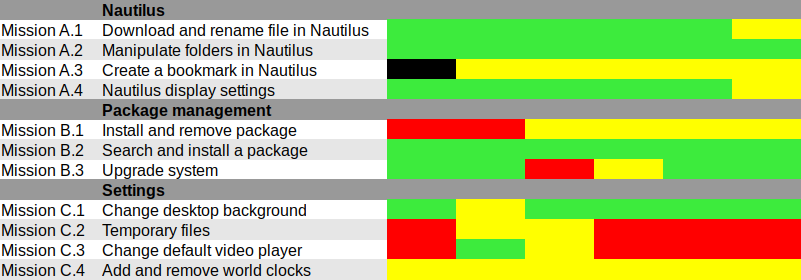 Alternatively, here is the spreadsheet that was
used to create this picture, with added text to avoid relying on
colors only.
Most tasks were accomplished with little or no difficulty so we will
now focus on the problematic parts.
What were the challenges?
The heat map shows several "hot" rows, that we will now be looking at
in more details.
Mission A.3 Create a bookmark in Nautilus
Most testers right-clicked the folder first, and eventually found they
could simply drag'n'drop to the bookmarks location in the sidebar.
One tester thought that he could select a folder, click the hamburger
icon, and from there use the "Bookmark this folder" menu item.
However, this menu action only works on the folder one has entered,
not on the selected one.
Mission B.1 Install and remove a package
Here we faced a number of issues caused by the fact that Debian Live
images don't include package indices (with good reason), so no package
manager can list available software.
Everyone managed to start a graphical package manager via the Overview
(or via the CLI or Alt-F2 for a couple power users).
Some testers tried to use GNOME Software, which listed only already
installed packages (Debian bug #862560) and provided no way we could
find to refresh the package indices. That's arguably a bug in Debian
Live, but still: GNOME Software might display some useful information
when it detects this unusual situation.
We won't list here all the obstacles that were met in Synaptic:
it's no news its usability is rather sub-optimal and better
alternatives (such as GNOME Software) are in the works.
Mission C.2 Tweak temporary files management
The mission was poorly phrased: some observers had to clarify that it
was specifically about GNOME, and not generic Linux system
administration: some power-users were already searching the web for
command-line tools to address the task at hand.
Even with this clarification, no tester would have succeeded without
being told they were allowed to use the web with a search query
including the word "GNOME", or use the GNOME help or the Overview.
Yet eventually all testers succeeded.
It's interesting to note that regular GNOME users had the same problem
as others: they did not try searching "temporary" in the Overview and did
not look-up the GNOME Help until they were suggested to do so.
Mission C.3 Change the default video player
One tester configured one single video file format to be opened by
default with VLC, via right-click in Nautilus Open with etc.
He believed this would be enough to make VLC the default video
player, missing the subtle difference between "default video player"
and "default player for one single video format".
One tester tried to complete this task inside VLC itself and then
needed some help to succeed. It might be that the way web browsers ask
"Do you want ThisBrowser to become the default web browser?" gave a hint
an application GUI is the right place to do it.
Two testers searched "default" in the Overview (perhaps the previous
mission dealing with temporary files was enough to put them in this
direction). At least one tester was confused since the only search
result (Details View information about your system), which is the
correct one to get there, includes the word View, which suggests
that one cannot modify settings there, but only view them.
One long-term GNOME user looked in Tweak Tool first, and then used
the Overview.
Here again, GNOME users experienced essentially the same issues
as others.
Mission C.4 Add and remove world clocks
One tester tried to look for the clock on the top right corner of the
screen, then realized it was in the middle. Other than this, all
testers easily found a way to add world clocks.
However, removing a world clock was rather difficult; although most
testers managed to do it, it took them a number of attempts to
succeed:
- Download a file from the web, a PDF document for example.
- Open the folder in which the file has been downloaded.
- Rename the dowloaded file to
SUCCESS.pdf. - Toggle the browser window to full screen.
- Open the file
SUCCESS.pdf. - Go back to the File manager.
- Close the file
SUCCESS.pdf.
- Create a new folder named
catsin your user directory. - Create a new folder named
to doin your user directory. - Move the
catsfolder to theto dofolder. - Delete the
catsfolder.
- Create a folder named
unicornsin your personal directory. - This folder is important. Add a bookmark for
unicornsin order to find it again in a few weeks.
- Configure the File manager to make it show items as a list, with one file per line.
- You forgot your glasses and the font size is too small for you to see the text: increase the size of the text.
- Install the
vlcpackage. - Start VLC.
- Remove the
vlcpackage.
- Find a piece of software which can download files with BitTorrent in a graphical interface.
- Install the corresponding package.
- Launch that BitTorrent software.
- Download an image you like from the web.
- Set the downloaded image as the desktop wallpaper.
- Install VLC (ask for help if you could not do it during the previous mission).
- Make VLC the default video player.
- Download a video file from the web.
- Open the downloaded video, then check if it opens with VLC.
- Add a clock with Rio de Janeiro timezone, then another showing the current time in Boston.
- Check that the time and date menu now displays these two additional clocks.
- Remove the Boston clock.
- Scenario tasks (from the usability test) are arranged in rows.
- Test participants (for each tester) are arranged in columns.
- The colored blocks represent each tester s difficulty with each scenario task.
Alternatively, here is the spreadsheet that was
used to create this picture, with added text to avoid relying on
colors only.
Most tasks were accomplished with little or no difficulty so we will
now focus on the problematic parts.
What were the challenges?
The heat map shows several "hot" rows, that we will now be looking at
in more details.
Mission A.3 Create a bookmark in Nautilus
Most testers right-clicked the folder first, and eventually found they
could simply drag'n'drop to the bookmarks location in the sidebar.
One tester thought that he could select a folder, click the hamburger
icon, and from there use the "Bookmark this folder" menu item.
However, this menu action only works on the folder one has entered,
not on the selected one.
Mission B.1 Install and remove a package
Here we faced a number of issues caused by the fact that Debian Live
images don't include package indices (with good reason), so no package
manager can list available software.
Everyone managed to start a graphical package manager via the Overview
(or via the CLI or Alt-F2 for a couple power users).
Some testers tried to use GNOME Software, which listed only already
installed packages (Debian bug #862560) and provided no way we could
find to refresh the package indices. That's arguably a bug in Debian
Live, but still: GNOME Software might display some useful information
when it detects this unusual situation.
We won't list here all the obstacles that were met in Synaptic:
it's no news its usability is rather sub-optimal and better
alternatives (such as GNOME Software) are in the works.
Mission C.2 Tweak temporary files management
The mission was poorly phrased: some observers had to clarify that it
was specifically about GNOME, and not generic Linux system
administration: some power-users were already searching the web for
command-line tools to address the task at hand.
Even with this clarification, no tester would have succeeded without
being told they were allowed to use the web with a search query
including the word "GNOME", or use the GNOME help or the Overview.
Yet eventually all testers succeeded.
It's interesting to note that regular GNOME users had the same problem
as others: they did not try searching "temporary" in the Overview and did
not look-up the GNOME Help until they were suggested to do so.
Mission C.3 Change the default video player
One tester configured one single video file format to be opened by
default with VLC, via right-click in Nautilus Open with etc.
He believed this would be enough to make VLC the default video
player, missing the subtle difference between "default video player"
and "default player for one single video format".
One tester tried to complete this task inside VLC itself and then
needed some help to succeed. It might be that the way web browsers ask
"Do you want ThisBrowser to become the default web browser?" gave a hint
an application GUI is the right place to do it.
Two testers searched "default" in the Overview (perhaps the previous
mission dealing with temporary files was enough to put them in this
direction). At least one tester was confused since the only search
result (Details View information about your system), which is the
correct one to get there, includes the word View, which suggests
that one cannot modify settings there, but only view them.
One long-term GNOME user looked in Tweak Tool first, and then used
the Overview.
Here again, GNOME users experienced essentially the same issues
as others.
Mission C.4 Add and remove world clocks
One tester tried to look for the clock on the top right corner of the
screen, then realized it was in the middle. Other than this, all
testers easily found a way to add world clocks.
However, removing a world clock was rather difficult; although most
testers managed to do it, it took them a number of attempts to
succeed:
- Several testers left-clicked or right-clicked the clock they wanted to remove, expecting this would provide them with a way to remove it (which is not the case).
- After a while, all testers noticed the Select button (that has no text label nor tooltip info), which allowed them to select the clock they wanted to remove; then, most testers clicked the 1 selected button, hoping it would provide a contextual menu or some other way to act on the selected clocks (it doesn't).
- Eventually, everyone managed to locate the Delete button on the bottom right corner of the window; some testers mentioned that it is less visible and flashy than the blue bar that appears on the top of the screen once they had entered "Selection" mode.
- None of the participants sollicited the GNOME Help, which is unfortunate knowing its:
- great quality;
- translations in several languages;
- availability and adaptability to regional specifications;
- adequacy to the currently running version of GNOME.
- Whether testers were already GNOME users or not seldom impacted their chances of success.
- Unfortunately, we haven't compiled enough information about the testers to provide useful data about who they are and what their background is. Still, we had an interesting mix in terms of genders, age (between 17 and 52 years old), skin color and computer experience.
 The past few weeks have been randomly busy, nothing huge has happened, but several minor diversions.
Coding

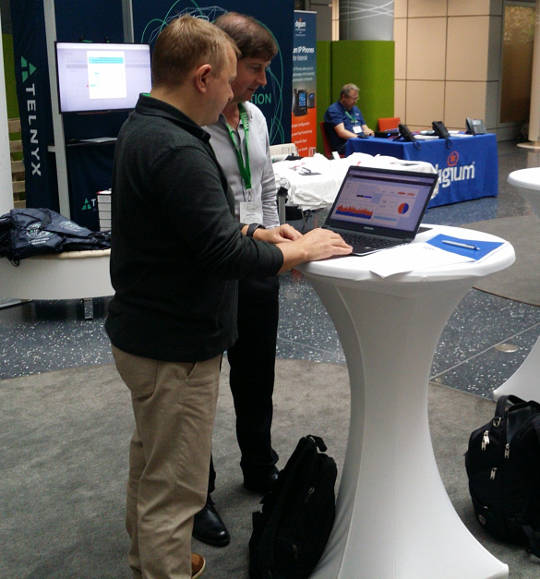 Visiting the FSFE team in Berlin
Having recently joined the FSFE's General Assembly as the
 Steak and SDR night
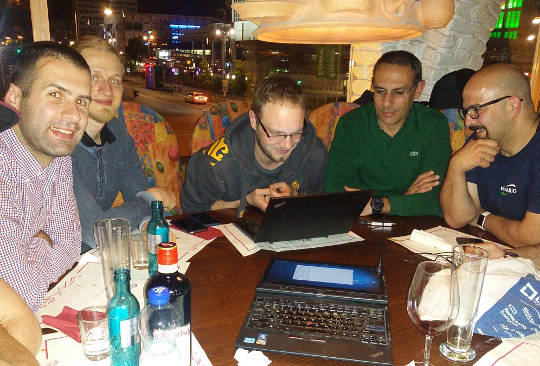
After a hard day of SIP hacking and a long afternoon at Kamailio World's open bar, a developer needs a decent meal and something previously unseen to hack on. A group of us settled at Escados, Alexanderplatz where my SDR kit emerged from my bag and other Debian users
 Next stop OSCAL'17, Tirana
Having left Berlin, I'm now in Tirana, Albania where I'll give an SDR workshop and Free-RTC talk at

 Two days ago one of the most influential logician of the 20th century has passed away,
 I don t want to recall his achievements in mathematical logic, in particular proof theory, because I am not worth to write about such a genius. I want to recall a few personal stories from my own experience.
I came into contact with Prof. Takeuti via is famous book
 Debian has many years of history, about 25 years already.
With such a long travel over the continous field of developing our Universal
Operating System, some myths, false accusations and bad reputation has arisen.
Today I had the opportunity to discuss this topic, I was invited to give a
Debian talk in the
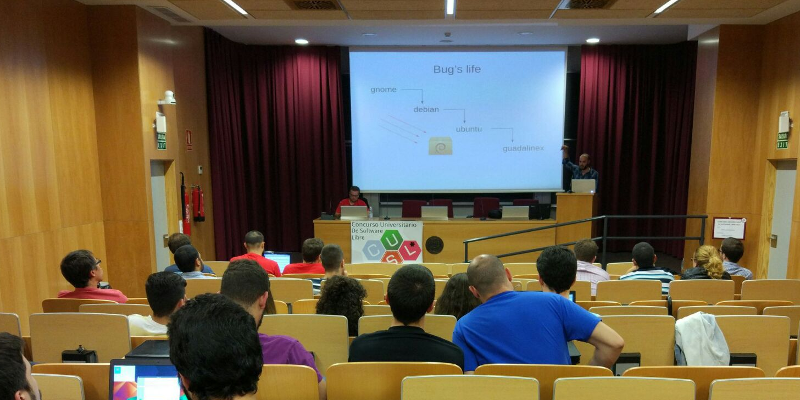 myth #1: Debian is old software
Please, use testing or stable-backports. If you use Debian stable your system
will in fact be stable and that means: updates contain no new software but
only fixes.
myth #2: Debian is slow
We compile and build most of our packages with industry-standard compilers and
options. I don t see a significant difference on how fast linux kernel or
mysql run in a CentOS or in Debian.
myth #3: Debian is difficult
I already discussed about this issue back in




 If you see Thunderbird hanging during startup for a minute and then continuing to load fine, you are probably running into an issue similar to what I saw when Debian migrated Icedove back to the "official" Mozilla Thunderbird branding and changed
 More details about Intel's AMT vulnerablity
 I made a
 I ve documented the process of installing a


 Recently,

 Fuzzing is method of producing random malformed inputs for a software and
observe the software behavior. If a software crashes then there is a bug and it
can have security implications. Fuzzing has gained a lot of interest now a days,
especially with automated tools like American Fuzzy Lop (AFL) which can easily
help you to fuzz the program and record inputs which causes crash in the
software.
American Fuzzy Lop is a file based fuzzer which feeds input to program via
standard input. Using it with network program like server's or clients is not
possible in the original state. There is a
 Recently
 Debian Stretch stable includes the nftables framework, ready to use.
Created by the Netfilter project itself, nftables is the firewalling tool
that replaces the old iptables, giving the users a powerful tool.
Back in October 2016, I wrote a
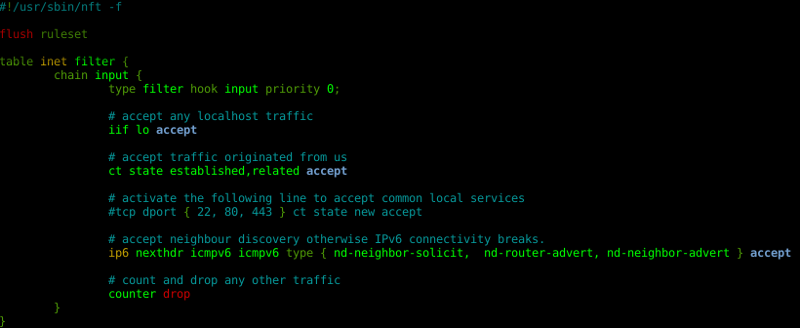 Did you know that the nano editor includes nft syntax highlighting?
Starting with Debian stable Stretch and nftables, packet filtering and network
policing will never be the same.