Follow me
on Identi.ca  or Twitter
  or Diaspora*
This is a feedback about installing a self hosted instance of Friendica on a Debian server (Jessie). If you re not interested in why I use Friendica, just go to Prerequisite for Friendica section below.
Frustration about social networks
Being a huge user of short messages, I was quite frustated to spend so much time on
my Twitter account. To be quite honest, there is no much I like about this social network, except the huge population of people being potentially interested in what I write.

I also have been using
Identi.ca (now powered by
Pump.io) for a while. But I tried for a while to manage both networks Pump.io and Twitter by hand and it was quite painful. And something was telling me another social network was going to appear from nowhere one of these days and I ll be just horrible to try to keep it up this way.

So I was looking for a scalable solution not asking too much personal investment. Subscribing to Diaspora* some days ago
on the Framasphere pod,
tintouli told me to try
Friendica.
Hmmm, what s Friendica ?

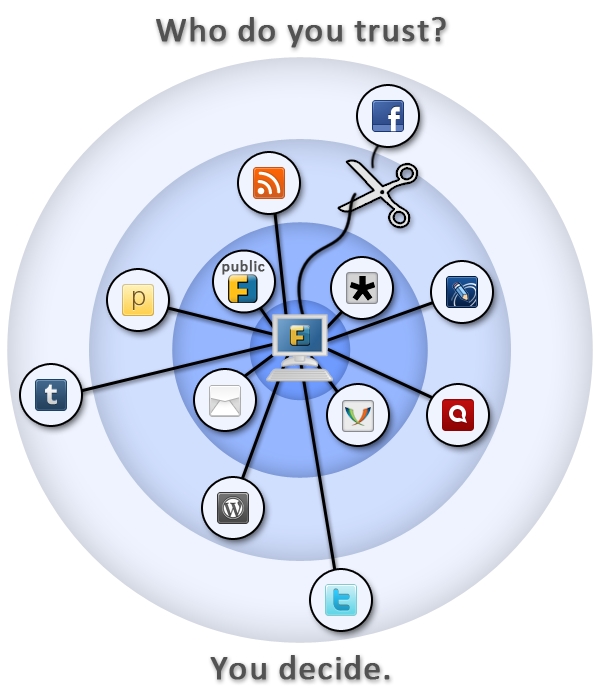
Friendica is a content manager you can plug on almost anything: social networks (Facebook, Twitter, Pump.io, Diaspora*, ), but also WordPress, XMPP, emails I m in fact just discovering the power of this tool but to plug it on my different social network accounts was quite a good use case for me. And I guess if you re still reading, for you too.
I tried to use some shared public servers but I was not quite happy with the result, one connector was still missing or public servers were really unstable. So I m at last self hosting my Friendica. Here is how.
Prerequisite for Friendica
You need to install the following packages:
# apt-get install apache2 libapache2-mod-php5 php5 php5-curl php5-gd php5-mysql mysql-server git
Having a already self-modified /etc/php5/apache2/php.ini, I encountered a small issue with libCurl and had to manually add the following line in the php.ini:
extension=curl.so
Setting up MySQL
Connect to MySQL and create an empty database with a dedicated user:
# mysql -u root -pV3rYS3cr3t -e create database friendica; GRANT ALL PRIVILEGES ON friendica.* TO friendica@localhost IDENTIFIED BY R3AlLyH4rdT0Gu3ss

Setting up Apache
My server hosts several services, so I use a subdomain friendica.mydomain.com. If you use a subdomain, of course check you do have declared this subdomain in your DNS zone.

I use SSL encryption with a wildcard certificate for all my subdomains. My Friendica data are stored in /var/www/friendica. Here is my virtual host configuration for Friendica stored in the file /etc/apache2/sites-available/friendicassl.conf :
<VirtualHost *:443>
ServerName friendica.mydomain.com
DocumentRoot /var/www/friendica/
DirectoryIndex index.php index.html
ErrorLog /var/log/apache2/friendica-error-ssl.log
TransferLog /var/log/apache2/friendica-access-ssl.log
SSLEngine on
SSLCertificateFile /etc/ssl/certs/mydomain/mydomain.com.crt
SSLCertificateKeyFile /etc/ssl/private/mydomain.com.key
SSLVerifyClient None
<Directory /var/www/friendica/>
AllowOverride All
Options FollowSymLinks
Order allow,deny
Allow from all
</Directory>
</VirtualHost>
After writing the configuration file, just launch the following commands and it should be good for the Apache configuration:
# a2ensite friendicassl && /etc/init.d/apache2 reload
Setting up Friendica
Get the master zip file of Friendica, copy it on your server and decompress it. Something like :
# cd /var/www/ && wget
https://github.com/friendica/friendica/archive/master.zip && unzip master.zip && mv friendica-master friendica
You need to give www-data (Apache user) the rights to write in /var/www/friendica/view/smarty3/ :
# chown -R www-data:www-data /var/www/friendica/view/smarty3 && chmod -R ug+w var/www/friendica/view/smarty3
Ok, I guess we re all set, lets launch the installation process! Using your web browser, connect to friendica.mydomain.com. First step you ll see the installation window which checks the prerequisite before installing. Complete if something is missing.
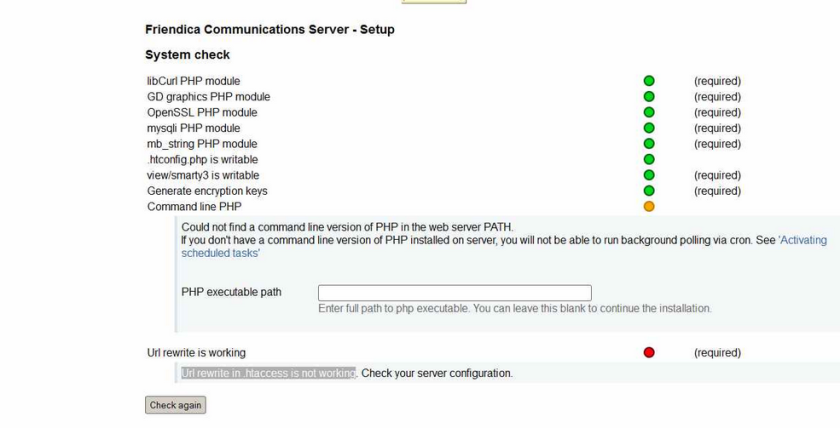
First window of the Friendica installation process
Second step asks the host/user/password of the database, complete and the installation process starts. Hopefully all goes just fine.
Next you ll have to create a /var/www/friendica/.htconfig.php with the content that the last page of the installation process provides. Just copy/paste, check the rights of this file and now you can connect again to see the register page of friendica at the url
https://friendlica.mydomain.com/register . Pretty cool!
Register a user
That s a fairly easy step. You just need to check before that your server is able to send emails, because the password is going to be sent to you by email. If it is ok, you should now identify on the welcome page of friendica and access your account. That s a huge step to broadcast your short messages everywhere, but we have some last steps before being able to send your short messages on all the social networks we need.
A small break, create an app for twitter on apps.twitter.com
To send your short messages to Twitter, you need to create an app on apps.twitter.com. Just check you re logged in Twitter and connect to apps.twitter.com. Create an app called with a unique name (apparently), then go to the Keys and Access tokens page, note the consumer key and the consumer secret. You ll later need the name of the app, the consumer key and the consumer secret.

Install and configure the addons
Friendica uses an addon system in order to plug on the different third-parties it needs. We are going to configure Twitter, Pump.io and the Diaspora* plug. Let s go back to our server and launches some commands:
# cd /tmp && git clone
https://github.com/friendica/friendica-addons.git && cd friendica-addons
# tar xvf twitter.tgz -C /var/www/friendica/addon
# tar xvf pumpio.tgz -C /var/www/friendica/addon
# cp -a diaspora /var/www/friendica/addon
You need to modify your /var/www/friendica/.htconfig.php file and add the following content at the end:
// names of your addons, separated by a comma
$a->config['system']['addon'] = pumpio, twitter, diaspora ;
// your Twitter consumer key
$a->config['twitter']['consumerkey'] = P4Jl2Pe4j7Lj91eIn0AR8vIl2 ;
// your Twitter consumer secret
$a->config['twitter']['consumersecret'] = 1DnVkllPik9Ua8jW4fncxwtXZJbs9iFfI5epFzmeI8VxM9pqP1 ;
// you Twitter app name
$a->config['twitter']['application_name'] = whatever-twitter ;

Connect again to Friendica. Go to settings => social networks, you will see the options for Twitter, Pump.io and Diaspora*. Complete the requested information for each of them. Important options you should not forget to check are:
Pump.io
- Enable pump.io Post Plugin
- Post to pump.io by default
- Should posts be public?
Twitter
- Authorize publication on Twitter
- Post to Twitter by default
Diaspora*
- Post to Diaspora by default
Done? Now it s time to send your first broadcasted short message. Yay!
Send a short message to your different social networks
Connect to Friendica, click on the network page, write your short message in the Share box. Click on the lock

, you ll see the following setup:

It means your short messages will be broadcasted to the three networks. Or more, it s up to you! That s my setup, feel free to modify. Now close the lock window and send your message. For me it takes some time to appear on Twitter and Diaspora* and it immediatly appears on Identi.ca.
Last words

Friendica offers to take back the control of your data, by broadcasting content on different media from a single source. While self hosting, you keep your data whatever happends and are not subject to companies losing your data like recently
Twitpic. Moreover the philosophy behind Friendica pushed me to dig and test the solution
What about you? How do you proceed to broadcast your short messages? Does Friendica offer a good solution in your opinion? Are you interested in the philosophy behind this project? Feel free to share your thoughs in the comments.
LAST MINUTE: hey, this article is on Hacker News,
don t hesitate to vote for it if you liked it! 
 I recently setup a bunch of IPv6-only accessible hosts, which I
mentioned in my previous blog post.
In the end I got them talking to the IPv4/legacy world via the installation of an OpenVPN server - they connect over IPv6 get a private 10.0.0.0/24 IP address, and that is masqueraded via the OpenVPN-gateway.
But the other thing I've been planning recently is how to configure
my next desktop system. I generally do all development, surfing, etc,
on one desktop system. I use virtual desktops to organize things, and I
have a simple scripting utility to juggle windows around into the correct virtual-desktop as they're
launched.
Planning a replacement desktop means installing a fresh desktop,
then getting all the software working again. These days I'd probably
use docker images to do development within, along with a few virtual
machines (such as the pbuilder host I used to release all my
Debian packages).
But there are still niggles. I'd like to keep the base system lean,
with few packages, but you can't run xine remotely, similarly I need
mpd/sonata for listening to music, emacs for local stuff, etc, etc.
In short there is always the tendency to install yet-another package,
service, or application on the desktop, which makes migration a
pain.
I'm not sure I could easily avoid that, but it is worth thinking
about. I guess I could configure a puppet/slaughter/cfengine host and
use that to install the desktop - but I've always done desktops
"manually" and servers "magically" so it's a bit of a change in
thinking.
I recently setup a bunch of IPv6-only accessible hosts, which I
mentioned in my previous blog post.
In the end I got them talking to the IPv4/legacy world via the installation of an OpenVPN server - they connect over IPv6 get a private 10.0.0.0/24 IP address, and that is masqueraded via the OpenVPN-gateway.
But the other thing I've been planning recently is how to configure
my next desktop system. I generally do all development, surfing, etc,
on one desktop system. I use virtual desktops to organize things, and I
have a simple scripting utility to juggle windows around into the correct virtual-desktop as they're
launched.
Planning a replacement desktop means installing a fresh desktop,
then getting all the software working again. These days I'd probably
use docker images to do development within, along with a few virtual
machines (such as the pbuilder host I used to release all my
Debian packages).
But there are still niggles. I'd like to keep the base system lean,
with few packages, but you can't run xine remotely, similarly I need
mpd/sonata for listening to music, emacs for local stuff, etc, etc.
In short there is always the tendency to install yet-another package,
service, or application on the desktop, which makes migration a
pain.
I'm not sure I could easily avoid that, but it is worth thinking
about. I guess I could configure a puppet/slaughter/cfengine host and
use that to install the desktop - but I've always done desktops
"manually" and servers "magically" so it's a bit of a change in
thinking.

 My monthly report covers a large part of what I have been doing in the free software world. I write it for


 emacs-gdb interfaces.
emacs and gdb interfaces have evolved.
I think -fullname option is old interface used by
gud-gdb.
I think there's also --annotate=3 which was used in emacs23.
emacs24 M-x gdb uses -i=mi.
Some things in M-x gdb annoy me but I'm not finding a good docuemntation on this matter. Hmm..
emacs-gdb interfaces.
emacs and gdb interfaces have evolved.
I think -fullname option is old interface used by
gud-gdb.
I think there's also --annotate=3 which was used in emacs23.
emacs24 M-x gdb uses -i=mi.
Some things in M-x gdb annoy me but I'm not finding a good docuemntation on this matter. Hmm..


 Whilst gradienting images is certainly possible with CSS, current browser support means that it can still make sense to do it yourself, especially if front-end performance is a concern.
However, to avoid manual work in Gimp or Photoshop, you can use ImageMagick to generate them for you:
Whilst gradienting images is certainly possible with CSS, current browser support means that it can still make sense to do it yourself, especially if front-end performance is a concern.
However, to avoid manual work in Gimp or Photoshop, you can use ImageMagick to generate them for you:
 After:

 I'm
I'm  Glamor Cleanup
Before I start really digging in to reworking the Render support in
Glamor, I wanted to take a stab at cleaning up some cruft which has
accumulated in Glamor over the years. Here's what I've done so far.
Get rid of the Intel fallback paths
I think it's my fault, and I'm sorry.
The original Intel Glamor code has Glamor implement accelerated
operations using GL, and when those fail, the Intel driver would fall
back to its existing code, either UXA acceleration or software. Note
that it wasn't Glamor doing these fallbacks, instead the Intel
driver had a complete wrapper around every rendering API, calling
special Glamor entry points which would return FALSE if GL couldn't
accelerate the specified operation.
The thinking was that when GL couldn't do something, it would be far
faster to take advantage of the existing UXA paths than to have Glamor
fall back to pulling the bits out of GL, drawing to temporary images
with software, and pushing the bits back to GL.
And, that may well be true, but what we've managed to prove is that
there really aren't any interesting rendering paths which GL can't
do directly. For core X, the only fallbacks we have today are for
operations using a weird planemask, and some CopyPlane operations. For
Render, essentially everything can be accelerated with the GPU.
At this point, the old Intel Glamor implementation is a lot of ugly
code in Glamor without any use. I posted patches to the Intel driver
several months ago which fix the Glamor bits there, but they haven't
seen any review yet and so they haven't been merged, although I've
been running them since 1.16 was released...
Getting rid of this support let me eliminate all of the _nf functions
exported from Glamor, along with the GLAMOR_USE_SCREEN and
GLAMOR_USE_PICTURE_SCREEN parameters, along with the
GLAMOR_SEPARATE_TEXTURE pixmap type.
Force all pixmaps to have exact allocations
Glamor has a cache of recently used textures that it uses to avoid
allocating and de-allocating GL textures rapidly. For pixmaps small
enough to fit in a single texture, Glamor would use a cache texture
that was larger than the pixmap.
I disabled this when I rewrote the Glamor rendering code for core X;
that code used texture repeat modes for tiles and stipples; if the
texture wasn't the same size as the pixmap, then texturing would fail.
On the Render side, Glamor would actually reallocate pixmaps used as
repeating texture sources. I could have fixed up the core rendering
code to use this, but I decided instead to just simplify things and
eliminate the ability to use larger textures for pixmaps everywhere.
Remove redundant pixmap and screen private pointers
Every Glamor pixmap private structure had a pointer back to the pixmap
it was allocated for, along with a pointer to the the Glamor screen
private structure for the related screen. There's no particularly good
reason for this, other than making it possible to pass just the Glamor
pixmap private around a lot of places. So, I removed those pointers
and fixed up the functions to take the necessary extra or replaced
parameters.
Similarly, every Glamor fbo had a pointer back to the Glamor screen
private too; I removed that and now pass the Glamor screen private
parameter as needed.
Reducing pixmap private complexity
Glamor had three separate kinds of pixmap private structures, one for
'normal' pixmaps (those allocated by them selves in a single FBO), one
for 'large' pixmaps, where the pixmap was tiled across many FBOs, and
a third for 'atlas' pixmaps, which presumably would be a single FBO
holding multiple pixmaps.
The 'atlas' form was never actually implemented, so it was pretty easy
to get rid of that.
For large vs normal pixmaps, the solution was to move the extra data
needed by large pixmaps into the same structure as that used by normal
pixmaps and simply initialize those elements correctly in all
cases. Now, most code can ignore the difference and simply walk the
array of FBOs as necessary.
The other thing I did was to shrink the number of possible pixmap
types from 8 down to three. Glamor now exposes just these possible
pixmap types:
Glamor Cleanup
Before I start really digging in to reworking the Render support in
Glamor, I wanted to take a stab at cleaning up some cruft which has
accumulated in Glamor over the years. Here's what I've done so far.
Get rid of the Intel fallback paths
I think it's my fault, and I'm sorry.
The original Intel Glamor code has Glamor implement accelerated
operations using GL, and when those fail, the Intel driver would fall
back to its existing code, either UXA acceleration or software. Note
that it wasn't Glamor doing these fallbacks, instead the Intel
driver had a complete wrapper around every rendering API, calling
special Glamor entry points which would return FALSE if GL couldn't
accelerate the specified operation.
The thinking was that when GL couldn't do something, it would be far
faster to take advantage of the existing UXA paths than to have Glamor
fall back to pulling the bits out of GL, drawing to temporary images
with software, and pushing the bits back to GL.
And, that may well be true, but what we've managed to prove is that
there really aren't any interesting rendering paths which GL can't
do directly. For core X, the only fallbacks we have today are for
operations using a weird planemask, and some CopyPlane operations. For
Render, essentially everything can be accelerated with the GPU.
At this point, the old Intel Glamor implementation is a lot of ugly
code in Glamor without any use. I posted patches to the Intel driver
several months ago which fix the Glamor bits there, but they haven't
seen any review yet and so they haven't been merged, although I've
been running them since 1.16 was released...
Getting rid of this support let me eliminate all of the _nf functions
exported from Glamor, along with the GLAMOR_USE_SCREEN and
GLAMOR_USE_PICTURE_SCREEN parameters, along with the
GLAMOR_SEPARATE_TEXTURE pixmap type.
Force all pixmaps to have exact allocations
Glamor has a cache of recently used textures that it uses to avoid
allocating and de-allocating GL textures rapidly. For pixmaps small
enough to fit in a single texture, Glamor would use a cache texture
that was larger than the pixmap.
I disabled this when I rewrote the Glamor rendering code for core X;
that code used texture repeat modes for tiles and stipples; if the
texture wasn't the same size as the pixmap, then texturing would fail.
On the Render side, Glamor would actually reallocate pixmaps used as
repeating texture sources. I could have fixed up the core rendering
code to use this, but I decided instead to just simplify things and
eliminate the ability to use larger textures for pixmaps everywhere.
Remove redundant pixmap and screen private pointers
Every Glamor pixmap private structure had a pointer back to the pixmap
it was allocated for, along with a pointer to the the Glamor screen
private structure for the related screen. There's no particularly good
reason for this, other than making it possible to pass just the Glamor
pixmap private around a lot of places. So, I removed those pointers
and fixed up the functions to take the necessary extra or replaced
parameters.
Similarly, every Glamor fbo had a pointer back to the Glamor screen
private too; I removed that and now pass the Glamor screen private
parameter as needed.
Reducing pixmap private complexity
Glamor had three separate kinds of pixmap private structures, one for
'normal' pixmaps (those allocated by them selves in a single FBO), one
for 'large' pixmaps, where the pixmap was tiled across many FBOs, and
a third for 'atlas' pixmaps, which presumably would be a single FBO
holding multiple pixmaps.
The 'atlas' form was never actually implemented, so it was pretty easy
to get rid of that.
For large vs normal pixmaps, the solution was to move the extra data
needed by large pixmaps into the same structure as that used by normal
pixmaps and simply initialize those elements correctly in all
cases. Now, most code can ignore the difference and simply walk the
array of FBOs as necessary.
The other thing I did was to shrink the number of possible pixmap
types from 8 down to three. Glamor now exposes just these possible
pixmap types:
 Last Wednesday I had the pleasure and honor to have a great guest again at my class:
  If someone would have told me that I would visit three feminist events this year I would have slowly nodded at them and responded with "yeah, sure..." not believing it. But sometimes things take their own turns.
It all started with the
If someone would have told me that I would visit three feminist events this year I would have slowly nodded at them and responded with "yeah, sure..." not believing it. But sometimes things take their own turns.
It all started with the  I've taught my laptop to wake up at 7:30 in the morning. When it does, it
will run
I've taught my laptop to wake up at 7:30 in the morning. When it does, it
will run  The
The  Even though the
 Participation in DebConf14
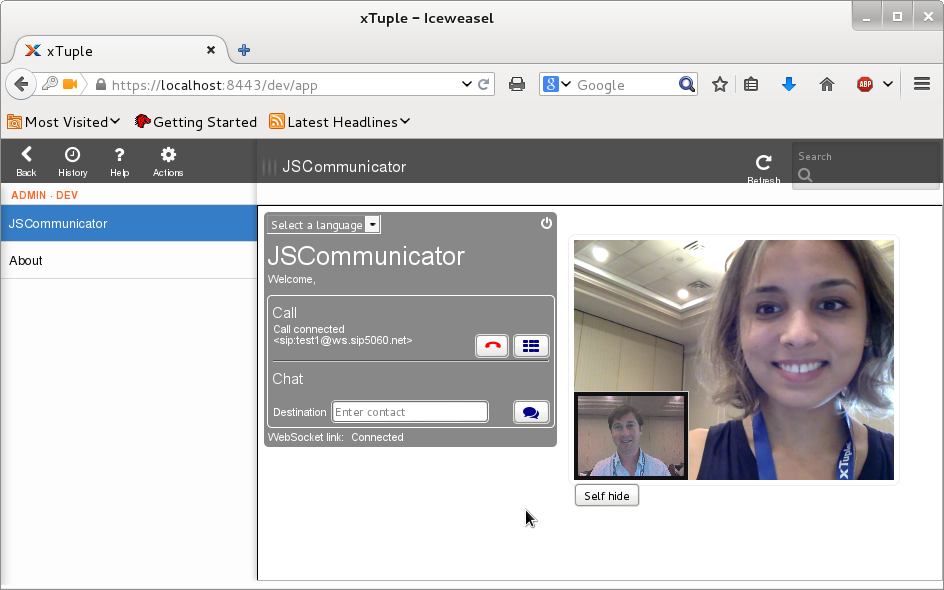
Juliana attended DebConf14 in Portland and gave a presentation of her work on the Debian RTC portal. Many more people were able to try
Participation in DebConf14
Juliana attended DebConf14 in Portland and gave a presentation of her work on the Debian RTC portal. Many more people were able to try 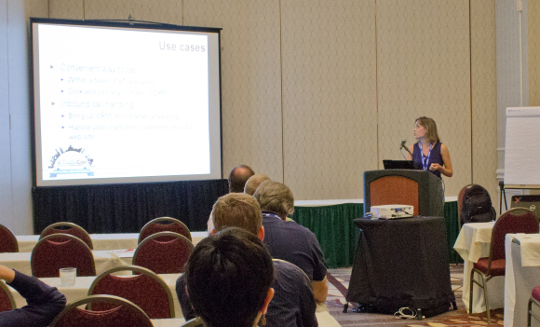 It started with OPW
The key point to emphasize is that Juliana's work in GSoC was actually made possible by Debian's decision to participate in and promote Outreach Program for Women in 2013.
I've previously attended DebConf myself to help more developers become familiar with free and open RTC technology. I wasn't able to get there this year but thanks to the way GSoC and OPW are expanding our community, Juliana was there to help out.
It started with OPW
The key point to emphasize is that Juliana's work in GSoC was actually made possible by Debian's decision to participate in and promote Outreach Program for Women in 2013.
I've previously attended DebConf myself to help more developers become familiar with free and open RTC technology. I wasn't able to get there this year but thanks to the way GSoC and OPW are expanding our community, Juliana was there to help out.

 At its core, Rocker is a project for running