Search Results: "cas"

20 February 2017

Jonathan Dowland: Blinkenlights, part 2

Part two of a series. part 1, part 3. To start with configuring my NAS to use the new blinkenlights, I thought I'd start with a really easy job: I plug in my iPod, a script runs to back it up, then the iPod gets unmounted. It's one of the simpler jobs to start with because the iPod is a simple block device and there's no encryption in play. For now, I'm also going to assume the LED Is going to be used exclusively for this job. In the future I will want many independent jobs to perhaps use the LED to signal things and figuring out how that will work is going to be much harder. I'll skip over the journey and go straight to the working solution. I have a systemd job that is used to invoke a sync from the iPod as follows:
[Service]
Type=oneshot
ExecStart=/bin/mount /media/ipod
ExecStart=/usr/local/bin/blinkstick --index 1 --limit 10 --set-color 33c280
ExecStart=/usr/bin/rsync ...
ExecStop=/bin/umount /media/ipod
ExecStop=/usr/local/bin/blinkstick --index 1 --limit 10 --set-color green
[Install]
WantedBy=dev-disk-by\x2duuid-A2EA\x2d96ED.device
[Unit]
OnFailure=blinkstick-fail.service
/media/ipod is a classic mount configured in /etc/fstab. I've done this rather than use the newer systemd .mount units which sadly don't give you enough hooks for running things after unmount or in the failure case. This feels quite unnatural, much more "systemdy" would be to Requires= the mount unit, but I couldn't figure out an easy way to set the LED to green after the unmount. I'm sure it's possible, but convoluted. The first blinkstick command sets the LED to a colour to indicate "in progress". I explored some of the blinkstick tool's options for a fading or throbbing colour but they didn't work very well. I'll take another look in the future. After the LED is set, the backup job itself runs. The last blinkstick command, which is only run if the previous umount has succeeded, sets the LED to indicate "safe to unplug". The WantedBy here instructs systemd that when the iPod device-unit is activated, it should activate my backup service. I can refer to the iPod device-unit using this name based on the partition's UUID; this is not the canonical device name that you see if you run systemctl but it's much shorter and crucially its stable, the canonical name depends on exactly where you plugged it in and what other devices might have been connected at the same time. If something fails, a second unit blinkstick-fail.service gets activated. This is very short:
[Service]
ExecStart=/usr/local/bin/blinkstick --index 1 --limit 50 --set-color red
This simply sets the LED to be red. Again it's a bit awkward that in 2 cases I'm setting the LED with a simple Exec but in the third I have to activate a separate systemd service: this seems to be the nature of the beast. At least when I come to look at concurrent jobs all interacting with the LED, the failure case should be simple: red trumps any other activity, user must go and check what's up.

18 February 2017

Steve Kemp: Apologies for the blog-churn.

I've been tweaking my blog a little over the past few days, getting ready for a new release of the chronicle blog compiler (github). During the course of that I rewrote all the posts to have 100% lower-case file-paths. Redirection-pages have been auto-generated for each page which was previously mixed-case, but unfortunately that will have meant that the RSS feed updated unnecessarily: That triggered a lot of spamming, as the URLs would have shown up as being new/unread/distinct.

17 February 2017

Michal Čihař: What's coming in Weblate 2.12

Weblate should be released by end of February, so it's now pretty much clear what will be there. So let's look at some of the upcoming features. There were many improvements in search related features. They got performance improvements (this is especially noticeable on site wide search). Additionally you can search for strings within translation project. On related topic, search and replace is now available for component or project wide operations, what can help you in case of massive renaming in your translations. We have worked on improving machine translations as well, this time we've added support for Yandex. In case you know some machine translation service which we do not yet support, please submit that to our issue tracker. Biggest improvement so far comes for visual context feature - it allows you to upload screenshots which are later shown to translators to give them better idea where and in which context the translation is used. So far you had to manually upload screenshot for every source string, what was far from being easy to use. With Weblate 2.12 (and this is already available on Hosted Weblate right now) the screenshots management got way better. There is now separate interface to manage screenshots (see screenshots for Weblate as an example), you can assign every screenshot to multiple source strings, however you can also let Weblate automatically recognize texts on the screenshots using OCR and suggest strings to assign. This can save you quite a lot of effort, especially with screenshots with lot of strings. This feature is still in early phase, so the suggestions are not always 100% matching, but we're working to improve it further. There will be some more features as well, you can look at our 2.12 milestone at GitHub to follow the process.

Filed under: Debian English SUSE Weblate 0 comments

Dirk Eddelbuettel: littler 0.3.2

max-heap image The third release of littler as a CRAN package is now available, following in the now more than ten-year history as a package started by Jeff in the summer of 2006, and joined by me a few weeks later. littler is the first command-line interface for R and predates Rscript. It is still faster, and in my very biased eyes better as it allows for piping as well shebang scripting via #!, uses command-line arguments more consistently and still starts faster. It prefers to live on Linux and Unix, has its difficulties on OS X due to yet-another-braindeadedness there (who ever thought case-insensitive filesystems where a good idea?) and simply does not exist on Windows (yet -- the build system could be extended -- see RInside for an existence proof, and volunteers welcome!). This release brings several new examples script to run package checks, use the extraordinary R Hub, download RStudio daily builds, and more -- see below for details. No internals were changed. The NEWS file entry is below.

Changes in littler version 0.3.2 (2017-02-14)
  • Changes in examples
    • New scripts getRStudioServer.r and getRStudioDesktop.r to download daily packages, currently defaults to Ubuntu amd64
    • New script c4c.r calling rhub::check_for_cran()
    • New script rd2md.r to convert Rd to markdown.
    • New script build.r to create a source tarball.
    • The installGitHub.r script now use package remotes (PR #44, #46)

Courtesy of CRANberries, there is a comparison to the previous release. Full details for the littler release are provided as usual at the ChangeLog page. The code is available via the GitHub repo, from tarballs off my littler page and the local directory here -- and now of course all from its CRAN page and via install.packages("littler"). Binary packages are available directly in Debian as well as soon via Ubuntu binaries at CRAN thanks to the tireless Michael Rutter. Comments and suggestions are welcome at the GitHub repo.

This post by Dirk Eddelbuettel originated on his Thinking inside the box blog. Please report excessive re-aggregation in third-party for-profit settings.

16 February 2017

Craig Sanders: New D&D Cantrip

Name: Alternative Fact
Level: 0
School: EN
Time: 1 action
Range: global, contagious
Components: V, S, M (one racial, cultural or religious minority to blame)
Duration: Permanent (irrevocable)
Classes: Cleric, (Grand) Wizard, Con-man Politician The caster can tell any lie, no matter how absurd or outrageous (in fact, the more outrageous the better), and anyone hearing it (or hearing about it later) with an INT of 10 or less will believe it instantly, with no saving throw. They will defend their new belief to the death theirs or yours. This belief can not be disbelieved, nor can it be defeated by any form of education, logic, evidence, or reason. It is completely incurable. Dispel Magic does not work against it, and Remove Curse is also ineffectual. New D&D Cantrip is a post from: Errata

15 February 2017

Antoine Beaupr : A look at password managers

As we noted in an earlier article, passwords are a liability and we'd prefer to get rid of them, but the current reality is that we do use a plethora of passwords in our daily lives. This problem is especially acute for technology professionals, particularly system administrators, who have to manage a lot of different machines. But it also affects regular users who still use a large number of passwords, from their online bank to their favorite social-networking site. Despite the remarkable memory capacity of the human brain, humans are actually terrible at recalling even short sets of arbitrary characters with the precision needed for passwords. Therefore humans reuse passwords, make them trivial or guessable, write them down on little paper notes and stick them on their screens, or just reset them by email every time. Our memory is undeniably failing us and we need help, which is where password managers come in. Password managers allow users to store an arbitrary number of passwords and just remember a single password to unlock them all. But there is a large variety of password managers out there, so which one should we be using? At my previous job, an inventory was done of about 40 different free-software password managers in different stages of development and of varying quality. So, obviously, this article will not be exhaustive, but instead focus on a smaller set of some well-known options that may be interesting to readers.

KeePass: the popular alternative The most commonly used password-manager design pattern is to store passwords in a file that is encrypted and password-protected. The most popular free-software password manager of this kind is probably KeePass. An important feature of KeePass is the ability to auto-type passwords in forms, most notably in web browsers. This feature makes KeePass really easy to use, especially considering it also supports global key bindings to access passwords. KeePass databases are designed for simultaneous access by multiple users, for example, using a shared network drive. KeePass has a graphical interface written in C#, so it uses the Mono framework on Linux. A separate project, called KeePassX is a clean-room implementation written in C++ using the Qt framework. Both support the AES and Twofish encryption algorithms, although KeePass recently added support for the ChaCha20 cipher. AES key derivation is used to generate the actual encryption key for the database, but the latest release of KeePass also added using Argon2, which was the winner of the July 2015 password-hashing competition. Both programs are more or less equivalent, although the original KeePass seem to have more features in general. The KeePassX project has recently been forked into another project now called KeePassXC that implements a set of new features that are present in KeePass but missing from KeePassX like:
  • auto-type on Linux, Mac OS, and Windows
  • database merging which allows multi-user support
  • using the web site's favicon in the interface
So far, the maintainers of KeePassXC seem to be open to re-merging the project "if the original maintainer of KeePassX in the future will be more active and will accept our merge and changes". I can confirm that, at the time of writing, the original KeePassX project now has 79 pending pull requests and only one pull request was merged since the last release, which was 2.0.3 in September 2016. While KeePass and derivatives allow multiple users to access the same database through the merging process, they do not support multi-party access to a single database. This may be a limiting factor for larger organizations, where you may need, for example, a different password set for different technical support team levels. The solution in this case is to use separate databases for each team, with each team using a different shared secret.

Pass: the standard password manager? I am currently using password-store, or pass, as a password manager. It aims to be "the standard Unix password manager". Pass is a GnuPG-based password manager that features a surprising number of features given its small size:
  • copy-paste support
  • Git integration
  • multi-user/group support
  • pluggable extensions (in the upcoming 1.7 release)
The command-line interface is simple to use and intuitive. The following, will, for example, create a pass repository, a 20 character password for your LWN account and copy it to the clipboard:
    $ pass init
    $ pass generate -c lwn 20
The main issue with pass is that it doesn't encrypt the name of those entries: if someone were to compromise my machine, they could easily see which sites I have access to simply by listing the passwords stored in ~/.password-store. This is a deliberate design decision by the upstream project, as stated by a mailing list participant, Allan Odgaard:
Using a single file per item has the advantage of shell completion, using version control, browse, move and rename the items in a file browser, edit them in a regular editor (that does GPG, or manually run GPG first), etc.
Odgaard goes on to point out that there are alternatives that do encrypt the entire database (including the site names) if users really need that feature. Furthermore, there is a tomb plugin for pass that encrypts the password store in a LUKS container (called a "tomb"), although it requires explicitly opening and closing the container, which makes it only marginally better than using full disk encryption system-wide. One could also argue that password file names do not hold secret information, only the site name and username, perhaps, and that doesn't require secrecy. I do believe those should be kept secret, however, as they could be used to discover (or prove) which sites you have access to and then used to perform other attacks. One could draw a parallel with the SSH known_hosts file, which used to be plain text but is now hashed so that hosts are more difficult to discover. Also, sharing a database for multi-user support will require some sort of file-sharing mechanism. Given the integrated Git support, this will likely involve setting up a private Git repository for your team, something which may not be accessible to the average Linux user. Nothing keeps you, however, from sharing the ~/.password-store directory through another file sharing mechanism like (say) Syncthing or Dropbox. You can use multiple distinct databases easily using the PASSWORD_STORE_DIR environment variable. For example, you could have a shell alias to use a different repository for your work passwords with:
    alias work-pass="PASSWORD_STORE_DIR=~/work-passwords pass"
Group support comes from a clever use of the GnuPG multiple-recipient encryption support. You simply have to specify multiple OpenPGP identities when initializing the repository, which also works in subdirectories:
    $ pass init -p Ateam me@example.com joelle@example.com
    mkdir: created directory '/home/me/.password-store/Ateam'
    Password store initialized for me@example.com, joelle@example.com
    [master 0e3dbe7] Set GPG id to me@example.com, joelle@example.com.
     1 file changed, 2 insertions(+)
     create mode 100644 Ateam/.gpg-id
The above will configure pass to encrypt the passwords in the Ateam directory for me@example.com and joelle@example.com. Pass depends on GnuPG to do the right thing when encrypting files and how those identities are treated is entirely delegated to GnuPG's default configuration. This could lead to problems if arbitrary keys can be injected into your key ring, which could confuse GnuPG. I would therefore recommend using full key fingerprints instead of user identifiers. Regarding the actual encryption algorithms used, in my tests, GnuPG 1.4.18 and 2.1.18 seemed to default to 256-bit AES for encryption, but that has not always been the case. The chosen encryption algorithm actually depends on the recipient's key preferences, which may vary wildly: older keys and versions may use anything from 128-bit AES to CAST5 or Triple DES. To figure out which algorithm GnuPG chose, you may want to try this pipeline:
    $ echo test   gpg -e -r you@example.com   gpg -d -v
    [...]
    gpg: encrypted with 2048-bit RSA key, ID XXXXXXX, created XXXXX
      "You Person You <you@example.com>"
    gpg: AES256 encrypted data
    gpg: original file name=''
    test
As you can see, pass is primarily a command-line application, which may make it less accessible to regular users. The community has produced different graphical interfaces that are either using pass directly or operate on the storage with their own GnuPG integration. I personally use pass in combination with Rofi to get quick access to my passwords, but less savvy users may want to try the QtPass interface, which should be more user-friendly. QtPass doesn't actually depend on pass and can use GnuPG directly to interact with the pass database; it is available for Linux, BSD, OS X, and Windows.

Browser password managers Most users are probably already using a password manager through their web browser's "remember password" functionality. For example, Chromium will ask if you want it to remember passwords and encrypt them with your operating system's facilities. For Windows, this encrypts the passwords with your login password and, for GNOME, it will store the passwords in the gnome-keyring storage. If you synchronize your Chromium settings with your Google account, Chromium will store those passwords on Google's servers, encrypted with a key that is stored in the Google Account itself. So your passwords are then only as safe as your Google account. Note that this was covered here in 2010, although back then Chromium didn't synchronize with the Google cloud or encrypt with the system-level key rings. That facility was only added in 2013. In Firefox, there's an optional, profile-specific master password that unlocks all passwords. In this case, the issue is that browsers are generally always open, so the vault is always unlocked. And this is for users that actually do pick a master password; users are often completely unaware that they should set one. The unlocking mechanism is a typical convenience-security trade-off: either users need to constantly input their master passwords to login or they don't, and the passwords are available in the clear. In this case, Chromium's approach of actually asking users to unlock their vault seems preferable, even though the developers actually refused to implement the feature for years. Overall, I would recommend against using a browser-based password manager. Even if it is not used for critical sites, you will end up with hundreds of such passwords that are vulnerable while the browser is running (in the case of Firefox) or at the whim of Google (in the case of Chromium). Furthermore, the "auto-fill" feature that is often coupled with browser-based password managers is often vulnerable to serious attacks, which is mentioned below. Finally, because browser-based managers generally lack a proper password generator, users may fail to use properly generated passwords, so they can then be easily broken. A password generator has been requested for Firefox, according to this feature request opened in 2007, and there is a password generator in Chrome, but it is disabled by default and hidden in the mysterious chrome://flags URL.

Other notable password managers Another alternative password manager, briefly mentioned in the previous article, is the minimalistic Assword password manager that, despite its questionable name, is also interesting. Its main advantage over pass is that it uses a single encrypted JSON file for storage, and therefore doesn't leak the name of the entries by default. In addition to copy/paste, Assword also supports automatically entering passphrases in fields using the xdo library. Like pass, it uses GnuPG to encrypt passphrases. According to Assword maintainer Daniel Kahn Gillmor in email, the main issue with Assword is "interaction between generated passwords and insane password policies". He gave the example of the Time-Warner Cable registration form that requires, among other things, "letters and numbers, between 8 and 16 characters and not repeat the same characters 3 times in a row". Another well-known password manager is the commercial LastPass service which released a free-software command-line client called lastpass-cli about three years ago. Unfortunately, the server software of the lastpass.com service is still proprietary. And given that LastPass has had at least two serious security breaches since that release, one could legitimately question whether this is a viable solution for storing important secrets. In general, web-based password managers expose a whole new attack surface that is not present in regular password managers. A 2014 study by University of California researchers showed that, out of five password managers studied, every one of them was vulnerable to at least one of the vulnerabilities studied. LastPass was, in particular, vulnerable to a cross-site request forgery (CSRF) attack that allowed an attacker to bypass account authentication and access the encrypted database.

Problems with password managers When you share a password database within a team, how do you remove access to a member of the team? While you can, for example, re-encrypt a pass database with new keys (thereby removing or adding certain accesses) or change the password on a KeePass database, a hostile party could have made a backup of the database before the revocation. Indeed, in the case of pass, older entries are still in the Git history. So access revocation is a problematic issue found with all shared password managers, as it may actually mean going through every password and changing them online. This fundamental problem with shared secrets can be better addressed with a tool like Vault or SFLvault. Those tools aim to provide teams with easy ways to store dynamic tokens like API keys or service passwords and share them not only with other humans, but also make them accessible to machines. The general idea of those projects is to store secrets in a central server and send them directly to relevant services without human intervention. This way, passwords are not actually shared anymore, which is similar in spirit to the approach taken by centralized authentication systems like Kerberos. If you are looking at password management for teams, those projects may be worth a look. Furthermore, some password managers that support auto-typing were found to be vulnerable to HTML injection attacks: if some third-party ad or content is able to successfully hijack the parent DOM content, it masquerades as a form that could fool auto-typing software as demonstrated by this paper that was submitted at USENIX 2014. Fortunately, KeePass was not vulnerable according to the security researchers, but LastPass was, again, vulnerable.

Future of password managers? All of the solutions discussed here assume you have a trusted computer you regularly have access to, which is a usage pattern that seems to be disappearing with a majority of the population. You could consider your phone to be that trusted device, yet a phone can be lost or stolen more easily than a traditional workstation or even a laptop. And while KeePass has Android and iOS ports, those do not resolve the question of how to share the password storage among those devices or how to back them up. Password managers are fundamentally file-based, and the "file" concept seems to be quickly disappearing, faster than we technologists sometimes like to admit. Looking at some relatives' use of computers, I notice it is less about "files" than images, videos, recipes, and various abstract objects that are stored in the "cloud". They do not use local storage so much anymore. In that environment, password managers lose their primary advantage, which is a local, somewhat offline file storage that is not directly accessible to attackers. Therefore certain password managers are specifically designed for the cloud, like LastPass or web browser profile synchronization features, without necessarily addressing the inherent issues with cloud storage and opening up huge privacy and security issues that we absolutely need to address. This is where the "password hasher" design comes in. Also known as "stateless" or "deterministic" password managers, password hashers are emerging as a convenient solution that could possibly replace traditional password managers as users switch from generic computing platforms to cloud-based infrastructure. We will cover password hashers and the major security challenges they pose in a future article.
Note: this article first appeared in the Linux Weekly News.

Antoine Beaupr : A look at password managers

As we noted in an earlier article, passwords are a liability and we'd prefer to get rid of them, but the current reality is that we do use a plethora of passwords in our daily lives. This problem is especially acute for technology professionals, particularly system administrators, who have to manage a lot of different machines. But it also affects regular users who still use a large number of passwords, from their online bank to their favorite social-networking site. Despite the remarkable memory capacity of the human brain, humans are actually terrible at recalling even short sets of arbitrary characters with the precision needed for passwords. Therefore humans reuse passwords, make them trivial or guessable, write them down on little paper notes and stick them on their screens, or just reset them by email every time. Our memory is undeniably failing us and we need help, which is where password managers come in. Password managers allow users to store an arbitrary number of passwords and just remember a single password to unlock them all. But there is a large variety of password managers out there, so which one should we be using? At my previous job, an inventory was done of about 40 different free-software password managers in different stages of development and of varying quality. So, obviously, this article will not be exhaustive, but instead focus on a smaller set of some well-known options that may be interesting to readers.

KeePass: the popular alternative The most commonly used password-manager design pattern is to store passwords in a file that is encrypted and password-protected. The most popular free-software password manager of this kind is probably KeePass. An important feature of KeePass is the ability to auto-type passwords in forms, most notably in web browsers. This feature makes KeePass really easy to use, especially considering it also supports global key bindings to access passwords. KeePass databases are designed for simultaneous access by multiple users, for example, using a shared network drive. KeePass has a graphical interface written in C#, so it uses the Mono framework on Linux. A separate project, called KeePassX is a clean-room implementation written in C++ using the Qt framework. Both support the AES and Twofish encryption algorithms, although KeePass recently added support for the ChaCha20 cipher. AES key derivation is used to generate the actual encryption key for the database, but the latest release of KeePass also added using Argon2, which was the winner of the July 2015 password-hashing competition. Both programs are more or less equivalent, although the original KeePass seem to have more features in general. The KeePassX project has recently been forked into another project now called KeePassXC that implements a set of new features that are present in KeePass but missing from KeePassX like:
  • auto-type on Linux, Mac OS, and Windows
  • database merging which allows multi-user support
  • using the web site's favicon in the interface
So far, the maintainers of KeePassXC seem to be open to re-merging the project "if the original maintainer of KeePassX in the future will be more active and will accept our merge and changes". I can confirm that, at the time of writing, the original KeePassX project now has 79 pending pull requests and only one pull request was merged since the last release, which was 2.0.3 in September 2016. While KeePass and derivatives allow multiple users to access the same database through the merging process, they do not support multi-party access to a single database. This may be a limiting factor for larger organizations, where you may need, for example, a different password set for different technical support team levels. The solution in this case is to use separate databases for each team, with each team using a different shared secret.

Pass: the standard password manager? I am currently using password-store, or pass, as a password manager. It aims to be "the standard Unix password manager". Pass is a GnuPG-based password manager that features a surprising number of features given its small size:
  • copy-paste support
  • Git integration
  • multi-user/group support
  • pluggable extensions (in the upcoming 1.7 release)
The command-line interface is simple to use and intuitive. The following, will, for example, create a pass repository, a 20 character password for your LWN account and copy it to the clipboard:
    $ pass init
    $ pass generate -c lwn 20
The main issue with pass is that it doesn't encrypt the name of those entries: if someone were to compromise my machine, they could easily see which sites I have access to simply by listing the passwords stored in ~/.password-store. This is a deliberate design decision by the upstream project, as stated by a mailing list participant, Allan Odgaard:
Using a single file per item has the advantage of shell completion, using version control, browse, move and rename the items in a file browser, edit them in a regular editor (that does GPG, or manually run GPG first), etc.
Odgaard goes on to point out that there are alternatives that do encrypt the entire database (including the site names) if users really need that feature. Furthermore, there is a tomb plugin for pass that encrypts the password store in a LUKS container (called a "tomb"), although it requires explicitly opening and closing the container, which makes it only marginally better than using full disk encryption system-wide. One could also argue that password file names do not hold secret information, only the site name and username, perhaps, and that doesn't require secrecy. I do believe those should be kept secret, however, as they could be used to discover (or prove) which sites you have access to and then used to perform other attacks. One could draw a parallel with the SSH known_hosts file, which used to be plain text but is now hashed so that hosts are more difficult to discover. Also, sharing a database for multi-user support will require some sort of file-sharing mechanism. Given the integrated Git support, this will likely involve setting up a private Git repository for your team, something which may not be accessible to the average Linux user. Nothing keeps you, however, from sharing the ~/.password-store directory through another file sharing mechanism like (say) Syncthing or Dropbox). You can use multiple distinct databases easily using the PASSWORD_STORE_DIR environment variable. For example, you could have a shell alias to use a different repository for your work passwords with:
    alias work-pass="PASSWORD_STORE_DIR=~/work-passwords pass"
Group support comes from a clever use of the GnuPG multiple-recipient encryption support. You simply have to specify multiple OpenPGP identities when initializing the repository, which also works in subdirectories:
    $ pass init -p Ateam me@example.com joelle@example.com
    mkdir: created directory '/home/me/.password-store/Ateam'
    Password store initialized for me@example.com, joelle@example.com
    [master 0e3dbe7] Set GPG id to me@example.com, joelle@example.com.
     1 file changed, 2 insertions(+)
     create mode 100644 Ateam/.gpg-id
The above will configure pass to encrypt the passwords in the Ateam directory for me@example.com and joelle@example.com. Pass depends on GnuPG to do the right thing when encrypting files and how those identities are treated is entirely delegated to GnuPG's default configuration. This could lead to problems if arbitrary keys can be injected into your key ring, which could confuse GnuPG. I would therefore recommend using full key fingerprints instead of user identifiers. Regarding the actual encryption algorithms used, in my tests, GnuPG 1.4.18 and 2.1.18 seemed to default to 256-bit AES for encryption, but that has not always been the case. The chosen encryption algorithm actually depends on the recipient's key preferences, which may vary wildly: older keys and versions may use anything from 128-bit AES to CAST5 or Triple DES. To figure out which algorithm GnuPG chose, you may want to try this pipeline:
    $ echo test   gpg -e -r you@example.com   gpg -d -v
    [...]
    gpg: encrypted with 2048-bit RSA key, ID XXXXXXX, created XXXXX
      "You Person You <you@example.com>"
    gpg: AES256 encrypted data
    gpg: original file name=''
    test
As you can see, pass is primarily a command-line application, which may make it less accessible to regular users. The community has produced different graphical interfaces that are either using pass directly or operate on the storage with their own GnuPG integration. I personally use pass in combination with Rofi to get quick access to my passwords, but less savvy users may want to try the QtPass interface, which should be more user-friendly. QtPass doesn't actually depend on pass and can use GnuPG directly to interact with the pass database; it is available for Linux, BSD, OS X, and Windows.

Browser password managers Most users are probably already using a password manager through their web browser's "remember password" functionality. For example, Chromium will ask if you want it to remember passwords and encrypt them with your operating system's facilities. For Windows, this encrypts the passwords with your login password and, for GNOME, it will store the passwords in the gnome-keyring storage. If you synchronize your Chromium settings with your Google account, Chromium will store those passwords on Google's servers, encrypted with a key that is stored in the Google Account itself. So your passwords are then only as safe as your Google account. Note that this was covered here in 2010, although back then Chromium didn't synchronize with the Google cloud or encrypt with the system-level key rings. That facility was only added in 2013. In Firefox, there's an optional, profile-specific master password that unlocks all passwords. In this case, the issue is that browsers are generally always open, so the vault is always unlocked. And this is for users that actually do pick a master password; users are often completely unaware that they should set one. The unlocking mechanism is a typical convenience-security trade-off: either users need to constantly input their master passwords to login or they don't, and the passwords are available in the clear. In this case, Chromium's approach of actually asking users to unlock their vault seems preferable, even though the developers actually refused to implement the feature for years. Overall, I would recommend against using a browser-based password manager. Even if it is not used for critical sites, you will end up with hundreds of such passwords that are vulnerable while the browser is running (in the case of Firefox) or at the whim of Google (in the case of Chromium). Furthermore, the "auto-fill" feature that is often coupled with browser-based password managers is often vulnerable to serious attacks, which is mentioned below. Finally, because browser-based managers generally lack a proper password generator, users may fail to use properly generated passwords, so they can then be easily broken. A password generator has been requested for Firefox, according to this feature request opened in 2007, and there is a password generator in Chrome, but it is disabled by default and hidden in the mysterious chrome://flags URL.

Other notable password managers Another alternative password manager, briefly mentioned in the previous article, is the minimalistic Assword password manager that, despite its questionable name, is also interesting. Its main advantage over pass is that it uses a single encrypted JSON file for storage, and therefore doesn't leak the name of the entries by default. In addition to copy/paste, Assword also supports automatically entering passphrases in fields using the xdo library. Like pass, it uses GnuPG to encrypt passphrases. According to Assword maintainer Daniel Kahn Gillmor in email, the main issue with Assword is "interaction between generated passwords and insane password policies". He gave the example of the Time-Warner Cable registration form that requires, among other things, "letters and numbers, between 8 and 16 characters and not repeat the same characters 3 times in a row". Another well-known password manager is the commercial LastPass service which released a free-software command-line client called lastpass-cli about three years ago. Unfortunately, the server software of the lastpass.com service is still proprietary. And given that LastPass has had at least two serious security breaches since that release, one could legitimately question whether this is a viable solution for storing important secrets. In general, web-based password managers expose a whole new attack surface that is not present in regular password managers. A 2014 study by University of California researchers showed that, out of five password managers studied, every one of them was vulnerable to at least one of the vulnerabilities studied. LastPass was, in particular, vulnerable to a cross-site request forgery (CSRF) attack that allowed an attacker to bypass account authentication and access the encrypted database.

Problems with password managers When you share a password database within a team, how do you remove access to a member of the team? While you can, for example, re-encrypt a pass database with new keys (thereby removing or adding certain accesses) or change the password on a KeePass database, a hostile party could have made a backup of the database before the revocation. Indeed, in the case of pass, older entries are still in the Git history. So access revocation is a problematic issue found with all shared password managers, as it may actually mean going through every password and changing them online. This fundamental problem with shared secrets can be better addressed with a tool like Vault or SFLvault. Those tools aim to provide teams with easy ways to store dynamic tokens like API keys or service passwords and share them not only with other humans, but also make them accessible to machines. The general idea of those projects is to store secrets in a central server and send them directly to relevant services without human intervention. This way, passwords are not actually shared anymore, which is similar in spirit to the approach taken by centralized authentication systems like Kerberos). If you are looking at password management for teams, those projects may be worth a look. Furthermore, some password managers that support auto-typing were found to be vulnerable to HTML injection attacks: if some third-party ad or content is able to successfully hijack the parent DOM content, it masquerades as a form that could fool auto-typing software as demonstrated by this paper that was submitted at USENIX 2014. Fortunately, KeePass was not vulnerable according to the security researchers, but LastPass was, again, vulnerable.

Future of password managers? All of the solutions discussed here assume you have a trusted computer you regularly have access to, which is a usage pattern that seems to be disappearing with a majority of the population. You could consider your phone to be that trusted device, yet a phone can be lost or stolen more easily than a traditional workstation or even a laptop. And while KeePass has Android and iOS ports, those do not resolve the question of how to share the password storage among those devices or how to back them up. Password managers are fundamentally file-based, and the "file" concept seems to be quickly disappearing, faster than we technologists sometimes like to admit. Looking at some relatives' use of computers, I notice it is less about "files" than images, videos, recipes, and various abstract objects that are stored in the "cloud". They do not use local storage so much anymore. In that environment, password managers lose their primary advantage, which is a local, somewhat offline file storage that is not directly accessible to attackers. Therefore certain password managers are specifically designed for the cloud, like LastPass or web browser profile synchronization features, without necessarily addressing the inherent issues with cloud storage and opening up huge privacy and security issues that we absolutely need to address. This is where the "password hasher" design comes in. Also known as "stateless" or "deterministic" password managers, password hashers are emerging as a convenient solution that could possibly replace traditional password managers as users switch from generic computing platforms to cloud-based infrastructure. We will cover password hashers and the major security challenges they pose in a future article.
Note: this article first appeared in the Linux Weekly News.

Jamie McClelland: Re-thinking Web App Security

An organizer friend interested in activating a rapid response network to counter Trump-era ICE raids on immigrants asked me about any existing simple and easy tools that could send out emergency SMS/text message alerts. I thought about it and ended up writing my first pouchdb web application to accomplish the task. For the curious, you can see it in action and browse the source code. To use it to send SMS, you have to register for a Twilio account - you can get a free account that has very restricted SMS sending capability or pay for full functionality. The project is unlike anything I have done before. I chose pouchdb because it stores all of your contacts in your browser not on a server somewhere in the so-called cloud. (You can also choose to sync to a server, a feature I have not yet implemented.) The implications of storing your data locally are quite profound. Classic Web App Let's first consider the more common web application: You visit a web site (the same web site that your colleagues visit, or in the case of a massive application like gmail.com, the same web site that everyone in the world visits). Then, you login with your own unique username and password, which grants you access to the portion the database that you are suppose to have access to. For most use-cases, this model is fairly ideal: However, there are some downsides: pouchdb no sync Assuming you are accessing your database on a device with an encrypted disk and you manage your own backups, pouchdb without synchoronizing provides the most privacy and autonomy. You have complete control of your data and you are not dependent on any server operator. However, the trade-offs are harsh: It seems this model is fairly useless except in very tight corner cases. pouchdb that synchronizes to a server With this model, you avoid the trade-offs of the no sync model (hooray!). However, you also lose all of the privacy benefits, and it's even worse: your data can be compromised either via a server breach or via a compromise of any of the devices you are using. If any of these devices lack encrypted disks, then it's borderline reckless. On the other hand, you gain a huge benefit in terms of reliability. If the server goes down, loses your data, fails to backup or is taken offline by a legal order, you can still function perfectly well and can optionally choose to sync to a different host. Conclusions Ultimately, we need to better evaluate the trade-offs between privacy and availability for each given use of a database and try to make the best decision. And... keep working on new models. For example, it seems an ideal middle ground would be to sync in a peer-to-peer fashion with our colleagues (see PeerPouch) or sync to a server under your control in your office.

14 February 2017

Arturo Borrero Gonz lez: About process limits

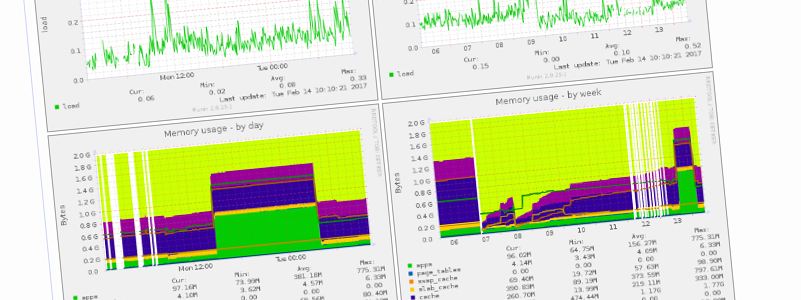
Graphs The other day I had to deal with an outage in one of our LDAP servers, which is running the old Debian Wheezy (yeah, I know, we should update it). We are running openldap, the slapd daemon. And after searching the log files, the cause of the outage was obvious:
[...]
slapd[7408]: warning: cannot open /etc/hosts.allow: Too many open files
slapd[7408]: warning: cannot open /etc/hosts.deny: Too many open files
slapd[7408]: warning: cannot open /etc/hosts.allow: Too many open files
slapd[7408]: warning: cannot open /etc/hosts.deny: Too many open files
slapd[7408]: warning: cannot open /etc/hosts.allow: Too many open files
slapd[7408]: warning: cannot open /etc/hosts.deny: Too many open files
[...]
[Please read About process limits, round 2 for updated info on this issue] I couldn t believe that openldap is using tcp_wrappers (or libwrap), an ancient software piece that hasn t been updated for years, replaced in many other ways by more powerful tools (like nftables). I was blinded by this and ran to open a Debian bug agains openldap: #854436 (openldap: please don t use tcp-wrappers with slapd). The reply from Steve Langasek was clear:
If people are hitting open file limits trying to open two extra files,
disabling features in the codebase is not the correct solution.
Obvoursly, the problem was somewhere else. I started investigating about system limits, which seems to have 2 main components: According to my searchings, my slapd daemon was being hit by the latter. I reviewed the default system-wide limits and they seemed Ok. So, let s change the other limits. Most of the documentantion around the internet points you to a /etc/security/limits.conf file, which is then read by pam_limits. You can check current limits using the ulimit bash builtin. In the case of my slapd:
arturo@debian:~% sudo su openldap -s /bin/bash
openldap@debian:~% ulimit -a
core file size          (blocks, -c) 0
data seg size           (kbytes, -d) unlimited
scheduling priority             (-e) 0
file size               (blocks, -f) unlimited
pending signals                 (-i) 7915
max locked memory       (kbytes, -l) 64
max memory size         (kbytes, -m) unlimited
open files                      (-n) 1024
pipe size            (512 bytes, -p) 8
POSIX message queues     (bytes, -q) 819200
real-time priority              (-r) 0
stack size              (kbytes, -s) 8192
cpu time               (seconds, -t) unlimited
max user processes              (-u) 2000
virtual memory          (kbytes, -v) unlimited
file locks                      (-x) unlimited
This seems to suggest that the openldap user is constrained to 1024 openfiles (and some more if we check the hard limit). The 1024 limit seems low for a rather busy service. According to most of the internet docs, I m supposed to put this in /etc/security/limits.conf:
[...]
#<domain>      <type>  <item>         <value>
openldap	soft	nofile		1000000
openldap	hard	nofile		1000000
[...]
I should check as well that pam_limits is loaded, in /etc/pam.d/other:
[...]
session		required	pam_limits.so
[...]
After reloading the openldap session, you can check that, indeed, limits are changed as reported by ulimit. But at some point, the slapd daemon starts to drop connections again. Thing start to turn weird here. The changes we made until now don t work, probably because when the slapd daemon is spawned at bootup (by root, sysvinit in this case) no pam mechanisms are triggered. So, I was forced to learn a new thing: process limits. You can check the limits for a given process this way:
arturo@debian:~% cat /proc/$(pgrep slapd)/limits
Limit                     Soft Limit           Hard Limit           Units
Max cpu time              unlimited            unlimited            seconds
Max file size             unlimited            unlimited            bytes
Max data size             unlimited            unlimited            bytes
Max stack size            8388608              unlimited            bytes
Max core file size        0                    unlimited            bytes
Max resident set          unlimited            unlimited            bytes
Max processes             16000                16000                processes
Max open files            1024                 4096                 files
Max locked memory         65536                65536                bytes
Max address space         unlimited            unlimited            bytes
Max file locks            unlimited            unlimited            locks
Max pending signals       16000                16000                signals
Max msgqueue size         819200               819200               bytes
Max nice priority         0                    0
Max realtime priority     0                    0
Max realtime timeout      unlimited            unlimited            us
Good, seems we have some more limits attached to our slapd daemon process. If we search the internet to know how to change process limits, most of the docs points to a tool known as prlimit. According to the manpage, this is a tool to get and set process resource limits, which is just what I was looking for. According to the docs, the prlimit system call is supported since Linux 2.6.36, and I m running 3.2, so no problem here. Things looks promising. But yes, more problems. The prlimit tool is not included in the Debian Wheezy release. A simple call to a single system call was not going to stop me now, so I searched more the web until I found this useful manpage: getrlimit(2). There is a sample C code included in the manpage, in which we only need to replace RLIMIT_CPU with RLIMIT_NOFILE:
#define _GNU_SOURCE
#define _FILE_OFFSET_BITS 64
#include <stdio.h>
#include <time.h>
#include <stdlib.h>
#include <unistd.h>
#include <sys/resource.h>
#define errExit(msg) do   perror(msg); exit(EXIT_FAILURE); \
                          while (0)
int
main(int argc, char *argv[])
 
    struct rlimit old, new;
    struct rlimit *newp;
    pid_t pid;
    if (!(argc == 2   argc == 4))  
        fprintf(stderr, "Usage: %s <pid> [<new-soft-limit> "
                "<new-hard-limit>]\n", argv[0]);
        exit(EXIT_FAILURE);
     
    pid = atoi(argv[1]);        /* PID of target process */
    newp = NULL;
    if (argc == 4)  
        new.rlim_cur = atoi(argv[2]);
        new.rlim_max = atoi(argv[3]);
        newp = &new;
     
    /* Set CPU time limit of target process; retrieve and display
       previous limit */
    if (prlimit(pid, RLIMIT_NOFILE, newp, &old) == -1)
        errExit("prlimit-1");
    printf("Previous limits: soft=%lld; hard=%lld\n",
            (long long) old.rlim_cur, (long long) old.rlim_max);
    /* Retrieve and display new CPU time limit */
    if (prlimit(pid, RLIMIT_NOFILE, NULL, &old) == -1)
        errExit("prlimit-2");
    printf("New limits: soft=%lld; hard=%lld\n",
            (long long) old.rlim_cur, (long long) old.rlim_max);
    exit(EXIT_FAILURE);
 
And them compile it like this:
arturo@debian:~% gcc limits.c -o limits
We can then call this new binary like this:
arturo@debian:~% sudo limits $(pgrep slapd) 1000000 1000000
Finally, the limit seems OK:
arturo@debian:~% cat /proc/$(pgrep slapd)/limits
Limit                     Soft Limit           Hard Limit           Units
Max cpu time              unlimited            unlimited            seconds
Max file size             unlimited            unlimited            bytes
Max data size             unlimited            unlimited            bytes
Max stack size            8388608              unlimited            bytes
Max core file size        0                    unlimited            bytes
Max resident set          unlimited            unlimited            bytes
Max processes             16000                16000                processes
Max open files            1000000              1000000              files
Max locked memory         65536                65536                bytes
Max address space         unlimited            unlimited            bytes
Max file locks            unlimited            unlimited            locks
Max pending signals       16000                16000                signals
Max msgqueue size         819200               819200               bytes
Max nice priority         0                    0
Max realtime priority     0                    0
Max realtime timeout      unlimited            unlimited            us
Don t forget to apply this change every time the slapd daemon starts. Nobody found this issue before? really?

13 February 2017

Petter Reinholdtsen: Ruling ignored our objections to the seizure of popcorn-time.no (#domstolkontroll)

A few days ago, we received the ruling from my day in court. The case in question is a challenge of the seizure of the DNS domain popcorn-time.no. The ruling simply did not mention most of our arguments, and seemed to take everything KOKRIM said at face value, ignoring our demonstration and explanations. But it is hard to tell for sure, as we still have not seen most of the documents in the case and thus were unprepared and unable to contradict several of the claims made in court by the opposition. We are considering an appeal, but it is partly a question of funding, as it is costing us quite a bit to pay for our lawyer. If you want to help, please donate to the NUUG defense fund. The details of the case, as far as we know it, is available in Norwegian from the NUUG blog. This also include the ruling itself.

12 February 2017

Dirk Eddelbuettel: Letting Travis keep a secret

More and more packages, be it for R or another language, are now interfacing different application programming interfaces (API) which are exposed to the web. And many of these may require an API key, or token, or account and password. Which traditionally poses a problem in automated tests such as those running on the popular Travis CI service which integrates so well with GitHub. A case in point is the RPushbullet package where Seth Wenchel and I have been making a few recent changes and additions. And yesterday morning, I finally looked more closely into providing Travis CI with the required API key so that we could in fact run continuous integration with unit tests following each commit. And it turns that it is both easy and quick to do, and yet another great showcase for ad-hoc Docker use. The rest of this post will give a quick minimal run-down, this time using the gtrendsR package by Philippe Massicotte and myself. Start by glancing at the 'encrypting files' HOWTO from Travis itself. We assume you have Docker installed, and a suitable base package. We will need Ruby, so any base Linux image will do. In what follows, I use Ubuntu 14.04 but many other Debian, Ubunti, Fedora, ... flavours could be used provided you know how to pick the relevant packages. What is shown here should work on any recent Debian or Ubuntu flavour 'as is'. We start by firing off the Docker engine in the repo directory for which we want to create an encrypted file. The -v $(pwd):/mnt switch mounts the current directory as /mnt in the Docker instance:
edd@max:~/git/gtrendsr(master)$ docker run --rm -ti -v $(pwd):/mnt ubuntu:trusty
root@38b478356439:/# apt-get update    ## this takes a minute or two
Ign http://archive.ubuntu.com trusty InRelease
Get:1 http://archive.ubuntu.com trusty-updates InRelease [65.9 kB]
Get:2 http://archive.ubuntu.com trusty-security InRelease [65.9 kB]
# ... a dozen+ lines omitted ...
Get:21 http://archive.ubuntu.com trusty/restricted amd64 Packages [16.0 kB]    
Get:22 http://archive.ubuntu.com trusty/universe amd64 Packages [7589 kB]      
Fetched 22.4 MB in 6min 40s (55.8 kB/s)                                        
Reading package lists... Done
root@38b478356439:/# 
We then install what is needed to actually install the travis (Ruby) gem, as well as git which is used by it:
root@38b478356439:/# apt-get install -y ruby ruby-dev gem build-essential git
Reading package lists... Done
Building dependency tree       
Reading state information... Done
The following extra packages will be installed:
# ... lot of output ommitted ...
Processing triggers for ureadahead (0.100.0-16) ...
Processing triggers for sgml-base (1.26+nmu4ubuntu1) ...
root@38b478356439:/# 
This too may take a few minutes, depending on the networking bandwidth and other factors, and should in general succeed without the need for any intervention. Once it has concluded, we can use the now-complete infrastructure to install the travis command-line client:
root@38b478356439:/# gem install travis
Fetching: multipart-post-2.0.0.gem (100%)
Fetching: faraday-0.11.0.gem (100%)
Fetching: faraday_middleware-0.11.0.1.gem (100%)
Fetching: highline-1.7.8.gem (100%)
Fetching: backports-3.6.8.gem (100%)
Fetching: multi_json-1.12.1.gem (100%
# ... many lines omitted ...
Installing RDoc documentation for websocket-1.2.4...
Installing RDoc documentation for json-2.0.3...
Installing RDoc documentation for pusher-client-0.6.2...
Installing RDoc documentation for travis-1.8.6...
root@38b478356439:/#                        
This in turn will take a moment. Once done, we can use the travis client to login into GitHub. In my base this requires a password and a two-factor authentication code. Also note that we switch directories first to be in the actual repo we had mounted when launching docker.
root@38b478356439:/# cd /mnt/    ## change to repo directory
root@38b478356439:/mnt# travis --login
Shell completion not installed. Would you like to install it now?  y  y
We need your GitHub login to identify you.
This information will not be sent to Travis CI, only to api.github.com.
The password will not be displayed.
Try running with --github-token or --auto if you don't want to enter your password anyway.
Username: eddelbuettel
Password for eddelbuettel: ****************
Two-factor authentication code for eddelbuettel: xxxxxx
Successfully logged in as eddelbuettel!
root@38b478356439:/mnt# 
Now the actual work of encrypting. For this particular package, we need a file .Rprofile containing a short option() segment setting a user-id and password:
root@38b478356439:/mnt# travis encrypt-file .Rprofile
Detected repository as PMassicotte/gtrendsR, is this correct?  yes  
encrypting .Rprofile for PMassicotte/gtrendsR
storing result as .Rprofile.enc
storing secure env variables for decryption
Please add the following to your build script (before_install stage in your .travis.yml, for instance):
    openssl aes-256-cbc -K $encrypted_988d19a907a0_key -iv $encrypted_988d19a907a0_iv -in .Rprofile.enc -out .Rprofile -d
Pro Tip: You can add it automatically by running with --add.
Make sure to add .Rprofile.enc to the git repository.
Make sure not to add .Rprofile to the git repository.
Commit all changes to your .travis.yml.
root@38b478356439:/mnt#
That's it. Now we just need to follow-through as indicated, committing the .Rprofile.enc file, making sure to not commit its input file .Rprofile, and adding the proper openssl invocation with the keys known only to Travis to the file .travis.yml.

Stefano Zacchiroli: Opening the Software Heritage archive

... one API (and one FOSDEM) at a time [ originally posted on the Software Heritage blog, reposted here with minor adaptations ] Last Saturday at FOSDEM we have opened up the public API of Software Heritage, allowing to programmatically browse its archive. We posted this while I was keynoting with Roberto at FOSDEM 2017, to discuss the role Software Heritage plays in preserving the Free Software commons. To accompany the talk we released our first public API, which allows to navigate the entire content of the Software Heritage archive as a graph of connected development objects (e.g., blobs, directories, commits, releases, etc.). Over the past months we have been busy working on getting source code (with full development history) into the archive, to minimize the risk that important bits of Free/Open Sources Software that are publicly available today disappear forever from the net, due to whatever reason --- crashes, black hat hacking, business decisions, you name it. As a result, our archive is already one of the largest collections of source code in existence, spanning a GitHub mirror, injections of important Free Software collections such as Debian and GNU, and an ongoing import of all Google Code and Gitorious repositories. Up to now, however, the archive was deposit-only. There was no way for the public to access its content. While there is a lot of value in archival per se, our mission is to Collect, Preserve, and Share all the material we collect with everybody. Plus, we totally get that a deposit-only library is much less exciting than a store-and-retrieve one! Last Saturday we took a first important step towards providing full access to the content of our archive: we released version 1 of our public API, which allows to navigate the Software Heritage archive programmatically. You can have a look at the API documentation for full details about how it works. But to briefly recap: conceptually, our archive is a giant Merkle DAG connecting together all development-related objects we encounter while crawling public VCS repositories, source code releases, and GNU/Linux distribution packages. Examples of the objects we store are: file contents, directories, commits, releases; as well as their metadata, such as: log messages, author information, permission bits, etc. The API we have just released allows to pointwise navigate this huge graph. Using the API you can lookup individual objects by their IDs, retrieve their metadata, and jump from one object to another following links --- e.g., from a commit to the corresponding directory or parent commits, from a release to the annotated commit, etc. Additionally, you can retrieve crawling-related information, such as the software origins we track (usually as VCS clone/checkout URLs), and the full list of visits we have done on any known software origin. This allows, for instance, to know when we took snapshots of a Git repository you care about and, for each visit, where each branch of the repo was pointing to at that time. Our resources for offering the API as a public service are still quite limited. This is the reason why you will encounter a couple of limitations. First, no download of the actual content of files we have stored is possible yet --- you can retrieve all content-related metadata (e.g., checksums, detected file types and languages, etc.), but not the actual content as a byte sequence. Second, some pretty severe rate limits apply; API access is entirely anonymous and users are identified by their IP address, each "user" will be able to do a little bit more than 100 requests/hour. This is to keep our infrastructure sane while we grow in capacity and focus our attention to developing other archive features. If you're interested in having rate limits lifted for a specific use case or experiment, please contact us and we will see what we can do to help. If you'd like to contribute to increase our resource pool, have a look at our sponsorship program!

Elena 'valhalla' Grandi: Mobile-ish devices as freedom respecting working environments

Mobile-ish devices as freedom respecting working environments

On planet FSFE, there is starting to be a conversation on using tablets / Android as the main working platform.

It started with the article by Henri Bergius http://bergie.iki.fi/blog/working-on-android-2017/ which nicely covers all practical points, but is quite light on the issues of freedom.

This was rectified by the article by David Boddie http://www.boddie.org.uk/david/www-repo/Personal/Updates/2017/2017-02-11.html which makes an apt comparison of Android to the platform it is replacing in many areas of work and life: Microsoft Windows and criticises its lack of effective freedom, even when the OS was supposed to be under a free license.

I fully agree that lightweight/low powered hardware can be an excellent work environment, especially when on the go, and even for many kinds of software developement, but I'd very much rather have that hardware run an environment that I can trust like Debian (or another traditional GNU/Linux distribution) rather than the phone based ones where, among other problems, there is no clear distinction between what is local and trustable and what is remote and under somebody else's control.

In theory, it would be perfectly possible to run Debian on most tablet and tablet-like hardware, and have such an environment; in practice this is hard for a number of reasons including the lack of mainline kernel support for most hardware and the way actually booting a different OS on it usually ranges from the quite hard to the downright impossible.

Luckily, there is some niche hardware that uses tablet/phone SoCs but is sold with a GNU/Linux distribution and can be used as a freedom respecting work environment on-the-go: my current setup includes an OpenPandora https://en.wikipedia.org/wiki/Pandora_(console) (running Angstrom + a Debian chroot) and an Efika MX Smartbook https://en.wikipedia.org/wiki/Efika, but they are both showing their age badly: they have little RAM (especially the Pandora), and they aren't fully supported by a mainline kernel, which means that you're stuck on an old kernel and dependent on the producer for updates (which for the Efika ended quite early; at least the Pandora is still somewhat supported, at least for bugfixes).

Right now I'm looking forward to two devices as a replacement: the DragonBox Pyra https://en.wikipedia.org/wiki/DragonBox_Pyra (still under preorders) and the THERES-I laptop kit https://www.olimex.com/Products/DIY%20Laptop/ (hopefully available for sale "in a few months", and with no current mainline support for the SoC, but there is hope to see it from the sunxi community http://linux-sunxi.org/Main_Page).

As for software, the laptop/clamshell designs means that using a regular Desktop Environment (or, in my case, Window Manager) works just fine; I do hope that the availability of Pyra (with its touchscreen and 4G/"phone" chip) will help to give a bit of life back to the efforts to improve mobile software on Debian https://wiki.debian.org/Mobile

Hopefully, more such devices will continue to be available, and also hopefully the trend for more openness of the hardware itself will continue; sadly I don't see this getting outside of a niche market in the next few years, but I think that this niche will remain strong enough to be sustainable.

P.S. from nitpicker-me: David Boddie mentions the ability to easily download sources for any component with apt-get source: the big difference IMHO is given by apt-get build-dep, which also install every dependency needed to actually build the code you have just downloaded.

P.S.2: I also agree with Davide Boddie that supporting Conservancy https://sfconservancy.org/supporter/ is very important, and there are still a few hours left to have the contribution count twice.

Iustin Pop: Fine art printing at home

Fine art printing at home It is very interesting how people change over time. Way back in the analog film era, I was using a very cheap camera, and getting the film developed and pictures printed at random places in town. As the movement towards digital began, I started dreaming of a full digital workflow take picture, download from camera, enjoy on your monitor. No more pesky physical stuff. And when I finally got a digital camera, I was oh-so-happy to finally get rid of films and prints. But time passes, and a few years back though, at the end of 2013, I had the misfortune to learn on various photography forums that, within certain limits, one can do high quality printing at home quality high enough for serious prints. I always imagined that "serious" prints can only happen on big, professional stuff, but to my surprise, what I was reading was that many professional photographers can do their prints themselves (for certain paper sizes). I tried before printing photos on my laser printer that I wrote about, but that is a hilarious exercise, nothing more. Thinking process was pretty simple: So I decided to get a photo printer. Because hey, one more printer was the thing I was missing the most. Ink The think with inkjet photo printers is that the bigger they are, the more cheaper the ink is, and the more optimised they are for large volume printing. The more optimisation for large volume, the worse the printers do if you don't print often enough, in the sense of dried ink. This means clogged heads, and each of the serious printer manufacturers (Canon, Epson, HP) deal in different ways with it; some by having extra, spare lines in the print head that replace the clogged ones, others have replaceable printer heads, others rely on wasting ink by trying to flush the ink lines, etc. Also within each manufacturer's lines, different printers behave differently. So one must take this into account how often will you print? Of course I thought very often, but the truth is, this is just another hobby, so time is lacking, and I have weeks going by without turning the printer on. And so, I did have some problems with dried ink, but minor I'd say; I only had once to run a "power cleaning", when due to real world I didn't have time to turn the printer on for months; I managed to choose a good printer in this regard. I never though computed how much ink I wasted with cleaning the heads Paper Another issue with printing is the fact that the result is a physical object, outside of the digital realm. And the transition from digital to physical is tricky. First, the printer itself and the ink are one relatively straightforward choice: decide (by whatever criteria you want) on the printer, and most printers at this level have one set of inks only. But the problem is: which paper? And as I learned, since how the paper looks is a subjective thing, this is an endless topic As you can see, this is really a bottomless pit. I made the mistake of buying lots of sample packs, thinking that settling on a specific paper will be an objective process, but no. Three years later, I have a few favourite papers, but I'm sure I could have almost randomly chosen them (read 3 reviews, choose) and not gotten objectively different results. ICC profiles and processing Another thing is that simply having the printer and the paper doesn't mean everything is fixed. Since printers are analog devices, there needs to be a printer and paper specific colour profile, so that you get (on paper) what you see on the screen (which also needs to be calibrated). So when choosing the printer you should be careful to choose one which is common enough that it has profiles, ideally profiles done by the paper manufacturer themselves. Or, you can go the more basic route, and calibrate the printer/paper combination yourself! I skipped that part though. However you get a profile, if you tell your photo processing application what is your display profile and your printer+paper profile, ideally you what you see is what you get, this time for real. Except that sometimes the gamut of colours in the picture can't be represented entirely in either the display nor the printer profile, so the display is an approximation, but a different one than your printer will do on paper. So you learn about relative and perceptual colorimetric conversions, and you read many blog posts about which one to use for what type of pictures (portraits have different needs than landscapes), and you wonder why did you chose this hobby? Of course, you can somewhat avoid the previous two issues by going more old-school to black and white printing. This should be simple, right? Black and white, nothing more. Hah, you wish. Do you do the B&W conversion in your photo processing application, or in your printer? Some printers are renowned by their good B&W conversions, some not. If you print B&W, then the choice of papers also change, because some papers are just awesome at B&W, but only so-so for colours. So says the internet, at least. But even if you solve all of the above, don't give up just yet, because there is still a little problem. Even if you send the right colours to the printer, the way a certain picture looks on paper is different than on screen. This circles somewhat back to paper choice (glossy type ink having deeper blacks than matte, for example) and colour-vs-b&w, but is a general issue: displays have better contrasts than paper (this doesn't mean the pictures are better looking on screen though). So you use the soft-proofing function, but it looks completely weird, and you learn that you need to learn how specific papers will differ from screen, and that sometimes you don't need any adjustment, sometimes you need a +15, which might mean another run of the same print. You print, then what? So you print. Nice, high quality print. All colours perfect! And then what? First, you wait. Because ink, as opposed to laser toner, is not "done" once the paper is out of the printer. It has to dry, which is a process taking about 24 hours in its initial phase, and which you help along by doing some stuff. The ink settles during this time in the paper, and only after that you know what the final look of the print will be. Depending on what you plan to do with the print, you might want to lay a layer of protective stuff on top of it; a kind of protective film that will keep it in better shape over time, but which has the downside that a) it must definitely be applied after the ink has dried and the the paper has for sure finished outgassing and b) it's a semi-hard layer, so you can roll the paper anymore (if you were planning to do that for transport). Or you say damn it, this is anyway a poor picture So with the print all good and really in its final state, you go on and research what solutions are there for hanging prints at home. And look at frames, and think about behind-glass framing or no glass-framing, and and and and you realise that if you just printed your photos at a lab, they'd come directly framed! I still have the really minimalist hanging solution that I bought a year ago unpacked Getting there, sometime! Costs/economic sense If you think all this effort is done in order to save money on prints, the answer is "Ha ha ha" While professional prints at a lab are expensive, how much do you think all the above (printer, inks, paper, framing, TIME) costs? A lot. It's definitely not worth unless your day job is photography. No, for me it was more the desire to own the photographic process from start to end: learn enough to be able to choose everything (camera which implies sensor which implies a lot of things, lens, post-processing, printer/ink, paper), and see (and have) the end result of your work in your hands. Is it worth all the trouble? Fast forward three years later, I still have the printer, although many times I was thinking of getting rid of it. It takes space, it costs some money (although you don't realise this as you print, since you already sunk the money in consumables), it takes time. Being able to print small photos for family (e.g. 10 15) is neat, but a small printer can do this as well, or you can order prints online, or print them from a memory card at many places. Being able to print A4-size (for which framing for e.g. desk-use is a pain) is also neat, but here there are still simpler solutions than your own big printer. The difference is when you print large. You look at the picture on your big screen, you think/imagine how it will look printer, and then you fire an A2 print. The printer starts, makes noises for about 10 minutes, and then you have the picture in your hands. The ink is still fresh (you know it takes 24 hours to settle), and has that nice ink smell that you don't get anymore in day to day life. With a good paper and a good printer, the way the picture looks is so special, that all the effort seems trivial now. I don't know how looking at pictures on an 8K 30+ inch monitor will be; but there's an indescribable difference between back-lighted LCD and paper for the same picture. Even at the same relative size, the paper is real, while the picture is virtual. You look at the people in the picture on your display, whereas the people in the print look at you. Maybe this is just size. A2 is bigger than my monitor wait, no. A2 has a diagonal of ~29 inches (vs. the display at 30"). Maybe it's resolution? An A2 print out of D810 is small enough to still have good resolution (it's about 320dpi after the small cropping needed for correcting the aspect ratio, which matches the printer's native 360dpi resolution). Coupled with a good printer, it's more than high enough resolution that even with a loupe, there's enough detail in the picture to not see its "digital" history (i.e. no rasterization, no gradients, etc.) Note that 360dpi for photo inkjet printers is much different from 600-1200dpi for laser printers (which are raster-based, not ink droplet based, so it's really not comparable). In any case, the print, even at this (relatively large) size, feels like a reflection of reality. On the monitor, it still feels like a digital picture. I could take a picture of the print to show you, but that would defeat the point, wouldn't it And this is what prompted this blog post. I had a pretty intense week at work, so when the weekend came, I was thinking what to do to disconnect and relax. I had a certain picture (people, group photo) that I wanted to print for a while, and it was OK on the screen, but not special. I said, somewhat not very enthusiastic, let's print it. And as the printer was slowly churning along, and the paper was coming out, I remembered why I don't get rid of the printer. Because every time I think about doing that, I say to myself "let's do one more print", which quickly turns into "wow, not, I'm keeping it". Because, even as our life migrates into the digital/virtual realm or maybe more so we're still living in the real world, and our eyes like to look at real objects. And hey, on top of that, it was and still is a pretty intense learning experience!

11 February 2017

Reproducible builds folks: Reproducible Builds: week 93 in Stretch cycle

Here's what happened in the Reproducible Builds effort between Sunday January 29 and Saturday February 4 2017: Media coverage Dennis Gilmore and Holger Levsen presented "Reproducible Builds and Fedora" (Video, Slides) at Devconf.cz on February 27th 2017. On February 1st, stretch/armhf reached 90% reproducible packages in our test framework, so that now all four tested architectures are 90% reproducible in stretch. Yay! For armhf this means 22472 reproducible source packages (in main); for amd64, arm64 and i386 these figures are 23363, 23062 and 22607 respectively. Chris Lamb appeared on the Changelog podcast to talk about reproducible builds: Holger Levsen pitched Reproducible Builds and our need for a logo in the "Open Source Design" room at FOSDEM 2017 (Video, 09:36 - 12:00). Upcoming Events Reproducible work in other projects We learned that the "slightly more secure" Heads firmware (a Coreboot payload) is now reproducibly built regardless of host system or build directory. A picture says more than a thousand words: reproducible heads build on two machines Docker started preliminary work on making image builds reproducible. Toolchain development and fixes Ximin Luo continued to write code and test cases for the BUILD_PATH_PREFIX_MAP environment variable. He also did extensive research on cross-platform and cross-language issues with enviroment variables, filesystem paths, and character encodings, and started preparing a draft specification document to describe all of this. Chris Lamb asked CPython to implement an environment variable PYTHONREVERSEDICTKEYORDER to add an an option to reverse iteration order of items in a dict. However this was rejected because they are planning to formally fix this order in the next language version. Bernhard Wiedemann and Florian Festi added support for our SOURCE_DATE_EPOCH environment variable, to the RPM Package Manager. James McCoy uploaded devscripts 2.17.1 with a change from Guillem Jover for dscverify(1), adding support for .buildinfo files. (Closes: #852801) Piotr O arowski uploaded dh-python 2.20170125 with a change from Chris Lamb for a patch to fix #835805. Chris Lamb added documentation to diffoscope, strip-nondeterminism, disorderfs, reprotest and trydiffoscope about uploading signed tarballs when releasing. He also added a link to these on our website's tools page. Packages reviewed and bugs filed Bugs filed: Reviews of unreproducible packages 83 package reviews have been added, 86 have been updated and 276 have been removed in this week, adding to our knowledge about identified issues. 2 issue types have been updated: Weekly QA work During our reproducibility testing, the following FTBFS bugs have been detected and reported by: diffoscope development Work on the next version (71) continued in git this week: reproducible-website development Daniel Shahaf added more notes on our "How to chair a meeting" document. tests.reproducible-builds.org Holger unblacklisted pspp and tiledarray. If you think further packages should also be unblacklisted (possibly only on some architectures), please tell us. Misc. This week's edition was written by Ximin Luo, Holger Levsen and Chris Lamb & reviewed by a bunch of Reproducible Builds folks on IRC & the mailing lists.

Mark Brown: We show up

It s really common for pitches to managements within companies about Linux kernel upstreaming to focus on cost savings to vendors from getting their code into the kernel, especially in the embedded space. These benefits are definitely real, especially for vendors trying to address the general market or extend the lifetime of their devices, but they are only part of the story. The other big thing that happens as a result of engaging upstream is that this is a big part of how other upstream developers become aware of what sorts of hardware and use cases there are out there. From this point of view it s often the things that are most difficult to get upstream that are the most valuable to talk to upstream about, but of course it s not quite that simple as a track record of engagement on the simpler drivers and the knowledge and relationships that are built up in that process make having discussions about harder issues a lot easier. There are engineering and cost benefits that come directly from having code upstream but it s not just that, the more straightforward upstreaming is also an investment in making it easier to work with the community solve the more difficult problems. Fundamentally Linux is made by and for the people and companies who show up and participate in the upstream community. The more ways people and companies do that the better Linux is likely to meet their needs.

Noah Meyerhans: Using FAI to customize and build your own cloud images

At this past November's Debian cloud sprint, we classified our image users into three broad buckets in order to help guide our discussions and ensure that we were covering the common use cases. Our users fit generally into one of the following groups:
  1. People who directly launch our image and treat it like a classic VPS. These users most likely will be logging into their instances via ssh and configuring it interactively, though they may also install and use a configuration management system at some point.
  2. People who directly launch our images but configure them automatically via launch-time configuration passed to the cloud-init process on the agent. This automatic configuration may optionally serve to bootstrap the instance into a more complete configuration management system. The user may or may not ever actually log in to the system at all.
  3. People who will not use our images directly at all, but will instead construct their own image based on ours. They may do this by launching an instance of our image, customizing it, and snapshotting it, or they may build a custom image from scratch by reusing and modifying the tools and configuration that we use to generate our images.
This post is intended to help people in the final category get started with building their own cloud images based on our tools and configuration. As I mentioned in my previous post on the subject, we are using the FAI project with configuration from the fai-cloud-images. It's probably a good idea to get familiar with FAI and our configs before proceeding, but it's not necessary. You'll need to use FAI version 5.3.4 or greater. 5.3.4 is currently available in stretch and jessie-backports. Images can be generated locally on your non-cloud host, or on an existing cloud instance. You'll likely find it more convenient to use a cloud instance so you can avoid the overhead of having to copy disk images between hosts. For the most part, I'll assume throughout this document that you're generating your image on a cloud instance, but I'll highlight the steps where it actually matters. I'll also be describing the steps to target AWS, though the general workflow should be similar if you're targeting a different platform. To get started, install the fai-server package on your instance and clone the fai-cloud-images git repository. (I'll assume the repository is cloned to /srv/fai/config.) In order to generate your own disk image that generally matches what we've been distributing, you'll use a command like:
sudo fai-diskimage --hostname stretch-image --size 8G \
--class DEBIAN,STRETCH,AMD64,GRUB_PC,DEVEL,CLOUD,EC2 \
/tmp/stretch-image.raw
This command will create an 8 GB raw disk image at /tmp/stretch-image.raw, create some partitions and filesystems within it, and install and configure a bunch of packages into it. Exactly what packages it installs and how it configures them will be determined by the FAI config tree and the classes provided on the command line. The package_config subdirectory of the FAI configuration contains several files, the names of which are FAI classes. Activating a given class by referencing it on the fai-diskimage command line instructs FAI to process the contents of the matching package_config file if such a file exists. The files use a simple grammar that provides you with the ability to request certain packages to be installed or removed. Let's say for example that you'd like to build a custom image that looks mostly identical to Debian's images, but that also contains the Apache HTTP server. You might do that by introducing a new file to package_config/HTTPD file, as follows:
PACKAGES install
apache2
Then, when running fai-diskimage, you'll add HTTPD to the list of classes:
sudo fai-diskimage --hostname stretch-image --size 8G \
--class DEBIAN,STRETCH,AMD64,GRUB_PC,DEVEL,CLOUD,EC2,HTTPD \
/tmp/stretch-image.raw
Aside from custom package installation, you're likely to also want custom configuration. FAI allows the use of pretty much any scripting language to perform modifications to your image. A common task that these scripts may want to perform is the installation of custom configuration files. FAI provides the fcopy tool to help with this. Fcopy is aware of FAI's class list and is able to select an appropriate file from the FAI config's files subdirectory based on classes. The scripts/EC2/10-apt script provides a basic example of using fcopy to select and install an apt sources.list file. The files/etc/apt/sources.list/ subdirectory contains both an EC2 and a GCE file. Since we've enabled the EC2 class on our command line, fcopy will find and install that file. You'll notice that the sources.list subdirectory also contains a preinst file, which fcopy can use to perform additional actions prior to actually installing the specified file. postinst scripts are also supported. Beyond package and file installation, FAI also provides mechanisms to support debconf preseeding, as well as hooks that are executed at various stages of the image generation process. I recommend following the examples in the fai-cloud-images repo, as well as the FAI guide for more details. I do have one caveat regarding the documentation, however: FAI was originally written to help provision bare-metal systems, and much of its documentation is written with that use case in mind. The cloud image generation process is able to ignore a lot of the complexity of these environments (for example, you don't need to worry about pxeboot and tftp!) However, this means that although you get to ignore probably half of the FAI Guide, it's not immediately obvious which half it is that you get to ignore. Once you've generated your raw image, you can inspect it by telling Linux about the partitions contained within, and then mount and examine the filesystems. For example:
admin@ip-10-0-0-64:~$ sudo partx --show /tmp/stretch-image.raw
NR START      END  SECTORS SIZE NAME UUID
 1  2048 16777215 16775168   8G      ed093314-01
admin@ip-10-0-0-64:~$ sudo partx -a /tmp/stretch-image.raw 
partx: /dev/loop0: error adding partition 1
admin@ip-10-0-0-64:~$ lsblk 
NAME      MAJ:MIN RM    SIZE RO TYPE MOUNTPOINT
xvda      202:0    0      8G  0 disk 
 xvda1   202:1    0 1007.5K  0 part 
 xvda2   202:2    0      8G  0 part /
loop0       7:0    0      8G  0 loop 
 loop0p1 259:0    0      8G  0 loop 
admin@ip-10-0-0-64:~$ sudo mount /dev/loop0p1 /mnt/
admin@ip-10-0-0-64:~$ ls /mnt/
bin/   dev/  home/        initrd.img.old@  lib64/       media/  opt/   root/  sbin/  sys/  usr/  vmlinuz@
boot/  etc/  initrd.img@  lib/             lost+found/  mnt/    proc/  run/   srv/   tmp/  var/  vmlinuz.old@
In order to actually use your image with your cloud provider, you'll need to register it with them. Strictly speaking, these are the only steps that are provider specific and need to be run on your provider's cloud infrastructure. AWS documents this process in the User Guide for Linux Instances. The basic workflow is:
  1. Attach a secondary EBS volume to your EC2 instance. It must be large enough to hold the raw disk image you created.
  2. Use dd to write your image to the secondary volume, e.g. sudo dd if=/tmp/stretch-image.raw of=/dev/xvdb
  3. Use the volume-to-ami.sh script in the fail-cloud-image repo to snapshot the volume and register the resulting snapshot with AWS as a new AMI. Example: ./volume-to-ami.sh vol-04351c30c46d7dd6e
The volume-to-ami.sh script must be run with access to AWS credentials that grant access to several EC2 API calls: describe-snapshots, create-snapshot, and register-image. It recognizes a --help command-line flag and several options that modify characteristics of the AMI that it registers. When volume-to-ami.sh completes, it will print the AMI ID of your new image. You can now work with this image using standard AWS workflows. As always, we welcome feedback and contributions via the debian-cloud mailing list or #debian-cloud on IRC.

9 February 2017

Vincent Bernat: Integration of a Go service with systemd

Unlike other programming languages, Go s runtime doesn t provide a way to reliably daemonize a service. A system daemon has to supply this functionality. Most distributions ship systemd which would fit the bill. A correct integration with systemd is quite straightforward. There are two interesting aspects: readiness & liveness. As an example, we will daemonize this service whose goal is to answer requests with nifty 404 errors:
package main
import (
    "log"
    "net"
    "net/http"
)
func main()  
    l, err := net.Listen("tcp", ":8081")
    if err != nil  
        log.Panicf("cannot listen: %s", err)
     
    http.Serve(l, nil)
 
You can build it with go build 404.go. Here is the service file, 404.service1:
[Unit]
Description=404 micro-service
[Service]
Type=notify
ExecStart=/usr/bin/404
WatchdogSec=30s
Restart=on-failure
[Install]
WantedBy=multi-user.target

Readiness The classic way for an Unix daemon to signal its readiness is to daemonize. Technically, this is done by calling fork(2) twice (which also serves other intents). This is a very common task and the BSD systems, as well as some other C libraries, supply a daemon(3) function for this purpose. Services are expected to daemonize only when they are ready (after reading configuration files and setting up a listening socket, for example). Then, a system can reliably initialize its services with a simple linear script:
syslogd
unbound
ntpd -s
Each daemon can rely on the previous one being ready to do its work. The sequence of actions is the following:
  1. syslogd reads its configuration, activates /dev/log, daemonizes.
  2. unbound reads its configuration, listens on 127.0.0.1:53, daemonizes.
  3. ntpd reads its configuration, connects to NTP peers, waits for clock to be synchronized2, daemonizes.
With systemd, we would use Type=fork in the service file. However, Go s runtime does not support that. Instead, we use Type=notify. In this case, systemd expects the daemon to signal its readiness with a message to an Unix socket. go-systemd package handles the details for us:
package main
import (
    "log"
    "net"
    "net/http"
    "github.com/coreos/go-systemd/daemon"
)
func main()  
    l, err := net.Listen("tcp", ":8081")
    if err != nil  
        log.Panicf("cannot listen: %s", err)
     
    daemon.SdNotify(false, "READY=1") //  
    http.Serve(l, nil)                //  
 
It s important to place the notification after net.Listen() (in ): if the notification was sent earlier, a client would get connection refused when trying to use the service. When a daemon listens to a socket, connections are queued by the kernel until the daemon is able to accept them (in ). If the service is not run through systemd, the added line is a no-op.

Liveness Another interesting feature of systemd is to watch the service and restart it if it happens to crash (thanks to the Restart=on-failure directive). It s also possible to use a watchdog: the service sends watchdog keep-alives at regular interval. If it fails to do so, systemd will restart it. We could insert the following code just before http.Serve() call:
go func()  
    interval, err := daemon.SdWatchdogEnabled(false)
    if err != nil   interval == 0  
        return
     
    for  
        daemon.SdNotify(false, "WATCHDOG=1")
        time.Sleep(interval / 3)
     
 ()
However, this doesn t add much value: the goroutine is unrelated to the core business of the service. If for some reason, the HTTP part gets stuck, the goroutine will happily continue to send keep-alives to systemd. In our example, we can just do a HTTP query before sending the keep-alive. The internal loop can be replaced with this code:
for  
    _, err := http.Get("http://127.0.0.1:8081") //  
    if err == nil  
        daemon.SdNotify(false, "WATCHDOG=1")
     
    time.Sleep(interval / 3)
 
In , we connect to the service to check if it s still working. If we get some kind of answer, we send a watchdog keep-alive. If the service is unavailable or if http.Get() gets stuck, systemd will trigger a restart. There is no universal recipe. However, checks can be split into two groups:
  • Before sending a keep-alive, you execute an active check on the components of your service. The keep-alive is sent only if all checks are successful. The checks can be internal (like in the above example) or external (for example, check with a query to the database).
  • Each component reports its status, telling if it s alive or not. Before sending a keep-alive, you check the reported status of all components (passive check). If some components are late or reported fatal errors, don t send the keep-alive.
If possible, recovery from errors (for example, with a backoff retry) and self-healing (for example, by reestablishing a network connection) is always better, but the watchdog is a good tool to handle the worst cases and avoid too complex recovery logic. For example, if a component doesn t know how to recover from an exceptional condition3, instead of using panic(), it could signal its situation before dying. Another dedicated component could try to resolve the situation by restarting the faulty component. If it fails to reach an healthy state in time, the watchdog timer will trigger and the whole service will be restarted.

  1. Depending on the distribution, this should be installed in /lib/systemd/system or /usr/lib/systemd/system. Check with the output of the command pkg-config systemd --variable=systemdsystemunitdir.
  2. This highly depends on the NTP daemon used. OpenNTPD doesn t wait unless you use the -s option. ISC NTP doesn t either unless you use the --wait-sync option.
  3. An example of an exceptional condition is to reach the limit on the number of file descriptors. Self-healing from this situation is difficult and it s easy to get stuck in a loop.

Iustin Pop: Solarized colour theme

Solarized A while back I was looking for some information on the web, and happened upon a blog post about the subject. I don't remember what I was looking for, but on the same blog, there was a screen shot of what I then learned was the Solarized theme. This caught my eye that I decided to try it myself ASAP. Up until last year, I've been using for many years the 'black on light yellow' xterm scheme. This is good during the day, but too strong during night, so on some machines I switched to 'white on black', but this was not entirely satisfying. The solarized theme promises to have consistent colours over both light and dark background, which would help to make my setups finally consistent, and extends to a number of programs. Amongst these, there are themes for mutt on both light and dark backgrounds using only 16 colours. This was good, as my current hand-built theme is based on 256 colours, and this doesn't work well in the Linux console. So I tried changing my terminal to the custom colours, played with it for about 10 minutes, then decided that its contrast is too low, bordering on unreadable. I switch to another desktop where I still had open an xterm using white-on-black, and this being at night my eyes immediately go 'no no no too high contrast'. In about ten minutes I got so used to it that the old theme was really really uncomfortable. There was no turning back now Interestingly, the light theme was not that much better than black-on-light-yellow, as that theme is already pretty well behaved. But I still migrated for consistency. Programs/configs Starting from the home page and the internet, I found resources for: 16 vs 256 colours The solarized theme/configuration can be done in two ways: Upstream recommends the custom ones, as they are precisely tuned, instead of using the approximated ones; honestly I don't know if they would make a difference. It's too bad upstream went silent a few years back, as technically it's possible to override also colours above 16 in the 256-colour palette, but in any case, each of the two options has its own cons: So either way it's not perfect. Desktop-wide consistency Also not perfect is that for proper consistent look, many more programs would have to be changed; but I don't see that happening in today's world. I've seen for example 3 or 4 Midnight Commander themes, but none of them were actually in the spirit of solarized, even though they were tweaked for solarized. Even between vim and emacs, which both have one canonical solarized theme, the look is close but not really the same (looking at the markdown source for this blog post: URLs, headers and spelling mistakes are all different), but this might be due not necessarily the theme itself. So no global theme consistency (I'd wish), but still, I find this much better on the eyes and not lower on readability after getting used to it. Thanks Ethan!

8 February 2017

Manuel A. Fernandez Montecelo: FOSDEM 2017: People, RISC-V and ChaosKey

This year, for the first time, I attended FOSDEM. There I met... People ... including: I met new people in: ... from the first hour to the last hour of my stay in Brussels. In summary, lots of people around. I also hoped to meet or spend some (more) time with a few people, but in the end I didn't catch them, our could not spend as much time with them as I would wish. For somebody like me who enjoys quiet time by itsef, it was a bit too intensive in terms of interacting with people. But overall it was a nice winter break, definitely worth to attend, and even a much better experience than what I had expected. Talks / Events Of course, I also attended a few talks, some of which were very interesting; although the event is so (sometimes uncomfortably) crowded that the rooms were full more often than not, in which case it was not possible to enter (the doors were closed) or there were very long queues for waiting. And with so many talks crammed into a weekend, I had so many schedule clashes with the talks that I had pre-selected as interesting, that I ended up missing most of them. In terms of technical stuff, I have specially enjoyed the talk by Arun Thomas RISC-V -- Open Hardware for Your Open Source Software, and some conversations related with toolchain stuff and other upstream stuff, as well as on the Debian port for RISC-V. The talk Resurrecting dinosaurs, what can possibly go wrong? -- How Containerised Applications could eat our users, by Richard Brown, was also very good. ChaosKey Apart from that, I have witnessed a shady cash transaction in a bus from the city centre to FOSDEM in exchange for hardware, not very unlike what I had read about only days before. So I could not help but to get involved in a subsequent transaction myself, to get my hands laid upon a ChaosKey.

Next.

Previous.