Elena 'valhalla' Grandi: Modern XMPP Server
Modern XMPP Server
I've published a new HOWTO on my website http://www.trueelena.org/computers/howto/modern_xmpp_server.html:
http://www.enricozini.org/blog/2017/debian/modern-and-secure-instant-messaging/ already wrote about the Why (and the What, Who and When), so I'll just quote his conclusion and move on to the How.
How
I've decided to install https://prosody.im/, mostly because it was recommended by the RTC QuickStart Guide http://rtcquickstart.org/; I've heard that similar results can be reached with https://www.ejabberd.im/ and other servers.
I'm also targeting https://www.debian.org/ stable (+ backports); as I write this is jessie; if there are significant differences I will update this article when I will upgrade my server to stretch. Right now, this means that I'm using prosody 0.9 (and that's probably also the version that will be available in stretch).
Installation and prerequisites
You will need to enable the https://backports.debian.org/ repository and then install the packages prosody and prosody-modules.
You also need to setup some TLS certificates (I used Let's Encrypt https://letsencrypt.org/); and make them readable by the prosody user; you can see Chapter 12 of the RTC QuickStart Guide http://rtcquickstart.org/guide/multi/xmpp-server-prosody.html for more details.
On your firewall, you'll need to open the following TCP ports:
The latter two are needed to enable some services provided via http(s), including rich media transfers.
With just a handful of users, I didn't bother to configure LDAP or anything else, but just created users manually via:
In-band registration is disabled by default (and I've left it that way, to prevent my server from being used to send spim https://en.wikipedia.org/wiki/Messaging_spam).
prosody configuration
You can then start configuring prosody by editing /etc/prosody/prosody.cfg.lua and changing a few values from the distribution defaults.
First of all, enforce the use of encryption and certificate checking both for client2server and server2server communications with:
and then, sadly, add to the whitelist any server that you want to talk to and doesn't support the above:
virtualhosts
For each virtualhost you want to configure, create a file /etc/prosody/conf.avail/chat.example.org.cfg.lua with contents like the following:
For the domains where you also want to enable MUCs, add the follwing lines:
the "local" configures prosody so that only local users are allowed to create new rooms (but then everybody can join them, if the room administrator allows it): this may help reduce unwanted usages of your server by random people.
You can also add the following line to enable rich media transfers via http uploads (XEP-0363):
The defaults are pretty sane, but see https://modules.prosody.im/mod_http_upload.html for details on what knobs you can configure for this module
Don't forget to enable the virtualhost by linking the file inside /etc/prosody/conf.d/.
additional modules
Most of the other interesting XEPs are enabled by loading additional modules inside /etc/prosody/prosody.cfg.lua (under modules_enabled); to enable mod_something just add a line like:
Most of these come from the prosody-modules package (and thus from https://modules.prosody.im/ ) and some may require changing when prosody 0.10 will be available; when this is the case it is mentioned below.
@Gruppo Linux Como @LIFO
I've published a new HOWTO on my website http://www.trueelena.org/computers/howto/modern_xmpp_server.html:
http://www.enricozini.org/blog/2017/debian/modern-and-secure-instant-messaging/ already wrote about the Why (and the What, Who and When), so I'll just quote his conclusion and move on to the How.
I now have an XMPP setup which has all the features of the recent fancy chat systems, and on top of that it runs, client and server, on Free Software, which can be audited, it is federated and I can self-host my own server in my own VPS if I want to, with packages supported in Debian.
How
I've decided to install https://prosody.im/, mostly because it was recommended by the RTC QuickStart Guide http://rtcquickstart.org/; I've heard that similar results can be reached with https://www.ejabberd.im/ and other servers.
I'm also targeting https://www.debian.org/ stable (+ backports); as I write this is jessie; if there are significant differences I will update this article when I will upgrade my server to stretch. Right now, this means that I'm using prosody 0.9 (and that's probably also the version that will be available in stretch).
Installation and prerequisites
You will need to enable the https://backports.debian.org/ repository and then install the packages prosody and prosody-modules.
You also need to setup some TLS certificates (I used Let's Encrypt https://letsencrypt.org/); and make them readable by the prosody user; you can see Chapter 12 of the RTC QuickStart Guide http://rtcquickstart.org/guide/multi/xmpp-server-prosody.html for more details.
On your firewall, you'll need to open the following TCP ports:
- 5222 (client2server)
- 5269 (server2server)
- 5280 (default http port for prosody)
- 5281 (default https port for prosody)
The latter two are needed to enable some services provided via http(s), including rich media transfers.
With just a handful of users, I didn't bother to configure LDAP or anything else, but just created users manually via:
prosodyctl adduser alice@example.orgIn-band registration is disabled by default (and I've left it that way, to prevent my server from being used to send spim https://en.wikipedia.org/wiki/Messaging_spam).
prosody configuration
You can then start configuring prosody by editing /etc/prosody/prosody.cfg.lua and changing a few values from the distribution defaults.
First of all, enforce the use of encryption and certificate checking both for client2server and server2server communications with:
c2s_require_encryption = true
s2s_secure_auth = true
and then, sadly, add to the whitelist any server that you want to talk to and doesn't support the above:
s2s_insecure_domains = "gmail.com" virtualhosts
For each virtualhost you want to configure, create a file /etc/prosody/conf.avail/chat.example.org.cfg.lua with contents like the following:
VirtualHost "chat.example.org"
        enabled = true
        ssl =
            key = "/etc/ssl/private/example.org-key.pem";
            certificate = "/etc/ssl/public/example.org.pem";
For the domains where you also want to enable MUCs, add the follwing lines:
Component "conference.chat.example.org" "muc"
        restrict_room_creation = "local"
the "local" configures prosody so that only local users are allowed to create new rooms (but then everybody can join them, if the room administrator allows it): this may help reduce unwanted usages of your server by random people.
You can also add the following line to enable rich media transfers via http uploads (XEP-0363):
Component "upload.chat.example.org" "http_upload"The defaults are pretty sane, but see https://modules.prosody.im/mod_http_upload.html for details on what knobs you can configure for this module
Don't forget to enable the virtualhost by linking the file inside /etc/prosody/conf.d/.
additional modules
Most of the other interesting XEPs are enabled by loading additional modules inside /etc/prosody/prosody.cfg.lua (under modules_enabled); to enable mod_something just add a line like:
"something";Most of these come from the prosody-modules package (and thus from https://modules.prosody.im/ ) and some may require changing when prosody 0.10 will be available; when this is the case it is mentioned below.
- mod_carbons (XEP-0280)
To keep conversations syncronized while using multiple devices at the same time.
This will be included by default in prosody 0.10. - mod_privacy + mod_blocking (XEP-0191)
To allow user-controlled blocking of users, including as an anti-spim measure.
In prosody 0.10 these two modules will be replaced by mod_privacy. - mod_smacks (XEP-0198)
Allow clients to resume a disconnected session before a customizable timeout and prevent message loss. - mod_mam (XEP-0313)
Archive messages on the server for a limited period of time (default 1 week) and allow clients to retrieve them; this is required to syncronize message history between multiple clients.
With prosody 0.9 only an in-memory storage backend is available, which may make this module problematic on servers with many users. prosody 0.10 will fix this by adding support for an SQL backed storage with archiving capabilities. - mod_throttle_presence + mod_filter_chatstates (XEP-0352)
Filter out presence updates and chat states when the client announces (via Client State Indication) that the user isn't looking. This is useful to reduce power and bandwidth usage for "useless" traffic.
@Gruppo Linux Como @LIFO

 We re coming closer to the
 Within the next three years, more than seven billion people and businesses will be connected to the Internet. During this time of dramatic increases in access to the Internet, networks have seen an interesting proliferation of systems for digital identity management (i.e. our SPID in Italy). But what is really meant by digital identity ? All these systems are implemented in order to have the utmost certainty that the data entered by the subscriber (address, name, birth, telephone, email, etc.) is directly coincident with that of the physical person. In other words, data are certified to be identical to those of the user; there is a perfect overlap between the digital page and the authentic user certificate: an idem , that is, an identity.
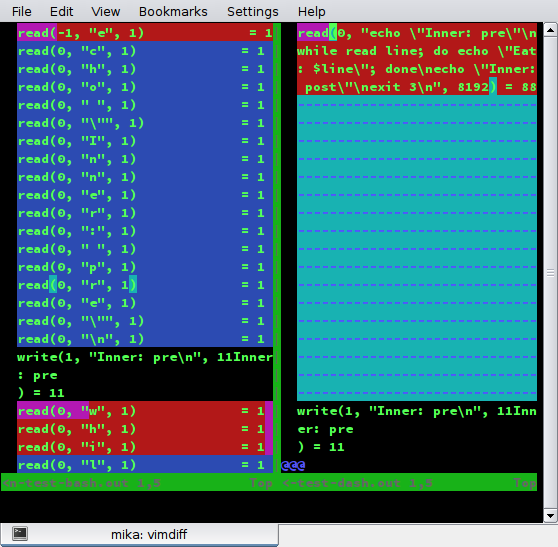 So when ssh tries to read from stdin there s nothing there anymore.
Quoting
So when ssh tries to read from stdin there s nothing there anymore.
Quoting 


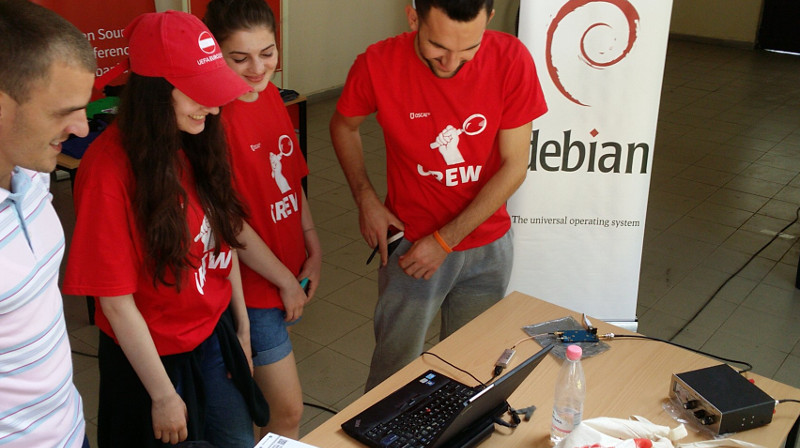
 After the workshop on Saturday, members of the OSCAL team successfully reconstructed the SDR and antenna at the Debian info booth on Sunday and a wide range of shortwave and ham signals were detected:
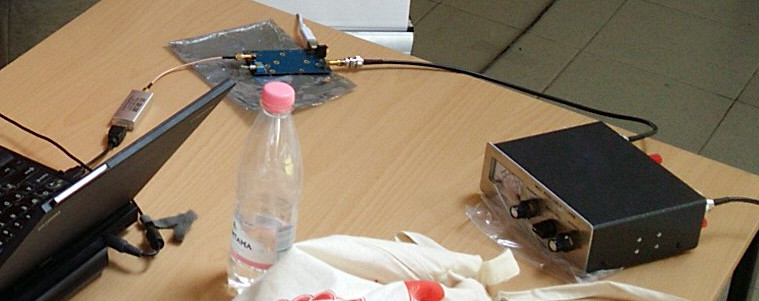
 Here is a close-up look at the laptop, RTL-SDR dongle (above laptop), Ham-It-Up converter (above water bottle) and MFJ-971 ATU (on right):
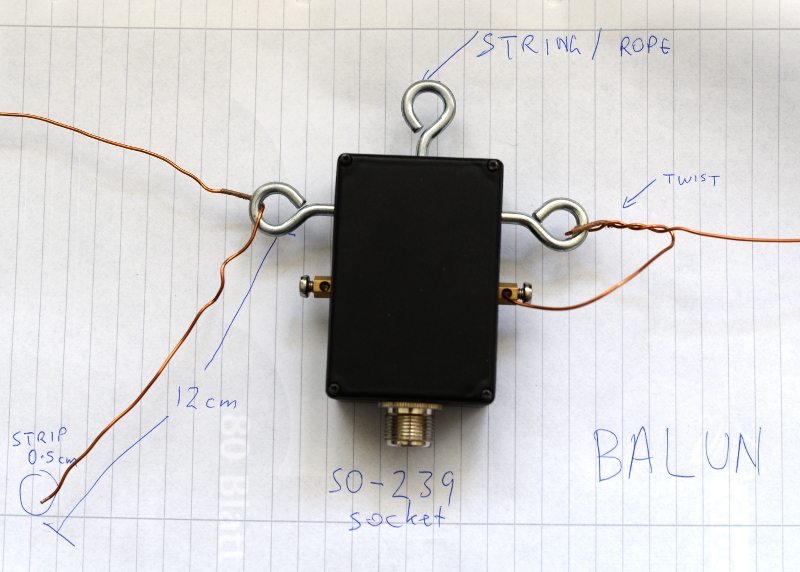
 Buying the parts
 Configuring gqrx for the up-converter and shortwave signals
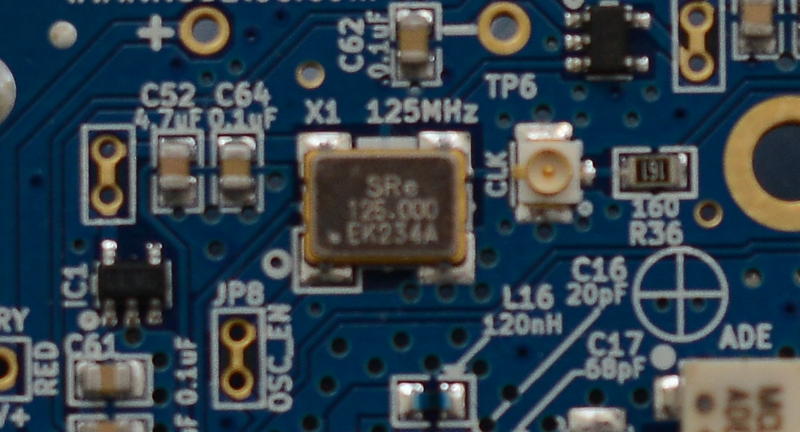
Inspect the up-converter carefully. Look for the crystal and find the frequency written on the side of it. The frequency written on the specification sheet or web site may be wrong so looking at the crystal itself is the best way to be certain. On my Ham It Up, I found a crystal with 125.000 written on it, this is 125 MHz.
Configuring gqrx for the up-converter and shortwave signals
Inspect the up-converter carefully. Look for the crystal and find the frequency written on the side of it. The frequency written on the specification sheet or web site may be wrong so looking at the crystal itself is the best way to be certain. On my Ham It Up, I found a crystal with 125.000 written on it, this is 125 MHz.
 Launch gqrx, go to the File menu and select I/O devices. Change the LNB LO value to match the crystal frequency on the up-converter, with a minus sign. For my Ham It Up, I use the LNB LO value -125.000000 MHz.
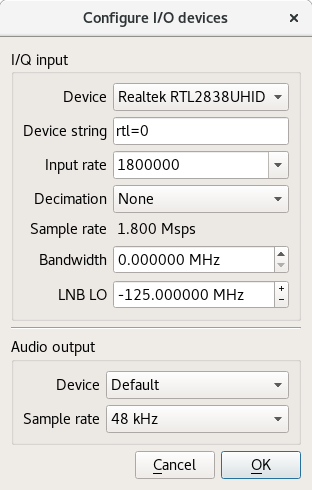 Click OK to close the I/O devices window.
On the Input Controls tab, make sure Hardware AGC is enabled.
On the Receiver options tab, change the Mode value. Commercial shortwave broadcasts use AM and amateur transmission use single sideband: by convention, LSB is used for signals below 10MHz and USB is used for signals above 10MHz. To start exploring the 20 meter amateur band around 14.2 MHz, for example, use USB.
Click OK to close the I/O devices window.
On the Input Controls tab, make sure Hardware AGC is enabled.
On the Receiver options tab, change the Mode value. Commercial shortwave broadcasts use AM and amateur transmission use single sideband: by convention, LSB is used for signals below 10MHz and USB is used for signals above 10MHz. To start exploring the 20 meter amateur band around 14.2 MHz, for example, use USB.
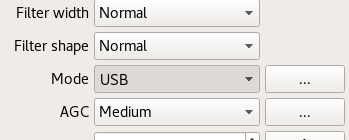 In the top of the window, enter the frequency, for example, 14.200 000 MHz.
Now choose the FFT Settings tab and adjust the Freq zoom slider. Zoom until the width of the display is about 100 kHZ, for example, from 14.15 on the left to 14.25 on the right.
In the top of the window, enter the frequency, for example, 14.200 000 MHz.
Now choose the FFT Settings tab and adjust the Freq zoom slider. Zoom until the width of the display is about 100 kHZ, for example, from 14.15 on the left to 14.25 on the right.
 Click the Play icon at the top left to start receiving. You may hear white noise. If you hear nothing, check the computer's volume controls, move the Gain slider (bottom right) to the maximum position and then lower the Squelch value on the Receiver options tab until you hear the white noise or a transmission.
Adjust the Antenna Tuner knobs
Now that gqrx is running, it is time to adjust the knobs on the antenna tuner (ATU). Reception improves dramatically when it is tuned correctly. Exact instructions depend on the type of ATU you have purchased, here I present instructions for the MFJ-971 that I have been using.
Click the Play icon at the top left to start receiving. You may hear white noise. If you hear nothing, check the computer's volume controls, move the Gain slider (bottom right) to the maximum position and then lower the Squelch value on the Receiver options tab until you hear the white noise or a transmission.
Adjust the Antenna Tuner knobs
Now that gqrx is running, it is time to adjust the knobs on the antenna tuner (ATU). Reception improves dramatically when it is tuned correctly. Exact instructions depend on the type of ATU you have purchased, here I present instructions for the MFJ-971 that I have been using.
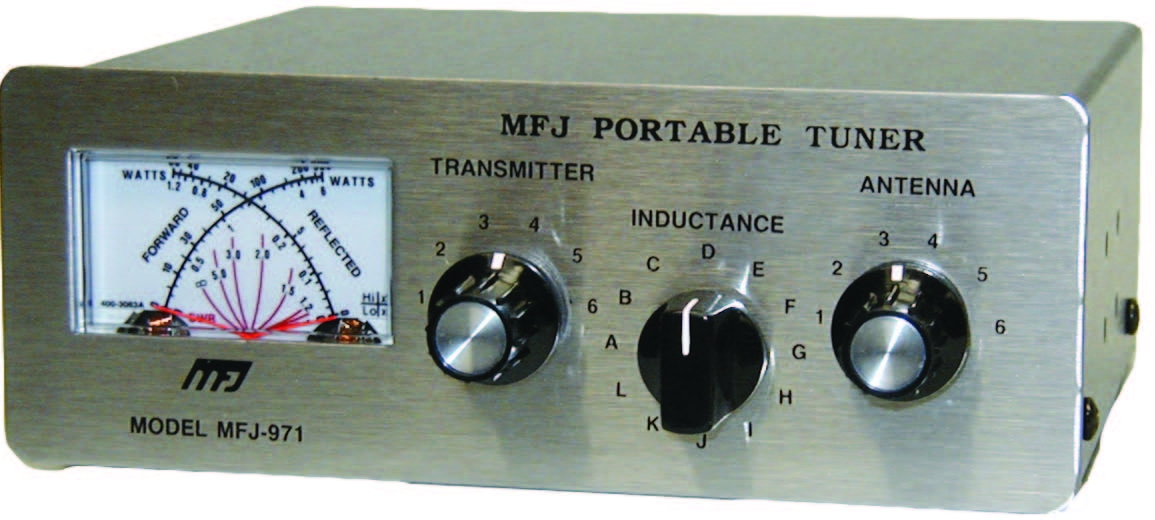 Turn the TRANSMITTER and ANTENNA knobs to the 12 o'clock position and leave them like that. Turn the INDUCTANCE knob while looking at the signals in the gqrx window. When you find the best position, the signal strength displayed on the screen will appear to increase (the animated white line should appear to move upwards and maybe some peaks will appear in the line).
When you feel you have found the best position for the INDUCTANCE knob, leave it in that position and begin turning the ANTENNA knob clockwise looking for any increase in signal strength on the chart. When you feel that is correct, begin turning the TRANSMITTER knob.
Listening to a transmission
At this point, if you are lucky, some transmissions may be visible on the gqrx screen. They will appear as darker colours in the waterfall chart. Try clicking on one of them, the vertical red line will jump to that position. For a USB transmission, try to place the vertical red line at the left hand side of the signal. Try dragging the vertical red line or changing the frequency value at the top of the screen by 100 Hz at a time until the station is tuned as well as possible.
Try and listen to the transmission and identify the station. Commercial shortwave broadcasts will usually identify themselves from time to time. Amateur transmissions will usually include a callsign spoken in the
Turn the TRANSMITTER and ANTENNA knobs to the 12 o'clock position and leave them like that. Turn the INDUCTANCE knob while looking at the signals in the gqrx window. When you find the best position, the signal strength displayed on the screen will appear to increase (the animated white line should appear to move upwards and maybe some peaks will appear in the line).
When you feel you have found the best position for the INDUCTANCE knob, leave it in that position and begin turning the ANTENNA knob clockwise looking for any increase in signal strength on the chart. When you feel that is correct, begin turning the TRANSMITTER knob.
Listening to a transmission
At this point, if you are lucky, some transmissions may be visible on the gqrx screen. They will appear as darker colours in the waterfall chart. Try clicking on one of them, the vertical red line will jump to that position. For a USB transmission, try to place the vertical red line at the left hand side of the signal. Try dragging the vertical red line or changing the frequency value at the top of the screen by 100 Hz at a time until the station is tuned as well as possible.
Try and listen to the transmission and identify the station. Commercial shortwave broadcasts will usually identify themselves from time to time. Amateur transmissions will usually include a callsign spoken in the 
 Like
Like 
 The past few weeks have been randomly busy, nothing huge has happened, but several minor diversions.
Coding
The past few weeks have been randomly busy, nothing huge has happened, but several minor diversions.
Coding
 Two days ago one of the most influential logician of the 20th century has passed away,
  I don t want to recall his achievements in mathematical logic, in particular proof theory, because I am not worth to write about such a genius. I want to recall a few personal stories from my own experience.
I came into contact with Prof. Takeuti via is famous book
I don t want to recall his achievements in mathematical logic, in particular proof theory, because I am not worth to write about such a genius. I want to recall a few personal stories from my own experience.
I came into contact with Prof. Takeuti via is famous book  I've been trying to refresh my
  It's been a long time I did not write any new blog posts, and finally I got
something which is interesting enough for a new post and so here it is.
I actually wanted some bills from my ISP for some work and I could not find mail
from the ISP which had bills for some specific months in my mailbox. Problem
with my ISP is bills are accessible in their account which can be only accessed
from their own network. They do have a mobile app and that does not seem to work
especially for the billing section. I used mobile app and selected month for
which I did not have bill and clicked Send Mail button. App happily showed
message saying it sent the bill to my registered mail address but that was a
fancy lie. After trying several time I gave up and decided I will do it once I
get back home.
Fast forward few hours, I'm back home from office and then I sat in front of my
laptop and connected to ISP site, promptly downloaded the bills, then used
notmuch-emacs and fire up a mail composer, attach those HTML file (yeah they
produce bill in HTML file :-/) send it to my gmail and forget about it.
Fast forward few more days, I just remember I need those bills. I got hold of
mail I sent earlier in gmail inbox and clicked on attachment and when browser
opened the attachment I was shocked/surprised . Did you ask why?. See what I saw
when I opened attachment.
It's been a long time I did not write any new blog posts, and finally I got
something which is interesting enough for a new post and so here it is.
I actually wanted some bills from my ISP for some work and I could not find mail
from the ISP which had bills for some specific months in my mailbox. Problem
with my ISP is bills are accessible in their account which can be only accessed
from their own network. They do have a mobile app and that does not seem to work
especially for the billing section. I used mobile app and selected month for
which I did not have bill and clicked Send Mail button. App happily showed
message saying it sent the bill to my registered mail address but that was a
fancy lie. After trying several time I gave up and decided I will do it once I
get back home.
Fast forward few hours, I'm back home from office and then I sat in front of my
laptop and connected to ISP site, promptly downloaded the bills, then used
notmuch-emacs and fire up a mail composer, attach those HTML file (yeah they
produce bill in HTML file :-/) send it to my gmail and forget about it.
Fast forward few more days, I just remember I need those bills. I got hold of
mail I sent earlier in gmail inbox and clicked on attachment and when browser
opened the attachment I was shocked/surprised . Did you ask why?. See what I saw
when I opened attachment.
 Well I was confused for moment on what happened, I tried downloading the file
and opened it an editor, and I see Chinese characters here also. After reaching
home I checked the Sent folder in my laptop where I keep copy of mails sent
using notmuch-emacs's notmuch-fcc-dirs variable. I open the file and open
the attachement and I see same character as I saw in browser!. I open the
original bills I downloaded and it looks fine. To check if I really attached the
correct files I again drafted a mail this time to my personal email and sent it.
Now I open the file from Sent folder and voila again there is different content
inside my attachment!. Same happens when I receive the mail and open the
attachment everything inside is Chinese characters!. Totally lost I finally
opened the original file using emacs, since I use spacemacs it asked me for
downloading of html layer and after which I was surprised because everything
inside the editor is in Chinese!. OK finally I've something now so I opened same
file at same time in nano from terminal and there it looks fine!. OK that is
weird again I read carefully content and saw this line in beginning of file
Well I was confused for moment on what happened, I tried downloading the file
and opened it an editor, and I see Chinese characters here also. After reaching
home I checked the Sent folder in my laptop where I keep copy of mails sent
using notmuch-emacs's notmuch-fcc-dirs variable. I open the file and open
the attachement and I see same character as I saw in browser!. I open the
original bills I downloaded and it looks fine. To check if I really attached the
correct files I again drafted a mail this time to my personal email and sent it.
Now I open the file from Sent folder and voila again there is different content
inside my attachment!. Same happens when I receive the mail and open the
attachment everything inside is Chinese characters!. Totally lost I finally
opened the original file using emacs, since I use spacemacs it asked me for
downloading of html layer and after which I was surprised because everything
inside the editor is in Chinese!. OK finally I've something now so I opened same
file at same time in nano from terminal and there it looks fine!. OK that is
weird again I read carefully content and saw this line in beginning of file
 I made following observation from above experiments.
 A new
A new  Today I'm excited to release
  Recently
 In the above example, we have hypervisors hosting a virtual
machines from different tenants. Each virtual machine is given
access to a tenant-specific virtual Ethernet segment. Users are
expecting classic Ethernet segments: no
In the above example, we have hypervisors hosting a virtual
machines from different tenants. Each virtual machine is given
access to a tenant-specific virtual Ethernet segment. Users are
expecting classic Ethernet segments: no  Compared to
  VXLANs can be provisioned with the following script. Source-address
learning is disabled as we will rely solely on
VXLANs can be provisioned with the following script. Source-address
learning is disabled as we will rely solely on