Jacob Adams: The Unexpected Importance of the Trailing Slash
For many using Unix-derived systems today, we take for granted
that POSIX and Coreutils
Perhaps the trickiest use of the trailing slash in a distinguishing way is in
POSIX2
which states:
/some/path and /some/path/ are the same.
Most shells will even add a trailing slash for you when you press the Tab key
after the name of a directory or a symbolic link to one.
However, many programs treat these two paths as subtly different in certain cases,
which I outline below, as all three have tripped me up
in various ways1.
POSIX and Coreutils
Perhaps the trickiest use of the trailing slash in a distinguishing way is in
POSIX2
which states:
When the final component of a pathname is a symbolic link, the standard requires that a trailing <slash> causes the link to be followed. This is the behavior of historical implementations3. For example, for /a/b and /a/b/, if /a/b is a symbolic link to a directory, then /a/b refers to the symbolic link, and /a/b/ refers to the directory to which the symbolic link points.
This leads to some unexpected behavior.
For example, if you have the following structure
of a directory dir containing a file dirfile with a symbolic link link pointing to dir.
(which will be used in all shell examples throughout this article):
$ ls -lR
.:
total 4
drwxr-xr-x 2 jacob jacob 4096 Apr  3 00:00 dir
lrwxrwxrwx 1 jacob jacob    3 Apr  3 00:00 link -> dir
./dir:
total 0
-rw-r--r-- 1 jacob jacob 0 Apr  3 00:12 dirfile
On Unixes such as MacOS, FreeBSD or Illumos4,
you can move a directory through a symbolic link by using
a trailing slash:
$ mv link/ otherdir
$ ls
link	otherdir
On Linux5, mv will not rename the indirectly referenced directory and not the symbolic link,
when given a symbolic link with a trailing slash as the source to be renamed.
despite the coreutils documentation s claims to the contrary6, instead failing with Not a directory:
$ mv link/ other
mv: cannot move 'link/' to 'other': Not a directory
$ mkdir otherdir
$ mv link/ otherdir
mv: cannot move 'link/' to 'otherdir/link': Not a directory
$ mv link/ otherdir/
mv: cannot move 'link/' to 'otherdir/link': Not a directory
$ mv link otherdirlink
$ ls -l otherdirlink
lrwxrwxrwx 1 jacob jacob 3 Apr  3 00:13 otherdirlink -> dir
This is probably for the best, as it is very confusing behavior.
There is still one advantage the trailing slash has when using mv,
even on Linux, in that is it does not allow you to move a file to
a non-existent directory, or move a file that you expect to be a directory
that isn t.
$ mv dir/dirfile nonedir/
mv: cannot move 'dir/dirfile' to 'nonedir/': Not a directory
$ touch otherfile
$ mv otherfile/ dir
mv: cannot stat 'otherfile/': Not a directory
$ mv otherfile dir
$ ls dir
dirfile  otherfile
However, Linux still exhibits some confusing behavior of its own, like
when you attempt to remove link recursively with a trailing slash:
rm -rvf link/
Neither link nor dir are removed, but the contents of dir are removed:
removed 'link/dirfile'
Whereas if you remove the trailing slash, you just remove the symbolic link:
$ rm -rvf link
removed 'link'
While on MacOS, FreeBSD or Illumos4, rm will also remove the
source directory:
$ rm -rvf link
link/dirfile
link/
$ ls
link
The find and ls commands, in contrast, behave the same on all
three operating systems.
The find command only searches the contents of the
directory a symbolic link points to if the trailing slash is added:
$ find link -name dirfile
$ find link/ -name dirfile
link/dirfile
The ls command acts similarly, showing information on just a symbolic link by
itself unless a trailing slash is added, at which point it shows the contents
of the directory that it links to:
$ ls -l link
lrwxrwxrwx 1 jacob jacob 3 Apr  3 00:13 link -> dir
$ ls -l link/
total 0
-rw-r--r-- 1 jacob jacob 0 Apr  3 00:13 dirfile
rsync
The command rsync handles a trailing slash in an unusual way that
trips up many new users.
The rsync man page notes:
You can think of a trailing / on a source as meaning copy the contents of this directory as opposed to copy the directory
by name , but in both cases the attributes of the containing directory are transferred to the containing directory on the
destination.
That is to say, if we had two folders a and b each of which contained some files:
$ ls -R .
.:
a  b
./a:
a1  a2
./b:
b1  b2
Running rsync -av a b moves the entire directory a to directory b:
$ rsync -av a b
sending incremental file list
a/
a/a1
a/a2
sent 181 bytes  received 58 bytes  478.00 bytes/sec
total size is 0  speedup is 0.00
$ ls -R b
b:
a  b1  b2
b/a:
a1  a2
While running rsync -av a/ b moves the contents of directory a to b:
$ rsync -av a/ b
sending incremental file list
./
a1
a2
sent 170 bytes  received 57 bytes  454.00 bytes/sec
total size is 0  speedup is 0.00
$ ls b
a1  a2	b1  b2
Dockerfile COPY
The Dockerfile COPY command also cares about the presence of the trailing slash,
using it to determine whether the destination should be considered a file or directory.
The Docker documentation
explains the rules of the command thusly:
COPY [--chown=<user>:<group>] <src>... <dest>
If <src> is a directory, the entire contents of the directory are copied, including filesystem metadata.
Note: The directory itself is not copied, just its contents.
If <src> is any other kind of file, it is copied individually along with its metadata. In this case, if <dest> ends with a trailing slash /, it will be considered a directory and the contents of <src> will be written at <dest>/base(<src>).
If multiple <src> resources are specified, either directly or due to the use of a wildcard, then <dest> must be a directory, and it must end with a slash /.
If <dest> does not end with a trailing slash, it will be considered a regular file and the contents of <src> will be written at <dest>.
If <dest> doesn t exist, it is created along with all missing directories in its path.
This means if you had a COPY command that moved file to a nonexistent containerfile
without the slash, it would create containerfile as a file with the contents of file.
COPY file /containerfile
container$ stat -c %F containerfile
regular empty file
Whereas if you add a trailing slash, then file will be added as a file under
the new directory containerdir:
COPY file /containerdir/
container$ stat -c %F containerdir
directory
Interestingly, at no point can you copy a directory completely, only its contents.
Thus if you wanted to make a directory in the new container, you need to
specify its name in both the source and the destination:
COPY dir /dirincontainer
container$ stat -c %F /dirincontainer
directory
Dockerfiles do also make good use of the trailing slash to ensure they re
doing what you mean by requiring a trailing slash on the destination of
multiple files:
COPY file otherfile /othercontainerdir
results in the following error:
When using COPY with more than one source file, the destination must be a directory and end with a /
-
I m sure there are probably more than just these three cases, but these are the three I m familiar with. If you know of more, please tell me about them!.
-
Some additional relevant sections are the Path Resolution Appendix and the section on Symbolic Links.
-
The sentence This is the behavior of historical implementations implies that this probably originated in some ancient Unix derivative, possibly BSD or even the original Unix. I don t really have a source on that though, so please reach out if you happen to have any more knowledge on what this refers to.
-
I tested on MacOS 11.6.5, FreeBSD 12.0 and OmniOS 5.11 2
-
unless the source is a directory trailing slashes give -ENOTDIR
-
In fairness to the coreutils maintainers, it seems to be true on all other Unix platforms, but it probably deserves a mention in the documentation when Linux is the most common platform on which coreutils is used. I should submit a patch.
<slash> causes the link to be followed. This is the behavior of historical implementations3. For example, for /a/b and /a/b/, if /a/b is a symbolic link to a directory, then /a/b refers to the symbolic link, and /a/b/ refers to the directory to which the symbolic link points.
$ ls -lR
.:
total 4
drwxr-xr-x 2 jacob jacob 4096 Apr 3 00:00 dir
lrwxrwxrwx 1 jacob jacob 3 Apr 3 00:00 link -> dir
./dir:
total 0
-rw-r--r-- 1 jacob jacob 0 Apr 3 00:12 dirfile
$ mv link/ otherdir
$ ls
link otherdir
$ mv link/ other
mv: cannot move 'link/' to 'other': Not a directory
$ mkdir otherdir
$ mv link/ otherdir
mv: cannot move 'link/' to 'otherdir/link': Not a directory
$ mv link/ otherdir/
mv: cannot move 'link/' to 'otherdir/link': Not a directory
$ mv link otherdirlink
$ ls -l otherdirlink
lrwxrwxrwx 1 jacob jacob 3 Apr 3 00:13 otherdirlink -> dir
$ mv dir/dirfile nonedir/
mv: cannot move 'dir/dirfile' to 'nonedir/': Not a directory
$ touch otherfile
$ mv otherfile/ dir
mv: cannot stat 'otherfile/': Not a directory
$ mv otherfile dir
$ ls dir
dirfile otherfile
rm -rvf link/
removed 'link/dirfile'
$ rm -rvf link
removed 'link'
$ rm -rvf link
link/dirfile
link/
$ ls
link
$ find link -name dirfile
$ find link/ -name dirfile
link/dirfile
$ ls -l link
lrwxrwxrwx 1 jacob jacob 3 Apr 3 00:13 link -> dir
$ ls -l link/
total 0
-rw-r--r-- 1 jacob jacob 0 Apr 3 00:13 dirfile
rsync handles a trailing slash in an unusual way that
trips up many new users.
The rsync man page notes:
You can think of a trailing / on a source as meaning copy the contents of this directory as opposed to copy the directory
by name , but in both cases the attributes of the containing directory are transferred to the containing directory on the
destination.
That is to say, if we had two folders a and b each of which contained some files:
$ ls -R .
.:
a b
./a:
a1 a2
./b:
b1 b2
rsync -av a b moves the entire directory a to directory b:
$ rsync -av a b
sending incremental file list
a/
a/a1
a/a2
sent 181 bytes received 58 bytes 478.00 bytes/sec
total size is 0 speedup is 0.00
$ ls -R b
b:
a b1 b2
b/a:
a1 a2
rsync -av a/ b moves the contents of directory a to b:
$ rsync -av a/ b
sending incremental file list
./
a1
a2
sent 170 bytes received 57 bytes 454.00 bytes/sec
total size is 0 speedup is 0.00
$ ls b
a1 a2 b1 b2
Dockerfile COPY
The Dockerfile COPY command also cares about the presence of the trailing slash,
using it to determine whether the destination should be considered a file or directory.
The Docker documentation
explains the rules of the command thusly:
COPY [--chown=<user>:<group>] <src>... <dest>
If <src> is a directory, the entire contents of the directory are copied, including filesystem metadata.
Note: The directory itself is not copied, just its contents.
If <src> is any other kind of file, it is copied individually along with its metadata. In this case, if <dest> ends with a trailing slash /, it will be considered a directory and the contents of <src> will be written at <dest>/base(<src>).
If multiple <src> resources are specified, either directly or due to the use of a wildcard, then <dest> must be a directory, and it must end with a slash /.
If <dest> does not end with a trailing slash, it will be considered a regular file and the contents of <src> will be written at <dest>.
If <dest> doesn t exist, it is created along with all missing directories in its path.
This means if you had a COPY command that moved file to a nonexistent containerfile
without the slash, it would create containerfile as a file with the contents of file.
COPY file /containerfile
container$ stat -c %F containerfile
regular empty file
Whereas if you add a trailing slash, then file will be added as a file under
the new directory containerdir:
COPY file /containerdir/
container$ stat -c %F containerdir
directory
Interestingly, at no point can you copy a directory completely, only its contents.
Thus if you wanted to make a directory in the new container, you need to
specify its name in both the source and the destination:
COPY dir /dirincontainer
container$ stat -c %F /dirincontainer
directory
Dockerfiles do also make good use of the trailing slash to ensure they re
doing what you mean by requiring a trailing slash on the destination of
multiple files:
COPY file otherfile /othercontainerdir
results in the following error:
When using COPY with more than one source file, the destination must be a directory and end with a /
-
I m sure there are probably more than just these three cases, but these are the three I m familiar with. If you know of more, please tell me about them!.
-
Some additional relevant sections are the Path Resolution Appendix and the section on Symbolic Links.
-
The sentence This is the behavior of historical implementations implies that this probably originated in some ancient Unix derivative, possibly BSD or even the original Unix. I don t really have a source on that though, so please reach out if you happen to have any more knowledge on what this refers to.
-
I tested on MacOS 11.6.5, FreeBSD 12.0 and OmniOS 5.11 2
-
unless the source is a directory trailing slashes give -ENOTDIR
-
In fairness to the coreutils maintainers, it seems to be true on all other Unix platforms, but it probably deserves a mention in the documentation when Linux is the most common platform on which coreutils is used. I should submit a patch.
COPY [--chown=<user>:<group>] <src>... <dest>
<src> is a directory, the entire contents of the directory are copied, including filesystem metadata.
Note: The directory itself is not copied, just its contents.
If <src> is any other kind of file, it is copied individually along with its metadata. In this case, if <dest> ends with a trailing slash /, it will be considered a directory and the contents of <src> will be written at <dest>/base(<src>).
If multiple <src> resources are specified, either directly or due to the use of a wildcard, then <dest> must be a directory, and it must end with a slash /.
If <dest> does not end with a trailing slash, it will be considered a regular file and the contents of <src> will be written at <dest>.
If <dest> doesn t exist, it is created along with all missing directories in its path.
COPY file /containerfile
container$ stat -c %F containerfile
regular empty file
COPY file /containerdir/
container$ stat -c %F containerdir
directory
COPY dir /dirincontainer
container$ stat -c %F /dirincontainer
directory
COPY file otherfile /othercontainerdir
When using COPY with more than one source file, the destination must be a directory and end with a /
- I m sure there are probably more than just these three cases, but these are the three I m familiar with. If you know of more, please tell me about them!.
- Some additional relevant sections are the Path Resolution Appendix and the section on Symbolic Links.
- The sentence This is the behavior of historical implementations implies that this probably originated in some ancient Unix derivative, possibly BSD or even the original Unix. I don t really have a source on that though, so please reach out if you happen to have any more knowledge on what this refers to.
- I tested on MacOS 11.6.5, FreeBSD 12.0 and OmniOS 5.11 2
- unless the source is a directory trailing slashes give -ENOTDIR
- In fairness to the coreutils maintainers, it seems to be true on all other Unix platforms, but it probably deserves a mention in the documentation when Linux is the most common platform on which coreutils is used. I should submit a patch.
 Raspberry Pi computers require a piece of non-free software to boot
the infamous
Raspberry Pi computers require a piece of non-free software to boot
the infamous
 Before anything else: Go visit the



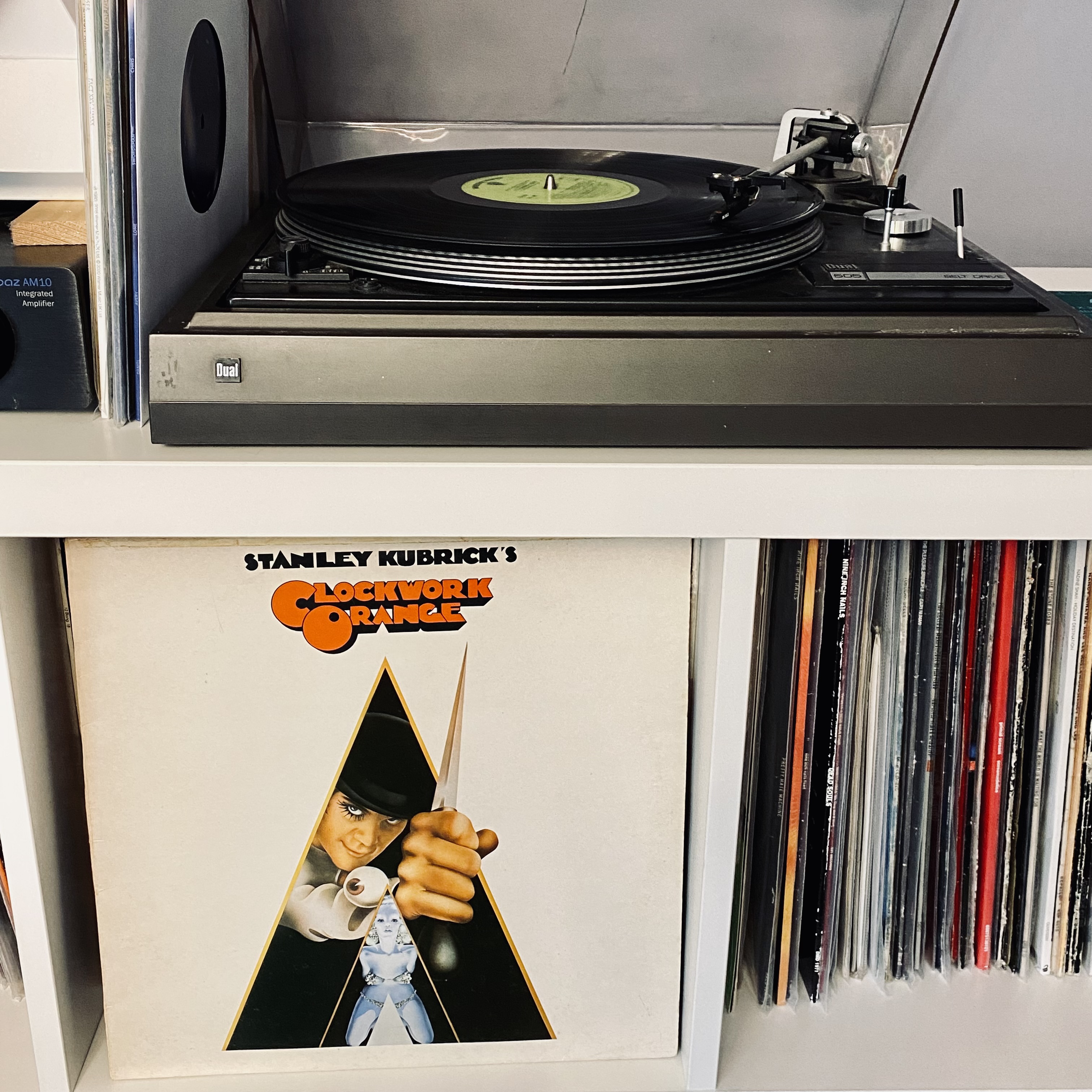
 I was reminded of this record over the weekend, as Radio 4's Front Row was
discussing the 50th anniversary of Kubrick's movie. To me, the
soundtrack has a strange, whimsical, almost cynical element to it (especially
with the selection of things like Pomp and Circumstance), but I was
familiar with the movie before the soundtrack and it might just be the
association that triggers those feelings.
I was reminded of this record over the weekend, as Radio 4's Front Row was
discussing the 50th anniversary of Kubrick's movie. To me, the
soundtrack has a strange, whimsical, almost cynical element to it (especially
with the selection of things like Pomp and Circumstance), but I was
familiar with the movie before the soundtrack and it might just be the
association that triggers those feelings.
 As I mentioned

 Previously:
 In March I was assigned 16 hours of work by Freexian's Debian LTS
initiative and carried over 8 hours from February. I worked 16 hours,
and will carry over the remaining time to April.
I backported the mitigations for Spectre-BHB (CVE-2022-0001,
CVE-2022-0002) on x86 processors, to Linux 4.9. I worked together
with Salvatore Bonaccorso in preparing the kernel updates that were
needed in all suites, and writing advisory text. I uploaded both
the linux (4.9) and linux-4.19 packages to stretch, and issued
In March I was assigned 16 hours of work by Freexian's Debian LTS
initiative and carried over 8 hours from February. I worked 16 hours,
and will carry over the remaining time to April.
I backported the mitigations for Spectre-BHB (CVE-2022-0001,
CVE-2022-0002) on x86 processors, to Linux 4.9. I worked together
with Salvatore Bonaccorso in preparing the kernel updates that were
needed in all suites, and writing advisory text. I uploaded both
the linux (4.9) and linux-4.19 packages to stretch, and issued
 This post was originally published in the
  I wanted to understand how kids between 10 and 18 conceive the internet.
Surely, we have seen a generation that we call digital natives grow up with
the internet. Now, there is a younger generation who grows up with pervasive
technology, such as smartphones, smart watches, virtual assistants and so on.
And only a few of them have parents who work in IT or engineering
I wanted to understand how kids between 10 and 18 conceive the internet.
Surely, we have seen a generation that we call digital natives grow up with
the internet. Now, there is a younger generation who grows up with pervasive
technology, such as smartphones, smart watches, virtual assistants and so on.
And only a few of them have parents who work in IT or engineering
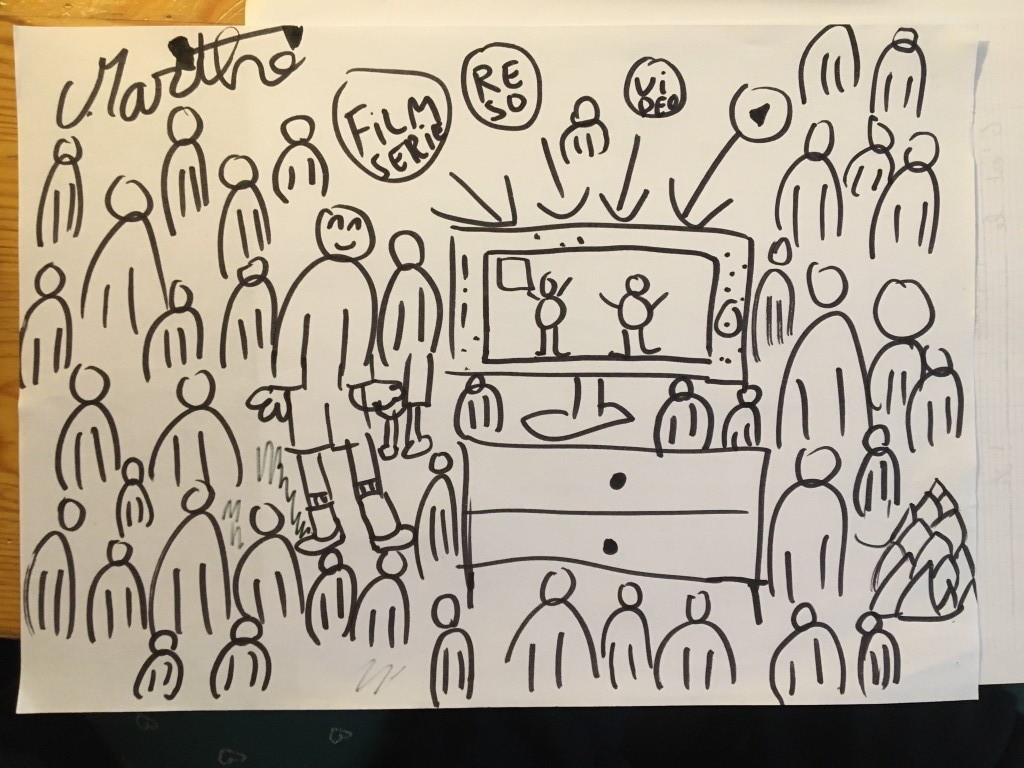 The youngest respondent, a 9 year old girl, drew a screen with lots of people
around it and the words film, series, network, video , as well as a play
icon. She said that she mostly uses the internet to watch movies. She was the
only one who used a shared tablet and smartphone that belonged to her family,
not to herself. And she would explain the net like this to an alien:
The youngest respondent, a 9 year old girl, drew a screen with lots of people
around it and the words film, series, network, video , as well as a play
icon. She said that she mostly uses the internet to watch movies. She was the
only one who used a shared tablet and smartphone that belonged to her family,
not to herself. And she would explain the net like this to an alien:
 A 10 year old boy represented the internet by recalling user interface
elements he sees every day in his drawing: a magnifying glass (search
engine), a play icon (video streaming), speech bubbles (instant
messaging). He would explain the internet like this to an alien:
A 10 year old boy represented the internet by recalling user interface
elements he sees every day in his drawing: a magnifying glass (search
engine), a play icon (video streaming), speech bubbles (instant
messaging). He would explain the internet like this to an alien:
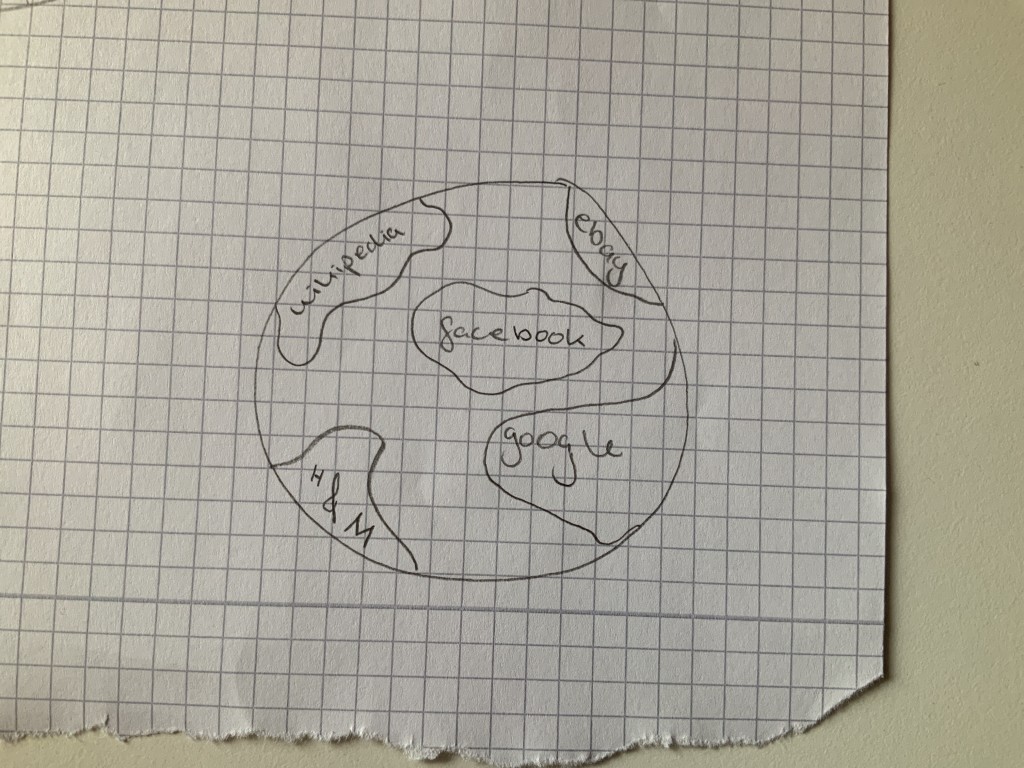 A 12 year old girl imagines the internet like a second, intangible, planet
where Google, Wikipedia, Facebook, Ebay, or H&M are continents that one enters
into.
A 12 year old girl imagines the internet like a second, intangible, planet
where Google, Wikipedia, Facebook, Ebay, or H&M are continents that one enters
into.
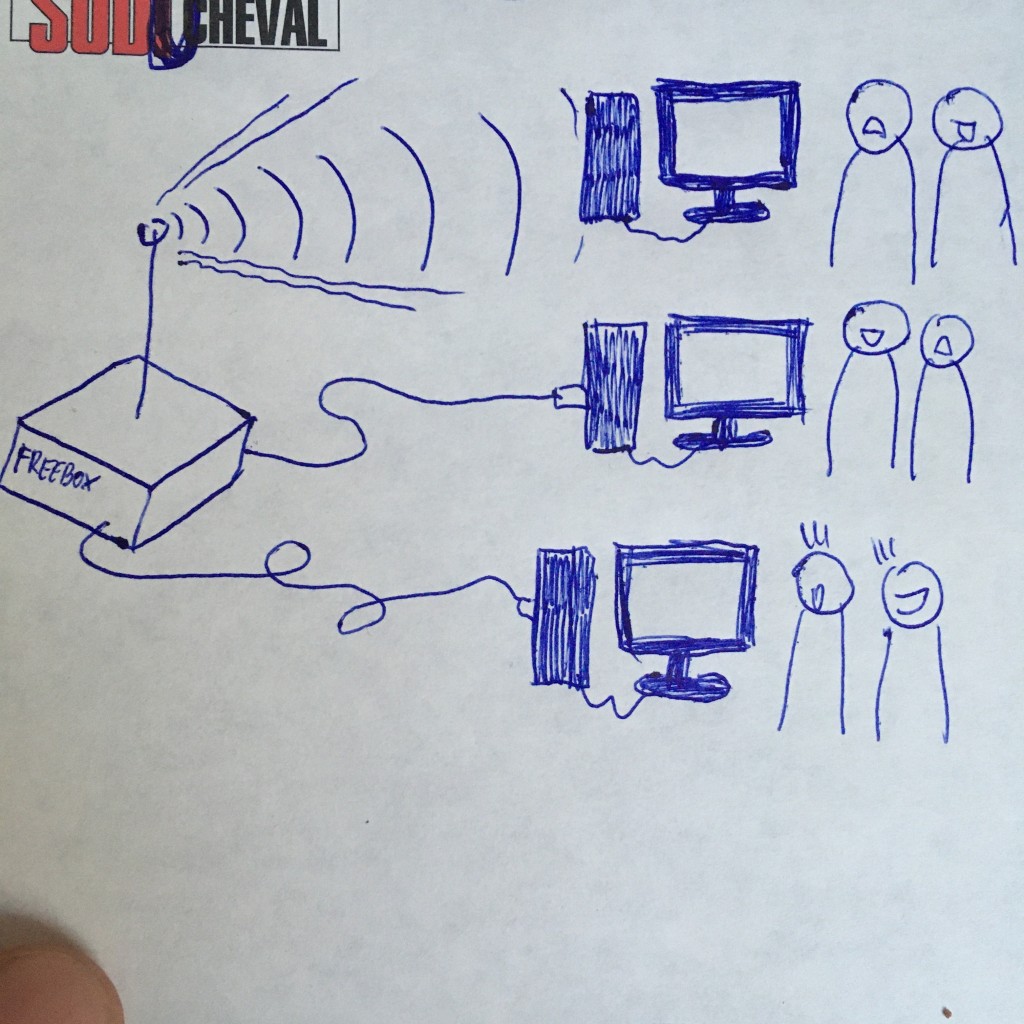 A 15 year old boy knew that his family s devices are connected to a home router
(Freebox is a router from the French ISP Free) but lacked an imagination of the
rest of the internet s functioning. When I asked him about what would be behind
the router, on the other side, he said what s behind is like a black hole to
him. However, he was the only interviewee who did actually draw cables, wifi
waves, a router, and the local network. His drawing is even extremely precise,
it just lacks the cable connecting the router to the rest of the internet.
A 15 year old boy knew that his family s devices are connected to a home router
(Freebox is a router from the French ISP Free) but lacked an imagination of the
rest of the internet s functioning. When I asked him about what would be behind
the router, on the other side, he said what s behind is like a black hole to
him. However, he was the only interviewee who did actually draw cables, wifi
waves, a router, and the local network. His drawing is even extremely precise,
it just lacks the cable connecting the router to the rest of the internet.
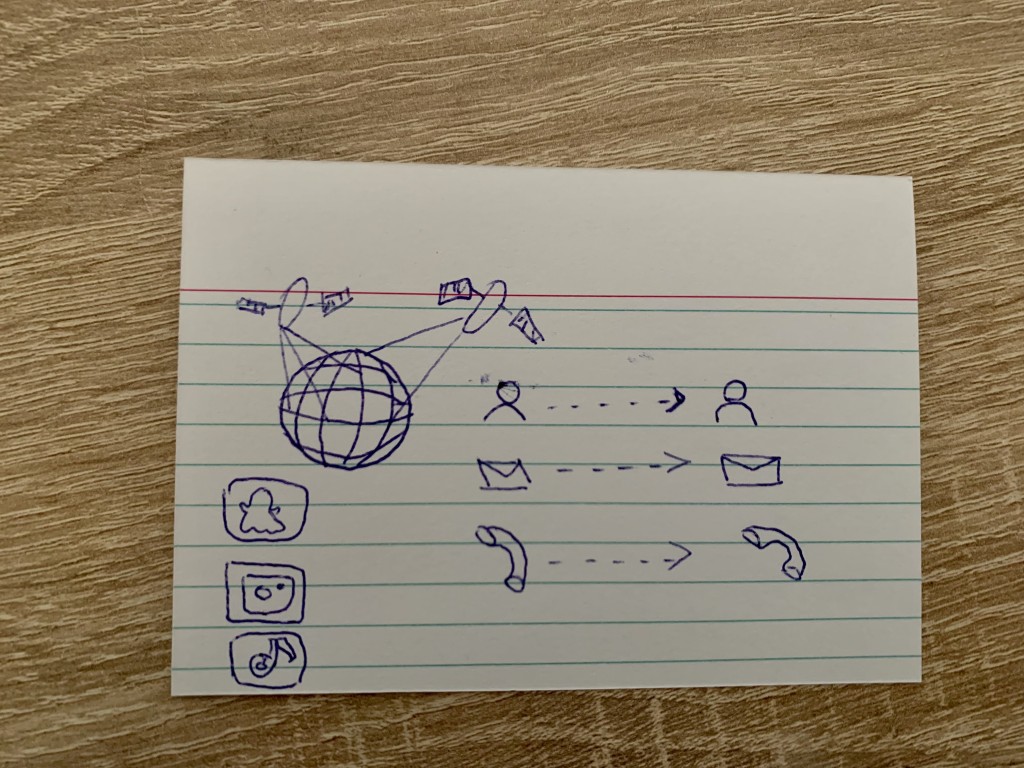 A 17 year old girl would explain the internet to an alien as follows: