Search Results: "ana"

2 September 2020

Norbert Preining: Multiple GPUs for graphics and deep learning

For long time I have been using a good old nvidia GeForce GTX 1050 for my display and deep learning needs. I reported a few times how to get Tensorflow running on Debian/Sid, see here and here. Later on I switched to AMD GPU in the hope that an open source approach to both GPU driver as well as deep learning (ROCm) would improve the general experience. Unfortunately it turned out that AMD GPUs are generally not ready for deep learning usage. The problems with AMD and ROCm are far and wide. First of all, it seems that for anything more complicated then simple stuff, AMD s flagship RX 5700(XT) and all GFX10 (Navi) based cards are not(!!!) supported in ROCm. Yes, you read correct AMD does not support 5700(XT) cards in the ROCm stack. Some simple stuff works, but nothing for real computations. Then, even IF they would support, ROCm as distributed is currently a huge pain in the butt. The source code is a huge mess, and building usable packages from it is probably possible, but quite painful (I am member of the ROCm packaging team in Debian, and have tried many hours). And the packages provided by AMD are not installable on Debian/sid due to library incompatibilities. So that left me with a bit a problem: for work I need to train quite some neural networks, do model selection, etc. Doing this on a CPU is a bit a burden. So at the end I decided to put the nVidia card back into the computer (well, after moving it to a bigger case but that is a different story to tell). Here are the steps I did to get both cards working for their respective target: AMD GPU for driving the console and X (and games!), and the nVidia card doing the deep learning stuff (tensorflow using the GPU). Starting point Starting point was a working AMD GPU installation. The AMD GPU is also the first GPU card (top slot) and thus the one that is used by the BIOS and the Linux console. If you want the video output on the second card you need to trick, and probably don t have console output, etc etc. So not a solution for me. Installing libcuda1 and the nvidia kernel drivers Next step was installing the libcuda1 package:
apt install libcuda1
This installs a lot of stuff, including the nvidia drivers, GLX libraries, alternatives setup, and update-glx tool and package. The kernel module should be built and installed automatically for your kernel. Installing CUDA Follow more or less the instructions here and do
wget -O- https://developer.download.nvidia.com/compute/cuda/repos/ubuntu1804/x86_64/7fa2af80.pub   sudo tee /etc/apt/trusted.gpg.d/nvidia-cuda.asc
echo "deb http://developer.download.nvidia.com/compute/cuda/repos/ubuntu1804/x86_64/ /"   sudo tee /etc/apt/sources.list.d/nvidia-cuda.list
sudo apt-get update
sudo apt-get install cuda-libraries-10-1
Warning! At the moment Tensorflow packages require CUDA 10.1, so don t install the 10.0 version. This might change in the future! This will install lots of libs into /usr/local/cuda-10.1 and add the respective directory to the ld.so path by creating a file /etc/ld.so.conf.d/cuda-10-1.conf. Install CUDA CuDNN One difficult to satisfy dependency are the CuDNN libraries. In our case we need the version 7 library for CUDA 10.1. To download these files one needs to have a NVIDIA developer account, which is quick and painless. After that go to the CuDNN page where one needs to select Archived releases and then Download cuDNN v7.N.N (xxxx NN, YYYY), for CUDA 10.1 and then cuDNN Runtime Library for Ubuntu18.04 (Deb). At the moment (as of today) this will download a file libcudnn7_7.6.5.32-1+cuda10.1_amd64.deb which needs to be installed with dpkg -i libcudnn7_7.6.5.32-1+cuda10.1_amd64.deb. Updating the GLX setting Here now comes the very interesting part one needs to set up the GLX libraries. Reading the output of update-glx --help and then the output of update-glx --list glx:
$ update-glx --help
update-glx is a wrapper around update-alternatives supporting only configuration
of the 'glx' and 'nvidia' alternatives. After updating the alternatives, it
takes care to trigger any follow-up actions that may be required to complete
the switch.
 
It can be used to switch between the main NVIDIA driver version and the legacy
drivers (eg: the 304 series, the 340 series, etc).
 
For users with Optimus-type laptops it can be used to enable running the discrete
GPU via bumblebee.
 
Usage: update-glx <command>
 
Commands:
  --auto <name>            switch the master link <name> to automatic mode.
  --display <name>         display information about the <name> group.
  --query <name>           machine parseable version of --display <name>.
  --list <name>            display all targets of the <name> group.
  --config <name>          show alternatives for the <name> group and ask the
                           user to select which one to use.
  --set <name> <path>      set <path> as alternative for <name>.
 
<name> is the master name for this link group.
  Only 'nvidia' and 'glx' are supported.
<path> is the location of one of the alternative target files.
  (e.g. /usr/lib/nvidia)
 
$ update-glx --list glx
/usr/lib/mesa-diverted
/usr/lib/nvidia
I was tempted into using
update-glx --config glx /usr/lib/mesa-diverted
because at the end the Mesa GLX libraries should be used to drive the display via the AMD GPU. Unfortunately, with this neither the nvidia kernel module was loaded, the nvidia persistenced couldn t run because the library libnvidia-cfg1 wasn t found (not sure it was needed at all ), and with that also no way to run tensorflow on GPU. So what I did I tried
update-glx --auto glx
(which is the same as update-glx --config glx /usr/lib/nvidia), and rebooted, and decided to check afterwards what is broken. To my big surprise, the AMD GPU still worked out of the box, including direct rendering, and the games I tried (Overload, Supraland via Wine) all worked without a hinch. Not that I really understand why the GLX libraries that are seemingly now in use are from nvidia but work the same (if anyone has an explanation, that would be great!), but since I haven t had any problems till now, I am content. Checking GPU usage in tensorflow Make sure that you remove tensorflow-rocm and reinstall tensorflow with GPU support:
pip3 uninstall tensorflow-rocm
pip3 install --upgrade tensorflow-gpu
After that a simple
$ python3 -c "import tensorflow as tf;print(tf.reduce_sum(tf.random.normal([1000, 1000])))"
....(lots of output)
2020-09-02 11:57:04.673096: I tensorflow/core/common_runtime/gpu/gpu_device.cc:1402] Created TensorFlow device (/job:localhost/replica:0/task:0/device:GPU:0 with 3581 MB memory) -> physical GPU (device: 0, name: GeForce GTX 1050 Ti, pci bus id: 0000:05:00.0, compute capability: 6.1)
tf.Tensor(1093.4915, shape=(), dtype=float32)
$
should indicate that the GPU is used by tensorflow! The R Keras package should also work out of the box and pick up the system-wide tensorflow which in turn picks the GPU, see this post for example code to run for tests. Conclusion All in all it was easier than expected, despite the dances one has to do for nvidia to get the correct libraries. What still puzzles me is the selection option in update-glx, and might need a better support for secondary nvidia GPU cards.

1 September 2020

Russell Coker: BBB vs Jitsi

I previously wrote about how I installed the Jitsi video-conferencing system on Debian [1]. We used that for a few unofficial meetings of LUV to test it out. Then we installed Big Blue Button (BBB) [2]. The main benefit of Jitsi over BBB is that it supports live streaming to YouTube. The benefits of BBB are a better text chat system and a whiteboard that allows conference participants to draw shared diagrams. So if you have the ability to run both systems then it s best to use Jitsi when you have so many viewers that a YouTube live stream is needed and to use BBB in all other situations. One problem is with the ability to run both systems. Jitsi isn t too hard to install if you are installing it on a VM that is not used for anything else. BBB is a major pain no matter what you do. The latest version of BBB is 2.2 which was released in March 2020 and requires Ubuntu 16.04 (which was released in 2016 and has standard support until April next year) and doesn t support Ubuntu 18.04 (released in 2018 and has standard support until 2023). The install script doesn t check for correct apt repositories and breaks badly with no explanation if you don t have Ubuntu Multiverse enabled. I expect that they rushed a release because of the significant increase in demand for video conferencing this year. But that s no reason for demanding the 2016 version of Ubuntu, why couldn t they have developed on version 18.04 for the last 2 years? Since that release they have had 6 months in which they could have released a 2.2.1 version supporting Ubuntu 18.04 or even 20.04. The dependency list for BBB is significant, among other things it uses LibreOffice for the whiteboard. This adds to the pain of installing and maintaining it. It wouldn t surprise me if some of the interactions between all the different components have security issues. Conclusion If you want something that s not really painful to install and run then use Jitsi. If you need YouTube live streaming use Jitsi. If you need whiteboards and a good text chat system or if you generally need to run things like a classroom then BBB is a good option. But only if you can manage it, know someone who can manage it for you, or are happy to pay for a managed service provider to do it for you.

Sylvain Beucler: Debian LTS and ELTS - August 2020

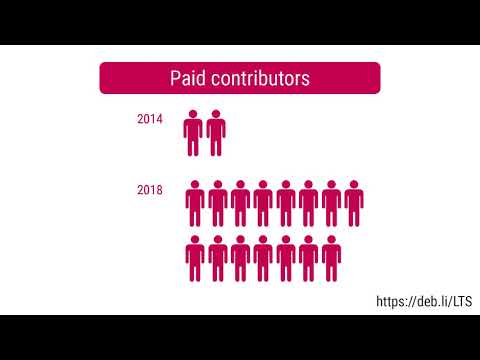
Debian LTS Logo Here is my transparent report for my work on the Debian Long Term Support (LTS) and Debian Extended Long Term Support (ELTS), which extend the security support for past Debian releases, as a paid contributor. In August, the monthly sponsored hours were split evenly among contributors depending on their max availability - I was assigned 21.75h for LTS (out of my 30 max; all done) and 14.25h for ELTS (out of my 20 max; all done). We had a Birds of a Feather videoconf session at DebConf20, sadly with varying quality for participants (from very good to unusable), where we shared the first results of the LTS survey. There were also discussions about evaluating our security reactivity, which proved surprisingly hard to estimate (neither CVE release date and criticality metrics are accurate nor easily available), and about when it is appropriate to use public naming in procedures. Interestingly ELTS gained new supported packages, thanks to a new sponsor -- so far I'd seen the opposite, because we were close to the EOL. As always, there were opportunities to de-dup work through mutual cooperation with the Debian Security team, and LTS/ELTS similar updates. ELTS - Jessie LTS - Stretch Documentation/Scripts

31 August 2020

Chris Lamb: Free software activities in August 2020

Here is another monthly update covering what I have been doing in the free software world during August 2020 (previous month): I uploaded Lintian versions 2.86.0, 2.87.0, 2.88.0, 2.89.0, 2.90.0, 2.91.0 and 2.92.0, as well as made the following changes:

Reproducible Builds One of the original promises of open source software is that distributed peer review and transparency of process results in enhanced end-user security. However, whilst anyone may inspect the source code of free and open source software for malicious flaws, almost all software today is distributed as pre-compiled binaries. This allows nefarious third-parties to compromise systems by injecting malicious code into ostensibly secure software during the various compilation and distribution processes. The motivation behind the Reproducible Builds effort is to ensure no flaws have been introduced during this compilation process by promising identical results are always generated from a given source, thus allowing multiple third-parties to come to a consensus on whether a build was compromised. The project is proud to be a member project of the Software Freedom Conservancy. Conservancy acts as a corporate umbrella allowing projects to operate as non-profit initiatives without managing their own corporate structure. If you like the work of the Conservancy or the Reproducible Builds project, please consider becoming an official supporter. This month, I:

diffoscope I made the following changes to diffoscope, including preparing and uploading versions 155, 156, 157 and 158 to Debian:

Debian Debian LTS This month I have worked 18 hours on Debian Long Term Support (LTS) and 12 hours on its sister Extended LTS project. You can find out more about the project via the following video:


Uploads to Debian

Russ Allbery: Review: Men at Arms

Review: Men at Arms, by Terry Pratchett
Series: Discworld #15
Publisher: Harper
Copyright: 1993
Printing: November 2013
ISBN: 0-06-223740-3
Format: Mass market
Pages: 420
Men at Arms is the fifteenth Discworld novel and a direct plot sequel to Guards! Guards!. You could start here without missing too much, but starting with Guards! Guards! would make more sense. And of course there are cameos (and one major appearance) by other characters who are established in previous books. Carrot, the adopted dwarf who joined the watch in Guards! Guards!, has been promoted to corporal. He is now in charge of training new recruits, a role that is more important because of the Night Watch's new Patrician-ordered diversity initiative. The Watch must reflect the ethnic makeup of the city. That means admitting a troll, a dwarf... and a woman? Trolls and dwarfs hate each other because dwarfs mine precious things out of rock and trolls are composed of precious things embedded in rocks, so relations between the new recruits are tense. Captain Vimes is leaving the Watch, and no one is sure who would or could replace him. (The reason for this is a minor spoiler for Guards! Guards!) A magical weapon is stolen from the Assassin's Guild. And a string of murders begins, murders that Vimes is forbidden by Lord Vetinari from investigating and therefore clearly is going to investigate. This is an odd moment at which to read this book. The Night Watch are not precisely a police force, although they are moving in that direction. Their role in Ankh-Morpork is made much stranger by the guild system, in which the Thieves' Guild is responsible for theft and for dealing with people who steal outside of the quota of the guild. But Men at Arms is in part a story about ethics, about what it means to be a police officer, and about what it looks like when someone is very good at that job. Since I live in the United States, that makes it hard to avoid reading Men at Arms in the context of the current upheavals about police racism, use of force, and lack of accountability. Men at Arms can indeed be read that way; community relations, diversity in the police force, the merits of making two groups who hate each other work together, and the allure of violence are all themes Pratchett is working with in this novel. But they're from the perspective of a UK author writing in 1993 about a tiny city guard without any of the machinery of modern police, so I kept seeing a point of clear similarity and then being slightly wrong-footed by the details. It also felt odd to read a book where the cops are the heroes, much in the style of a detective show. This is in no way a problem with the book, and in a way it was helpful perspective, but it was a strange reading experience.
Cuddy had only been a guard for a few days but already he had absorbed one important and basic fact: it is almost impossible for anyone to be in a street without breaking the law.
Vimes and Carrot are both excellent police officers, but in entirely different ways. Vimes treats being a cop as a working-class job and is inclined towards glumness and depression, but is doggedly persistent and unable to leave a problem alone. His ethics are covered by a thick layer of world-weary cynicism. Carrot is his polar opposite in personality: bright, endlessly cheerful, effortlessly charismatic, and determined to get along with everyone. On first appearance, this contrast makes Vimes seem wise and Carrot seem a bit dim. That is exactly what Pratchett is playing with and undermining in Men at Arms. Beneath Vimes's cynicism, he's nearly as idealistic as Carrot, even though he arrives at his ideals through grim contrariness. Carrot, meanwhile, is nowhere near as dim as he appears to be. He's certain about how he wants to interact with others and is willing to stick with that approach no matter how bad of an idea it may appear to be, but he's more self-aware than he appears. He and Vimes are identical in the strength of their internal self-definition. Vimes shows it through the persistent, grumpy stubbornness of a man devoted to doing an often-unpleasant job, whereas Carrot verbally steamrolls people by refusing to believe they won't do the right thing.
Colon thought Carrot was simple. Carrot often struck people as simple. And he was. Where people went wrong was thinking that simple meant the same thing as stupid.
There's a lot going on in this book apart from the profiles of two very different models of cop. Alongside the mystery (which doubles as pointed commentary on the corrupting influence of violence and personal weaponry), there's a lot about dwarf/troll relations, a deeper look at the Ankh-Morpork guilds (including a horribly creepy clown guild), another look at how good Lord Vetinari is at running the city by anticipating how other people will react, a sarcastic dog named Gaspode (originally seen in Moving Pictures), and Pratchett's usual collection of memorable lines. It is also the origin of the now-rightfully-famous Vimes boots theory:
The reason that the rich were so rich, Vimes reasoned, was because they managed to spend less money. Take boots, for example. He earned thirty-eight dollars a month plus allowances. A really good pair of leather boots cost fifty dollars. But an affordable pair of boots, which were sort of OK for a season or two and then leaked like hell when the cardboard gave out, cost about ten dollars. Those were the kind of boots Vimes always bought, and wore until the soles were so thin that he could tell where he was in Ankh-Morpork on a foggy night by the feel of the cobbles. But the thing was that good boots lasted for years and years. A man who could afford fifty dollars had a pair of boots that'd still be keeping his feet dry in ten years' time, while the poor man who could only afford cheap boots would have spent a hundred dollars on boots in the same time and would still have wet feet. This was the Captain Samuel Vimes 'Boots' theory of socioeconomic unfairness.
Men at Arms regularly makes lists of the best Discworld novels, and I can see why. At this point in the series, Pratchett has hit his stride. The plots have gotten deeper and more complex without losing the funny moments, movie and book references, and glorious turns of phrase. There is also a lot of life philosophy and deep characterization when one pays close attention to the characters.
He was one of those people who would recoil from an assault on strength, but attack weakness without mercy.
My one complaint is that I found it a bit overstuffed with both characters and subplots, and as a result had a hard time following the details of the plot. I found myself wanting a timeline of the murders or a better recap from one of the characters. As always with Pratchett, the digressions are wonderful, but they do occasionally come at the cost of plot clarity. I'm not sure I recommend the present moment in the United States as the best time to read this book, although perhaps there is no better time for Carrot and Vimes to remind us what good cops look like. But regardless of when one reads it, it's an excellent book, one of the best in the Discworld series to this point. Followed, in publication order, by Soul Music. The next Watch book is Feet of Clay. Rating: 8 out of 10

Jacob Adams: Command Line 101

How to Work in a Text-Only Environment.

What is this thing? When you first open a command-line (note that I use the terms command-line and shell interchangably here, they re basically the same, but command-line is the more general term, and shell is the name for the program that executes commands for you) you ll see something like this: thisfolder This line is called a command prompt and it tells you four pieces of information:
  1. jaadams: The username of the user that is currently running this shell.
  2. bg7: The name of the computer that this shell is running on, important for when you start accessing shells on remote machines.
  3. /tmp/thisfolder: The folder or directory that your shell is currently running in. Like a file explorer (like Window s Explorer or Mac s Finder) a shell always has a working directory, from which all relative paths (see sidenote below) are resolved.
When you first opened a shell, however, you might notice that is looks more like this: home This is a shorthand notation that the shell uses to make this output shorter when possible. ~ stands for your home directory, usually /home/<username>. Like C:\Users\<username>\ on Windows or /Users/<username> on Mac, this directory is where all your files should go by default. Thus a command prompt like this: downloads actually tells you that you are currently in the /home/jaadams/Downloads directory.

Sidenote: The Unix Filesystem and Relative Paths folders on Linux and other Unix-derived systems like MacOS are usually called directories. These directories are represented by paths, strings that indicate where the directory is on the filesystem. The one unusual part is the so-called root directory . All files are stored in this folder or directories under it. Its path is just / and there are no directories above it. For example, the directory called home typically contains all user directories. This is stored in the root directory, and each users specific data is stored in a directory named after that user under home. Thus, the home directory of the user jacob is typically /home/jacob, the directory jacob under the home directory stored in the root directory /. If you re interested in more details about what goes in what directory, man hier has the basics and the Filesystem Hierarchy Standard governs the layout of the filesystem on most Linux distributions. You don t always have to use the full path, however. If the path does not begin with a /, it is assumed that the path actually begins with the path of the current directory. So if you use a path like my/folders/here, and you re in the /home/jacob directory, the path will be treated like /home/jacob/my/folders/here. Each folder also contains the symbolic links .. and .. Symbolic links are a very powerful kind of file that is actually a reference to another file. .. always represents the parent directory of the current directory, so /home/jacob/.. links to /home/. . always links to the current directory, so /home/jacob/. links to /home/jacob.

Running commands To run a command from the command prompt, you type its name and then usually some arguments to tell it what to do. For example, the echo command displays the text passed as arguments.
jacob@lovelace/home/jacob$ echo hello world
hello world
Arguments to commands are space-separated, so in the previous example hello is the first argument and world is the second. If you need an argument to contain spaces, you ll want to put quotes around it, echo "like so". Certain arguments are called flags , or options (options if they take another argument, flags otherwise) usually prefixed with a hyphen, and they change the way a program operates. For example, the ls command outputs the contents of a directory passed as an argument, but if you add -l before the directory, it will give you more details on the files in that directory.
jacob@lovelace/tmp/test$ ls /tmp/test
1  2  3  4  5  6
jacob@lovelace/tmp/test$ ls -l /tmp/test
total 0
-rw-r--r-- 1 jacob jacob 0 Aug 26 22:06 1
-rw-r--r-- 1 jacob jacob 0 Aug 26 22:06 2
-rw-r--r-- 1 jacob jacob 0 Aug 26 22:06 3
-rw-r--r-- 1 jacob jacob 0 Aug 26 22:06 4
-rw-r--r-- 1 jacob jacob 0 Aug 26 22:06 5
-rw-r--r-- 1 jacob jacob 0 Aug 26 22:06 6
jacob@lovelace/tmp/test$
Most commands take different flags to change their behavior in various ways.

File Management
  • cd <path>: Change the current directory of the running shell to <path>.
  • ls <path>: Output the contents of <path>. If no path is passed, it prints the contents of the current directory.
  • touch <filename>: create an new empty file called <filename>. Used on an existing file, it updates the file s last accessed and modified times. Most text editors can also create a new file for you, which is probably more useful.
  • mkdir <directory>: Create a new folder/directory at path <directory>.
  • mv <src> <dest>: Move a file or directory at path <src> to <dest>.
  • cp <src> <dest>: Copy a file or directory at path <src> to <dest>.
  • rm <file>: Remove a file at path <file>.
  • zip -r <zipfile> <contents...>: Create a zip file <zipfile> with contents <contents>. <contents> can be multiple arguments, and you ll usually want to use the -r argument when including directories in your zipfile, as otherwise only the directory will be included and not the files and directories within it.

Searching
  • grep <thing> <file>: Look for the string <thing> in <file>. If no <file> is passed it searches standard input.
  • find <path> -name <name>: Find a file or directory called <name> somwhere under <path>. This command is actually very powerful, but also very complex. For example you can delete all files in a directory older than 30 days with:
    find -mtime +30 -exec rm  \;
    
  • locate <name>: A much easier to use command to find a file with a given name, but it is not usually installed by default.

Outputting Files
  • cat <files...>: Output (concatenate) all the files passed as arguments.
  • head <file>: Output the beginning of <file>
  • tail <file>: Output the end of <file>

How to Find the Right Command All commands (at least on sane Linux distributions like Debian or Ubuntu) are documented with a manual page, in man section 1 (for more information on manual sections, run man intro). This can be accessed using man <command> You can search for the right command using the -k flag, as in man -k <search>. You can also view manual pages in your browser, on sites like https://manpages.debian.org or https://linux.die.net/man. This is not always helpful, however, because some command s descriptions are not particularly useful, and also there are a lot of manual pages, which can make searching for a specific one difficult. For example, finding the right command to search inside text files is quite difficult via man (it s grep). When you can t find what you need with man I recommend falling back to searching the Internet. There are lots of bad Linux tutorials out there, but here are some reputable sources I recommend:
  • https://www.cyberciti.biz: nixCraft has excellent tutorials on all things Linux
  • Hosting providers like Digital Ocean or Linode: Good intro documentation, but can sometimes be outdated
  • https://tldp.org: The Linux Documentation project is great, but it can also be a little outdated sometimes.
  • https://stackoverflow.com: Oftentimes has great answers, but quality varies wildly since anyone can answer.
These are certainly not the only options but they re the sources I would recommend when available.

How to Read a Manual Page Manual pages consist of a series of sections, each with a specific purpose. Instead of attempting to write my own description here, I m going to borrow the excellent one from The Linux Documentation Project
The NAME section is the only required section. Man pages without a name section are as useful as refrigerators at the north pole. This section also has a standardized format consisting of a comma-separated list of program or function names, followed by a dash, followed by a short (usually one line) description of the functionality the program (or function, or file) is supposed to provide. By means of makewhatis(8), the name sections make it into the whatis database files. Makewhatis is the reason the name section must exist, and why it must adhere to the format I described. (Formatting explanation cut for brevity) The SYNOPSIS section is intended to give a short overview on available program options. For functions this sections lists corresponding include files and the prototype so the programmer knows the type and number of arguments as well as the return type. The DESCRIPTION section eloquently explains why your sequence of 0s and 1s is worth anything at all. Here s where you write down all your knowledge. This is the Hall Of Fame. Win other programmers and users admiration by making this section the source of reliable and detailed information. Explain what the arguments are for, the file format, what algorithms do the dirty jobs. The OPTIONS section gives a description of how each option affects program behaviour. You knew that, didn t you? The FILES section lists files the program or function uses. For example, it lists configuration files, startup files, and files the program directly operates on. (Cut details about installing files) The ENVIRONMENT section lists all environment variables that affect your program or function and tells how, of course. Most commonly the variables will hold pathnames, filenames or default options. The DIAGNOSTICS section should give an overview of the most common error messages from your program and how to cope with them. There s no need to explain system error error messages (from perror(3)) or fatal signals (from psignal(3)) as they can appear during execution of any program. The BUGS section should ideally be non-existent. If you re brave, you can describe here the limitations, known inconveniences and features that others may regard as misfeatures. If you re not so brave, rename it the TO DO section ;-) The AUTHOR section is nice to have in case there are gross errors in the documentation or program behaviour (Bzzt!) and you want to mail a bug report. The SEE ALSO section is a list of related man pages in alphabetical order. Conventionally, it is the last section.

Remote Access One of the more powerful uses of the shell is through ssh, the secure shell. This allows you to remotely connect to another computer and run a shell on that machine:
user@host:~$ ssh other@example.com
other@example:~$
The prompt changes to reflect the change in user and host, as you can see in the example above. This allows you to work in a shell on that machine as if it was right in front of you.

Moving Files Between Machines There are several ways you can move files between machines over ssh. The first and easiest is scp, which works much like the cp command except that paths can also take a user@host argument to move files across computers. For example, if you wanted to move a file test.txt to your home directory on another machine, the command would look like:
scp test.txt other@example.com:
(The home directory is the default path) Otherwise you can move files by reversing the order of the arguments and put a path after the colon to move files from another directory on the remote host. For example, if you wanted to fetch the file /etc/issue.net from example.com:
scp other@example.com:/etc/issue.net .
Another option is the sftp command, which gives you a very simple shell-like interface in which you can cd and ls, before either puting files onto the local machine or geting files off of it. The final and most powerful option is rsync which syncs the contents of one directory to another, and doesn t copy files that haven t changed. It s powerful and complex, however, so I recommend reading the USAGE section of its man page.

Long-Running Commands The one problem with ssh is that it will stop any command running in your shell when you disconnect. If you want to leave something on and come back later then this can be a problem. This is where terminal multiplexers come in. tmux and screen both allow you to run a shell in a safe environment where it will continue even if you disconnect from it. You do this by running the command without any arguments, i.e. just tmux or just screen. In tmux you can disconnect from the current session by pressing Ctrl+b then d, and reattach with the tmux attach command. screen works similarly, but with Ctrl+a instead of b and screen -r to reattach.

Command Inputs and Outputs Arguments are not the only way to pass input to a command. They can also take input from what s called standard input , which the shell usually connects to your keyboard. Output can go to two places, standard output and standard error, both of which are directed to the screen by default.

Redirecting I/O Note that I said above that standard input/output/error are only usually connected to the keyboard and the terminal? This is because you can redirect them to other places with the shell operators <, > and the very powerful .

File redirects The operators < and > redirect the input and output of a command to a file. For example, if you wanted a file called list.txt that contained a list of all the files in a directory /this/one/here you could use:
ls /this/one/here > list.txt

Pipelines The pipe character, , allows you to direct the output of one command into the input of another. This can be very powerful. For example, the following pipeline lists the contents of the current directory searches for the string test , then counts the number of results. (wc -l counts the number of lines in its input)
ls   grep test   wc -l
For a better, but even more contrived example, say you have a file myfile, with a bunch of lines of potentially duplicated and unsorted data
test
test
1234
4567
1234
You can sort it and output only the unique lines with sort and uniq:
$ uniq < myfile   sort
1234
1234
4567
test

Save Yourself Some Typing: Globs and Tab-Completion Sometimes you don t want to type out the whole filename when writing out a command. The shell can help you here by autocompleting when you press the tab key. If you have a whole bunch of files with the same suffix, you can refer to them when writing arguments as *.suffix. This also works with prefixes, prefix*, and in fact you can put a * anywhere, *middle*. The shell will expand that * into all the files in that directory that match your criteria (ending with a specific suffix, starting with a specific prefix, and so on) and pass each file as a separate argument to the command. For example, if I have a series of files called 1.txt, 2.txt, and so on up to 9, each containing just the number for which it s named, I could use cat to output all of them like so:
jacob@lovelace/tmp/numbers$ ls
1.txt  2.txt  3.txt  4.txt  5.txt  6.txt  7.txt  8.txt	9.txt
jacob@lovelace/tmp/numbers$ cat *.txt
1
2
3
4
5
6
7
8
9
Also the ~ shorthand mentioned above that refers to your home directory can be used when passing a path as an argument to a command.

Ifs and For loops The files in the above example were generated with the following shell commands:
for i in 1 2 3 4 5 6 7 8 9
do
echo $i > $i.txt
done
But I ll have to save variables, conditionals and loops for another day because this is already too long. Needless to say the shell is a full programming language, although a very ugly and dangerous one.

30 August 2020

Jonathan Carter: The metamorphosis of Loopy Loop

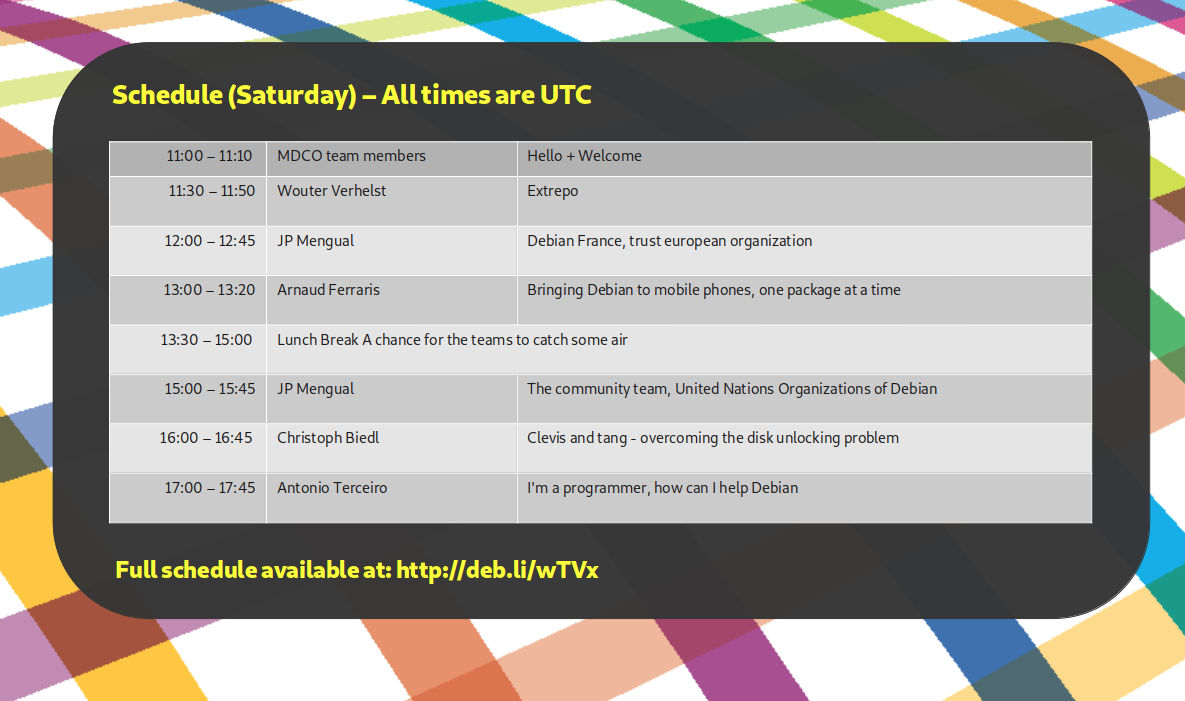
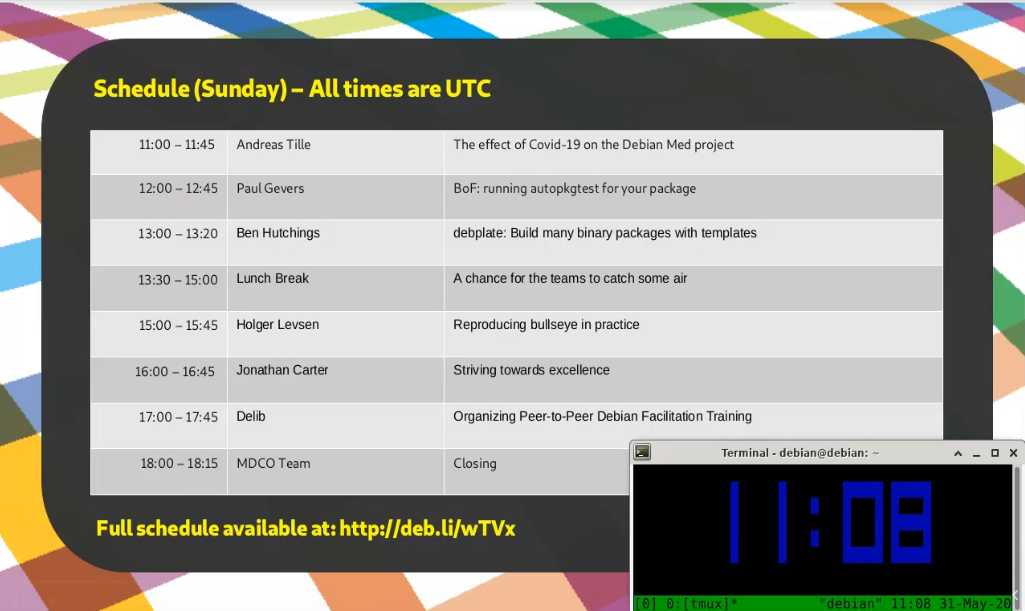
Dealing with the void during MiniDebConf Online #1 Between 28 and 31 May this year, we set out to create our first ever online MiniDebConf for Debian. Many people have been meaning to do something similar for a long time, but it just didn t work out yet. With many of us being in lock down due to COVID-19, and with the strong possibility looming that DebConf20 might have had to become an online event, we rushed towards organising the first ever Online MiniDebConf and put together some form of usable video stack for it. I could go into all kinds of details on the above, but this post is about a bug that lead to a pretty nifty feature for DebConf20. The tool that we use to capture Jitsi calls is called Jibri (Jitsi Broadcasting Infrustructure). It had a bug (well, bug for us, but it s an upstream feature) where Jibri would hang up after 30s of complete silence, because it would assume that the call has ended and that the worker can be freed up again. This would result in the stream being ended at the end of every talk, so before the next talk, someone would have to remember to press play again in their media player or on the video player on the stream page. Hrmph. Easy solution on the morning that the conference starts? I was testing a Debian Live image the night before in a KVM and thought that I might as well just start a Jitsi call from there and keep a steady stream of silence so that Jibri doesn t hang up. It worked! But the black screen and silence on stream was a bit eery. Because this event was so experimental in nature, and because we were on such an incredibly tight timeline, we opted not to seek sponsors for this event, so there was no sponsors loop that we d usually stream during a DebConf event. Then I thought Ah! I could just show the schedule! .

The stream looked bright and colourful (and was even useful!) and Jitsi/Jibri didn t die. I thought my work was done. As usual, little did I know how untrue that was. The silence was slightly disturbing after the talks, and people asked for some music. Playing music on my VM and capturing the desktop audio in to Jitsi was just a few pulseaudio settings away, so I spent two minutes finding some freely licensed tracks that sounded ok enough to just start playing on the stream. I came across mini-albums by Captive Portal and Cinema Noir, During the course of the MiniDebConf Online I even started enjoying those. Someone also pointed out that it would be really nice to have a UTC clock on the stream. I couldn t find a nice clock in a hurry so I just added a tmux clock in the meantime while we deal with the real-time torrent of issues that usually happens when organising events like this.
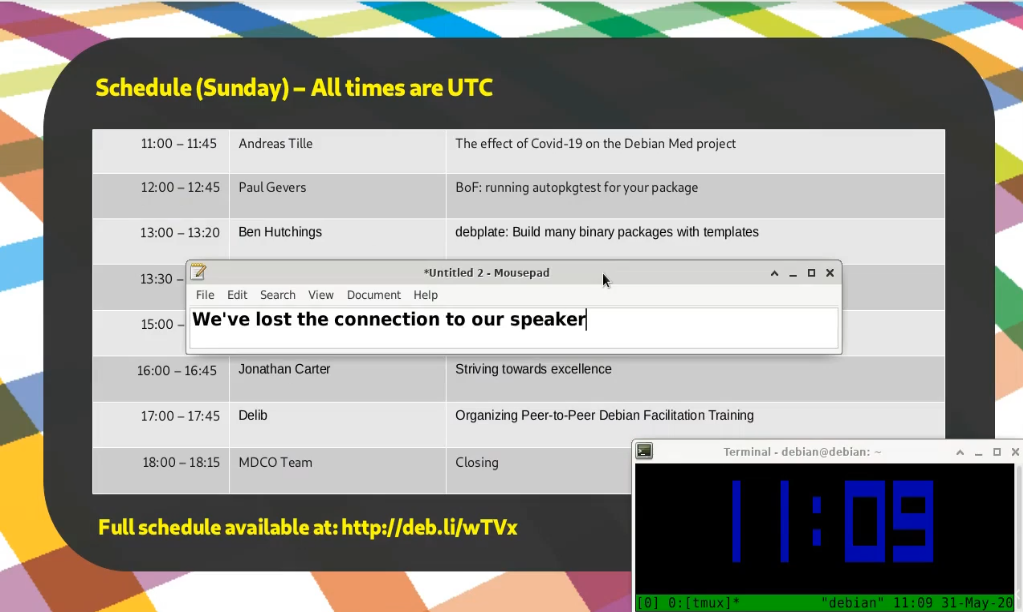
Speaking of issues, during our very first talk of the last day, our speaker had a power cut during the talk and abruptly dropped off. Oops! So, since I had a screenshare open from the VM to the stream, I thought I d just pop in a quick message in a text editor to let people know that we re aware of it and trying to figure out what s going on.
In the end, MiniDebConf Online worked out all right. Besides the power cut for our one speaker, and another who had a laptop that was way too under-powered to deal with video, everything worked out very well. Even the issues we had weren t show-stoppers and we managed to work around them.

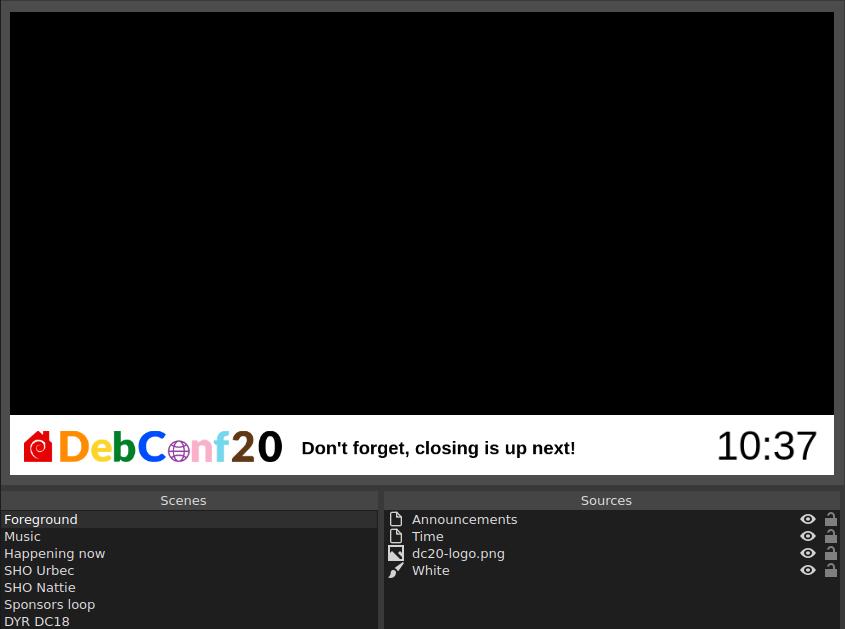
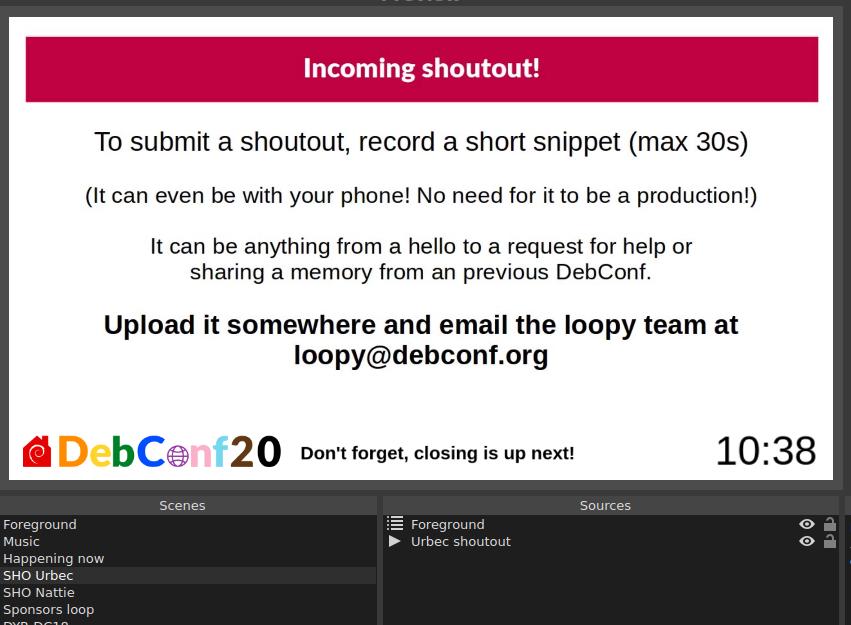
DebConf20 Moves Online For DebConf, we usually show a sponsors loop in between sessions. It s great that we give our sponsors visibility here, but in reality people see the sponsors loop and think Talk over! and then they look away. It s also completely silent and doesn t provide any additional useful information. I was wondering how I could take our lessons from MDCO#1 and integrate our new tricks with the sponsors loop. That is, add the schedule, time, some space to type announcements on the screen and also add some loopable music to it. I used OBS before in making my videos, and like the flexibility it provides when working with scenes and sources. A scene is what you would think of as a screen or a document with its own collection of sources or elements. For example, a scene might contain sources such as a logo, clock, video, image, etc. A scene can also contain another scene. This is useful if you want to contain a banner or play some background music that is shared between scenes.

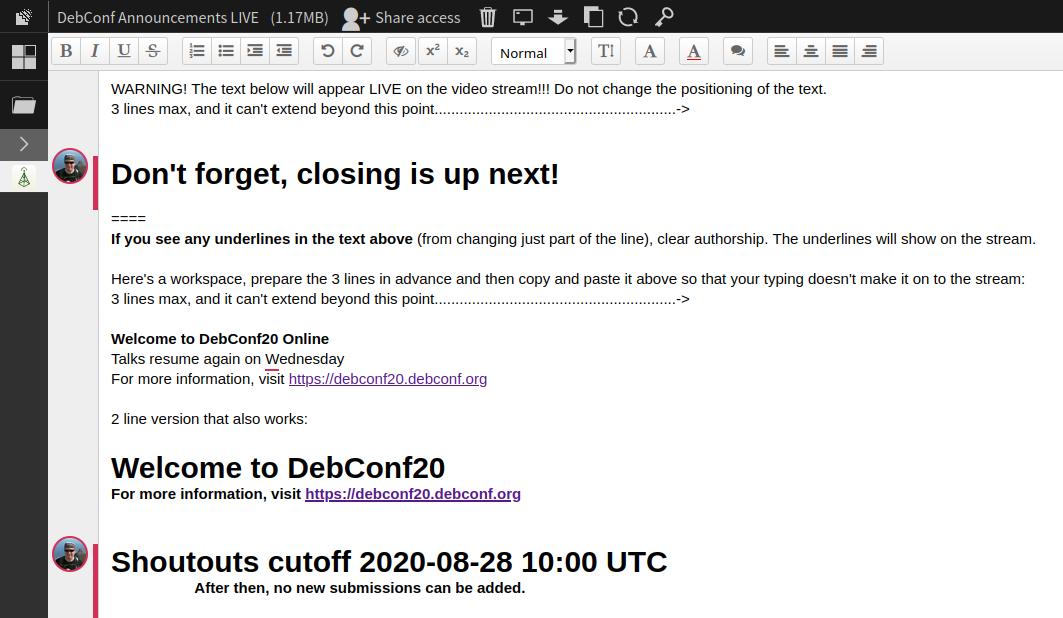
The above screenshots illustrate some basics of scenes and sources. First with just the DC20 banner, and then that used embedded in another scene. For MDCO#1, I copied and pasted the schedule into a LibreOffice Impress slide that was displayed on the stream. Having to do this for all 7 days of DebConf, plus dealing with scheduling changes would be daunting. So, I started to look in to generating some schedule slides programmatically. Stefano then pointed me to the Happening Now page on the DebConf website, where the current schedule block is displayed. So all I would need to do in OBS was to display a web page. Nice! Unfortunately the OBS in Debian doesn t have the ability to display web pages out of the box (we need to figure out CEF in Debian), but fortunately someone provides a pre-compiled version of the plugin called Linux Browser that works just fine. This allowed me to easily add the schedule page in its own scene. Being able to display a web page solved another problem. I wasn t fond of having to type / manage the announcements in OBS. It would either be a bit prone to user error, and if you want to edit the text while the loop is running, you d have to disrupt the loop, go to the foreground scene, and edit the text before resuming the loop. That s a bit icky. Then I thought that we could probably just get that from a web page instead. We could host some nice html snippet in a repository in salsa, and then anyone could easily commit an MR to update the announcement. But then I went a step further, use an etherpad! Then anyone in the orga team can quickly update the announcement and it would be instantly changed on the stream. Nice! So that small section of announcement text on the screen is actually a whole web browser with an added OBS filter to crop away all the pieces we don t want. Overkill? Sure, but it gave us a decent enough solution that worked in time for the start of DebConf. Also, being able to type directly on to the loop screen works out great especially in an emergency. Oh, and uhm the clock is also a website rendered in its own web browser :-P
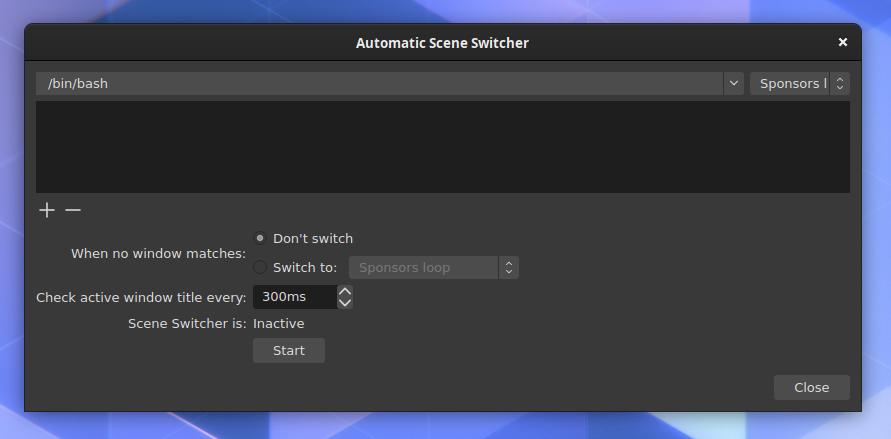
So, I had the ability to make scenes, add elements and add all the minimal elements I wanted in there. Great! But now I had to figure out how to switch scenes automatically. It s probably worth mentioning that I only found some time to really dig into this right before DebConf started, so with all of this I was scrambling to find things that would work without too many bugs while also still being practical. Now I needed the ability to switch between the scenes automatically / programmatically. I had never done this in OBS before. I know it has some API because there are Android apps that you can use to control OBS with from your phone. I discovered that it had an automatic scene switcher, but it s very basic. It can only switch based on active window, which can be useful in some cases, but since we won t have any windows open other than OBS, this tool was basically pointless.
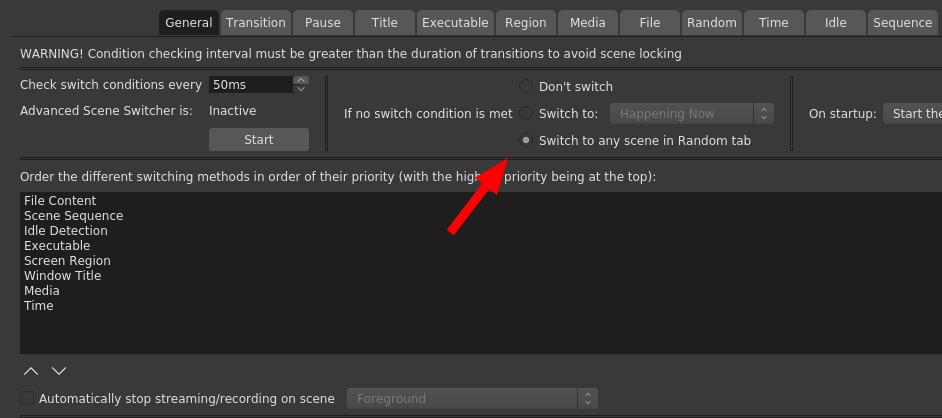
After some quick searches, I found a plugin called Advanced Scene Switcher. This plugin can do a lot more, but has some weird UI choices, and is really meant for gamers and other types of professional streamers to help them automate their work flow and doesn t seem at all meant to be used for a continuous loop, but, it worked, and I could make it do something that will work for us during the DebConf. I had a chicken and egg problem because I had to figure out a programming flow, but didn t really have any content to work with, or an idea of all the content that we would eventually have. I ve been toying with the idea in my mind and had some idea that we could add fun facts, postcards (an image with some text), time now in different timezones, Debian news (maybe procured by the press team), cards that contain the longer announcements that was sent to debconf-announce, perhaps a shout out or two and some photos from previous DebConfs like the group photos. I knew that I wouldn t be able to build anything substantial by the time DebConf starts, but adding content to OBS in between talks is relatively easy, so we could keep on building on it during DebConf. Nattie provided the first shout out, and I made 2 video loops with the DC18/19 pictures and also two Did you know cards. So the flow I ended up with was: Sponsors -> Happening Now -> Random video (which would be any of those clips) -> Back to sponsors. This ended up working pretty well for quite a while. With the first batch of videos the sponsor loop would come up on average about every 2 minutes, but as much shorter clips like shout outs started to come in faster and faster, it made sense to play a few 2-3 shout-outs before going back to sponsors. So here is a very brief guide on how I set up the sequencing in Advanced Scene Switcher.
If no condition was met, a video would play from the Random tab.
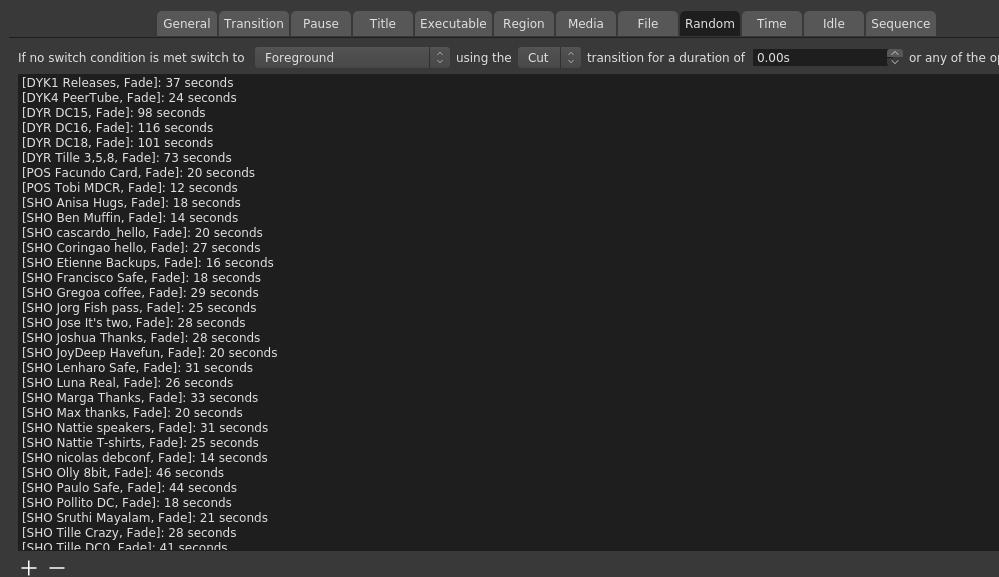
Then in the Random tab, I added the scenes that were part of the random mix. Annoyingly, you have to specify how long it should play for. If you don t, the no condition thingy is triggered and another video is selected. The time is also the length of the video minus one second, because
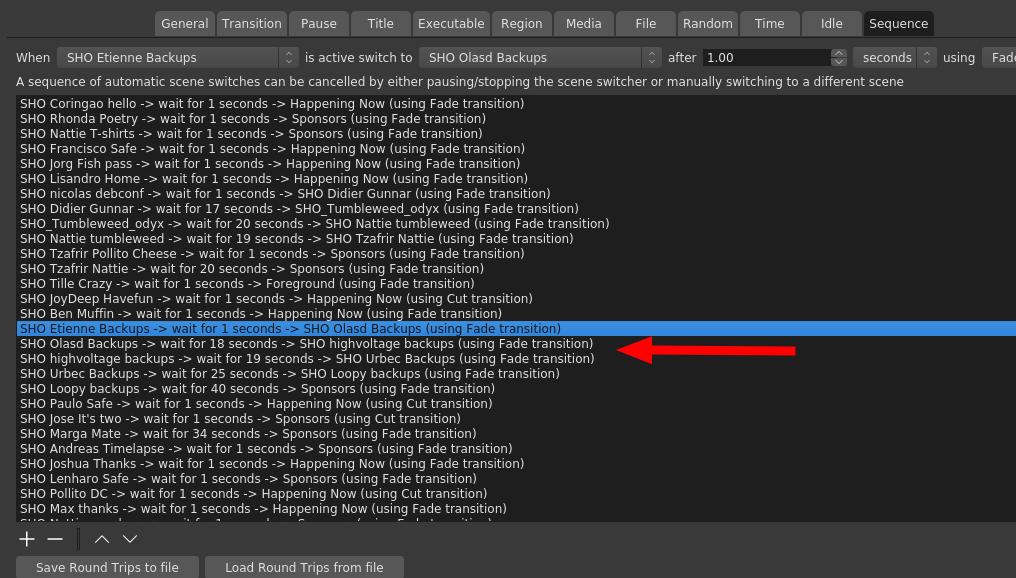
You can t just say that a random video should return back to a certain scene, you have to specify that in the sequence tab for each video. Why after 1 second? Because, at least in my early tests, and I didn t circle back to this, it seems like 0s can randomly either mean instantly, or never. Yes, this ended up being a bit confusing and tedious, and considering the late hours I worked on this, I m surprised that I didn t manage to screw it up completely at any point. I also suspected that threads would eventually happen. That is, when people create video replies to other videos. We had 3 threads in total. There was a backups thread, beverage thread and an impersonation thread. The arrow in the screenshot above points to the backups thread. I know it doesn t look that complicated, but it was initially somewhat confusing to set up and make sense out of it.
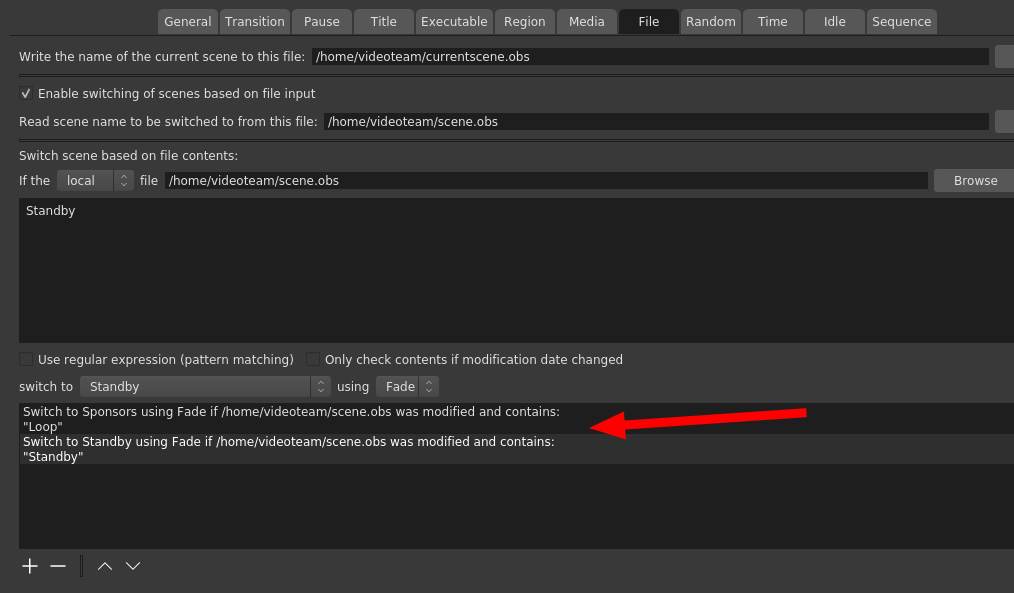
For the next event, the Advanced Scene Switcher might just get some more taming, or even be replaced entirely. There are ways to drive OBS by API, and even the Advanced Scene Switcher tool can be driven externally to some degree, but I think we definitely want to replace it by the next full DebConf. We had the problem that when a talk ended, we would return to the loop in the middle of a clip, which felt very unnatural and sometimes even confusing. So Stefano helped me with a helper script that could read the socket from Vocto, which I used to write either Loop or Standby to a file, and then the scene switcher would watch that file and keep the sponsors loop ready for start while the talks play. Why not just switch to sponsors when the talk ends? Well, the little bit of delay in switching would mean that you would see a tiny bit of loop every time before switching to sponsors. This is also why we didn t have any loop for the ad-hoc track (that would have probably needed another OBS instance, we ll look more into solutions for this for the future).
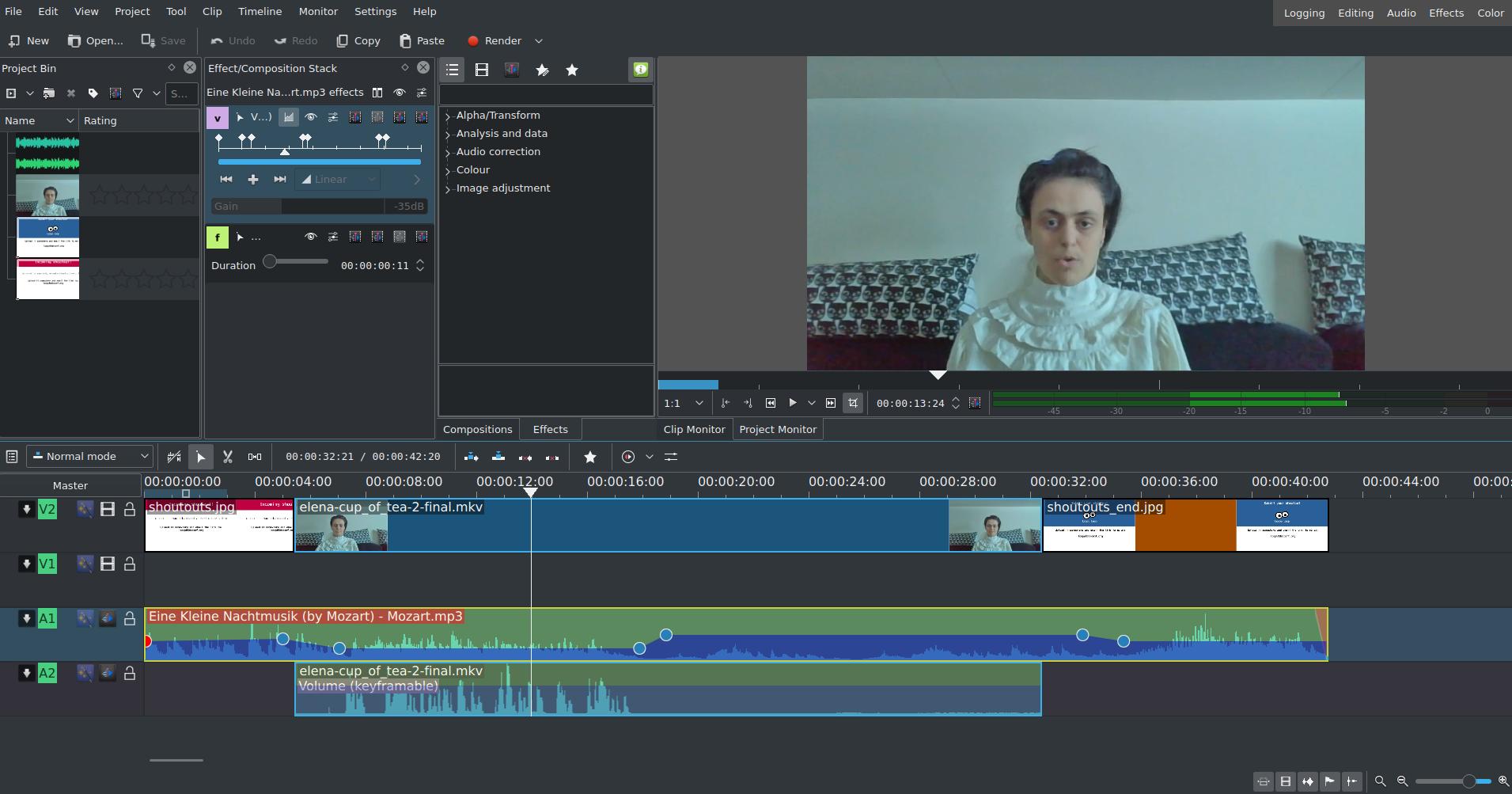
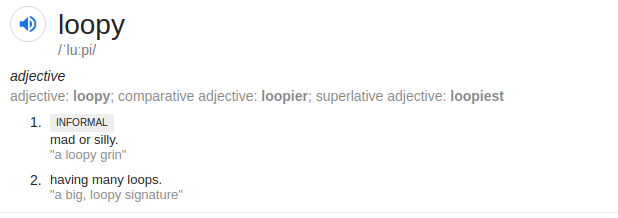
Then for all the clips. There were over 50 of them. All of them edited by hand in kdenlive. I removed any hard clicks, tried to improve audibility, remove some sections at the beginning and the end that seemed extra and added some music that would reduce in volume when someone speaks. In the beginning, I had lots of fun with choosing music for the clips. Towards the end, I had to rush them through and just chose the same tune whether it made sense or not. For comparison of what a difference the music can make, compare the original and adapted version for Valhalla s clip above, or this original and adapted video from urbec. This part was a lot more fun than dealing with the video sequencer, but I also want to automate it a bit. When I can fully drive OBS from Python I ll likely instead want to show those cards and control music volume from Python (what could possibly go wrong ). The loopy name happened when I requested an @debconf.org alias for this. I was initially just thinking about loop@debconf.org but since I wanted to make it clear that the purpose of this loop is also to have some fun, I opted for loopy instead:
I was really surprised by how people took to loopy. I hoped it would be good and that it would have somewhat positive feedback, but the positive feedback was just immense. The idea was that people typically saw it in between talks. But a few people told me they kept it playing after the last talk of the day to watch it in the background. Some asked for the music because they want to keep listening to it while working (and even for jogging!?). Some people also asked for recordings of the loop because they want to keep it for after DebConf. The shoutouts idea proved to be very popular. Overall, I m very glad that people enjoyed it and I think it s safe to say that loopy will be back for the next event.
Also throughout this experiment Loopy Loop turned into yet another DebConf mascot. We gain one about every DebConf, some by accident and some on purpose. This one was not quite on purpose. I meant to make an image for it for salsa, and started with an infinite loop symbol. That s a loop, but by just adding two more solid circles to it, it looks like googly eyes, now it s a proper loopy loop! I like the progress we ve made on this, but there s still a long way to go, and the ideas keep heaping up. The next event is quite soon (MDCO#2 at the end of November, and it seems that 3 other MiniDebConf events may also be planned), but over the next few events there will likely be significantly better graphics/artwork, better sequencing, better flow and more layout options. I hope to gain some additional members in the team to deal with incoming requests during DebConf. It was quite hectic this time! The new OBS also has a scripting host that supports Python, so I should be able to do some nice things even within OBS without having to drive it externally (like, display a clock without starting a web browser).

The Loopy Loop Music The two mini albums that mostly played during the first few days were just a copy and paste from the MDCO#1 music, which was:

For shoutout tracks, that were later used in the loop too (because it became a bit monotonous), most of the tracks came from freepd.com: I have much more things to say about DebConf20, but I ll keep that for another post, and hopefully we can get all the other video stuff in a post from the video team, because I think there s been some real good work done for this DebConf. Also thanks to Infomaniak who was not only a platinum sponsor for this DebConf, but they also provided us with plenty of computing power to run all the video stuff on. Thanks again!

28 August 2020

Rapha&#235;l Hertzog: Freexian s report about Debian Long Term Support, July 2020

A Debian LTS logo Like each month, albeit a bit later due to vacation, here comes a report about the work of paid contributors to Debian LTS. Individual reports In July, 249.25 work hours have been dispatched among 14 paid contributors. Their reports are available: Evolution of the situation July was our first month of Stretch LTS! Given this is our fourth LTS release we anticipated a smooth transition and it seems everything indeed went very well. Many thanks to the members of the Debian ftpmaster-, security, release- and publicity- teams who helped us make this happen!
Stretch LTS begun on July 18th 2020 after the 13th and final Stretch point release. and is currently scheduled to end on June 30th 2022. Last month, we asked you to participate in a survey and we got 1764 submissions, which is pretty awesome. Thank you very much for participating!. Right now we are still busy crunching the results, but we already shared some early analysis during the Debconf LTS bof this week. The security tracker currently lists 54 packages with a known CVE and the dla-needed.txt file has 52 packages needing an update. Thanks to our sponsors New sponsors are in bold.

No comment Liked this article? Click here. My blog is Flattr-enabled.

26 August 2020

Dirk Eddelbuettel: #29: Easy, Reliable, Fast Linux CRAN Binaries via BSPM

Welcome to the 29th post in the randomly repeating R recommendations series or R4 for short. Our last post #28 introduced RSPM, and just before that we also talked in #27 about binary installations on Ubuntu (which was also a T4 video). This post is joined with I aki Ucar and mainly about work we have done with his bspm package.

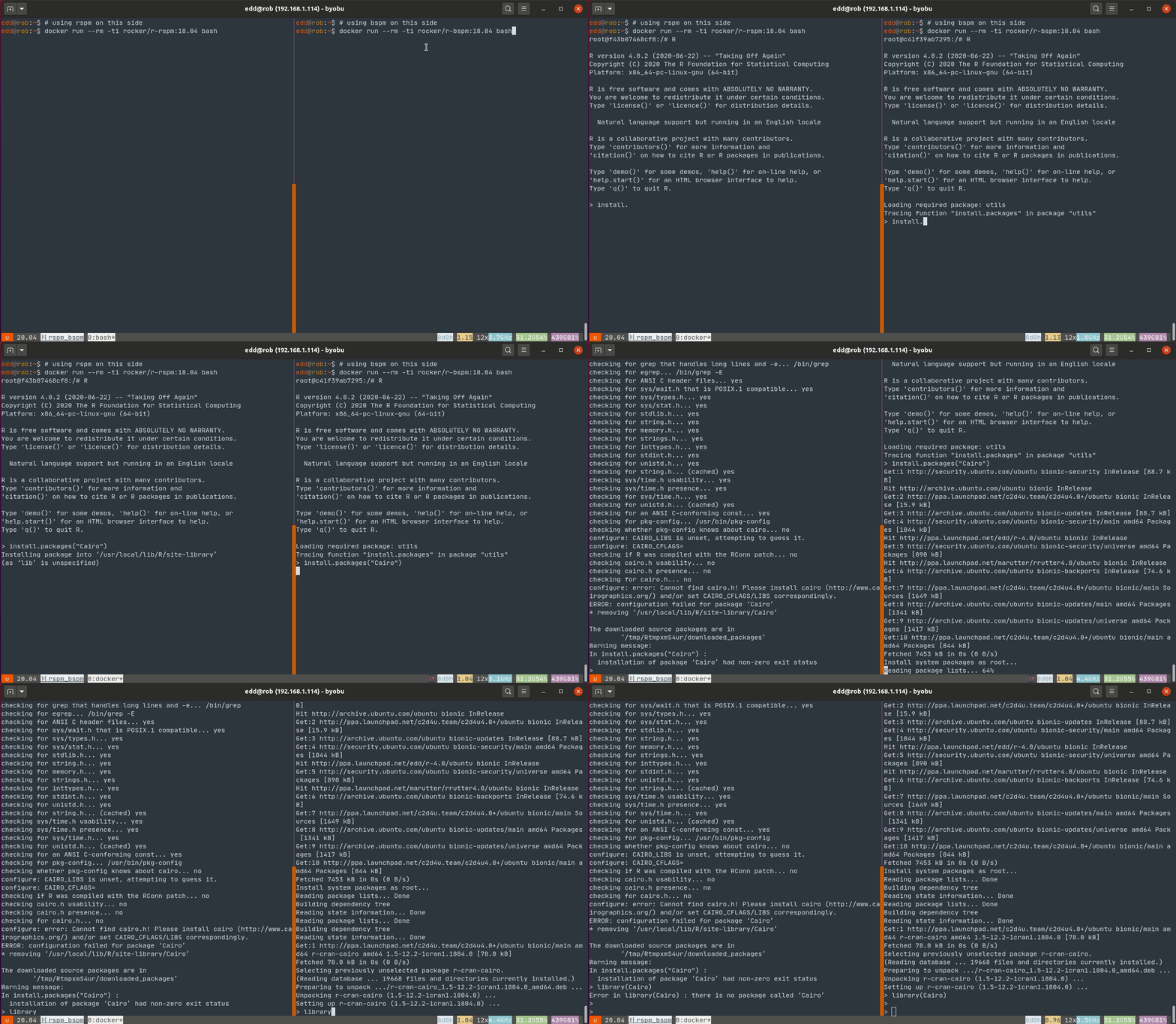
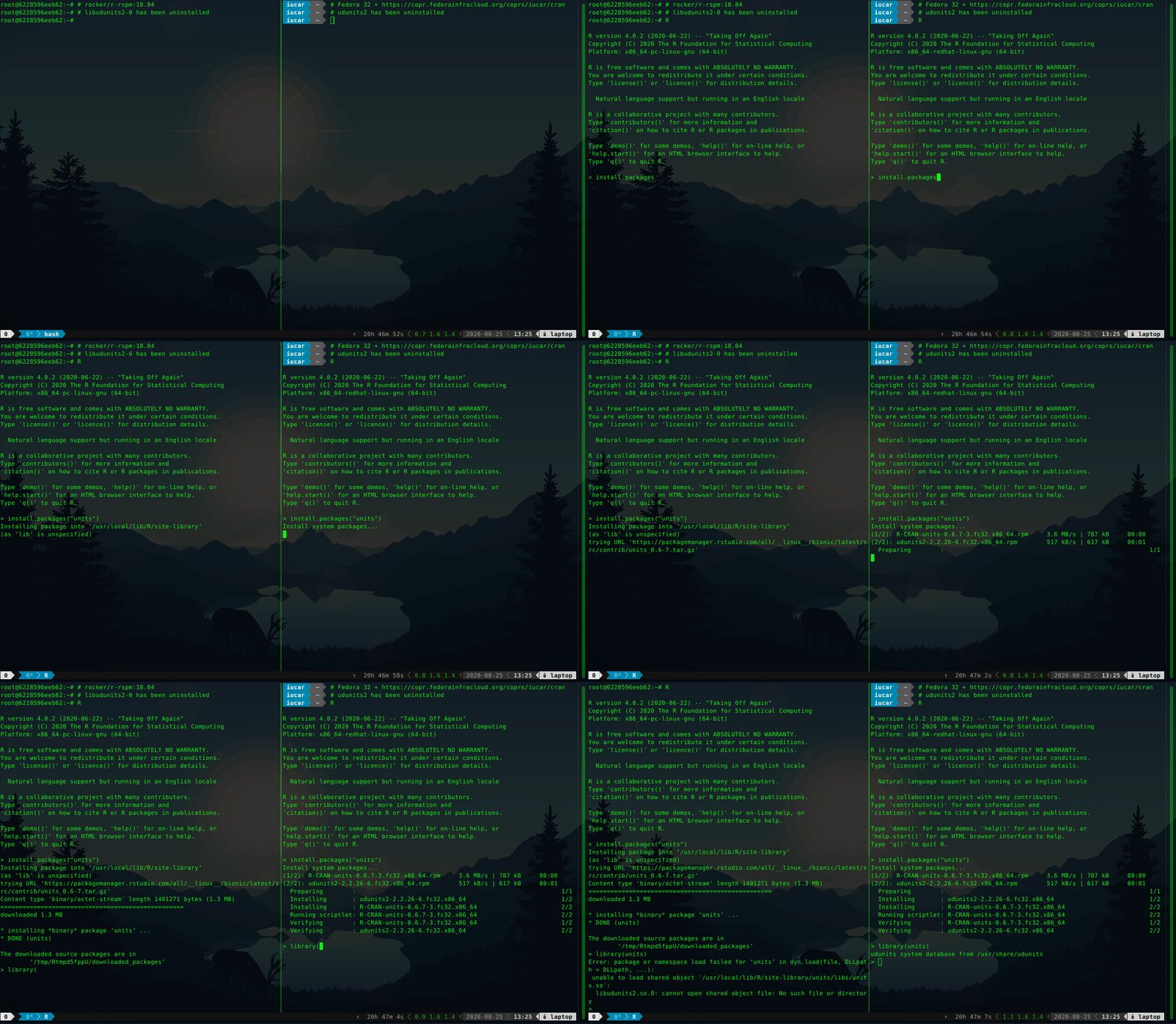
Background CRAN has been a cornerstone of the success of R in recent years. As a well-maintained repository with stringent quality control, it ensures users have access to highest-quality statistical / analytical software that just works . Users on Windows and macOS also benefit from faster installation via pre-compiled binary packages. Linux users generally install from source, which can be more tedious and, often, much slower. Those who know where to look have had access to (at least some) binaries for years as well (and one of us blogged and vlogged about this at length). Debian users get close to 1000 CRAN and BioConductor packages (and, true to Debian form, for well over a dozen hardware platforms). Michael Rutter maintains a PPA with 4600 binaries for three different Ubuntu flavors (see c2d4u4.0+). More recently, Fedora joined the party with 16000 (!!) binaries, essentially all of CRAN, via a Copr repository (see iucar/cran). The buzz currently is however with RSPM, a new package manager by RStudio. An audacious project, it provides binaries for several Linux distributions and releases. It has already been tested in many RStudio Cloud sessions (including with some of our students) as well as some CI integrations. RSPM cuts across and takes the breadth of CRAN across several Linux distributions, bringing installation of pre-built CRAN packages a binaries under their normal CRAN package names. Another nice touch is the integration with install.packages(): these binaries are installed in a way that is natural for R users but as binaries. It is however entirely disconnected from the system package management. This means that the installation of a package requiring an external library may succeed and still fail, as a required library simply cannot be pulled in directly by RSPM. So what is needed is a combination. We want binaries that are aware of their system dependencies but accessible directly from R just like RSPM offers it. Enter BSPM the Bridge to System Package Manager package (also on CRAN). The first illustration (using Ubuntu 18.04) shows RSPM on the left, and BSPM on the right, both installing the graphics package Cairo (and both using custom Rocker containers). This fails for RSPM as no binary is present and a source build fails for the familiar lack of a -dev package. It proceeds just fine on the right under BSPM. A second illustration shows once again RSPM on the left, and BSPM on the right (this time on Fedora), both installing the units package without a required system dependency. The installation of units works for BSPM as the dependency libudunits is brought in, but fails under RSPM. The binary installation succeeds in both cases, but the missing dependency (the UDUNITS2 library) is brought in only by BSPM. Consequently, the package fails to load under RSPM.

Summary To conclude, highlights of BSPM are:
  • direct installation of binary packages from R via R commands under their normal CRAN names (just like RSPM);
  • full integration with the system package manager, delivering system installations (improving upon RSPM);
  • full dependency resolution for R packages, including system requirements (improving upon RSPM).
This offers easy, reliable, fast installation of R packages, and we invite you to pick all three. We recommend usage with either Ubuntu with the 4.6k packages via the Rutter PPA, or Fedora via the even more complete Copr repository (which already includes a specially-tailored version of BSPM called CoprManager). We hope this short note wets your appetite to learn more about bspm (which is itself on CRAN) and the two sets of Rocker containers shown. The rocker/r-rspm container comes in two two flavours for Ubuntu 18.04 and 20.04. Similarly, the rocker/r-bspm container comes in the same two two flavours for Ubuntu 18.04 and 20.04, as well as in a Debian testing variant. Feedback is appreciated at the bspm or rocker issue trackers. If you like this or other open-source work I do, you can now sponsor me at GitHub. For the first year, GitHub will match your contributions.

This post by Dirk Eddelbuettel originated on his Thinking inside the box blog. Please report excessive re-aggregation in third-party for-profit settings.

25 August 2020

Jonas Meurer: cryptsetup-suspend

Introducing cryptsetup-suspend Today, we're introducing cryptsetup-suspend, whose job is to protect the content of your harddrives while the system is sleeping. TL;DR:
  • You can lock your encrypted harddrives during suspend mode by installing cryptsetup-suspend
  • For cryptsetup-suspend to work properly, at least Linux kernel 5.6 is required
  • We hope that in a bright future, everything will be available out-of-the-box in Debian and it's derivatives
Before: timeline_old.svg After: timeline_new.svg

Table of contents

What does this mean and why should you care about it? If you don't use full-disk encryption, don't read any further. Instead, think about, what will happen if you lose your notebook on the train, a random person picks it up and browses through all your personal pictures, e-mails, and tax records. Then encrypt your system and come back. If you believe full-disk encryption is necessary, you might know that it only works when your machine is powered off. Once you turn on the machine and decrypt your harddrive, your encryption key stays in RAM and can potentially be extracted by malicious software or physical access. Even if these attacks are non-trivial, it's enough to worry about. If an attacker is able to extract your disk encryption keys from memory, they're able to read the content of your disk in return. Sadly, in 2020, we hardly power off our laptops anymore. The sleep mode, also known as "suspend mode", is just too convenient. Just close the lid to freeze the system state and lift it anytime later in order to continue. Well, convenience usually comes with a cost: during suspend mode, your system memory is kept powered, all your data - including your encryption keys - stays there, waiting to be extracted by a malicious person. Unfortunately, there are practical attacks to extract the data of your powered memory. Cryptsetup-suspend expands the protection of your full-disk encryption to all those times when your computer sleeps in suspend mode. Cryptsetup-suspend utilizes the suspend feature of LUKS volumes and integrates it with your Debian system. Encryption keys are evicted from memory before suspend mode and the volumes have to be re-opened after resuming - potentially prompting for the required passphrases. By now, we have a working prototype which we want to introduce today. We did quite some testing, both on virtualized and bare-metal Debian and Ubuntu systems, with and without graphical stack, so we dare to unseal and set free the project and ask you - the community - to test, review, criticize and give feedback. Here's a screencast of cryptsetup-suspend in action:

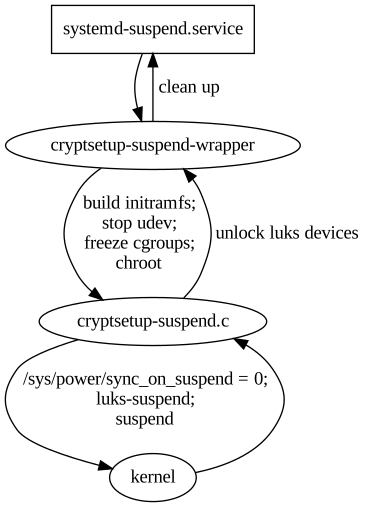
State of the implementation: where are we? If you're interested in the technical details, here's how cryptsetup-suspend works internally. It basically consists of three parts: cryptsetup-suspend.svg
  1. cryptsetup-suspend: A C program that takes a list of LUKS devices as arguments, suspends them via luksSuspend and suspends the system afterwards. Also, it tries to reserve some memory for decryption, which we'll explain below.
  2. cryptsetup-suspend-wrapper: A shell wrapper script which works the following way:
    1. Extract the initramfs into a ramfs
    2. Run (systemd) pre-suspend scripts, stop udev, freeze almost all cgroups
    3. Chroot into the ramfs and run cryptsetup-suspend
    4. Resume initramfs devices inside chroot after resume
    5. Resume non-initramfs devices outside chroot
    6. Thaw groups, start udev, run (systemd) post-suspend scripts
    7. Unmount the ramfs
  3. A systemd unit drop-in file overriding the Exec property of systemd-suspend.service so that it invokes the script cryptsetup-suspend-wrapper.
Reusing large parts of the existing cryptsetup-initramfs implementation has some positive side-effects: Out-of-the-box, we support all LUKS block device setups that have been supported by the Debian cryptsetup packages before. Freezing most processes/cgroups is necessary to prevent possible race-conditions and dead-locks after the system resumes. Processes will try to access data on the locked/suspended block devices eventually leading to buffer overflows and data loss.

Technical challenges and caveats
  • Dead-locks at suspend: In order to prevent possible dead-locks between suspending the encrypted LUKS disks and suspending the system, we have to tell the Linux kernel to not sync() before going to sleep. A corresponding patch got accepted upstream in Linux 5.6. See section What about the kernel patch? below for details.
  • Race conditions at resume: Likewise, there's a risk of race conditions between resuming the system and unlocking the encypted LUKS disks. We went with freezing as many processes as possible as a counter measurement. See last part of section State of the implementation: where are we? for details.
  • Memory management: Memory management is definitely a challenge. Unlocking disks might require a lot of memory (if key derivation function is argon2i) and the swap device most likely is locked at that time. See section All that matters to me is the memories! below for details.
  • systemd dependency: Our implementation depends on systemd. It uses a unit drop-in file for systemd-suspend.service for hooking into the system suspend process and depends on systemds cgroup management to freeze and thaw processes. If you're using a different init system, sorry, you're currently out of luck.

What about the kernel patch? The problem is simple: the Linux kernel suspend implementation enforces a final filesystem sync() before the system goes to sleep in order to prevent potential data loss. While that's sensible in most scenarios, it may result in dead-locks in our situation, since the block device that holds the filesystem is already suspended. The fssync() call will block forever as it waits for the block device to finish the sync() operation. So we need a way to conditionally disable this sync() call in the Linux kernel resume function. That's what our patch does, by introducing a run-time switch at /sys/power/sync_on_suspend, but it only got accepted into the Linux kernel recently and was first released with Linux kernel 5.6. Since release 4.3, the Linux kernel at least provides a build-time flag to disable the sync(): CONFIG_SUSPEND_SKIP_SYNC (that was called SUSPEND_SKIP_SYNC first and renamed to CONFIG_SUSPEND_SKIP_SYNC in kernel release 4.9). Enabling this flag at build-time protects you against the dead locks perfectly well. But while that works on an individual basis, it's a non-option for the distribution Linux kernel defaults. In most cases you still want the sync() to happen, except if you have user-space code that takes care of the sync() just before suspending your system - just like our cryptsetup-suspend implementation does. So in order to properly test cryptsetup-suspend, you're strongly advised to run Linux kernel 5.6 or newer. Fortunately, Linux 5.6 is available in buster-backports thanks to the Debian Kernel Team.

All that matters to me is the memories! One of the tricky parts is memory management. Since version 2, LUKS uses argon2i as default key derivation function. Argon2i is a memory-hard hash function and LUKS2 assigns the minimum of half of your systems memory or 1 GB to unlocking your device. While this is usually unproblematic during system boot - there's not much in the system memory anyway - it can become problematic when suspending. When cryptsetup tries to unlock a device and wants 1 GB of memory for this, but everything is already occupied by your browser and video player, there's only two options what to do:
  1. Kill a process to free some memory
  2. Move some of the data from memory to swap space
The first option is certainly not what you expect when suspending your system. The second option is impossible, because swap is located on your harddrive which we have locked before. Our current solution is to allocate the memory after freezing the other processes, but before locking the disks. At this time, the system can still move data to swap, but it won't be accessed anymore. We then release the memory just in time for cryptsetup to claim it again. The implementation of this is still subject to change. memories.gif

What's missing: A proper user interface As mentioned before, we consider cryptsetup-suspend usable, but it certainly still has bugs and shortcomings. The most obvious one is lack of a proper user interface. Currently, we switch over to a tty command-line interface to prompt for passphrases when unlocking the LUKS devices. It certainly would be better to replace this with a graphical user interface later, probably by using plymouth or something alike. Unfortunately, it seems rather impossible to spawn a real graphical environment for the passphrase prompt. That would imply to load the full graphical stack into the ramfs, raising the required amount of memory significantly. Lack of memory is currently our biggest concern and source of trouble. We'd definitely appreciate to learn about your ideas how to improve the user experience here.

Let's get practical: how to use TL;DR: On Debian Bullseye (Testing), all you need to do is to install the cryptsetup-suspend package from experimental. It's not necessary to upgrade the other cryptsetup packages. On Debian Buster, cryptsetup packages from backports are required.
  1. First, be sure that you're running Linux kernel 5.6 or newer. For Buster systems, it's available in buster-backports.
  2. Second, if you're on Debian Buster, install the cryptsetup 2:2.3.3-2~bpo10+1 packages from buster-backports.
  3. Third, install the cryptsetup-suspend package from experimental. Beware that cryptsetup-suspend depends on cryptsetup-initramfs (>= 2:2.3.3-1~). Either you need the cryptsetup packages from testing/unstable, or the backports from buster-backports.
  4. Now that you have the cryptsetup-suspend package installed, everything should be in place: Just send your system to sleep. It should switch to a virtual text terminal before going to sleep, ask for a passphrase to unlock your encrypted disk(s) after resume and switch back to your former working environment (most likely your graphical desktop environment) afterwards.

Security considerations Suspending LUKS devices basically means to remove the corresponding encryption keys from system memory. This protects against all sort of attacks trying to read them from there, e.g. cold-boot attacks. But, cryptsetup-suspend only protects the encryption keys of your LUKS devices. Most likely there's more sensitive data in system memory, like all kinds of private keys (e.g. OpenPGP, OpenSSH) or documents with sensitive content. We hope that the community will help improve this situation by providing useful pre-/post-suspend scripts. A positive example is KeepassXC, which is able to lock itself when going to suspend mode.

Feedback and Comments We'd be more than happy to learn about your thoughts on cryptsetup-suspend. For specific issues, don't hesitate to open a bugreport against cryptsetup-suspend. You can also reach us via mail - see the next section for contact addresses. Last but not least, comments below the blogpost work as well.

Authors
  • Tim (tim at systemli.org)
  • Jonas (jonas at freesources.org)

24 August 2020

Jonathan Carter: DebConf 20 Sessions

DebConf20 is happening from 23 August to 29 August. The full is schedule available on the DebConf20 website. I m preparing (or helping to prepare) 3 sessions for this DebConf. I wish I had the time for more, but with my current time constraints, even preparing for these sessions took some careful planning!

Bits from the DPL Time: Aug 24 (Mon): 16:00 UTC. The traditional DebConf talk from the DPL, where we take a look at the state of the Debian project and where we re heading. This talk is pre-recorded, but there will be a few minutes after the talk for questions. https://debconf20.debconf.org/talks/9-bits-from-the-dpl/

Leadership in Debian BOF/Panel Time: Aug 27 (Thu): 18:00 UTC. In this session, we will host a panel of people who hold (or who have held) leadership positions within Debian. We ll go through a few questions for the panel and then continue with open questions and discussion. https://debconf20.debconf.org/talks/46-leadership-in-debian-bofpanel/

Local Teams Time: Aug 29 (Sat): 19:00 UTC. We already have a number of large and very successful Debian Local Groups (Debian France, Debian Brazil and Debian Taiwan, just to name a few), but what can we do to help support upcoming local groups or help spark interest in more parts of the world? In this BoF, we ll discuss the possibility of setting up a local group support team or a new delegation that will keep track of local teams, manage budgets and get new local teams bootstrapped. https://debconf20.debconf.org/talks/50-local-teams/

Sven Hoexter: google cloud buster images without python 2

Update I have to stand corrected. noahm@ wrote me, because the Debian Cloud Image maintainer only ever included python explicitly in Azure images. The most likely explanation for the change in the Google images is that Google just ported the last parts of their own software to python 3, and subsequently removed python 2. With some relieve one can just conclude it's only our own fault that we did not build our own images, which include all our own dependencies. Take it as reminder to always build your own images. Always. Be it VMs or docker. Build your own image. Original Post Fun in the morning, we realized that the Debian Cloud image builds dropped python 2 and that propagated to the Google provided Debian/buster images. So in case you use something like ansible, and so far assumed python 2 as the default interpreter, and installed additional python 2 modules to support ansible modules, you now have to either install python 2 again or just move to python 3k. We just try to suffer it through now, and set interpreter_python = auto in our ansible.cfg to anticipate the new default behaviour, which is planned for ansible 2.12. See also https://docs.ansible.com/ansible/latest/reference_appendices/interpreter_discovery.html Other lesson to learn here: The GCE Debian stable images are not stable. Blends in nicely with this rant, though it's not 100% a Google Cloud foul this time.

Arnaud Rebillout: Send emails from your terminal with msmtp

In this tutorial, we'll configure everything needed to send emails from the terminal. We'll use msmtp, a lightweight SMTP client. For the sake of the example, we'll use a GMail account, but any other email provider can do. Your OS is expected to be Debian, as usual on this blog, although it doesn't really matter. We will also see how to store the credentials for the email account in the system keyring. And finally, we'll go the extra mile, and see how to configure various command-line utilities so that they automatically use msmtp to send emails. Even better, we'll make msmtp the default email sender, to actually avoid configuring these utilities one by one. Prerequisites Strong prerequisites (if you don't recognize yourself here, you probably landed on the wrong page): Weak prerequisites (if your setup doesn't match those points exactly, that's fine, you can still read on): GMail account setup For a GMail account, there's a bit of configuration to do. For other email providers, I have no idea, maybe you can just skip this part, or maybe you will have to go through a similar procedure. If you want an external program (msmtp in this case) to talk to the GMail servers on your behalf, and send emails, you can't just use your usual GMail password. Instead, GMail requires you to generate so-called app passwords, one for each application that needs to access your GMail account. This approach has several advantages: So app passwords are a good idea, it just requires a bit of work to set it up. Let's see what it takes. First, 2-Step Verification must be enabled on your GMail account. Visit https://myaccount.google.com/security, and if that's not the case, enable it. You'll need to authorize all of your devices (computer(s), phone(s) and so on), and it can be a bit tedious, granted. But you only have to do it once in a lifetime, and after it's done, you're left with a more secure account, so it's not that bad, right? Enabling the 2-Step Verification will unlock the feature we need: App passwords. Visit https://myaccount.google.com/apppasswords, and under "Signing in to Google", click "App passwords", and generate one. An app password is a 16 characters string, something like qwertyuiopqwerty. It's supposed to be used from only one place, ie. from ONE application that is installed on ONE device. That's why it's common to give it a name of the form application@device, so in our case it could be msmtp@laptop, but really it's free form, choose whatever name suits you, as long as it makes sense to you. So let's give a name to this app password, write it down for now, and we're done with the GMail config. Send your first email Time to get started with msmtp. First thing first, installation, trivial:
sudo apt install msmtp
Let's try to send an email. At this point, we did not create any configuration file for msmtp yet, so we have to provide every details on the command line.
# Write a dummy email
cat << EOF > message.txt
From: YOUR_LOGIN@gmail.com
To: SOMEONE_ELSE@SOMEWHERE_ELSE.com
Subject: Cafe Sua Da
Iced-coffee with condensed milk
EOF
# Send it
cat message.txt   msmtp \
    --auth=on --tls=on \
    --host smtp.gmail.com \
    --port 587 \
    --user YOUR_LOGIN \
    --read-envelope-from \
    --read-recipients
# msmtp prompts you for your password:
# this is where goes the app password!
Obviously, in this example you should replace the uppercase words with the real thing, that is, your email login, and real email addresses. Also, let me insist, you must enter the app password that was generated previously, not your real GMail password. And it should work already, this email should have been sent and received by now. So let me explain quickly what happened here. In the file message.txt, we provided From: (the email address of the person sending the email) and To: (the destination email address). Then we asked msmtp to re-use those values to set the envelope of the email with --read-envelope-from and --read-recipients. What about the other parameters? For more details, you should refer to the msmtp documentation. Write a configuration file So we could send an email, that's cool already. However the command to do that was a bit long, and we don't want to juggle with all these arguments every time we send an email. So let's write down all of that into a configuration file. msmtp supports two locations: ~/.msmtprc and ~/.config/msmtp/config, at your preference. In this tutorial we'll use ~/.msmtprc for brevity:
cat << 'EOF' > ~/.msmtprc
defaults
tls on
account gmail
auth on
host smtp.gmail.com
port 587
user YOUR_LOGIN
from YOUR_LOGIN@gmail.com
account default : gmail
EOF
And for a quick explanation: All in all it's pretty simple, and it's becoming easier to send an email:
# Write a dummy email. Note that the
# header 'From:' is no longer needed,
# it's already in '~/.msmtprc'.
cat << 'EOF' > message.txt
To: SOMEONE_ELSE@SOMEWHERE_ELSE.com
Subject: Flat White
The milky way for coffee
EOF
# Send it
cat message.txt   msmtp \
    --account default \
    --read-recipients
Actually, --account default is not needed, as it's the default anyway if you don't provide a --account argument. Furthermore --read-recipients can be shortened as -t. So we can make it real short now:
msmtp -t < message.txt
At this point, life is good! Except for one thing maybe: we still have to type the password every time we send an email. Surely it must be possible to avoid that annoyance... Store your password in the system keyring For this part, we'll make use of the libsecret tool to store the password in the system keyring via the Secret Service API. It means that your desktop environment should implement the Secret Service specification, which is the case for both GNOME and KDE. Note that GNOME provides Seahorse to have a look at your secrets, KDE has the KDE Wallet. There's also KeePassXC, which I have only heard of but never used. I guess it can be your password manager of choice if you use neither GNOME nor KDE. For those running an up-to-date Debian unstable, you should have msmtp >= 1.8.11-2, and you're all good to go. For those having an older version than that however, you will have to install the package msmtp-gnome in order to have msmtp built with libsecret support. Note that this package depends on seahorse, hence it pulls in a good part of the GNOME stack when you install it. For those not running GNOME, that's unfortunate. All of this was discussed and fixed in #962689. Alright! So let's just make sure that the libsecret tools are installed:
sudo apt install libsecret-tools
And now we can store our password in the system keyring with this command:
secret-tool store --label msmtp \
    host smtp.gmail.com \
    service smtp \
    user YOUR_LOGIN
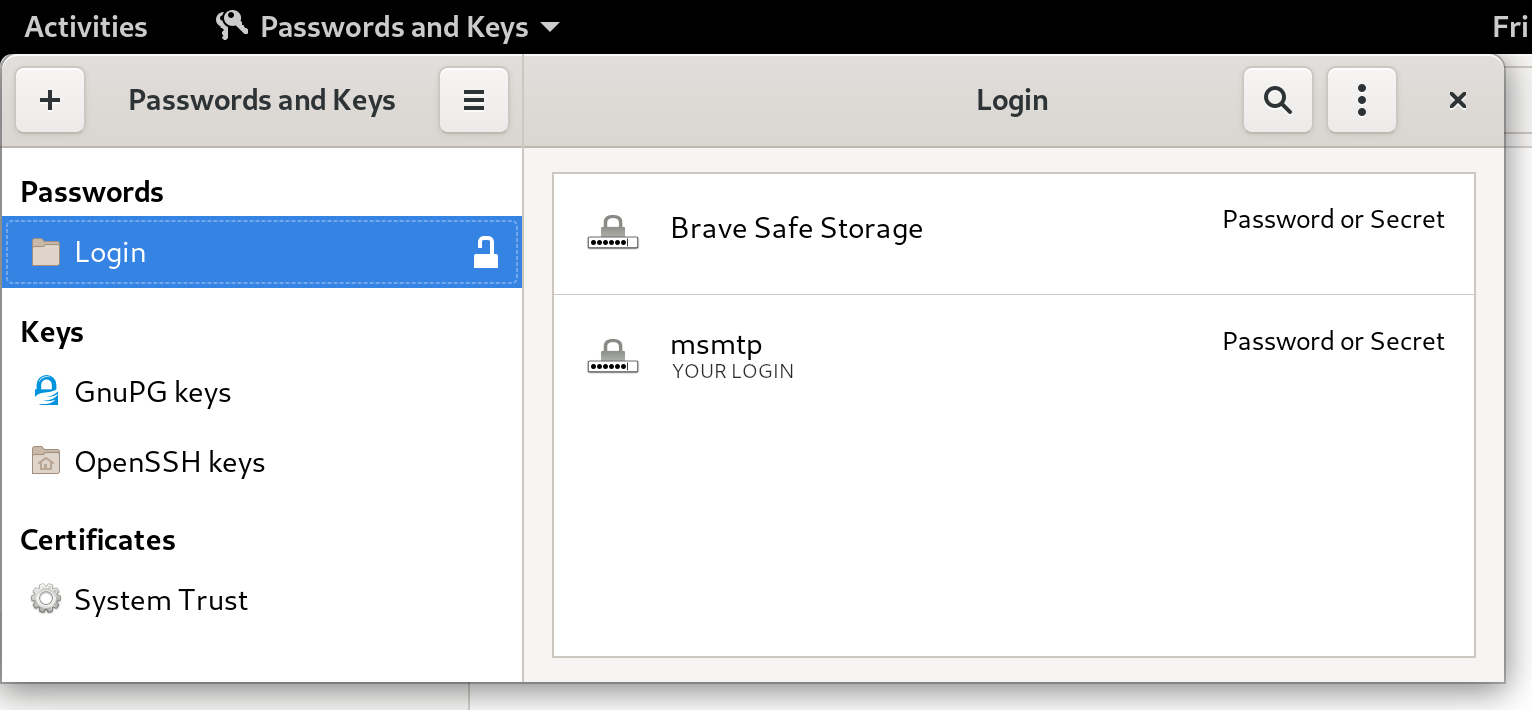
If this looks a bit too magic, and you want something more visual, you can actually fire a GUI like seahorse (for GNOME users), or kwalletmanager5 (for KDE users), and then you will see what passwords are stored in there. Here's a screenshot of Seahorse, with a msmtp password stored: seahorse with msmtp password Let's try to send an email again:
msmtp -t < message.txt
No need for a password anymore, msmtp got it from the system keyring! For more details on how msmtp handle the passwords, and to see what other methods are supported, refer to the extensive documentation. Use-cases and integration Let's go over a few use-cases, situations where you might end up sending emails from the command-line, and what configuration is required to make it work with msmtp. Git Send-Email Sending emails with git is a common workflow for some projects, like the Linux kernel. How does git send-email actually send emails? From the git-send-email manual page:
the built-in default is to search for sendmail in /usr/sbin, /usr/lib and $PATH if such program is available
It is possible to override this default though:
--smtp-server=
[...] Alternatively it can specify a full pathname of a sendmail-like program instead; the program must support the -i option.
So in order to use msmtp here, you'd add a snippet like that to your ~/.gitconfig file:
[sendemail]
    smtpserver = /usr/bin/msmtp
For a full guide, you can also refer to https://git-send-email.io. Debian developer tools Tools like bts or reportbug are also good examples of command-line tools that need to send emails. From the bts manual page:
--sendmail=SENDMAILCMD
Specify the sendmail command [...] Default is /usr/sbin/sendmail.
So if you want bts to send emails with msmtp instead of sendmail, you must use bts --sendmail='/usr/bin/msmtp -t'. Note that bts also loads settings from the file /etc/devscripts.conf and ~/.devscripts, so you could also set BTS_SENDMAIL_COMMAND='/usr/bin/msmtp -t' in one of those files. From the reportbug manual page:
--mta=MTA
Specify an alternate MTA, instead of /usr/sbin/sendmail (the default).
In order to use msmtp here, you'd write reportbug --mta=/usr/bin/msmtp. Note that reportbug reads it settings from /etc/reportbug.conf and ~/.reportbugrc, so you could as well set mta /usr/bin/msmtp in one of those files. So who is this sendmail again? By now, you probably noticed that sendmail seems to be considered the default tool for the job, the "traditional" command that has been around for ages. Rather than configuring every tool to use something else than sendmail, wouldn't it be simpler to actually replace sendmail by msmtp? Like, create a symlink that points to msmtp, something like ln -sr /usr/bin/msmtp /usr/sbin/sendmail? So that msmtp acts as a drop-in replacement for sendmail, and there's nothing else to configure? Answer is yes, kind of. Actually, the first msmtp feature that is listed on the homepage is "Sendmail compatible interface (command line options and exit codes)". Meaning that msmtp is a drop-in replacement for sendmail, that seems to be the intent. However, you should refrain from creating or modifying anything in /usr, as it's the territory of the package manager, apt. Any change in /usr might be overwritten by apt the next time you run an upgrade or install new packages. In the case of msmtp, there is actually a package named msmtp-mta that will create this symlink for you. So if you really want a definitive replacement for sendmail, there you go:
sudo apt install msmtp-mta
From this point, sendmail is now a symlink /usr/sbin/sendmail /usr/bin/msmtp, and there's no need to configure git, bts, reportbug or any other tool that would rely on sendmail. Everything should work "out of the box". Conclusion I hope that you enjoyed reading this article! If you have any comment, feel free to send me a short email, preferably from your terminal!

23 August 2020

Vincent Bernat: Zero-Touch Provisioning for Cisco IOS

The official documentation to automatically upgrade and configure on first boot a Cisco switch running on IOS, like a Cisco Catalyst 2960-X Series switch, is scarce on details. This note explains how to configure the ISC DHCP Server for this purpose.
When booting for the first time, Cisco IOS sends a DHCP request on all ports:
Dynamic Host Configuration Protocol (Discover)
    Message type: Boot Request (1)
    Hardware type: Ethernet (0x01)
    Hardware address length: 6
    Hops: 0
    Transaction ID: 0x0000117c
    Seconds elapsed: 0
    Bootp flags: 0x8000, Broadcast flag (Broadcast)
    Client IP address: 0.0.0.0
    Your (client) IP address: 0.0.0.0
    Next server IP address: 0.0.0.0
    Relay agent IP address: 0.0.0.0
    Client MAC address: Cisco_6c:12:c0 (b4:14:89:6c:12:c0)
    Client hardware address padding: 00000000000000000000
    Server host name not given
    Boot file name not given
    Magic cookie: DHCP
    Option: (53) DHCP Message Type (Discover)
    Option: (57) Maximum DHCP Message Size
    Option: (61) Client identifier
        Length: 25
        Type: 0
        Client Identifier: cisco-b414.896c.12c0-Vl1
    Option: (55) Parameter Request List
        Length: 12
        Parameter Request List Item: (1) Subnet Mask
        Parameter Request List Item: (66) TFTP Server Name
        Parameter Request List Item: (6) Domain Name Server
        Parameter Request List Item: (15) Domain Name
        Parameter Request List Item: (44) NetBIOS over TCP/IP Name Server
        Parameter Request List Item: (3) Router
        Parameter Request List Item: (67) Bootfile name
        Parameter Request List Item: (12) Host Name
        Parameter Request List Item: (33) Static Route
        Parameter Request List Item: (150) TFTP Server Address
        Parameter Request List Item: (43) Vendor-Specific Information
        Parameter Request List Item: (125) V-I Vendor-specific Information
    Option: (255) End
It requests a number of options, including the Bootfile name option 67, the TFTP server address option 150 and the Vendor-Identifying Vendor-Specific Information Option 125 or VIVSO. Option 67 provides the name of the configuration file located on the TFTP server identified by option 150. Option 125 includes the name of the file describing the Cisco IOS image to use to upgrade the switch. This file only contains the name of the tarball embedding the image.1 Configuring the ISC DHCP Server to answer with the TFTP server address and the name of the configuration file is simple enough:
filename "ob2-p2.example.com";
option tftp-server-address 172.16.15.253;
However, if you want to also provide the image for upgrade, you have to specify a hexadecimal-encoded string:2
option vivso 00:00:00:09:24:05:22:63:32:39:36:30:2d:6c:61:6e:62:61:73:65:6b:39:2d:74:61:72:2e:31:35:30:2d:32:2e:53:45:31:31:2e:74:78:74;
Having a large hexadecimal-encoded string inside a configuration file is quite unsatisfying. Instead, the ISC DHCP Server allows you to express this information in a more readable way using the option space statement:
# Create option space for Cisco and encapsulate it in VIVSO/vendor space
option space cisco code width 1 length width 1;
option cisco.auto-update-image code 5 = text;
option vendor.cisco code 9 = encapsulate cisco;
# Image description for Cisco IOS ZTP
option cisco.auto-update-image = "c2960-lanbasek9-tar.150-2.SE11.txt";
# Workaround for VIVSO option 125 not being sent
option vendor.iana code 0 = string;
option vendor.iana = 01:01:01;
Without the workaround mentioned in the last block, the ISC DHCP Server would not send back option 125. With such a configuration, it returns the following answer, including a harmless additional enterprise 0 encapsulated into option 125:
Dynamic Host Configuration Protocol (Offer)
    Message type: Boot Reply (2)
    Hardware type: Ethernet (0x01)
    Hardware address length: 6
    Hops: 0
    Transaction ID: 0x0000117c
    Seconds elapsed: 0
    Bootp flags: 0x8000, Broadcast flag (Broadcast)
    Client IP address: 0.0.0.0
    Your (client) IP address: 172.16.15.6
    Next server IP address: 0.0.0.0
    Relay agent IP address: 0.0.0.0
    Client MAC address: Cisco_6c:12:c0 (b4:14:89:6c:12:c0)
    Client hardware address padding: 00000000000000000000
    Server host name not given
    Boot file name: ob2-p2.example.com
    Magic cookie: DHCP
    Option: (53) DHCP Message Type (Offer)
    Option: (54) DHCP Server Identifier (172.16.15.252)
    Option: (51) IP Address Lease Time
    Option: (1) Subnet Mask (255.255.248.0)
    Option: (6) Domain Name Server
    Option: (3) Router
    Option: (150) TFTP Server Address
        Length: 4
        TFTP Server Address: 172.16.15.252
    Option: (125) V-I Vendor-specific Information
        Length: 49
        Enterprise: Reserved (0)
        Enterprise: ciscoSystems (9)
            Length: 36
            Option 125 Suboption: 5
                Length: 34
                Data: 63323936302d6c616e626173656b392d7461722e3135302d 
    Option: (255) End

  1. The reason of this indirection is still puzzling me. I suppose it could be because updating the image name directly in option 125 is quite a hassle.
  2. It contains the following information:
    • 0x00000009: Cisco s Enterprise Number,
    • 0x24: length of the enclosed data,
    • 0x05: Cisco s auto-update sub-option,
    • 0x22: length of the sub-option data, and
    • filename of the image description (c2960-lanbasek9-tar.150-2.SE11.txt).

22 August 2020

Norbert Preining: Converting html to mp4

Such an obvious problem, convert a piece of html/js/css, often with animations, to a video (mp4 or similar). We were just put before this problem for the TUG 2020 online conference. Searching the internet it turned up mostly web services, some of them even with lots of money to pay. At the end (below I will give a short history) it turned out to be rather simple.

The key is to use timesnap, a tool to take screenshots from web pages. It is actively maintained, and internally uses puppeteer, which in turn uses Google Chrome browser headless. This also means that rendering quality is very high. So having an html file available, with all the necessary assets, either online or local, one simply creates enough single screenshots per second so that they can be assembled later on into a video with ffmpeg. In our case, we wanted our leaders to last 10secs before the actual presentation video starts. I decided to render at 30fps, which left me with the simple invocation:
timesnap Leader.html --viewport=1920,1080 --fps=30 --duration=10 --output-pattern="leader-%03d.png"
followed by conversion of the various png images to an mp4:
ffmpeg -r 30 -f image2 -s 1920x1080 -i leader-%03d.png -vcodec libx264 -crf 25 -pix_fmt yuv420p leader.mp4
The -r is the fps, so needs to agree with the --fps above. Also the --viewport and -s values should better agree. -crf is the video quality, and -pix_fmt the pixel format. With that very simple and quick invocation a nice leader video was ready! History It was actually more complicated than normal. For similar problems, it usually takes me about 5min of googling and a bit of scripting, but this time, it was actually a long way. Simply searching for convert html to mp4 doesn t give a lot but web services, often paid for. At some point I came up with the idea to use Electron and led to Electron Recorder, which looked promising, but didn t work. A bit more searching led me to PhantomJS, which is not developed anymore, but there was some explanation how to dump frames using phantomjs and merge them using ffmpeg, very similar to the above. Unfortunately, the rendering of the html page by phantomjs was broken, and thus not usable. Thus I ventured off into searching for alternatives of PhantomJS, which brought me to puppeteer, and from there it wasn t too long a way that pointed me at timesnap. Till now it is surprising to me that such a basic task is neither well documented, so hopefully this page helps some users.

17 August 2020

Arnaud Rebillout: Modify Vim syntax files for your taste

In this short how-to, we'll see how to make small modifications to a Vim syntax file, in order to change how a particular file format is highlighted. We'll go for a simple use-case: modify the Markdown syntax file, so that H1 and H2 headings (titles and subtitles, if you prefer) are displayed in bold. Of course, this won't be exactly as easy as expected, but no worries, we'll succeed in the end. The calling Let's start with a screenshot: how Vim displays Markdown files for me, someone who use the GNOME terminal with the Solarized light theme. Vim - Markdown file with original highlighting I'm mostly happy with that, except for one or two little details. I'd like to have the titles displayed in bold, for example, so that they're easier to spot when I skim through a Markdown file. It seems like a simple thing to ask, so I hope there can be a simple solution. The first steps Let's learn the basics. In Vim world, the rules to highlight files formats are defined in the directory /usr/share/vim/vim82/syntax (I bet you'll have to adjust this path depending on the version of Vim that is installed on your system). And so, for the Markdown file format, the rules are defined in the file /usr/share/vim/vim82/syntax/markdown.vim. The first thing we could do is to have a look at this file, try to make sense of it, and maybe start to make some modifications. But wait a moment. You should know that modifying a system file is not a great idea. First because your changes will be lost as soon as an update kicks in and the package manager replaces this file by a new version. Second, because you will quickly forget what files you modified, and what were your modifications, and if you do that too much, you might experience what is called "maintenance headache" in the long run. So instead, maybe you DO NOT modify this file, and instead you copy it in your personal Vim folder, more precisely in ~/.vim/syntax. Create this directory if it does not exist:
mkdir -p ~/.vim/syntax
cp /usr/share/vim/vim82/syntax/markdown.vim ~/.vim/syntax
The file in your personal folder takes precedence over the system file of the same name in /usr/share/vim/vim82/syntax/, it is a replacement for the existing syntax files. And so from now on, Vim uses the file ~/.vim/syntax/markdown.vim, and this is where we can make our modifications. (And by the way, this is explained in the Vim faq-24.12) And so, it's already nice to know all of that, but wait, there's even better. There's is another location of interest, and it is ~/.vim/after/syntax. You can drop syntax files in this directory, and these files are treated as additions to the existing syntax. So if you only want to make slight modifications, that's the way to go. (And by the way, this is explained in the Vim faq-24.11) So let's forget about a syntax replacement in ~/.vim/syntax/markdown.vim, and instead let's go for some syntax additions in ~/.vim/after/syntax/markdown.vim.
mkdir -p ~/.vim/after/syntax
touch ~/.vim/after/syntax/markdown.vim
Now, let's answer the initial question: how do we modify the highlighting rules for Markdown files, so that the titles are displayed in bold? First, we have to understand where are the rules that define the highlighting for titles. Here there are, from the file /usr/share/vim/vim82/syntax/markdown.vim:
hi def link markdownH1 htmlH1
hi def link markdownH2 htmlH2
hi def link markdownH3 htmlH3
...
You should know that H1 means Heading 1, and so on, and so we want to make H1 and H2 bold. What we can see here is that the headings in the Markdown files are highlighted like the headings in HTML files, and this is obviously defined in the file /usr/share/vim/vim82/syntax/html.vim. So let's have a look into this file:
hi def link htmlH1 Title
hi def link htmlH2 htmlH1
hi def link htmlH3 htmlH2
...
Let's keep digging a bit. Where is Title defined? For those using the default color scheme like me, this is defined straight in the Vim source code, in the file src/highlight.c.
CENT("Title term=bold ctermfg=DarkMagenta",
     "Title term=bold ctermfg=DarkMagenta gui=bold guifg=Magenta"),
And for those using custom color schemes, it might be defined in a file under /usr/share/vim/vim82/colors/. Alright, so how do we override that? We can just define this kind of rules in our syntax additions file at ~/.vim/after/syntax/markdown.vim:
hi link markdownH1 markdownHxBold
hi link markdownH2 markdownHxBold
hi markdownHxBold  term=bold ctermfg=DarkMagenta gui=bold guifg=Magenta cterm=bold
As you can see, the only addition we made, compared to what's defined in src/highlight.c, is cterm=bold. And that's already enough to achieve the initial goal, make the titles (ie. H1 and H2) bold. The result can be seen in the following screenshot: Vim - Markdown file with modified highlighting The rabbit hole So we could stop right here, and life would be easy and good. However, with this solution there's still something that is not perfect. We use the color DarkMagenta as defined in the default color scheme. What I didn't mention however, is that this is applicable for a light background. If you have a dark background though, dark magenta won't be easy to read. Actually, if you look a bit more into src/highlight.c, you will see that the default color scheme comes in two variants, one for a light background, and one for a dark background. And so the definition for Title for a dark background is as follow:
CENT("Title term=bold ctermfg=LightMagenta",
     "Title term=bold ctermfg=LightMagenta gui=bold guifg=Magenta"),
Hmmm, so how do we do that in our syntax file? How can we support both light and dark background, so that the color is right in both cases? After a bit of research, and after looking at other syntax files, it seems that the solution is to check for the value of the background option, and so our syntax file becomes:
hi link markdownH1 markdownHxBold
hi link markdownH2 markdownHxBold
if &background == "light"
  hi markdownHxBold term=bold ctermfg=DarkMagenta gui=bold guifg=Magenta cterm=bold
else
  hi markdownHxBold term=bold ctermfg=LightMagenta gui=bold guifg=Magenta cterm=bold
endif
In case you wonder, in Vim script you prefix Vim options with &, and so you get the value of the background option by writing &background. You can learn this kind of things in the Vim scripting cheatsheet. And so, it's easy enough, except for one thing: it doesn't work. The headings always show up in DarkMagenta, even for a dark background. This is why I called this paragraph "the rabbit hole", by the way. So... Well after trying a few things, I noticed that in order to make it work, I would have to reload the syntax files with :syntax on. At this point, the most likely explanation is that the background option is not set yet when the syntax files are loaded at startup, hence it needs to be reloaded manually afterward. And after muuuuuuch research, I found out that it's actually possible to set a hook for when an option is modified. Meaning, it's possible to execute a function when the background option is modified. Quite cool actually. And so, there it goes in my ~/.vimrc:
" Reload syntax when the background changes 
autocmd OptionSet background if exists("g:syntax_on")   syntax on   endif
For humans, this line reads as:
  1. when the background option is modified -- autocmd OptionSet background
  2. check if the syntax is on -- if exists("g:syntax_on")
  3. if that's the case, reload it -- syntax on
With that in place, my Markdown syntax overrides work for both dark and light background. Champagne! The happy end To finish, let me share my actual additions to the markdown.vim syntax. It makes H1 and H2 bold, along with their delimiters, and it also colors the inline code and the code blocks.
" H1 and H2 headings -> bold
hi link markdownH1 markdownHxBold
hi link markdownH2 markdownHxBold
" Heading delimiters (eg '#') and rules (eg '----', '====') -> bold
hi link markdownHeadingDelimiter markdownHxBold
hi link markdownRule markdownHxBold
" Code blocks and inline code -> highlighted
hi link markdownCode htmlH1
" The following test requires this addition to your vimrc:
" autocmd OptionSet background if exists("g:syntax_on")   syntax on   endif
if &background == "light"
  hi markdownHxBold term=bold ctermfg=DarkMagenta gui=bold guifg=Magenta cterm=bold
else
  hi markdownHxBold term=bold ctermfg=LightMagenta gui=bold guifg=Magenta cterm=bold
endif
And here's how it looks like with a light background: Vim - Markdown file with final highlighting (light) And a dark background: Vim - Markdown file with final highlighting (dark) That's all, that's very little changes compared to the highlighting from the original syntax file, and now that we understand how it's supposed to be done, it's not much effort to achieve it. It's just that finding the workaround to make it work for both light and dark background took forever, and leaves the usual, unanswered question: bug or feature?

16 August 2020

Andrej Shadura: Useful FFmpeg commands for video editing

As a response to Antonio Terceiro s blog post, I m publishing some FFmpeg commands I ve been using recently. Embedding subtitles Sometimes you have a video with subtitles in multiple languages and you don t want to clutter the directory with a lot of similarly-named files or maybe you want to be able to easily transfer the video and subtitles at once. In this case, it may be useful to embed to subtitles directly into the video container file.
ffmpeg -i video.mp4 -i video.eng.srt -map 0:v -map 0:a -c copy -map 1 \
        -c:s:0 mov_text -metadata:s:s:0 language="eng" video-out.mp4
This commands recodes the subtitle file into a format appropriate for the MP4 container and embeds it with a metadata element telling the video player what language it is in. You can add multiple subtitles at once, or you can also transcode the audio to AAC while doing so (I found that a lot of Android devices can t play Ogg Vorbis streams):
ffmpeg -i video.mp4 -i video.deu.srt -i video.eng.srt -map 0:v -map 0:a \
        -c:v copy -c:a aac -map 1 -c:s:0 mov_text -metadata:s:s:0 language="deu" \
                           -map 2 -c:s:1 mov_text -metadata:s:s:1 language="eng" video-out.mp4
Hard subtitles Sometimes you need to play the video with subtitles on devices not supporting them. In that case, it may be useful to hardcode the subtitles directly into the video stream:
ffmpeg -i video.mp4 -vf subtitles=video.eng.srt video-out.mp4
Unfortunately, if you also want to apply more transformations to the video, it starts getting tricky, the -vf option is no longer enough:
ffmpeg -i video.mp4 -i overlay.jpg -filter:a "volume=10" \
        -filter_complex '[0:v][1:v]overlay[outv];[outv]subtitles=video.eng.srt' \
                        video-out.mp4
This command adds an overlay to the video stream (in my case I overlaid a full frame over the original video offering some explanations), increases the volume ten times and adds hard subtitles. P.S. You can see the practical application of the above in this video with a head of one of the electoral commissions in Belarus forcing the members of the staff to manipulate the voting results. I transcribed the video in both Russian and English and encoded the English subtitles into the video.

14 August 2020

John Goerzen: In Which COVID-19 Misinformation Leads To A Bunch of Graphs Made With Rust

A funny and by funny, I mean sad thing has happened. Recently the Kansas Department of Health and Environment (KDHE) has been analyzing data from the patchwork implementation of mask requirements in Kansas. They came to a conclusion that shouldn t be surprising to anyone: masks help. They published a chart showing this. A right-wing propaganda publication got ahold of this, and claimed the numbers were doctored because there were two-different Y-axes. I set about to analyze the data myself from public sources, and produced graphs of various kinds using a single Y-axis and supporting the idea that the graphs were not, in fact, doctored. Here s one graph that s showing that:
In order to do that, I had imported COVID-19 data from various public sources. Many states in the US are large enough to have significant variation in COVID-19 conditions, and many of the source people look at don t show county-level data over time. I wanted to do that. Eventually, I wrote covid19db, which ingests data from a number of public sources and generates a SQLite database file. Using Github Actions, this file is automatically updated every morning and available for download. Or, you can download the code and generate a database yourself locally. Then, I wrote covid19ks, which generates various pretty graphs covering the data. These graphs, incidentally, turn out to highlight just how poorly the United States is doing compared to the rest of the industrialized world. I hope that these resources, and especially covid19db, might be useful to others that would like to analyze the data. The code isn t the prettiest since it was done in a hurry, but I think that functionally this is useful.

13 August 2020

Sven Hoexter: An Average IT Org

Supply chain attacks are a known issue, and also lately there was a discussion around the relevance of reproducible builds. Looking in comparison at an average IT org doing something with the internet, I believe the pressing problem is neither supply chain attacks nor a lack of reproducible builds. The real problem is the amount of prefabricated binaries supplied by someone else, created in an unknown build environment with unknown tools, the average IT org requires to do anything. The Mess the World Runs on By chance I had an opportunity to look at what some other people I know use, and here is the list I could compile by scratching just at the surface: Of course there are also all the script language repos - Python, Ruby, Node/Typescript - around as well. Looking at myself, who's working in a different IT org but with a similar focus, I have the following lingering around on my for work laptop and retrieved it as a binary from a 3rd party: Yes some of that is even non-free and might contain spyw^telemetry. Takeway I By guessing based on Pareto Principle probably 80% of the software mentioned above is also open source software. But, and here we leave Pareto behind, close to none is build by the average IT org from source. Why should the average IT org care about advanced issues like supply chain attacks on source code and mitigations, when it already gets into very hot water the day DockerHub closes down, HashiCorp moves from open core to full proprietary or Elastic decides to no longer offer free binary builds? The reality out there seems to be that infrastructure of "modern" IT orgs is managed similar to the Windows 95 installation of my childhood. You just grab running binaries from somewhere and run them. The main difference seems to be that you no longer have the inconvenience of downloading a .xls from geocities you've to rename to .rar and that it's legal. Takeway II In the end the binary supply is like a drug for the user, and somehow the Debian project is also just another dealer / middle man in this setup. There are probably a lot of open questions to think about in that context. Are we the better dealer because we care about signed sources we retrieve from upstream and because we engage in reproducible build projects? Are our own means of distributing binaries any better than a binary download from github via https with a manual checksum verification, or the Debian repo at download.docker.com? Is the approach of the BSD/Gentoo ports, where you have to compile at least some software from source, the better one? Do I really want to know how some of the software is actually build? Or some more candid ones like is gnutls a good choice for the https support in apt and how solid is the gnupg code base? Update: Regarding apt there seems to be some movement.

12 August 2020

Michael Stapelberg: Linux distributions: Can we do without hooks and triggers?

Hooks are an extension feature provided by all package managers that are used in larger Linux distributions. For example, Debian uses apt, which has various maintainer scripts. Fedora uses rpm, which has scriptlets. Different package managers use different names for the concept, but all of them offer package maintainers the ability to run arbitrary code during package installation and upgrades. Example hook use cases include adding daemon user accounts to your system (e.g. postgres), or generating/updating cache files. Triggers are a kind of hook which run when other packages are installed. For example, on Debian, the man(1) package comes with a trigger which regenerates the search database index whenever any package installs a manpage. When, for example, the nginx(8) package is installed, a trigger provided by the man(1) package runs. Over the past few decades, Open Source software has become more and more uniform: instead of each piece of software defining its own rules, a small number of build systems are now widely adopted. Hence, I think it makes sense to revisit whether offering extension via hooks and triggers is a net win or net loss.

Hooks preclude concurrent package installation Package managers commonly can make very little assumptions about what hooks do, what preconditions they require, and which conflicts might be caused by running multiple package s hooks concurrently. Hence, package managers cannot concurrently install packages. At least the hook/trigger part of the installation needs to happen in sequence. While it seems technically feasible to retrofit package manager hooks with concurrency primitives such as locks for mutual exclusion between different hook processes, the required overhaul of all hooks seems like such a daunting task that it might be better to just get rid of the hooks instead. Only deleting code frees you from the burden of maintenance, automated testing and debugging. In Debian, there are 8620 non-generated maintainer scripts, as reported by find shard*/src/*/debian -regex ".*\(pre\ post\)\(inst\ rm\)$" on a Debian Code Search instance.

Triggers slow down installing/updating other packages Personally, I never use the apropos(1) command, so I don t appreciate the man(1) package s trigger which updates the database used by apropos(1). The process takes a long time and, because hooks and triggers must be executed serially (see previous section), blocks my installation or update. When I tell people this, they are often surprised to learn about the existance of the apropos(1) command. I suggest adopting an opt-in model.

Unnecessary work if programs are not used between updates Hooks run when packages are installed. If a package s contents are not used between two updates, running the hook in the first update could have been skipped. Running the hook lazily when the package contents are used reduces unnecessary work. As a welcome side-effect, lazy hook evaluation automatically makes the hook work in operating system images, such as live USB thumb drives or SD card images for the Raspberry Pi. Such images must not ship the same crypto keys (e.g. OpenSSH host keys) to all machines, but instead generate a different key on each machine. Why do users keep packages installed they don t use? It s extra work to remember and clean up those packages after use. Plus, users might not realize or value that having fewer packages installed has benefits such as faster updates. I can also imagine that there are people for whom the cost of re-installing packages incentivizes them to just keep packages installed you never know when you might need the program again

Implemented in an interpreted language While working on hermetic packages (more on that in another blog post), where the contained programs are started with modified environment variables (e.g. PATH) via a wrapper bash script, I noticed that the overhead of those wrapper bash scripts quickly becomes significant. For example, when using the excellent magit interface for Git in Emacs, I encountered second-long delays when using hermetic packages compared to standard packages. Re-implementing wrappers in a compiled language provided a significant speed-up. Similarly, getting rid of an extension point which mandates using shell scripts allows us to build an efficient and fast implementation of a predefined set of primitives, where you can reason about their effects and interactions. magit needs to run git a few times for displaying the full status, so small overhead quickly adds up.

Incentivizing more upstream standardization Hooks are an escape hatch for distribution maintainers to express anything which their packaging system cannot express. Distributions should only rely on well-established interfaces such as autoconf s classic ./configure && make && make install (including commonly used flags) to build a distribution package. Integrating upstream software into a distribution should not require custom hooks. For example, instead of requiring a hook which updates a cache of schema files, the library used to interact with those files should transparently (re-)generate the cache or fall back to a slower code path. Distribution maintainers are hard to come by, so we should value their time. In particular, there is a 1:n relationship of packages to distribution package maintainers (software is typically available in multiple Linux distributions), so it makes sense to spend the work in the 1 and have the n benefit.

Can we do without them? If we want to get rid of hooks, we need another mechanism to achieve what we currently achieve with hooks. If the hook is not specific to the package, it can be moved to the package manager. The desired system state should either be derived from the package contents (e.g. required system users can be discovered from systemd service files) or declaratively specified in the package build instructions more on that in another blog post. This turns hooks (arbitrary code) into configuration, which allows the package manager to collapse and sequence the required state changes. E.g., when 5 packages are installed which each need a new system user, the package manager could update /etc/passwd just once. If the hook is specific to the package, it should be moved into the package contents. This typically means moving the functionality into the program start (or the systemd service file if we are talking about a daemon). If (while?) upstream is not convinced, you can either wrap the program or patch it. Note that this case is relatively rare: I have worked with hundreds of packages and the only package-specific functionality I came across was automatically generating host keys before starting OpenSSH s sshd(8) . There is one exception where moving the hook doesn t work: packages which modify state outside of the system, such as bootloaders or kernel images. Even that can be moved out of a package-specific hook, as Fedora demonstrates.

Conclusion Global state modifications performed as part of package installation today use hooks, an overly expressive extension mechanism. Instead, all modifications should be driven by configuration. This is feasible because there are only a few different kinds of desired state modifications. This makes it possible for package managers to optimize package installation.

Next.

Previous.