Mirco Bauer: Secure USB boot with Debian

Foreword
The moment you leave your laptop, say in a hotel room, you can no longer trust
your system as it could have been modified while you were away. Think you are
safe because you have a crypted disk? Well, if the boot partition is on the
laptop itself, it can be manipulated and you will not notice because the boot
partition can't be encrypted. The BIOS needs to access the MBR and boot loader
and that loads the Linux kernel, all unencrypted. There has been
some reports lately that the Linux cryptsetup is insecure because
you can spawn a root shell by hitting the enter key for 70 seconds. This is not
the real threat to your system, really. If someone has physical access to your
hardware, he can get a root shell in less than a second by passing
init=/bin/bash as parameter to the Linux kernel in the boot loader regardless
if cryptsetup is used or not! The attacker can also use other ways like booting
a live system from CD/USB etc. The real insecurity here is the unencrypted
boot partition and not some script that gets executed from it. So how to prevent
this physical access attack vector? Just keep reading this guide.
This guide explains how to install Debian securely on your laptop with using an
external USB boot disk. The disk inside the laptop should not contain your
/boot partition since that is an easy target for manipulation. An attacker
could for example change the boot scripts inside the initrd image to capture
your passphrase of your crypted volume. With an USB boot partition, you can
unplug the USB stick after the operating system has booted. Best practice here
is to have the USB stick together with your bunch of keys. That way you will
disconnect your USB stick early after the boot as finished so you can put it
back into your pocket.
Secure Hardware Assumptions
We have to assume here that the hardware you are using to download and verify
the install media is safe to use. Same applies with the hardware where you are
doing the fresh Debian install. Say the hardware does not contain any malware
in the form of code in EFI or other manipulation attempts that influence
the behavior of the operating system we are going to install.
Download Debian Install ISO
Feel free to use any Debian mirror and install flavor. For this guide I am using
the download mirror in Germany and the DVD install flavor.
wget http://ftp.de.debian.org/debian-cd/current/amd64/iso-dvd/debian-8.6.0-amd64-DVD-1.iso
Verify hashsum of ISO file
To know if the ISO file was downloaded without modification we have to check the
hashsum of the file. The hashsum file can be found in the same directory as the
ISO file on the download mirror. With hashsums if a single bit differs in the
file, the resulting SHA512 sum will be completely different.
Obtain the hashsum file using:
wget http://ftp.de.debian.org/debian-cd/current/amd64/iso-dvd/SHA512SUMS
Calculate a local hashsum from the downloaded ISO file:
sha512sum debian-8.6.0-amd64-DVD-1.iso
Now you need to compare the hashsum with that is in the SHA512SUMS file. Since
the SHA512SUMS file contains the hashsums of all files that are in the same
directory you need to find the right one first. grep can do this for you:
grep debian-8.6.0-amd64-DVD-1.iso SHA512SUMS
Both commands executed after each other should show following output:
$ sha512sum debian-8.6.0-amd64-DVD-1.iso
c3883edfc95e3b09152d46ce29a032eed1de71531549aee86bb98dab1528088a16f0b4d628aee8ac6cc420364e208d3d5e19d0dea3576f53b904c18e8f604d8c  debian-8.6.0-amd64-DVD-1.iso
$ grep debian-8.6.0-amd64-DVD-1.iso SHA512SUMS
c3883edfc95e3b09152d46ce29a032eed1de71531549aee86bb98dab1528088a16f0b4d628aee8ac6cc420364e208d3d5e19d0dea3576f53b904c18e8f604d8c  debian-8.6.0-amd64-DVD-1.iso
As you can see the hashsum found in the SHA512SUMS file matches with the locally
generated hashsum using the sha512sum command.
At this point we are not finished yet. These 2 matching hashsums just means
whatever was on the download server matches what we have received and stored
locally on your disk. The ISO file and SHA512SUM file could still be a
modified version!
And this is where GPG signatures chime in, covered in the next section.
Download GPG Signature File
GPG signature files usually have the .sign file name extension but could also
be named .asc. Download the signature file using wget:
wget http://ftp.de.debian.org/debian-cd/current/amd64/iso-dvd/SHA512SUMS.sign
Obtain GPG Key of Signer
Letting gpg verify the signature will fail at this point as we don't have the
public key of the signer:
$ gpg --verify SHA512SUMS.sign
gpg: assuming signed data in 'SHA512SUMS'
gpg: Signature made Mon 19 Sep 2016 12:23:47 AM HKT
gpg:                using RSA key DA87E80D6294BE9B
gpg: Can't check signature: No public key
Downloading a key is trivial with gpg, but more importantly we need to verify
that this key (DA87E80D6294BE9B) is trustworthy, as it could also be a key of
the infamous man-in-the-middle.
Here you can find the GPG fingerprints of the official
signing keys used by Debian. The ending of the "Key fingerprint" line should
match the key id we found in the signature file from above.
gpg:                using RSA key DA87E80D6294BE9B
Key fingerprint = DF9B 9C49 EAA9 2984 3258  9D76 DA87 E80D 6294 BE9B
DA87E80D6294BE9B matches Key fingerprint = DF9B 9C49 EAA9 2984 3258 9D76 DA87 E80D 6294 BE9B
To download and import this key run:
$ gpg --keyserver keyring.debian.org --recv-keys DA87E80D6294BE9B
Verify GPG Signature of Hashsum File
Ok, we are almost there. Now we can run the command which checks if the signature
of the hashsum file we have, was not modified by anyone and matches what Debian
has generated and signed.
gpg: assuming signed data in 'SHA512SUMS'
gpg: Signature made Mon 19 Sep 2016 12:23:47 AM HKT
gpg:                using RSA key DA87E80D6294BE9B
gpg: checking the trustdb
gpg: marginals needed: 3  completes needed: 1  trust model: pgp
gpg: depth: 0  valid:   1  signed:   0  trust: 0-, 0q, 0n, 0m, 0f, 1u
gpg: Good signature from "Debian CD signing key <debian-cd@lists.debian.org>" [unknown]
gpg: WARNING: This key is not certified with a trusted signature!
gpg:          There is no indication that the signature belongs to the owner.
Primary key fingerprint: DF9B 9C49 EAA9 2984 3258  9D76 DA87 E80D 6294 BE9B
The important line in this output is the "Good signature from ..." one. It
still shows a warning since we never certified (signed) that Debian key. This
can be ignored at this point though.
Write ISO Image to Install Media
With a verified pristine ISO file we can finally start the install by writing it
to an USB stick or blank DVD. So use your favorite tool to write the ISO to your
install media and boot from it. I have used dd and a USB stick attached as
/dev/sdb.
dd if=debian-8.6.0-amd64-DVD-1.iso of=/dev/sdb bs=1M oflag=sync
Install Debian on Crypted Volume with USB boot partition
I am not explaining each step of the Debian install here. The Debian handbook
is a good resource for covering each install step.
Follow the steps until the installers wants to partition your disk.
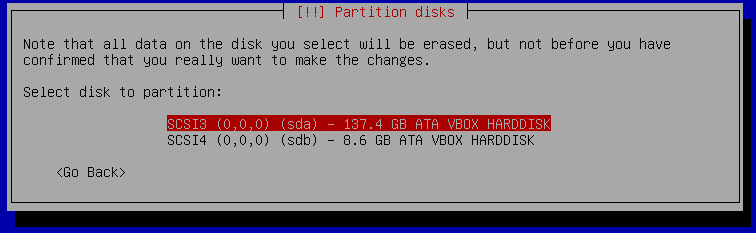
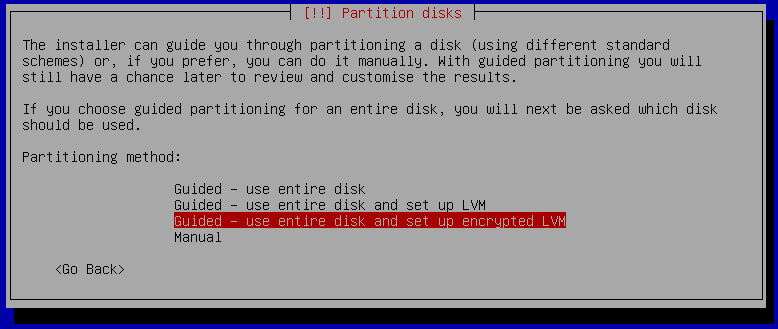 There you need to select the "Guided, use entire disk and set up encrypted LVM"
option. After that select the built-in disk of your laptop, which usually is
sda but double check this before you go ahead, as it will overwrite the
data! The 137 GB disk in this case is the built-in disk and the 8 GB is the USB
stick.
There you need to select the "Guided, use entire disk and set up encrypted LVM"
option. After that select the built-in disk of your laptop, which usually is
sda but double check this before you go ahead, as it will overwrite the
data! The 137 GB disk in this case is the built-in disk and the 8 GB is the USB
stick.
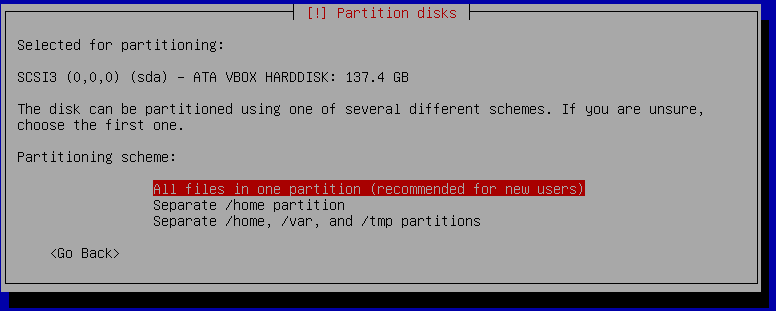
 It makes no difference at this point if you select "All files in one partition"
or "Separate /home partition". The USB boot partition can be selected a later
step.
It makes no difference at this point if you select "All files in one partition"
or "Separate /home partition". The USB boot partition can be selected a later
step.
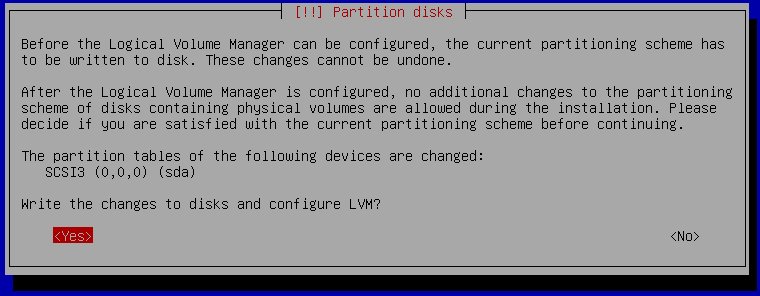
 Confirm that you want to overwrite your built-in disk shown as sda. It will take
a while as it will write random data to the disk to ensure there is no unencrypted
data left on the disk from previous installations for example.
Confirm that you want to overwrite your built-in disk shown as sda. It will take
a while as it will write random data to the disk to ensure there is no unencrypted
data left on the disk from previous installations for example.
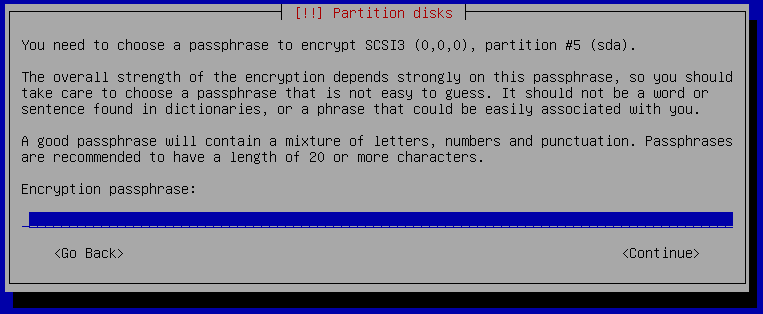
 Now you need to enter your passphrase that will be used to protect the private
key of the crypt volume. Choose something long enough like a sentence and don't
forget the passphrase else you can no longer access your data! Don't save the
passphrase on any computer, smartphone or password manager. If you want to make
a backup of your passphrase then use a ball pen and paper and store the paper
backup in a secure location.
Now you need to enter your passphrase that will be used to protect the private
key of the crypt volume. Choose something long enough like a sentence and don't
forget the passphrase else you can no longer access your data! Don't save the
passphrase on any computer, smartphone or password manager. If you want to make
a backup of your passphrase then use a ball pen and paper and store the paper
backup in a secure location.
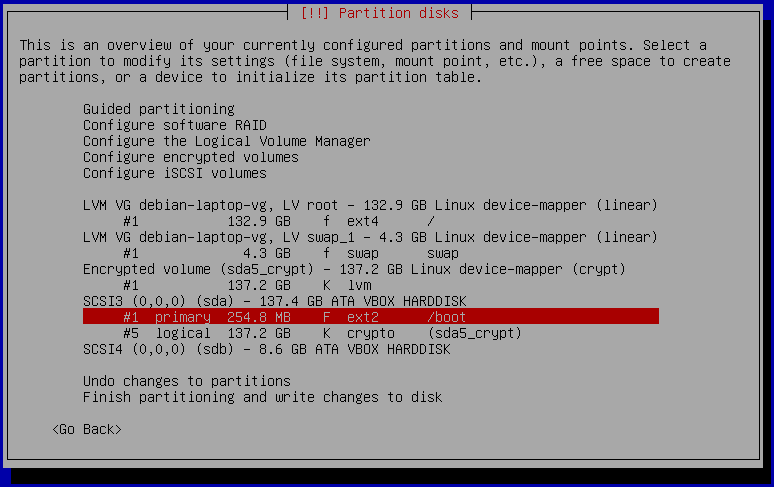
 The installer will show you a summary of the partitioning as shown above but
we need to make the change for the USB boot disk. At the moment it wants to put
/boot on sda which is the built-in disk, while our USB stick is sdb. Select
/boot and hit enter, after that select "Delete this partition".
The installer will show you a summary of the partitioning as shown above but
we need to make the change for the USB boot disk. At the moment it wants to put
/boot on sda which is the built-in disk, while our USB stick is sdb. Select
/boot and hit enter, after that select "Delete this partition".
 After /boot was deleted we can create /boot on the USB stick shown as sdb.
Select sdb and hit enter. It will ask if you want to create an empty partition
table. Confirm that question with yes.
After /boot was deleted we can create /boot on the USB stick shown as sdb.
Select sdb and hit enter. It will ask if you want to create an empty partition
table. Confirm that question with yes.
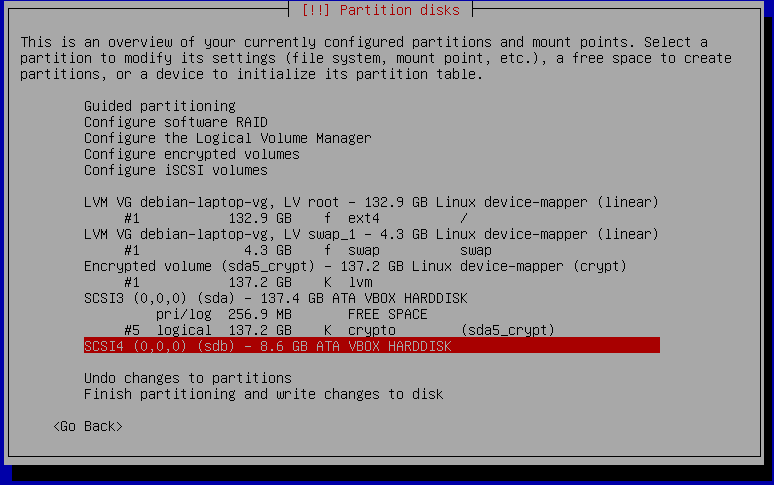 The partition summary shows sdb with no partitions on it. Select FREE SPACE
and select "Create a new partition". Confirm the suggested partition size.
Confirm the partition type to be "Primary".
The partition summary shows sdb with no partitions on it. Select FREE SPACE
and select "Create a new partition". Confirm the suggested partition size.
Confirm the partition type to be "Primary".
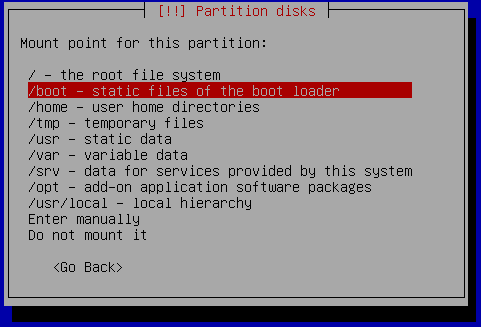
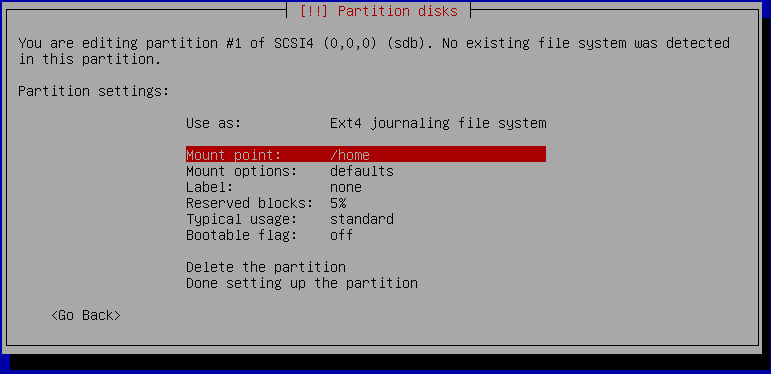 It is time to tell the installer to use this new partition on the USB stick
(sdb1) as /boot partition. Select "Mount point: /home" and in the next dialog
select "/boot - static files of the boot loader" as shown below:
It is time to tell the installer to use this new partition on the USB stick
(sdb1) as /boot partition. Select "Mount point: /home" and in the next dialog
select "/boot - static files of the boot loader" as shown below:
 Confirm the made changes by selecting "Done setting up the partition".
The final partitioning should look now like the following screenshot:
Confirm the made changes by selecting "Done setting up the partition".
The final partitioning should look now like the following screenshot:
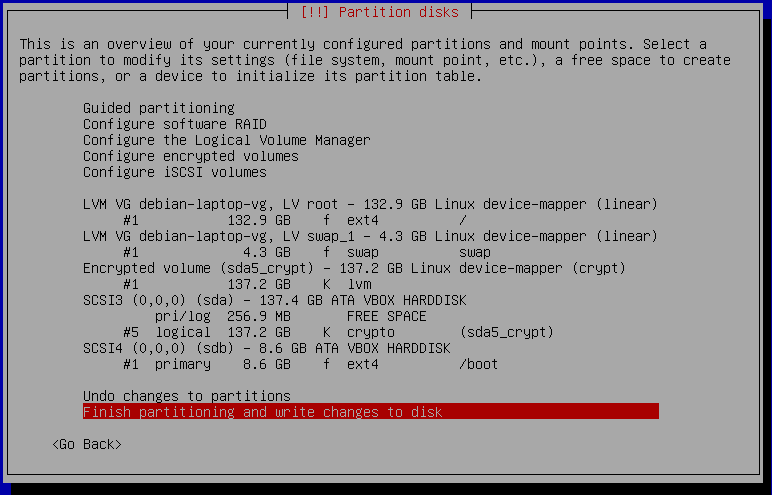 If the partition summary looks good, go ahead with the installation by selecting
"Finish partitioning and write changes to disk".
When the installer asks if it should force EFI, then select no, as EFI is not
going to protect you.
Finish the installation as usual, select your preferred desktop environment etc.
If the partition summary looks good, go ahead with the installation by selecting
"Finish partitioning and write changes to disk".
When the installer asks if it should force EFI, then select no, as EFI is not
going to protect you.
Finish the installation as usual, select your preferred desktop environment etc.
GRUB Boot Loader
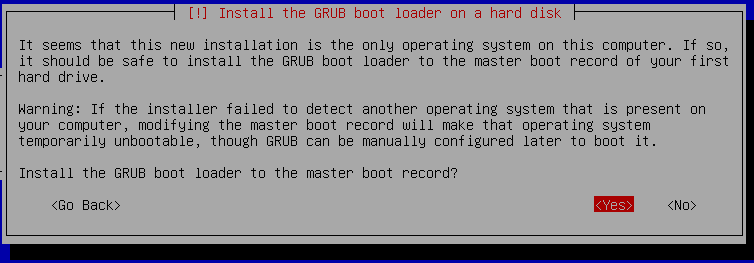 Confirm the dialog that wants to install GRUB to the master boot record. Here it
is important to install it to the USB stick and not your built-in SATA/SSD disk!
So select sdb (the USB stick) in the next dialog.
Confirm the dialog that wants to install GRUB to the master boot record. Here it
is important to install it to the USB stick and not your built-in SATA/SSD disk!
So select sdb (the USB stick) in the next dialog.
First Boot from USB
Once everything is installed, you can boot from your USB stick. As simple test
you can unplug your USB stick and the boot should fail with "no operating
system found" or similar error message from the BIOS. If it doesn't boot even
though the USB stick is connected, then most likely your BIOS is not configured
to boot from USB media. Also a blank screen and nothing happening is usually
meaning the BIOS can't find a boot device. You need to change the boot setting
in your BIOS. As the steps are very different for each BIOS, I can't provide a
detailed step-by-step list here.
Usually you can enter the BIOS using F1, F2 or F12 after powering on your
computer. In the BIOS there is a menu to configure the boot order. In that list
it should show USB disk/storage as the first position. After you have made the
changes save and exit the BIOS. Now it will boot from your USB stick first and
GRUB will show up and proceeds with the boot process till it will ask for your
passphrase to unlock the crypt volume.
Unmount /boot partition after Boot
If you boot your laptop from the USB stick, we want to remove the stick after it
has finished booting. This will prevent an attacker to make modifications to
your USB stick. To avoid data loss, we should not simply unplug the USB stick
but unmount /boot first and then unplug the stick. Good news is that we can
automate this unmounting and you just need to unplug the stick after the laptop
has finished booting to your login screen.
Just add this line to your /etc/rc.local file:
umount /boot
After boot you can once verify that it automatically unmounts /boot for you by
running:
mount grep /boot
If that command produces no output, then /boot is not mounted and you can
safely unplug the USB stick.
Final Words
From time to time you need to upgrade your Linux kernel of course which is on
the /boot partition. This can still be done the regular way using apt-get
upgrade, except that you need to mount /boot before that and unmount it again
after the kernel upgrade.
Enjoy your secured laptop. Now you can leave it in a hotel room without the
possibility of someone trying you obtain your passphrase by putting a key logger
in your boot partition. All the attacker will see is a fully encrypted harddisk.
If he tries to mess with your crypted disk, you will notice as the decryption
will fail.
Disclaimer: there are still other attack vectors possible, but they are much
harder to do. Your hardware or BIOS can still be modified. But not by holding
down the enter key for 70 seconds or by booting a live system.
Download Debian Install ISO
Feel free to use any Debian mirror and install flavor. For this guide I am using
the download mirror in Germany and the DVD install flavor.
wget http://ftp.de.debian.org/debian-cd/current/amd64/iso-dvd/debian-8.6.0-amd64-DVD-1.iso
Verify hashsum of ISO file
To know if the ISO file was downloaded without modification we have to check the
hashsum of the file. The hashsum file can be found in the same directory as the
ISO file on the download mirror. With hashsums if a single bit differs in the
file, the resulting SHA512 sum will be completely different.
Obtain the hashsum file using:
wget http://ftp.de.debian.org/debian-cd/current/amd64/iso-dvd/SHA512SUMS
Calculate a local hashsum from the downloaded ISO file:
sha512sum debian-8.6.0-amd64-DVD-1.iso
Now you need to compare the hashsum with that is in the SHA512SUMS file. Since
the SHA512SUMS file contains the hashsums of all files that are in the same
directory you need to find the right one first. grep can do this for you:
grep debian-8.6.0-amd64-DVD-1.iso SHA512SUMS
Both commands executed after each other should show following output:
$ sha512sum debian-8.6.0-amd64-DVD-1.iso
c3883edfc95e3b09152d46ce29a032eed1de71531549aee86bb98dab1528088a16f0b4d628aee8ac6cc420364e208d3d5e19d0dea3576f53b904c18e8f604d8c debian-8.6.0-amd64-DVD-1.iso
$ grep debian-8.6.0-amd64-DVD-1.iso SHA512SUMS
c3883edfc95e3b09152d46ce29a032eed1de71531549aee86bb98dab1528088a16f0b4d628aee8ac6cc420364e208d3d5e19d0dea3576f53b904c18e8f604d8c debian-8.6.0-amd64-DVD-1.iso
As you can see the hashsum found in the SHA512SUMS file matches with the locally
generated hashsum using the sha512sum command.
At this point we are not finished yet. These 2 matching hashsums just means
whatever was on the download server matches what we have received and stored
locally on your disk. The ISO file and SHA512SUM file could still be a
modified version!
And this is where GPG signatures chime in, covered in the next section.
Download GPG Signature File
GPG signature files usually have the .sign file name extension but could also
be named .asc. Download the signature file using wget:
wget http://ftp.de.debian.org/debian-cd/current/amd64/iso-dvd/SHA512SUMS.sign
Obtain GPG Key of Signer
Letting gpg verify the signature will fail at this point as we don't have the
public key of the signer:
$ gpg --verify SHA512SUMS.sign
gpg: assuming signed data in 'SHA512SUMS'
gpg: Signature made Mon 19 Sep 2016 12:23:47 AM HKT
gpg: using RSA key DA87E80D6294BE9B
gpg: Can't check signature: No public key
Downloading a key is trivial with gpg, but more importantly we need to verify
that this key (DA87E80D6294BE9B) is trustworthy, as it could also be a key of
the infamous man-in-the-middle.
Here you can find the GPG fingerprints of the official
signing keys used by Debian. The ending of the "Key fingerprint" line should
match the key id we found in the signature file from above.
gpg: using RSA key DA87E80D6294BE9B
Key fingerprint = DF9B 9C49 EAA9 2984 3258 9D76 DA87 E80D 6294 BE9B
DA87E80D6294BE9B matches Key fingerprint = DF9B 9C49 EAA9 2984 3258 9D76 DA87 E80D 6294 BE9B
To download and import this key run:
$ gpg --keyserver keyring.debian.org --recv-keys DA87E80D6294BE9B
Verify GPG Signature of Hashsum File
Ok, we are almost there. Now we can run the command which checks if the signature
of the hashsum file we have, was not modified by anyone and matches what Debian
has generated and signed.
gpg: assuming signed data in 'SHA512SUMS'
gpg: Signature made Mon 19 Sep 2016 12:23:47 AM HKT
gpg: using RSA key DA87E80D6294BE9B
gpg: checking the trustdb
gpg: marginals needed: 3 completes needed: 1 trust model: pgp
gpg: depth: 0 valid: 1 signed: 0 trust: 0-, 0q, 0n, 0m, 0f, 1u
gpg: Good signature from "Debian CD signing key <debian-cd@lists.debian.org>" [unknown]
gpg: WARNING: This key is not certified with a trusted signature!
gpg: There is no indication that the signature belongs to the owner.
Primary key fingerprint: DF9B 9C49 EAA9 2984 3258 9D76 DA87 E80D 6294 BE9B
The important line in this output is the "Good signature from ..." one. It
still shows a warning since we never certified (signed) that Debian key. This
can be ignored at this point though.
Write ISO Image to Install Media
With a verified pristine ISO file we can finally start the install by writing it
to an USB stick or blank DVD. So use your favorite tool to write the ISO to your
install media and boot from it. I have used dd and a USB stick attached as
/dev/sdb.
dd if=debian-8.6.0-amd64-DVD-1.iso of=/dev/sdb bs=1M oflag=sync
Install Debian on Crypted Volume with USB boot partition
I am not explaining each step of the Debian install here. The Debian handbook
is a good resource for covering each install step.
Follow the steps until the installers wants to partition your disk.
There you need to select the "Guided, use entire disk and set up encrypted LVM"
option. After that select the built-in disk of your laptop, which usually is
sda but double check this before you go ahead, as it will overwrite the
data! The 137 GB disk in this case is the built-in disk and the 8 GB is the USB
stick.
It makes no difference at this point if you select "All files in one partition"
or "Separate /home partition". The USB boot partition can be selected a later
step.
Confirm that you want to overwrite your built-in disk shown as sda. It will take
a while as it will write random data to the disk to ensure there is no unencrypted
data left on the disk from previous installations for example.
Now you need to enter your passphrase that will be used to protect the private
key of the crypt volume. Choose something long enough like a sentence and don't
forget the passphrase else you can no longer access your data! Don't save the
passphrase on any computer, smartphone or password manager. If you want to make
a backup of your passphrase then use a ball pen and paper and store the paper
backup in a secure location.
The installer will show you a summary of the partitioning as shown above but
we need to make the change for the USB boot disk. At the moment it wants to put
/boot on sda which is the built-in disk, while our USB stick is sdb. Select
/boot and hit enter, after that select "Delete this partition".
After /boot was deleted we can create /boot on the USB stick shown as sdb.
Select sdb and hit enter. It will ask if you want to create an empty partition
table. Confirm that question with yes.
The partition summary shows sdb with no partitions on it. Select FREE SPACE
and select "Create a new partition". Confirm the suggested partition size.
Confirm the partition type to be "Primary".
It is time to tell the installer to use this new partition on the USB stick
(sdb1) as /boot partition. Select "Mount point: /home" and in the next dialog
select "/boot - static files of the boot loader" as shown below:
Confirm the made changes by selecting "Done setting up the partition".
The final partitioning should look now like the following screenshot:
If the partition summary looks good, go ahead with the installation by selecting
"Finish partitioning and write changes to disk".
When the installer asks if it should force EFI, then select no, as EFI is not
going to protect you.
Finish the installation as usual, select your preferred desktop environment etc.
GRUB Boot Loader
Confirm the dialog that wants to install GRUB to the master boot record. Here it
is important to install it to the USB stick and not your built-in SATA/SSD disk!
So select sdb (the USB stick) in the next dialog.
First Boot from USB
Once everything is installed, you can boot from your USB stick. As simple test
you can unplug your USB stick and the boot should fail with "no operating
system found" or similar error message from the BIOS. If it doesn't boot even
though the USB stick is connected, then most likely your BIOS is not configured
to boot from USB media. Also a blank screen and nothing happening is usually
meaning the BIOS can't find a boot device. You need to change the boot setting
in your BIOS. As the steps are very different for each BIOS, I can't provide a
detailed step-by-step list here.
Usually you can enter the BIOS using F1, F2 or F12 after powering on your
computer. In the BIOS there is a menu to configure the boot order. In that list
it should show USB disk/storage as the first position. After you have made the
changes save and exit the BIOS. Now it will boot from your USB stick first and
GRUB will show up and proceeds with the boot process till it will ask for your
passphrase to unlock the crypt volume.
Unmount /boot partition after Boot
If you boot your laptop from the USB stick, we want to remove the stick after it
has finished booting. This will prevent an attacker to make modifications to
your USB stick. To avoid data loss, we should not simply unplug the USB stick
but unmount /boot first and then unplug the stick. Good news is that we can
automate this unmounting and you just need to unplug the stick after the laptop
has finished booting to your login screen.
Just add this line to your /etc/rc.local file:
umount /boot
After boot you can once verify that it automatically unmounts /boot for you by
running:
mount grep /boot
If that command produces no output, then /boot is not mounted and you can
safely unplug the USB stick.
Final Words
From time to time you need to upgrade your Linux kernel of course which is on
the /boot partition. This can still be done the regular way using apt-get
upgrade, except that you need to mount /boot before that and unmount it again
after the kernel upgrade.
Enjoy your secured laptop. Now you can leave it in a hotel room without the
possibility of someone trying you obtain your passphrase by putting a key logger
in your boot partition. All the attacker will see is a fully encrypted harddisk.
If he tries to mess with your crypted disk, you will notice as the decryption
will fail.
Disclaimer: there are still other attack vectors possible, but they are much
harder to do. Your hardware or BIOS can still be modified. But not by holding
down the enter key for 70 seconds or by booting a live system.
wget http://ftp.de.debian.org/debian-cd/current/amd64/iso-dvd/debian-8.6.0-amd64-DVD-1.iso
wget http://ftp.de.debian.org/debian-cd/current/amd64/iso-dvd/SHA512SUMS
sha512sum debian-8.6.0-amd64-DVD-1.iso
grep debian-8.6.0-amd64-DVD-1.iso SHA512SUMS
$ sha512sum debian-8.6.0-amd64-DVD-1.iso
c3883edfc95e3b09152d46ce29a032eed1de71531549aee86bb98dab1528088a16f0b4d628aee8ac6cc420364e208d3d5e19d0dea3576f53b904c18e8f604d8c debian-8.6.0-amd64-DVD-1.iso
$ grep debian-8.6.0-amd64-DVD-1.iso SHA512SUMS
c3883edfc95e3b09152d46ce29a032eed1de71531549aee86bb98dab1528088a16f0b4d628aee8ac6cc420364e208d3d5e19d0dea3576f53b904c18e8f604d8c debian-8.6.0-amd64-DVD-1.iso
Download GPG Signature File
GPG signature files usually have the .sign file name extension but could also
be named .asc. Download the signature file using wget:
wget http://ftp.de.debian.org/debian-cd/current/amd64/iso-dvd/SHA512SUMS.sign
Obtain GPG Key of Signer
Letting gpg verify the signature will fail at this point as we don't have the
public key of the signer:
$ gpg --verify SHA512SUMS.sign
gpg: assuming signed data in 'SHA512SUMS'
gpg: Signature made Mon 19 Sep 2016 12:23:47 AM HKT
gpg: using RSA key DA87E80D6294BE9B
gpg: Can't check signature: No public key
Downloading a key is trivial with gpg, but more importantly we need to verify
that this key (DA87E80D6294BE9B) is trustworthy, as it could also be a key of
the infamous man-in-the-middle.
Here you can find the GPG fingerprints of the official
signing keys used by Debian. The ending of the "Key fingerprint" line should
match the key id we found in the signature file from above.
gpg: using RSA key DA87E80D6294BE9B
Key fingerprint = DF9B 9C49 EAA9 2984 3258 9D76 DA87 E80D 6294 BE9B
DA87E80D6294BE9B matches Key fingerprint = DF9B 9C49 EAA9 2984 3258 9D76 DA87 E80D 6294 BE9B
To download and import this key run:
$ gpg --keyserver keyring.debian.org --recv-keys DA87E80D6294BE9B
Verify GPG Signature of Hashsum File
Ok, we are almost there. Now we can run the command which checks if the signature
of the hashsum file we have, was not modified by anyone and matches what Debian
has generated and signed.
gpg: assuming signed data in 'SHA512SUMS'
gpg: Signature made Mon 19 Sep 2016 12:23:47 AM HKT
gpg: using RSA key DA87E80D6294BE9B
gpg: checking the trustdb
gpg: marginals needed: 3 completes needed: 1 trust model: pgp
gpg: depth: 0 valid: 1 signed: 0 trust: 0-, 0q, 0n, 0m, 0f, 1u
gpg: Good signature from "Debian CD signing key <debian-cd@lists.debian.org>" [unknown]
gpg: WARNING: This key is not certified with a trusted signature!
gpg: There is no indication that the signature belongs to the owner.
Primary key fingerprint: DF9B 9C49 EAA9 2984 3258 9D76 DA87 E80D 6294 BE9B
The important line in this output is the "Good signature from ..." one. It
still shows a warning since we never certified (signed) that Debian key. This
can be ignored at this point though.
Write ISO Image to Install Media
With a verified pristine ISO file we can finally start the install by writing it
to an USB stick or blank DVD. So use your favorite tool to write the ISO to your
install media and boot from it. I have used dd and a USB stick attached as
/dev/sdb.
dd if=debian-8.6.0-amd64-DVD-1.iso of=/dev/sdb bs=1M oflag=sync
Install Debian on Crypted Volume with USB boot partition
I am not explaining each step of the Debian install here. The Debian handbook
is a good resource for covering each install step.
Follow the steps until the installers wants to partition your disk.
There you need to select the "Guided, use entire disk and set up encrypted LVM"
option. After that select the built-in disk of your laptop, which usually is
sda but double check this before you go ahead, as it will overwrite the
data! The 137 GB disk in this case is the built-in disk and the 8 GB is the USB
stick.
It makes no difference at this point if you select "All files in one partition"
or "Separate /home partition". The USB boot partition can be selected a later
step.
Confirm that you want to overwrite your built-in disk shown as sda. It will take
a while as it will write random data to the disk to ensure there is no unencrypted
data left on the disk from previous installations for example.
Now you need to enter your passphrase that will be used to protect the private
key of the crypt volume. Choose something long enough like a sentence and don't
forget the passphrase else you can no longer access your data! Don't save the
passphrase on any computer, smartphone or password manager. If you want to make
a backup of your passphrase then use a ball pen and paper and store the paper
backup in a secure location.
The installer will show you a summary of the partitioning as shown above but
we need to make the change for the USB boot disk. At the moment it wants to put
/boot on sda which is the built-in disk, while our USB stick is sdb. Select
/boot and hit enter, after that select "Delete this partition".
After /boot was deleted we can create /boot on the USB stick shown as sdb.
Select sdb and hit enter. It will ask if you want to create an empty partition
table. Confirm that question with yes.
The partition summary shows sdb with no partitions on it. Select FREE SPACE
and select "Create a new partition". Confirm the suggested partition size.
Confirm the partition type to be "Primary".
It is time to tell the installer to use this new partition on the USB stick
(sdb1) as /boot partition. Select "Mount point: /home" and in the next dialog
select "/boot - static files of the boot loader" as shown below:
Confirm the made changes by selecting "Done setting up the partition".
The final partitioning should look now like the following screenshot:
If the partition summary looks good, go ahead with the installation by selecting
"Finish partitioning and write changes to disk".
When the installer asks if it should force EFI, then select no, as EFI is not
going to protect you.
Finish the installation as usual, select your preferred desktop environment etc.
GRUB Boot Loader
Confirm the dialog that wants to install GRUB to the master boot record. Here it
is important to install it to the USB stick and not your built-in SATA/SSD disk!
So select sdb (the USB stick) in the next dialog.
First Boot from USB
Once everything is installed, you can boot from your USB stick. As simple test
you can unplug your USB stick and the boot should fail with "no operating
system found" or similar error message from the BIOS. If it doesn't boot even
though the USB stick is connected, then most likely your BIOS is not configured
to boot from USB media. Also a blank screen and nothing happening is usually
meaning the BIOS can't find a boot device. You need to change the boot setting
in your BIOS. As the steps are very different for each BIOS, I can't provide a
detailed step-by-step list here.
Usually you can enter the BIOS using F1, F2 or F12 after powering on your
computer. In the BIOS there is a menu to configure the boot order. In that list
it should show USB disk/storage as the first position. After you have made the
changes save and exit the BIOS. Now it will boot from your USB stick first and
GRUB will show up and proceeds with the boot process till it will ask for your
passphrase to unlock the crypt volume.
Unmount /boot partition after Boot
If you boot your laptop from the USB stick, we want to remove the stick after it
has finished booting. This will prevent an attacker to make modifications to
your USB stick. To avoid data loss, we should not simply unplug the USB stick
but unmount /boot first and then unplug the stick. Good news is that we can
automate this unmounting and you just need to unplug the stick after the laptop
has finished booting to your login screen.
Just add this line to your /etc/rc.local file:
umount /boot
After boot you can once verify that it automatically unmounts /boot for you by
running:
mount grep /boot
If that command produces no output, then /boot is not mounted and you can
safely unplug the USB stick.
Final Words
From time to time you need to upgrade your Linux kernel of course which is on
the /boot partition. This can still be done the regular way using apt-get
upgrade, except that you need to mount /boot before that and unmount it again
after the kernel upgrade.
Enjoy your secured laptop. Now you can leave it in a hotel room without the
possibility of someone trying you obtain your passphrase by putting a key logger
in your boot partition. All the attacker will see is a fully encrypted harddisk.
If he tries to mess with your crypted disk, you will notice as the decryption
will fail.
Disclaimer: there are still other attack vectors possible, but they are much
harder to do. Your hardware or BIOS can still be modified. But not by holding
down the enter key for 70 seconds or by booting a live system.
wget http://ftp.de.debian.org/debian-cd/current/amd64/iso-dvd/SHA512SUMS.sign
$ gpg --verify SHA512SUMS.sign
gpg: assuming signed data in 'SHA512SUMS'
gpg: Signature made Mon 19 Sep 2016 12:23:47 AM HKT
gpg: using RSA key DA87E80D6294BE9B
gpg: Can't check signature: No public key
gpg: using RSA key DA87E80D6294BE9B
Key fingerprint = DF9B 9C49 EAA9 2984 3258 9D76 DA87 E80D 6294 BE9B
Verify GPG Signature of Hashsum File
Ok, we are almost there. Now we can run the command which checks if the signature
of the hashsum file we have, was not modified by anyone and matches what Debian
has generated and signed.
gpg: assuming signed data in 'SHA512SUMS'
gpg: Signature made Mon 19 Sep 2016 12:23:47 AM HKT
gpg: using RSA key DA87E80D6294BE9B
gpg: checking the trustdb
gpg: marginals needed: 3 completes needed: 1 trust model: pgp
gpg: depth: 0 valid: 1 signed: 0 trust: 0-, 0q, 0n, 0m, 0f, 1u
gpg: Good signature from "Debian CD signing key <debian-cd@lists.debian.org>" [unknown]
gpg: WARNING: This key is not certified with a trusted signature!
gpg: There is no indication that the signature belongs to the owner.
Primary key fingerprint: DF9B 9C49 EAA9 2984 3258 9D76 DA87 E80D 6294 BE9B
The important line in this output is the "Good signature from ..." one. It
still shows a warning since we never certified (signed) that Debian key. This
can be ignored at this point though.
Write ISO Image to Install Media
With a verified pristine ISO file we can finally start the install by writing it
to an USB stick or blank DVD. So use your favorite tool to write the ISO to your
install media and boot from it. I have used dd and a USB stick attached as
/dev/sdb.
dd if=debian-8.6.0-amd64-DVD-1.iso of=/dev/sdb bs=1M oflag=sync
Install Debian on Crypted Volume with USB boot partition
I am not explaining each step of the Debian install here. The Debian handbook
is a good resource for covering each install step.
Follow the steps until the installers wants to partition your disk.
There you need to select the "Guided, use entire disk and set up encrypted LVM"
option. After that select the built-in disk of your laptop, which usually is
sda but double check this before you go ahead, as it will overwrite the
data! The 137 GB disk in this case is the built-in disk and the 8 GB is the USB
stick.
It makes no difference at this point if you select "All files in one partition"
or "Separate /home partition". The USB boot partition can be selected a later
step.
Confirm that you want to overwrite your built-in disk shown as sda. It will take
a while as it will write random data to the disk to ensure there is no unencrypted
data left on the disk from previous installations for example.
Now you need to enter your passphrase that will be used to protect the private
key of the crypt volume. Choose something long enough like a sentence and don't
forget the passphrase else you can no longer access your data! Don't save the
passphrase on any computer, smartphone or password manager. If you want to make
a backup of your passphrase then use a ball pen and paper and store the paper
backup in a secure location.
The installer will show you a summary of the partitioning as shown above but
we need to make the change for the USB boot disk. At the moment it wants to put
/boot on sda which is the built-in disk, while our USB stick is sdb. Select
/boot and hit enter, after that select "Delete this partition".
After /boot was deleted we can create /boot on the USB stick shown as sdb.
Select sdb and hit enter. It will ask if you want to create an empty partition
table. Confirm that question with yes.
The partition summary shows sdb with no partitions on it. Select FREE SPACE
and select "Create a new partition". Confirm the suggested partition size.
Confirm the partition type to be "Primary".
It is time to tell the installer to use this new partition on the USB stick
(sdb1) as /boot partition. Select "Mount point: /home" and in the next dialog
select "/boot - static files of the boot loader" as shown below:
Confirm the made changes by selecting "Done setting up the partition".
The final partitioning should look now like the following screenshot:
If the partition summary looks good, go ahead with the installation by selecting
"Finish partitioning and write changes to disk".
When the installer asks if it should force EFI, then select no, as EFI is not
going to protect you.
Finish the installation as usual, select your preferred desktop environment etc.
GRUB Boot Loader
Confirm the dialog that wants to install GRUB to the master boot record. Here it
is important to install it to the USB stick and not your built-in SATA/SSD disk!
So select sdb (the USB stick) in the next dialog.
First Boot from USB
Once everything is installed, you can boot from your USB stick. As simple test
you can unplug your USB stick and the boot should fail with "no operating
system found" or similar error message from the BIOS. If it doesn't boot even
though the USB stick is connected, then most likely your BIOS is not configured
to boot from USB media. Also a blank screen and nothing happening is usually
meaning the BIOS can't find a boot device. You need to change the boot setting
in your BIOS. As the steps are very different for each BIOS, I can't provide a
detailed step-by-step list here.
Usually you can enter the BIOS using F1, F2 or F12 after powering on your
computer. In the BIOS there is a menu to configure the boot order. In that list
it should show USB disk/storage as the first position. After you have made the
changes save and exit the BIOS. Now it will boot from your USB stick first and
GRUB will show up and proceeds with the boot process till it will ask for your
passphrase to unlock the crypt volume.
Unmount /boot partition after Boot
If you boot your laptop from the USB stick, we want to remove the stick after it
has finished booting. This will prevent an attacker to make modifications to
your USB stick. To avoid data loss, we should not simply unplug the USB stick
but unmount /boot first and then unplug the stick. Good news is that we can
automate this unmounting and you just need to unplug the stick after the laptop
has finished booting to your login screen.
Just add this line to your /etc/rc.local file:
umount /boot
After boot you can once verify that it automatically unmounts /boot for you by
running:
mount grep /boot
If that command produces no output, then /boot is not mounted and you can
safely unplug the USB stick.
Final Words
From time to time you need to upgrade your Linux kernel of course which is on
the /boot partition. This can still be done the regular way using apt-get
upgrade, except that you need to mount /boot before that and unmount it again
after the kernel upgrade.
Enjoy your secured laptop. Now you can leave it in a hotel room without the
possibility of someone trying you obtain your passphrase by putting a key logger
in your boot partition. All the attacker will see is a fully encrypted harddisk.
If he tries to mess with your crypted disk, you will notice as the decryption
will fail.
Disclaimer: there are still other attack vectors possible, but they are much
harder to do. Your hardware or BIOS can still be modified. But not by holding
down the enter key for 70 seconds or by booting a live system.
gpg: assuming signed data in 'SHA512SUMS'
gpg: Signature made Mon 19 Sep 2016 12:23:47 AM HKT
gpg: using RSA key DA87E80D6294BE9B
gpg: checking the trustdb
gpg: marginals needed: 3 completes needed: 1 trust model: pgp
gpg: depth: 0 valid: 1 signed: 0 trust: 0-, 0q, 0n, 0m, 0f, 1u
gpg: Good signature from "Debian CD signing key <debian-cd@lists.debian.org>" [unknown]
gpg: WARNING: This key is not certified with a trusted signature!
gpg: There is no indication that the signature belongs to the owner.
Primary key fingerprint: DF9B 9C49 EAA9 2984 3258 9D76 DA87 E80D 6294 BE9B
dd if=debian-8.6.0-amd64-DVD-1.iso of=/dev/sdb bs=1M oflag=sync
Install Debian on Crypted Volume with USB boot partition
I am not explaining each step of the Debian install here. The Debian handbook
is a good resource for covering each install step.
Follow the steps until the installers wants to partition your disk.
There you need to select the "Guided, use entire disk and set up encrypted LVM"
option. After that select the built-in disk of your laptop, which usually is
sda but double check this before you go ahead, as it will overwrite the
data! The 137 GB disk in this case is the built-in disk and the 8 GB is the USB
stick.
It makes no difference at this point if you select "All files in one partition"
or "Separate /home partition". The USB boot partition can be selected a later
step.
Confirm that you want to overwrite your built-in disk shown as sda. It will take
a while as it will write random data to the disk to ensure there is no unencrypted
data left on the disk from previous installations for example.
Now you need to enter your passphrase that will be used to protect the private
key of the crypt volume. Choose something long enough like a sentence and don't
forget the passphrase else you can no longer access your data! Don't save the
passphrase on any computer, smartphone or password manager. If you want to make
a backup of your passphrase then use a ball pen and paper and store the paper
backup in a secure location.
The installer will show you a summary of the partitioning as shown above but
we need to make the change for the USB boot disk. At the moment it wants to put
/boot on sda which is the built-in disk, while our USB stick is sdb. Select
/boot and hit enter, after that select "Delete this partition".
After /boot was deleted we can create /boot on the USB stick shown as sdb.
Select sdb and hit enter. It will ask if you want to create an empty partition
table. Confirm that question with yes.
The partition summary shows sdb with no partitions on it. Select FREE SPACE
and select "Create a new partition". Confirm the suggested partition size.
Confirm the partition type to be "Primary".
It is time to tell the installer to use this new partition on the USB stick
(sdb1) as /boot partition. Select "Mount point: /home" and in the next dialog
select "/boot - static files of the boot loader" as shown below:
Confirm the made changes by selecting "Done setting up the partition".
The final partitioning should look now like the following screenshot:
If the partition summary looks good, go ahead with the installation by selecting
"Finish partitioning and write changes to disk".
When the installer asks if it should force EFI, then select no, as EFI is not
going to protect you.
Finish the installation as usual, select your preferred desktop environment etc.
GRUB Boot Loader
Confirm the dialog that wants to install GRUB to the master boot record. Here it
is important to install it to the USB stick and not your built-in SATA/SSD disk!
So select sdb (the USB stick) in the next dialog.
First Boot from USB
Once everything is installed, you can boot from your USB stick. As simple test
you can unplug your USB stick and the boot should fail with "no operating
system found" or similar error message from the BIOS. If it doesn't boot even
though the USB stick is connected, then most likely your BIOS is not configured
to boot from USB media. Also a blank screen and nothing happening is usually
meaning the BIOS can't find a boot device. You need to change the boot setting
in your BIOS. As the steps are very different for each BIOS, I can't provide a
detailed step-by-step list here.
Usually you can enter the BIOS using F1, F2 or F12 after powering on your
computer. In the BIOS there is a menu to configure the boot order. In that list
it should show USB disk/storage as the first position. After you have made the
changes save and exit the BIOS. Now it will boot from your USB stick first and
GRUB will show up and proceeds with the boot process till it will ask for your
passphrase to unlock the crypt volume.
Unmount /boot partition after Boot
If you boot your laptop from the USB stick, we want to remove the stick after it
has finished booting. This will prevent an attacker to make modifications to
your USB stick. To avoid data loss, we should not simply unplug the USB stick
but unmount /boot first and then unplug the stick. Good news is that we can
automate this unmounting and you just need to unplug the stick after the laptop
has finished booting to your login screen.
Just add this line to your /etc/rc.local file:
umount /boot
After boot you can once verify that it automatically unmounts /boot for you by
running:
mount grep /boot
If that command produces no output, then /boot is not mounted and you can
safely unplug the USB stick.
Final Words
From time to time you need to upgrade your Linux kernel of course which is on
the /boot partition. This can still be done the regular way using apt-get
upgrade, except that you need to mount /boot before that and unmount it again
after the kernel upgrade.
Enjoy your secured laptop. Now you can leave it in a hotel room without the
possibility of someone trying you obtain your passphrase by putting a key logger
in your boot partition. All the attacker will see is a fully encrypted harddisk.
If he tries to mess with your crypted disk, you will notice as the decryption
will fail.
Disclaimer: there are still other attack vectors possible, but they are much
harder to do. Your hardware or BIOS can still be modified. But not by holding
down the enter key for 70 seconds or by booting a live system.
Confirm the dialog that wants to install GRUB to the master boot record. Here it
is important to install it to the USB stick and not your built-in SATA/SSD disk!
So select sdb (the USB stick) in the next dialog.
First Boot from USB
Once everything is installed, you can boot from your USB stick. As simple test
you can unplug your USB stick and the boot should fail with "no operating
system found" or similar error message from the BIOS. If it doesn't boot even
though the USB stick is connected, then most likely your BIOS is not configured
to boot from USB media. Also a blank screen and nothing happening is usually
meaning the BIOS can't find a boot device. You need to change the boot setting
in your BIOS. As the steps are very different for each BIOS, I can't provide a
detailed step-by-step list here.
Usually you can enter the BIOS using F1, F2 or F12 after powering on your
computer. In the BIOS there is a menu to configure the boot order. In that list
it should show USB disk/storage as the first position. After you have made the
changes save and exit the BIOS. Now it will boot from your USB stick first and
GRUB will show up and proceeds with the boot process till it will ask for your
passphrase to unlock the crypt volume.
Unmount /boot partition after Boot
If you boot your laptop from the USB stick, we want to remove the stick after it
has finished booting. This will prevent an attacker to make modifications to
your USB stick. To avoid data loss, we should not simply unplug the USB stick
but unmount /boot first and then unplug the stick. Good news is that we can
automate this unmounting and you just need to unplug the stick after the laptop
has finished booting to your login screen.
Just add this line to your /etc/rc.local file:
umount /boot
After boot you can once verify that it automatically unmounts /boot for you by
running:
mount grep /boot
If that command produces no output, then /boot is not mounted and you can
safely unplug the USB stick.
Final Words
From time to time you need to upgrade your Linux kernel of course which is on
the /boot partition. This can still be done the regular way using apt-get
upgrade, except that you need to mount /boot before that and unmount it again
after the kernel upgrade.
Enjoy your secured laptop. Now you can leave it in a hotel room without the
possibility of someone trying you obtain your passphrase by putting a key logger
in your boot partition. All the attacker will see is a fully encrypted harddisk.
If he tries to mess with your crypted disk, you will notice as the decryption
will fail.
Disclaimer: there are still other attack vectors possible, but they are much
harder to do. Your hardware or BIOS can still be modified. But not by holding
down the enter key for 70 seconds or by booting a live system.
umount /boot
mount grep /boot
 As we are moving closer to the Debian release freeze, I am shipping out a new set of packages. Nothing spectacular here, just the regular updates and a security fix that was only reported internally. Add sugar and a few minor bug fixes.
 I have been silent for quite some time, busy at my new job, busy with my little monster, writing papers, caring for visitors, living. I have quite a lot of things I want to write, but not enough time, so very short only this one.
Enjoy.
New packages
I have been silent for quite some time, busy at my new job, busy with my little monster, writing papers, caring for visitors, living. I have quite a lot of things I want to write, but not enough time, so very short only this one.
Enjoy.
New packages
 Releasing ISV applications on Linux is often hard. The ABI of all the libraries you need changes seemingly weekly. Hence you have the option of bundling the world, or building a thousand releases to cover a thousand distribution versions. As a case in point, when MonoDevelop started bundling a C Git library instead of using a C# git implementation, it gained dependencies on all sorts of fairly weak ABI libraries whose exact ABI mix was not consistent across any given pair of distro releases. This broke our policy of releasing works on anything .deb and .rpm packages. As a result, I pretty much gave up on packaging MonoDevelop upstream with version 5.10.
Around the 6.1 release window, I decided to take re-evaluate question. I took a closer look at some of the fancy-pants new distribution methods that get a lot of coverage in the Linux press: Snap, AppImage, and Flatpak.
I started with AppImage. It s very good and appealing for its specialist areas (no external requirements for end users), but it s kinda useless at solving some of our big areas (the ABI-vs-bundling problem, updating in general).
Next, I looked at Flatpak (once xdg-app). I liked the concept a whole lot. There s a simple 3-tier dependency hierarchy: Applications, Runtimes, and Extensions. An application depends on exactly one runtime. Runtimes are root-level images with no dependencies of their own. Extensions are optional add-ons for applications. Anything not provided in your target runtime, you bundle. And an integrated updates mechanism allows for multiple branches and multiple releases parallel-installed (e.g. alpha & stable, easily switched).
There s also security-related sandboxing features, but my main concerns on a first examination were with the dependency and distribution questions. That said, some users might be happier running Microsoft software on their Linux desktop if that software is locked up inside a sandbox, so I ve decided to embrace that functionality rather than seek to avoid it.
I basically stopped looking at this point (sorry Snap!). Flatpak provided me with all the functionality I wanted, with an extremely helpful and responsive upstream. I got to work on trying to package up MonoDevelop.
Flatpak (optionally!) uses a
Releasing ISV applications on Linux is often hard. The ABI of all the libraries you need changes seemingly weekly. Hence you have the option of bundling the world, or building a thousand releases to cover a thousand distribution versions. As a case in point, when MonoDevelop started bundling a C Git library instead of using a C# git implementation, it gained dependencies on all sorts of fairly weak ABI libraries whose exact ABI mix was not consistent across any given pair of distro releases. This broke our policy of releasing works on anything .deb and .rpm packages. As a result, I pretty much gave up on packaging MonoDevelop upstream with version 5.10.
Around the 6.1 release window, I decided to take re-evaluate question. I took a closer look at some of the fancy-pants new distribution methods that get a lot of coverage in the Linux press: Snap, AppImage, and Flatpak.
I started with AppImage. It s very good and appealing for its specialist areas (no external requirements for end users), but it s kinda useless at solving some of our big areas (the ABI-vs-bundling problem, updating in general).
Next, I looked at Flatpak (once xdg-app). I liked the concept a whole lot. There s a simple 3-tier dependency hierarchy: Applications, Runtimes, and Extensions. An application depends on exactly one runtime. Runtimes are root-level images with no dependencies of their own. Extensions are optional add-ons for applications. Anything not provided in your target runtime, you bundle. And an integrated updates mechanism allows for multiple branches and multiple releases parallel-installed (e.g. alpha & stable, easily switched).
There s also security-related sandboxing features, but my main concerns on a first examination were with the dependency and distribution questions. That said, some users might be happier running Microsoft software on their Linux desktop if that software is locked up inside a sandbox, so I ve decided to embrace that functionality rather than seek to avoid it.
I basically stopped looking at this point (sorry Snap!). Flatpak provided me with all the functionality I wanted, with an extremely helpful and responsive upstream. I got to work on trying to package up MonoDevelop.
Flatpak (optionally!) uses a 

 I attended this year's Linux Kernel Summit in Santa Fe, NM, USA and
made notes on some of the sessions that were relevant to Debian.
I attended this year's Linux Kernel Summit in Santa Fe, NM, USA and
made notes on some of the sessions that were relevant to Debian.
 This post shows how to patch an external dependency for an
Android project at build-time with
This post shows how to patch an external dependency for an
Android project at build-time with 
 You might wonder why there is so high number of

 I run a couple of different sites that allow users to sign-up and use various
services. In each of these sites I have some minimal rules in place to detect bad signups, but these are a little ad hoc, because the nature of "badness" varies on a per-site basis.
I've worked in a couple of places where there are in-house tests of bad signups, and these usually boil down to some naive, and overly-broad, rules:
I run a couple of different sites that allow users to sign-up and use various
services. In each of these sites I have some minimal rules in place to detect bad signups, but these are a little ad hoc, because the nature of "badness" varies on a per-site basis.
I've worked in a couple of places where there are in-house tests of bad signups, and these usually boil down to some naive, and overly-broad, rules:



 This is an extension of part
  Moving on, Let me share an experience I shared one of the last few days I had while I was in Cape Town

 What happened was this. This is from the Doha Airport. I had seen big buggies (ones similar to golf carts) which was ferrying people from end of the concourse to the other. I had been walking the whole day and even with the horizontal escalators and everything, it takes a toll. I was half-tired, half-sleepy and saw a buggy stationed. From behind it looked like the buggies I had seen. As there was no place to park my behind there, I entered into the buggy and sat there. Around 15-20 minutes later a Doha cop in another buggy came to me and asked me if something had happened ?
I had no clue what he was talking about. He told/shared/asked me in friendly tone whether I had committed a crime or wanted to report a crime. When I replied in negative to both, he asked then why I was sitting there. I replied it was for stretching my legs and it was the buggy which was being used to transport people from A. to B. He gently told me I had entered into the wrong one and it was actually a cop buggy. I couldn t believe it. He did go his own way as he saw I was dead-tired. After 10-15 minutes, half-believingly I came out of the buggy and to my shock the gentleman was right. There was nothing to do but solder on to find a spot in this big airport. I shared this with few friends and family and managed to elicit few laughs hence sharing.
The somewhat sad one was I had met a couple with a baby. Now as shared before, Most Airports including the Doha Airport is Air-Conditioned/Climate-Controlled and is probably in mid-20 s so it was more than cold for me. The couples with the baby were from Asian sub-continent. From their clothes and the way they were, they were not very well off. I do remember them sharing that they had a death in the family and hence were going. I didn t know at that point in time that there was something called
What happened was this. This is from the Doha Airport. I had seen big buggies (ones similar to golf carts) which was ferrying people from end of the concourse to the other. I had been walking the whole day and even with the horizontal escalators and everything, it takes a toll. I was half-tired, half-sleepy and saw a buggy stationed. From behind it looked like the buggies I had seen. As there was no place to park my behind there, I entered into the buggy and sat there. Around 15-20 minutes later a Doha cop in another buggy came to me and asked me if something had happened ?
I had no clue what he was talking about. He told/shared/asked me in friendly tone whether I had committed a crime or wanted to report a crime. When I replied in negative to both, he asked then why I was sitting there. I replied it was for stretching my legs and it was the buggy which was being used to transport people from A. to B. He gently told me I had entered into the wrong one and it was actually a cop buggy. I couldn t believe it. He did go his own way as he saw I was dead-tired. After 10-15 minutes, half-believingly I came out of the buggy and to my shock the gentleman was right. There was nothing to do but solder on to find a spot in this big airport. I shared this with few friends and family and managed to elicit few laughs hence sharing.
The somewhat sad one was I had met a couple with a baby. Now as shared before, Most Airports including the Doha Airport is Air-Conditioned/Climate-Controlled and is probably in mid-20 s so it was more than cold for me. The couples with the baby were from Asian sub-continent. From their clothes and the way they were, they were not very well off. I do remember them sharing that they had a death in the family and hence were going. I didn t know at that point in time that there was something called 




 One of the most powerful (and most scary) features of TPM-based measured boot is the ability for remote systems to request that clients attest to their boot state, allowing the remote system to determine whether the client has booted in the correct state. This involves each component in the boot process writing a hash of the next component into the TPM and logging it. When attestation is requested, the remote site gives the client a nonce and asks for an attestation, the client OS passes the nonce to the TPM and asks it to provide a signed copy of the hashes and the nonce and sends them (and the log) to the remote site. The remoteW site then replays the log to ensure it matches the signed hash values, and can examine the log to determine whether the system is trustworthy (whatever trustworthy means in this context).