Jacob Adams: Command Line 101
How to Work in a Text-Only Environment.
What is this thing?
When you first open a command-line (note that I use the terms command-line
and shell interchangably here, they re basically the same, but command-line
is the more general term, and shell is the name for the program that executes
commands for you)
you ll see something like this:
What is this thing?
When you first open a command-line (note that I use the terms command-line
and shell interchangably here, they re basically the same, but command-line
is the more general term, and shell is the name for the program that executes
commands for you)
you ll see something like this:
 This line is called a command prompt and it tells you four pieces of information:
jaadams: The username of the user that is currently running this shell.bg7: The name of the computer that this shell is running on, important
for when you start accessing shells on remote machines./tmp/thisfolder: The folder or directory that your shell is currently
running in. Like a file explorer (like Window s Explorer or Mac s Finder) a
shell always has a working directory, from which all relative paths (see
sidenote below) are resolved.
When you first opened a shell, however, you might notice that is looks more
like this:
 This is a shorthand notation that the shell uses to make this output shorter
when possible.
This is a shorthand notation that the shell uses to make this output shorter
when possible. ~ stands for your home directory, usually /home/<username>.
Like C:\Users\<username>\ on Windows or /Users/<username> on Mac,
this directory is where all your files should go by default.
Thus a command prompt like this:
 actually tells you that you are currently in the
 /home/jaadams/Downloads
directory.
Sidenote: The Unix Filesystem and Relative Paths
folders on Linux and other Unix-derived systems like MacOS are usually
called directories.
These directories are represented by paths, strings that indicate where the
directory is on the filesystem.
The one unusual part is the so-called root directory .
All files are stored in this folder or directories under it.
Its path is just / and there are no directories above it.
For example, the directory called home typically contains all user directories.
This is stored in the root directory, and each users specific data
is stored in a directory named after that user under home.
Thus, the home directory of the user jacob is typically /home/jacob,
the directory jacob under the
home directory stored in the root directory /.
If you re interested in more details about what goes in what directory,
man hier has the basics and the
Filesystem Hierarchy Standard
governs the layout of the filesystem on most Linux distributions.
You don t always have to use the full path, however.
If the path does not begin with a /, it is assumed that the path actually
begins with the path of the current directory.
So if you use a path like my/folders/here, and you re in the /home/jacob
directory, the path will be treated like /home/jacob/my/folders/here.
Each folder also contains the symbolic links .. and ..
Symbolic links are a very powerful kind of
file that is actually a reference to another file.
.. always represents the parent directory
of the current directory, so /home/jacob/.. links to /home/.
. always links to the current directory, so /home/jacob/. links to
/home/jacob.
Running commands
To run a command from the command prompt, you type its name and then
usually some arguments to tell it what to do.
For example, the echo command displays the text passed as arguments.
jacob@lovelace/home/jacob$ echo hello world
hello world
Arguments to commands are space-separated, so in the previous example hello
is the first argument and world is the second. If you need an argument to
contain spaces, you ll want to put quotes around it, echo "like so".
Certain arguments are called flags , or options (options if they take another
argument, flags otherwise) usually prefixed with a hyphen,
and they change the way a program operates.
For example, the ls command outputs the contents of a directory passed as
an argument, but if you add -l before the directory, it will give you more
details on the files in that directory.
jacob@lovelace/tmp/test$ ls /tmp/test
1  2  3  4  5  6
jacob@lovelace/tmp/test$ ls -l /tmp/test
total 0
-rw-r--r-- 1 jacob jacob 0 Aug 26 22:06 1
-rw-r--r-- 1 jacob jacob 0 Aug 26 22:06 2
-rw-r--r-- 1 jacob jacob 0 Aug 26 22:06 3
-rw-r--r-- 1 jacob jacob 0 Aug 26 22:06 4
-rw-r--r-- 1 jacob jacob 0 Aug 26 22:06 5
-rw-r--r-- 1 jacob jacob 0 Aug 26 22:06 6
jacob@lovelace/tmp/test$
Most commands take different flags to change their behavior in various ways.
File Management
cd <path>: Change the current directory of the running shell to <path>.ls <path>: Output the contents of <path>. If no path is passed, it prints
the contents of the current directory.touch <filename>: create an new empty file called <filename>.
Used on an existing file, it updates the file s last accessed and modified times.
Most text editors can also create a new file for you, which is probably more useful.mkdir <directory>: Create a new folder/directory at path <directory>.mv <src> <dest>: Move a file or directory at path <src> to <dest>.cp <src> <dest>: Copy a file or directory at path <src> to <dest>.rm <file>: Remove a file at path <file>.zip -r <zipfile> <contents...>: Create a zip file <zipfile> with contents
<contents>. <contents> can be multiple arguments, and you ll usually want
to use the -r argument when including directories in your zipfile, as otherwise
only the directory will be included and not the files and directories within it.
Searching
grep <thing> <file>: Look for the string <thing> in <file>.
If no <file> is passed it searches standard input.find <path> -name <name>: Find a file or directory called <name> somwhere
under <path>. This command is actually very powerful, but also very complex.
For example you can delete all files in a directory older than 30 days with:
find -mtime +30 -exec rm \;
locate <name>: A much easier to use command to find a file with a given
name, but it is not usually installed by default.
Outputting Files
cat <files...>: Output (concatenate) all the files passed as arguments.head <file>: Output the beginning of <file>tail <file>: Output the end of <file>
How to Find the Right Command
All commands (at least on sane Linux distributions like Debian or Ubuntu)
are documented with a manual page, in man section 1 (for more information on
manual sections, run man intro).
This can be accessed using man <command>
You can search for the right command using the -k flag, as in man -k <search>.
You can also view manual pages in your browser, on sites like https://manpages.debian.org
or https://linux.die.net/man.
This is not always helpful, however, because some command s descriptions are
not particularly useful, and also there are a lot of manual pages, which can
make searching for a specific one difficult. For example, finding the right
command to search inside text files is quite difficult via man (it s grep).
When you can t find what you need with man I recommend falling back to
searching the Internet. There are lots of bad Linux tutorials out there, but
here are some reputable sources I recommend:
- https://www.cyberciti.biz: nixCraft has excellent tutorials on all things Linux
- Hosting providers like Digital Ocean or Linode: Good intro documentation, but
can sometimes be outdated
- https://tldp.org: The Linux Documentation project is great, but it can also be a little
outdated sometimes.
- https://stackoverflow.com: Oftentimes has great answers, but quality varies wildly
since anyone can answer.
These are certainly not the only options but they re the sources I would
recommend when available.
How to Read a Manual Page
Manual pages consist of a series of sections, each with a specific purpose.
Instead of attempting to write my own description here, I m going to borrow
the excellent one from The Linux Documentation Project
The NAME section
is the only required section. Man pages without a name section are as useful as refrigerators at the north pole. This section also has a standardized format consisting of a comma-separated list of program or function names, followed by a dash, followed by a short (usually one line) description of the functionality the program (or function, or file) is supposed to provide. By means of makewhatis(8), the name sections make it into the whatis database files. Makewhatis is the reason the name section must exist, and why it must adhere to the format I described.
(Formatting explanation cut for brevity)
The SYNOPSIS section
is intended to give a short overview on available program options. For functions this sections lists corresponding include files and the prototype so the programmer knows the type and number of arguments as well as the return type.
The DESCRIPTION section
eloquently explains why your sequence of 0s and 1s is worth anything at all. Here s where you write down all your knowledge. This is the Hall Of Fame. Win other programmers and users admiration by making this section the source of reliable and detailed information. Explain what the arguments are for, the file format, what algorithms do the dirty jobs.
The OPTIONS section
gives a description of how each option affects program behaviour. You knew that, didn t you?
The FILES section
lists files the program or function uses. For example, it lists configuration files, startup files, and files the program directly operates on.
(Cut details about installing files)
The ENVIRONMENT section
lists all environment variables that affect your program or function and tells how, of course. Most commonly the variables will hold pathnames, filenames or default options.
The DIAGNOSTICS section
should give an overview of the most common error messages from your program and how to cope with them. There s no need to explain system error error messages (from perror(3)) or fatal signals (from psignal(3)) as they can appear during execution of any program.
The BUGS section
should ideally be non-existent. If you re brave, you can describe here the limitations, known inconveniences and features that others may regard as misfeatures. If you re not so brave, rename it the TO DO section ;-)
The AUTHOR section
is nice to have in case there are gross errors in the documentation or program behaviour (Bzzt!) and you want to mail a bug report.
The SEE ALSO section
is a list of related man pages in alphabetical order. Conventionally, it is the last section.
Remote Access
One of the more powerful uses of the shell is through ssh, the secure shell.
This allows you to remotely connect to another computer and run a shell on that
machine:
user@host:~$ ssh other@example.com
other@example:~$
The prompt changes to reflect the change in user and host,
as you can see in the example above.
This allows you to work in a shell on that machine as if it was right in front
of you.
Moving Files Between Machines
There are several ways you can move files between machines over ssh.
The first and easiest is scp, which works much like the cp command
except that paths can also take a user@host argument to move files across
computers. For example, if you wanted to move a file test.txt to your
home directory on another machine, the command would look like:
scp test.txt other@example.com:
(The home directory is the default path)
Otherwise you can move files by reversing the order of the arguments
and put a path after the colon to move files from another directory on the
remote host. For example, if you wanted to fetch the file /etc/issue.net
from example.com:
scp other@example.com:/etc/issue.net .
Another option is the sftp command, which gives you a very simple shell-like
interface in which you can cd and ls, before either puting files onto
the local machine or geting files off of it.
The final and most powerful option is rsync which syncs the contents of one
directory to another, and doesn t copy files that haven t changed. It s powerful
and complex, however, so I recommend reading the USAGE section of its man page.
Long-Running Commands
The one problem with ssh is that it will stop any command running in your
shell when you disconnect. If you want to leave something on and come back
later then this can be a problem.
This is where terminal multiplexers come in. tmux and screen both allow
you to run a shell in a safe environment where it will continue even if you
disconnect from it. You do this by running the command without any arguments,
i.e. just tmux or just screen.
In tmux you can disconnect from the current session by
pressing Ctrl+b then d, and reattach with the tmux attach command.
screen works similarly, but with Ctrl+a instead of b and screen -r to
reattach.
Command Inputs and Outputs
Arguments are not the only way to pass input to a command. They can also take
input from what s called standard input , which the shell usually connects to
your keyboard.
Output can go to two places, standard output and standard error, both of which
are directed to the screen by default.
Redirecting I/O
Note that I said above that standard input/output/error are only usually
connected to the keyboard and the terminal? This is because you can redirect
them to other places with the shell operators <, > and the very powerful .
File redirects
The operators < and > redirect the input and output of a command to a file.
For example, if you wanted a file called list.txt that contained a list of
all the files in a directory /this/one/here you could use:
ls /this/one/here > list.txt
Pipelines
The pipe character, , allows you to direct the output of one command into
the input of another. This can be very powerful.
For example, the following pipeline lists the contents of the current directory
searches for the string test , then counts the number of results.
(wc -l counts the number of lines in its input)
ls grep test wc -l
For a better, but even more contrived example, say you have a file myfile,
with a bunch of lines of potentially duplicated and unsorted data
test
test
1234
4567
1234
You can sort it and output only the unique lines with sort and uniq:
$ uniq < myfile   sort
1234
1234
4567
test
Save Yourself Some Typing: Globs and Tab-Completion
Sometimes you don t want to type out the whole filename when writing out a
command. The shell can help you here by autocompleting when you press the tab
key.
If you have a whole bunch of files with the same suffix, you can refer to them
when writing arguments as *.suffix. This also works with prefixes, prefix*,
and in fact you can put a * anywhere, *middle*. The shell will expand that
* into all the files in that directory that match your criteria
(ending with a specific suffix, starting with a specific prefix, and so on)
and pass each file as a separate argument to the command.
For example, if I have a series of files called 1.txt, 2.txt, and so on
up to 9, each containing just the number for which it s named, I could use
cat to output all of them like so:
jacob@lovelace/tmp/numbers$ ls
1.txt  2.txt  3.txt  4.txt  5.txt  6.txt  7.txt  8.txt	9.txt
jacob@lovelace/tmp/numbers$ cat *.txt
1
2
3
4
5
6
7
8
9
Also the ~ shorthand mentioned above that refers to your home directory
can be used when passing a path as an argument to a command.
Ifs and For loops
The files in the above example were generated with the following shell
commands:
for i in 1 2 3 4 5 6 7 8 9
do
echo $i > $i.txt
done
But I ll have to save variables, conditionals and loops for another day because
this is already too long. Needless to say the shell is a full programming
language, although a very ugly and dangerous one.
jaadams: The username of the user that is currently running this shell.bg7: The name of the computer that this shell is running on, important
for when you start accessing shells on remote machines./tmp/thisfolder: The folder or directory that your shell is currently
running in. Like a file explorer (like Window s Explorer or Mac s Finder) a
shell always has a working directory, from which all relative paths (see
sidenote below) are resolved./ and there are no directories above it.
For example, the directory called home typically contains all user directories.
This is stored in the root directory, and each users specific data
is stored in a directory named after that user under home.
Thus, the home directory of the user jacob is typically /home/jacob,
the directory jacob under the
home directory stored in the root directory /.
If you re interested in more details about what goes in what directory,
man hier has the basics and the
Filesystem Hierarchy Standard
governs the layout of the filesystem on most Linux distributions.
You don t always have to use the full path, however.
If the path does not begin with a /, it is assumed that the path actually
begins with the path of the current directory.
So if you use a path like my/folders/here, and you re in the /home/jacob
directory, the path will be treated like /home/jacob/my/folders/here.
Each folder also contains the symbolic links .. and ..
Symbolic links are a very powerful kind of
file that is actually a reference to another file.
.. always represents the parent directory
of the current directory, so /home/jacob/.. links to /home/.
. always links to the current directory, so /home/jacob/. links to
/home/jacob.
Running commands
To run a command from the command prompt, you type its name and then
usually some arguments to tell it what to do.
For example, the echo command displays the text passed as arguments.
jacob@lovelace/home/jacob$ echo hello world
hello world
Arguments to commands are space-separated, so in the previous example hello
is the first argument and world is the second. If you need an argument to
contain spaces, you ll want to put quotes around it, echo "like so".
Certain arguments are called flags , or options (options if they take another
argument, flags otherwise) usually prefixed with a hyphen,
and they change the way a program operates.
For example, the ls command outputs the contents of a directory passed as
an argument, but if you add -l before the directory, it will give you more
details on the files in that directory.
jacob@lovelace/tmp/test$ ls /tmp/test
1 2 3 4 5 6
jacob@lovelace/tmp/test$ ls -l /tmp/test
total 0
-rw-r--r-- 1 jacob jacob 0 Aug 26 22:06 1
-rw-r--r-- 1 jacob jacob 0 Aug 26 22:06 2
-rw-r--r-- 1 jacob jacob 0 Aug 26 22:06 3
-rw-r--r-- 1 jacob jacob 0 Aug 26 22:06 4
-rw-r--r-- 1 jacob jacob 0 Aug 26 22:06 5
-rw-r--r-- 1 jacob jacob 0 Aug 26 22:06 6
jacob@lovelace/tmp/test$
Most commands take different flags to change their behavior in various ways.
File Management
cd <path>: Change the current directory of the running shell to <path>.ls <path>: Output the contents of <path>. If no path is passed, it prints
the contents of the current directory.touch <filename>: create an new empty file called <filename>.
Used on an existing file, it updates the file s last accessed and modified times.
Most text editors can also create a new file for you, which is probably more useful.mkdir <directory>: Create a new folder/directory at path <directory>.mv <src> <dest>: Move a file or directory at path <src> to <dest>.cp <src> <dest>: Copy a file or directory at path <src> to <dest>.rm <file>: Remove a file at path <file>.zip -r <zipfile> <contents...>: Create a zip file <zipfile> with contents
<contents>. <contents> can be multiple arguments, and you ll usually want
to use the -r argument when including directories in your zipfile, as otherwise
only the directory will be included and not the files and directories within it.
Searching
grep <thing> <file>: Look for the string <thing> in <file>.
If no <file> is passed it searches standard input.find <path> -name <name>: Find a file or directory called <name> somwhere
under <path>. This command is actually very powerful, but also very complex.
For example you can delete all files in a directory older than 30 days with:
find -mtime +30 -exec rm \;
locate <name>: A much easier to use command to find a file with a given
name, but it is not usually installed by default.
Outputting Files
cat <files...>: Output (concatenate) all the files passed as arguments.head <file>: Output the beginning of <file>tail <file>: Output the end of <file>
How to Find the Right Command
All commands (at least on sane Linux distributions like Debian or Ubuntu)
are documented with a manual page, in man section 1 (for more information on
manual sections, run man intro).
This can be accessed using man <command>
You can search for the right command using the -k flag, as in man -k <search>.
You can also view manual pages in your browser, on sites like https://manpages.debian.org
or https://linux.die.net/man.
This is not always helpful, however, because some command s descriptions are
not particularly useful, and also there are a lot of manual pages, which can
make searching for a specific one difficult. For example, finding the right
command to search inside text files is quite difficult via man (it s grep).
When you can t find what you need with man I recommend falling back to
searching the Internet. There are lots of bad Linux tutorials out there, but
here are some reputable sources I recommend:
- https://www.cyberciti.biz: nixCraft has excellent tutorials on all things Linux
- Hosting providers like Digital Ocean or Linode: Good intro documentation, but
can sometimes be outdated
- https://tldp.org: The Linux Documentation project is great, but it can also be a little
outdated sometimes.
- https://stackoverflow.com: Oftentimes has great answers, but quality varies wildly
since anyone can answer.
These are certainly not the only options but they re the sources I would
recommend when available.
How to Read a Manual Page
Manual pages consist of a series of sections, each with a specific purpose.
Instead of attempting to write my own description here, I m going to borrow
the excellent one from The Linux Documentation Project
The NAME section
is the only required section. Man pages without a name section are as useful as refrigerators at the north pole. This section also has a standardized format consisting of a comma-separated list of program or function names, followed by a dash, followed by a short (usually one line) description of the functionality the program (or function, or file) is supposed to provide. By means of makewhatis(8), the name sections make it into the whatis database files. Makewhatis is the reason the name section must exist, and why it must adhere to the format I described.
(Formatting explanation cut for brevity)
The SYNOPSIS section
is intended to give a short overview on available program options. For functions this sections lists corresponding include files and the prototype so the programmer knows the type and number of arguments as well as the return type.
The DESCRIPTION section
eloquently explains why your sequence of 0s and 1s is worth anything at all. Here s where you write down all your knowledge. This is the Hall Of Fame. Win other programmers and users admiration by making this section the source of reliable and detailed information. Explain what the arguments are for, the file format, what algorithms do the dirty jobs.
The OPTIONS section
gives a description of how each option affects program behaviour. You knew that, didn t you?
The FILES section
lists files the program or function uses. For example, it lists configuration files, startup files, and files the program directly operates on.
(Cut details about installing files)
The ENVIRONMENT section
lists all environment variables that affect your program or function and tells how, of course. Most commonly the variables will hold pathnames, filenames or default options.
The DIAGNOSTICS section
should give an overview of the most common error messages from your program and how to cope with them. There s no need to explain system error error messages (from perror(3)) or fatal signals (from psignal(3)) as they can appear during execution of any program.
The BUGS section
should ideally be non-existent. If you re brave, you can describe here the limitations, known inconveniences and features that others may regard as misfeatures. If you re not so brave, rename it the TO DO section ;-)
The AUTHOR section
is nice to have in case there are gross errors in the documentation or program behaviour (Bzzt!) and you want to mail a bug report.
The SEE ALSO section
is a list of related man pages in alphabetical order. Conventionally, it is the last section.
Remote Access
One of the more powerful uses of the shell is through ssh, the secure shell.
This allows you to remotely connect to another computer and run a shell on that
machine:
user@host:~$ ssh other@example.com
other@example:~$
The prompt changes to reflect the change in user and host,
as you can see in the example above.
This allows you to work in a shell on that machine as if it was right in front
of you.
Moving Files Between Machines
There are several ways you can move files between machines over ssh.
The first and easiest is scp, which works much like the cp command
except that paths can also take a user@host argument to move files across
computers. For example, if you wanted to move a file test.txt to your
home directory on another machine, the command would look like:
scp test.txt other@example.com:
(The home directory is the default path)
Otherwise you can move files by reversing the order of the arguments
and put a path after the colon to move files from another directory on the
remote host. For example, if you wanted to fetch the file /etc/issue.net
from example.com:
scp other@example.com:/etc/issue.net .
Another option is the sftp command, which gives you a very simple shell-like
interface in which you can cd and ls, before either puting files onto
the local machine or geting files off of it.
The final and most powerful option is rsync which syncs the contents of one
directory to another, and doesn t copy files that haven t changed. It s powerful
and complex, however, so I recommend reading the USAGE section of its man page.
Long-Running Commands
The one problem with ssh is that it will stop any command running in your
shell when you disconnect. If you want to leave something on and come back
later then this can be a problem.
This is where terminal multiplexers come in. tmux and screen both allow
you to run a shell in a safe environment where it will continue even if you
disconnect from it. You do this by running the command without any arguments,
i.e. just tmux or just screen.
In tmux you can disconnect from the current session by
pressing Ctrl+b then d, and reattach with the tmux attach command.
screen works similarly, but with Ctrl+a instead of b and screen -r to
reattach.
Command Inputs and Outputs
Arguments are not the only way to pass input to a command. They can also take
input from what s called standard input , which the shell usually connects to
your keyboard.
Output can go to two places, standard output and standard error, both of which
are directed to the screen by default.
Redirecting I/O
Note that I said above that standard input/output/error are only usually
connected to the keyboard and the terminal? This is because you can redirect
them to other places with the shell operators <, > and the very powerful .
File redirects
The operators < and > redirect the input and output of a command to a file.
For example, if you wanted a file called list.txt that contained a list of
all the files in a directory /this/one/here you could use:
ls /this/one/here > list.txt
Pipelines
The pipe character, , allows you to direct the output of one command into
the input of another. This can be very powerful.
For example, the following pipeline lists the contents of the current directory
searches for the string test , then counts the number of results.
(wc -l counts the number of lines in its input)
ls grep test wc -l
For a better, but even more contrived example, say you have a file myfile,
with a bunch of lines of potentially duplicated and unsorted data
test
test
1234
4567
1234
You can sort it and output only the unique lines with sort and uniq:
$ uniq < myfile sort
1234
1234
4567
test
Save Yourself Some Typing: Globs and Tab-Completion
Sometimes you don t want to type out the whole filename when writing out a
command. The shell can help you here by autocompleting when you press the tab
key.
If you have a whole bunch of files with the same suffix, you can refer to them
when writing arguments as *.suffix. This also works with prefixes, prefix*,
and in fact you can put a * anywhere, *middle*. The shell will expand that
* into all the files in that directory that match your criteria
(ending with a specific suffix, starting with a specific prefix, and so on)
and pass each file as a separate argument to the command.
For example, if I have a series of files called 1.txt, 2.txt, and so on
up to 9, each containing just the number for which it s named, I could use
cat to output all of them like so:
jacob@lovelace/tmp/numbers$ ls
1.txt 2.txt 3.txt 4.txt 5.txt 6.txt 7.txt 8.txt 9.txt
jacob@lovelace/tmp/numbers$ cat *.txt
1
2
3
4
5
6
7
8
9
Also the ~ shorthand mentioned above that refers to your home directory
can be used when passing a path as an argument to a command.
Ifs and For loops
The files in the above example were generated with the following shell
commands:
for i in 1 2 3 4 5 6 7 8 9
do
echo $i > $i.txt
done
But I ll have to save variables, conditionals and loops for another day because
this is already too long. Needless to say the shell is a full programming
language, although a very ugly and dangerous one.
jacob@lovelace/home/jacob$ echo hello world
hello world
jacob@lovelace/tmp/test$ ls /tmp/test
1 2 3 4 5 6
jacob@lovelace/tmp/test$ ls -l /tmp/test
total 0
-rw-r--r-- 1 jacob jacob 0 Aug 26 22:06 1
-rw-r--r-- 1 jacob jacob 0 Aug 26 22:06 2
-rw-r--r-- 1 jacob jacob 0 Aug 26 22:06 3
-rw-r--r-- 1 jacob jacob 0 Aug 26 22:06 4
-rw-r--r-- 1 jacob jacob 0 Aug 26 22:06 5
-rw-r--r-- 1 jacob jacob 0 Aug 26 22:06 6
jacob@lovelace/tmp/test$
cd <path>: Change the current directory of the running shell to<path>.ls <path>: Output the contents of<path>. If no path is passed, it prints the contents of the current directory.touch <filename>: create an new empty file called<filename>. Used on an existing file, it updates the file s last accessed and modified times. Most text editors can also create a new file for you, which is probably more useful.mkdir <directory>: Create a new folder/directory at path<directory>.mv <src> <dest>: Move a file or directory at path<src>to<dest>.cp <src> <dest>: Copy a file or directory at path<src>to<dest>.rm <file>: Remove a file at path<file>.zip -r <zipfile> <contents...>: Create a zip file<zipfile>with contents<contents>.<contents>can be multiple arguments, and you ll usually want to use the-rargument when including directories in your zipfile, as otherwise only the directory will be included and not the files and directories within it.
Searching
grep <thing> <file>: Look for the string <thing> in <file>.
If no <file> is passed it searches standard input.find <path> -name <name>: Find a file or directory called <name> somwhere
under <path>. This command is actually very powerful, but also very complex.
For example you can delete all files in a directory older than 30 days with:
find -mtime +30 -exec rm \;
locate <name>: A much easier to use command to find a file with a given
name, but it is not usually installed by default.
Outputting Files
cat <files...>: Output (concatenate) all the files passed as arguments.head <file>: Output the beginning of <file>tail <file>: Output the end of <file>
How to Find the Right Command
All commands (at least on sane Linux distributions like Debian or Ubuntu)
are documented with a manual page, in man section 1 (for more information on
manual sections, run man intro).
This can be accessed using man <command>
You can search for the right command using the -k flag, as in man -k <search>.
You can also view manual pages in your browser, on sites like https://manpages.debian.org
or https://linux.die.net/man.
This is not always helpful, however, because some command s descriptions are
not particularly useful, and also there are a lot of manual pages, which can
make searching for a specific one difficult. For example, finding the right
command to search inside text files is quite difficult via man (it s grep).
When you can t find what you need with man I recommend falling back to
searching the Internet. There are lots of bad Linux tutorials out there, but
here are some reputable sources I recommend:
- https://www.cyberciti.biz: nixCraft has excellent tutorials on all things Linux
- Hosting providers like Digital Ocean or Linode: Good intro documentation, but
can sometimes be outdated
- https://tldp.org: The Linux Documentation project is great, but it can also be a little
outdated sometimes.
- https://stackoverflow.com: Oftentimes has great answers, but quality varies wildly
since anyone can answer.
These are certainly not the only options but they re the sources I would
recommend when available.
How to Read a Manual Page
Manual pages consist of a series of sections, each with a specific purpose.
Instead of attempting to write my own description here, I m going to borrow
the excellent one from The Linux Documentation Project
The NAME section
is the only required section. Man pages without a name section are as useful as refrigerators at the north pole. This section also has a standardized format consisting of a comma-separated list of program or function names, followed by a dash, followed by a short (usually one line) description of the functionality the program (or function, or file) is supposed to provide. By means of makewhatis(8), the name sections make it into the whatis database files. Makewhatis is the reason the name section must exist, and why it must adhere to the format I described.
(Formatting explanation cut for brevity)
The SYNOPSIS section
is intended to give a short overview on available program options. For functions this sections lists corresponding include files and the prototype so the programmer knows the type and number of arguments as well as the return type.
The DESCRIPTION section
eloquently explains why your sequence of 0s and 1s is worth anything at all. Here s where you write down all your knowledge. This is the Hall Of Fame. Win other programmers and users admiration by making this section the source of reliable and detailed information. Explain what the arguments are for, the file format, what algorithms do the dirty jobs.
The OPTIONS section
gives a description of how each option affects program behaviour. You knew that, didn t you?
The FILES section
lists files the program or function uses. For example, it lists configuration files, startup files, and files the program directly operates on.
(Cut details about installing files)
The ENVIRONMENT section
lists all environment variables that affect your program or function and tells how, of course. Most commonly the variables will hold pathnames, filenames or default options.
The DIAGNOSTICS section
should give an overview of the most common error messages from your program and how to cope with them. There s no need to explain system error error messages (from perror(3)) or fatal signals (from psignal(3)) as they can appear during execution of any program.
The BUGS section
should ideally be non-existent. If you re brave, you can describe here the limitations, known inconveniences and features that others may regard as misfeatures. If you re not so brave, rename it the TO DO section ;-)
The AUTHOR section
is nice to have in case there are gross errors in the documentation or program behaviour (Bzzt!) and you want to mail a bug report.
The SEE ALSO section
is a list of related man pages in alphabetical order. Conventionally, it is the last section.
Remote Access
One of the more powerful uses of the shell is through ssh, the secure shell.
This allows you to remotely connect to another computer and run a shell on that
machine:
user@host:~$ ssh other@example.com
other@example:~$
The prompt changes to reflect the change in user and host,
as you can see in the example above.
This allows you to work in a shell on that machine as if it was right in front
of you.
Moving Files Between Machines
There are several ways you can move files between machines over ssh.
The first and easiest is scp, which works much like the cp command
except that paths can also take a user@host argument to move files across
computers. For example, if you wanted to move a file test.txt to your
home directory on another machine, the command would look like:
scp test.txt other@example.com:
(The home directory is the default path)
Otherwise you can move files by reversing the order of the arguments
and put a path after the colon to move files from another directory on the
remote host. For example, if you wanted to fetch the file /etc/issue.net
from example.com:
scp other@example.com:/etc/issue.net .
Another option is the sftp command, which gives you a very simple shell-like
interface in which you can cd and ls, before either puting files onto
the local machine or geting files off of it.
The final and most powerful option is rsync which syncs the contents of one
directory to another, and doesn t copy files that haven t changed. It s powerful
and complex, however, so I recommend reading the USAGE section of its man page.
Long-Running Commands
The one problem with ssh is that it will stop any command running in your
shell when you disconnect. If you want to leave something on and come back
later then this can be a problem.
This is where terminal multiplexers come in. tmux and screen both allow
you to run a shell in a safe environment where it will continue even if you
disconnect from it. You do this by running the command without any arguments,
i.e. just tmux or just screen.
In tmux you can disconnect from the current session by
pressing Ctrl+b then d, and reattach with the tmux attach command.
screen works similarly, but with Ctrl+a instead of b and screen -r to
reattach.
Command Inputs and Outputs
Arguments are not the only way to pass input to a command. They can also take
input from what s called standard input , which the shell usually connects to
your keyboard.
Output can go to two places, standard output and standard error, both of which
are directed to the screen by default.
Redirecting I/O
Note that I said above that standard input/output/error are only usually
connected to the keyboard and the terminal? This is because you can redirect
them to other places with the shell operators <, > and the very powerful .
File redirects
The operators < and > redirect the input and output of a command to a file.
For example, if you wanted a file called list.txt that contained a list of
all the files in a directory /this/one/here you could use:
ls /this/one/here > list.txt
Pipelines
The pipe character, , allows you to direct the output of one command into
the input of another. This can be very powerful.
For example, the following pipeline lists the contents of the current directory
searches for the string test , then counts the number of results.
(wc -l counts the number of lines in its input)
ls grep test wc -l
For a better, but even more contrived example, say you have a file myfile,
with a bunch of lines of potentially duplicated and unsorted data
test
test
1234
4567
1234
You can sort it and output only the unique lines with sort and uniq:
$ uniq < myfile sort
1234
1234
4567
test
Save Yourself Some Typing: Globs and Tab-Completion
Sometimes you don t want to type out the whole filename when writing out a
command. The shell can help you here by autocompleting when you press the tab
key.
If you have a whole bunch of files with the same suffix, you can refer to them
when writing arguments as *.suffix. This also works with prefixes, prefix*,
and in fact you can put a * anywhere, *middle*. The shell will expand that
* into all the files in that directory that match your criteria
(ending with a specific suffix, starting with a specific prefix, and so on)
and pass each file as a separate argument to the command.
For example, if I have a series of files called 1.txt, 2.txt, and so on
up to 9, each containing just the number for which it s named, I could use
cat to output all of them like so:
jacob@lovelace/tmp/numbers$ ls
1.txt 2.txt 3.txt 4.txt 5.txt 6.txt 7.txt 8.txt 9.txt
jacob@lovelace/tmp/numbers$ cat *.txt
1
2
3
4
5
6
7
8
9
Also the ~ shorthand mentioned above that refers to your home directory
can be used when passing a path as an argument to a command.
Ifs and For loops
The files in the above example were generated with the following shell
commands:
for i in 1 2 3 4 5 6 7 8 9
do
echo $i > $i.txt
done
But I ll have to save variables, conditionals and loops for another day because
this is already too long. Needless to say the shell is a full programming
language, although a very ugly and dangerous one.
grep <thing> <file>: Look for the string <thing> in <file>.
If no <file> is passed it searches standard input.find <path> -name <name>: Find a file or directory called <name> somwhere
under <path>. This command is actually very powerful, but also very complex.
For example you can delete all files in a directory older than 30 days with:
find -mtime +30 -exec rm \;
locate <name>: A much easier to use command to find a file with a given
name, but it is not usually installed by default.cat <files...>: Output (concatenate) all the files passed as arguments.head <file>: Output the beginning of<file>tail <file>: Output the end of<file>
How to Find the Right Command
All commands (at least on sane Linux distributions like Debian or Ubuntu)
are documented with a manual page, in man section 1 (for more information on
manual sections, run man intro).
This can be accessed using man <command>
You can search for the right command using the -k flag, as in man -k <search>.
You can also view manual pages in your browser, on sites like https://manpages.debian.org
or https://linux.die.net/man.
This is not always helpful, however, because some command s descriptions are
not particularly useful, and also there are a lot of manual pages, which can
make searching for a specific one difficult. For example, finding the right
command to search inside text files is quite difficult via man (it s grep).
When you can t find what you need with man I recommend falling back to
searching the Internet. There are lots of bad Linux tutorials out there, but
here are some reputable sources I recommend:
- https://www.cyberciti.biz: nixCraft has excellent tutorials on all things Linux
- Hosting providers like Digital Ocean or Linode: Good intro documentation, but
can sometimes be outdated
- https://tldp.org: The Linux Documentation project is great, but it can also be a little
outdated sometimes.
- https://stackoverflow.com: Oftentimes has great answers, but quality varies wildly
since anyone can answer.
These are certainly not the only options but they re the sources I would
recommend when available.
How to Read a Manual Page
Manual pages consist of a series of sections, each with a specific purpose.
Instead of attempting to write my own description here, I m going to borrow
the excellent one from The Linux Documentation Project
The NAME section
is the only required section. Man pages without a name section are as useful as refrigerators at the north pole. This section also has a standardized format consisting of a comma-separated list of program or function names, followed by a dash, followed by a short (usually one line) description of the functionality the program (or function, or file) is supposed to provide. By means of makewhatis(8), the name sections make it into the whatis database files. Makewhatis is the reason the name section must exist, and why it must adhere to the format I described.
(Formatting explanation cut for brevity)
The SYNOPSIS section
is intended to give a short overview on available program options. For functions this sections lists corresponding include files and the prototype so the programmer knows the type and number of arguments as well as the return type.
The DESCRIPTION section
eloquently explains why your sequence of 0s and 1s is worth anything at all. Here s where you write down all your knowledge. This is the Hall Of Fame. Win other programmers and users admiration by making this section the source of reliable and detailed information. Explain what the arguments are for, the file format, what algorithms do the dirty jobs.
The OPTIONS section
gives a description of how each option affects program behaviour. You knew that, didn t you?
The FILES section
lists files the program or function uses. For example, it lists configuration files, startup files, and files the program directly operates on.
(Cut details about installing files)
The ENVIRONMENT section
lists all environment variables that affect your program or function and tells how, of course. Most commonly the variables will hold pathnames, filenames or default options.
The DIAGNOSTICS section
should give an overview of the most common error messages from your program and how to cope with them. There s no need to explain system error error messages (from perror(3)) or fatal signals (from psignal(3)) as they can appear during execution of any program.
The BUGS section
should ideally be non-existent. If you re brave, you can describe here the limitations, known inconveniences and features that others may regard as misfeatures. If you re not so brave, rename it the TO DO section ;-)
The AUTHOR section
is nice to have in case there are gross errors in the documentation or program behaviour (Bzzt!) and you want to mail a bug report.
The SEE ALSO section
is a list of related man pages in alphabetical order. Conventionally, it is the last section.
Remote Access
One of the more powerful uses of the shell is through ssh, the secure shell.
This allows you to remotely connect to another computer and run a shell on that
machine:
user@host:~$ ssh other@example.com
other@example:~$
The prompt changes to reflect the change in user and host,
as you can see in the example above.
This allows you to work in a shell on that machine as if it was right in front
of you.
Moving Files Between Machines
There are several ways you can move files between machines over ssh.
The first and easiest is scp, which works much like the cp command
except that paths can also take a user@host argument to move files across
computers. For example, if you wanted to move a file test.txt to your
home directory on another machine, the command would look like:
scp test.txt other@example.com:
(The home directory is the default path)
Otherwise you can move files by reversing the order of the arguments
and put a path after the colon to move files from another directory on the
remote host. For example, if you wanted to fetch the file /etc/issue.net
from example.com:
scp other@example.com:/etc/issue.net .
Another option is the sftp command, which gives you a very simple shell-like
interface in which you can cd and ls, before either puting files onto
the local machine or geting files off of it.
The final and most powerful option is rsync which syncs the contents of one
directory to another, and doesn t copy files that haven t changed. It s powerful
and complex, however, so I recommend reading the USAGE section of its man page.
Long-Running Commands
The one problem with ssh is that it will stop any command running in your
shell when you disconnect. If you want to leave something on and come back
later then this can be a problem.
This is where terminal multiplexers come in. tmux and screen both allow
you to run a shell in a safe environment where it will continue even if you
disconnect from it. You do this by running the command without any arguments,
i.e. just tmux or just screen.
In tmux you can disconnect from the current session by
pressing Ctrl+b then d, and reattach with the tmux attach command.
screen works similarly, but with Ctrl+a instead of b and screen -r to
reattach.
Command Inputs and Outputs
Arguments are not the only way to pass input to a command. They can also take
input from what s called standard input , which the shell usually connects to
your keyboard.
Output can go to two places, standard output and standard error, both of which
are directed to the screen by default.
Redirecting I/O
Note that I said above that standard input/output/error are only usually
connected to the keyboard and the terminal? This is because you can redirect
them to other places with the shell operators <, > and the very powerful .
File redirects
The operators < and > redirect the input and output of a command to a file.
For example, if you wanted a file called list.txt that contained a list of
all the files in a directory /this/one/here you could use:
ls /this/one/here > list.txt
Pipelines
The pipe character, , allows you to direct the output of one command into
the input of another. This can be very powerful.
For example, the following pipeline lists the contents of the current directory
searches for the string test , then counts the number of results.
(wc -l counts the number of lines in its input)
ls grep test wc -l
For a better, but even more contrived example, say you have a file myfile,
with a bunch of lines of potentially duplicated and unsorted data
test
test
1234
4567
1234
You can sort it and output only the unique lines with sort and uniq:
$ uniq < myfile sort
1234
1234
4567
test
Save Yourself Some Typing: Globs and Tab-Completion
Sometimes you don t want to type out the whole filename when writing out a
command. The shell can help you here by autocompleting when you press the tab
key.
If you have a whole bunch of files with the same suffix, you can refer to them
when writing arguments as *.suffix. This also works with prefixes, prefix*,
and in fact you can put a * anywhere, *middle*. The shell will expand that
* into all the files in that directory that match your criteria
(ending with a specific suffix, starting with a specific prefix, and so on)
and pass each file as a separate argument to the command.
For example, if I have a series of files called 1.txt, 2.txt, and so on
up to 9, each containing just the number for which it s named, I could use
cat to output all of them like so:
jacob@lovelace/tmp/numbers$ ls
1.txt 2.txt 3.txt 4.txt 5.txt 6.txt 7.txt 8.txt 9.txt
jacob@lovelace/tmp/numbers$ cat *.txt
1
2
3
4
5
6
7
8
9
Also the ~ shorthand mentioned above that refers to your home directory
can be used when passing a path as an argument to a command.
Ifs and For loops
The files in the above example were generated with the following shell
commands:
for i in 1 2 3 4 5 6 7 8 9
do
echo $i > $i.txt
done
But I ll have to save variables, conditionals and loops for another day because
this is already too long. Needless to say the shell is a full programming
language, although a very ugly and dangerous one.
The NAME section is the only required section. Man pages without a name section are as useful as refrigerators at the north pole. This section also has a standardized format consisting of a comma-separated list of program or function names, followed by a dash, followed by a short (usually one line) description of the functionality the program (or function, or file) is supposed to provide. By means of makewhatis(8), the name sections make it into the whatis database files. Makewhatis is the reason the name section must exist, and why it must adhere to the format I described. (Formatting explanation cut for brevity) The SYNOPSIS section is intended to give a short overview on available program options. For functions this sections lists corresponding include files and the prototype so the programmer knows the type and number of arguments as well as the return type. The DESCRIPTION section eloquently explains why your sequence of 0s and 1s is worth anything at all. Here s where you write down all your knowledge. This is the Hall Of Fame. Win other programmers and users admiration by making this section the source of reliable and detailed information. Explain what the arguments are for, the file format, what algorithms do the dirty jobs. The OPTIONS section gives a description of how each option affects program behaviour. You knew that, didn t you? The FILES section lists files the program or function uses. For example, it lists configuration files, startup files, and files the program directly operates on. (Cut details about installing files) The ENVIRONMENT section lists all environment variables that affect your program or function and tells how, of course. Most commonly the variables will hold pathnames, filenames or default options. The DIAGNOSTICS section should give an overview of the most common error messages from your program and how to cope with them. There s no need to explain system error error messages (from perror(3)) or fatal signals (from psignal(3)) as they can appear during execution of any program. The BUGS section should ideally be non-existent. If you re brave, you can describe here the limitations, known inconveniences and features that others may regard as misfeatures. If you re not so brave, rename it the TO DO section ;-) The AUTHOR section is nice to have in case there are gross errors in the documentation or program behaviour (Bzzt!) and you want to mail a bug report. The SEE ALSO section is a list of related man pages in alphabetical order. Conventionally, it is the last section.
Remote Access
One of the more powerful uses of the shell is through ssh, the secure shell.
This allows you to remotely connect to another computer and run a shell on that
machine:
user@host:~$ ssh other@example.com
other@example:~$
The prompt changes to reflect the change in user and host,
as you can see in the example above.
This allows you to work in a shell on that machine as if it was right in front
of you.
Moving Files Between Machines
There are several ways you can move files between machines over ssh.
The first and easiest is scp, which works much like the cp command
except that paths can also take a user@host argument to move files across
computers. For example, if you wanted to move a file test.txt to your
home directory on another machine, the command would look like:
scp test.txt other@example.com:
(The home directory is the default path)
Otherwise you can move files by reversing the order of the arguments
and put a path after the colon to move files from another directory on the
remote host. For example, if you wanted to fetch the file /etc/issue.net
from example.com:
scp other@example.com:/etc/issue.net .
Another option is the sftp command, which gives you a very simple shell-like
interface in which you can cd and ls, before either puting files onto
the local machine or geting files off of it.
The final and most powerful option is rsync which syncs the contents of one
directory to another, and doesn t copy files that haven t changed. It s powerful
and complex, however, so I recommend reading the USAGE section of its man page.
Long-Running Commands
The one problem with ssh is that it will stop any command running in your
shell when you disconnect. If you want to leave something on and come back
later then this can be a problem.
This is where terminal multiplexers come in. tmux and screen both allow
you to run a shell in a safe environment where it will continue even if you
disconnect from it. You do this by running the command without any arguments,
i.e. just tmux or just screen.
In tmux you can disconnect from the current session by
pressing Ctrl+b then d, and reattach with the tmux attach command.
screen works similarly, but with Ctrl+a instead of b and screen -r to
reattach.
Command Inputs and Outputs
Arguments are not the only way to pass input to a command. They can also take
input from what s called standard input , which the shell usually connects to
your keyboard.
Output can go to two places, standard output and standard error, both of which
are directed to the screen by default.
Redirecting I/O
Note that I said above that standard input/output/error are only usually
connected to the keyboard and the terminal? This is because you can redirect
them to other places with the shell operators <, > and the very powerful .
File redirects
The operators < and > redirect the input and output of a command to a file.
For example, if you wanted a file called list.txt that contained a list of
all the files in a directory /this/one/here you could use:
ls /this/one/here > list.txt
Pipelines
The pipe character, , allows you to direct the output of one command into
the input of another. This can be very powerful.
For example, the following pipeline lists the contents of the current directory
searches for the string test , then counts the number of results.
(wc -l counts the number of lines in its input)
ls grep test wc -l
For a better, but even more contrived example, say you have a file myfile,
with a bunch of lines of potentially duplicated and unsorted data
test
test
1234
4567
1234
You can sort it and output only the unique lines with sort and uniq:
$ uniq < myfile sort
1234
1234
4567
test
Save Yourself Some Typing: Globs and Tab-Completion
Sometimes you don t want to type out the whole filename when writing out a
command. The shell can help you here by autocompleting when you press the tab
key.
If you have a whole bunch of files with the same suffix, you can refer to them
when writing arguments as *.suffix. This also works with prefixes, prefix*,
and in fact you can put a * anywhere, *middle*. The shell will expand that
* into all the files in that directory that match your criteria
(ending with a specific suffix, starting with a specific prefix, and so on)
and pass each file as a separate argument to the command.
For example, if I have a series of files called 1.txt, 2.txt, and so on
up to 9, each containing just the number for which it s named, I could use
cat to output all of them like so:
jacob@lovelace/tmp/numbers$ ls
1.txt 2.txt 3.txt 4.txt 5.txt 6.txt 7.txt 8.txt 9.txt
jacob@lovelace/tmp/numbers$ cat *.txt
1
2
3
4
5
6
7
8
9
Also the ~ shorthand mentioned above that refers to your home directory
can be used when passing a path as an argument to a command.
Ifs and For loops
The files in the above example were generated with the following shell
commands:
for i in 1 2 3 4 5 6 7 8 9
do
echo $i > $i.txt
done
But I ll have to save variables, conditionals and loops for another day because
this is already too long. Needless to say the shell is a full programming
language, although a very ugly and dangerous one.
user@host:~$ ssh other@example.com
other@example:~$
scp, which works much like the cp command
except that paths can also take a user@host argument to move files across
computers. For example, if you wanted to move a file test.txt to your
home directory on another machine, the command would look like:
scp test.txt other@example.com:
/etc/issue.net
from example.com:
scp other@example.com:/etc/issue.net .
sftp command, which gives you a very simple shell-like
interface in which you can cd and ls, before either puting files onto
the local machine or geting files off of it.
The final and most powerful option is rsync which syncs the contents of one
directory to another, and doesn t copy files that haven t changed. It s powerful
and complex, however, so I recommend reading the USAGE section of its man page.
Long-Running Commands
The one problem with ssh is that it will stop any command running in your
shell when you disconnect. If you want to leave something on and come back
later then this can be a problem.
This is where terminal multiplexers come in. tmux and screen both allow
you to run a shell in a safe environment where it will continue even if you
disconnect from it. You do this by running the command without any arguments,
i.e. just tmux or just screen.
In tmux you can disconnect from the current session by
pressing Ctrl+b then d, and reattach with the tmux attach command.
screen works similarly, but with Ctrl+a instead of b and screen -r to
reattach.
Command Inputs and Outputs
Arguments are not the only way to pass input to a command. They can also take
input from what s called standard input , which the shell usually connects to
your keyboard.
Output can go to two places, standard output and standard error, both of which
are directed to the screen by default.
Redirecting I/O
Note that I said above that standard input/output/error are only usually
connected to the keyboard and the terminal? This is because you can redirect
them to other places with the shell operators <, > and the very powerful .
File redirects
The operators < and > redirect the input and output of a command to a file.
For example, if you wanted a file called list.txt that contained a list of
all the files in a directory /this/one/here you could use:
ls /this/one/here > list.txt
Pipelines
The pipe character, , allows you to direct the output of one command into
the input of another. This can be very powerful.
For example, the following pipeline lists the contents of the current directory
searches for the string test , then counts the number of results.
(wc -l counts the number of lines in its input)
ls grep test wc -l
For a better, but even more contrived example, say you have a file myfile,
with a bunch of lines of potentially duplicated and unsorted data
test
test
1234
4567
1234
You can sort it and output only the unique lines with sort and uniq:
$ uniq < myfile sort
1234
1234
4567
test
Save Yourself Some Typing: Globs and Tab-Completion
Sometimes you don t want to type out the whole filename when writing out a
command. The shell can help you here by autocompleting when you press the tab
key.
If you have a whole bunch of files with the same suffix, you can refer to them
when writing arguments as *.suffix. This also works with prefixes, prefix*,
and in fact you can put a * anywhere, *middle*. The shell will expand that
* into all the files in that directory that match your criteria
(ending with a specific suffix, starting with a specific prefix, and so on)
and pass each file as a separate argument to the command.
For example, if I have a series of files called 1.txt, 2.txt, and so on
up to 9, each containing just the number for which it s named, I could use
cat to output all of them like so:
jacob@lovelace/tmp/numbers$ ls
1.txt 2.txt 3.txt 4.txt 5.txt 6.txt 7.txt 8.txt 9.txt
jacob@lovelace/tmp/numbers$ cat *.txt
1
2
3
4
5
6
7
8
9
Also the ~ shorthand mentioned above that refers to your home directory
can be used when passing a path as an argument to a command.
Ifs and For loops
The files in the above example were generated with the following shell
commands:
for i in 1 2 3 4 5 6 7 8 9
do
echo $i > $i.txt
done
But I ll have to save variables, conditionals and loops for another day because
this is already too long. Needless to say the shell is a full programming
language, although a very ugly and dangerous one.
Redirecting I/O
Note that I said above that standard input/output/error are only usually
connected to the keyboard and the terminal? This is because you can redirect
them to other places with the shell operators <, > and the very powerful .
File redirects
The operators < and > redirect the input and output of a command to a file.
For example, if you wanted a file called list.txt that contained a list of
all the files in a directory /this/one/here you could use:
ls /this/one/here > list.txt
Pipelines
The pipe character, , allows you to direct the output of one command into
the input of another. This can be very powerful.
For example, the following pipeline lists the contents of the current directory
searches for the string test , then counts the number of results.
(wc -l counts the number of lines in its input)
ls grep test wc -l
For a better, but even more contrived example, say you have a file myfile,
with a bunch of lines of potentially duplicated and unsorted data
test
test
1234
4567
1234
You can sort it and output only the unique lines with sort and uniq:
$ uniq < myfile sort
1234
1234
4567
test
Save Yourself Some Typing: Globs and Tab-Completion
Sometimes you don t want to type out the whole filename when writing out a
command. The shell can help you here by autocompleting when you press the tab
key.
If you have a whole bunch of files with the same suffix, you can refer to them
when writing arguments as *.suffix. This also works with prefixes, prefix*,
and in fact you can put a * anywhere, *middle*. The shell will expand that
* into all the files in that directory that match your criteria
(ending with a specific suffix, starting with a specific prefix, and so on)
and pass each file as a separate argument to the command.
For example, if I have a series of files called 1.txt, 2.txt, and so on
up to 9, each containing just the number for which it s named, I could use
cat to output all of them like so:
jacob@lovelace/tmp/numbers$ ls
1.txt 2.txt 3.txt 4.txt 5.txt 6.txt 7.txt 8.txt 9.txt
jacob@lovelace/tmp/numbers$ cat *.txt
1
2
3
4
5
6
7
8
9
Also the ~ shorthand mentioned above that refers to your home directory
can be used when passing a path as an argument to a command.
Ifs and For loops
The files in the above example were generated with the following shell
commands:
for i in 1 2 3 4 5 6 7 8 9
do
echo $i > $i.txt
done
But I ll have to save variables, conditionals and loops for another day because
this is already too long. Needless to say the shell is a full programming
language, although a very ugly and dangerous one.
< and > redirect the input and output of a command to a file.
For example, if you wanted a file called list.txt that contained a list of
all the files in a directory /this/one/here you could use:
ls /this/one/here > list.txt
Pipelines
The pipe character, , allows you to direct the output of one command into
the input of another. This can be very powerful.
For example, the following pipeline lists the contents of the current directory
searches for the string test , then counts the number of results.
(wc -l counts the number of lines in its input)
ls grep test wc -l
For a better, but even more contrived example, say you have a file myfile,
with a bunch of lines of potentially duplicated and unsorted data
test
test
1234
4567
1234
You can sort it and output only the unique lines with sort and uniq:
$ uniq < myfile sort
1234
1234
4567
test
Save Yourself Some Typing: Globs and Tab-Completion
Sometimes you don t want to type out the whole filename when writing out a
command. The shell can help you here by autocompleting when you press the tab
key.
If you have a whole bunch of files with the same suffix, you can refer to them
when writing arguments as *.suffix. This also works with prefixes, prefix*,
and in fact you can put a * anywhere, *middle*. The shell will expand that
* into all the files in that directory that match your criteria
(ending with a specific suffix, starting with a specific prefix, and so on)
and pass each file as a separate argument to the command.
For example, if I have a series of files called 1.txt, 2.txt, and so on
up to 9, each containing just the number for which it s named, I could use
cat to output all of them like so:
jacob@lovelace/tmp/numbers$ ls
1.txt 2.txt 3.txt 4.txt 5.txt 6.txt 7.txt 8.txt 9.txt
jacob@lovelace/tmp/numbers$ cat *.txt
1
2
3
4
5
6
7
8
9
Also the ~ shorthand mentioned above that refers to your home directory
can be used when passing a path as an argument to a command.
Ifs and For loops
The files in the above example were generated with the following shell
commands:
for i in 1 2 3 4 5 6 7 8 9
do
echo $i > $i.txt
done
But I ll have to save variables, conditionals and loops for another day because
this is already too long. Needless to say the shell is a full programming
language, although a very ugly and dangerous one.
ls grep test wc -l
test
test
1234
4567
1234
$ uniq < myfile sort
1234
1234
4567
test
*.suffix. This also works with prefixes, prefix*,
and in fact you can put a * anywhere, *middle*. The shell will expand that
* into all the files in that directory that match your criteria
(ending with a specific suffix, starting with a specific prefix, and so on)
and pass each file as a separate argument to the command.
For example, if I have a series of files called 1.txt, 2.txt, and so on
up to 9, each containing just the number for which it s named, I could use
cat to output all of them like so:
jacob@lovelace/tmp/numbers$ ls
1.txt 2.txt 3.txt 4.txt 5.txt 6.txt 7.txt 8.txt 9.txt
jacob@lovelace/tmp/numbers$ cat *.txt
1
2
3
4
5
6
7
8
9
~ shorthand mentioned above that refers to your home directory
can be used when passing a path as an argument to a command.
Ifs and For loops
The files in the above example were generated with the following shell
commands:
for i in 1 2 3 4 5 6 7 8 9
do
echo $i > $i.txt
done
But I ll have to save variables, conditionals and loops for another day because
this is already too long. Needless to say the shell is a full programming
language, although a very ugly and dangerous one.
for i in 1 2 3 4 5 6 7 8 9
do
echo $i > $i.txt
done






 Welcome to the 29th post in the randomly repeating R recommendations series or
 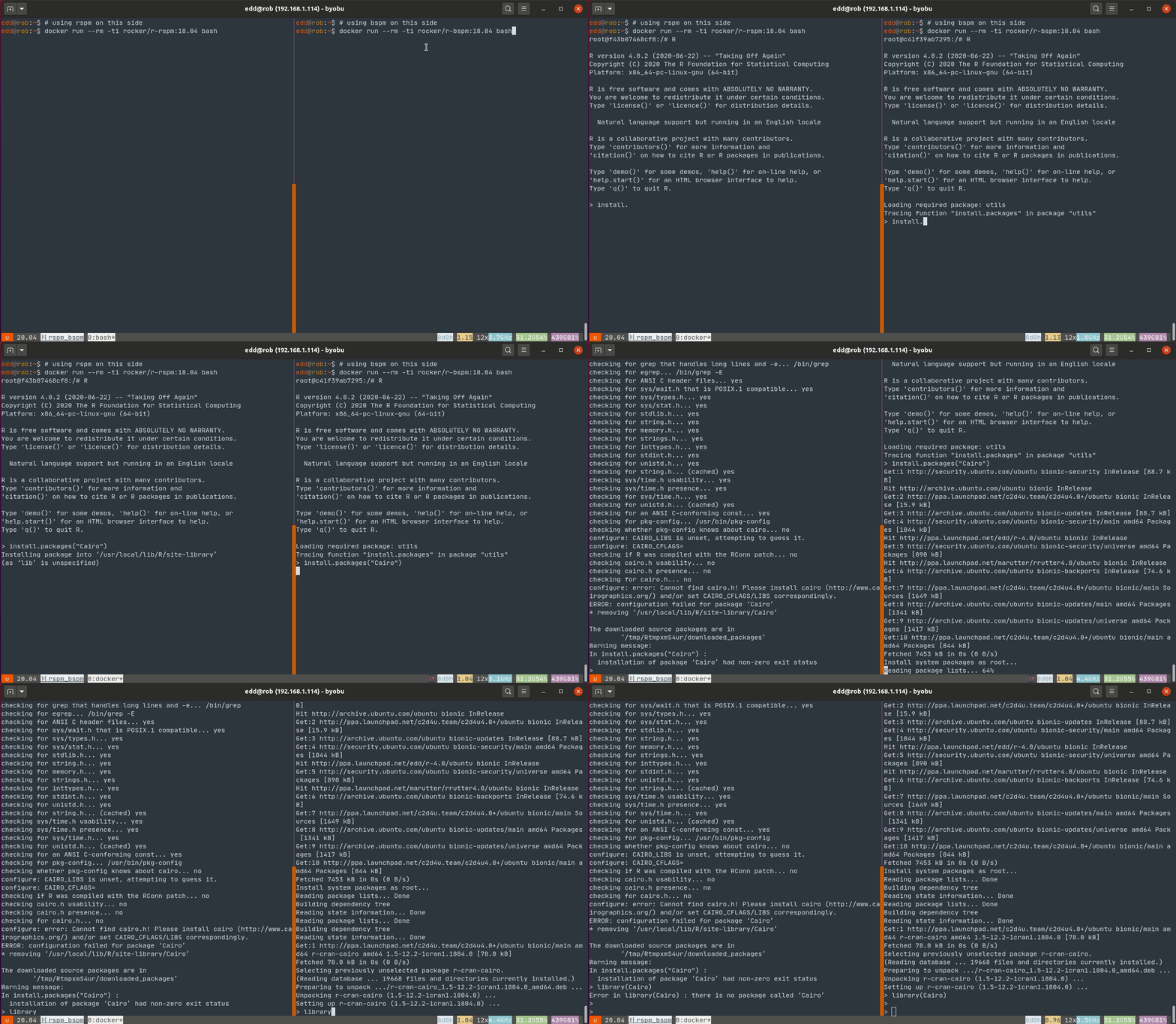 This fails for RSPM as no binary is present and a source build fails for the familiar lack of a
 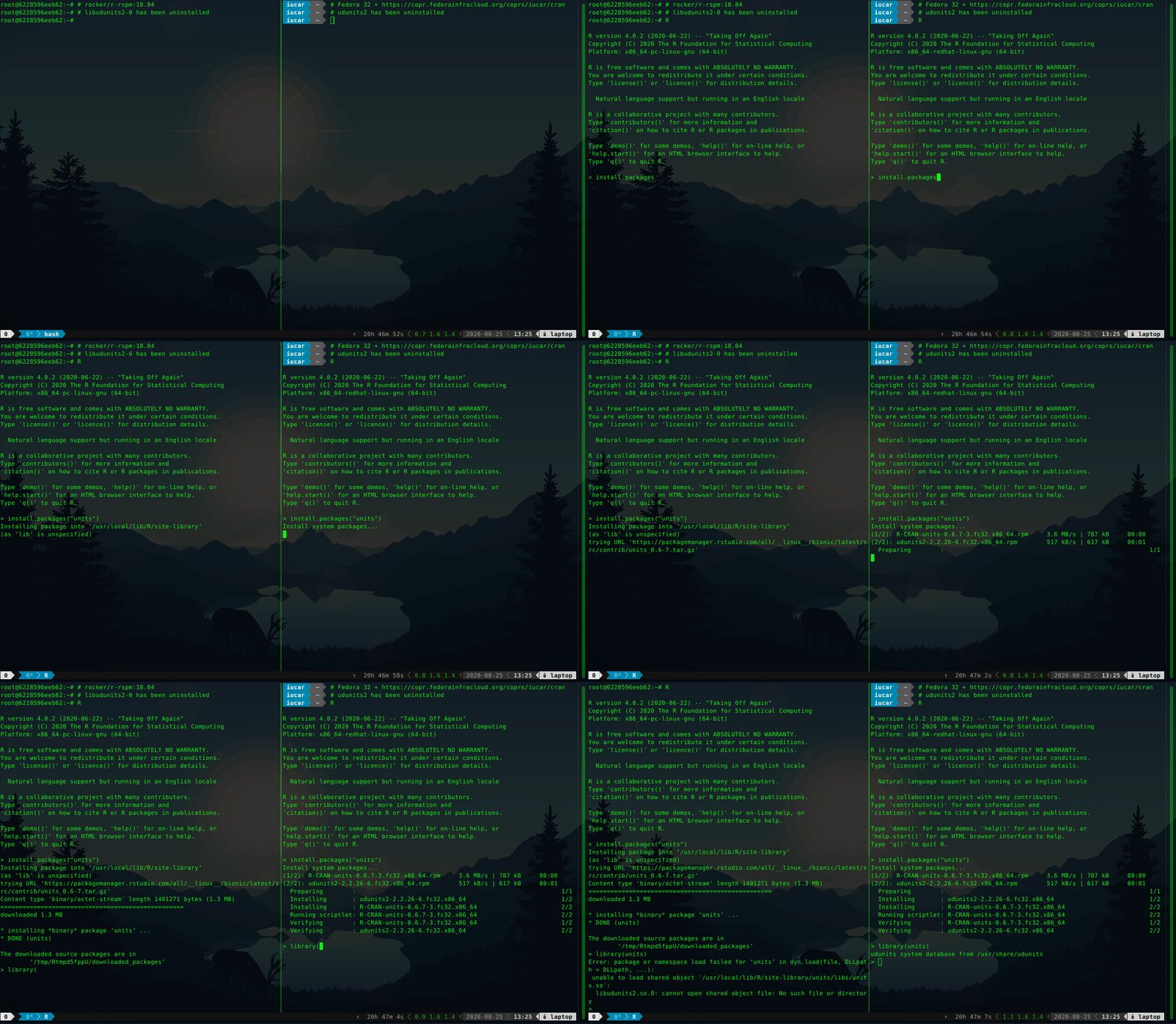 The installation of
  After:


 After we gave our talk at DebConf 20,
  Let's try to send an email again:
 Such an obvious problem, convert a piece of html/js/css, often with animations, to a video (mp4 or similar). We were just put before this problem for the
 As we grow old, so do our computing machines. And just like we don t decommission ourselves, so should be the case of the machines. They should be semi-retired, delegating major tasks to newer machines while they can still serve some less demaning work: File Servers, UPNP Servers et cetera.
It is common on a Debian installer based derivative, and otherwise too, to use block encryption on Linux. With machines from this decade, I think we ve always had CPU extension for encryption.
So, as would be the usual case, all my laptops are block encrypted. But as they reach the phase of their life to retire and serving as a headless boss, it becomes cumbersome to keep feeding it a password and all the logistics involved to feed it. As such, I wanted to get rid of feeding it the password.
Then, there s also the case of bad/faulty hardware, many of which mostly can temporarily fix their functionality when reset, which usually is to reboot the machine. I still recollect words of my Linux Guru - Dhiren Raj Bhandari - that many of the unexplainable errors can be resolved by just rebooting the machine. This was more than 20 years ago in the prime era of Microsoft Windows OS and the context back then was quite different, but yes, some bits of that saying still apply today.
So I wanted my laptop, which had LUKS set up for 2 disks, to go password-less now. I stumbled across a
As we grow old, so do our computing machines. And just like we don t decommission ourselves, so should be the case of the machines. They should be semi-retired, delegating major tasks to newer machines while they can still serve some less demaning work: File Servers, UPNP Servers et cetera.
It is common on a Debian installer based derivative, and otherwise too, to use block encryption on Linux. With machines from this decade, I think we ve always had CPU extension for encryption.
So, as would be the usual case, all my laptops are block encrypted. But as they reach the phase of their life to retire and serving as a headless boss, it becomes cumbersome to keep feeding it a password and all the logistics involved to feed it. As such, I wanted to get rid of feeding it the password.
Then, there s also the case of bad/faulty hardware, many of which mostly can temporarily fix their functionality when reset, which usually is to reboot the machine. I still recollect words of my Linux Guru - Dhiren Raj Bhandari - that many of the unexplainable errors can be resolved by just rebooting the machine. This was more than 20 years ago in the prime era of Microsoft Windows OS and the context back then was quite different, but yes, some bits of that saying still apply today.
So I wanted my laptop, which had LUKS set up for 2 disks, to go password-less now. I stumbled across a  After quite some time maintaining Qt in Debian both Dmitry Shachnev and I decided to not maintain Qt 6 when it's published (expected in December 2020, see
  I'm mostly happy with that, except for one or two little details. I'd like to
have the titles displayed in bold, for example, so that they're easier to spot
when I skim through a Markdown file. It seems like a simple thing to ask, so I
hope there can be a simple solution.
The first steps
Let's learn the basics.
In Vim world, the rules to highlight files formats are defined in the directory
I'm mostly happy with that, except for one or two little details. I'd like to
have the titles displayed in bold, for example, so that they're easier to spot
when I skim through a Markdown file. It seems like a simple thing to ask, so I
hope there can be a simple solution.
The first steps
Let's learn the basics.
In Vim world, the rules to highlight files formats are defined in the directory
 The rabbit hole
So we could stop right here, and life would be easy and good.
However, with this solution there's still something that is not perfect. We use
the color
The rabbit hole
So we could stop right here, and life would be easy and good.
However, with this solution there's still something that is not perfect. We use
the color 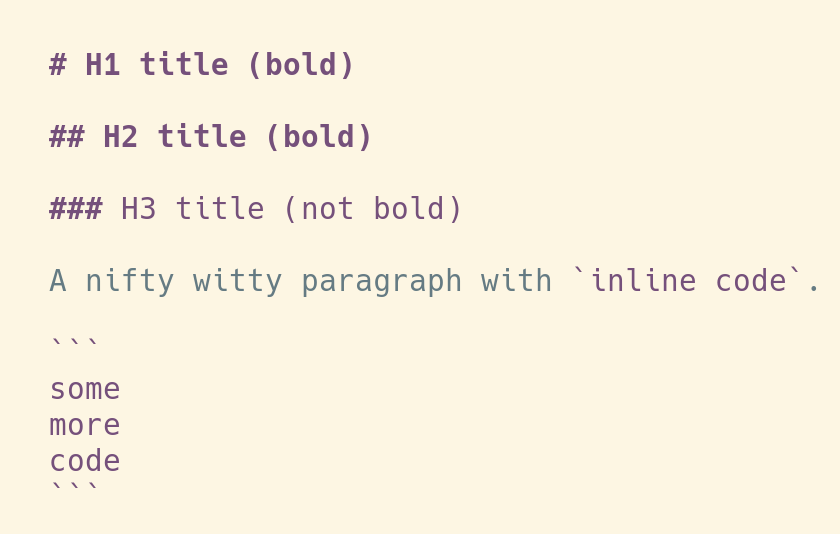 And a dark background:
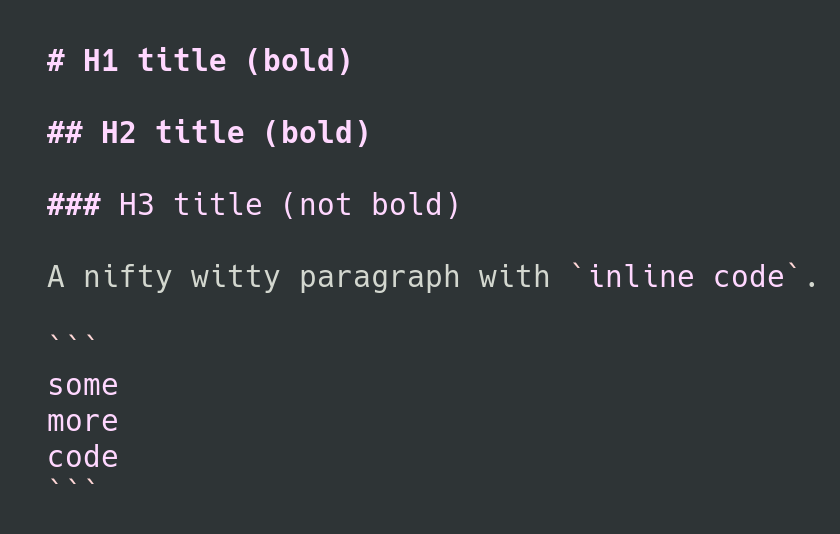 That's all, that's very little changes compared to the highlighting from the
original syntax file, and now that we understand how it's supposed to be done,
it's not much effort to achieve it.
It's just that finding the workaround to make it work for both light and dark
background took forever, and leaves the usual, unanswered question:
That's all, that's very little changes compared to the highlighting from the
original syntax file, and now that we understand how it's supposed to be done,
it's not much effort to achieve it.
It's just that finding the workaround to make it work for both light and dark
background took forever, and leaves the usual, unanswered question:  Following Antonio Terceiro s
  OK, one step back. Why are we doing this? Because our hardworking
friends of the DebConf20 video team recommended so. In order to
minimize connecitvity issues from the variety of speakers throughout
the world, we were requested to pre-record the exposition part of
our talks, send them to the video team (deadline: today
2020-08-16, in case you still owe yours!), and make sure to be present
at the end of the talk for the Q&A session. Of course, for a 45 minute
talk, I prepared a 30 minute presentation, saving time for said Q&A
session.
Anyway, I used the excellent
OK, one step back. Why are we doing this? Because our hardworking
friends of the DebConf20 video team recommended so. In order to
minimize connecitvity issues from the variety of speakers throughout
the world, we were requested to pre-record the exposition part of
our talks, send them to the video team (deadline: today
2020-08-16, in case you still owe yours!), and make sure to be present
at the end of the talk for the Q&A session. Of course, for a 45 minute
talk, I prepared a 30 minute presentation, saving time for said Q&A
session.
Anyway, I used the excellent