Antoine Beaupr : Hacking my Kobo Clara HD
I just got a new Kobo ebook reader, a Kobo Clara HD. It's
pretty similar to the Glo HD I had but which has unfortunately died
after 5 years, even after trying to replace the battery.
Quick hardware review
This is a neat little device. It's very similar to the Glo HD, which
is a bit disappointing: you'd think they would have improved on the
design in the 5+ years since the Glo HD has come out.. It does have an
"amber" night light which is nice, but the bezel is still not level
with the display, and the device is still kind of on the thick side. A
USB-C (instead of micro-USB) port would have been nice too.
But otherwise, it's pretty slick, and just works. And because the
hardware design didn't change, I can still hack at it like a madman,
which is really why I bought this thing in the first place.
Hopefully it will last longer than 5 years. Ebook readers should
really last for decades, not years, but I guess that's too much to
expect from our consumerist, suicidal, extinctionist society.
Quick hardware review
This is a neat little device. It's very similar to the Glo HD, which
is a bit disappointing: you'd think they would have improved on the
design in the 5+ years since the Glo HD has come out.. It does have an
"amber" night light which is nice, but the bezel is still not level
with the display, and the device is still kind of on the thick side. A
USB-C (instead of micro-USB) port would have been nice too.
But otherwise, it's pretty slick, and just works. And because the
hardware design didn't change, I can still hack at it like a madman,
which is really why I bought this thing in the first place.
Hopefully it will last longer than 5 years. Ebook readers should
really last for decades, not years, but I guess that's too much to
expect from our consumerist, suicidal, extinctionist society.
Configuration hacks
Here are the hacks I done on the device. I had done many more hacks on
the Kobo Glo HD, but I decided to take a more streamlined, minimalist
and, hopefully, easier for new users than the pile of hacks I was
doing before (which I expand on at the end of the article).
SD card replacement
I replaced the SD card. The original card shipped with the Clara
HD was 8GB which meant all my books actually fitted on the original,
but just barely. The new card is 16GB.
Unfortunately, I did this procedure almost at the end of this guide
(right before writing the syncthing scripts, below). Next time, that
should be the first thing done so the original SD card acts as a
pristine copy of the upstream firmware. So even though this seems like
an invasive and difficult procedure, I actually do recommend you do it
first.
The process is basically to:
- crack open the Kobo case (don't worry, it sounds awful but I've
done it often)
- take the SD card out
- copy it over to a new, larger card (say on your computer)
- put the larger card in
This guide has all the details.
Registration bypass hack
This guide (from the same author!) has this awesome trick to
bypass the annoying registration step. Basically:
- pretend you do not have wifi
- mount the device
sqlite3 /media/.../KOBOeReader/.kobo/KoboReader.sqliteINSERT INTO user(UserID,UserKey) VALUES('1','');- unmount the device
More details in the above guide, again.
Install koreader
My e-reader of choise is Koreader. It's just that great. I still don't
find the general user interface (ie. the "file browswer") as intuitive
as the builtin one, but the book reading just feels better. And
anyways it's the easier way to get a shell on the device.
Follow those instructions, particularly the NickelMenu
instructions (see also the NickelMenu home page). Yes, you need
to install some other thing to start koreader, which doesn't start on
its own. NickelMenu is the simplest and better integrated I have
found.
You might also want to install some dictionnaries and configure
SSH:
- mount USB
- drop your SSH public key in
.../KOBOeReader/.adds/koreader/settings/SSH/authorized_keys
- unmount USB
- enable SSH in koreader (Gear -> Network -> SSH -> start SSH)
Note that ed25519 keys do not work: try an RSA key. This might be
because koreader ships with dropbear (or an older version), but I
haven't verified this.
Install syncthing
I use Syncthing to copy all my books into the device now. I was
previously using Koreader's OPDS support with Calibre's web interface,
but that was clunky and annoying, and I'd constantly have to copy
books around. Now the entire collection is synchronized.
As a bonus, I can actually synchronise (and backup!) the koreader
metadata, since it's stored next to the files. So in theory, this
means I could use koreader from multiple devices and have my reading
progress sync'd, but I haven't tested that feature just yet.
I chose Syncthing because it's simple, lightweight, supported on
Linux and Android, and statically compiles by default which means it's
easy to deploy on the Kobo.
Here is how I installed and started Syncthing at first:
- Download the latest version for ARM
- extract the archive
- copy the
syncthing binary into .../KOBOeReader/.adds/
- login over SSH (see above on how to enable) with
-p 2222 -l root
- create the following directory:
~/.config/syncthing/
- create the following configuration file, named
config.xml:
<configuration version="18">
    <gui enabled="true" tls="false" debugging="false">
        <address>0.0.0.0:8384</address>
    </gui>
</configuration>
- copy a valid
ca-certificates.crt file (say from your Linux
desktop) into /etc/ssl/certs/ on the Kobo (otherwise syncthing
cannot bootstrap discovery servers)
- launch syncthing over SSH:
/mnt/onboard/.adds/syncthing
You should now be able to connect to the syncthing GUI through your
web browser.
Immediately change the GUI admin user and password on the
Settings: GUI tab.
Then, figure out how to start it. Here are your options:
- on boot (
inittab or whatever). downside: power usage.
- on wifi (
udev hacks). downside: unreliable (see wallabako).
- on demand (e.g. nickel menu, koreader terminal
shortcuts). downside: kind of clunky in koreader, did not work in
nickel menu.
- manually, through shell. downside: requires a shell, but then
again we already have one through koreader?
What I have done is to write trivial shell scripts (in
.../KOBOeReader/scripts) to start syncthing. The first is
syncthing-start.sh:
#!/bin/sh
/mnt/onboard/.adds/syncthing serve &
Then syncthing-stop.sh:
#!/bin/sh
/usr/bin/pkill syncthing
This makes those scripts usable from the koreader file browser. Then
the folder can be added to the folder shortcuts and a long-hold on the
script will allow you to execute it.
Still have to figure out why the Nickel Menu script is not working,
but it could simply reuse the above to simplify debugging. This is the
script I ended up with, in .../KOBOeReader/.adds/nm/syncthing:
menu_item :main    :Syncthing (toggle)    :cmd_spawn         :exec /mnt/onboard/scripts/syncthing-stop.sh
  chain_success:skip:4
    chain_success                      :cmd_spawn          :exec /mnt/onboard/scripts/syncthing-start.sh
    chain_success                      :dbg_toast          :Started Syncthing server
    chain_failure                      :dbg_toast          :Error starting Syncthing server
    chain_always:skip:-1
  chain_success                        :dbg_toast          :Stopped Syncthing server
menu_item :main    :Syncthing (start)    :cmd_output         :exec /mnt/onboard/scripts/syncthing-start.sh
menu_item :main    :Syncthing (stop)    :cmd_output         :exec /mnt/onboard/scripts/syncthing-stop.sh
It's unclear why this doesn't work: I only get "Error starting
Syncthing server" for the toggle, and no output for the (start)
action. In either case, syncthing doesn't actually start.
Avoided tasks
This list wouldn't be complete without listing more explicitly the
stuff I have done before on the Kobo Glo HD and which I have deliberately
decided not to do here because my time is precious:
- plato install: beautiful project, but koreader is good enough
- wallabako setup: too much work to maintain, Wallabag articles
are too distracting and available on my phone anyways
- using calibre to transfer books: not working half the time,
different file layout than the source, one less Calibre
dependency
- using calibre to generate e-books based on RSS feeds (yes, I did
that, and yes, it was pretty bad and almost useless)
- SSH support: builtin to koreader
Now maybe I'll have time to actually read a book...
SD card replacement
I replaced the SD card. The original card shipped with the Clara
HD was 8GB which meant all my books actually fitted on the original,
but just barely. The new card is 16GB.
Unfortunately, I did this procedure almost at the end of this guide
(right before writing the syncthing scripts, below). Next time, that
should be the first thing done so the original SD card acts as a
pristine copy of the upstream firmware. So even though this seems like
an invasive and difficult procedure, I actually do recommend you do it
first.
The process is basically to:
- crack open the Kobo case (don't worry, it sounds awful but I've
done it often)
- take the SD card out
- copy it over to a new, larger card (say on your computer)
- put the larger card in
This guide has all the details.
Registration bypass hack
This guide (from the same author!) has this awesome trick to
bypass the annoying registration step. Basically:
- pretend you do not have wifi
- mount the device
sqlite3 /media/.../KOBOeReader/.kobo/KoboReader.sqliteINSERT INTO user(UserID,UserKey) VALUES('1','');- unmount the device
More details in the above guide, again.
Install koreader
My e-reader of choise is Koreader. It's just that great. I still don't
find the general user interface (ie. the "file browswer") as intuitive
as the builtin one, but the book reading just feels better. And
anyways it's the easier way to get a shell on the device.
Follow those instructions, particularly the NickelMenu
instructions (see also the NickelMenu home page). Yes, you need
to install some other thing to start koreader, which doesn't start on
its own. NickelMenu is the simplest and better integrated I have
found.
You might also want to install some dictionnaries and configure
SSH:
- mount USB
- drop your SSH public key in
.../KOBOeReader/.adds/koreader/settings/SSH/authorized_keys
- unmount USB
- enable SSH in koreader (Gear -> Network -> SSH -> start SSH)
Note that ed25519 keys do not work: try an RSA key. This might be
because koreader ships with dropbear (or an older version), but I
haven't verified this.
Install syncthing
I use Syncthing to copy all my books into the device now. I was
previously using Koreader's OPDS support with Calibre's web interface,
but that was clunky and annoying, and I'd constantly have to copy
books around. Now the entire collection is synchronized.
As a bonus, I can actually synchronise (and backup!) the koreader
metadata, since it's stored next to the files. So in theory, this
means I could use koreader from multiple devices and have my reading
progress sync'd, but I haven't tested that feature just yet.
I chose Syncthing because it's simple, lightweight, supported on
Linux and Android, and statically compiles by default which means it's
easy to deploy on the Kobo.
Here is how I installed and started Syncthing at first:
- Download the latest version for ARM
- extract the archive
- copy the
syncthing binary into .../KOBOeReader/.adds/
- login over SSH (see above on how to enable) with
-p 2222 -l root
- create the following directory:
~/.config/syncthing/
- create the following configuration file, named
config.xml:
<configuration version="18">
<gui enabled="true" tls="false" debugging="false">
<address>0.0.0.0:8384</address>
</gui>
</configuration>
- copy a valid
ca-certificates.crt file (say from your Linux
desktop) into /etc/ssl/certs/ on the Kobo (otherwise syncthing
cannot bootstrap discovery servers)
- launch syncthing over SSH:
/mnt/onboard/.adds/syncthing
You should now be able to connect to the syncthing GUI through your
web browser.
Immediately change the GUI admin user and password on the
Settings: GUI tab.
Then, figure out how to start it. Here are your options:
- on boot (
inittab or whatever). downside: power usage.
- on wifi (
udev hacks). downside: unreliable (see wallabako).
- on demand (e.g. nickel menu, koreader terminal
shortcuts). downside: kind of clunky in koreader, did not work in
nickel menu.
- manually, through shell. downside: requires a shell, but then
again we already have one through koreader?
What I have done is to write trivial shell scripts (in
.../KOBOeReader/scripts) to start syncthing. The first is
syncthing-start.sh:
#!/bin/sh
/mnt/onboard/.adds/syncthing serve &
Then syncthing-stop.sh:
#!/bin/sh
/usr/bin/pkill syncthing
This makes those scripts usable from the koreader file browser. Then
the folder can be added to the folder shortcuts and a long-hold on the
script will allow you to execute it.
Still have to figure out why the Nickel Menu script is not working,
but it could simply reuse the above to simplify debugging. This is the
script I ended up with, in .../KOBOeReader/.adds/nm/syncthing:
menu_item :main :Syncthing (toggle) :cmd_spawn :exec /mnt/onboard/scripts/syncthing-stop.sh
chain_success:skip:4
chain_success :cmd_spawn :exec /mnt/onboard/scripts/syncthing-start.sh
chain_success :dbg_toast :Started Syncthing server
chain_failure :dbg_toast :Error starting Syncthing server
chain_always:skip:-1
chain_success :dbg_toast :Stopped Syncthing server
menu_item :main :Syncthing (start) :cmd_output :exec /mnt/onboard/scripts/syncthing-start.sh
menu_item :main :Syncthing (stop) :cmd_output :exec /mnt/onboard/scripts/syncthing-stop.sh
It's unclear why this doesn't work: I only get "Error starting
Syncthing server" for the toggle, and no output for the (start)
action. In either case, syncthing doesn't actually start.
Avoided tasks
This list wouldn't be complete without listing more explicitly the
stuff I have done before on the Kobo Glo HD and which I have deliberately
decided not to do here because my time is precious:
- plato install: beautiful project, but koreader is good enough
- wallabako setup: too much work to maintain, Wallabag articles
are too distracting and available on my phone anyways
- using calibre to transfer books: not working half the time,
different file layout than the source, one less Calibre
dependency
- using calibre to generate e-books based on RSS feeds (yes, I did
that, and yes, it was pretty bad and almost useless)
- SSH support: builtin to koreader
Now maybe I'll have time to actually read a book...
- pretend you do not have wifi
- mount the device
sqlite3 /media/.../KOBOeReader/.kobo/KoboReader.sqliteINSERT INTO user(UserID,UserKey) VALUES('1','');- unmount the device
Install koreader
My e-reader of choise is Koreader. It's just that great. I still don't
find the general user interface (ie. the "file browswer") as intuitive
as the builtin one, but the book reading just feels better. And
anyways it's the easier way to get a shell on the device.
Follow those instructions, particularly the NickelMenu
instructions (see also the NickelMenu home page). Yes, you need
to install some other thing to start koreader, which doesn't start on
its own. NickelMenu is the simplest and better integrated I have
found.
You might also want to install some dictionnaries and configure
SSH:
- mount USB
- drop your SSH public key in
.../KOBOeReader/.adds/koreader/settings/SSH/authorized_keys
- unmount USB
- enable SSH in koreader (Gear -> Network -> SSH -> start SSH)
Note that ed25519 keys do not work: try an RSA key. This might be
because koreader ships with dropbear (or an older version), but I
haven't verified this.
Install syncthing
I use Syncthing to copy all my books into the device now. I was
previously using Koreader's OPDS support with Calibre's web interface,
but that was clunky and annoying, and I'd constantly have to copy
books around. Now the entire collection is synchronized.
As a bonus, I can actually synchronise (and backup!) the koreader
metadata, since it's stored next to the files. So in theory, this
means I could use koreader from multiple devices and have my reading
progress sync'd, but I haven't tested that feature just yet.
I chose Syncthing because it's simple, lightweight, supported on
Linux and Android, and statically compiles by default which means it's
easy to deploy on the Kobo.
Here is how I installed and started Syncthing at first:
- Download the latest version for ARM
- extract the archive
- copy the
syncthing binary into .../KOBOeReader/.adds/
- login over SSH (see above on how to enable) with
-p 2222 -l root
- create the following directory:
~/.config/syncthing/
- create the following configuration file, named
config.xml:
<configuration version="18">
<gui enabled="true" tls="false" debugging="false">
<address>0.0.0.0:8384</address>
</gui>
</configuration>
- copy a valid
ca-certificates.crt file (say from your Linux
desktop) into /etc/ssl/certs/ on the Kobo (otherwise syncthing
cannot bootstrap discovery servers)
- launch syncthing over SSH:
/mnt/onboard/.adds/syncthing
You should now be able to connect to the syncthing GUI through your
web browser.
Immediately change the GUI admin user and password on the
Settings: GUI tab.
Then, figure out how to start it. Here are your options:
- on boot (
inittab or whatever). downside: power usage.
- on wifi (
udev hacks). downside: unreliable (see wallabako).
- on demand (e.g. nickel menu, koreader terminal
shortcuts). downside: kind of clunky in koreader, did not work in
nickel menu.
- manually, through shell. downside: requires a shell, but then
again we already have one through koreader?
What I have done is to write trivial shell scripts (in
.../KOBOeReader/scripts) to start syncthing. The first is
syncthing-start.sh:
#!/bin/sh
/mnt/onboard/.adds/syncthing serve &
Then syncthing-stop.sh:
#!/bin/sh
/usr/bin/pkill syncthing
This makes those scripts usable from the koreader file browser. Then
the folder can be added to the folder shortcuts and a long-hold on the
script will allow you to execute it.
Still have to figure out why the Nickel Menu script is not working,
but it could simply reuse the above to simplify debugging. This is the
script I ended up with, in .../KOBOeReader/.adds/nm/syncthing:
menu_item :main :Syncthing (toggle) :cmd_spawn :exec /mnt/onboard/scripts/syncthing-stop.sh
chain_success:skip:4
chain_success :cmd_spawn :exec /mnt/onboard/scripts/syncthing-start.sh
chain_success :dbg_toast :Started Syncthing server
chain_failure :dbg_toast :Error starting Syncthing server
chain_always:skip:-1
chain_success :dbg_toast :Stopped Syncthing server
menu_item :main :Syncthing (start) :cmd_output :exec /mnt/onboard/scripts/syncthing-start.sh
menu_item :main :Syncthing (stop) :cmd_output :exec /mnt/onboard/scripts/syncthing-stop.sh
It's unclear why this doesn't work: I only get "Error starting
Syncthing server" for the toggle, and no output for the (start)
action. In either case, syncthing doesn't actually start.
Avoided tasks
This list wouldn't be complete without listing more explicitly the
stuff I have done before on the Kobo Glo HD and which I have deliberately
decided not to do here because my time is precious:
- plato install: beautiful project, but koreader is good enough
- wallabako setup: too much work to maintain, Wallabag articles
are too distracting and available on my phone anyways
- using calibre to transfer books: not working half the time,
different file layout than the source, one less Calibre
dependency
- using calibre to generate e-books based on RSS feeds (yes, I did
that, and yes, it was pretty bad and almost useless)
- SSH support: builtin to koreader
Now maybe I'll have time to actually read a book...
.../KOBOeReader/.adds/koreader/settings/SSH/authorized_keys- Download the latest version for ARM
- extract the archive
- copy the
syncthingbinary into.../KOBOeReader/.adds/ - login over SSH (see above on how to enable) with
-p 2222 -l root - create the following directory:
~/.config/syncthing/ - create the following configuration file, named
config.xml:<configuration version="18"> <gui enabled="true" tls="false" debugging="false"> <address>0.0.0.0:8384</address> </gui> </configuration> - copy a valid
ca-certificates.crtfile (say from your Linux desktop) into/etc/ssl/certs/on the Kobo (otherwise syncthing cannot bootstrap discovery servers) - launch syncthing over SSH:
/mnt/onboard/.adds/syncthing
Settings: GUI tab.
Then, figure out how to start it. Here are your options:
- on boot (
inittabor whatever). downside: power usage. - on wifi (
udevhacks). downside: unreliable (see wallabako). - on demand (e.g. nickel menu, koreader terminal shortcuts). downside: kind of clunky in koreader, did not work in nickel menu.
- manually, through shell. downside: requires a shell, but then again we already have one through koreader?
.../KOBOeReader/scripts) to start syncthing. The first is
syncthing-start.sh:
#!/bin/sh
/mnt/onboard/.adds/syncthing serve &
syncthing-stop.sh:
#!/bin/sh
/usr/bin/pkill syncthing
.../KOBOeReader/.adds/nm/syncthing:
menu_item :main :Syncthing (toggle) :cmd_spawn :exec /mnt/onboard/scripts/syncthing-stop.sh
chain_success:skip:4
chain_success :cmd_spawn :exec /mnt/onboard/scripts/syncthing-start.sh
chain_success :dbg_toast :Started Syncthing server
chain_failure :dbg_toast :Error starting Syncthing server
chain_always:skip:-1
chain_success :dbg_toast :Stopped Syncthing server
menu_item :main :Syncthing (start) :cmd_output :exec /mnt/onboard/scripts/syncthing-start.sh
menu_item :main :Syncthing (stop) :cmd_output :exec /mnt/onboard/scripts/syncthing-stop.sh
(start)
action. In either case, syncthing doesn't actually start.

 Hindus comprise 83% of Indian couples with more than two child children
 If one wants to, one can read a bit more about the Uttar Pradesh Population bill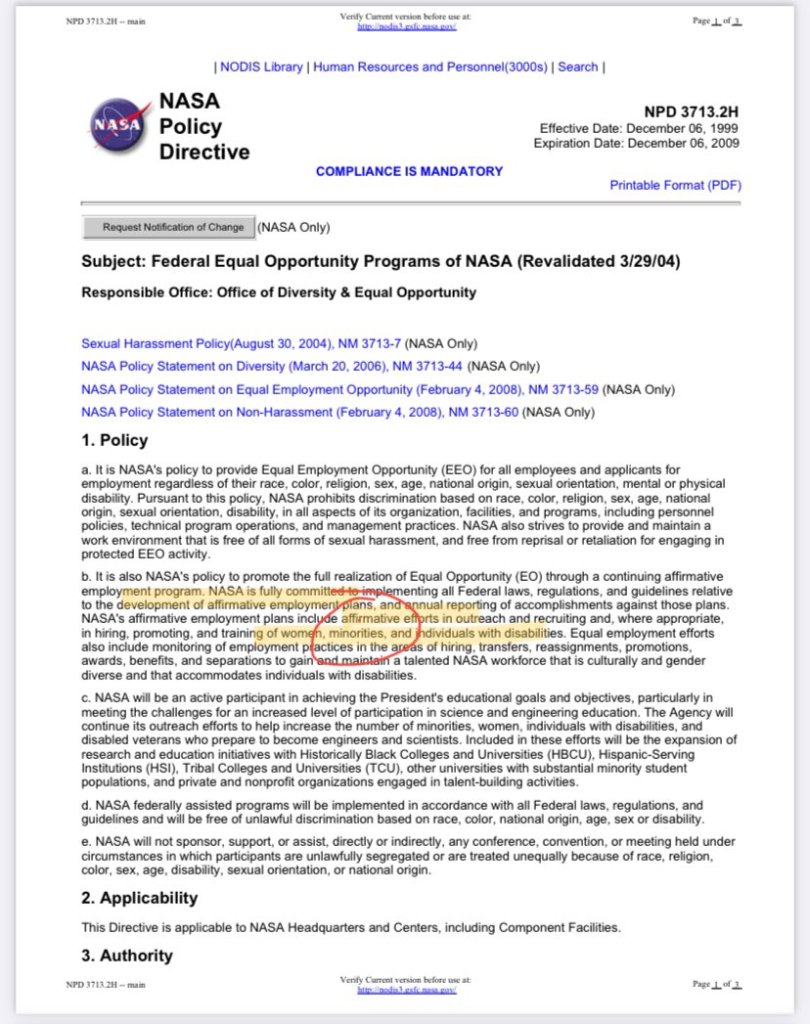


 A new (and genuinely) minor release of our
 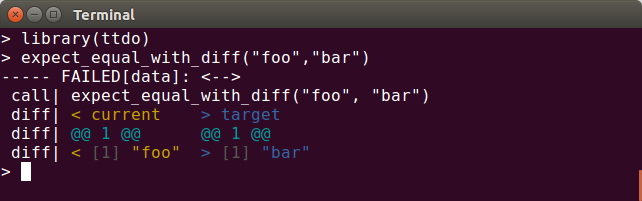 This release cleans up one microscopic wart of an R warning when installing and byte-compiling the package due to a

 Installing a new laptop
New is a 2nd hand Thinkpad T470p laptop that I intend to duel boot with windows.
Installing a new laptop
New is a 2nd hand Thinkpad T470p laptop that I intend to duel boot with windows. This is not only the Year of the Ox, but also the year of Debian 11, code-named
bullseye. The release lies ahead,
This is not only the Year of the Ox, but also the year of Debian 11, code-named
bullseye. The release lies ahead,  How are you meant to write about an unfinished emancipation? Bodies of Light is a 2014 book by Glasgow-born Sarah Moss on the stirrings of women's suffrage in an arty clique in nineteenth-century England. Set in the intellectually smoggy cities of Manchester and London, we follow the studious and intelligent Alethia 'Ally' Moberly, who is struggling to gain the acceptance of herself, her mother and the General Medical Council.
'Alethia' may be the Greek goddess of truth, but our Ally is really searching for wisdom. Her strengths are her patience and bookish learning, and she acquires Latin as soon as she learns male doctors will use it to keep women away from the operating theatre. In fact, Ally's acquisition of language becomes a recurring leitmotif: replaying a suggestive dream involving a love interest, for instance, Ally thinks of 'dark, tumbling dreams for which she has a perfectly adequate vocabulary'. There are very few moments of sensuality in the book, and pairing it with Ally's understated wit achieves a wonderful effect.
The amount we learn about a character is adapted for effect as well. There are few psychological insights about Ally's sister, for example, and she thus becomes a fey, mysterious and almost Pre-Raphaelite figure
How are you meant to write about an unfinished emancipation? Bodies of Light is a 2014 book by Glasgow-born Sarah Moss on the stirrings of women's suffrage in an arty clique in nineteenth-century England. Set in the intellectually smoggy cities of Manchester and London, we follow the studious and intelligent Alethia 'Ally' Moberly, who is struggling to gain the acceptance of herself, her mother and the General Medical Council.
'Alethia' may be the Greek goddess of truth, but our Ally is really searching for wisdom. Her strengths are her patience and bookish learning, and she acquires Latin as soon as she learns male doctors will use it to keep women away from the operating theatre. In fact, Ally's acquisition of language becomes a recurring leitmotif: replaying a suggestive dream involving a love interest, for instance, Ally thinks of 'dark, tumbling dreams for which she has a perfectly adequate vocabulary'. There are very few moments of sensuality in the book, and pairing it with Ally's understated wit achieves a wonderful effect.
The amount we learn about a character is adapted for effect as well. There are few psychological insights about Ally's sister, for example, and she thus becomes a fey, mysterious and almost Pre-Raphaelite figure 
 Continuing with
 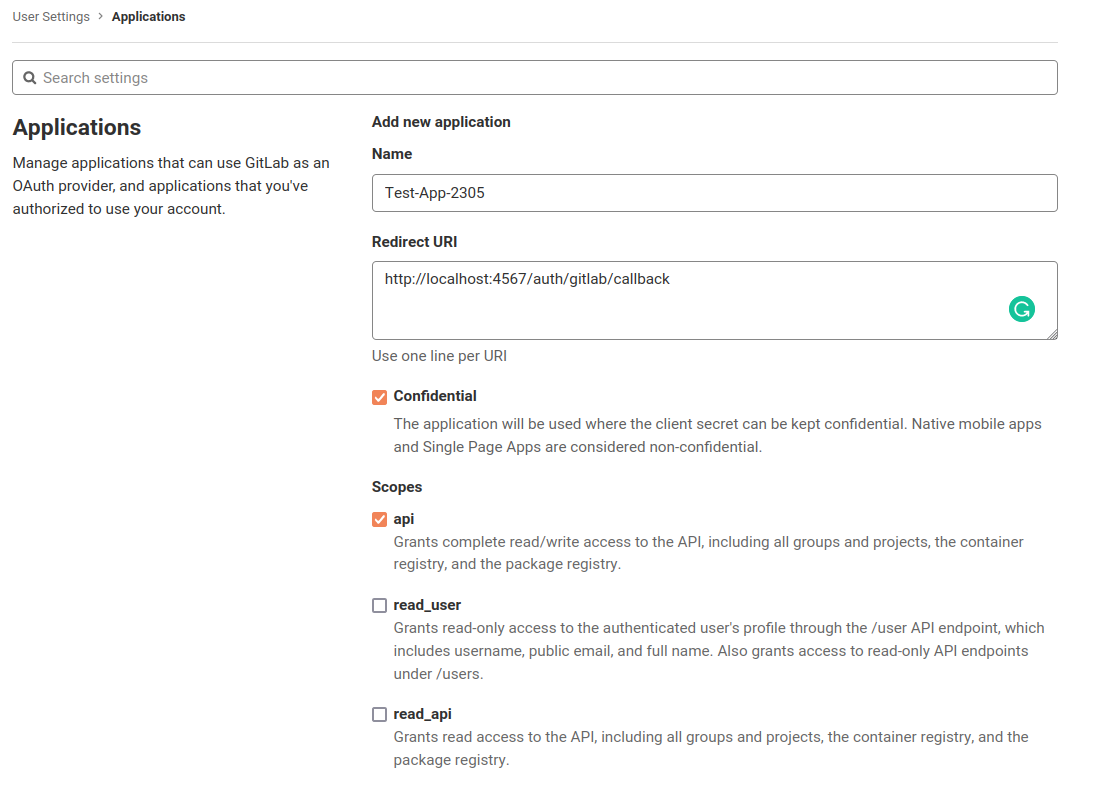 The
The 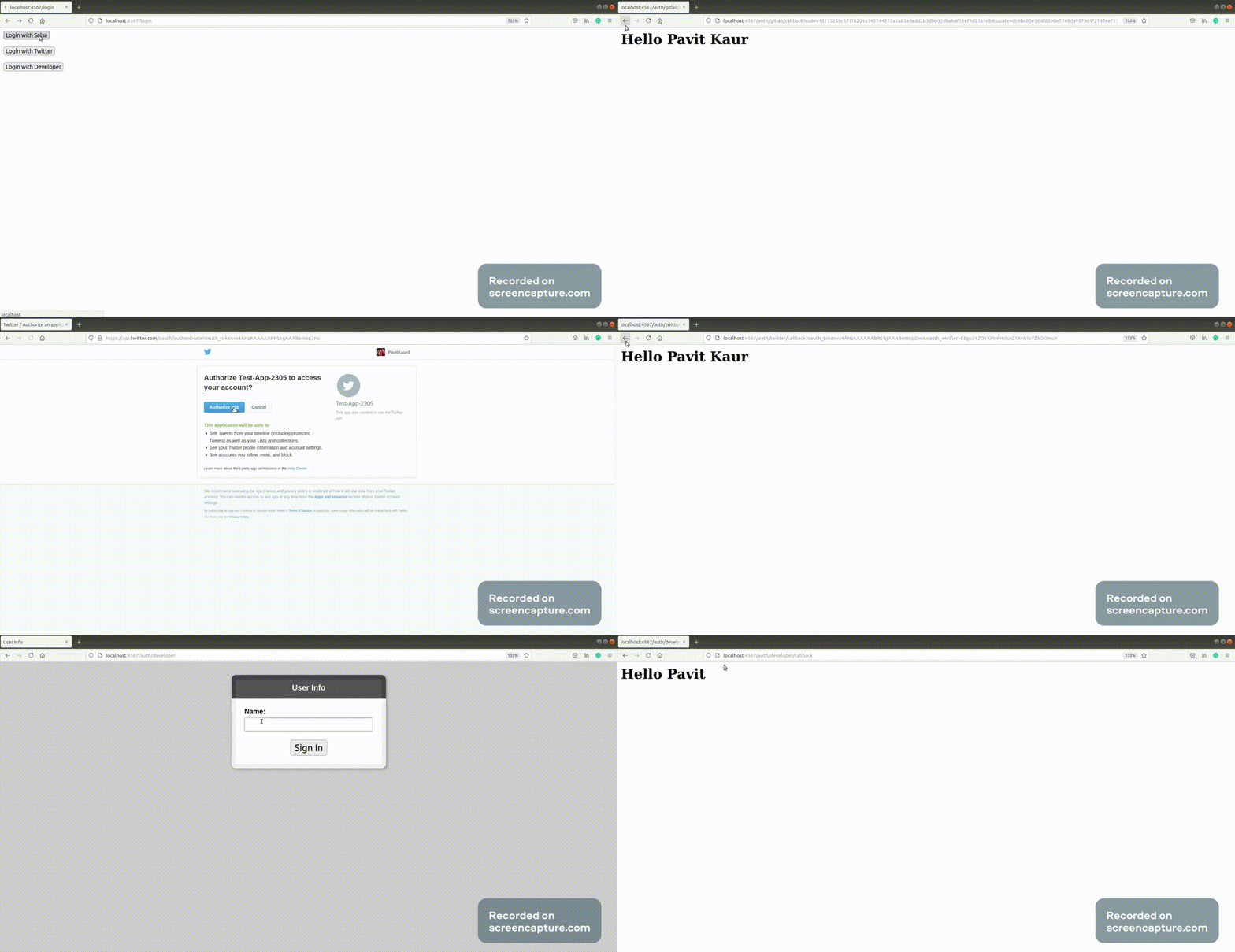 Here, I have already logged into my respective accounts so page for entring credentials does not show up but if the user has not logged into his account, he would be first asked to log in.
For complete code, you can check out:
Here, I have already logged into my respective accounts so page for entring credentials does not show up but if the user has not logged into his account, he would be first asked to log in.
For complete code, you can check out:



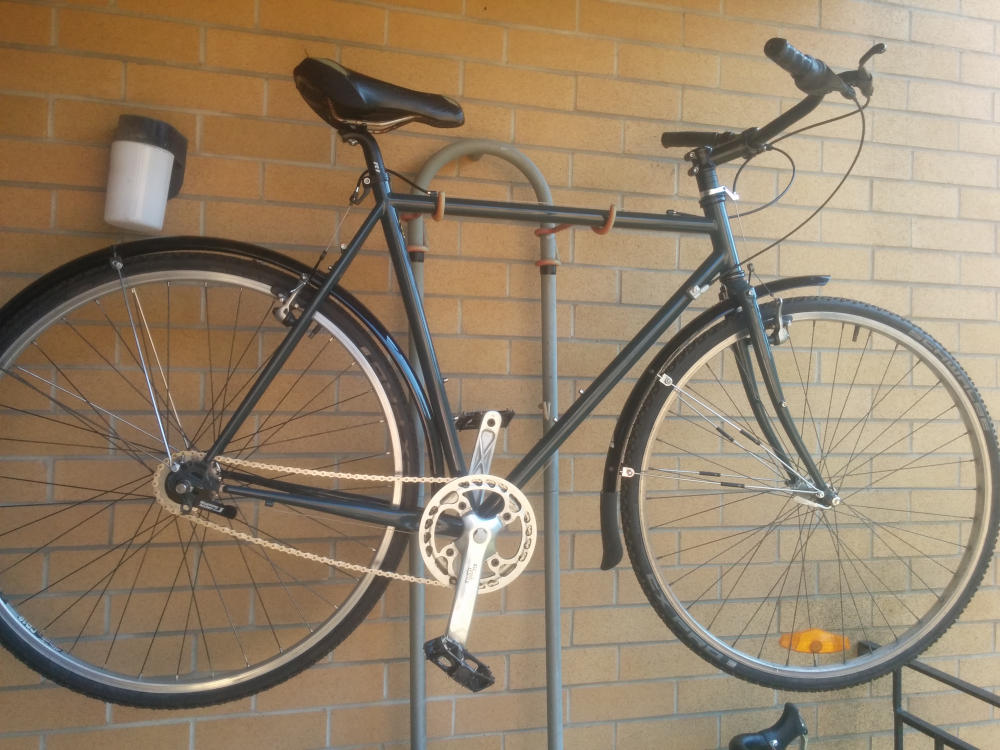
 Although I'm about 5 months early and we're in the middle of a terrible heat
wave where I live, I've just finished building my new winter bicycle!
I've been riding all year round for about 8 years now and the winters in
Montreal are harsh enough that a second winter-ready bicycle is required to
have a fun and safe cold season.
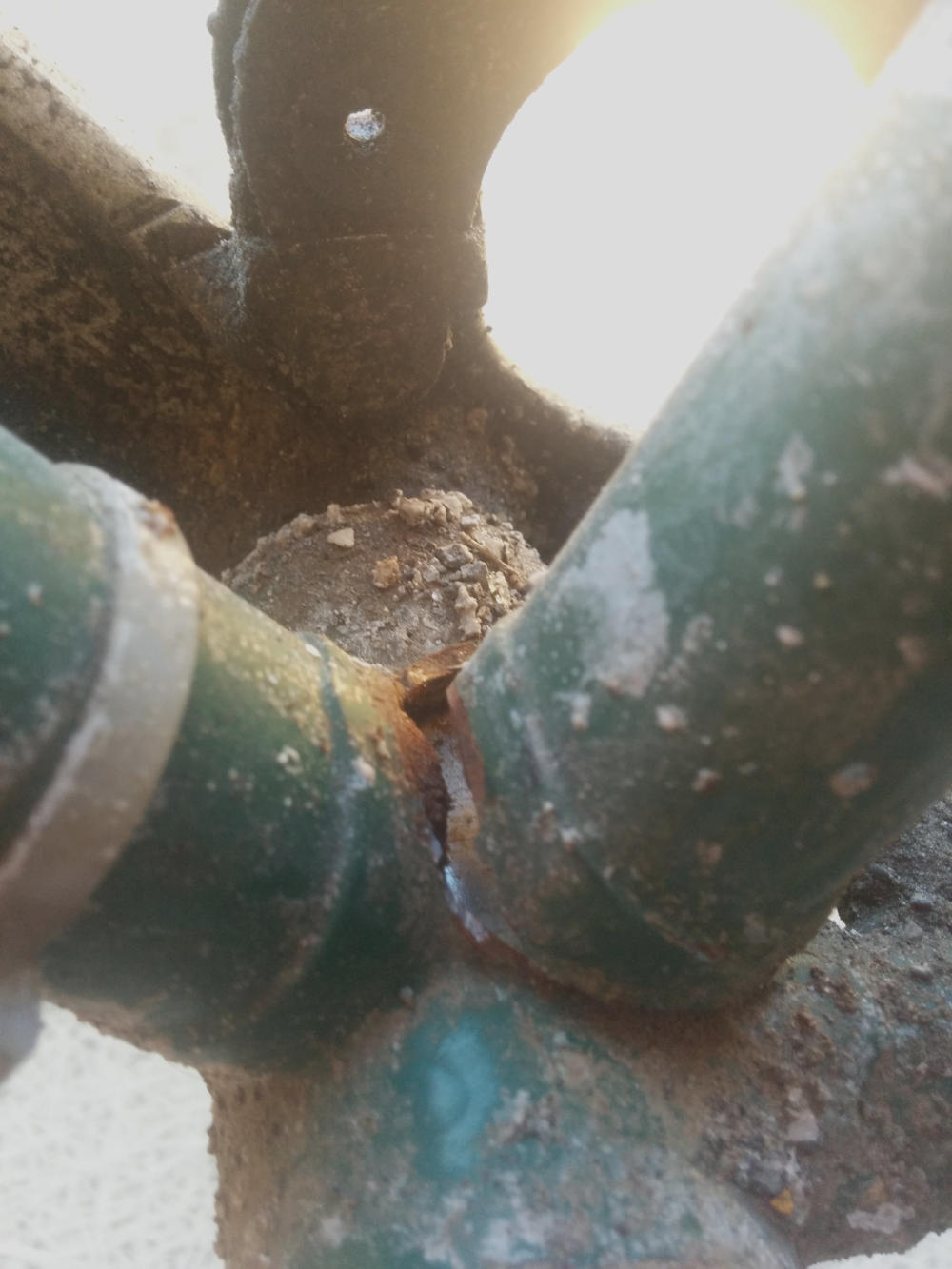
I'm saying "new bicycle" because a few months ago I totaled the frame of my
previous winter bike. As you can see in the picture below (please disregard the
salt crust), I broke the seat tube at the lug.
I didn't notice it at first and while riding I kept hearing a "bang bang" sound
coming from the frame when going over bumps. To my horror, I eventually
realised the sound was coming from the seat tube hitting the bottom bracket
shell!
Although I'm about 5 months early and we're in the middle of a terrible heat
wave where I live, I've just finished building my new winter bicycle!
I've been riding all year round for about 8 years now and the winters in
Montreal are harsh enough that a second winter-ready bicycle is required to
have a fun and safe cold season.
I'm saying "new bicycle" because a few months ago I totaled the frame of my
previous winter bike. As you can see in the picture below (please disregard the
salt crust), I broke the seat tube at the lug.
I didn't notice it at first and while riding I kept hearing a "bang bang" sound
coming from the frame when going over bumps. To my horror, I eventually
realised the sound was coming from the seat tube hitting the bottom bracket
shell!
 I'm sad to see this
  Summer has just started and I'm already looking forward to winter :)
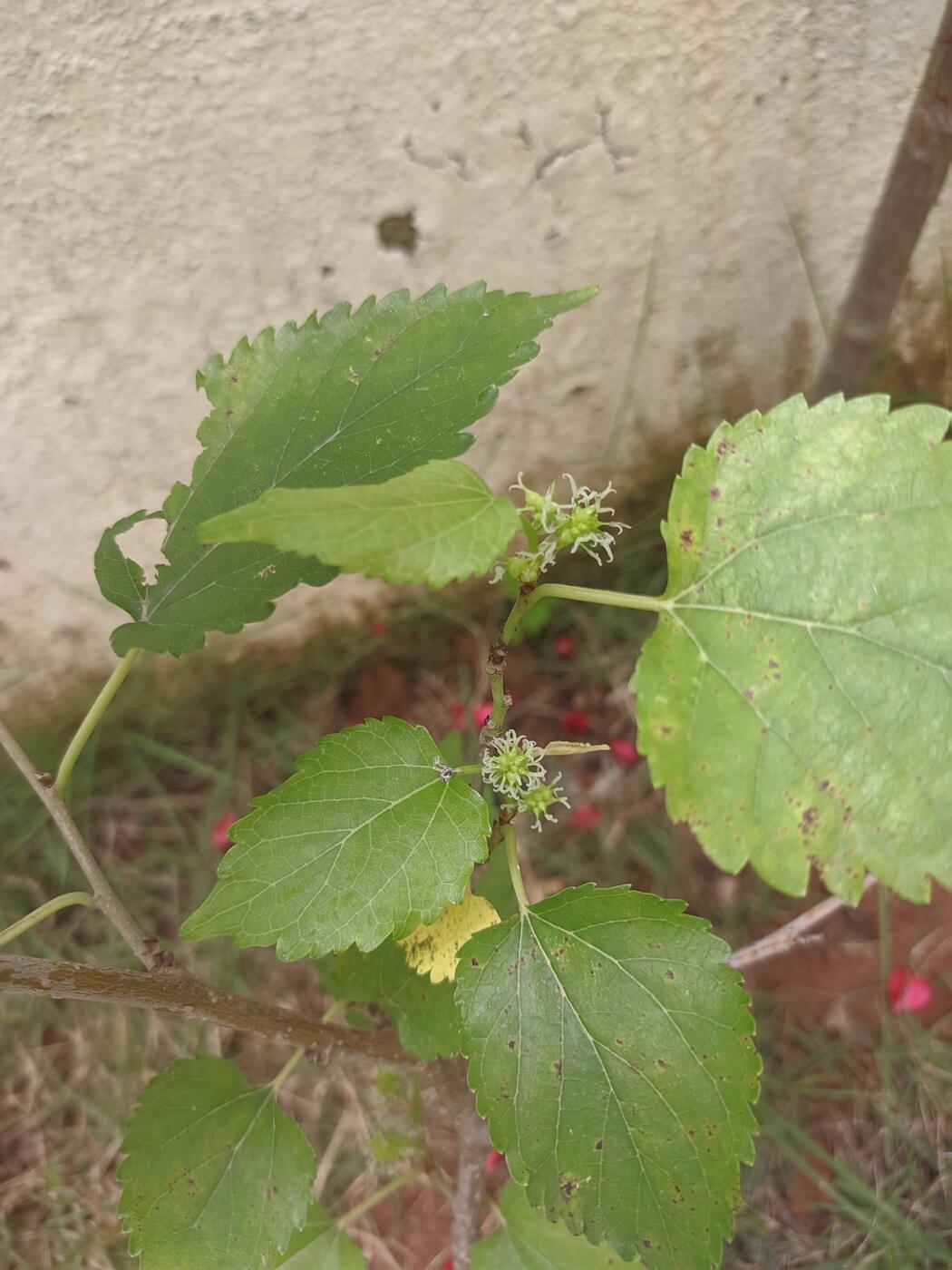
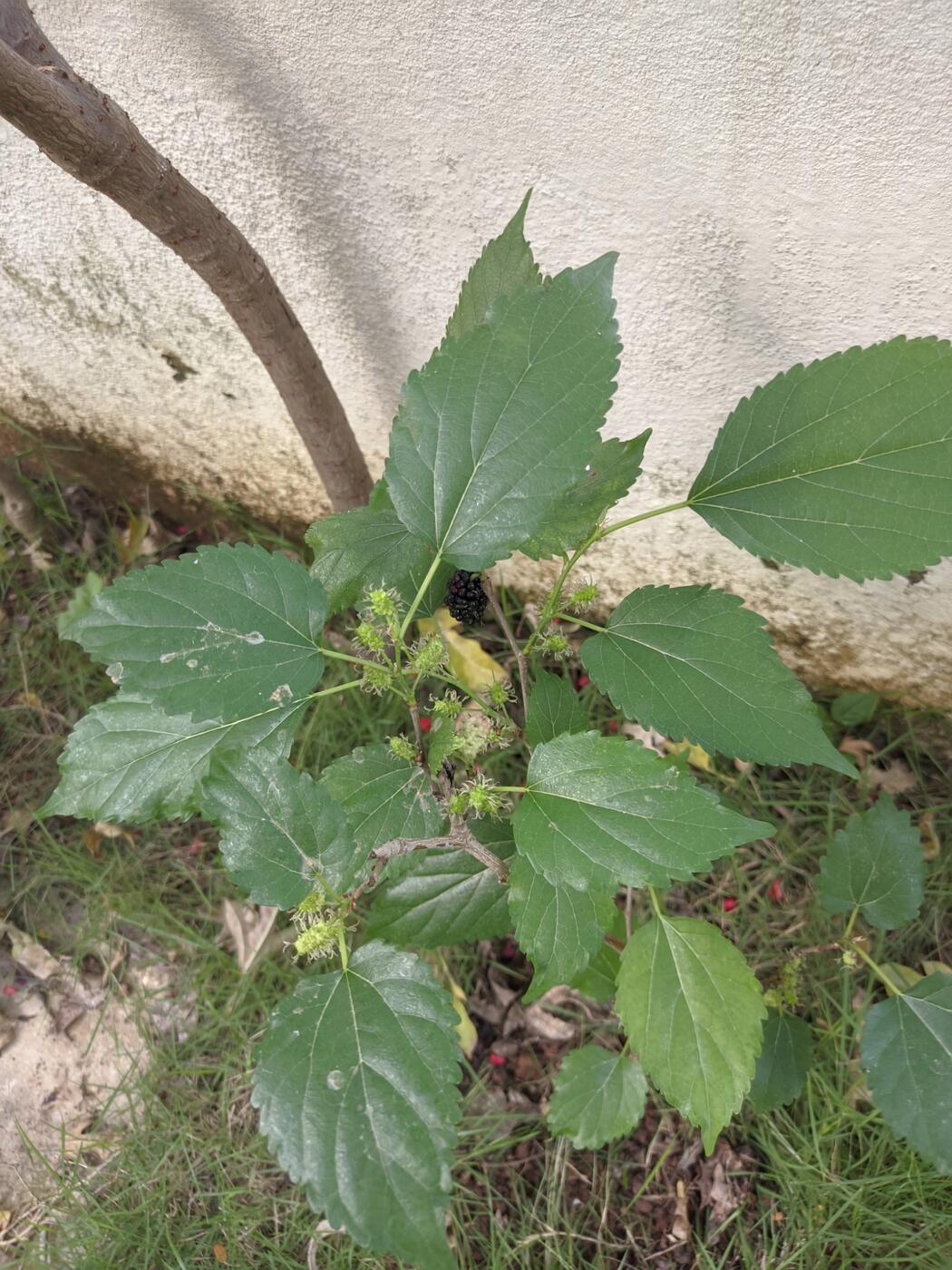
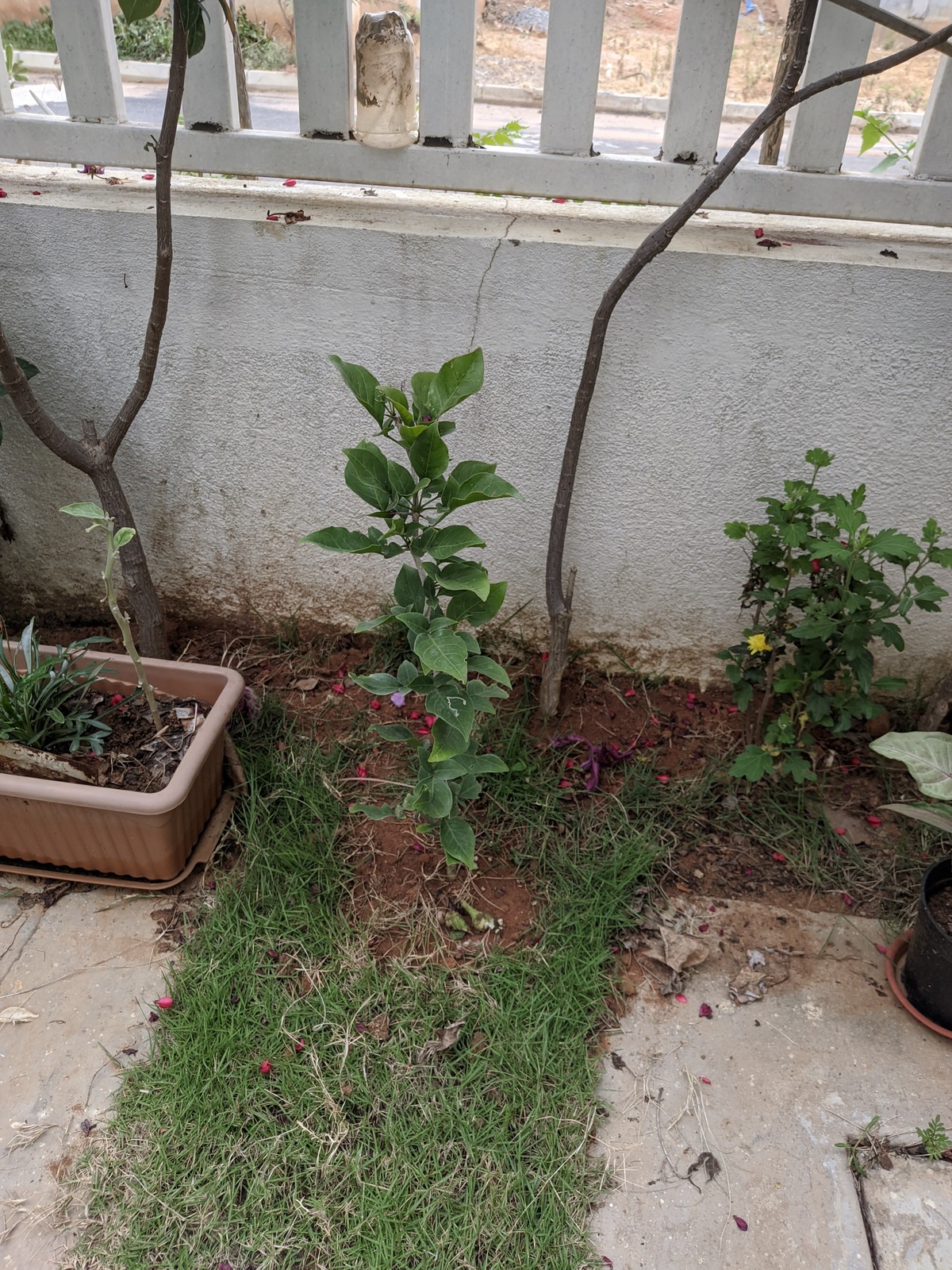
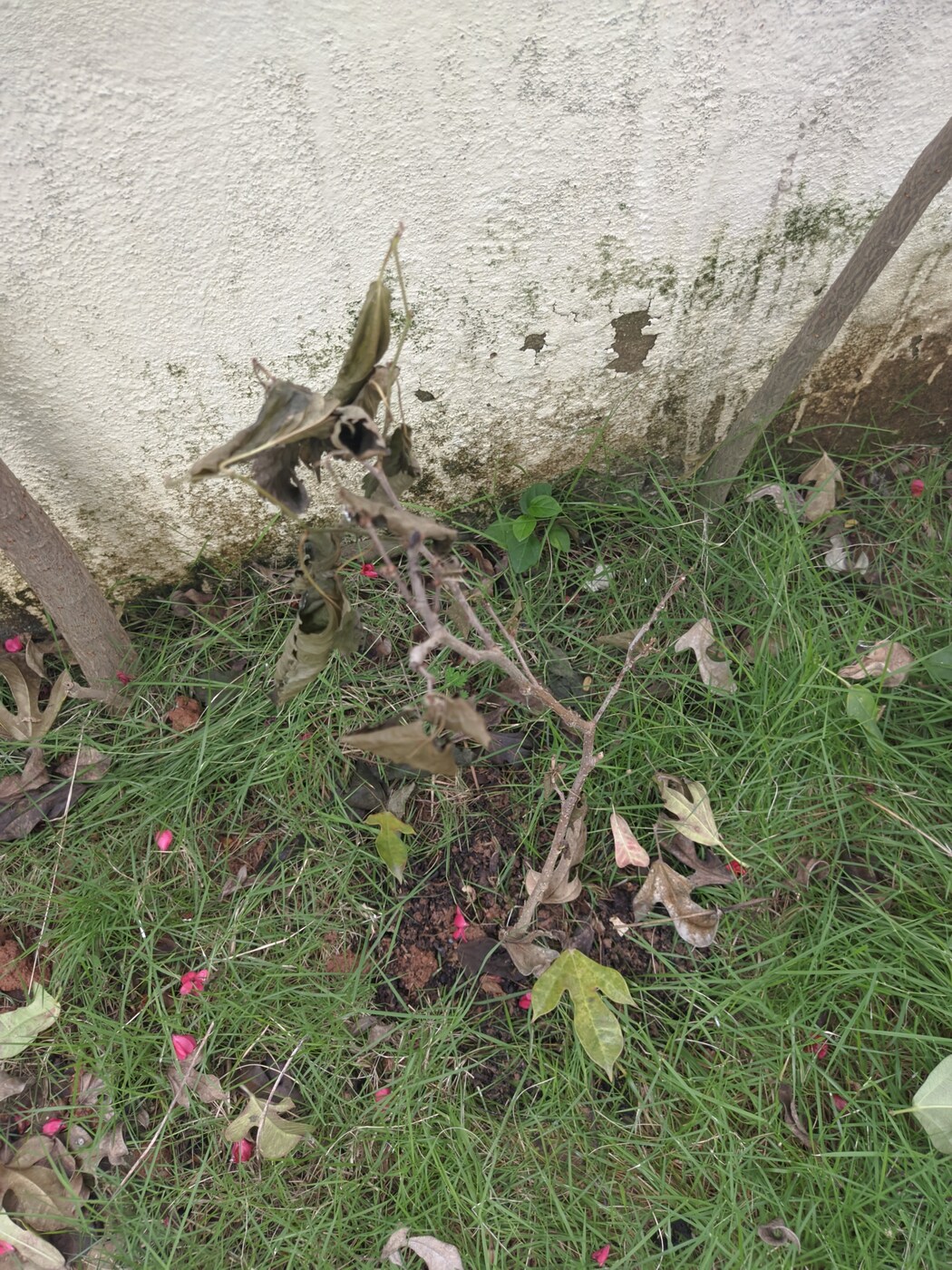
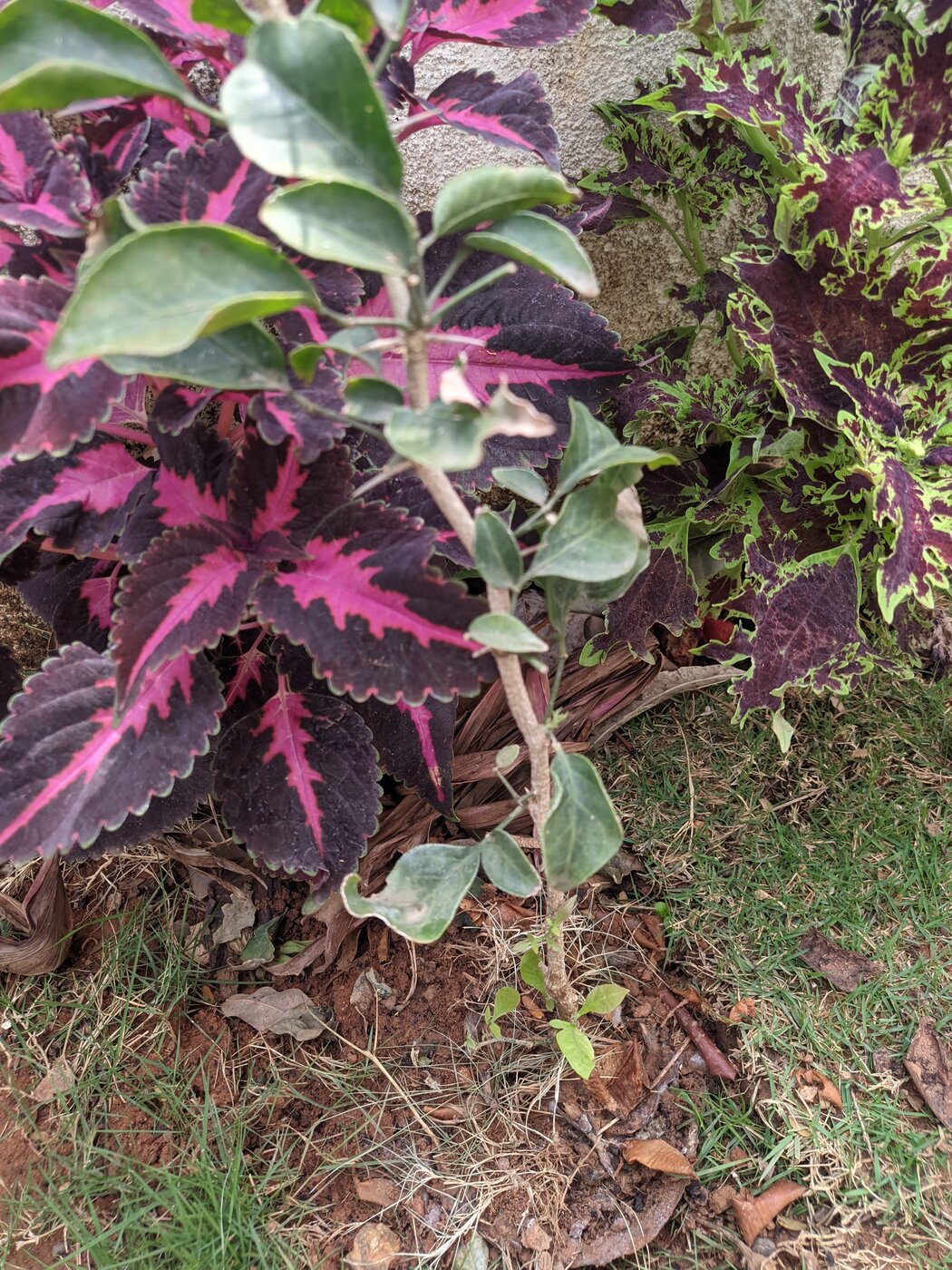
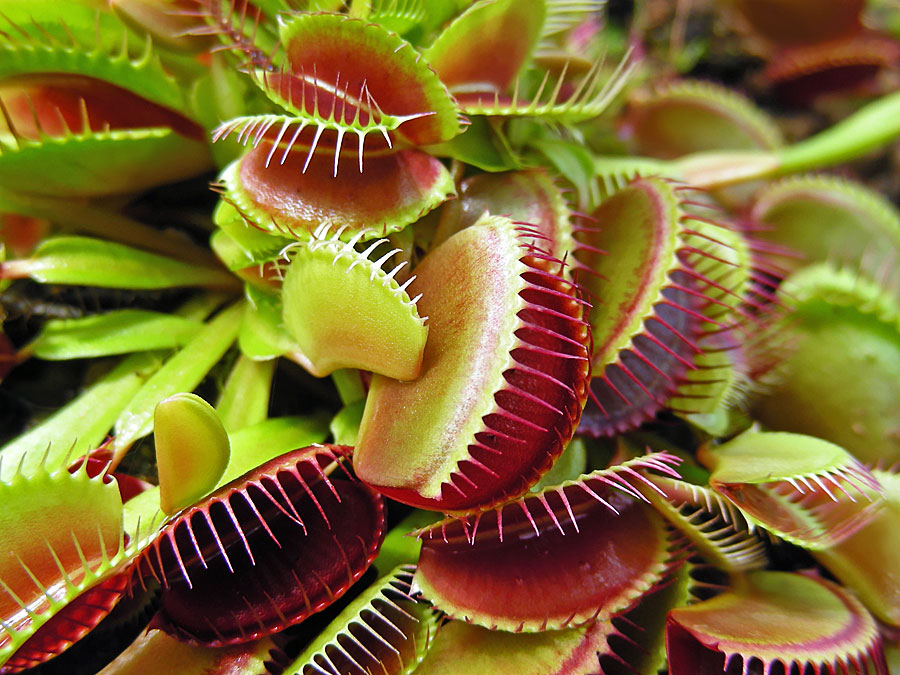
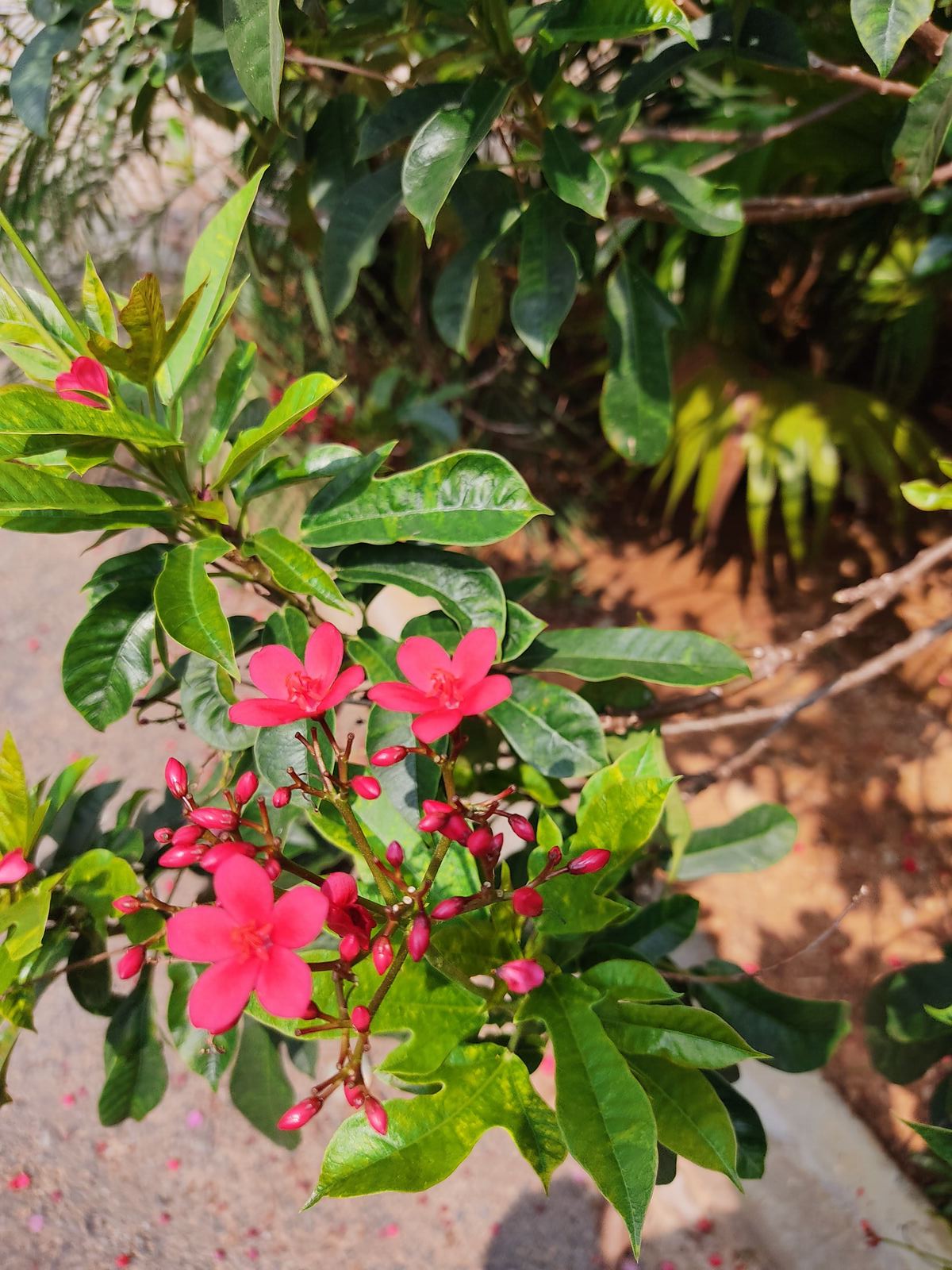
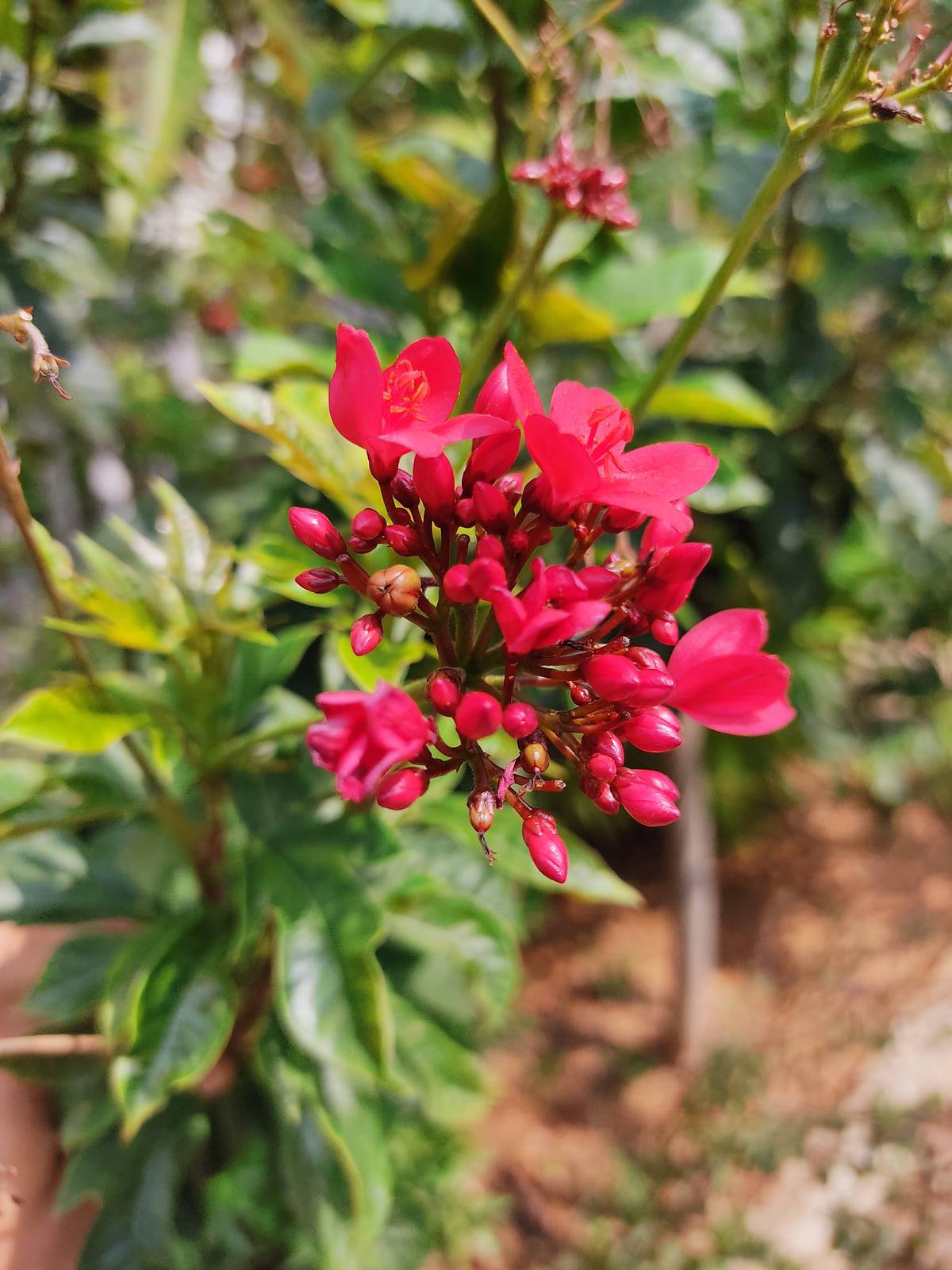
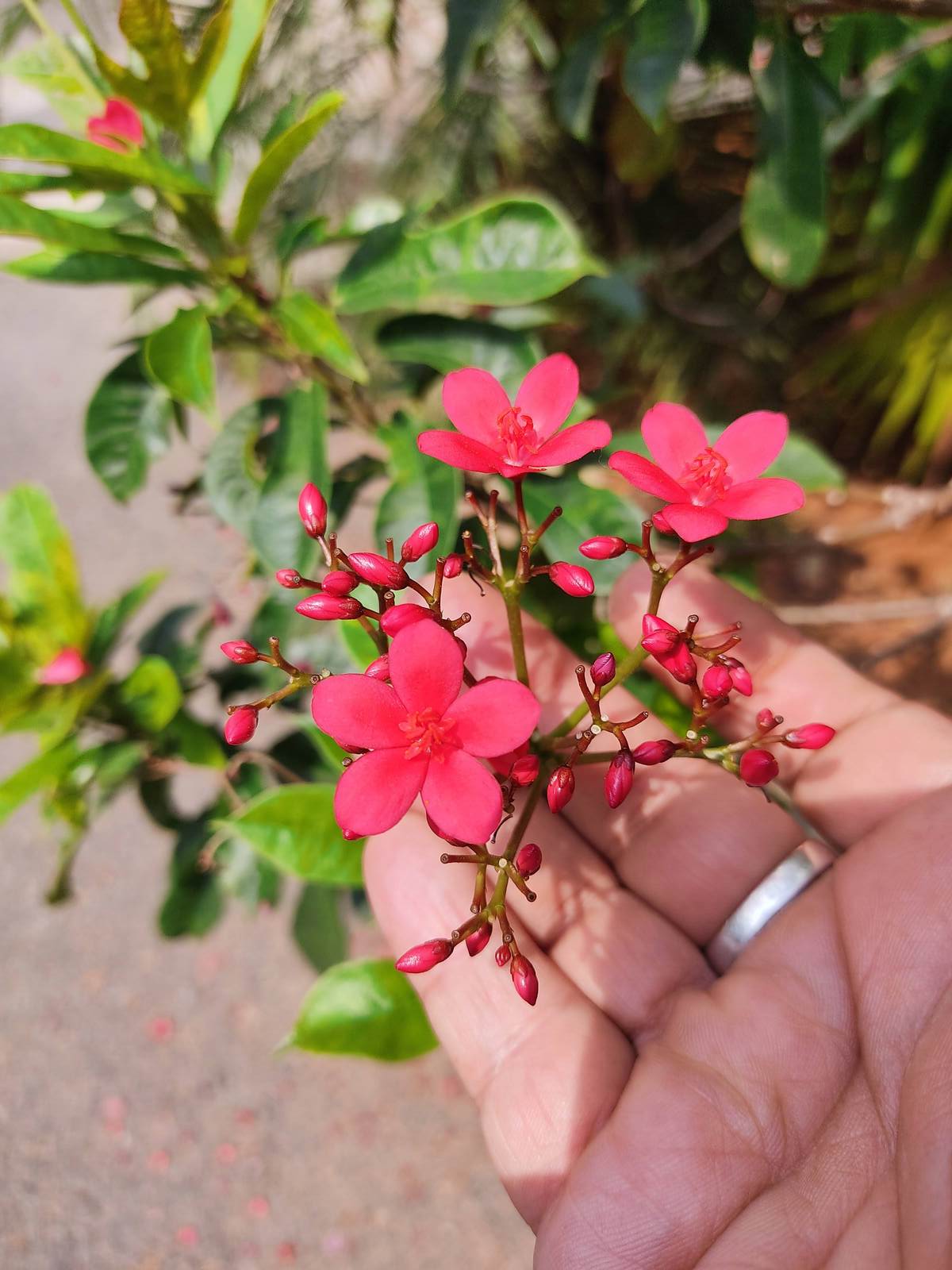
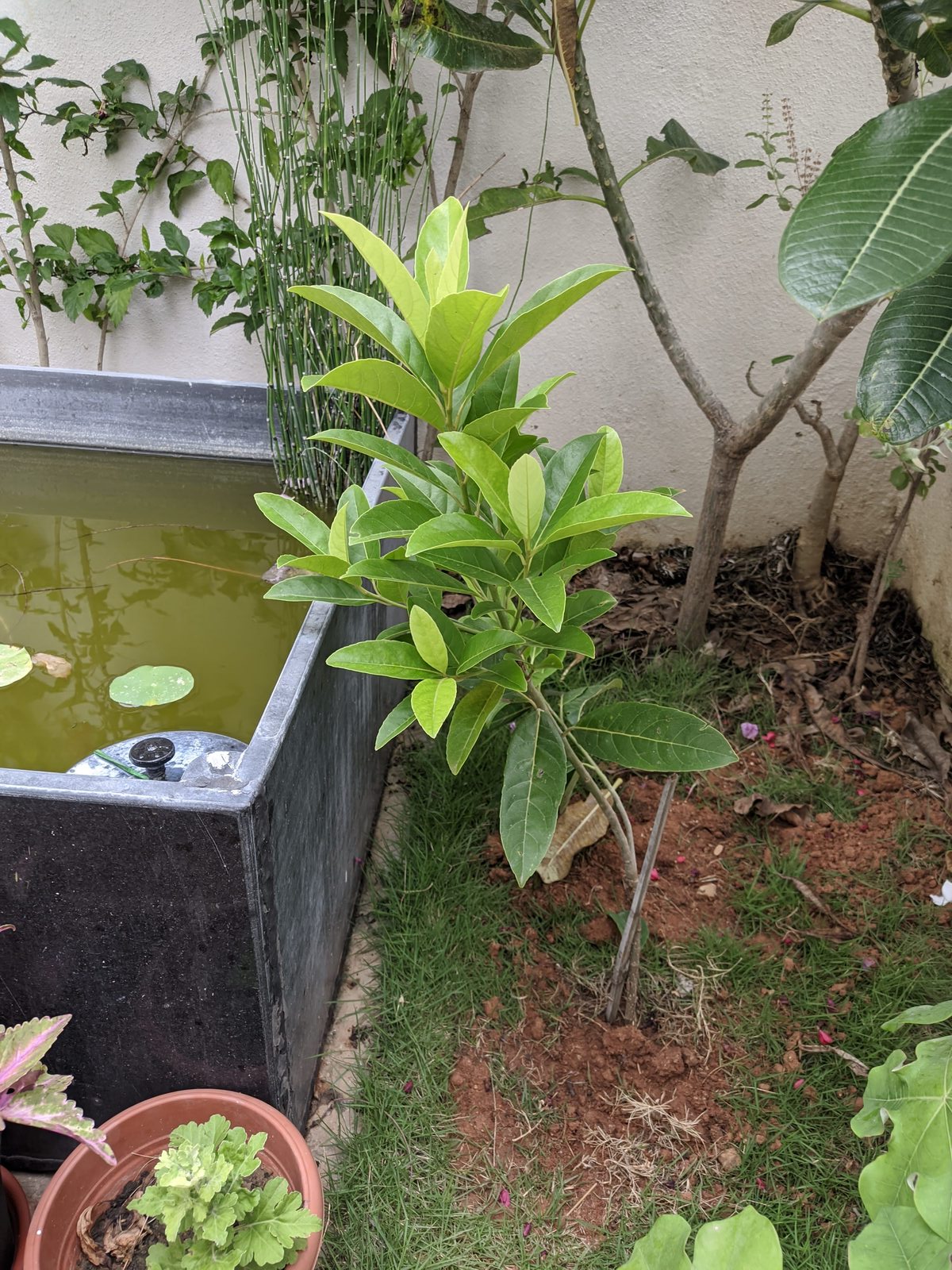
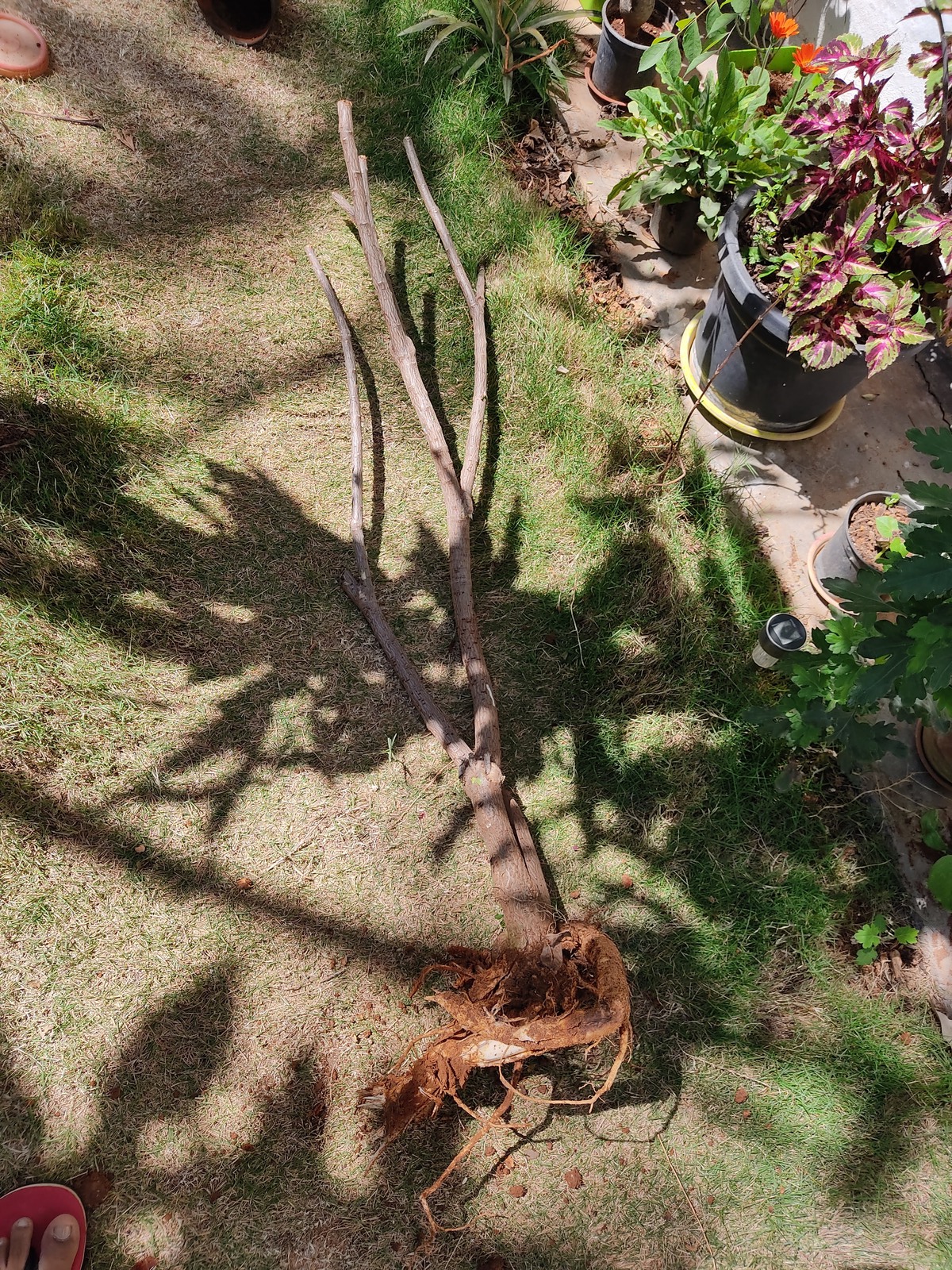
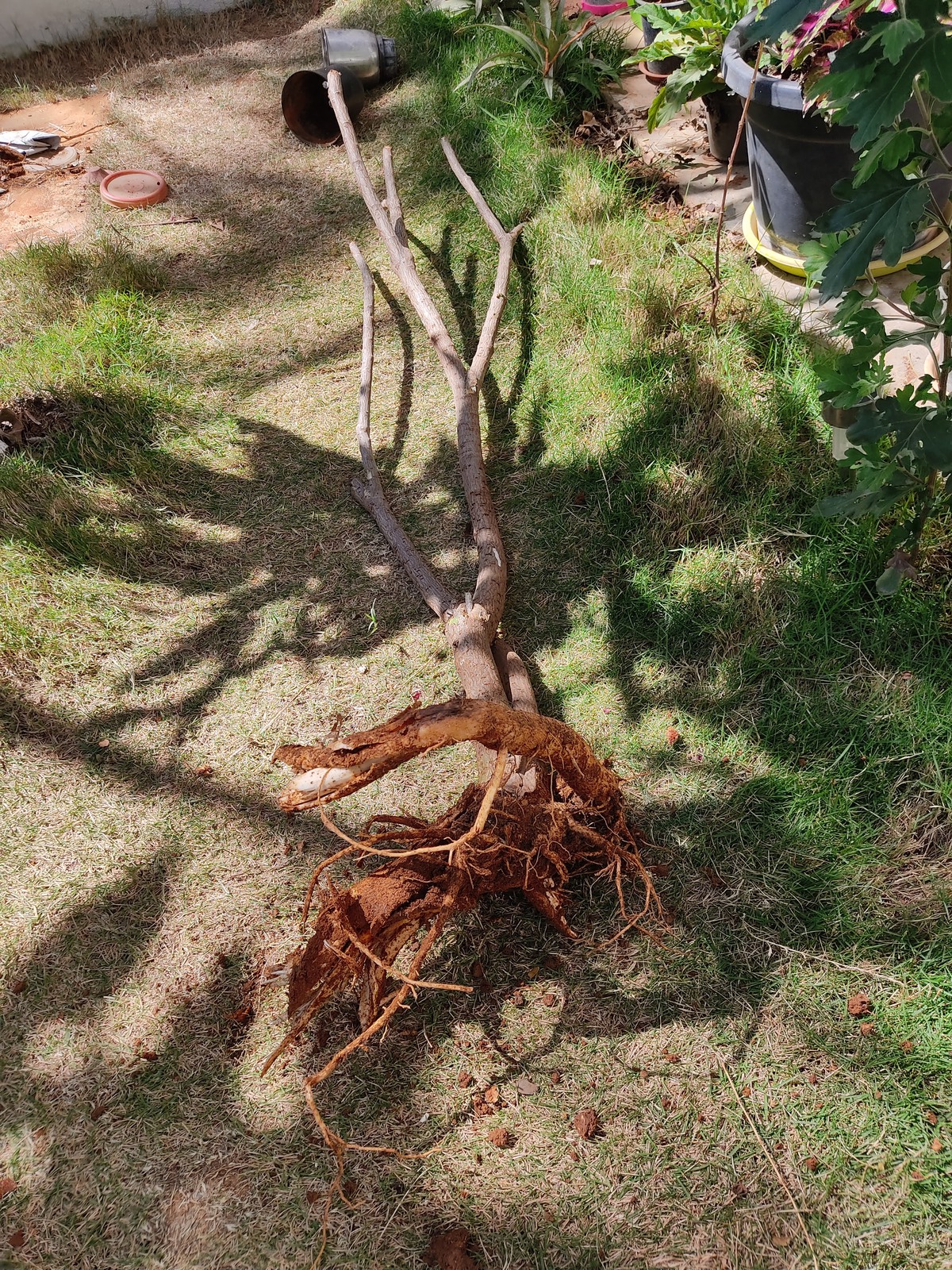
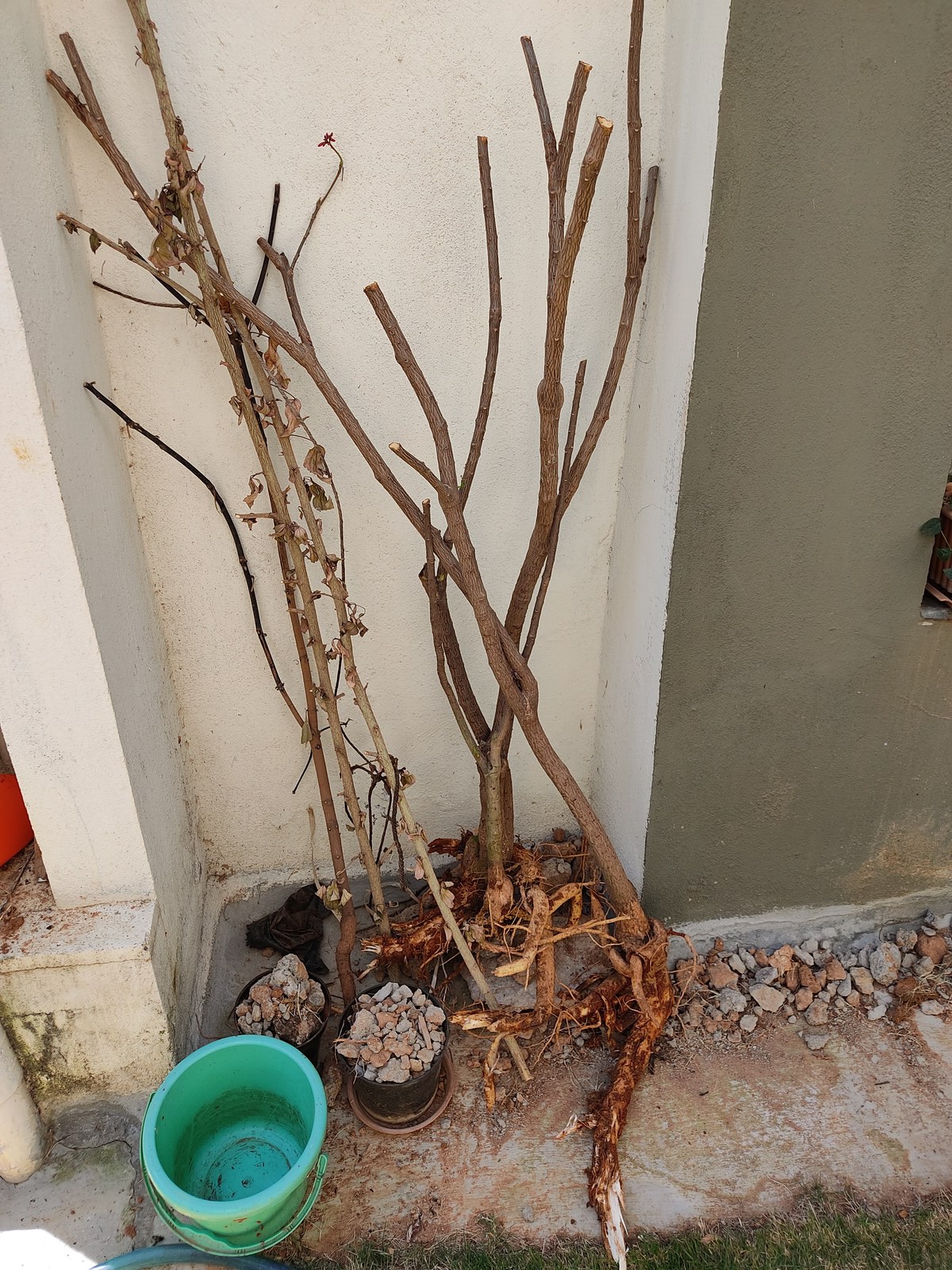
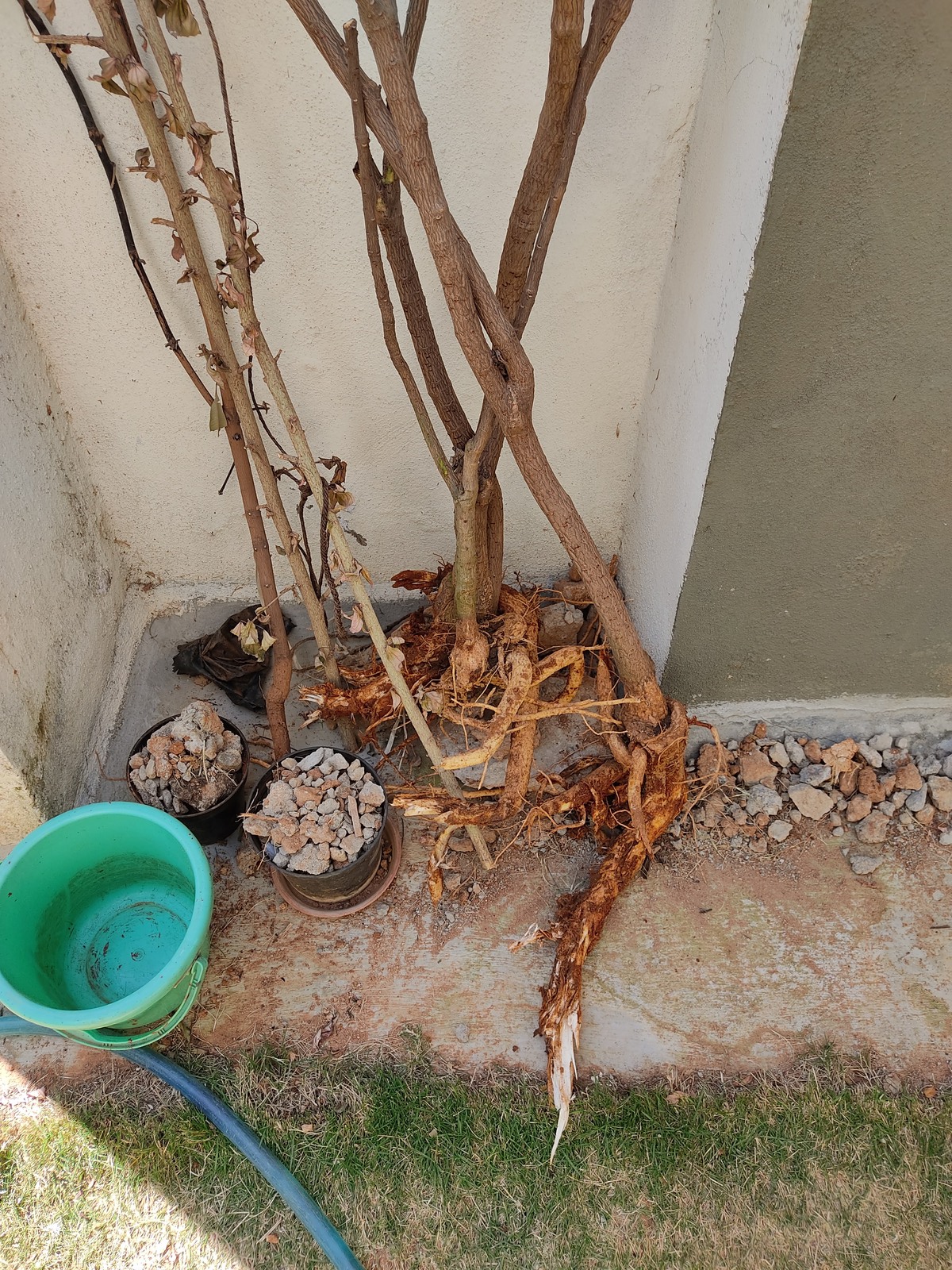
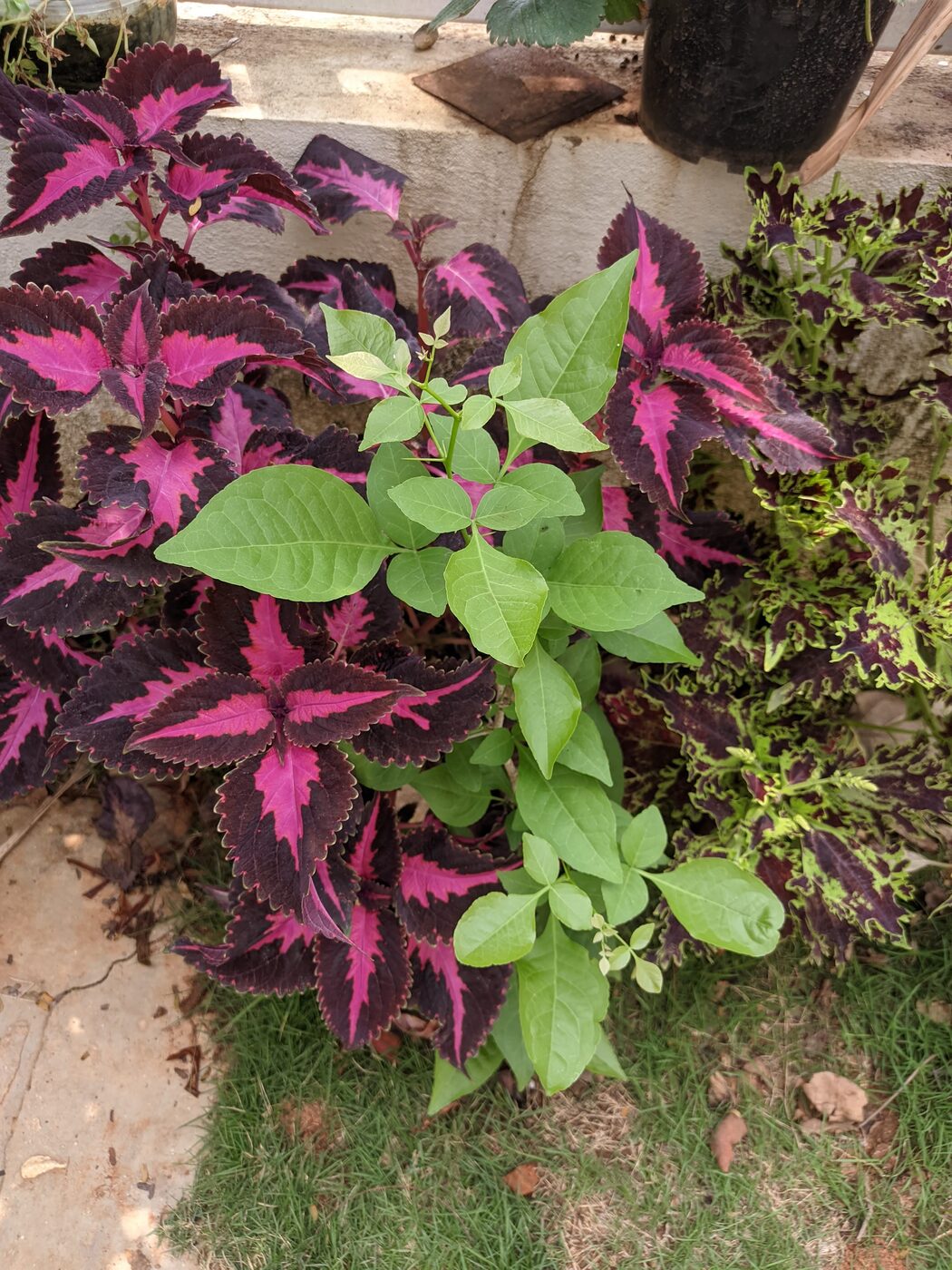
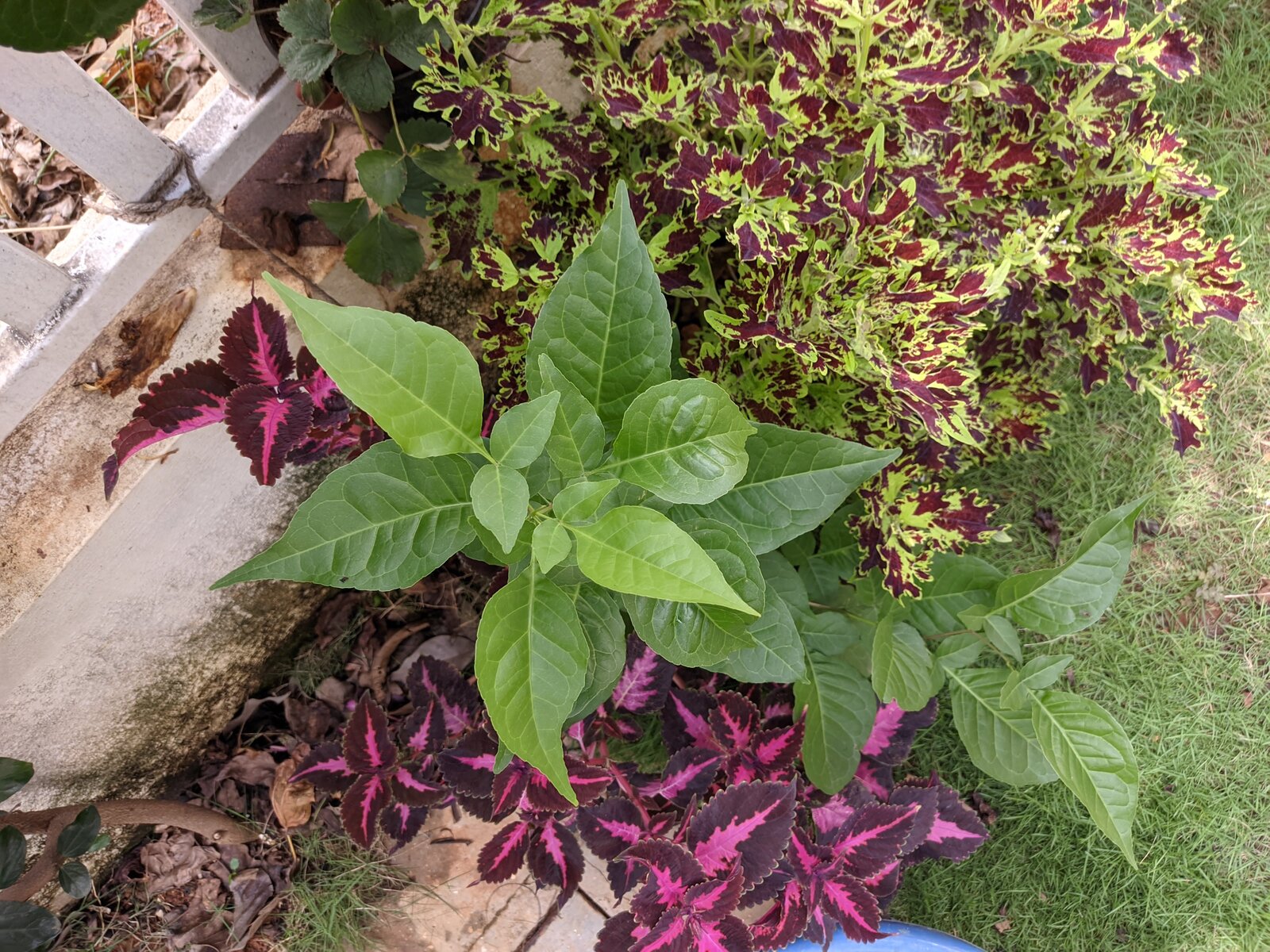
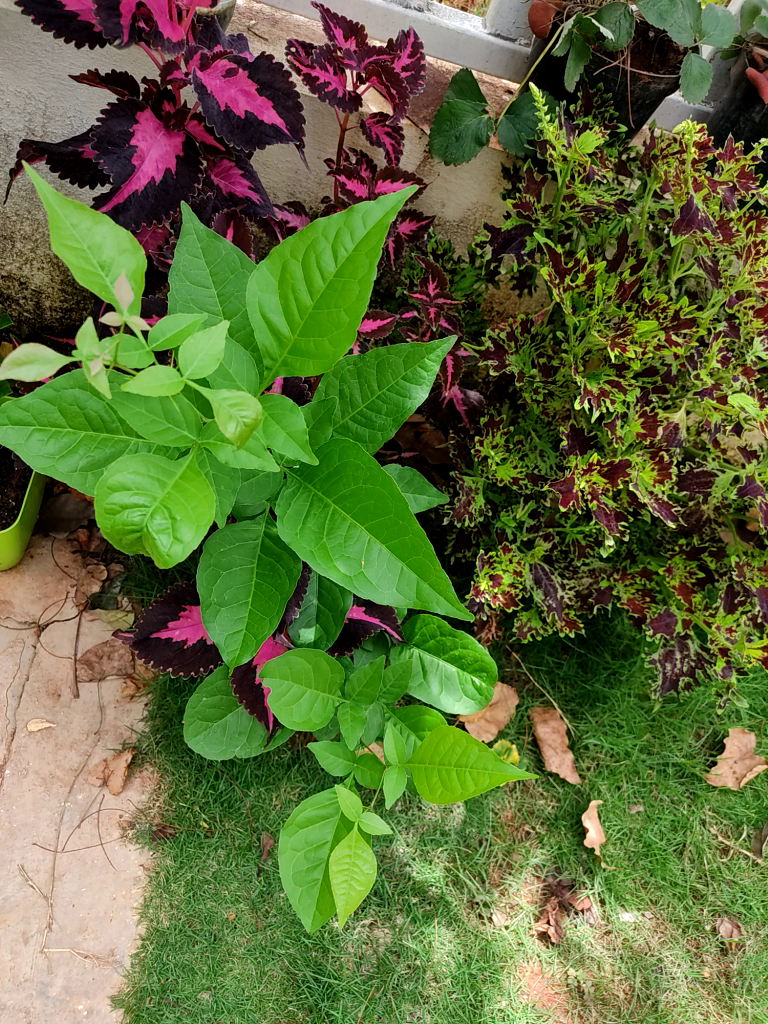
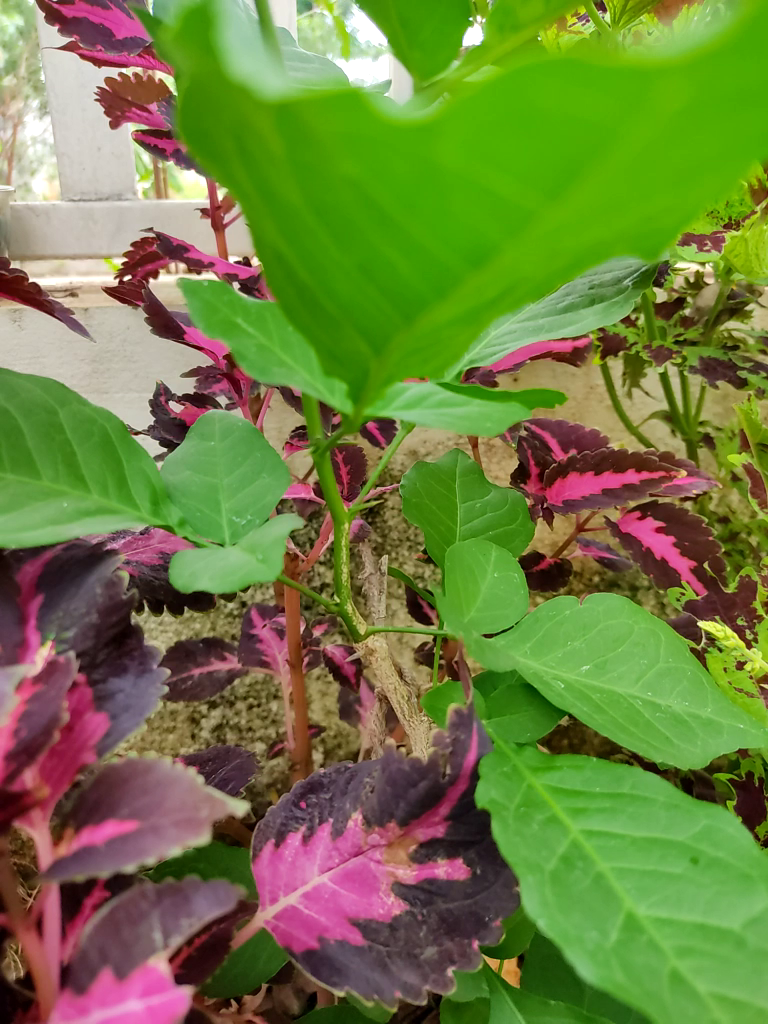
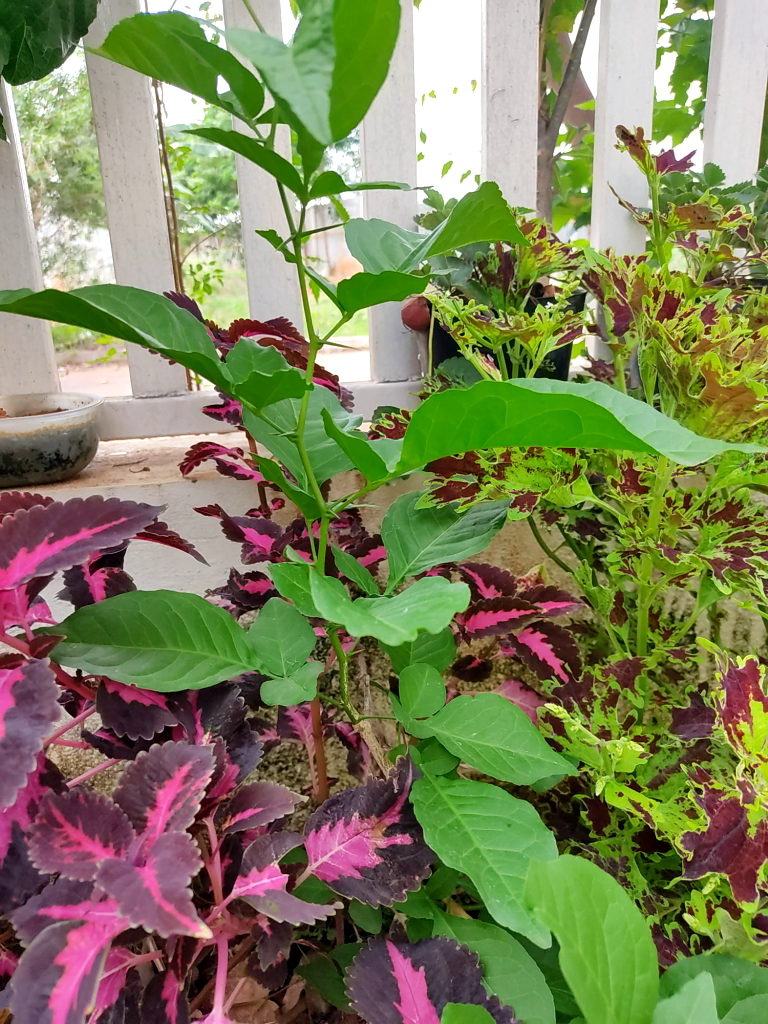
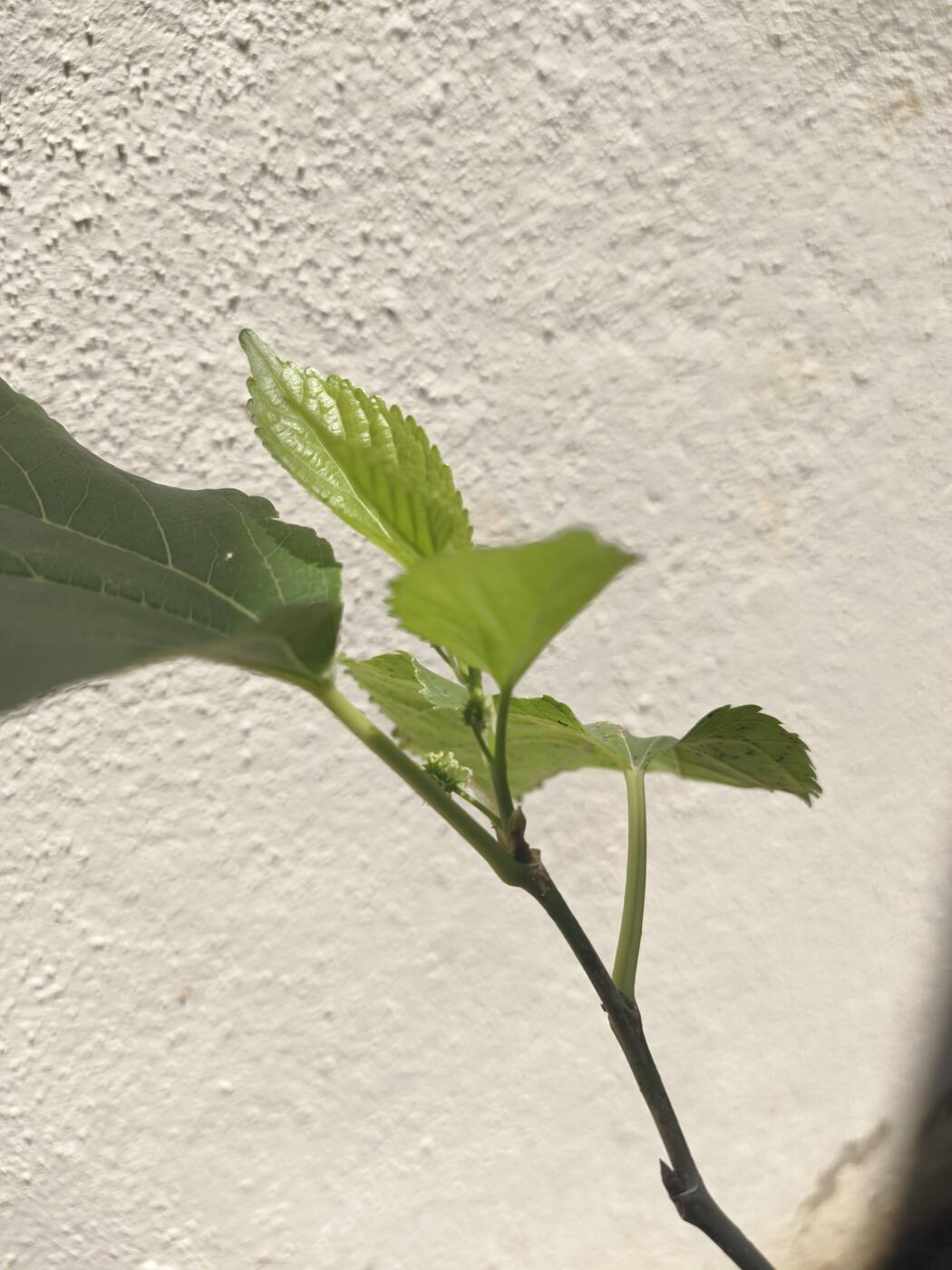
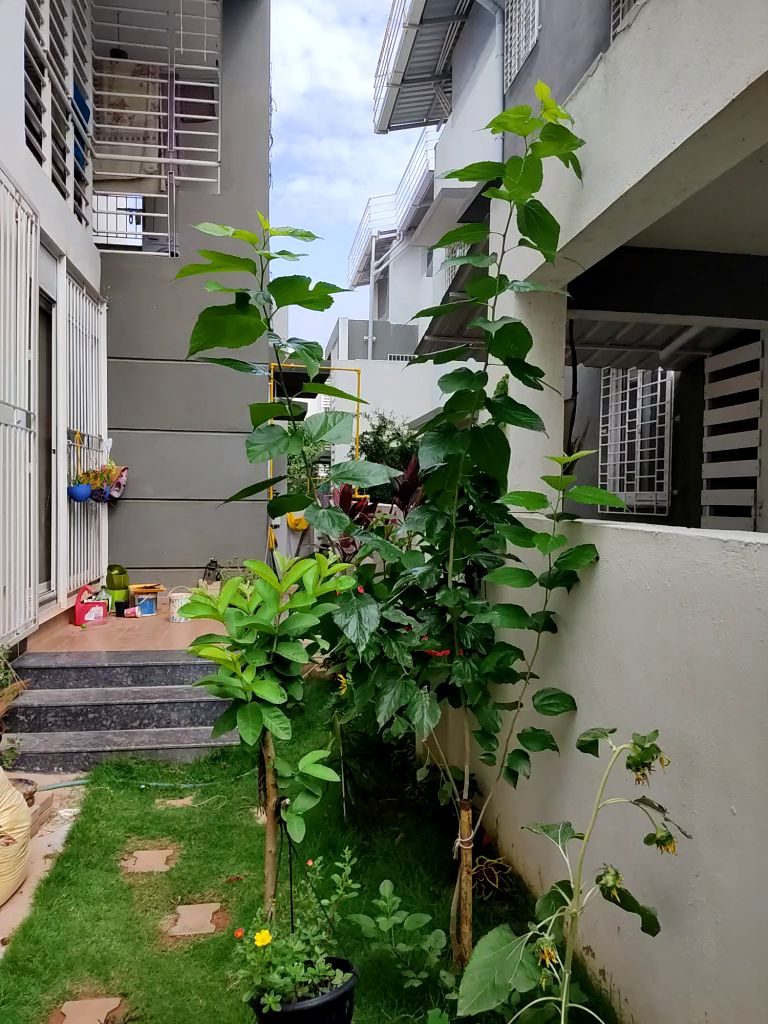
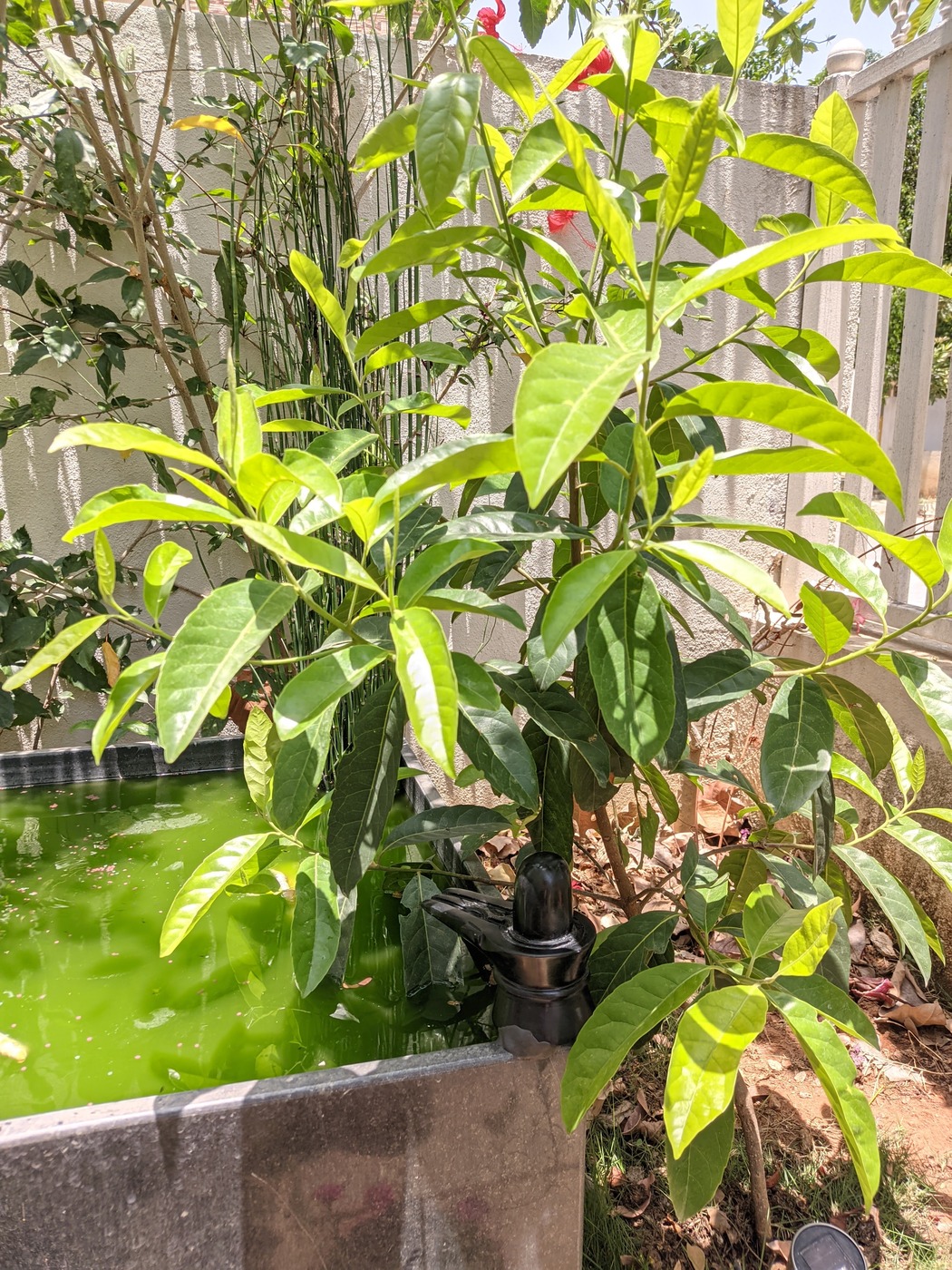
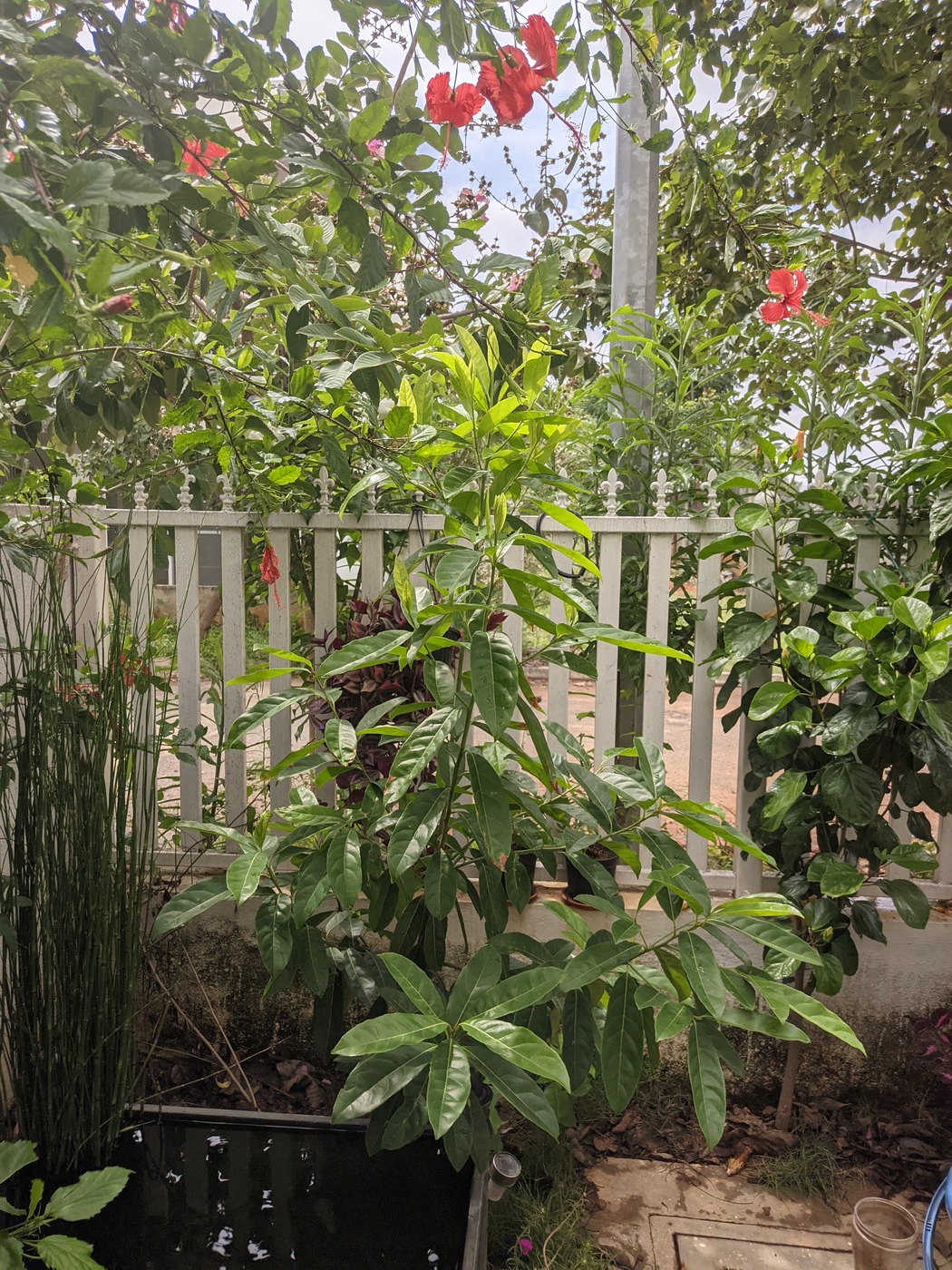
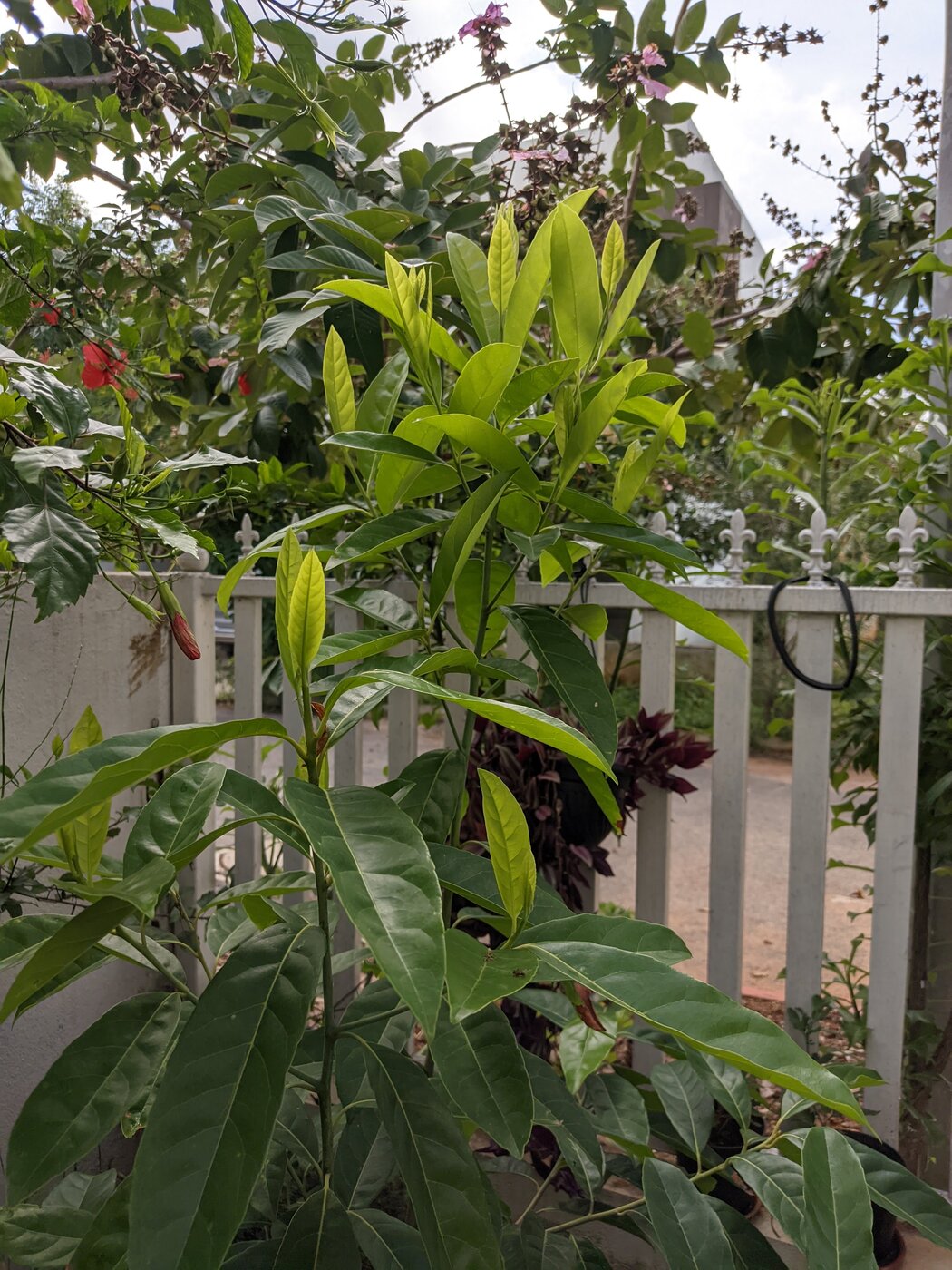
 This blog post is about my observations of some of the plants in my home garden.
While still a n00b on the subject, these notes are my observations and experiences over days, weeks and months. Thankfully, with the capability to take frequent pictures, it has been easy to do an assessment and generate a report of some of these amazing behaviors of plants, in an easy timeline order; all thanks to the EXIF data embedded.
This has very helpfully allowed me to record my, otherwise minor observations, into great detail; and make some sense out of it by correlating the data over time.
It is an emotional experience. You see, plants are amazing. When I sow a sapling, water it, feed it, watch it grow, prune it, medicate it, and what not; I build up affection towards it.
Though, at the same time, to me it is a strict relationship, not too attached; as in it doesn t hurt to uproot a plant if there is a good reason. But still, I find some sort of association to it.
With plants around, it feels I have a lot of lives around me. All prospering, communicating, sharing. And communicate they do. What is needed is just the right language to observe and absorb their signals and decipher what they are trying to say.
This blog post is about my observations of some of the plants in my home garden.
While still a n00b on the subject, these notes are my observations and experiences over days, weeks and months. Thankfully, with the capability to take frequent pictures, it has been easy to do an assessment and generate a report of some of these amazing behaviors of plants, in an easy timeline order; all thanks to the EXIF data embedded.
This has very helpfully allowed me to record my, otherwise minor observations, into great detail; and make some sense out of it by correlating the data over time.
It is an emotional experience. You see, plants are amazing. When I sow a sapling, water it, feed it, watch it grow, prune it, medicate it, and what not; I build up affection towards it.
Though, at the same time, to me it is a strict relationship, not too attached; as in it doesn t hurt to uproot a plant if there is a good reason. But still, I find some sort of association to it.
With plants around, it feels I have a lot of lives around me. All prospering, communicating, sharing. And communicate they do. What is needed is just the right language to observe and absorb their signals and decipher what they are trying to say.