Jonathan Carter: DebConf 20 Online


 A new minor release of the inline package just arrived on CRAN. inline facilitates writing code in-line in simple string expressions or short files. The package is mature and stable, and can be considered to be in maintenance mode: Rcpp used it extensively in the vrey early days before Rcpp Attributes provided an even better alternative. Seveal other package still rely on inline.
One of these package is rstan, and Ben Goodrich updated our use of
A new minor release of the inline package just arrived on CRAN. inline facilitates writing code in-line in simple string expressions or short files. The package is mature and stable, and can be considered to be in maintenance mode: Rcpp used it extensively in the vrey early days before Rcpp Attributes provided an even better alternative. Seveal other package still rely on inline.
One of these package is rstan, and Ben Goodrich updated our use of system() to system2() allowing for better error diagnostics. We also did a bit of standard maintenance to Travis CI and the README.md file.
See below for a detailed list of changes extracted from the NEWS file.
Courtesy of CRANberries, there is a comparison to the previous release. If you like this or other open-source work I do, you can now sponsor me at GitHub. For the first year, GitHub will match your contributions.Changes in inline version 0.3.16 (2020-09-06)
- Maintenance updates to README.md standardizing badges (Dirk).
- Maintenance update to Travis CI setup (Dirk).
- Switch to using
system2()for better error diagnostics (Ben Goodrich in #12).
This post by Dirk Eddelbuettel originated on his Thinking inside the box blog. Please report excessive re-aggregation in third-party for-profit settings.
Another (minor) nanotime release, now at version 0.3.2. This release brings an endianness correction which was kindly contributed in a PR, switches to using the API header exported by RcppCCTZ, and tweaks test coverage a little with respect to r-devel.
nanotime relies on the RcppCCTZ package for (efficient) high(er) resolution time parsing and formatting up to nanosecond resolution, and the bit64 package for the actual integer64 arithmetic. Initially implemented using the S3 system, it has benefitted greatly from work by co-author Leonardo who not only rejigged nanotime internals in S4 but also added new S4 types for periods, intervals and durations.
The NEWS snippet adds full details.
Thanks to CRANberries there is also a diff to the previous version. More details and examples are at the nanotime page; code, issue tickets etc at the GitHub repository. If you like this or other open-source work I do, you can now sponsor me at GitHub. For the first year, GitHub will match your contributions.Changes in version 0.3.2 (2020-09-03)
This post by Dirk Eddelbuettel originated on his Thinking inside the box blog. Please report excessive re-aggregation in third-party for-profit settings.
 Armadillo is a powerful and expressive C++ template library for linear algebra aiming towards a good balance between speed and ease of use with a syntax deliberately close to a Matlab. RcppArmadillo integrates this library with the R environment and language and is widely used by (currently) 769 other packages on CRAN.
A few days ago, Conrad released a new minor version 9.900.3 of Armadillo which we packaged and tested as usual. Given the incremental release character, we only tested the release and not candidate release. No regressions were found, and, as usual, logs from reverse-depends runs are in the rcpp-logs repo.
All changes in the new release are noted below.
Armadillo is a powerful and expressive C++ template library for linear algebra aiming towards a good balance between speed and ease of use with a syntax deliberately close to a Matlab. RcppArmadillo integrates this library with the R environment and language and is widely used by (currently) 769 other packages on CRAN.
A few days ago, Conrad released a new minor version 9.900.3 of Armadillo which we packaged and tested as usual. Given the incremental release character, we only tested the release and not candidate release. No regressions were found, and, as usual, logs from reverse-depends runs are in the rcpp-logs repo.
All changes in the new release are noted below.
Courtesy of CRANberries, there is a diffstat report relative to previous release. More detailed information is on the RcppArmadillo page. Questions, comments etc should go to the rcpp-devel mailing list off the R-Forge page. If you like this or other open-source work I do, you can now sponsor me at GitHub. For the first year, GitHub will match your contributions.Changes in RcppArmadillo version 0.9.900.3.0 (2020-09-02)
- Upgraded to Armadillo release 9.900.3 (Nocturnal Misbehaviour)
- More efficient code for initialising matrices with
fill::zeros- Fixes for various error messages
This post by Dirk Eddelbuettel originated on his Thinking inside the box blog. Please report excessive re-aggregation in third-party for-profit settings.
community.mysql collection from Ansible Galaxy
provides a mysql_query module to run arbitrary MySQL queries.
Unfortunately, it does not support check mode nor the --diff flag.
It is also unable to tell if there was a change. Let s write a
specific Ansible module to workaround these issues.
Notice I recommend that you read Writing a custom Ansible module as an introduction.
mysql_sync:
  sql:
    DELETE FROM rules WHERE name LIKE 'CMDB:%';
    INSERT INTO rules (name, rule) VALUES
      ('CMDB: check for cats', ':is(object, "CAT")'),
      ('CMDB: check for dogs', ':is(object, "DOG")');
    REPLACE INTO webhooks (name, url) VALUES
      ('OpsGenie', 'https://opsgenie/something/token'),
      ('Slack', 'https://slack/something/token');
  user: monitoring
  password: Yooghah5
  database: monitoring
  tables:
    - rules
    - webhooks
rules table is deleted and
recreated from scratch while the rows in the webhooks table are
replaced if they already exist.
You need the PyMySQL package.
module_args = dict(
    sql=dict(type='str', required=True),
    user=dict(type='str', required=True),
    password=dict(type='str', required=True, no_log=True),
    database=dict(type='str', required=True),
    tables=dict(type='list', required=True, elements='str'),
)
result = dict(
    changed=False
)
module = AnsibleModule(
    argument_spec=module_args,
    supports_check_mode=True
)
no_log to ensure it won t be displayed
or stored, notably when ansible-playbook runs in verbose mode. There
is no host option as the module is executed on the MySQL host.
Strong authentication using certificates is not implemented either.
This matches our goal with custom modules: only implement what you
strictly need.
got dictionary is a mapping from table names to the list of rows
they contain:
got =
tables = module.params['tables']
connection = pymysql.connect(
    user=module.params['user'],
    password=module.params['password'],
    db=module.params['database'],
    charset='utf8mb4',
    cursorclass=pymysql.cursors.DictCursor
)
with connection.cursor() as cursor:
    for table in tables:
        cursor.execute("SELECT * FROM  ".format(table))
        got[table] = cursor.fetchall()
wanted dictionary. The trick is to execute the
SQL statements in a transaction without issuing a final commit. The
changes will be invisible1 to other readers and we can
compare the final rows with the rows collected in got:
wanted =
sql = module.params['sql']
statements = [statement.strip()
              for statement in sql.split(";\n")
              if statement.strip()]
with connection.cursor() as cursor:
    for statement in statements:
        try:
            cursor.execute(statement)
        except pymysql.OperationalError as err:
            code, message = err.args
            result['msg'] = "MySQL error for  :  ".format(
                statement,
                message)
            module.fail_json(**result)
    for table in tables:
        cursor.execute("SELECT * FROM  ".format(table))
        wanted[table] = cursor.fetchall()
for loop executes each statement. On error, we return a
helpful message containing the faulty one. The second for loop
records the final rows of each table in wanted.
got and wanted when not running with check
mode. The diff object is a bit more elaborate as it is built table
by table. This enables Ansible to display the name of each table
before the diff representation:
if got != wanted:
    result['changed'] = True
    result['diff'] = [dict(
        before_header=table,
        after_header=table,
        before=yaml.safe_dump(got[table]),
        after=yaml.safe_dump(wanted[table]))
                      for table in tables
                      if got[table] != wanted[table]]
if module.check_mode or not result['changed']:
    module.exit_json(**result)
connection.commit()
mysql_query module, this one supports the check mode, signals
correctly if there is a change and displays the differences. However,
it should not be used with huge tables, as it would try to load them
in memory.
 For long time I have been using a good old nvidia GeForce GTX 1050 for my display and deep learning needs. I reported a few times how to get Tensorflow running on Debian/Sid, see here and here. Later on I switched to AMD GPU in the hope that an open source approach to both GPU driver as well as deep learning (ROCm) would improve the general experience. Unfortunately it turned out that AMD GPUs are generally not ready for deep learning usage.
 The problems with AMD and ROCm are far and wide. First of all, it seems that for anything more complicated then simple stuff, AMD s flagship RX 5700(XT) and all GFX10 (Navi) based cards are not(!!!) supported in ROCm. Yes, you read correct AMD does not support 5700(XT) cards in the ROCm stack. Some simple stuff works, but nothing for real computations.
Then, even IF they would support, ROCm as distributed is currently a huge pain in the butt. The source code is a huge mess, and building usable packages from it is probably possible, but quite painful (I am member of the ROCm packaging team in Debian, and have tried many hours). And the packages provided by AMD are not installable on Debian/sid due to library incompatibilities.
So that left me with a bit a problem: for work I need to train quite some neural networks, do model selection, etc. Doing this on a CPU is a bit a burden. So at the end I decided to put the nVidia card back into the computer (well, after moving it to a bigger case but that is a different story to tell). Here are the steps I did to get both cards working for their respective target: AMD GPU for driving the console and X (and games!), and the nVidia card doing the deep learning stuff (tensorflow using the GPU).
Starting point
Starting point was a working AMD GPU installation. The AMD GPU is also the first GPU card (top slot) and thus the one that is used by the BIOS and the Linux console. If you want the video output on the second card you need to trick, and probably don t have console output, etc etc. So not a solution for me.
Installing libcuda1 and the nvidia kernel drivers
Next step was installing the
The problems with AMD and ROCm are far and wide. First of all, it seems that for anything more complicated then simple stuff, AMD s flagship RX 5700(XT) and all GFX10 (Navi) based cards are not(!!!) supported in ROCm. Yes, you read correct AMD does not support 5700(XT) cards in the ROCm stack. Some simple stuff works, but nothing for real computations.
Then, even IF they would support, ROCm as distributed is currently a huge pain in the butt. The source code is a huge mess, and building usable packages from it is probably possible, but quite painful (I am member of the ROCm packaging team in Debian, and have tried many hours). And the packages provided by AMD are not installable on Debian/sid due to library incompatibilities.
So that left me with a bit a problem: for work I need to train quite some neural networks, do model selection, etc. Doing this on a CPU is a bit a burden. So at the end I decided to put the nVidia card back into the computer (well, after moving it to a bigger case but that is a different story to tell). Here are the steps I did to get both cards working for their respective target: AMD GPU for driving the console and X (and games!), and the nVidia card doing the deep learning stuff (tensorflow using the GPU).
Starting point
Starting point was a working AMD GPU installation. The AMD GPU is also the first GPU card (top slot) and thus the one that is used by the BIOS and the Linux console. If you want the video output on the second card you need to trick, and probably don t have console output, etc etc. So not a solution for me.
Installing libcuda1 and the nvidia kernel drivers
Next step was installing the libcuda1 package:
apt install libcuda1
update-glx tool and package.
The kernel module should be built and installed automatically for your kernel.
Installing CUDA
Follow more or less the instructions here and do
wget -O- https://developer.download.nvidia.com/compute/cuda/repos/ubuntu1804/x86_64/7fa2af80.pub   sudo tee /etc/apt/trusted.gpg.d/nvidia-cuda.asc
echo "deb http://developer.download.nvidia.com/compute/cuda/repos/ubuntu1804/x86_64/ /"   sudo tee /etc/apt/sources.list.d/nvidia-cuda.list
sudo apt-get update
sudo apt-get install cuda-libraries-10-1
/usr/local/cuda-10.1 and add the respective directory to the ld.so path by creating a file /etc/ld.so.conf.d/cuda-10-1.conf.
Install CUDA CuDNN
One difficult to satisfy dependency are the CuDNN libraries. In our case we need the version 7 library for CUDA 10.1. To download these files one needs to have a NVIDIA developer account, which is quick and painless. After that go to the CuDNN page where one needs to select Archived releases and then Download cuDNN v7.N.N (xxxx NN, YYYY), for CUDA 10.1 and then cuDNN Runtime Library for Ubuntu18.04 (Deb).
At the moment (as of today) this will download a file libcudnn7_7.6.5.32-1+cuda10.1_amd64.deb which needs to be installed with dpkg -i libcudnn7_7.6.5.32-1+cuda10.1_amd64.deb.
Updating the GLX setting
Here now comes the very interesting part one needs to set up the GLX libraries. Reading the output of update-glx --help and then the output of update-glx --list glx:
$ update-glx --help
update-glx is a wrapper around update-alternatives supporting only configuration
of the 'glx' and 'nvidia' alternatives. After updating the alternatives, it
takes care to trigger any follow-up actions that may be required to complete
the switch.

It can be used to switch between the main NVIDIA driver version and the legacy
drivers (eg: the 304 series, the 340 series, etc).

For users with Optimus-type laptops it can be used to enable running the discrete
GPU via bumblebee.

Usage: update-glx <command>

Commands:
  --auto <name>            switch the master link <name> to automatic mode.
  --display <name>         display information about the <name> group.
  --query <name>           machine parseable version of --display <name>.
  --list <name>            display all targets of the <name> group.
  --config <name>          show alternatives for the <name> group and ask the
                           user to select which one to use.
  --set <name> <path>      set <path> as alternative for <name>.

<name> is the master name for this link group.
  Only 'nvidia' and 'glx' are supported.
<path> is the location of one of the alternative target files.
  (e.g. /usr/lib/nvidia)

$ update-glx --list glx
/usr/lib/mesa-diverted
/usr/lib/nvidiaupdate-glx --config glx /usr/lib/mesa-diverted
libnvidia-cfg1 wasn t found (not sure it was needed at all ), and with that also no way to run tensorflow on GPU.
So what I did I tried
update-glx --auto glx
update-glx --config glx /usr/lib/nvidia), and rebooted, and decided to check afterwards what is broken.
To my big surprise, the AMD GPU still worked out of the box, including direct rendering, and the games I tried (Overload, Supraland via Wine) all worked without a hinch.
Not that I really understand why the GLX libraries that are seemingly now in use are from nvidia but work the same (if anyone has an explanation, that would be great!), but since I haven t had any problems till now, I am content.
Checking GPU usage in tensorflow
Make sure that you remove tensorflow-rocm and reinstall tensorflow with GPU support:
pip3 uninstall tensorflow-rocm
pip3 install --upgrade tensorflow-gpu
$ python3 -c "import tensorflow as tf;print(tf.reduce_sum(tf.random.normal([1000, 1000])))"
....(lots of output)
2020-09-02 11:57:04.673096: I tensorflow/core/common_runtime/gpu/gpu_device.cc:1402] Created TensorFlow device (/job:localhost/replica:0/task:0/device:GPU:0 with 3581 MB memory) -> physical GPU (device: 0, name: GeForce GTX 1050 Ti, pci bus id: 0000:05:00.0, compute capability: 6.1)
tf.Tensor(1093.4915, shape=(), dtype=float32)
$
 Here is another monthly update covering what I have been doing in the free software world during August 2020 (previous month):
classproperty helper has been moved to django.utils.functional in newer versions of Django. [...]
INSTALLED_APPS during model setup. [...]
.d-style directories containing Javascript and CSS to drop unquote usage from the six compatibility library. [...]
2.86.0, 2.87.0, 2.88.0, 2.89.0, 2.90.0, 2.91.0 and 2.92.0, as well as made the following changes:
patch-not-forwarded-upstream tag for README files under debian/patches. (#968845)no-dh-sequencer tag due to indirect target dependences. (#968108)package-uses-old-debhelper-compat-version tag. [...]lintian salsa namespace. [...]lzip dependency in a previous debian/changelog entry. (#966817)generate-tag-summary release script to reflect change of tag definition filename extension change from .desc .tag. [...]spelling-error-in-rules-requires-root tag's severity; this is not a "spelling" check in the sense that it does not use our dictionary. [...]$skip_tag argument in the extract_service_file_values routine. [...]debian-installer component to allow all arguments from sources.list files (such as [check-valid-until=no]) in order that we can test the reproducibility of the installer images on the Reproducible Builds own testing infrastructure and sent a gentle ping to the team that maintains that code.
.buildinfo files within .deb archives [...].
muroar package that was discovered while doing reproducibility testing. (#968189)
tests.reproducible-builds.org. This month, I updated the self-serve package rescheduler to use HTML <pre> tags when dumping any debugging data. [...]
SOURCE_DATE_EPOCH age. [...]155, 156, 157 and 158 to Debian:
<!ENTITY> declarations inside the Document Type Definition (DTD), or when a DTD or entity references an external resource. (#212)pgpdump(1) can successfully parse some binary files, so check that the parsed output contains something sensible before accepting it. [...]gnumeric from the Debian build-dependies as it has been removed from the testing distribution. (#968742)fallback_recognises to prevent matching .xsb binary XML files.file(1) returns "data". (#211)ppudump version does not match our file header. [...]repr(object) output in "Calling external command" messages. [...]chrony [...], golang-1.8 [...], golang-go.crypto [...], golang-golang-x-net-dev [...], icingaweb2 [...], lua5.3 [...], mongodb [...], net-snmp, php7.0 [...], qt4-x11, qtbase-opensource-src, ruby-actionpack-page-caching [...], ruby-doorkeeper [...], ruby-json-jwt [...], ruby-kaminari [...], ruby-kaminari [...], ruby-rack-cors [...], shiro [...] & squirrelmail.
qtbase-opensource-src and ELA-261-1 for qt4-x11, two components of cross-platform C++ application framework. A specially-crafted XBM image file could have caused a buffer overread.
squirrelmail webmail client.
zabbix, the PHP-based monitoring system to fix a potential cross-site scripting vulnerability via <iframe> HTML elements.
ruby-websocket-extensions, a library for managing long-lived HTTP 'WebSocket' connections.

1.6.6-2 Enable TLS capabilities by default. (#968603)1.6.6-3 Add libio-socket-ssl-perl to test TLS support and perform a general package refresh.2.2.15-1 (unstable) New upstream bugfix release3.1-1 (experimental) New upstream release.2.2.15-2 (unstable) & 3.1-2 (experimental) Set the same PYTHONPATH when executing the runtime tests as we do in the package build. (#968577)2.0.0-43 Refresh packaging, and upload some changes from the Debian Janitor.2.0.0-44 Fix compatibility with GCC 10, restoring the missing /usr/bin/instant binary. (#968900)1.0.0-1) New upstream release to experimental.
A new minor release 0.2.9 of RcppCCTZ is now on CRAN.
RcppCCTZ uses Rcpp to bring CCTZ to R. CCTZ is a C++ library for translating between absolute and civil times using the rules of a time zone. In fact, it is two libraries. One for dealing with civil time: human-readable dates and times, and one for converting between between absolute and civil times via time zones. And while CCTZ is made by Google(rs), it is not an official Google product. The RcppCCTZ page has a few usage examples and details. This package was the first CRAN package to use CCTZ; by now at least three others do using copies in their packages which remains less than ideal.
This version adds a header file for the recently-exported three functions.
We also have a diff to the previous version thanks to CRANberries. More details are at the RcppCCTZ page; code, issue tickets etc at the GitHub repository. If you like this or other open-source work I do, you can now sponsor me at GitHub. For the first year, GitHub will match your contributions.Changes in version 0.2.9 (2020-08-30)
- Provide a header
RcppCCZT_API.hfor client packages.- Show a simple example of parsing a YYYYMMDD HHMMSS.FFFFFF date.
This post by Dirk Eddelbuettel originated on his Thinking inside the box blog. Please report excessive re-aggregation in third-party for-profit settings.
 This line is called a command prompt and it tells you four pieces of information:
jaadams: The username of the user that is currently running this shell.bg7: The name of the computer that this shell is running on, important
for when you start accessing shells on remote machines./tmp/thisfolder: The folder or directory that your shell is currently
running in. Like a file explorer (like Window s Explorer or Mac s Finder) a
shell always has a working directory, from which all relative paths (see
sidenote below) are resolved. This is a shorthand notation that the shell uses to make this output shorter
when possible.
This is a shorthand notation that the shell uses to make this output shorter
when possible. ~ stands for your home directory, usually /home/<username>.
Like C:\Users\<username>\ on Windows or /Users/<username> on Mac,
this directory is where all your files should go by default.
Thus a command prompt like this:
 actually tells you that you are currently in the
 /home/jaadams/Downloads
directory.
/ and there are no directories above it.
For example, the directory called home typically contains all user directories.
This is stored in the root directory, and each users specific data
is stored in a directory named after that user under home.
Thus, the home directory of the user jacob is typically /home/jacob,
the directory jacob under the
home directory stored in the root directory /.
If you re interested in more details about what goes in what directory,
man hier has the basics and the
Filesystem Hierarchy Standard
governs the layout of the filesystem on most Linux distributions.
You don t always have to use the full path, however.
If the path does not begin with a /, it is assumed that the path actually
begins with the path of the current directory.
So if you use a path like my/folders/here, and you re in the /home/jacob
directory, the path will be treated like /home/jacob/my/folders/here.
Each folder also contains the symbolic links .. and ..
Symbolic links are a very powerful kind of
file that is actually a reference to another file.
.. always represents the parent directory
of the current directory, so /home/jacob/.. links to /home/.
. always links to the current directory, so /home/jacob/. links to
/home/jacob.
echo command displays the text passed as arguments.
jacob@lovelace/home/jacob$ echo hello world
hello world
hello
is the first argument and world is the second. If you need an argument to
contain spaces, you ll want to put quotes around it, echo "like so".
Certain arguments are called flags , or options (options if they take another
argument, flags otherwise) usually prefixed with a hyphen,
and they change the way a program operates.
For example, the ls command outputs the contents of a directory passed as
an argument, but if you add -l before the directory, it will give you more
details on the files in that directory.
jacob@lovelace/tmp/test$ ls /tmp/test
1  2  3  4  5  6
jacob@lovelace/tmp/test$ ls -l /tmp/test
total 0
-rw-r--r-- 1 jacob jacob 0 Aug 26 22:06 1
-rw-r--r-- 1 jacob jacob 0 Aug 26 22:06 2
-rw-r--r-- 1 jacob jacob 0 Aug 26 22:06 3
-rw-r--r-- 1 jacob jacob 0 Aug 26 22:06 4
-rw-r--r-- 1 jacob jacob 0 Aug 26 22:06 5
-rw-r--r-- 1 jacob jacob 0 Aug 26 22:06 6
jacob@lovelace/tmp/test$
cd <path>: Change the current directory of the running shell to <path>.ls <path>: Output the contents of <path>. If no path is passed, it prints
the contents of the current directory.touch <filename>: create an new empty file called <filename>.
Used on an existing file, it updates the file s last accessed and modified times.
Most text editors can also create a new file for you, which is probably more useful.mkdir <directory>: Create a new folder/directory at path <directory>.mv <src> <dest>: Move a file or directory at path <src> to <dest>.cp <src> <dest>: Copy a file or directory at path <src> to <dest>.rm <file>: Remove a file at path <file>.zip -r <zipfile> <contents...>: Create a zip file <zipfile> with contents
<contents>. <contents> can be multiple arguments, and you ll usually want
to use the -r argument when including directories in your zipfile, as otherwise
only the directory will be included and not the files and directories within it.grep <thing> <file>: Look for the string <thing> in <file>.
If no <file> is passed it searches standard input.find <path> -name <name>: Find a file or directory called <name> somwhere
under <path>. This command is actually very powerful, but also very complex.
For example you can delete all files in a directory older than 30 days with:
find -mtime +30 -exec rm \;
locate <name>: A much easier to use command to find a file with a given
name, but it is not usually installed by default.cat <files...>: Output (concatenate) all the files passed as arguments.head <file>: Output the beginning of <file>tail <file>: Output the end of <file>man intro).
This can be accessed using man <command>
You can search for the right command using the -k flag, as in man -k <search>.
You can also view manual pages in your browser, on sites like https://manpages.debian.org
or https://linux.die.net/man.
This is not always helpful, however, because some command s descriptions are
not particularly useful, and also there are a lot of manual pages, which can
make searching for a specific one difficult. For example, finding the right
command to search inside text files is quite difficult via man (it s grep).
When you can t find what you need with man I recommend falling back to
searching the Internet. There are lots of bad Linux tutorials out there, but
here are some reputable sources I recommend:
The NAME section is the only required section. Man pages without a name section are as useful as refrigerators at the north pole. This section also has a standardized format consisting of a comma-separated list of program or function names, followed by a dash, followed by a short (usually one line) description of the functionality the program (or function, or file) is supposed to provide. By means of makewhatis(8), the name sections make it into the whatis database files. Makewhatis is the reason the name section must exist, and why it must adhere to the format I described. (Formatting explanation cut for brevity) The SYNOPSIS section is intended to give a short overview on available program options. For functions this sections lists corresponding include files and the prototype so the programmer knows the type and number of arguments as well as the return type. The DESCRIPTION section eloquently explains why your sequence of 0s and 1s is worth anything at all. Here s where you write down all your knowledge. This is the Hall Of Fame. Win other programmers and users admiration by making this section the source of reliable and detailed information. Explain what the arguments are for, the file format, what algorithms do the dirty jobs. The OPTIONS section gives a description of how each option affects program behaviour. You knew that, didn t you? The FILES section lists files the program or function uses. For example, it lists configuration files, startup files, and files the program directly operates on. (Cut details about installing files) The ENVIRONMENT section lists all environment variables that affect your program or function and tells how, of course. Most commonly the variables will hold pathnames, filenames or default options. The DIAGNOSTICS section should give an overview of the most common error messages from your program and how to cope with them. There s no need to explain system error error messages (from perror(3)) or fatal signals (from psignal(3)) as they can appear during execution of any program. The BUGS section should ideally be non-existent. If you re brave, you can describe here the limitations, known inconveniences and features that others may regard as misfeatures. If you re not so brave, rename it the TO DO section ;-) The AUTHOR section is nice to have in case there are gross errors in the documentation or program behaviour (Bzzt!) and you want to mail a bug report. The SEE ALSO section is a list of related man pages in alphabetical order. Conventionally, it is the last section.
ssh, the secure shell.
This allows you to remotely connect to another computer and run a shell on that
machine:
user@host:~$ ssh other@example.com
other@example:~$
scp, which works much like the cp command
except that paths can also take a user@host argument to move files across
computers. For example, if you wanted to move a file test.txt to your
home directory on another machine, the command would look like:
scp test.txt other@example.com:
/etc/issue.net
from example.com:
scp other@example.com:/etc/issue.net .
sftp command, which gives you a very simple shell-like
interface in which you can cd and ls, before either puting files onto
the local machine or geting files off of it.
The final and most powerful option is rsync which syncs the contents of one
directory to another, and doesn t copy files that haven t changed. It s powerful
and complex, however, so I recommend reading the USAGE section of its man page.
tmux and screen both allow
you to run a shell in a safe environment where it will continue even if you
disconnect from it. You do this by running the command without any arguments,
i.e. just tmux or just screen.
In tmux you can disconnect from the current session by
pressing Ctrl+b then d, and reattach with the tmux attach command.
screen works similarly, but with Ctrl+a instead of b and screen -r to
reattach.
<, > and the very powerful .
< and > redirect the input and output of a command to a file.
For example, if you wanted a file called list.txt that contained a list of
all the files in a directory /this/one/here you could use:
ls /this/one/here > list.txt
, allows you to direct the output of one command into
the input of another. This can be very powerful.
For example, the following pipeline lists the contents of the current directory
searches for the string test , then counts the number of results.
(wc -l counts the number of lines in its input)
ls grep test wc -l
myfile,
with a bunch of lines of potentially duplicated and unsorted data
test
test
1234
4567
1234
sort and uniq:
$ uniq < myfile   sort
1234
1234
4567
test
*.suffix. This also works with prefixes, prefix*,
and in fact you can put a * anywhere, *middle*. The shell will expand that
* into all the files in that directory that match your criteria
(ending with a specific suffix, starting with a specific prefix, and so on)
and pass each file as a separate argument to the command.
For example, if I have a series of files called 1.txt, 2.txt, and so on
up to 9, each containing just the number for which it s named, I could use
cat to output all of them like so:
jacob@lovelace/tmp/numbers$ ls
1.txt  2.txt  3.txt  4.txt  5.txt  6.txt  7.txt  8.txt	9.txt
jacob@lovelace/tmp/numbers$ cat *.txt
1
2
3
4
5
6
7
8
9
~ shorthand mentioned above that refers to your home directory
can be used when passing a path as an argument to a command.
for i in 1 2 3 4 5 6 7 8 9
do
echo $i > $i.txt
done
$ echo 0 > /sys/devices/system/cpu/cpufreq/boost
$ echo 1 > /sys/devices/system/cpu/cpufreq/boost
$ echo performance > /sys/devices/system/cpu/cpu$n/cpufreq/scaling_governor
cpu0, cpu1, etc.
Re-enable with:
$ echo ondemand > /sys/devices/system/cpu/cpu$n/cpufreq/scaling_governor
ondemand is usually the default)
Cores and Threads
This one requires some attention, because you cannot assume anything about the CPU numbers. The first thing you want to do is to check those CPU numbers. You can do so by looking at the physical id and core id fields in /proc/cpuinfo, but the output from lscpu --extended is more convenient, and looks like the following:
CPU NODE SOCKET CORE L1d:L1i:L2:L3 ONLINE MAXMHZ    MINMHZ
0   0    0      0    0:0:0:0       yes    3700.0000 2200.0000
1   0    0      1    1:1:1:0       yes    3700.0000 2200.0000
2   0    0      2    2:2:2:0       yes    3700.0000 2200.0000
3   0    0      3    3:3:3:0       yes    3700.0000 2200.0000
4   0    0      4    4:4:4:1       yes    3700.0000 2200.0000
5   0    0      5    5:5:5:1       yes    3700.0000 2200.0000
6   0    0      6    6:6:6:1       yes    3700.0000 2200.0000
7   0    0      7    7:7:7:1       yes    3700.0000 2200.0000
(...)
32  0    0      0    0:0:0:0       yes    3700.0000 2200.0000
33  0    0      1    1:1:1:0       yes    3700.0000 2200.0000
34  0    0      2    2:2:2:0       yes    3700.0000 2200.0000
35  0    0      3    3:3:3:0       yes    3700.0000 2200.0000
36  0    0      4    4:4:4:1       yes    3700.0000 2200.0000
37  0    0      5    5:5:5:1       yes    3700.0000 2200.0000
38  0    0      6    6:6:6:1       yes    3700.0000 2200.0000
39  0    0      7    7:7:7:1       yes    3700.0000 2200.0000
(...)$ echo 0 > /sys/devices/system/cpu/cpu$n/online
$ echo 1 > /sys/devices/system/cpu/cpu$n/online
$ mkdir /sys/fs/cgroup/cpuset/mygroup$ echo 0-7,16-23 > /sys/fs/cgroup/cpuset/mygroup/cpuset.cpus0-3 is the range for CPU/core/thread 0 to 3 and is thus equivalent to 0,1,2,3. The numbers correspond to /proc/cpuinfo or the output from lscpu as mentioned above.
There are also memory aspects to CPU sets, that I won t detail here (because I don t have a machine with multiple memory nodes), but you can start with:
$ cat /sys/fs/cgroup/cpuset/cpuset.mems > /sys/fs/cgroup/cpuset/mygroup/cpuset.mems$ echo $pid >> /sys/fs/cgroup/cpuset/mygroup/taskscpuset(7) manual page.
Disabling a group is a little involved. First you need to move the processes to a different group:
$ while read pid; do echo $pid > /sys/fs/cgroup/cpuset/tasks; done < /sys/fs/cgroup/cpuset/mygroup/tasks$ > /sys/fs/cgroup/cpuset/mygroup/cpuset.cpus
$ > /sys/fs/cgroup/cpuset/mygroup/cpuset.mems$ rmdir /sys/fs/cgroup/cpuset/mygroupR CMD check --as-cran as nicely as usual.
Courtesy of CRANberries, there is a diffstat report for this release. More information is on the RcppSMC page. Issues and bugreports should go to the GitHub issue tracker. If you like this or other open-source work I do, you can now sponsor me at GitHub. For the first year, GitHub will match your contributions.Changes in RcppSMC version 0.2.2 (2020-08-30)
This post by Dirk Eddelbuettel originated on his Thinking inside the box blog. Please report excessive re-aggregation in third-party for-profit settings.
Dealing with the void during MiniDebConf Online #1
Between 28 and 31 May this year, we set out to create our first ever online MiniDebConf for Debian. Many people have been meaning to do something similar for a long time, but it just didn t work out yet. With many of us being in lock down due to COVID-19, and with the strong possibility looming that DebConf20 might have had to become an online event, we rushed towards organising the first ever Online MiniDebConf and put together some form of usable video stack for it.
I could go into all kinds of details on the above, but this post is about a bug that lead to a pretty nifty feature for DebConf20. The tool that we use to capture Jitsi calls is called Jibri (Jitsi Broadcasting Infrustructure). It had a bug (well, bug for us, but it s an upstream feature) where Jibri would hang up after 30s of complete silence, because it would assume that the call has ended and that the worker can be freed up again. This would result in the stream being ended at the end of every talk, so before the next talk, someone would have to remember to press play again in their media player or on the video player on the stream page. Hrmph.
Easy solution on the morning that the conference starts? I was testing a Debian Live image the night before in a KVM and thought that I might as well just start a Jitsi call from there and keep a steady stream of silence so that Jibri doesn t hang up.
It worked! But the black screen and silence on stream was a bit eery. Because this event was so experimental in nature, and because we were on such an incredibly tight timeline, we opted not to seek sponsors for this event, so there was no sponsors loop that we d usually stream during a DebConf event. Then I thought Ah! I could just show the schedule! .
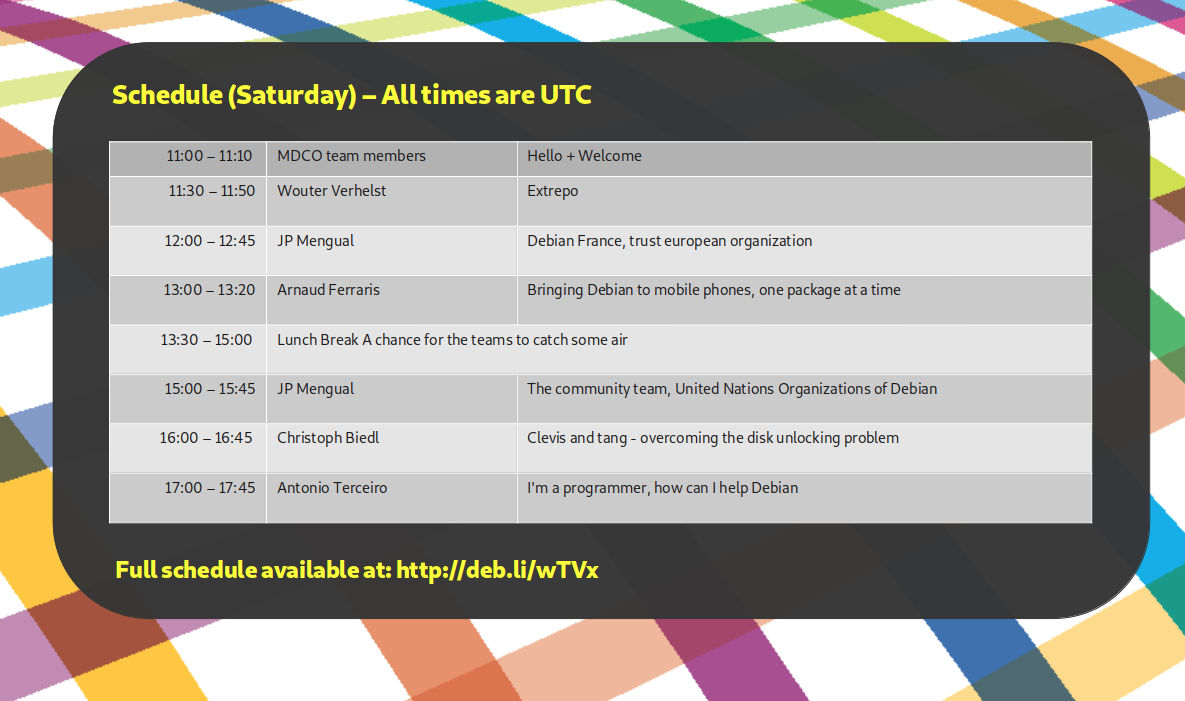
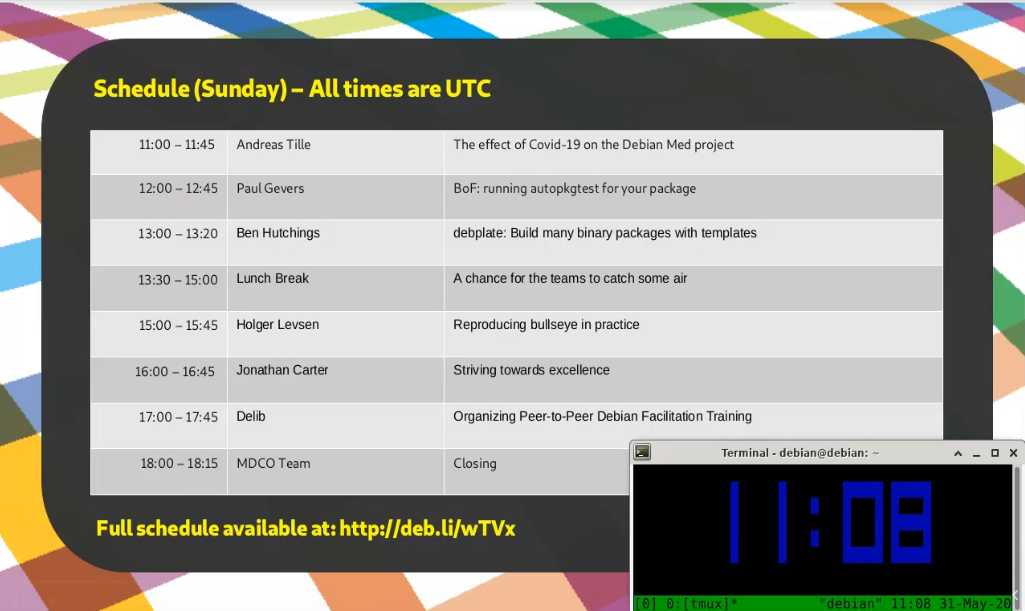
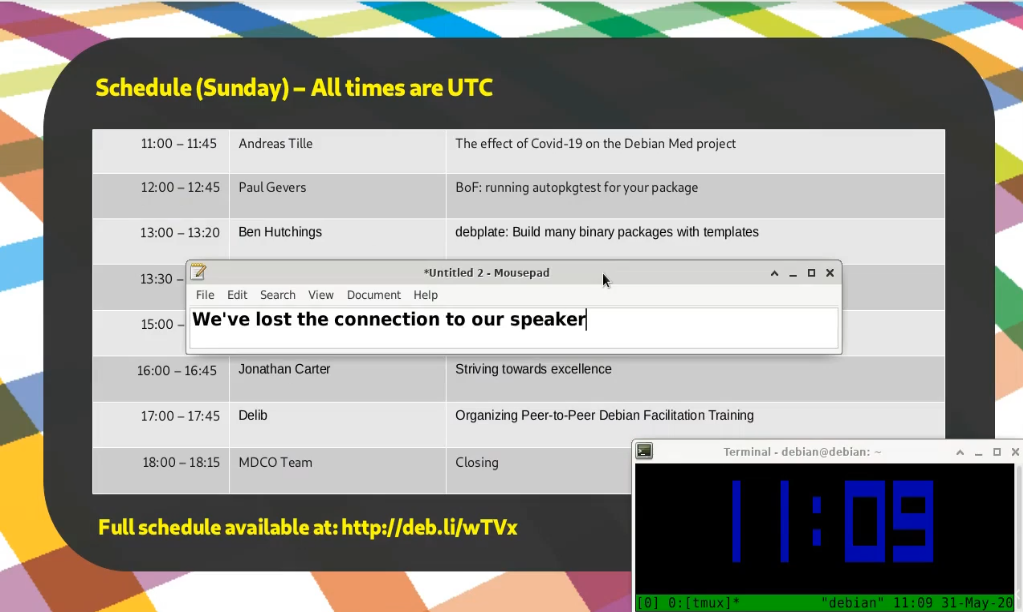
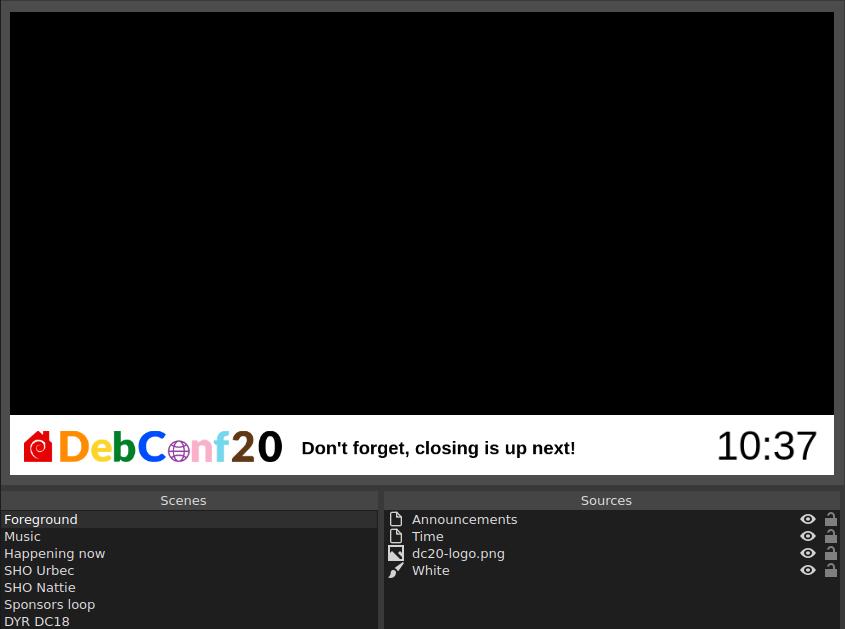
DebConf20 Moves Online For DebConf, we usually show a sponsors loop in between sessions. It s great that we give our sponsors visibility here, but in reality people see the sponsors loop and think Talk over! and then they look away. It s also completely silent and doesn t provide any additional useful information. I was wondering how I could take our lessons from MDCO#1 and integrate our new tricks with the sponsors loop. That is, add the schedule, time, some space to type announcements on the screen and also add some loopable music to it. I used OBS before in making my videos, and like the flexibility it provides when working with scenes and sources. A scene is what you would think of as a screen or a document with its own collection of sources or elements. For example, a scene might contain sources such as a logo, clock, video, image, etc. A scene can also contain another scene. This is useful if you want to contain a banner or play some background music that is shared between scenes.
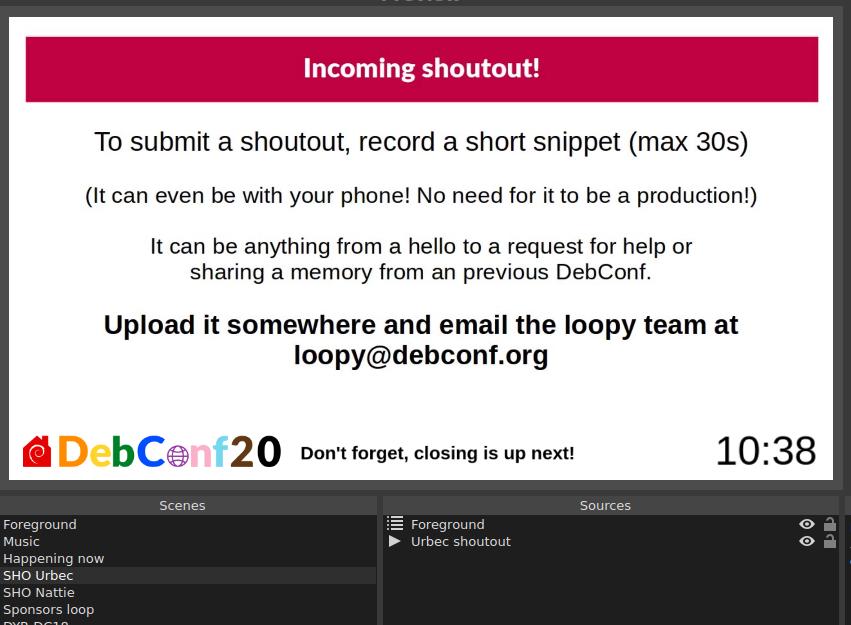
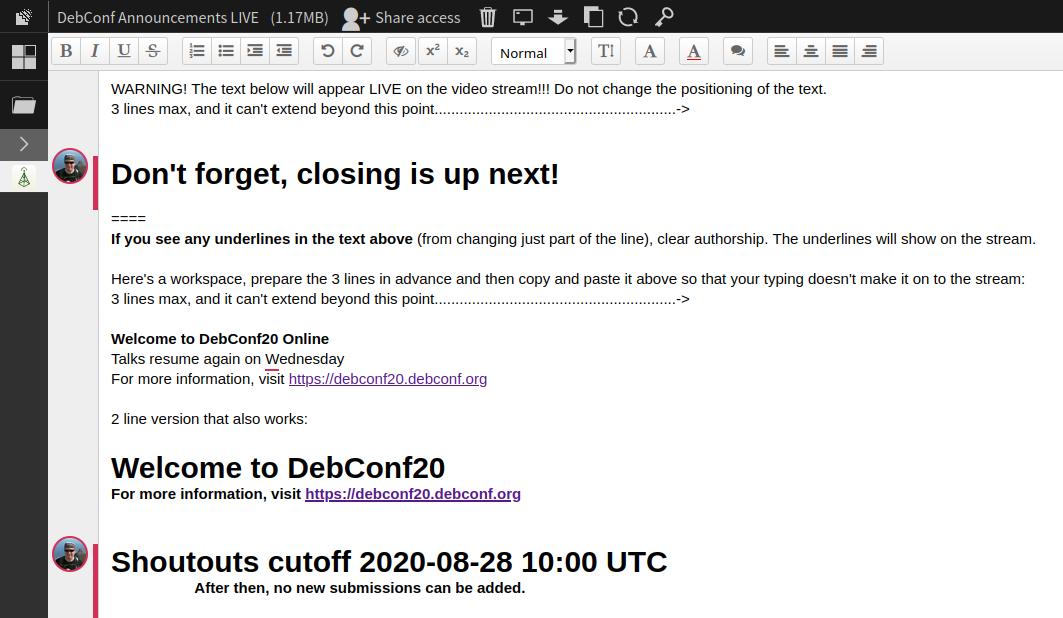
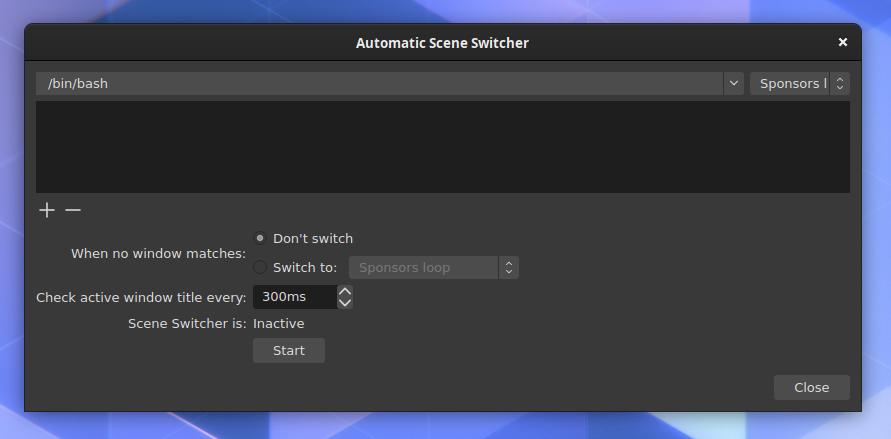
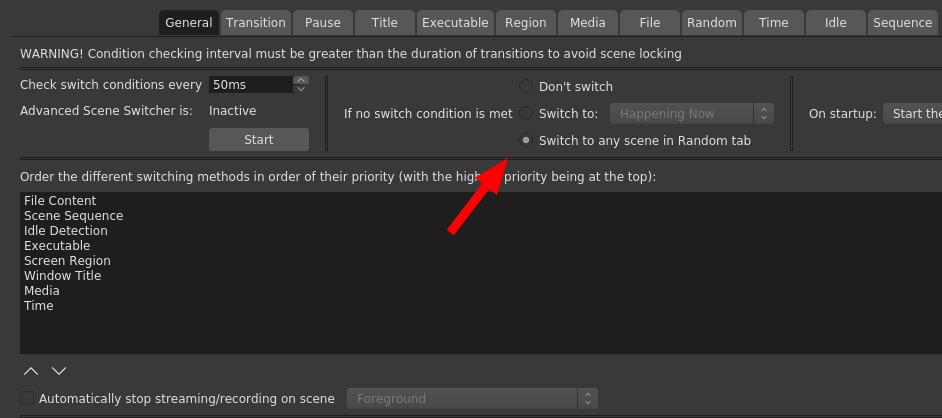
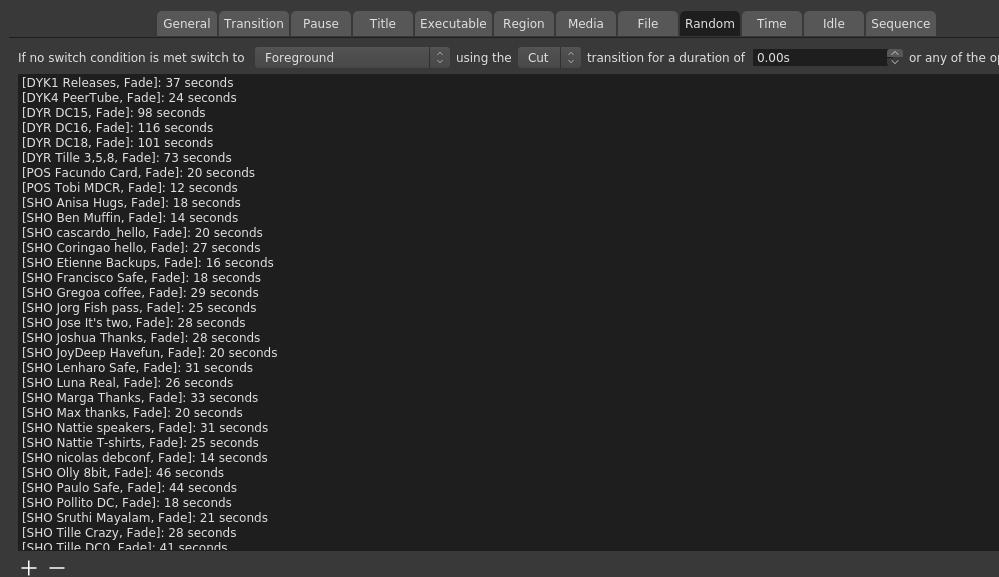
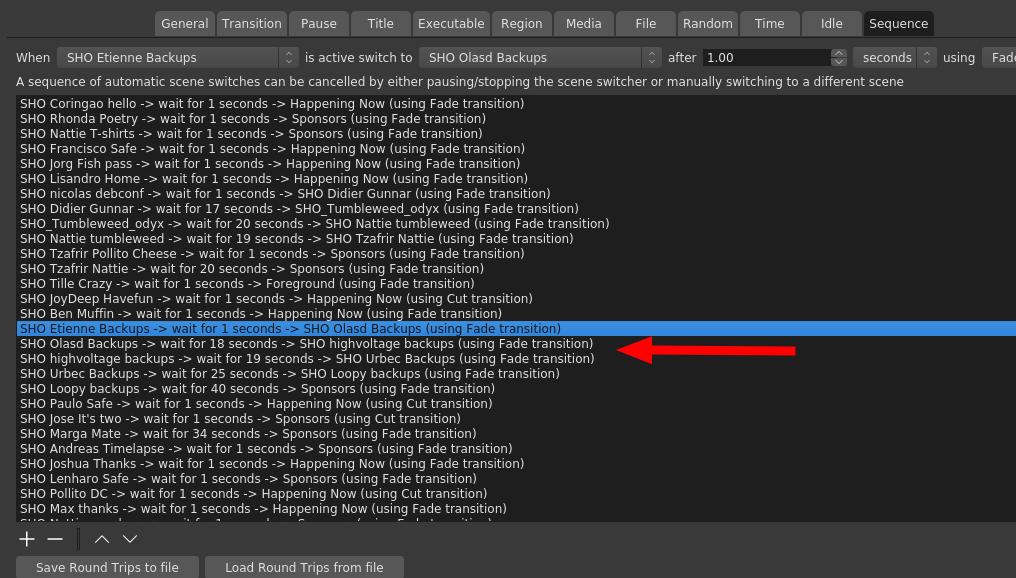
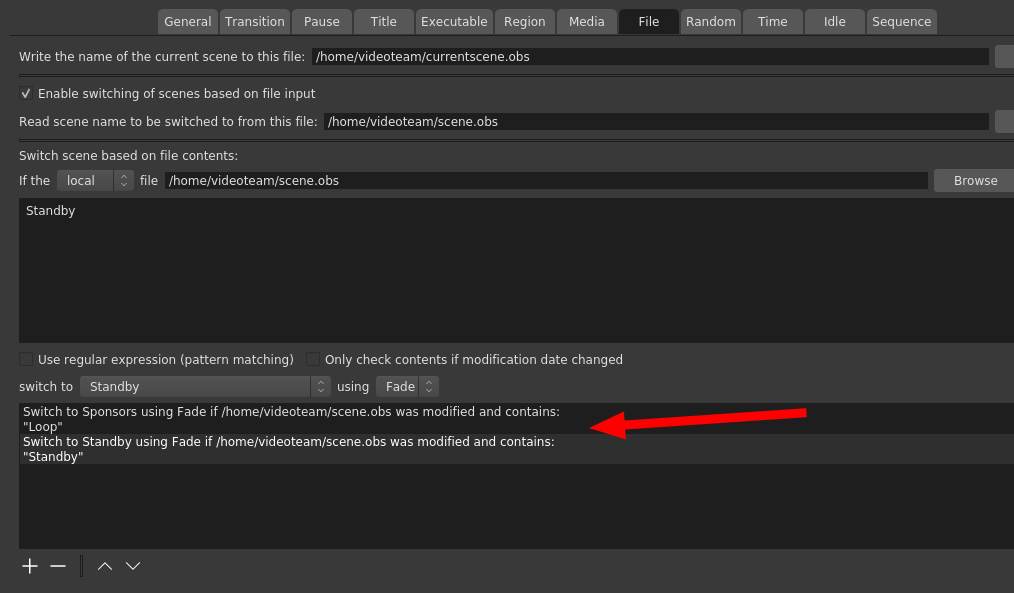
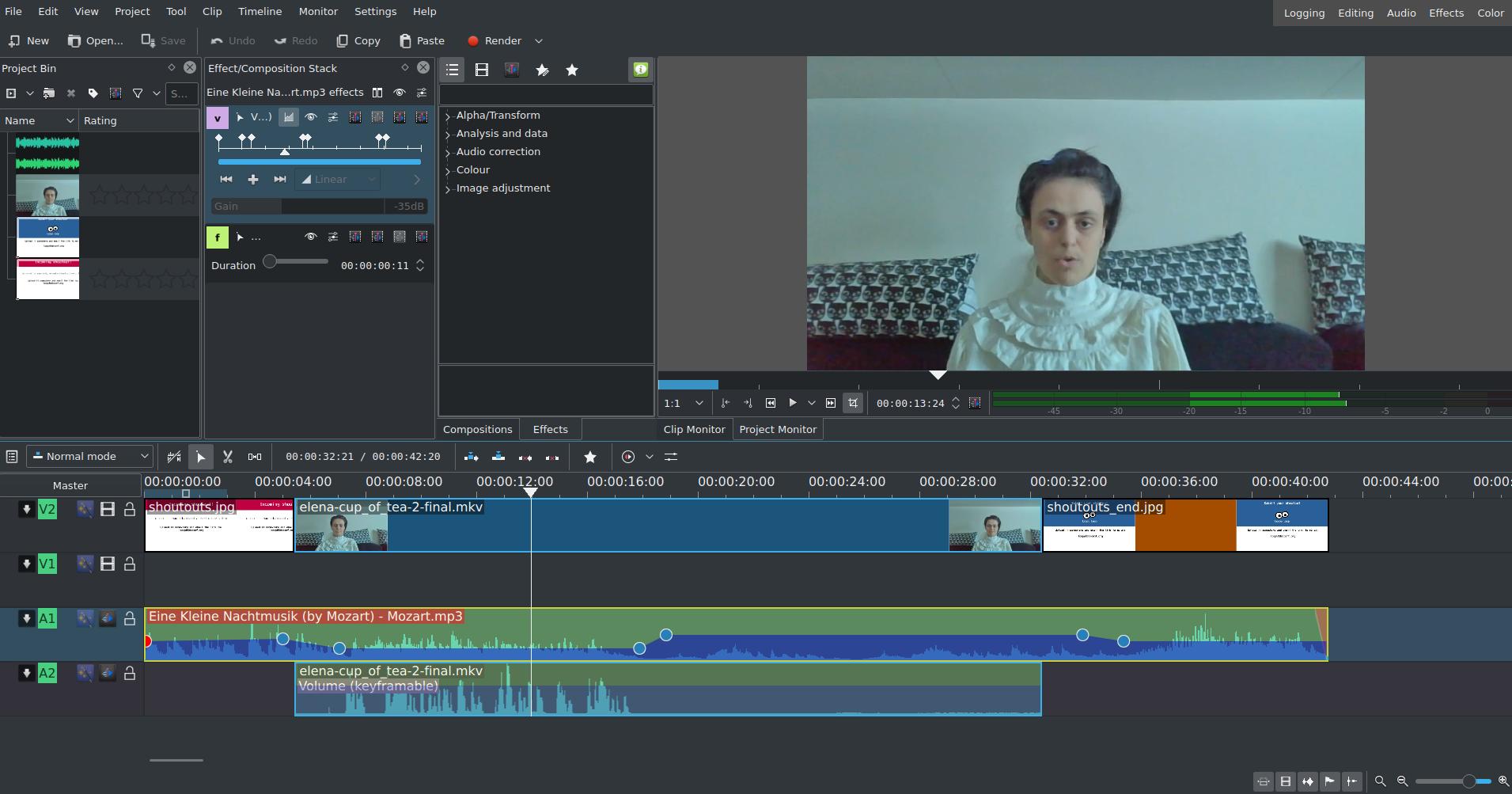

The Loopy Loop Music The two mini albums that mostly played during the first few days were just a copy and paste from the MDCO#1 music, which was:
For shoutout tracks, that were later used in the loop too (because it became a bit monotonous), most of the tracks came from freepd.com:The Debian Janitor is an automated system that commits fixes for (minor) issues in Debian packages that can be fixed by software. It gradually started proposing merges in early December. The first set of changes sent out ran lintian-brush on sid packages maintained in Git. This post is part of a series about the progress of the Janitor. Last week s blog post documented how there are now over 30,000 lintian issues that have been fixed in git packaging repositories by the Janitor. It's important to note that any fixes from the Janitor that make it into a Git packaging repository will also need to be uploaded to the Debian archive. This currently requires that a Debian packager clones the repository and builds and uploads the package. Until a change makes it into the archive, users of Debian will unfortunately not see the benefits of improvements made by the Janitor. 82% of the 30,000 changes from the Janitor that have made it into a Git repository have not yet been uploaded, although changes do slowly trickle in as maintainers make other changes to packages and upload them along with the lintian fixes from the Janitor. This is not just true for changes from the Janitor, but for all sorts of other smaller improvements as well. However, the process of cloning and building git repositories and uploading the resulting packages to the Debian archive is fairly time-consuming and it s probably not worth the time of developers to follow up every change from the Janitor with a labour-intensive upload to the archive. It would be great if it was easier to trigger uploads from git commits. Projects like tag2upload will hopefully help, and make it more likely that changes end up in the Debian archive. The majority packages do get at least one new source version upload per release, so most changes will eventually make it into the archive.
For more information about the Janitor's lintian-fixes efforts, see the landing page.
A new minor release of the anytime package arrived on CRAN yesterday. This is the twentieth release, but sadly we seem to be spinning our wheels just accomodating CRAN (which the two or three last releases focused on). Code and functionality remain mature and stable, of course.
anytime is a very focused package aiming to do just one thing really well: to convert anything in integer, numeric, character, factor, ordered, format to either POSIXct or Date objects and to do so without requiring a format string as well as accomodating different formats in one input vector. See the anytime page, or the GitHub README.md for a few examples.
This release once again has to play catchup with CRAN as r-devel now changes how tzone propagates when we do as.POSIXct(as.POSIXlt(Sys.time()) which is now no longer equal to as.POSIXct(Sys.time()) even for a fixed, stored Sys.time() call result. Probably for the better, but an issue for now so we effectively just reduced test coverage. Call it progress .
The full list of changes follows.
Courtesy of CRANberries, there is a comparison to the previous release. More information is on the anytime page. The issue tracker tracker off the GitHub repo can be use for questions and comments. If you like this or other open-source work I do, you can now sponsor me at GitHub. For the first year, GitHub will match your contributions.Changes in anytime version 0.3.9 (2020-08-26)
- Skip one test file that is impossible to run across different CRAN setups, and life is definitely too short for these games.
- Change remaining http:// to https:// because, well, you know.
This post by Dirk Eddelbuettel originated on his Thinking inside the box blog. Please report excessive re-aggregation in third-party for-profit settings.
Welcome to the 29th post in the randomly repeating R recommendations series or R4 for short. Our last post #28 introduced RSPM, and just before that we also talked in #27 about binary installations on Ubuntu (which was also a T4 video). This post is joined with I aki Ucar and mainly about work we have done with his bspm package.
install.packages(): these binaries are installed in a way that is natural for R users but as binaries. It is however entirely disconnected from the system package management. This means that the installation of a package requiring an external library may succeed and still fail, as a required library simply cannot be pulled in directly by RSPM.
So what is needed is a combination. We want binaries that are aware of their system dependencies but accessible directly from R just like RSPM offers it. Enter BSPM the Bridge to System Package Manager package (also on CRAN).
The first illustration (using Ubuntu 18.04) shows RSPM on the left, and BSPM on the right, both installing the graphics package Cairo (and both using custom Rocker containers).
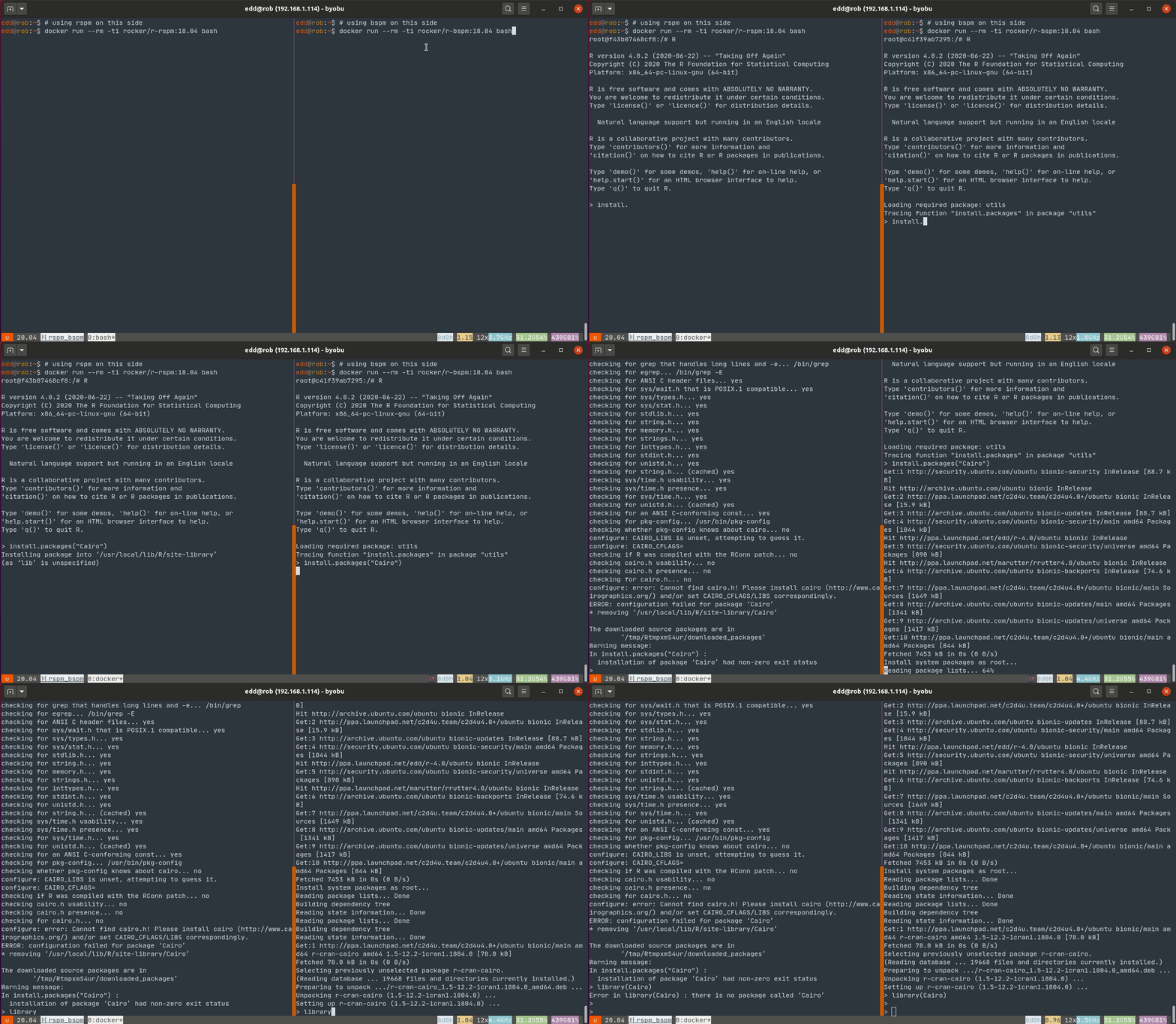 This fails for RSPM as no binary is present and a source build fails for the familiar lack of a
 -dev package. It proceeds just fine on the right under BSPM.
A second illustration shows once again RSPM on the left, and BSPM on the right (this time on Fedora), both installing the units package without a required system dependency.
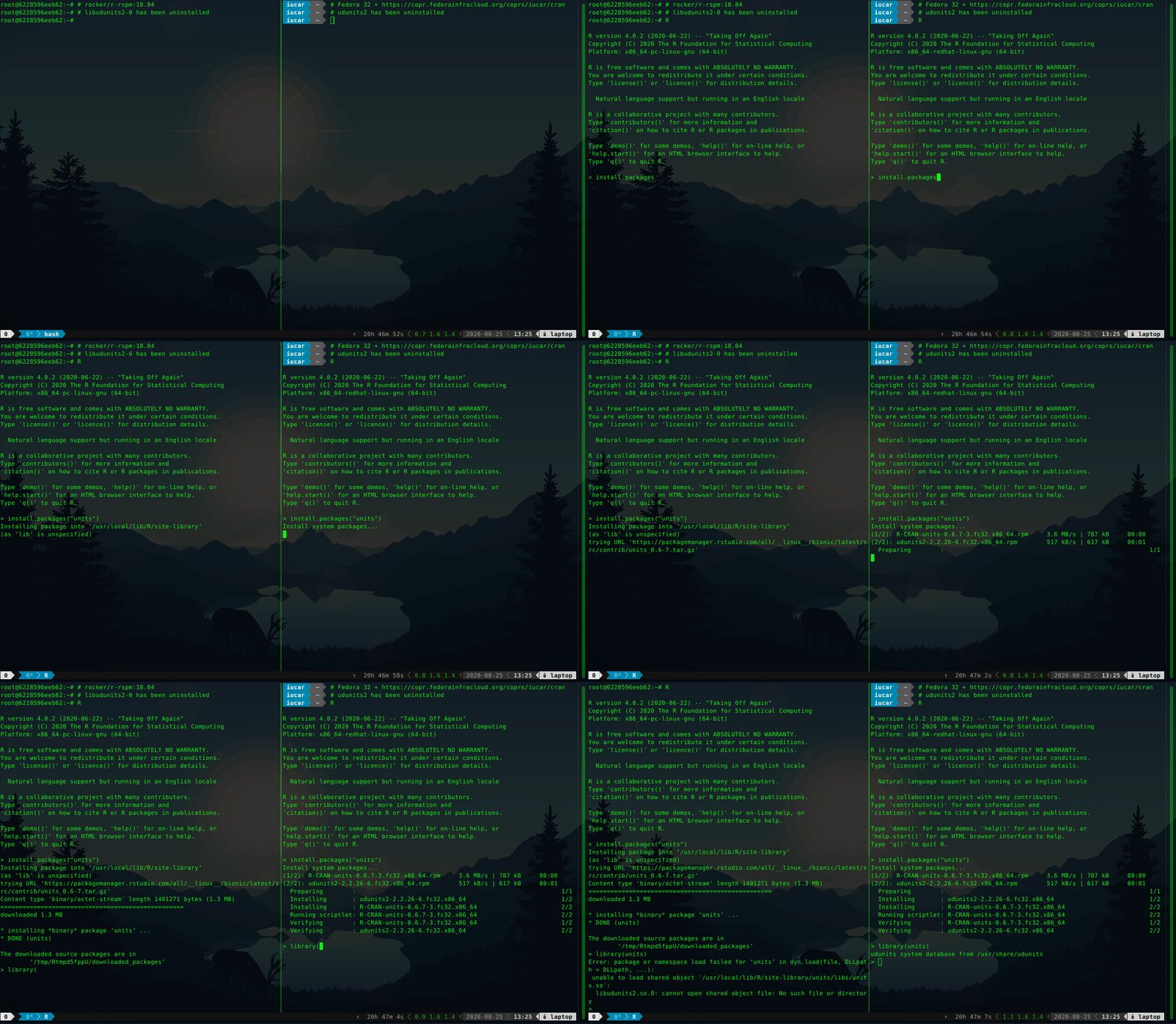 The installation of units works for BSPM as the dependency
 libudunits is brought in, but fails under RSPM. The binary installation succeeds in both cases, but the missing dependency (the UDUNITS2 library) is brought in only by BSPM. Consequently, the package fails to load under RSPM.
This post by Dirk Eddelbuettel originated on his Thinking inside the box blog. Please report excessive re-aggregation in third-party for-profit settings.
Terminal.app, which is usually
found under /Applications/Utilities. Note that Mac now defaults to zsh
instead of bash, which is usually the shell used on Linux.
This shouldn t matter, but it s something you should be aware of.
dism.exe /online /enable-feature /featurename:Microsoft-Windows-Subsystem-Linux /all /norestart
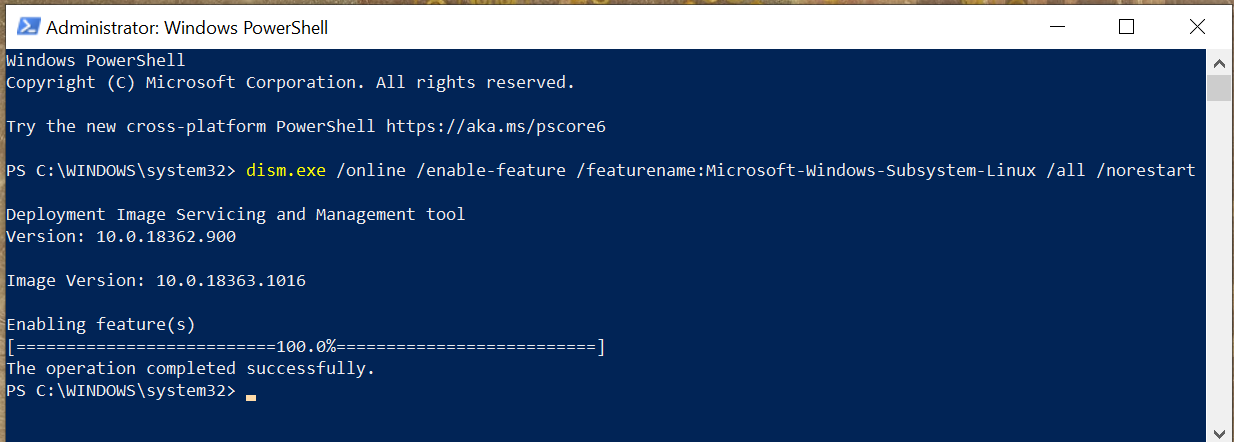 After this output appears, you ll need to reboot your machine before you can
continue.
Once your machine is rebooted, you need to install a Linux distribution.
Different communities and companies ship their own versions of Linux and the
various services and utilities required to use it, and these versions are
called distributions.
If you re not sure which one to use, I would recommend Ubuntu,
as it was the distribution first integrated into WSL, and it s a common
distribution for new users.
After installing your chosen distribution, you ll need to perform the first-time
setup. You ll just need to run it, as it is now installed as a program on your
computer, and then it will walk you through the setup process, which requires
you to create a new user account for your Linux distribution.
This does not need to be the same as your Windows username and password,
and it s probably safer if it isn t.
You ll need to remember that password for running administrative commands with
After this output appears, you ll need to reboot your machine before you can
continue.
Once your machine is rebooted, you need to install a Linux distribution.
Different communities and companies ship their own versions of Linux and the
various services and utilities required to use it, and these versions are
called distributions.
If you re not sure which one to use, I would recommend Ubuntu,
as it was the distribution first integrated into WSL, and it s a common
distribution for new users.
After installing your chosen distribution, you ll need to perform the first-time
setup. You ll just need to run it, as it is now installed as a program on your
computer, and then it will walk you through the setup process, which requires
you to create a new user account for your Linux distribution.
This does not need to be the same as your Windows username and password,
and it s probably safer if it isn t.
You ll need to remember that password for running administrative commands with
sudo.
cryptsetup-suspend, whose job is to protect the content of your harddrives while the system is sleeping.
TL;DR:
cryptsetup-suspendcryptsetup-suspend to work properly, at least Linux kernel 5.6 is required After:

cryptsetup-suspend in action:
cryptsetup-suspend works internally. It basically consists of three parts:
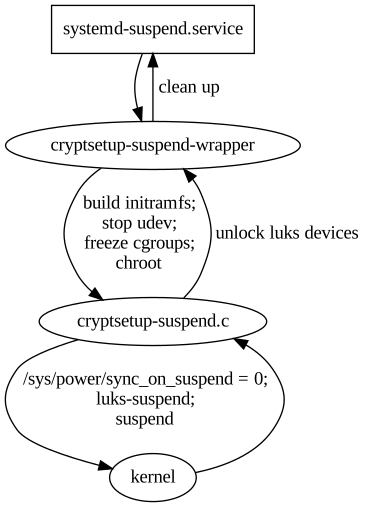
cryptsetup-suspend: A C program that takes a list of LUKS devices as arguments, suspends them via luksSuspend and suspends the system afterwards. Also, it tries to reserve some memory for decryption, which we'll explain below.cryptsetup-suspend-wrapper: A shell wrapper script which works the following way:
cryptsetup-suspendExec property of systemd-suspend.service so that it invokes the script cryptsetup-suspend-wrapper.sync() before going to sleep. A corresponding patch got accepted upstream in Linux 5.6. See section What about the kernel patch? below for details.systemd-suspend.service for hooking into the system suspend process and depends on systemds cgroup management to freeze and thaw processes. If you're using a different init system, sorry, you're currently out of luck.fssync() call will block forever as it waits for the block device to finish the sync() operation. So we need a way to conditionally disable this sync() call in the Linux kernel resume function. That's what our patch does, by introducing a run-time switch at /sys/power/sync_on_suspend, but it only got accepted into the Linux kernel recently and was first released with Linux kernel 5.6.
Since release 4.3, the Linux kernel at least provides a build-time flag to disable the sync(): CONFIG_SUSPEND_SKIP_SYNC (that was called SUSPEND_SKIP_SYNC first and renamed to CONFIG_SUSPEND_SKIP_SYNC in kernel release 4.9). Enabling this flag at build-time protects you against the dead locks perfectly well. But while that works on an individual basis, it's a non-option for the distribution Linux kernel defaults. In most cases you still want the sync() to happen, except if you have user-space code that takes care of the sync() just before suspending your system - just like our cryptsetup-suspend implementation does.
So in order to properly test cryptsetup-suspend, you're strongly advised to run Linux kernel 5.6 or newer. Fortunately, Linux 5.6 is available in buster-backports thanks to the Debian Kernel Team.

cryptsetup-suspend usable, but it certainly still has bugs and shortcomings. The most obvious one is lack of a proper user interface. Currently, we switch over to a tty command-line interface to prompt for passphrases when unlocking the LUKS devices. It certainly would be better to replace this with a graphical user interface later, probably by using plymouth or something alike. Unfortunately, it seems rather impossible to spawn a real graphical environment for the passphrase prompt. That would imply to load the full graphical stack into the ramfs, raising the required amount of memory significantly. Lack of memory is currently our biggest concern and source of trouble.
We'd definitely appreciate to learn about your ideas how to improve the user experience here.
cryptsetup-suspend package from experimental. It's not necessary to upgrade the other cryptsetup packages. On Debian Buster, cryptsetup packages from backports are required.
cryptsetup-suspend package from experimental. Beware that cryptsetup-suspend depends on cryptsetup-initramfs (>= 2:2.3.3-1~). Either you need the cryptsetup packages from testing/unstable, or the backports from buster-backports.cryptsetup-suspend package installed, everything should be in place: Just send your system to sleep. It should switch to a virtual text terminal before going to sleep, ask for a passphrase to unlock your encrypted disk(s) after resume and switch back to your former working environment (most likely your graphical desktop environment) afterwards.cryptsetup-suspend only protects the encryption keys of your LUKS devices. Most likely there's more sensitive data in system memory, like all kinds of private keys (e.g. OpenPGP, OpenSSH) or documents with sensitive content.
We hope that the community will help improve this situation by providing useful pre-/post-suspend scripts. A positive example is KeepassXC, which is able to lock itself when going to suspend mode.
luks-suspend-* implementations. Unfortunately, neither of them deal with all the Technical challenges and caveats we discovered. Still we'd like to mention some of them:debian/experimental branch of our Debian cryptsetup packaging repository, containing cryptsetup-suspend related changes: https://salsa.debian.org/cryptsetup-team/cryptsetup/-/tree/debian/experimentalcryptsetup-suspend manpage: https://salsa.debian.org/cryptsetup-team/cryptsetup/-/blob/debian/experimental/debian/doc/cryptsetup-suspend.xml After we gave our talk at DebConf 20, Doing things together,
there were 5 minutes left for the live Q&A. Pollo asked a question that I
think is interesting and deserves a longer answer: How can we still have a
good code review process without making it a "you need to be perfect"
scenario? I often find picky code reviews help me write better code.
I find it useful to first disentangle
what code reviews are good for, how we do them, why we do them that way, and
how we can potentially improve processes.
What are code reviews good for?
Code review and peer review are great methods for cooperation aiming at:
Shortly after yesterday s start of the Debian Conference 2020, I had the honor to participate in a BoF on social equality in free software, led by the OSI vice president and head of the FOSSASIA community, Hong Phuc Dang. The group of discussants consisted of OSS representatives from a wide variety of countries (India, Indonesia, China, Hong Kong, Germany, Vietnam, Singapore, Japan).
After we gave our talk at DebConf 20, Doing things together,
there were 5 minutes left for the live Q&A. Pollo asked a question that I
think is interesting and deserves a longer answer: How can we still have a
good code review process without making it a "you need to be perfect"
scenario? I often find picky code reviews help me write better code.
I find it useful to first disentangle
what code reviews are good for, how we do them, why we do them that way, and
how we can potentially improve processes.
What are code reviews good for?
Code review and peer review are great methods for cooperation aiming at:
Shortly after yesterday s start of the Debian Conference 2020, I had the honor to participate in a BoF on social equality in free software, led by the OSI vice president and head of the FOSSASIA community, Hong Phuc Dang. The group of discussants consisted of OSS representatives from a wide variety of countries (India, Indonesia, China, Hong Kong, Germany, Vietnam, Singapore, Japan).
 After a short introduction by Hong Phuc we turned to a self-introduction and what is equality for me round. This brought up already a wide variety of issues that need to be addressed if we want to counter inequality in free software (culture differences, language barriers, internet connection, access to services, onboarding difficulties, political restrictions, ).
Unfortunately, on-air time was rather restricted, but even after the DebConf related streaming time slot was finished, we continued discussing problems and possible approaches for another two hours. We have agreed to continue our collaboration and meetings in the hope that we, in particular the FOSSASIA community, can support those in need to counter inequality.
Concluding, I have to say I am very happy to be part of the FOSSASIA community where real diversity is lived and everyone strives for and tries to increase social equality. In the DebConf IRC chat I was asked why at FOSSASIA we have about a 50:50 quote between women and men, in contrast to the usual 10:90 predominant in most software communities including Debian. For me this boils down to many reasons, one being competent female leadership, Hong Phuc is inspiring and competent to a degree I haven t seen in anyone else. Another reason is of course that software development is, especially in developing countries, one of the few escape pods for any gender, and thus fully embraced by normally underrepresented groups. Finally, but this is a typical chicken-egg problem, the FOSSASIA community is not doing any specific gender politics, but simply remains open and friendly to everyone. I think Debian, and in particular the diversity movement in Debian can learn a lot from the FOSSASIA community. At the end we are all striving for more equality in our projects and in the realm of free software as a whole!
Thanks again for all the participants for the very inspiring discussion, and I am looking forward to our next meetings!
After a short introduction by Hong Phuc we turned to a self-introduction and what is equality for me round. This brought up already a wide variety of issues that need to be addressed if we want to counter inequality in free software (culture differences, language barriers, internet connection, access to services, onboarding difficulties, political restrictions, ).
Unfortunately, on-air time was rather restricted, but even after the DebConf related streaming time slot was finished, we continued discussing problems and possible approaches for another two hours. We have agreed to continue our collaboration and meetings in the hope that we, in particular the FOSSASIA community, can support those in need to counter inequality.
Concluding, I have to say I am very happy to be part of the FOSSASIA community where real diversity is lived and everyone strives for and tries to increase social equality. In the DebConf IRC chat I was asked why at FOSSASIA we have about a 50:50 quote between women and men, in contrast to the usual 10:90 predominant in most software communities including Debian. For me this boils down to many reasons, one being competent female leadership, Hong Phuc is inspiring and competent to a degree I haven t seen in anyone else. Another reason is of course that software development is, especially in developing countries, one of the few escape pods for any gender, and thus fully embraced by normally underrepresented groups. Finally, but this is a typical chicken-egg problem, the FOSSASIA community is not doing any specific gender politics, but simply remains open and friendly to everyone. I think Debian, and in particular the diversity movement in Debian can learn a lot from the FOSSASIA community. At the end we are all striving for more equality in our projects and in the realm of free software as a whole!
Thanks again for all the participants for the very inspiring discussion, and I am looking forward to our next meetings!
msmtp in this case) to talk to the GMail
servers on your behalf, and send emails, you can't just use your usual GMail
password. Instead, GMail requires you to generate so-called app passwords,
one for each application that needs to access your GMail account.
This approach has several advantages:
qwertyuiopqwerty. It's
supposed to be used from only one place, ie. from ONE application that is
installed on ONE device. That's why it's common to give it a name of the form
application@device, so in our case it could be msmtp@laptop, but really
it's free form, choose whatever name suits you, as long as it makes sense to
you.
So let's give a name to this app password, write it down for now, and we're
done with the GMail config.
Send your first email
Time to get started with msmtp.
First thing first, installation, trivial:
sudo apt install msmtp
# Write a dummy email
cat << EOF > message.txt
From: YOUR_LOGIN@gmail.com
To: SOMEONE_ELSE@SOMEWHERE_ELSE.com
Subject: Cafe Sua Da
Iced-coffee with condensed milk
EOF
# Send it
cat message.txt   msmtp \
    --auth=on --tls=on \
    --host smtp.gmail.com \
    --port 587 \
    --user YOUR_LOGIN \
    --read-envelope-from \
    --read-recipients
# msmtp prompts you for your password:
# this is where goes the app password!
message.txt, we provided From: (the email address of the person
sending the email) and To: (the destination email address). Then we asked
msmtp to re-use those values to set the envelope of the email with
--read-envelope-from and --read-recipients.
What about the other parameters?
--auth=on because we want to authenticate with the server.--tls=on because we want to make sure that the communication with the
server is encrypted.--host and --port tells where to find the server. If you don't use GMail,
adjust that accordingly.--user is obviously your GMail username.~/.msmtprc and ~/.config/msmtp/config, at
your preference. In this tutorial we'll use ~/.msmtprc for brevity:
cat << 'EOF' > ~/.msmtprc
defaults
tls on
account gmail
auth on
host smtp.gmail.com
port 587
user YOUR_LOGIN
from YOUR_LOGIN@gmail.com
account default : gmail
EOF
defaults are the default values for all the following accounts.account are the settings specific to this account, until another
account line is found.# Write a dummy email. Note that the
# header 'From:' is no longer needed,
# it's already in '~/.msmtprc'.
cat << 'EOF' > message.txt
To: SOMEONE_ELSE@SOMEWHERE_ELSE.com
Subject: Flat White
The milky way for coffee
EOF
# Send it
cat message.txt msmtp \
--account default \
--read-recipients
--account default is not needed, as it's the default anyway if you
don't provide a --account argument. Furthermore --read-recipients can be
shortened as -t. So we can make it real short now:
msmtp -t < message.txt
msmtp >=
1.8.11-2
, and you're all good to go. For those having an older version than
that however, you will have to install the package msmtp-gnome in order to
have msmtp built with libsecret support. Note that this package depends on
seahorse, hence it pulls in a good part of the GNOME stack when you install
it. For those not running GNOME, that's unfortunate. All of this was discussed
and fixed in #962689.
Alright! So let's just make sure that the libsecret tools are installed:
sudo apt install libsecret-tools
secret-tool store --label msmtp \
    host smtp.gmail.com \
    service smtp \
    user YOUR_LOGIN
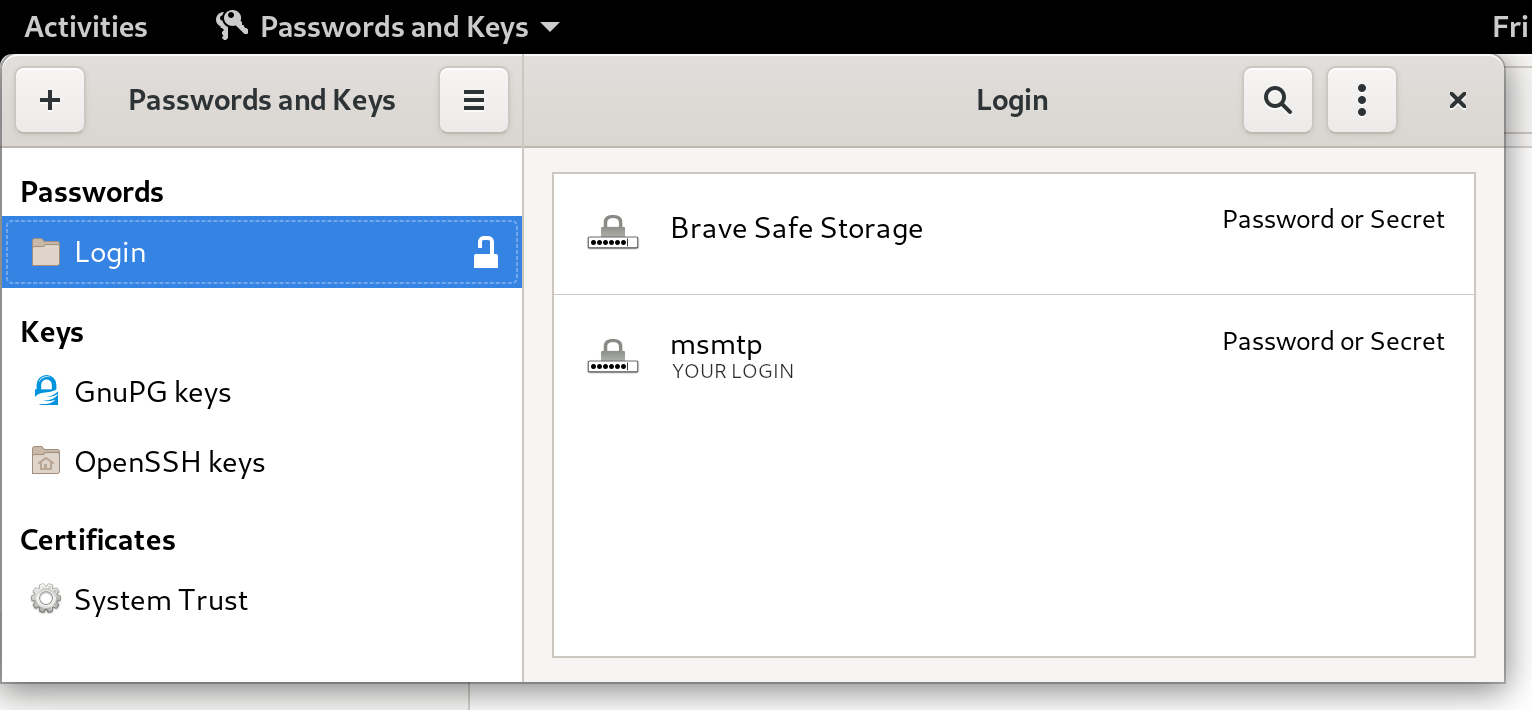
seahorse (for GNOME users), or kwalletmanager5
(for KDE users), and then you will see what passwords are stored in there.
Here's a screenshot of Seahorse, with a msmtp password stored:
 Let's try to send an email again:
msmtp -t < message.txt
git send-email actually send emails? From the
git-send-email manual page:
the built-in default is to search for sendmail in /usr/sbin, /usr/lib and $PATH if such program is availableIt is possible to override this default though:
--smtp-server=So in order to use msmtp here, you'd add a snippet like that to your
[...] Alternatively it can specify a full pathname of a sendmail-like program instead; the program must support the -i option.
~/.gitconfig file:
[sendemail]
    smtpserver = /usr/bin/msmtp
bts or reportbug are also good examples of command-line tools
that need to send emails.
From the bts manual page:
--sendmail=SENDMAILCMDSo if you want bts to send emails with msmtp instead of sendmail, you must use
Specify the sendmail command [...] Default is /usr/sbin/sendmail.
bts --sendmail='/usr/bin/msmtp -t'.
Note that bts also loads settings from the file /etc/devscripts.conf and
~/.devscripts, so you could also set BTS_SENDMAIL_COMMAND='/usr/bin/msmtp
-t' in one of those files.
From the reportbug manual page:
--mta=MTAIn order to use msmtp here, you'd write
Specify an alternate MTA, instead of /usr/sbin/sendmail (the default).
reportbug --mta=/usr/bin/msmtp.
Note that reportbug reads it settings from /etc/reportbug.conf and
~/.reportbugrc, so you could as well set mta /usr/bin/msmtp in one of those
files.
So who is this sendmail again?
By now, you probably noticed that sendmail seems to be considered the
default tool for the job, the "traditional" command that has been around for
ages.
Rather than configuring every tool to use something else than sendmail,
wouldn't it be simpler to actually replace sendmail by msmtp? Like, create a
symlink that points to msmtp, something like ln -sr /usr/bin/msmtp
/usr/sbin/sendmail? So that msmtp acts as a drop-in replacement for sendmail,
and there's nothing else to configure?
Answer is yes, kind of. Actually, the first msmtp feature
that is listed on the homepage is "Sendmail compatible interface (command
line options and exit codes)". Meaning that msmtp is a drop-in replacement
for sendmail, that seems to be the intent.
However, you should refrain from creating or modifying anything in /usr, as
it's the territory of the package manager, apt. Any change in /usr might be
overwritten by apt the next time you run an upgrade or install new packages.
In the case of msmtp, there is actually a package named msmtp-mta that will
create this symlink for you. So if you really want a definitive replacement for
sendmail, there you go:
sudo apt install msmtp-mta
/usr/sbin/sendmail
/usr/bin/msmtp
, and there's no need to configure git, bts, reportbug or
any other tool that would rely on sendmail. Everything should work "out of the
box".
Conclusion
I hope that you enjoyed reading this article! If you have any comment, feel
free to send me a short email, preferably from your terminal!
Next.