
In the
previous post on the multi-boot usb stick, Debian had to be dropped, due to missing support of iso-loading in the Debian installer iso images. Thanks to helpful comments from
Jonathan McDowell and private emails, we found a way around this. In addition to having again an installable Debian image, I also added
GRML support.

There are a few tricks necessary to get this going, though.
Let us start with the easy part, grml:
Grml
Quoting from the
home page of Grml
Grml provides an excellent selection of software packages for installation, deployment and system rescue. You ll get sysadmin s favourite tools. Choose between a x86 and an amd64 version depending on your needs or just grab the multiboot ISO grml96, providing 64bit and 32bit ISOs in one single place.
I went for the 64bit version Version 2014.11 (named Gschistigschasti , a typical Austrian expression for fuss ), as most computers nowadays are anyway 64bit capable, downloaded the image file
grml64-full_2014.11.iso, and saved it into my USB stick s
boot/iso/ directory, where there are already the other iso images.
Then, with the help of the Grml web page which provides guidance how to boot from ISO, I added the following entry to my
grub.cfg:
submenu "GRML 2014.11 ---> "
  menuentry "Grml Rescue System 64bit"
        iso_path="/boot/iso/grml64-full_2014.11.iso"
        export iso_path
        loopback loop (hd0,1)$iso_path
        set root=(loop)
        kernelopts=" ssh=SOME_PASSWORD_HERE toram  "
        export kernelopts
        configfile /boot/grub/loopback.cfg
|
Note that if you add the
ssh=SOME_PASSWORD_HERE part, an ssh server is started and the root login password will be set to
SOME_PASSWORD_HERE, so choose it wisely (and different from your normal passwords!). If you don t want a running ssh server, simply remove the ssh parameter.
That s it, booting into Grml takes quite some time, but worked out nicely.
Debian Jessie installation
As mentioned in the
previous post, booting Debian/Jessie installation images via any method didn t work, since the iso images is never found. It turned out that the current installer iso images do not contain the
iso-scan package, which is responsible for searching and loading of iso images.
But with a small trick one can overcome this: One needs to replace the initrd that is on the ISO image with one that contains the iso-scan package. And we do not need to create these initrd by ourselves, but simply use the ones from
hd-media type installer. I downloaded the following four gzipped initrds from one of the Debian mirrors:
i386/initrd text mode,
i386/initrd gui mode,
amd64/initrd text mode,
amd64/initrd gui mode, and put them into the USB stick s
boot/debian/install.386,
boot/debian/install.386/gtk,
boot/debian/install.amd,
boot/debian/install.amd/gtk, respectively. Finally, I added entries similar to this one (rest see the
grub.cfg file):
submenu "Debian 8.0 Jessie NetInstall ---> "
    set isofile="/boot/iso/firmware-8.0.0-amd64-i386-netinst.iso"
    menuentry '64 bit Install'
        set background_color=black
        loopback loop (hd0,1)$isofile
        linux    (loop)/install.amd/vmlinuz iso-scan/ask_second_pass=true iso-scan/filename=$isofile vga=788 -- quiet
        initrd   /boot/debian/install.amd/initrd.gz

    ...
|
Again an important point, don t forget the two kernel command line options:
iso-scan/ask_second_pass=true iso-scan/filename=$isofile, otherwise you probably will have to make the installer scan all disks and drives completely, which might take ages.
With that in place, the stick now is back to full working, plus an added Grml. Thanks everyone for the suggestions.

 Whoop! Looking forward to it already (though will probably spend it feeling I should be finishing my dissertation).
Outbound:
Whoop! Looking forward to it already (though will probably spend it feeling I should be finishing my dissertation).
Outbound:
 What happened in the
 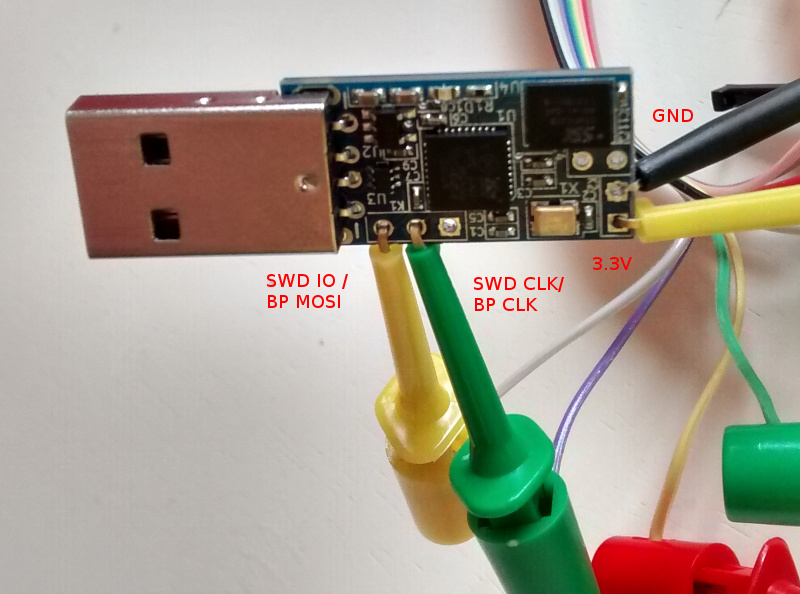 That s BP MOSI (grey) to SWD IO, BP CLK (purple) to SWD CLK, BP 3.3V (red) to FST-01 PWR and BP GND (brown) to FST-01 GND. Once that was done I fired up OpenOCD in one terminal and did the following in another: